Database Encryption
-
RavenDB supports database encryption at rest.
Each encrypted database has its own secret key, used to encrypt and decrypt its data. -
In this article:
Creating an encrypted database using Studio
When creating an encrypted database using Studio, Studio provides the database's secret key.
Save this key for recovery, including restoring backups encrypted with that key.
You do not need to supply it during normal database operations.
See Secret Key Management for more information.
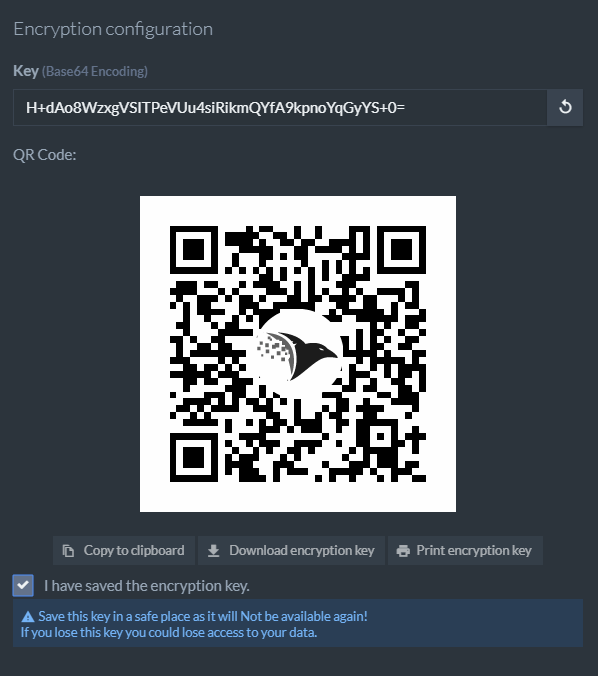
Save the secret key
Download, print, or copy the secret key and store it in a safe place before completing database creation.
After creation, the key will no longer be displayed in the database creation dialog.
Creating an encrypted database using the REST API and the Client API
Before creating the database, generate a 32-byte (256-bit) key and supply it as a Base64 string.
The examples below use RavenDB's key generation endpoint.
If you generate your own key, use a cryptographically secure random number generator.
Keep a secure copy of the key for recovery.
These examples require:
- A RavenDB server configured for HTTPS and authentication.
- A license that includes database encryption.
- A client certificate with
OperatororClusterAdminclearance. - An initialized
DocumentStoreconfigured with that certificate.
The examples create MyEncryptedDatabase on a single node (A).
Replace https://your-server-url with the URL of the node that will host the database,
and replace A with that node's tag.
Storing a key through /admin/secrets installs it only on the server receiving the request.
For multiple nodes, use POST /admin/secrets/distribute?name=MyEncryptedDatabase&node=A&node=B&node=C
to store the same key on each node before creating the database.
Send the Base64 key in the request body. Include those same nodes in DatabaseRecord.Topology.Members.
Use a new database name when repeating the complete example.
By default, RavenDB rejects a different secret key if one is already stored for that name.
Windows example
These commands use Windows PowerShell 5.1.
Load the client certificate:
$cert = Get-PfxCertificate -FilePath C:\secrets\admin.client.certificate.example.pfx
Configure Windows PowerShell to use TLS 1.2:
[Net.ServicePointManager]::SecurityProtocol = [Net.SecurityProtocolType]::Tls12
Ask RavenDB to generate a key for you:
$response = Invoke-WebRequest -UseBasicParsing `
    -Uri "https://your-server-url/admin/secrets/generate" `
    -Certificate $cert
Store the key on the node that will host the database, using the future database name (MyEncryptedDatabase).
The database does not need to exist yet:
$payload = [System.Text.Encoding]::ASCII.GetString($response.Content)

Invoke-WebRequest -UseBasicParsing `
    -Uri "https://your-server-url/admin/secrets?name=MyEncryptedDatabase" `
    -Certificate $cert `
    -Method POST `
    -ContentType "text/plain" `
    -Body $payload
Finally, create the encrypted database using the Client API:
- Sync
- Async
store.Maintenance.Server.Send(
    new CreateDatabaseOperation(
        new DatabaseRecord("MyEncryptedDatabase")
        {
            Encrypted = true,
            Topology = new DatabaseTopology
            {
                Members = { "A" }
            }
        }));
await store.Maintenance.Server.SendAsync(
    new CreateDatabaseOperation(
        new DatabaseRecord("MyEncryptedDatabase")
        {
            Encrypted = true,
            Topology = new DatabaseTopology
            {
                Members = { "A" }
            }
        }));
Linux example
The certificate ZIP downloaded from Studio contains .pfx, .crt, and .key files.
Use the .crt and .key files to create a .pem file:
cat admin.client.certificate.example.crt \
    admin.client.certificate.example.key > clientCert.pem
Ask RavenDB to generate a key for you:
key=$(
    curl --fail --silent --show-error \
        --cert clientCert.pem \
        "https://your-server-url/admin/secrets/generate"
)
Store the key on the node that will host the database, using the future database name (MyEncryptedDatabase).
The database does not need to exist yet:
curl --fail --silent --show-error \
    -X POST \
    -H "Content-Type: text/plain" \
    --data "$key" \
    --cert clientCert.pem \
    "https://your-server-url/admin/secrets?name=MyEncryptedDatabase"
Finally, create the encrypted database using the Client API:
- Sync
- Async
store.Maintenance.Server.Send(
    new CreateDatabaseOperation(
        new DatabaseRecord("MyEncryptedDatabase")
        {
            Encrypted = true,
            Topology = new DatabaseTopology
            {
                Members = { "A" }
            }
        }));
await store.Maintenance.Server.SendAsync(
    new CreateDatabaseOperation(
        new DatabaseRecord("MyEncryptedDatabase")
        {
            Encrypted = true,
            Topology = new DatabaseTopology
            {
                Members = { "A" }
            }
        }));
Considerations for encrypted databases
Enabling database encryption
-
Database encryption must be enabled when creating the database.
-
To encrypt an existing database, export its data and import it into a new encrypted database.
Indexing transaction size
-
Indexing is most efficient when it is performed in the largest transactions possible.
However, using encryption is very memory intensive, and if memory runs out before the transaction completes, the entire transaction will fail. -
To avoid this, you can limit the size of indexing batches in encrypted databases using Indexing.Encrypted.TransactionSizeLimitInMb.
Vector search node cache
-
The HNSW node cache is disabled for Corax vector indexes on encrypted databases. This applies to both static indexes and auto-indexes created by dynamic vector queries.
-
The cache is incompatible with encryption, so Indexing.Corax.VectorSearch.CacheSizeInMb is ignored on encrypted databases. Vector queries read the HNSW graph from disk.
-
Without the cache, vector queries may require more disk reads, which can reduce query performance.
Query results remain unchanged. -
Lucene indexes and Corax indexes without vector fields are unaffected.
On unencrypted databases, the HNSW node cache remains available and is controlled byIndexing.Corax.VectorSearch.CacheSizeInMb.