Quill: Overview
-
Databases like PostgreSQL, SQL Server, and MySQL lack AI capabilities that could greatly improve user experience.
For example, a company that runs one of these databases may want to offer its website visitors a chat box that answers their questions using the company's live data.
To accomplish this, the company would have to either build the chat box from scratch, an effort that requires expertise in AI, databases, and security, or migrate to a database that already offers such capabilities, a major undertaking as well.Quill is a ready-made alternative that spares you both efforts: it runs as a service in a Docker container beside your database, reads your live data using access details you provide, and publishes AI interfaces (like the chat box mentioned above) that offer your users the AI experience you want to incorporate.
Your data, your workflows, and your applications remain unchanged. -
Quill reads from your database only to mirror part of your data: you select the tables it may draw answers from, and Quill keeps a live copy of the data they contain in an internal database.
Replies are drawn from this internal database, while your own database goes on serving your applications exactly as before. -
Getting Quill running is a guided process, from the sign-up page, through a setup wizard, to a working AI interface for your users.
Once this process is complete, day-to-day management is done using Quill's dashboard, including changes to the mirrored data and to the user-facing side, like the chat box, as well as usage and license tracking. -
In this article:
What Quill is
Quill is a complete AI service for your PostgreSQL, SQL Server, or MySQL database, packaged as a single Docker container.
Quill's Docker container includes everything Quill runs:
- The machinery that mirrors your source database's tables.
- An internal database that holds the mirrored data.
- AI agents that talk with your users, query the mirrored data, and compose the replies.
- The channels that carry the conversations, like a web widget channel with a chat box on your website.
- Quill's management dashboard.
How the parts work together
Parts of the Quill service and the data flow between them:

The components
Your applications
- Your applications, like your online store or your in-house tools, keep reading from and writing to your SQL database as usual.
- Quill takes no part in this traffic.
Your SQL database
- Your existing SQL database: PostgreSQL, SQL Server, or MySQL.
- Quill reaches your database using a connection string you provide, and reads only the tables you select.
- Your data is only read, never modified.
Mirroring
- During setup, Quill begins mirroring your data by reading the selected tables from your SQL database in full, and copies
their current contents into its internal database.
This initial operation may take some time when large tables are copied; if the operation is interrupted, Quill will resume it where it stopped rather than start over. - To keep the data in its internal database current, Quill uses your SQL database's change-recording facility.
- PostgreSQL, SQL Server, and MySQL each provide a built-in facility that records every change made to the data.
- Quill continuously reads this record of changes, and applies each insert, update, and deletion made in the selected
tables to the internal database.
Preparing the change-recording facility for the selected tables is part of Quill's setup; if permissions are missing, Quill will provide the exact script for your database admin to run.
- The change-tracking technique described here is called CDC (Change Data Capture).
A reader of the recorded changes, like Quill, is called a CDC sink.
The term "CDC" appears in Quill's dashboard as well, naming the views and settings related to mirroring.
Internal database
- The result is a mirrored database: a live copy of the data in the selected tables, kept current as the source data changes.
- Quill's internal database is a RavenDB document database, and Quill therefore stores the mirrored data not in tables but
as JSON documents.
During setup, Quill suggests how the rows of each selected table become documents, and you can accept or adjust the suggestion.
For example, an order's lines, read from your SQL database, can be stored in the order document, or kept as separate order-line documents that link to the order document.
AI agent
- Agents are AI components that Quill uses to handle user conversations.
- Agents carry two kinds of tools, and apply both freely during conversations: query tools and actions.
Quill drafts an agent's query tools for you; you can adjust them, add your own, and define the agent's actions.- An agent will use a query tool to retrieve from Quill's internal database data required by a user, and then answer the user based on the retrieved data.
- An agent will use an action to send a request to a web address on behalf of the user, e.g., to open a support ticket in an external system.
- Agents use the LLM (Large Language Model) to phrase their replies.
Channels
- A channel carries the conversations between your users and an agent: user messages reach the agent through the channel, and replies return the same way.
- Each channel is bound to a single agent.
- An agent can serve several channels at once.
Web widget
- A web widget is a channel that opens to a chat box on your website page.
- Several web widget channels can serve your website, each carrying conversations to its own agent (e.g., a product assistant on the catalog page, and a support assistant on the orders page).
Your users
- Users need no account with Quill and no knowledge of it: they simply type questions into a channel, like the chat box on your website, and get the agent's replies in return.
LLM
- Quill connects to an LLM provider (OpenAI, Azure OpenAI, or Ollama) using access details that you provide. To connect to OpenAI, for example, you will need to provide your OpenAI API key.
- Agents draw their answers from Quill's internal database (mirroring your SQL database), so their replies to users are based on your actual, current data records rather than on the LLM's general knowledge.
Answering questions
Each exchange between a user and an agent starts at a channel, like a web widget with a chat box on your website, and is answered with data from the mirrored database, a full RavenDB database running inside the Docker container.
- When a user enters a question, the channel carries the question to the agent, which forwards it to the LLM.
- While the LLM composes a reply, it may request the agent to query Quill's internal database for data the reply needs.
The agent queries the database, and passes the results to the LLM.
When the final reply is ready, the LLM returns it to the agent, which passes it to the user over the channel. - Your SQL database takes no part in answering.
- Quill keeps all the conversations held by its agents, and you can inspect them in the dashboard's Conversations view.
One Quill, several apps
- An app groups the working parts described above: a connection to one source database, the mirrored database built from it, and the agents and channels that answer from this database.
- A single Quill container can run several apps, each with its own source, database, agents, and channels (e.g., one app for your store and another for your support system).
- Quill's dashboard lists your apps side by side and is where you create and manage them.
What is public and what is protected
Keeping Quill secure is part of the package: at sign-up, Quill receives its own web address and TLS certificates, so its management dashboard and the chat boxes it serves are served over HTTPS from the moment Quill first starts, with no certificate handling on your side.
- Quill reaches your SQL database using the access details you provide; your data is only read, never modified.
- Chat box pages are the only public part of the service.
- A chat box is reached through an embed link you place in your page.
Each link expires, serves a limited number of exchanges, and can be revoked at any time. - Quill's management dashboard requires the API key you receive at sign-up.
- Direct access to Quill's internal database requires a client certificate.
- Quill reaches the LLM provider using the access details your provider requires.
- All traffic runs over HTTPS, using the TLS certificates issued at sign-up.
From sign-up to a working chat
The stages below establish a Quill deployment: a running Quill container with a web address, a license, and a management dashboard of its own.
The road from sign-up to a working AI interface:
-
Sign-up
The deployment gets its identity.
On the sign-up page, you choose a name for the new deployment and provide the address of the machine that will run Quill; the name becomes the deployment's subdomain:<your-name>.myquill.ai.
The page returns a license key, an API key, and a ready-to-run install command. -
First start
Quill starts running on your machine.
The install command downloads Quill and starts its Docker container.
During this first start, Quill activates itself using the license key, and then exposes the management dashboard over HTTPS. -
Database connection
Quill connects to your SQL database and starts mirroring it.
A setup wizard in the management dashboard takes the connection details of your SQL database and lists the database's tables.
You select the tables that Quill will mirror, and approve or adjust the document mapping Quill suggests.
When the wizard completes, Quill starts mirroring the selected tables, and keeps this data current from then on. -
LLM connection
Quill gets access to an LLM.
You store the access details of your LLM provider (e.g., an OpenAI API key) in the dashboard, as an AI connection string.
Agents will use this connection string to connect to the LLM and phrase their replies. -
Agent creation
The deployment gains its first agent.
Quill examines the mirrored data and drafts agent configurations that fit it, their query tools already written.
If your data includes a product catalog, for example, one draft will be a catalog assistant; if it includes orders, another will be an order-support assistant.
You pick a draft or configure an agent of your own, adjust the agent's tools, and test the agent in the dashboard. -
Channel creation
The agent goes live.
You create a channel that carries the conversations between your users and the agent: a web widget channel with a chat box on your website, a Telegram bot, a Slack app, or a Discord bot.
For a web widget channel, for example, you generate an embed link; placed in a page of your website, the link will display the chat box, live and answering from the mirrored data.
The management dashboard
Once a deployment runs, day-to-day management is done using Quill's management dashboard, reachable through the
deployment's web address.
The dashboard opens with the deployment's apps; each app then has an overview of its own, like the one shown here:
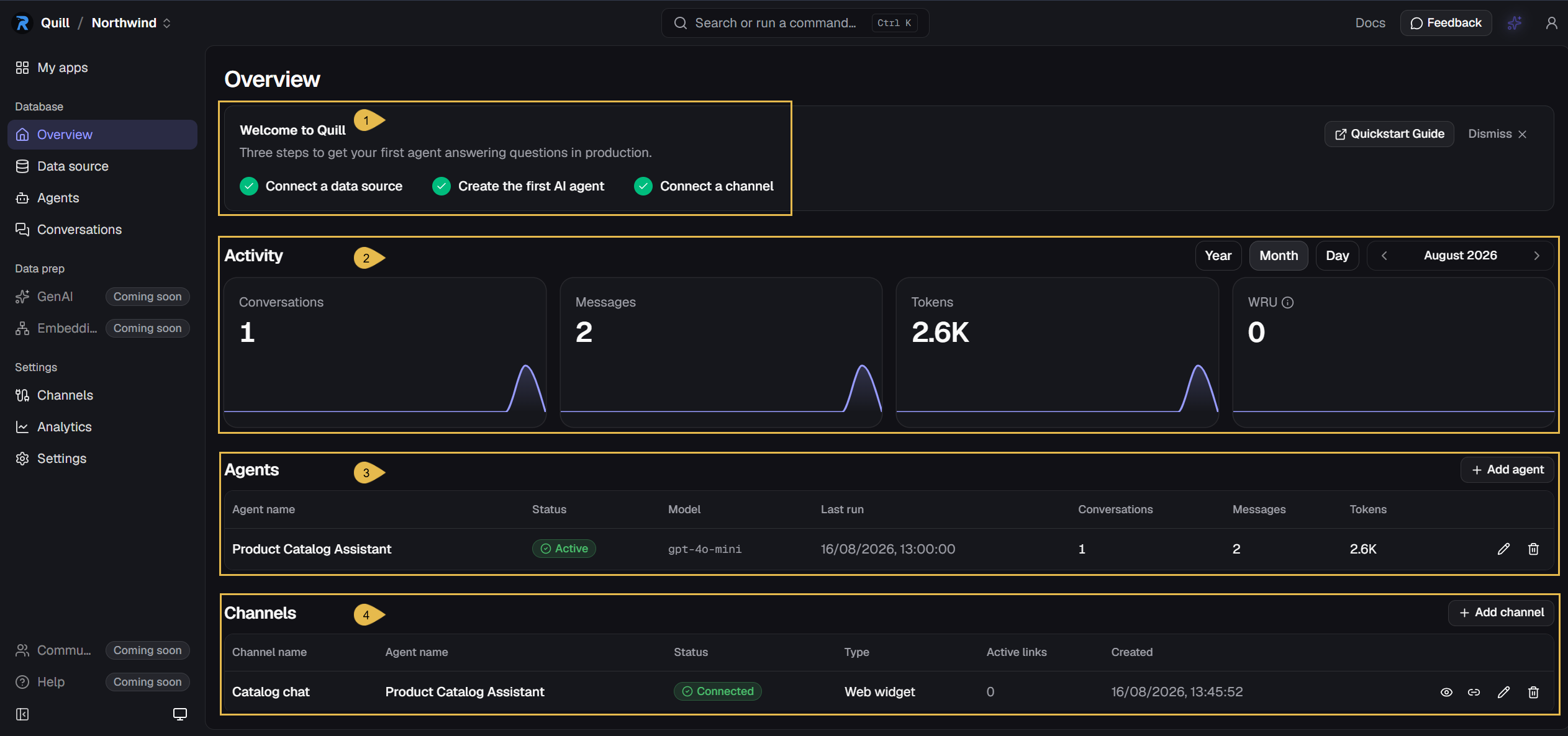
- The welcome banner tracks the app's three setup steps: a connected data source, a first agent, and a channel.
- The Activity tiles follow the app's conversations, messages, and usage over the selected period.
- The Agents table lists the app's agents, each with its status, model, and activity.
- The Channels table lists the app's channels, each with its type, status, and active embed links.
The sidebar leads to the app's sections: the data source, the agents, the conversations, and settings like channels and analytics.
Working with Quill using code
Developers can work with Quill using code as well as through the management dashboard.
-
Managing Quill through its API
-
Your Quill deployment exposes an API; requests to this API are authenticated using the API key that sign-up provides.
-
The API covers Quill's management operations, like connecting a data source, creating agents and channels, and generating embed links.
e.g., your site can use the API to generate a personal embed link for each signed-in user. -
A minimal API call, listing the deployment's apps:
curl -H "X-Api-Key: <your-api-key>" https://api.<your-domain>/api/apps/
-
-
Reading the mirrored database directly
-
Quill's internal database is a full RavenDB database.
-
Your applications can connect to this database using RavenDB client libraries and a client certificate that you generate in the dashboard's Certificates view.
e.g., an application can run full-text searches over the mirrored data without adding any load to your SQL database. -
Connecting with the C# client:
using var store = new DocumentStore{Urls = new[] { "https://db.<your-domain>" },Database = "<app-database>",Certificate = new X509Certificate2("quill.client.pfx")};store.Initialize();
-
-
-
Quill delivers each embed link as a ready-made HTML segment.
-
A developer can add this segment to the code of any of your site's pages; the page will then display the chat box.
-
The embed segment, as Quill delivers it:
<iframe src="https://public.<your-domain>/apps/<app-slug>/embed/<link-token>"width="400" height="600"></iframe>
-