Getting started: Mapping your tables
Achieved so far in Getting Started:
Signing up - your deployment has a name, a license key, and a dashboard API key.
Starting Quill - Quill is running on your machine, and its management dashboard is open.
Connecting your database - Quill can reach your source database, and the tables
your app will work with are selected.
-
Your source database holds your data in table rows; Quill's internal document database holds a live copy of this data.
The app's mapping is the set of rules by which Quill loads the data from your tables and builds its internal database documents.
In Mapping your tables, the fourth Getting Started step, you continue through the Add new app wizard and settle the mapping. -
As one document can hold data from several joined tables, a mapped table does not always become a set of documents.
Quill can work the whole mapping out from your source schema, or draft a plain mapping, one set of documents per table, and leave every further choice to you. -
To check your mapping against real data, the wizard's last stage is a dry test: Quill builds documents from source rows and lets you examine them. The trial documents are discarded.
-
Creating the app at the end of the wizard starts the first load, where Quill reads the tables you selected and builds the documents your mapping defines.
From then on Quill keeps these documents current as your source data changes. -
In this article:
Choosing the mapping method: AI Suggest or Manual
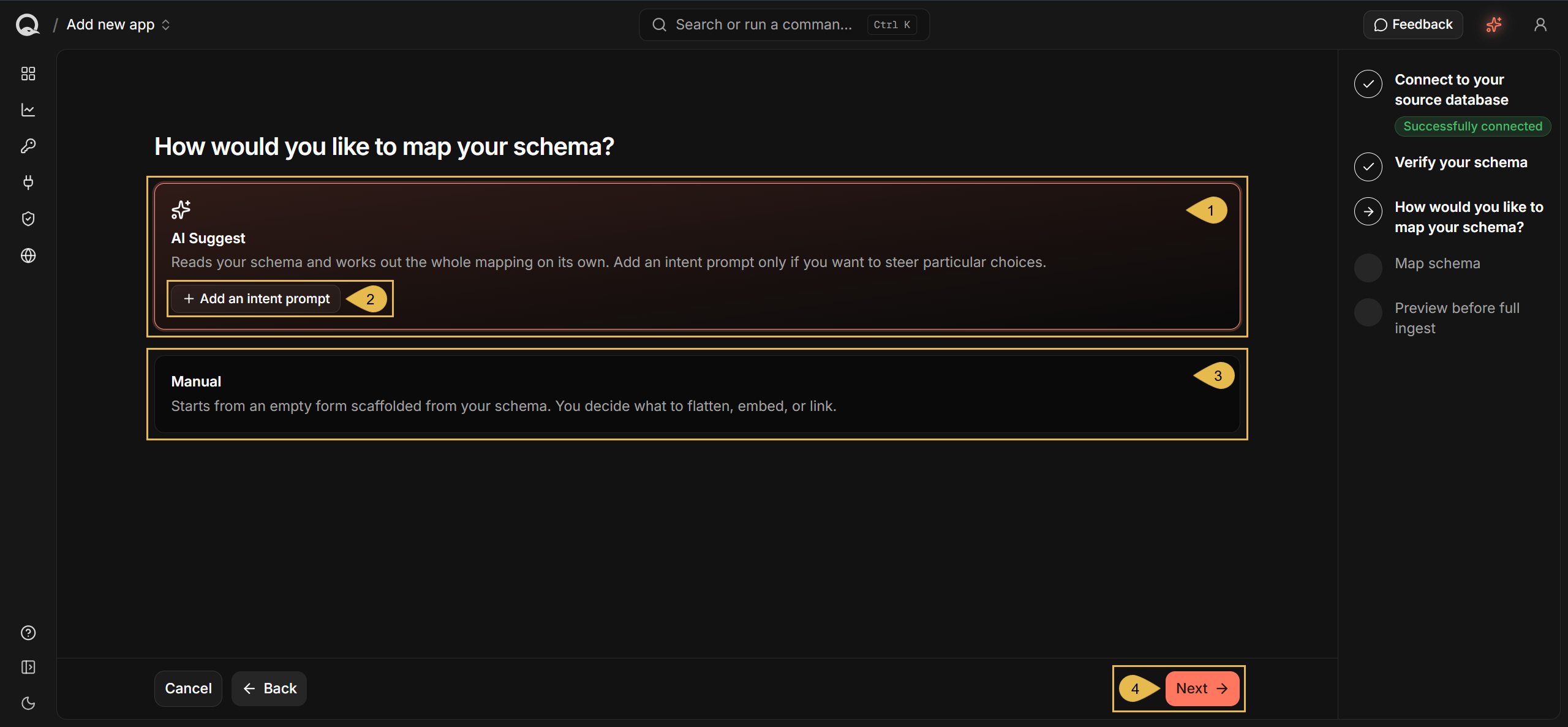
This page starts where Connecting your database left off: you are at the How would you like to map your schema? stage of the Add new app wizard.
After verifying your schema, the Add new app wizard lets you choose the
mapping's starting point: a draft in which AI has already gathered your joined tables into documents, or a plain
draft for you to shape.
Either way, the next stage will still allow you to change the mapping before the app is created.
-
AI Suggest (default)
Click to have Quill work the whole mapping out for you from your source schema. -
Add an intent prompt
Click to hand AI Suggest a prompt with your directions, to steer its choices.
-
Manual
Click to draft the mapping yourself, starting from a plain mapping Quill builds from your schema. -
Next
Continue to the Map schema stage.
Settling the mapping
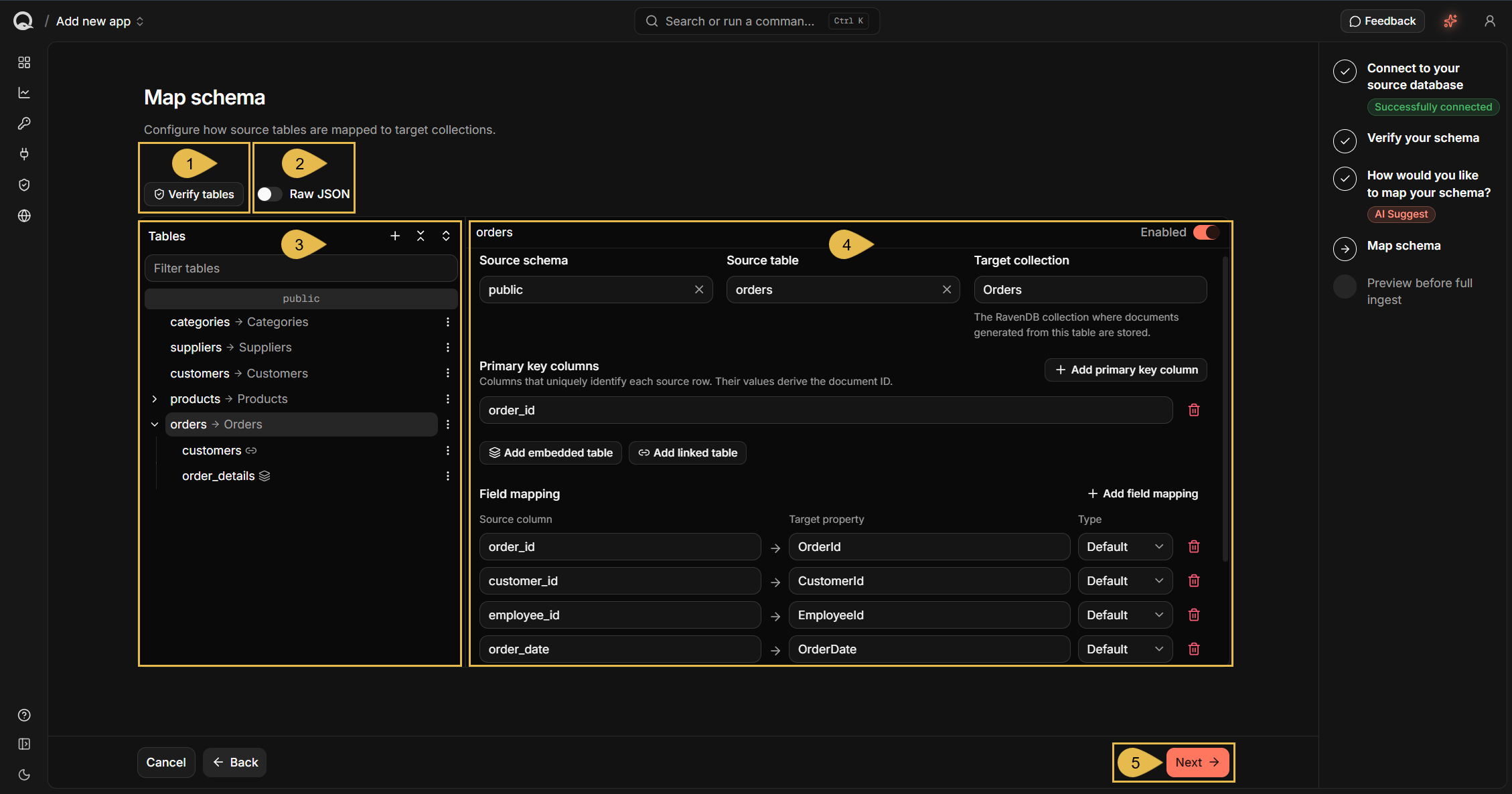
The Map schema stage presents the mapping so you can read and modify it.
If AI Suggest is selected, give it the time it needs to finish the mapping.
-
Verify tables
Click to check that CDC can run on the tables this mapping captures.
This is the check the Verify your schema stage ran, repeated here because attaching or removing tables changes the set it covers.
The button is replaced by a confirmation when the check passes:
-
Raw JSON
Toggle on to view and edit the mapping in a JSON editor, one entry per mapped table.The entry of the
orderstable in the mapping above, with the column lists and the delete-handling keys left out:{"collectionName": "Orders","columns": [ ... ],"embeddedTables": [{"columns": [ ... ],"joinColumns": [ "order_id" ],"primaryKeyColumns": [ "order_id", "product_id" ],"propertyName": "OrderDetails","sourceTableName": "order_details","sourceTableSchema": "public","type": "Array"}],"linkedTables": [{"joinColumns": [ "customer_id" ],"linkedCollectionName": "Customers","propertyName": "Customer","sourceTableName": "customers","sourceTableSchema": "public"}],"primaryKeyColumns": [ "order_id" ],"sourceTableName": "orders","sourceTableSchema": "public"}
Key Description collectionNameThe collection the documents built from this table belong to. sourceTableSchema,sourceTableNameThe source table the mapping reads. primaryKeyColumnsThe columns whose values follow the collection name to form the document ID. columnsOne entry per field mapping, holding the source column, the document property, and the type. embeddedTablesThe tables embedded in these documents. propertyNameis the property they are stored in,typeis the shape they take there, andjoinColumnsmatch their rows to the row the document was built from.linkedTablesThe tables referenced from these documents. propertyNameis the property holding the reference,linkedCollectionNameis the collection referenced, andjoinColumnsform the referenced document's ID. -
Tables
Use this pane to see the mapping, table by table.
Each row readssource table->target collection, and a row can hold child tables, which is how one document comes to carry data from more than one source table.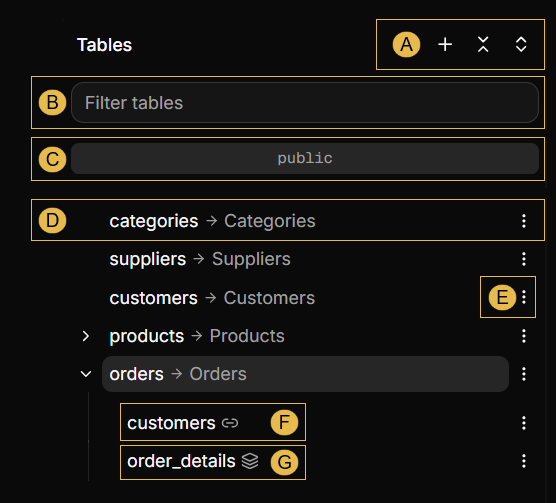
-
A. Table controls
In order, Add new root table, Collapse all tables, and Expand all tables. -
B. Filter tables
Filters the tables shown in the pane by the text you enter. -
C. Schema name
Names the source schema that the rows below the name were discovered in. -
D. A mapped table
Names the source table on the left and the collection Quill builds from it on the right.- Click a row to show its mapping in the configuration pane.
A row that carries attached tables has an arrow at its left, to fold or reveal these tables. - In the mapping above,
categoriesis mapped toCategories.
ordersis mapped toOrders, and carries two attached tables.
- Click a row to show its mapping in the configuration pane.
-
E. Table actions
Opens the row's menu.- Add embedded table
Attaches a related table: a single property will be added to each document built from the root table; all the rows of the related table that match the document will be added to this property as JSON objects. - Add linked table
Attaches a related table: a single property will be added to each document built from the root table; the property will hold a reference to a document built from the related table, rather than a copy of its data. - Disable
Keeps the table in the mapping and stops its rows from being loaded. - Remove
Takes the table out of the mapping.
- Add embedded table
-
F. A linked table (marked by a link icon)
See Add linked table under E. Table actions.
In the mapping above, everyOrdersdocument will reference aCustomersdocument. -
G. An embedded table (marked by a layers icon)
See Add embedded table under E. Table actions.
In the mapping above, everyOrdersdocument will carry its ownorder_detailsrows.
-
-
The configuration pane
Use this pane to read and edit the mapping of the currently selected table.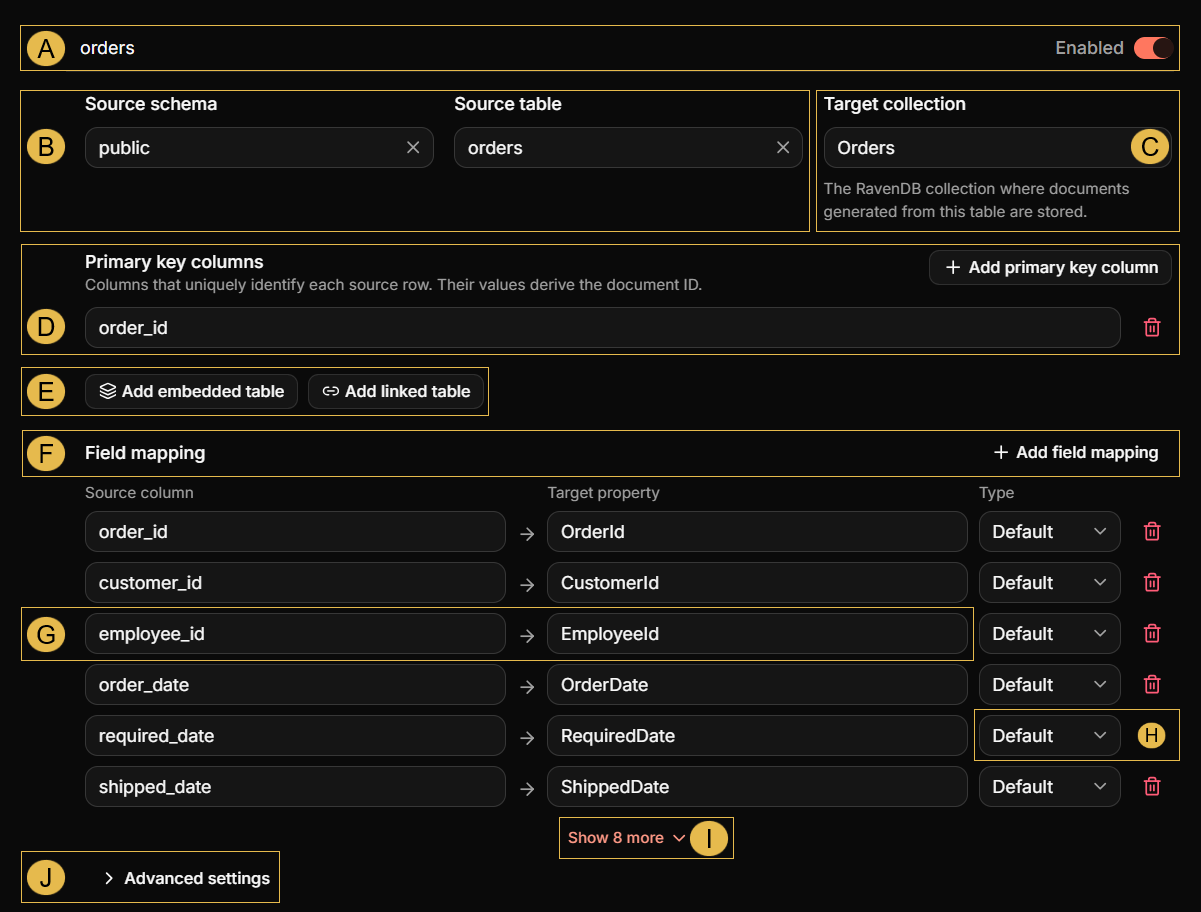
- A. Table header
Toggle Enabled on or off to enable or disable the loading of data from this table to Quill's internal database. - B. Source schema and Source table
The source schema and the source table this mapping reads from. - C. Target collection
The collection the documents built from this table will belong to. - D. Primary key columns
The columns that identify a source row.
The values of these columns follow the collection name to form the ID of the document built from the row.
e.g., the row whoseorder_idis10248becomes the documentOrders/10248 - E. Add embedded table and Add linked table
Attach a related table to the selected table, as described under Table actions above. - F. Field mapping
Lists the source columns Quill reads, and the document property built from each of them.
Click Add field mapping to add a column the list does not carry yet. - G. A single field mapping
Names the source column on the left and the document property built from it on the right.
In the mapping above,employee_idis mapped toEmployeeId. - H. Type
Sets how Quill stores the column's value.
Default stores it as a document property, JSON stores a column holding JSON text as a nested object rather than as a string, and Attachment stores a binary column as an attachment of the document.
Quill sets the type from the source column's own data type, so a PostgreSQLjsonbcolumn arrives as JSON, and abyteacolumn as Attachment. - I. Show more
Click to show hidden field mappings. - J. Advanced settings
Opens fields for an optional script Quill will apply to each document before storing it, an Ignore deletes toggle, and an optional script Quill will apply when a source row is deleted.
- A. Table header
-
Next
Continue to the Preview before full ingest stage.
Testing your mapping
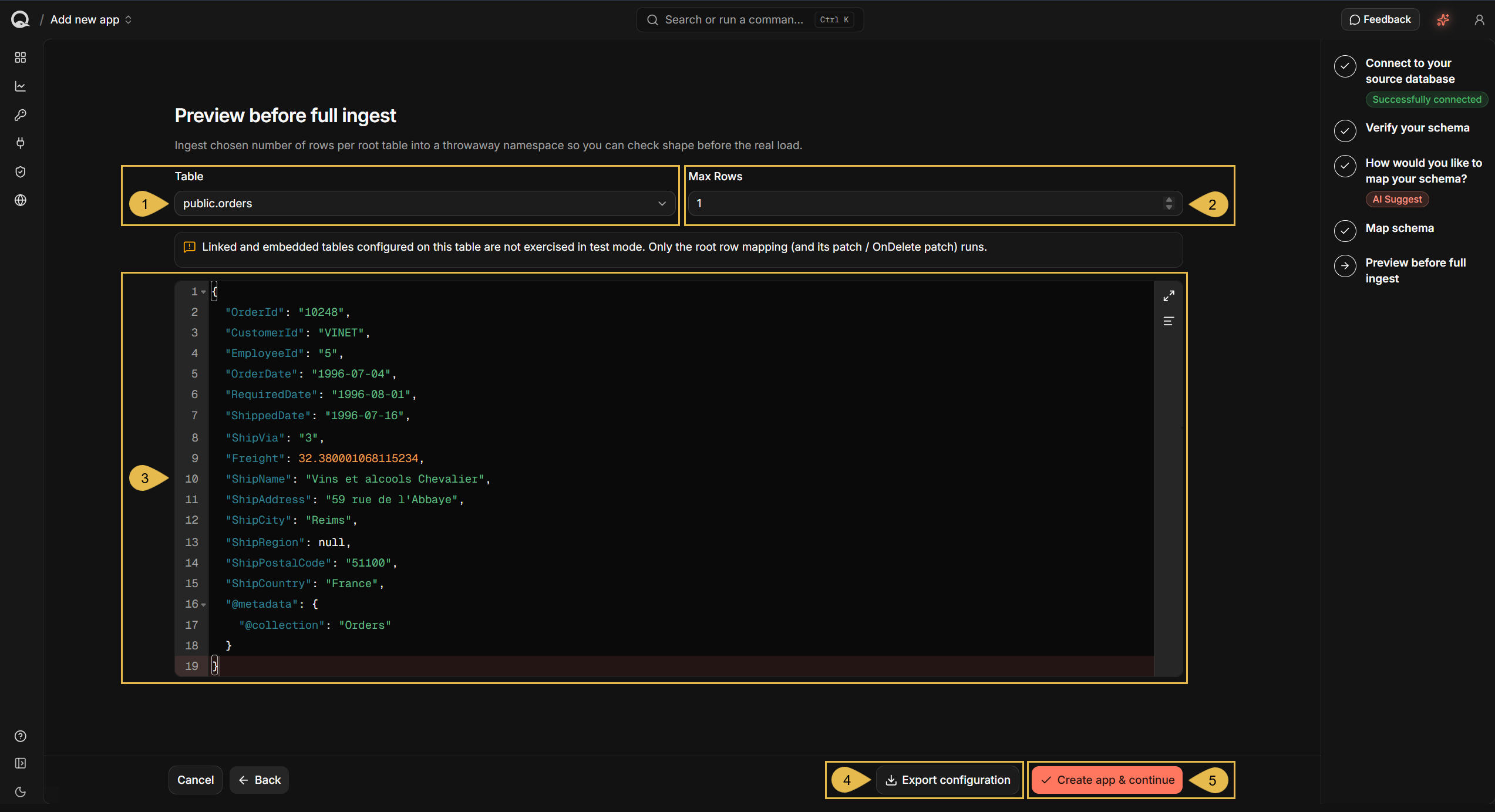
The Preview before full ingest stage builds a document from each source row it reads (by default: one row), so you can judge the mapping against real data before the app is created. Documents built during the test are not kept.
Only the selected table's own mapping runs here, any tables attached to it are left out; so no embedded objects or linked references appear in the documents you see.
-
Table
Select the root table to build the documents from. -
Max Rows
Set the number of rows to read from the selected table. -
The document pane
Review the documents Quill built from the rows it read. -
Export configuration
Click to download the app's configuration as a file, after confirming this warning: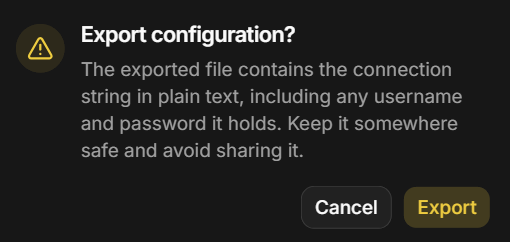
The credentials are the ones you entered for your source database in the wizard's first stage.
A saved configuration can be loaded through Import configuration in the wizard's first stage, to fill the new app's connection and mapping details.
e.g., to create a second app against the same database without filling the wizard in again. -
Create app & continue
Click to create the app and start the first load, as described in Creating the app.
Creating the app
Create app & continue creates the app and starts the first load.
The load runs in the background, so you do not have to wait up; Quill reports its progress while it runs.
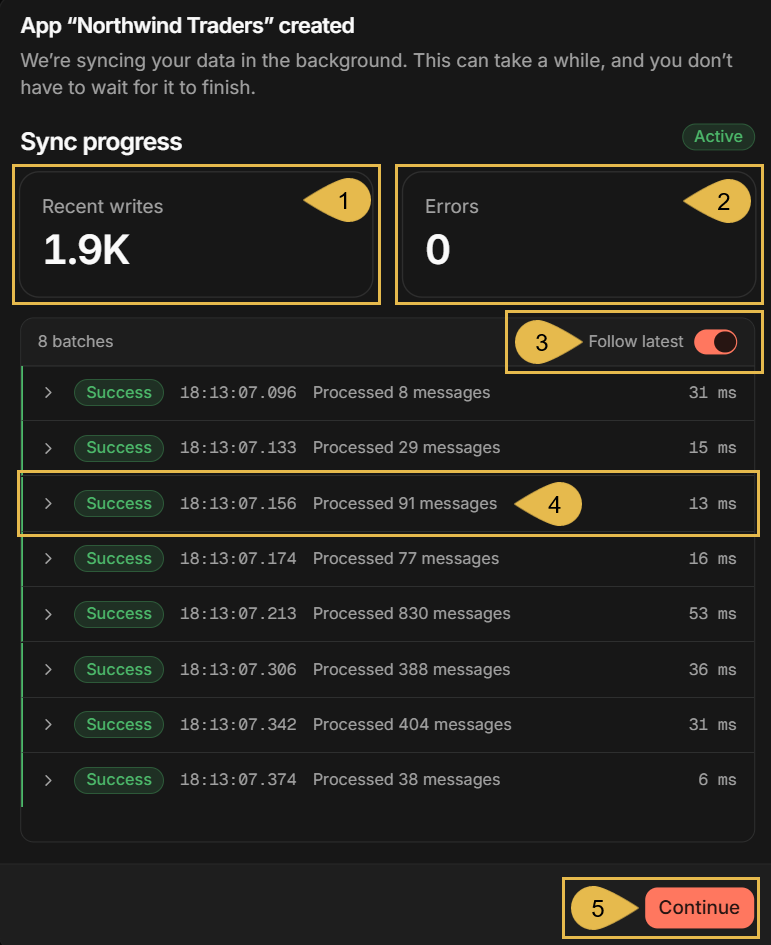
Each document Quill writes is reported as a message. Quill writes the messages in batches, and reports each
batch as it completes.
The Active chip stays on while a batch is in progress, and for a minute after the completion of the last batch.
-
Recent writes
The number of messages processed in the batches listed below. -
Errors
The number of errors in the batches listed below, whether raised while reading from your source database or while building the documents. -
Follow latest
Toggle on to keep the newest batch in view as new batches are processed. -
A message batch
Reports whether the batch succeeded, when it started, the number of messages it processed, and how long it took. -
Continue
Click to advance to the next Getting Started step, Adding an AI agent.
Loading will continue in the background.