Dashboard: My Apps
-
My apps is the default view of the Quill management dashboard, available at
https://dashboard.<your-domain>. -
The view provides a deployment-wide overview of your apps:
- Activity summarizes conversations, prompts, tokens, and write usage across all apps for the selected period.
- Apps lists each app separately, including its source database type, agents, channel types, write usage, and status.
-
Click an app's name to open its app-specific dashboard views.
-
In this article:
My apps overview
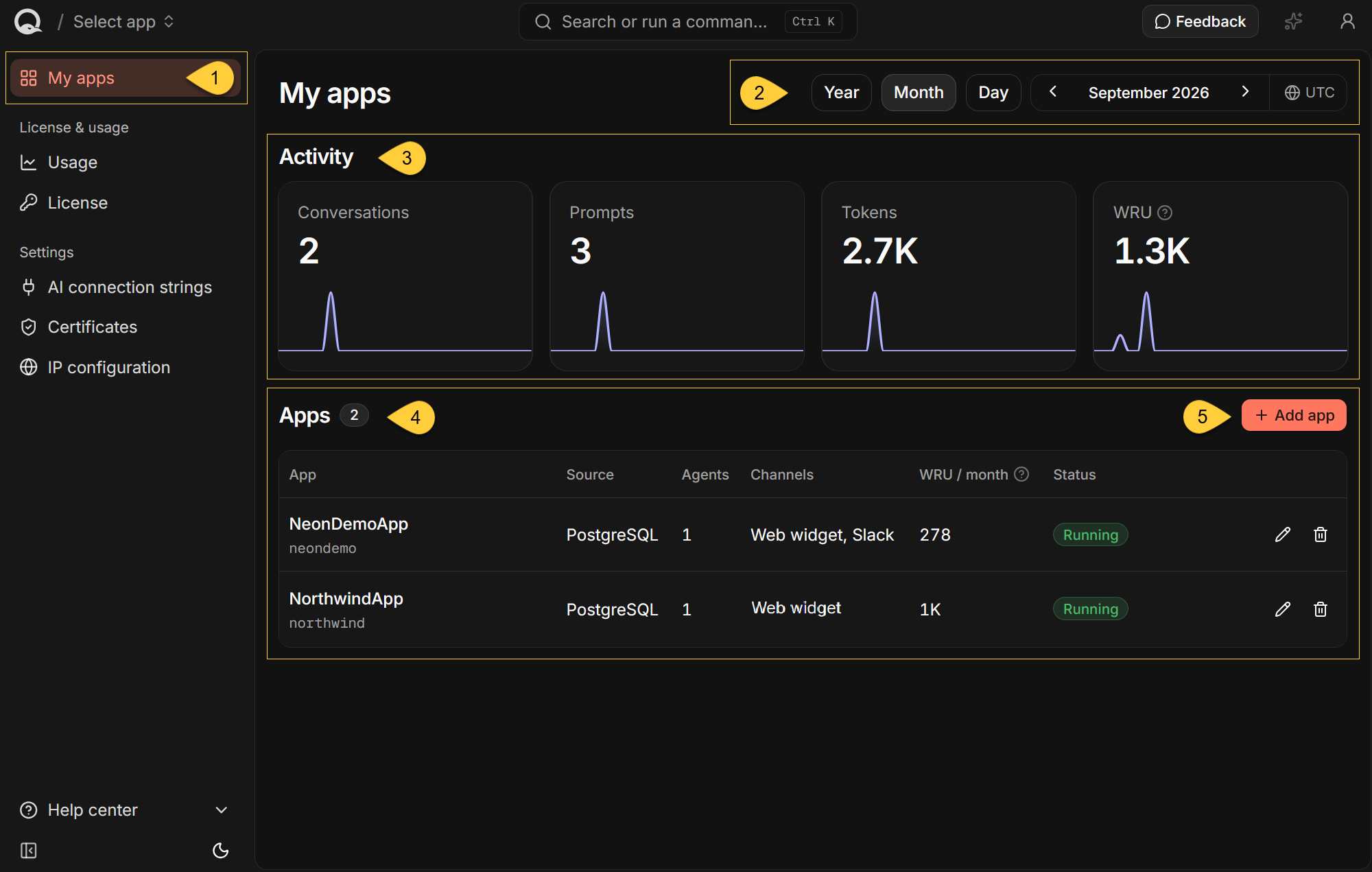
-
My apps
Click My apps in the sidebar to view deployment-wide activity and the list of apps. -
The period
The period the tiles and the table's WRU column report on.
See Select the period below. -
Activity
Four tiles summarize conversations, prompts, tokens, and write usage across all apps for the selected period.
Each tile includes a chart showing how that activity is distributed over time.
See Activity below. -
Apps
The Apps table lists every app in the deployment.
The badge beside the heading shows the total number of apps.
See Apps below. -
Add app
Click Add app to open the wizard to connect a source database and create a new app.
Select the period
The period selector beside the My apps heading applies to all four tiles and to the Apps table's WRU column.
- Select Year, Month, or Day to set the period and its chart buckets:
- Year - monthly buckets.
- Month - daily buckets.
- Day - hourly buckets.
- Use the arrows to move to the previous or next period. Click the period label to open its picker.
- The dashboard opens on the current month.
- You cannot select a day before the deployment's setup date, a month before its setup month,
or a year before its setup year. - Future buckets are not shown, so the current month's chart ends at today.
- Periods and chart dates are in UTC, as the UTC indicator beside the period label reminds you.
Activity
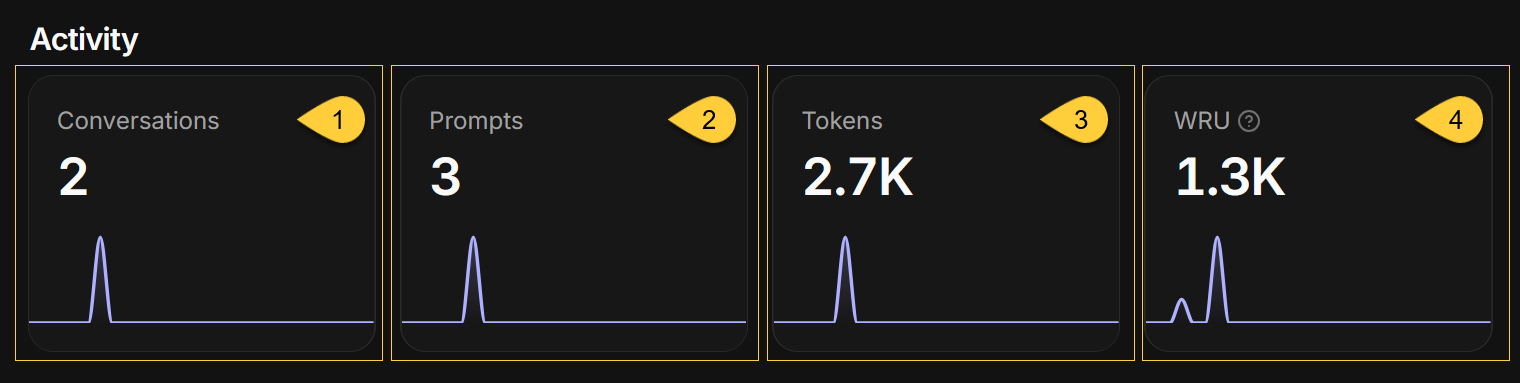
The Activity tiles appear after at least one app has been added.
Each tile shows the total for the selected period and a chart that breaks the total down by time bucket.
Hovering over a point shows the UTC date at which the bucket starts; in the Day view, it also shows the time.
-
Conversations
The number of conversations users started with agents across all apps.
A conversation is a single chat thread: one visitor's exchange with one agent, held over a channel. -
Prompts
The number of messages that users sent within those conversations.
Only the users' own messages are counted: the agents' replies are not,
and neither are the internal messages Quill sends an agent to open a conversation. -
Tokens
The total number of tokens reported by the LLM provider for the conversations,
including input and output tokens. -
WRU
Write Request Unit (WRU) is the billing unit Quill uses for metered write activity.
This tile totals WRU reported for the RavenDB databases belonging to the current apps.- It does not include @system configuration-storage usage, usage from other Quill deployments sharing the license, or historical databases that no longer belong to a current app.
- For the billing rules and examples of writes that count, see Write usage (WRU).
- Write usage is reported every 15 minutes, so recent writes may not be included yet.
- If Quill cannot retrieve write usage from the license server, the tile shows a dash and Unavailable from the license server. The other tiles are not affected.
Buckets are UTC calendar periods.
A conversation's prompts and tokens are counted in the bucket the conversation started in.
A conversation opened at 23:50 UTC and answered past midnight UTC is reported entirely on the first day.
Apps
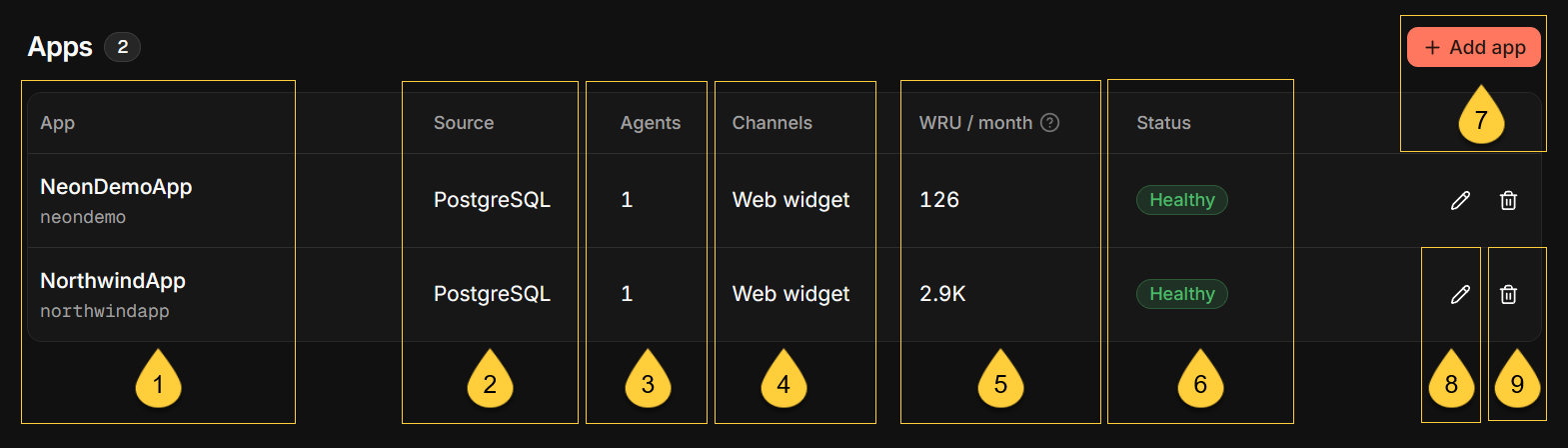
The table lists every app in the deployment.
The badge beside the Apps heading shows the total number of apps.
Clicking an app's name opens that app's own views.
Until the first app is added, the table is replaced by No apps added yet and a button that starts the wizard.
-
App
The app's name, with the name of its RavenDB database shown underneath.
The database name is also used as the app's public URL slug and cannot be changed after the app is created. -
Source
The source relational database type: PostgreSQL, SQL Server, MySQL, or Oracle.
MariaDB sources are shown as MySQL. -
Agents
The number of agents configured in the app.
See App: Agents view. -
Channels
The channel types configured for the app, such as Web widget.
Each type is listed once, regardless of how many channels of that type are configured. -
WRU / month
The app's own write usage over the selected period.
The heading follows the period: WRU / year, WRU / month, or WRU / day.
The WRU tile above totals this figure across all apps.
If Quill cannot retrieve write usage from the license server, the column shows a dash for every app. -
Status
The app's state, with a line naming the reason where there is one.
Quill derives an app's status from its RavenDB database, agents, CDC task, and channels:Status Reason shown What it means Healthy The app has at least one agent, its CDC task is not disabled, and it either has no channels or has at least one enabled channel. Setup No AI agent yet No agent is configured, so the app cannot respond to users yet. Needs attention Data sync paused The app's CDC task is disabled, so its mirrored data no longer follows the source database. Needs attention All channels disabled The app has channels, but all of them are disabled, so users cannot reach its agents through a channel. Unavailable Database unavailable Quill could not retrieve status information from the app's RavenDB database. When multiple conditions apply, Setup takes precedence over Data sync paused,
which takes precedence over All channels disabled. Having no channels does not by itself produce a warning. -
Add app
Click Add app to open the wizard to connect a source database, map the tables Quill will mirror,
and create a new app. -
Edit
Click the pencil and confirm to reopen the wizard with the app's existing configuration.
Nothing is saved until you finish the wizard. Changing an early step can invalidate the steps after it,
so the wizard has you review the remaining steps before saving. -
Delete
Click the trash can to permanently delete the app and its RavenDB database, including its mirrored data, agents, channels, and conversations. The source relational database and its data are not deleted.
To confirm, enter the app's name. This action cannot be undone.