App: Agents View
-
An AI agent answers your users from the app's internal database.
The Agents view lists the agents you already created, with their status and activity, and allows you to add new agents, open an agent to modify and test its configuration, and delete an agent. -
The Agents view is opened from the app's sidebar, where it is listed under the Database group.
The app's Overview page also lists the existing agents, to provide an overall view of the app's activity, agents, and channels. -
An agent is added using the Add agent wizard, described in Getting started: Adding an AI agent.
-
In this article:
Opening the Agents view
To open the Agents view, select the app in Quill's management dashboard and click Agents in the sidebar, under Database.
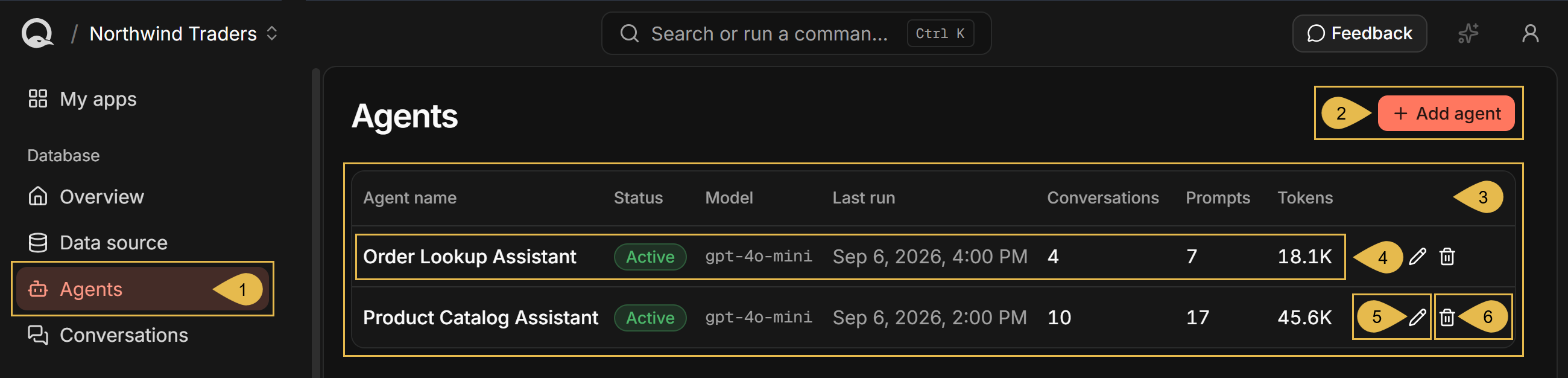
- Agents
Open the Agents view. - Add agent
Add an agent to the app. See Getting started: Adding an AI agent. - The agents list
Lists the details and actions available for each agent, one row per agent. - Agent information
Each row shows the following details for a single agent:- Agent name
The agent's name. - Status
The agent's status, Active or Disabled. - Model
The chat model the agent uses, taken from the AI connection string set for the agent.
A dash is shown when the model cannot be resolved. - Last run
The hour at which the agent's most recent conversation started.
This time does not change while an earlier conversation continues. - Conversations
The number of conversations the agent has held. - Prompts
The number of messages the users have sent the agent. - Tokens
The number of tokens the agent's conversations have consumed.
- Agent name
- Edit agent
Review and modify the agent's configuration. See The agent's configuration. - Delete agent
Delete the agent from the app. See Deleting an agent.
The agent's configuration
An agent's behaviour is set by its configuration.
To review and modify an agent's configuration, click the agent's pencil icon in the agents list.
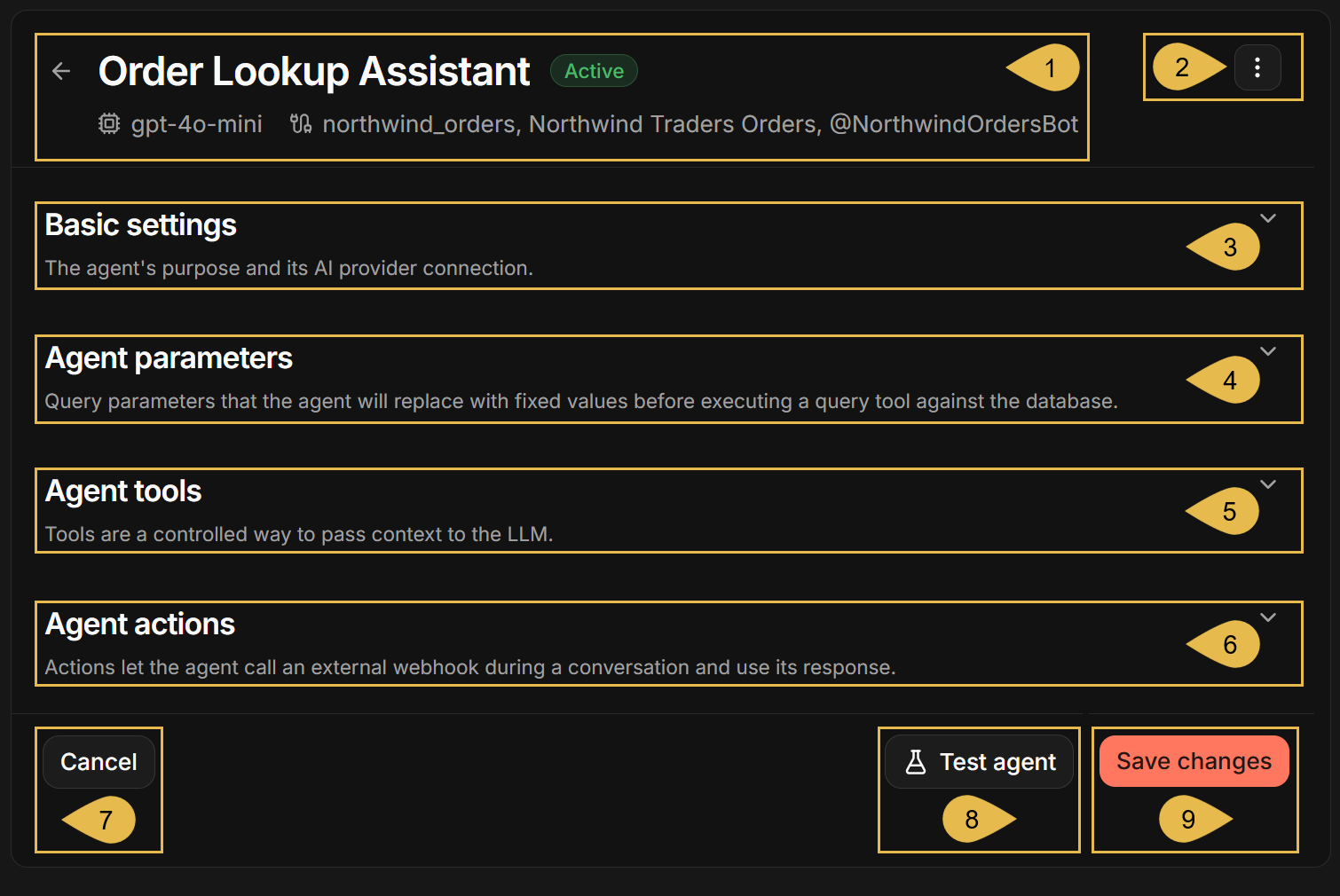
You can expand or collapse each configuration section: Basic settings, Agent parameters, Agent tools, and Agent actions.
-
The agent's details
The agent's name and status, the model it uses, and the channels the agent serves. -
The agent's menu
Holds a single entry, Delete. See Deleting an agent. -
Basic settings
The agent's name, AI connection string, and system prompt.Basic settings
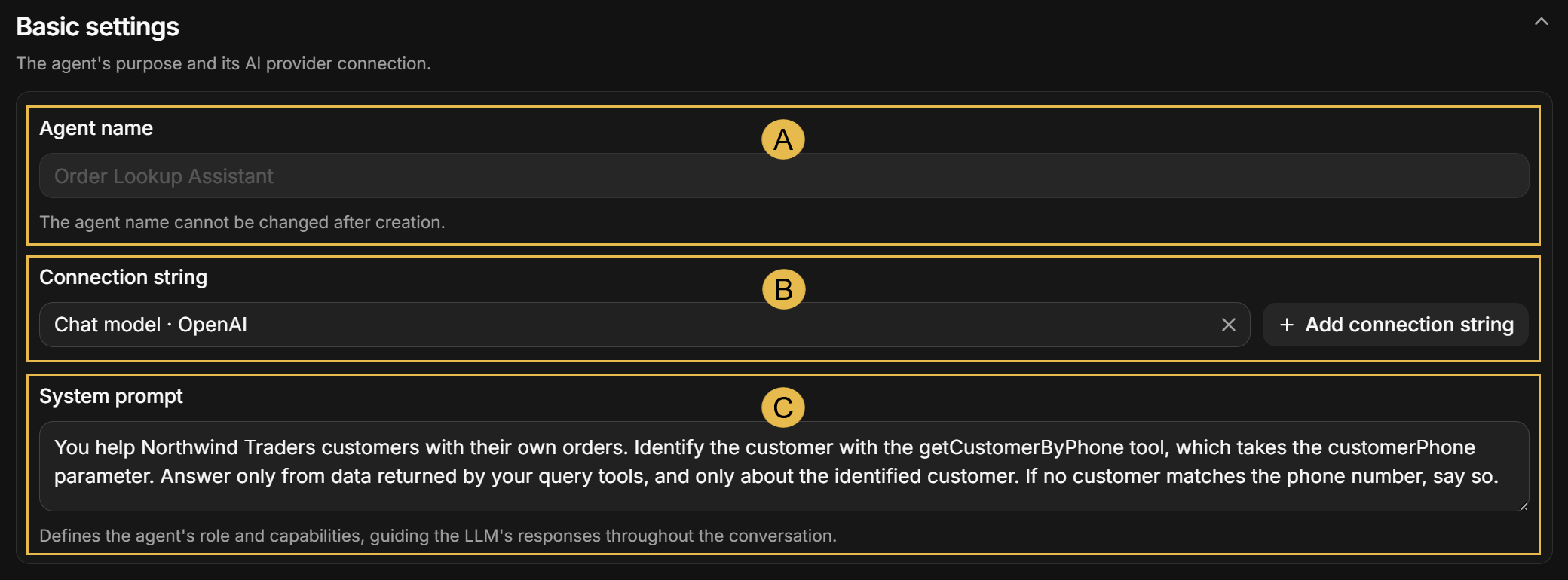
- A. Agent name
The Agent name field is disabled; it cannot be modified since the agent's identifier is derived from its name and is set once when the agent is created. - B. Connection string
The AI connection string that provides the chat model the agent uses.
You can select the connection string the agent uses, remove the current string using the clear icon, or click Add connection string to define a new string. - C. System prompt
Define the instructions the agent follows throughout a conversation.
- A. Agent name
-
Agent parameters
Values that the agent's queries can use. Each value is provided when a conversation starts, and the LLM cannot override it.Agent parameters
Expanding the Agent parameters section shows the parameters defined for the agent.
The image below lists a single parameter,customerPhone.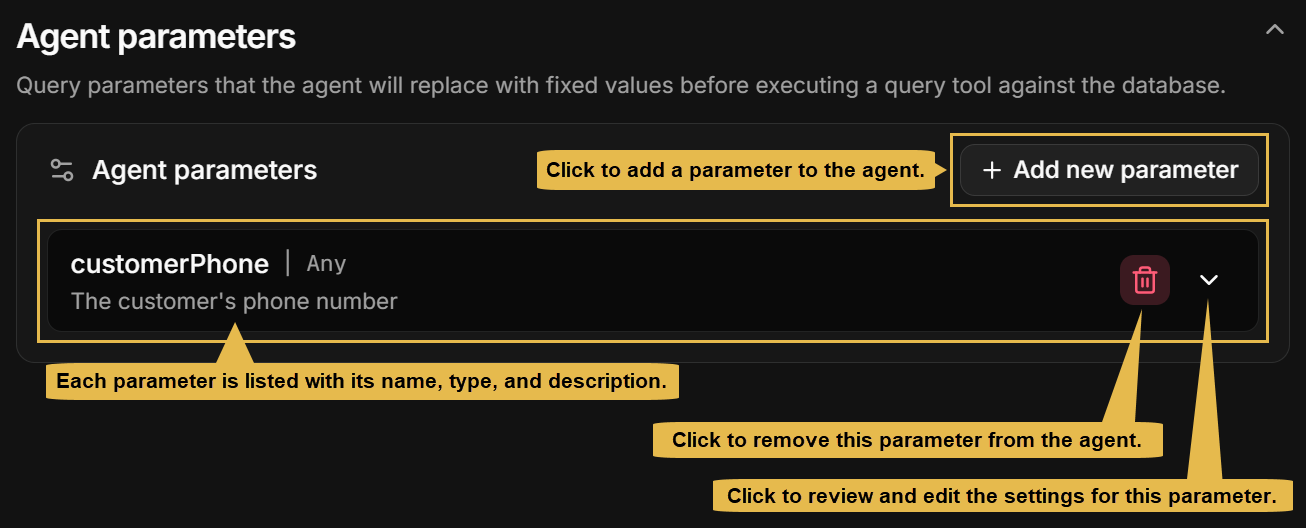
Adding or editing a parameter reveals the following fields:
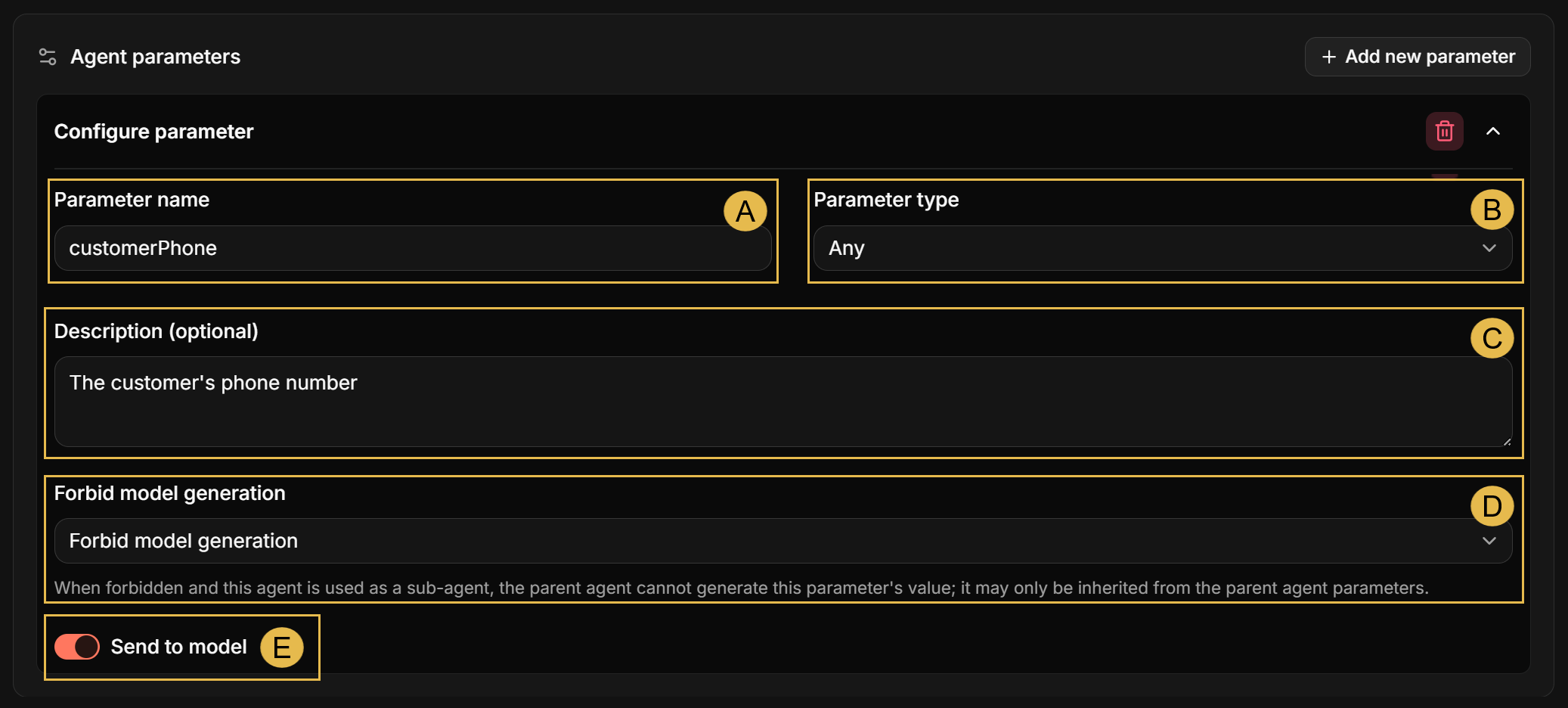
- A. Parameter name
The name by which agent queries refer to the parameter. - B. Parameter type
Select a type for the parameter's value: String, Number, Boolean, String[], Number[], Boolean[], Any, or Null.
Quill checks the parameter's value against the selected type each time a conversation starts, and the conversation will not start if the value is of another type.
Any applies no type validation. - C. Description (optional)
A description of the parameter's content.
The description is passed to the LLM along with the parameter's value, unless Send to model (see below) is set to Off. - D. Forbid model generation
Select whether the LLM may generate a value for this parameter when another agent uses this agent as a sub-agent.
Default: the LLM may generate a value for the parameter.
Forbid model generation: the LLM may not generate a value. The value can only be inherited from a parameter of the same name in the calling agent, and the call will fail if the calling agent has no such parameter. - E. Send to model
Set whether the parameter's value is included in the text sent to the LLM,
On (default): the parameter's value is sent to the LLM, and the agent's queries receive the value as well.
Off: the parameter's value is not sent to the LLM. The agent's queries still receive the value.
- A. Parameter name
-
Agent tools
Query tools you provide in this section can be used by the agent to query Quill's internal database.
The LLM that the agent uses knows of these tools and is free to use them as needed.
The LLM cannot access Quill's database directly: to retrieve data from the database, it must request the agent to use a query tool.Agent tools
Expanding the Agent tools section shows the query tools defined for the agent.
The image below lists two such tools,getCustomerByPhoneandfindCategoryProducts.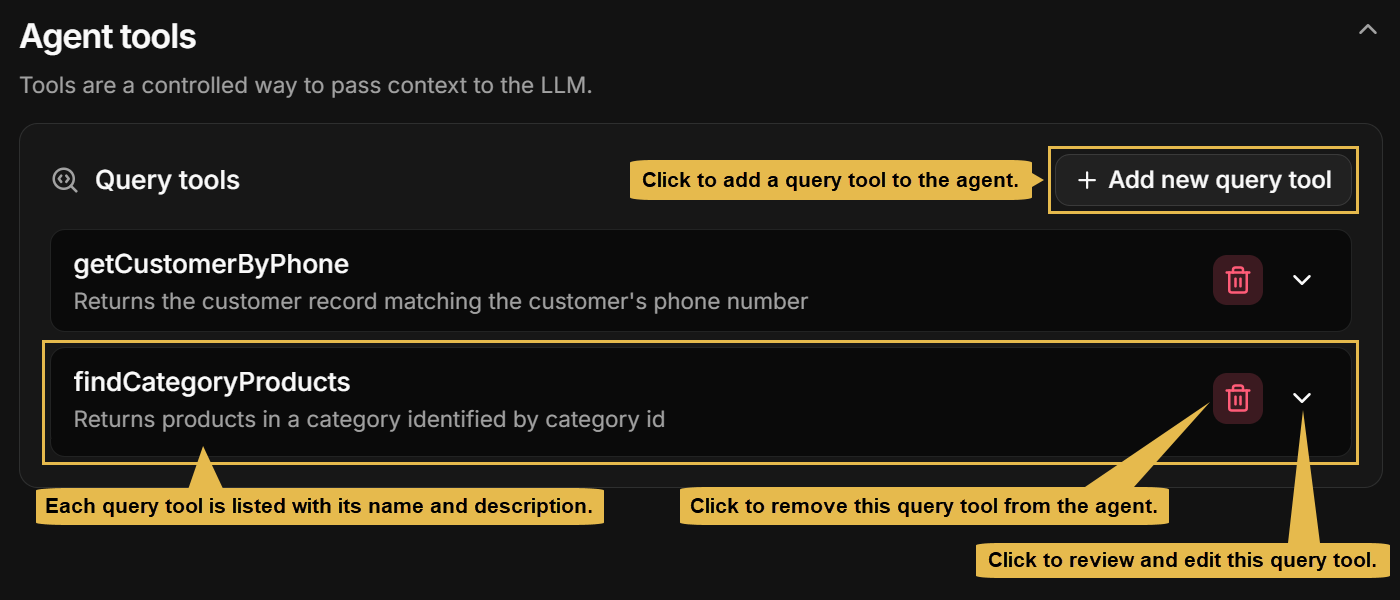
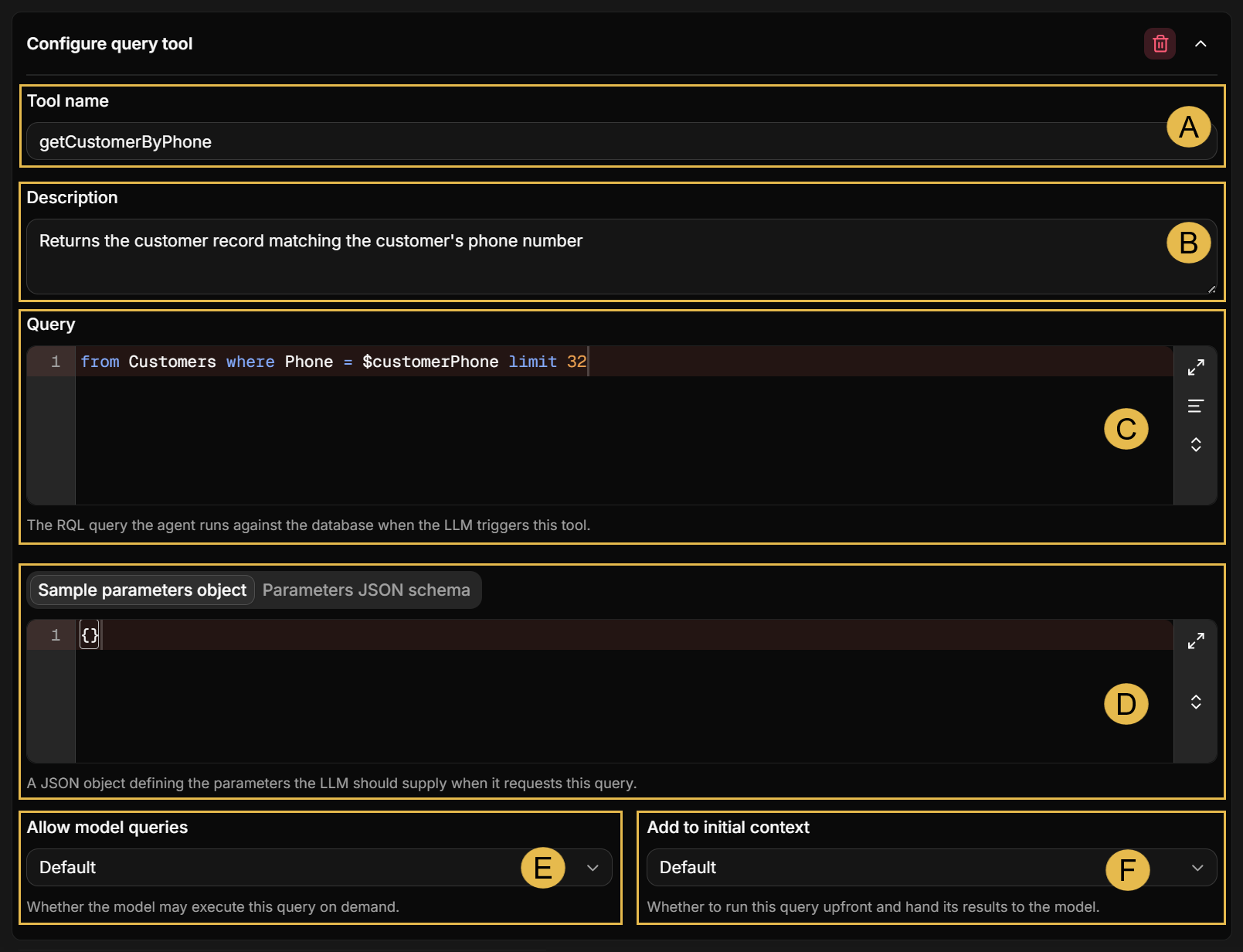
Adding or editing a query tool reveals the following fields:
-
A. Tool name
The name the LLM uses to trigger the query.
A name can be used only once; you cannot give the same name to two query tools, or to a query tool and an action. -
B. Description
A description of the data the query returns. -
C. Query
Query tools can only read from Quill's internal database, never write into it.
When a$nameplaceholder is included in the query, Quill replaces the placeholder at runtime, each time the query tool is called, with the value set by an agent parameter of the same name.
When no agent parameter carries the placeholder's name, the value is taken from the parameters the LLM provides when it requests the query, defined in D below.
The query will fail if neither an agent parameter nor the LLM provides a value for the placeholder. -
D. Sample parameters object / Parameters JSON schema
Define, either as a sample object or as a JSON schema, the parameters the LLM provides when it requests this query.
Defining a sample object is usually easier, since you can describe the parameters in natural language.
e.g., the sample object and the JSON schema in the example below define two parameters,customerPhoneandmaxOrders.- Sample object
- JSON schema
{"customerPhone": "The phone number the customer gave","maxOrders": "The number of recent orders to return"}{"type": "object","properties": {"customerPhone": {"type": "string","description": "The phone number the customer gave"},"maxOrders": {"type": "number","description": "The number of recent orders to return"}},"required": ["customerPhone", "maxOrders"]}Either a sample object or a JSON schema must be defined. If you define both, the schema will be applied.
-
E. Allow model queries
Select whether the LLM is allowed to run this query tool.
True: the LLM can run the tool whenever needed.
False: this tool is not offered to the LLM at all. -
F. Add to initial context
Select when Quill runs this query tool.
Default: run this tool only when the LLM requests its query.
True: also run this tool before the conversation starts, and hand the results to the LLM.
e.g., a query that returns the list of product categories can be added to the initial context, so the LLM will have this data before the first question arrives.A query that runs before the conversation starts cannot take values from the LLM, since the LLM has not been called yet.
-
-
Agent actions
The agent can use actions you define here, that ask Quill to call systems outside Quill.- The LLM that the agent uses knows of these actions and is free to apply them as needed.
- The LLM cannot call an outside system directly: it can only request an action from the agent, providing values for any defined parameters, so Quill will make the call.
- An outside system's response is passed back to the LLM as a text, indicating whether the call succeeded, the status code, notable headers, the response body (up to the set limit), and, when the body is cut, a truncation marker pointing it out.
e.g., during a conversation with one of your users, it may turn out that a support ticket should be opened on an outside system. The LLM will request the
create_ticketaction, Quill will call the address configured for it, and once the response arrives the LLM will continue the conversation with your user.Agent actions
Expanding the Agent actions section shows the actions defined for the agent.
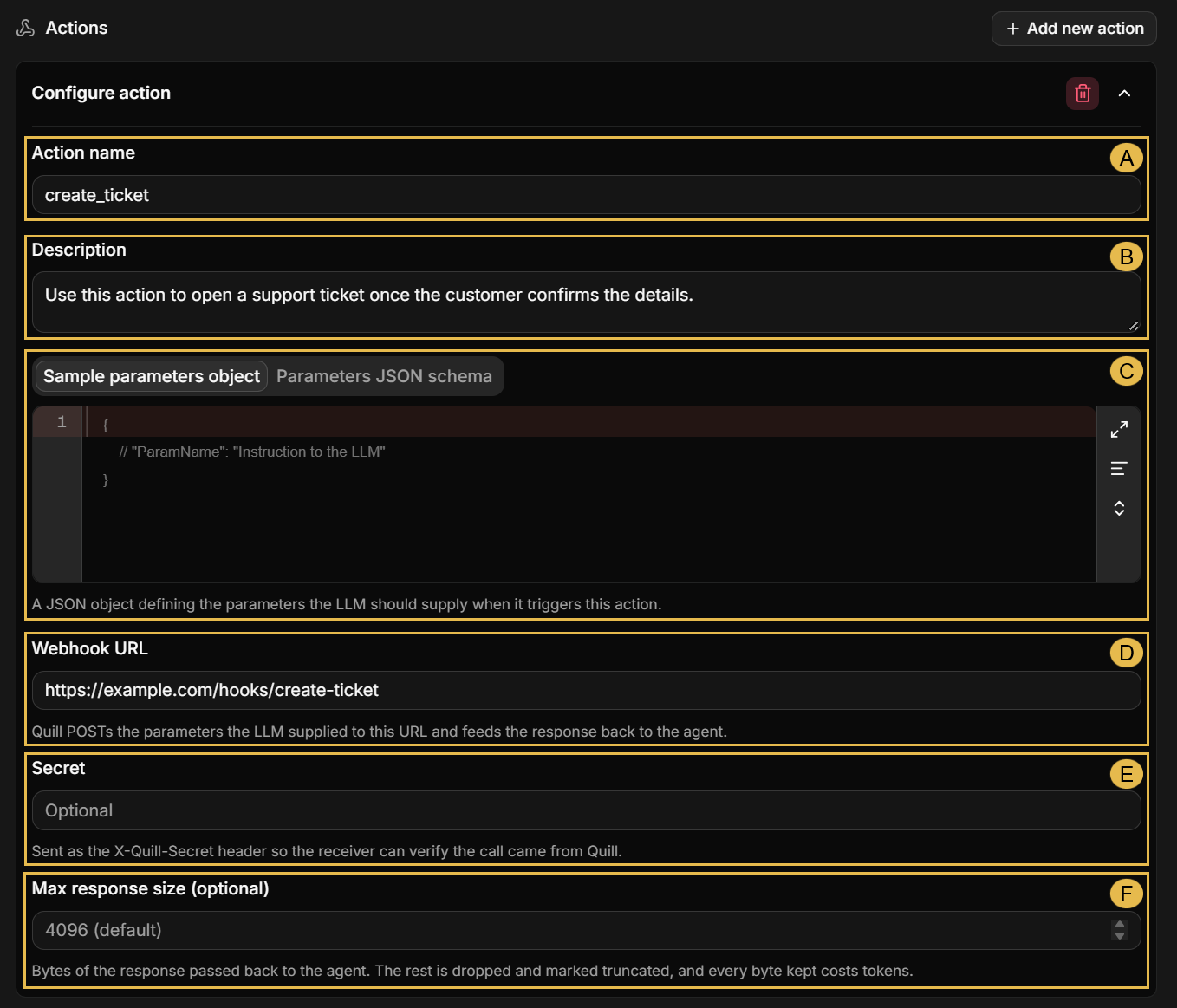
The image below lists a single action,create_ticket.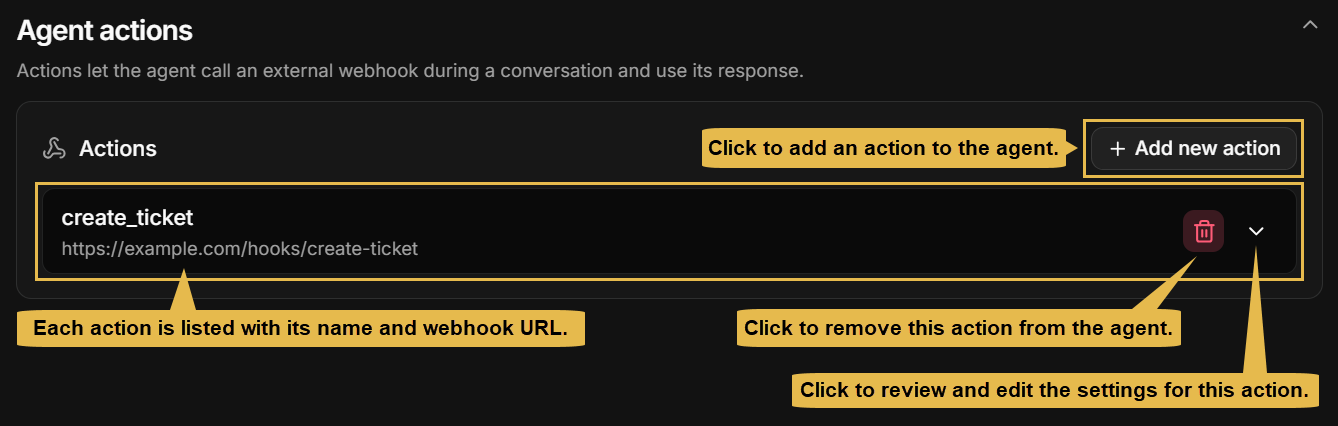
Adding or editing an action reveals the following fields:
-
A. Action name
The name the LLM uses to trigger this action.
A name can be used only once; you cannot give the same name to two actions, or to an action and a query tool. -
B. Description
A description of the situation in which the agent should trigger this action. -
C. Sample parameters object / Parameters JSON schema
Define, either as a sample object or as a JSON schema, the parameters the LLM provides when it triggers this action.
e.g.,- Sample object
- JSON schema
{"customerPhone": "The phone number the customer gave","issueSummary": "A short summary of the issue the customer described"}{"type": "object","properties": {"customerPhone": {"type": "string","description": "The phone number the customer gave"},"issueSummary": {"type": "string","description": "A short summary of the issue the customer described"}},"required": ["customerPhone", "issueSummary"]} -
D. Webhook URL
The address Quill calls when the agent triggers the action.
The address must be absolute, and start withhttp://orhttps://. -
E. Secret
An optional value Quill sends with every call, for the receiver to check. -
F. Max response size (optional)
The number of response bytes passed back to the agent, 4096 by default and 256 KB at most.
-
Cancel
Leave the configuration without saving your changes. -
Test agent
Chat with the agent to try the configuration currently in the form, unsaved changes included.
The button stays disabled until the agent name, the system prompt, and the connection string are all set. -
Save changes
Save the modified configuration.
A save attempted while any configuration section still requires your attention opens all four sections, and marks each section that needs it with an error icon.
Deleting an agent
Deleting an agent removes it from the app irrevocably along with its configuration and the addresses and secrets set
for its actions.
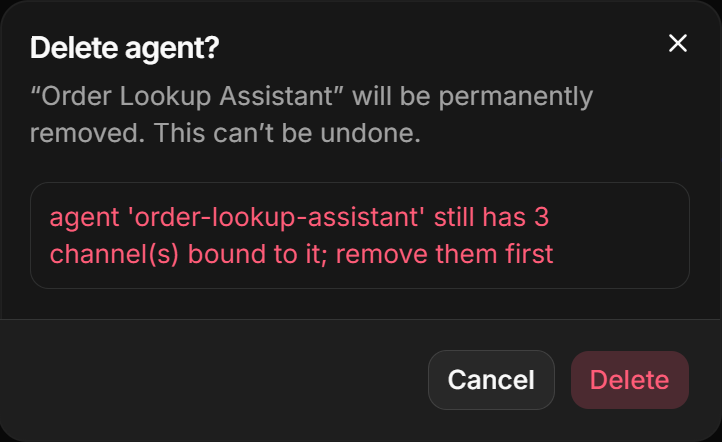
An agent is deleted using the trash icon in the agents list, or the Delete entry in the
agent's menu described in The agent's configuration. A confirmation is asked first.
An agent cannot be deleted as long as any channel is bound to it; delete the agent's channels from the Channels view first, and only then the agent.
The conversations the agent has held are kept, and remain available in the app's Conversations view.
An additional entry point: the agents list in the Overview
Similarly to the Agents view discussed here, the app's Overview page lists your existing agents and allows you to add an agent or edit an existing agent's configuration.
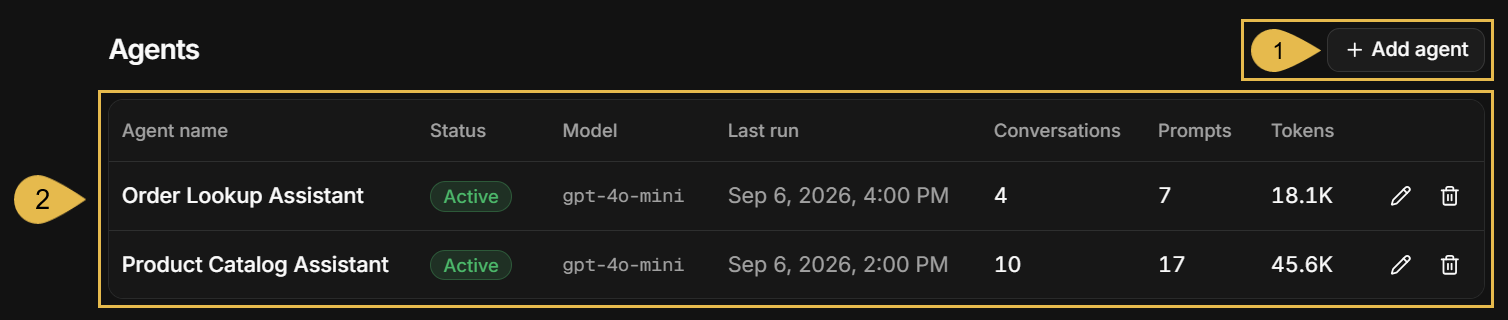
- Add agent
Start the Add agent wizard to add an agent to the app. - The agents list
Each row lists a single agent, allowing you to see the agent's details, modify its configuration, or delete the agent.