Dashboard: License View
-
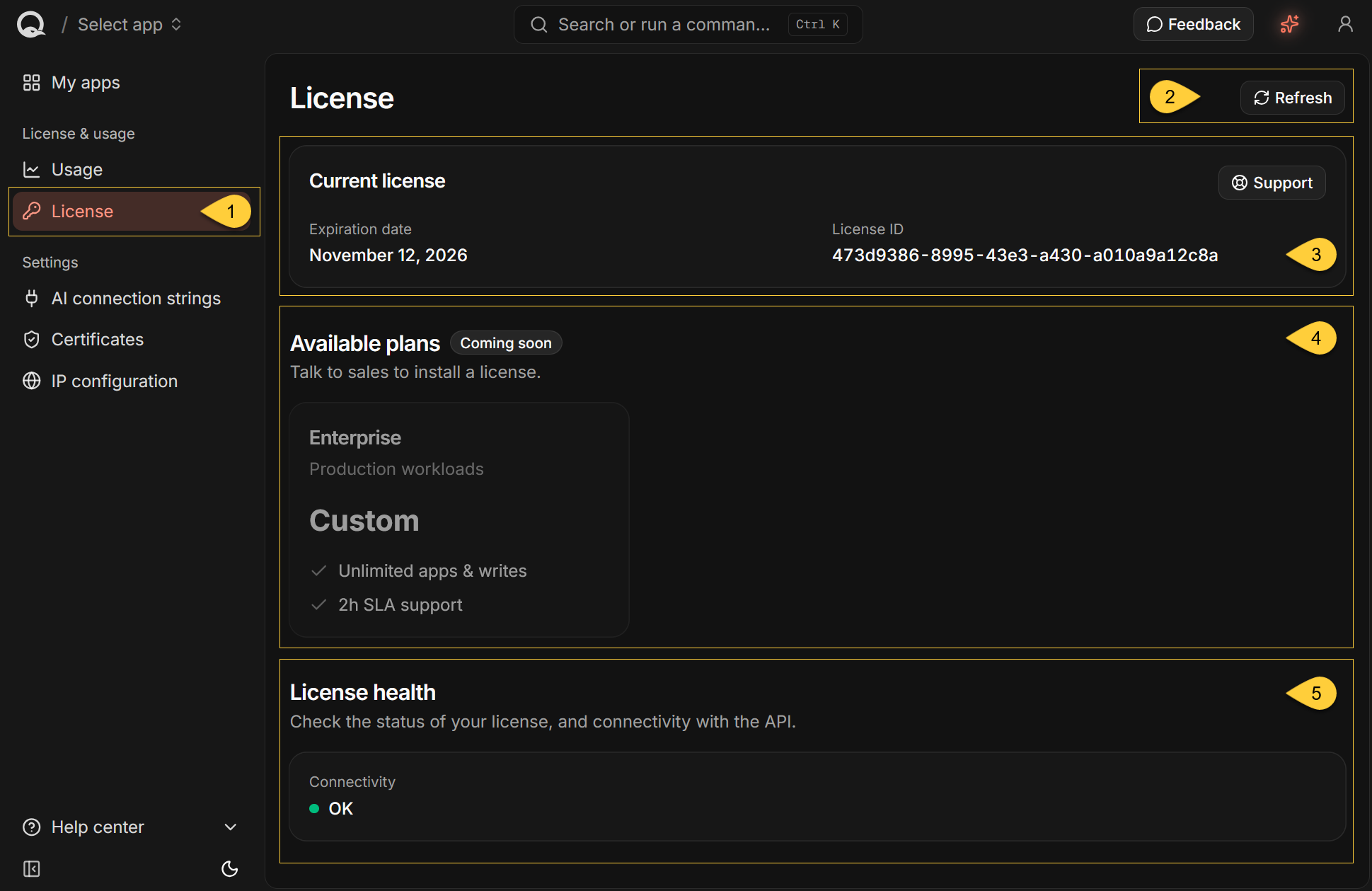
In the dashboard sidebar, under License & usage, select License to open the page.
You can also go directly tohttps://dashboard.<your-domain>/license. -
Use this page to view the license expiration date and ID, open Support, review available plans,
and check connectivity to RavenDB's licensing API. -
The Quill license includes the RavenDB capabilities required by the appliance; it does not include every RavenDB Server feature.
For example, it does not include read-only certificates.
You do not need to obtain or install a separate RavenDB Server license. -
You cannot install or change a license from this page.
To view write usage associated with the license, open the Usage view under License & usage. -
In this article:
License overview
-
License
Select License under License & usage to open the page. -
Refresh
Reload the license information and connectivity status. -
Current license
Shows the expiration date and ID of the installed license.
Select Support to open RavenDB's support page.
See Current license. -
Available plans
Shows the available plan information.
The plan cards are currently disabled.
See Available plans. -
License health
Shows whether Quill can reach RavenDB's licensing API.
See License health.
Current license

-
Expiration date
Shows the expiration date of the installed license.
If the license has expired, This license has expired. appears under the Current license heading. -
License ID
The unique identifier of the installed license. -
Support
Select Support to open RavenDB's support page in a new tab.
The license ID is included automatically in the support-page URL.
Available plans
The Available plans section displays the available plan information.
It is marked Coming soon, and the plan cards are disabled.
You cannot select or purchase a plan from this page.
To install or change a license, contact RavenDB sales.
For current plan details and pricing, see Quill pricing.
License health
Connectivity
Each time the License page loads, RavenDB sends one request to its licensing API with a five-second timeout.
- A green dot with OK means that the licensing API responded successfully.
- A red dot means that the check failed. The response status appears beside the dot.
If an exception occurred, its message appears below the status.
The status is not monitored continuously.
Select Refresh to run the check again.
Why connectivity matters
Your Quill deployment uses RavenDB's licensing API to:
-
Check for license updates.
RavenDB checks shortly after startup and every 24 hours afterward.
If the API returns an updated license, RavenDB installs it automatically.
An update can extend the expiration date shown under Current license. -
Report and retrieve write usage.
RavenDB reports write usage approximately every 15 minutes.
The Usage view retrieves the aggregated write usage from the same API.
Connectivity and license validity are separate:
a failed connectivity check does not remove the installed license.
If the check continues to fail after selecting Refresh, verify that the Quill deployment can make outbound HTTPS requests to api.ravendb.net.
Refresh and errors
The License page does not continuously poll for updates.
-
Select Refresh to reload the license information and run the connectivity check again.
Refresh is disabled while the request is in progress. -
If the license information cannot be loaded, "Could not load license" appears in place of the page content.
Select Retry to request the information again.