Dashboard: IP Configuration View
-
In the dashboard sidebar, under Settings, select IP configuration.
You can also go directly tohttps://dashboard.<your-domain>/ip-configuration. -
Use this page to:
- View the IP address your Quill's dashboard hostname resolves to.
- Generate a command to update the DNS records for your Quill instance.
-
Entering an IP address on this page does not apply the change.
Follow the steps in Change the IP to generate and run the command on the Docker host. -
For details about Quill's DNS records, DNS propagation, and moving to another host, see Networking & DNS.
- In this article:
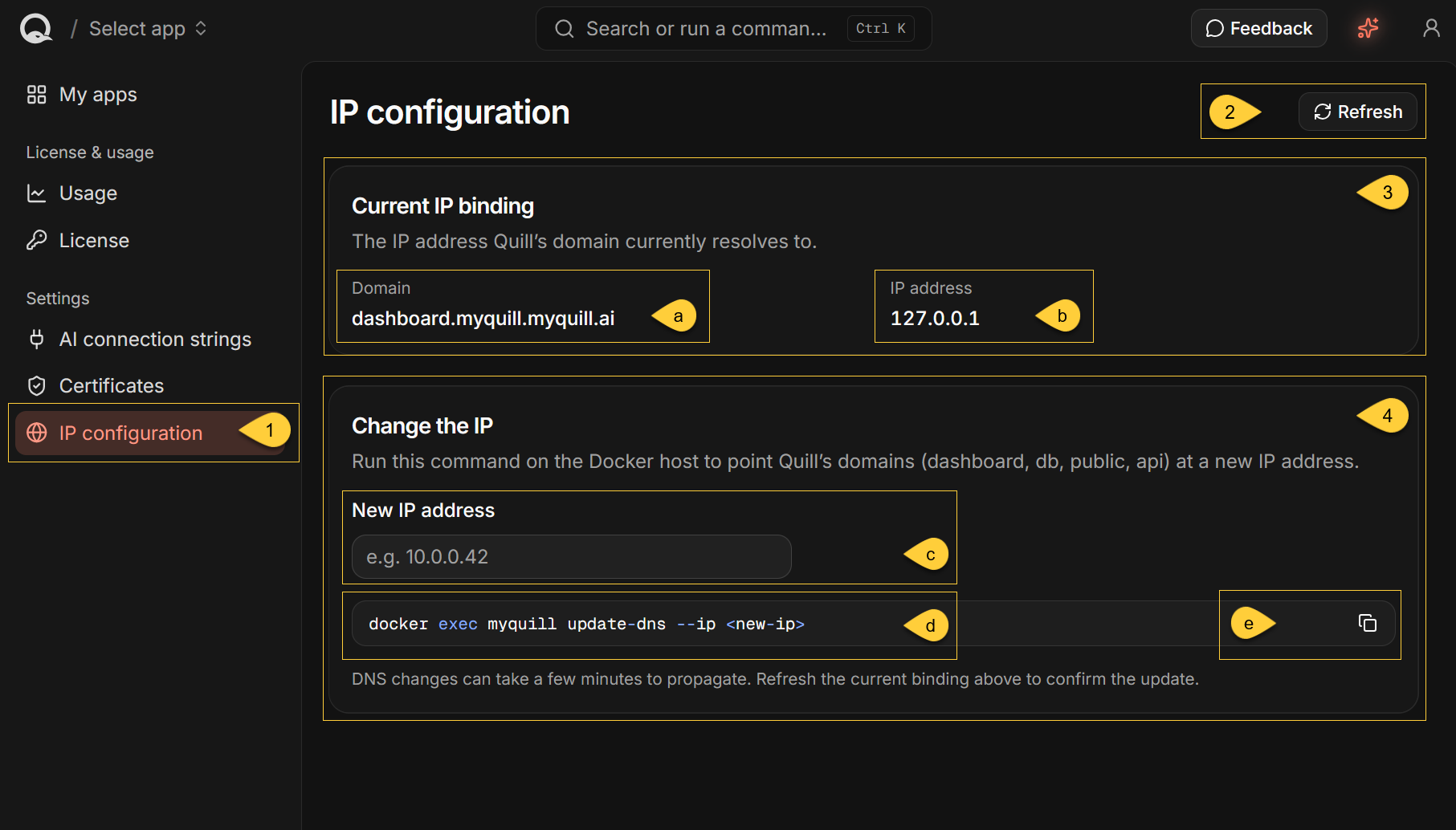
The IP configuration view
-
IP configuration
Select IP configuration under Settings to open the page. -
Refresh
Repeat the DNS lookup and update the addresses shown under Current IP binding. -
Current IP binding
Shows the dashboard hostname and the results of Quill's DNS lookup.
Learn more in Current IP binding below.-
a. Domain
The hostname in your browser's address bar. -
b. IP address
The IPv4 address or addresses returned by Quill's DNS lookup.
-
-
Change the IP
Generates the command used to update your Quill's DNS records.
Learn more in Change the IP below.-
c. New IP address
Enter a single IPv4 address to insert it into the generated command. -
d. Generated command
Theupdate-dnscommand to run on the Docker host. -
e. Copy
Copy the generated command to the clipboard.
A Copied to clipboard notification confirms the copy.
-
Current IP binding
The Current IP binding section shows the dashboard hostname from your browser's address bar
and the IPv4 address or addresses returned by Quill's DNS lookup.
| Field | What it shows |
|---|---|
| Domain | The hostname in your browser's address bar, e.g. dashboard.<your-domain>. |
| IP address | The IPv4 address or addresses returned by the DNS lookup. |
Quill performs the lookup from inside the Quill container. The result therefore reflects the container's view of DNS and can temporarily differ from a lookup performed on another computer while a DNS change is propagating.
This information is read-only.
It does not verify that Quill can be reached or is responding at the displayed address.
When no address is shown
-
If the lookup returns no IPv4 address, IP address displays No DNS record found.
-
If the dashboard is opened using an IP address or a hostname without a dot, such as
localhost,
Quill displays the following message instead of the Domain and IP address fields:
"This dashboard is opened directly by IP address, so there is no domain binding to show."
No DNS lookup is performed, and Refresh is disabled. -
If the lookup fails, Quill displays "Could not resolve the current IP binding" instead of the Domain and IP address fields. Select Retry to repeat the lookup, or see Refresh and errors.
Change the IP
Use Change the IP to generate an update-dns command.
Entering an address does not update the DNS records until you run the command on the Docker host.
Generate the command
-
Enter the new address in New IP address.
The field accepts a single IPv4 address.
If the entered address is invalid, Quill displays Enter a valid IPv4 address. below the field. -
Select the copy icon to copy the generated command.
A Copied to clipboard notification confirms the copy.
Check the container name
-
The Dashboard does not read the actual container name from Docker.
The name in the generated command may therefore differ from the running container name,
for example, if you changed the container name when running the setup command provided by Quill. -
Before running the command, run
docker pson the Docker host and verify the container name.
Replace the generated name if it does not match.
Run the command
Run the corrected command from a terminal on the Docker host. For example:
docker exec quill-acme update-dns --ip 10.0.0.42
Keep --ip and the address as separate arguments, as shown.
The --ip=<address> form is not supported.
The Quill container must be running and activated, and it must have outbound HTTPS access to api.ravendb.net.
Although the description under Change the IP names only dashboard, db, public, and api,
the generated command also updates a.<domain>. It updates these five DNS records:
dashboard.<domain>api.<domain>public.<domain>db.<domain>a.<domain>
When the update succeeds, the command prints a confirmation that the records were registered.
For details about these hostnames, DNS propagation, assigning IPv6 or multiple addresses, and handling a timeout, see Networking & DNS.
- Repointing the DNS records does not move your Quill's data.
- If you are moving your Quill instance to another host, see Moving to another host.
Refresh and errors
The page does not continuously refresh the current IP binding.
-
Select Refresh to perform a new DNS lookup.
Refresh is disabled while a lookup is in progress and when the dashboard is opened using an IP address or a hostname without a dot. -
If the lookup fails, Quill displays "Could not resolve the current IP binding" under Current IP binding,
followed by "Refresh the page or try again in a moment."
Select Retry to repeat the lookup.
After running the update-dns command, select Refresh and verify that IP address shows the new address.
Seeing the new address confirms that it has reached the DNS resolver used by the Quill container.
Other callers may continue receiving the previous address until their cached DNS records expire.
For details about DNS propagation and how to verify the update from outside the Quill container,
see DNS propagation and TTL
and Verify the change.