Dashboard: Channels view
-
A channel carries the conversations between your users and one of your app's agents: a chat widget on your site, a Telegram bot, a Slack app, or a Discord bot.
The Channels view lists the channels you already created, and allows you to view and modify channel settings, add new channels, check each channel's status, and perform other channel-related tasks like pausing or deleting a channel. -
The view is opened from the app's sidebar, where it is listed under the Settings group.
The app's Overview also lists existing channels, in a table that offers some of the actions available through the Channels view. -
This page covers Channels view features that are common to all channel types.
Features and behaviors specific to each channel type are covered in the pages dedicated to the various types, listed in Channels: Overview. -
In this article:
Opening the Channels view
The Channels view is the place where an app's channels are managed.
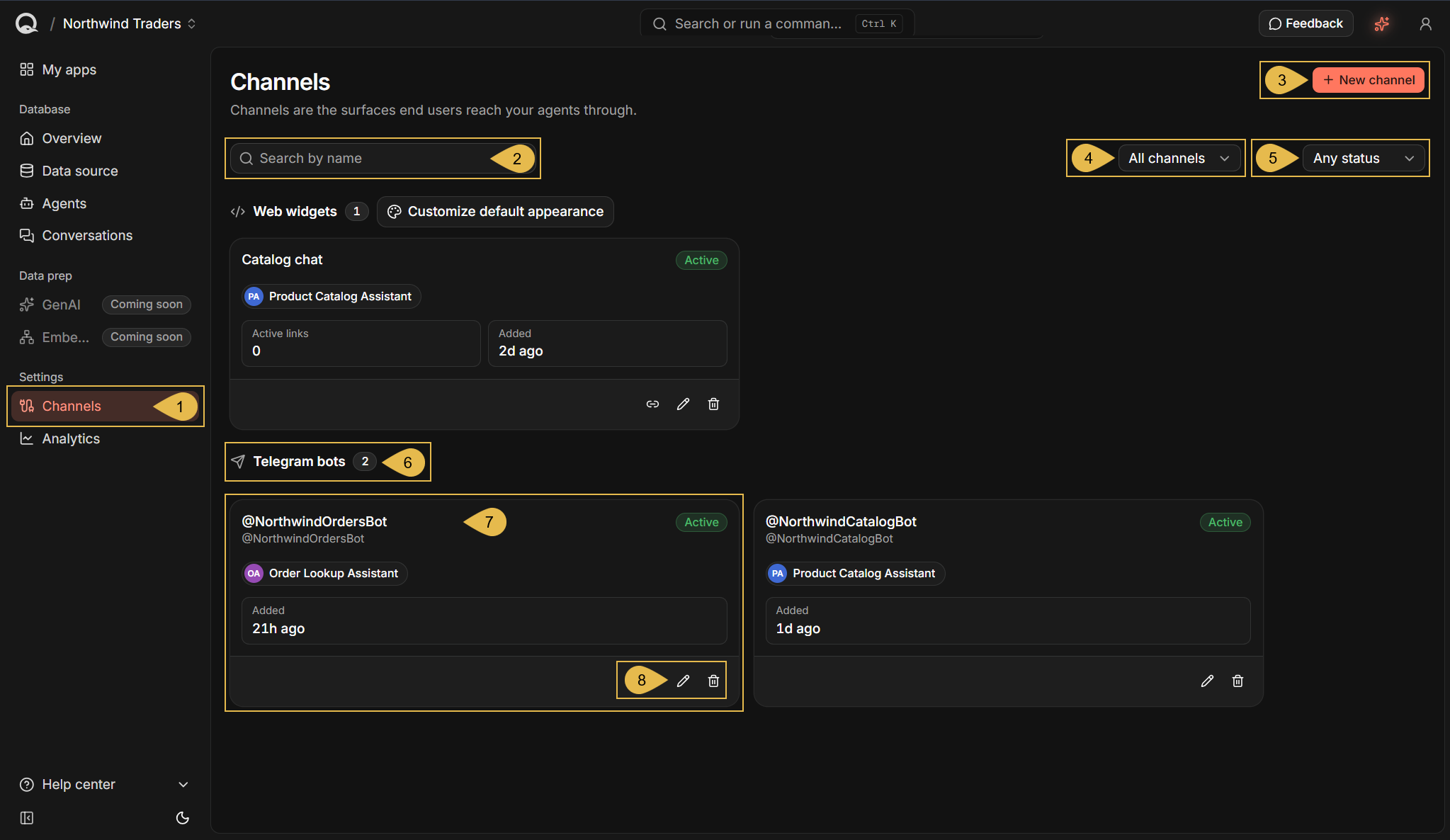
To open it, open the app in Quill's management dashboard and click Channels in the sidebar, under Settings.
-
Channels
Open the Channels view. -
Search by name
Type a part of a channel's name to show only the channels whose names contain it. -
New channel
Click to select a channel type and add a channel of this type. See Adding a channel. -
All channels
List channels of all types or of one type only: Web widgets, Telegram bots, WhatsApp, Slack, or Discord. -
Any status
Show only active channels, only paused channels, or both. -
Telegram bots
The channels are grouped by type. Each group is headed by its type name and the number of channels in the group. -
A channel box
Each box shows the channel's name (and, for a bot, the bot's username), the channel's status, the agent the channel was added for, and the time the channel was added. A web widget's box also shows its number of active embed links.
Click the box to open the channel's details view. See The channel's details view. -
Edit channel and Delete channel
Edit the channel, or delete it. See Editing a channel and Deleting a channel.The channel box depicted above is for a Telegram bot. A web widget's box also carries a Generate link icon, which opens the dialog for generating an embed link for the widget.
Adding a channel
A channel is added for one of the app's agents, and carries conversations to this agent alone.
Adding a new channel starts with selecting the channel's type: click New channel in the Channels view (or Add channel
in the Overview's channels list) to open the menu of types, and
select a type to open its form.
The form for each type and what it asks for are described on the type's own page.
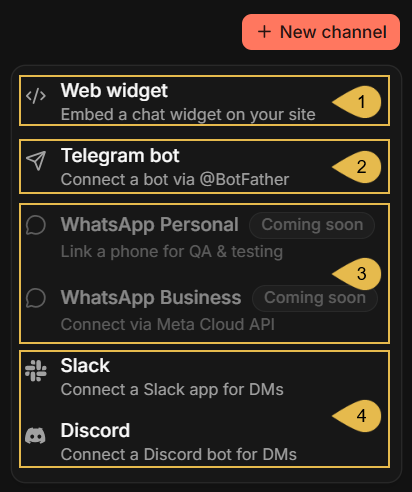
- Web widget
A chat widget embedded in a page of your site. See Getting started: Adding a chat widget. - Telegram bot
A bot your users chat with on Telegram. See Channels: Telegram bot. - WhatsApp Personal and WhatsApp Business
Not available yet; Coming soon. - Slack and Discord
A Slack app, or a Discord bot, that your users message directly. See Channels: Slack bot and Channels: Discord bot.
The channel's details view
Clicking a channel's box in the Channels view, or Open details in the
Overview's channels list, opens the channel's details view.
The view's header is the same for every channel type. The tabs below the header change per channel type: those depicted in the
image below, for example, are a web widget's tabs. The tabs provided for each channel type are described in the type's dedicated
page, e.g., Channels: Telegram bot.

-
Active
The channel's status: Active, or Disabled when the channel is paused. -
Pause
Pause the channel, or resume its activity when paused. See Pausing and resuming a channel. -
Edit or Delete the channel
The ⋮ button opens the channel's menu. The same two actions are also offered on the channel's box in the Channels view, as the pencil and trash icons:Edit/delete on the channel's menu Edit/delete on a channel's box 
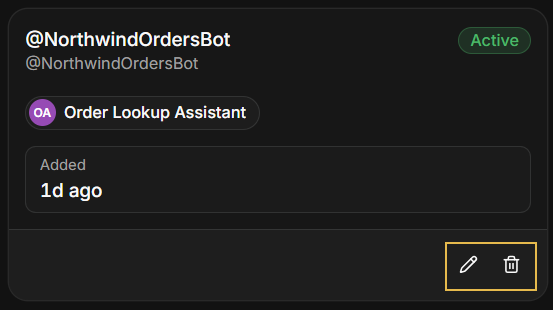
Edit opens the form described in Editing a channel.
Delete allows you to delete the channel. -
Web widget, Product Catalog Assistant, and the channel id
The channel's type, the agent the channel was added for, and the channel's id, the identifier Quill's API uses for the channel. -
Embed, Active links, and Customize appearance
The tabs of the channel's type, in this case a web widget.
Editing a channel
A channel is edited in the Edit channel form, opened using the pencil icon or the Edit menu entry described in
The channel's details view, or from the
channels list in the Overview.
The form presents the channel's name at the top (in this case, "Catalog chat") and a section relevant to the selected channel
type below.
The agent the channel was added for cannot be changed; to serve another agent, add a new channel for the agent.
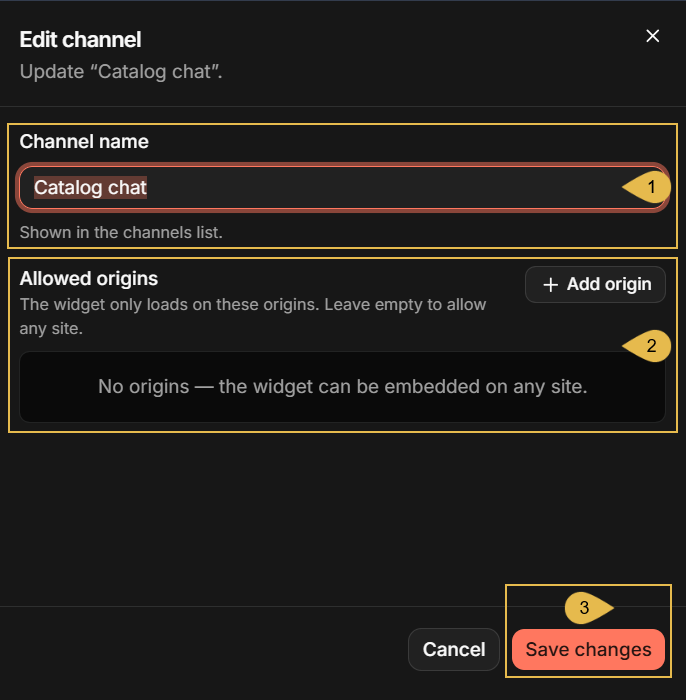
- Channel name
Change the name shown for the channel in the Channels view and in the Overview's channels list. - Allowed origins
The section that belongs to the channel's type. For the web widget shown here: the sites the widget may be embedded in (see Restrict where the widget loads); for a Telegram bot: the option to replace the bot token (see Channels: Telegram bot); for a Slack bot: the option to rotate the credentials (see Channels: Slack bot); for a Discord bot: the option to replace the bot token (see Channels: Discord bot). - Save changes
Click to save the changes. Cancel closes the form without saving.
Pausing and resuming a channel
Pausing a channel takes it out of service without deleting anything: the channel's settings and conversations are kept, and the
channel can be resumed at any time.
A channel is paused and resumed using the Pause/Resume button in the header of its details view, described in
The channel's details view.

- Disabled
The status of a paused channel. - Resume
Put the channel back in service.
What a pause means for the channel's users depends on the channel type:
- Web widget
A paused web widget will stop answering.
A page that embeds it reports that the conversation has ended, as it does for an expired embed link.
No new embed link can be generated for the channel while it is paused.
Once the channel is resumed, its embed links that have not expired work again. - Telegram bot
A paused Telegram bot will stop answering.
Messages users send meanwhile are held by Telegram for up to 24 hours, and answered if the channel is resumed within this time.
See Channels: Telegram bot. - Slack bot
A paused Slack bot will stop answering.
Slack keeps delivering the users' messages, which Quill discards; messages sent while the channel is paused are not answered when the channel is resumed.
See Channels: Slack bot. - Discord bot
A paused Discord bot will stop answering and appear offline on Discord.
Messages users send while the channel is paused do not reach Quill, and are not answered when the channel is resumed.
See Channels: Discord bot.
Deleting a channel
Deleting a channel removes it from the app for good, with its settings; the deletion cannot be undone.
A channel is deleted using the trash icon or the Delete menu entry described in
The channel's details view, or from the
channels list in the Overview. A confirmation is asked first:
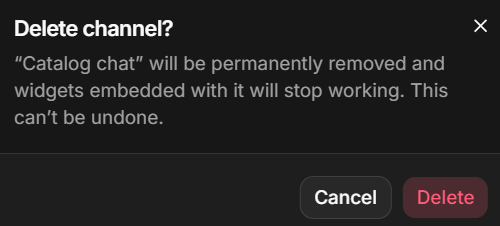
The conversations the channel carried are kept, and remain available in the app's Conversations view.
What else the deletion means depends on the channel type:
- Web widget
A deleted web widget's embed links will stop working.
A page that embeds an embed link reports that the conversation is not available. - Telegram bot
A deleted Telegram bot channel will stop the bot.
The bot itself remains yours on Telegram, and its token can be used to connect it again, to this app or to another.
See Channels: Telegram bot. - Slack bot
A deleted Slack bot channel will stop the bot.
The bot itself remains installed in the workspace, and its credentials can be used to connect it again, in a new channel with a new request URL.
See Channels: Slack bot. - Discord bot
A deleted Discord bot channel will stop the bot.
The bot itself remains yours in the Discord Developer Portal, and a member of your server; its token can be used to connect it again.
See Channels: Discord bot.
An additional entry point: the channels list in the Overview
Besides the Channels view, the app's Overview ends with a list of the app's channels, showing for each channel the channel's
name (and, for a bot, the bot's username), the agent the channel was added for, its status, its type, its number of active embed
links (web widgets only), and the time it was added.
The list's Add channel button opens the same menu of channel types as the Channels view's
New channel button, and each row ends with the channel's actions:

- Open details
Open the channel's details view. See The channel's details view. - Edit channel
Edit the channel. See Editing a channel. - Delete channel
Delete the channel. See Deleting a channel.
The channel row depicted above is for a Telegram bot. A web widget's row also carries a Generate link icon, which opens the dialog for generating an embed link for the widget.