Dashboard: Certificates View
-
Use the Certificates view to inspect the certificates recognized by the RavenDB server in your Quill instance
and to generate and manage client certificates for applications that connect directly to RavenDB or for browser access to RavenDB Studio. -
Each Quill app has a separate mirrored RavenDB database. A client certificate's security clearance and app access determine which databases can be accessed with it and which operations are permitted.
-
Applications and RavenDB Studio present the client certificate directly to RavenDB, which authenticates the connection. The Quill web application does not handle these connections.
For details about routing, TLS, and certificate authentication, see Client certificates for your applications. -
In this article:
The Certificates view
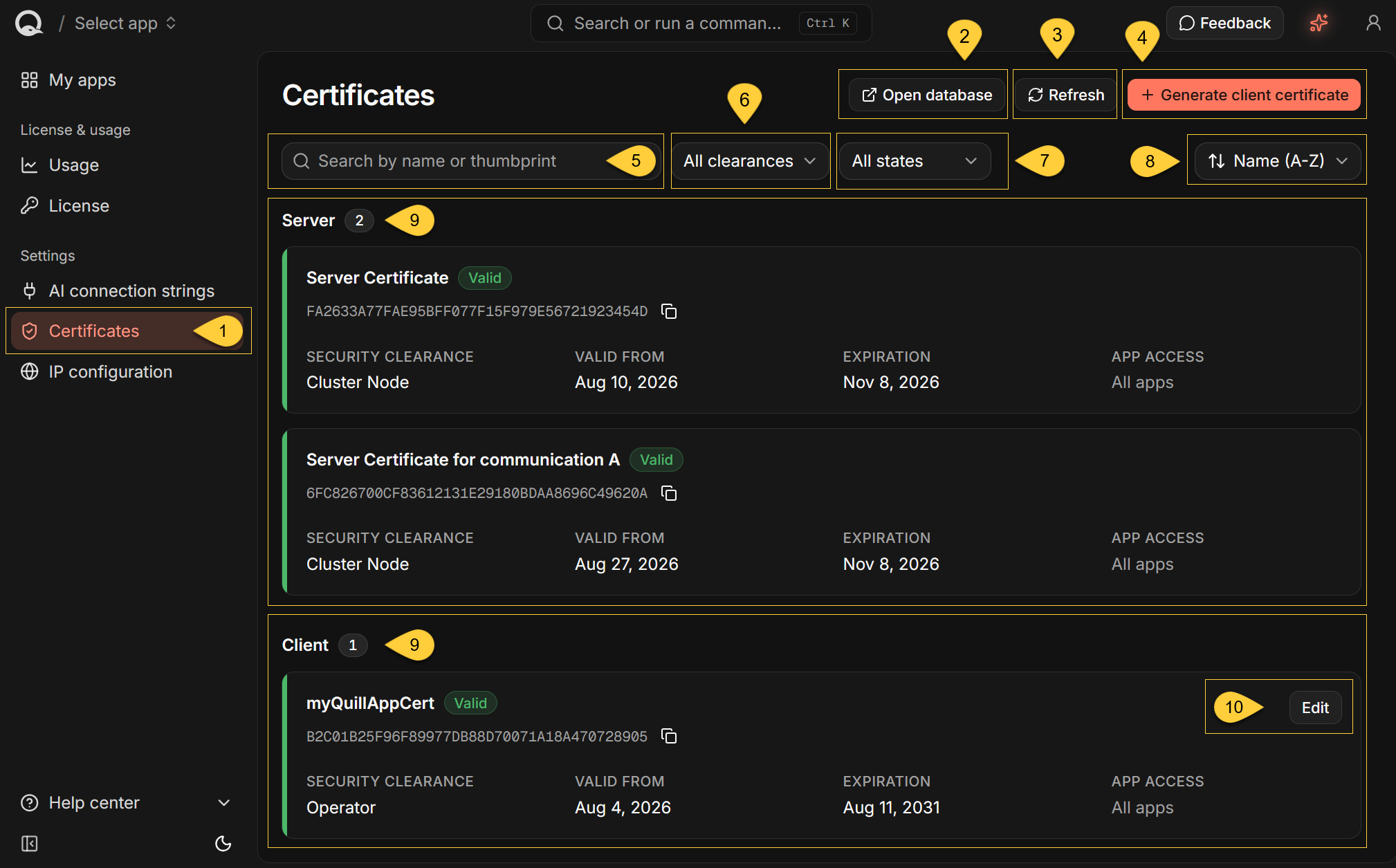
The Dashboard lists certificates recognized by the RavenDB server in your Quill instance,
including certificates created directly in RavenDB Studio.
-
In the Dashboard, select Certificates under Settings.
-
Open database
Opens RavenDB Studio for your Quill instance in a new browser tab.
To access a database in Studio, your browser must present an installed client certificate that grants access to that database. -
Refresh
Reloads the certificate list. -
Generate client certificate
Opens a dialog for creating a client certificate. -
Search
Filters certificates by name or thumbprint.
Matching is case-insensitive and supports partial values. -
All clearances
Filters by security clearance: Cluster Admin, Cluster Node, Operator, or User. -
All states
Filters by state: Valid, Expired, or Disabled. -
Sort
Orders the list by Name (A-Z), Name (Z-A), Expiration (soonest first), or Expiration (latest first). -
Server and client certificates
The Server section contains read-only certificates;
the Client section contains certificates that can be edited.The count beside each section name reflects the current filters, and a section is hidden when no certificates match.
Learn more about these sections in Server and client certificates below. -
Edit
Opens a dialog for editing the certificate.
This button is available only for Operator and User certificates.
Server and client certificates
Server certificates
The Server section includes certificates that RavenDB uses for TLS and internal cluster communication.
The section also includes certificates that an administrator creates directly in RavenDB -
for example, through RavenDB Studio - with Cluster Admin or Cluster Node clearance.
RavenDB adds the following runtime certificates directly to the list:
-
Server Certificate
The wildcard TLS certificate provided in Quill's activation setup package. During activation, Quill configures nginx and RavenDB to present it on different Quill hostnames. Connecting clients use this certificate to verify the server's identity. RavenDB automatically starts the renewal process before this certificate expires. -
Server Certificate for communication
<node-tag>
The certificate RavenDB uses to authenticate the node when it connects as a client, such as during internal cluster communication. It is displayed only when it differs from the active server certificate.
Both certificate types have Cluster Node clearance and display All apps under APP ACCESS.
The certificates in the Server section cannot be edited in the Dashboard.
For the renewal schedule, required outbound access, and what happens if renewal fails,
see The TLS front and the wildcard certificate.
Client certificates
The Client section includes registered certificates with Operator or User clearance.
You can generate these certificates in the Quill Dashboard or create them directly in RavenDB Studio.
They authenticate direct connections to RavenDB, including connections from external applications and access to RavenDB Studio in a browser. You can edit these certificates in the Dashboard.
Quill's internal admin certificate does not appear in the Client section.
Quill loads this certificate from the activation setup package and uses it for its own connections to RavenDB.
RavenDB trusts it as a well-known admin certificate rather than storing it as a registered client certificate,
so it is not listed or managed in the Dashboard.
Learn more in Quill's internal admin certificate.
Certificate information

-
Certificate name and thumbprint
The value beneath the certificate name is its thumbprint.
Select the copy icon to copy the thumbprint to the clipboard. -
Security clearance
Shows the clearance assigned to the certificate.
Learn more in Security clearance below. -
Validity period
VALID FROM shows the beginning of the certificate's validity period.
EXPIRATION shows when that period ends.
Hover over either date to see its full timestamp.
Learn more in Validity period below. -
App access
For a User certificate, APP ACCESS lists each granted app.
Each badge shows<RavenDB-database-name> · <access-level>.
In the Generate and Edit dialogs, select the corresponding app by its Quill app name.
If no apps are granted, APP ACCESS displaysNone.For an Operator certificate or a certificate in the Server group, APP ACCESS displays
All appsbecause access is determined by security clearance rather than by individual app grants.
Learn more in App access below. -
Certificate state
The badge beside the certificate name shows its state.
The colored strip on the left also indicates the certificate's state.State Meaning Valid The certificate is enabled and has not expired. About to expire An additional badge shown on a valid certificate that expires within the next 14 days. Expired The certificate's expiration date has passed. RavenDB rejects requests that present it. Disabled The certificate was disabled in the Dashboard or RavenDB. RavenDB does not authenticate it. The Dashboard does not display a separate notification or banner when a certificate is about to expire.
Use the About to expire badge and Expiration (soonest first) sorting to identify certificates that require attention.
Generate a client certificate
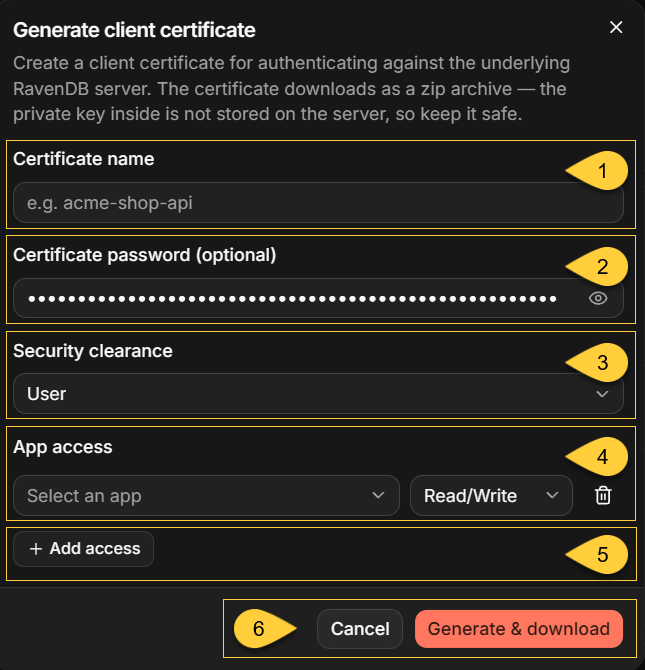
Click Generate client certificate to open the dialog.
-
Certificate name
Identifies the certificate in the Dashboard and RavenDB. Required. -
Certificate password (optional)
Protects the.pfxfile in the downloaded archive.
Neither Quill nor RavenDB stores the password, so the Dashboard cannot recover it or change the downloaded.pfx. -
Security clearance
Select Operator or User.
See Security clearance below. -
App access
Appears only when you select User clearance.
Select an app and the access level to grant it.
See App access below. -
Add access
Adds another app-access row.
Use the trash icon to remove a row. -
Generate & download
Creates the certificate, registers it with RavenDB, and downloads its ZIP archive.
Quill displays Certificate “<name>” downloaded. and adds the certificate to the list.Cancel closes the dialog without creating a certificate.
If the form has unsaved changes, Quill asks you to confirm before discarding them.
Validity period
Quill does not let you choose the validity dates. RavenDB assigns:
- A Valid from date seven days before the certificate is generated.
- An Expiration date five years after the certificate is generated.
The client certificate is signed by RavenDB's active server certificate.
However, RavenDB authenticates it by matching its thumbprint against the registered certificate,
rather than by validating its certificate chain.
Renewing or replacing the server certificate therefore does not invalidate existing client certificates.
Certificate names are not unique
-
Quill identifies certificates by thumbprint, not by name.
Generating a certificate with an existing name creates a separate certificate with its own thumbprint.
It does not replace, disable, or otherwise change the existing certificate. -
Use the displayed thumbprints to distinguish certificates that have the same name.
Security clearance
Security clearance determines which RavenDB databases the certificate can access and whether it can perform server-wide administrative operations.
Quill can generate certificates with two clearance levels:
-
User
Accesses only the RavenDB databases for the apps selected under App access.
Its permissions in each database are determined by the assigned Read/Write or Admin access level.
It cannot perform server-wide administrative operations. -
Operator
Has full access to every RavenDB database in your Quill instance, including internal databases and databases created later. It can also perform Operator-level server operations, such as creating or deleting databases and issuing client certificates. It cannot perform operations reserved for Cluster Admin.App access does not apply because Operator clearance grants access to every RavenDB database.
The Dashboard therefore displays All apps under APP ACCESS.
Prefer User clearance for your applications
-
The All apps label understates the scope of an Operator certificate:
it can access every RavenDB database in the instance, not only the app databases shown in the Dashboard. -
Give applications a User certificate scoped to only the apps they require.
The Dashboard lets you assign only User or Operator clearance.
It can still list certificates with Cluster Admin or Cluster Node clearance,
so these clearances are also available in the filter.
App access
For a User certificate, each App access row grants access to the RavenDB database associated with the selected Quill app.
| Access level | What it permits |
|---|---|
| Read/Write | Reading and writing data and using RavenDB's non-administrative database operations. This is the default for a new row. |
| Admin | Everything permitted by Read/Write, plus database-administration operations such as configuring ongoing tasks and connection strings, controlling indexing, and changing the revisions configuration. |
When generating a User certificate, you must grant access to at least one app:
- Submitting with no access rows displays Grant access to at least one app.
- Leaving the app selection empty displays Required.
- Selecting the same app more than once displays Already listed.
The app selector lists the apps in your Quill instance by app name.
Read-only access is not available
-
RavenDB supports a Read access level, but the current Quill license does not include read-only certificates.
The Quill Dashboard therefore does not offer Read when generating or editing certificates. -
A User certificate created in RavenDB Studio with Read access still appears in the Dashboard, with Read displayed under APP ACCESS.
When you open the certificate in the Edit dialog, the access-level selector for that row has no selection. -
Attempting to save it displays Read-only access is no longer supported. Pick another level.
Change the grant to Read/Write or Admin, or remove the unsupported grant, before saving.
The downloaded archive
The archive is named <name>_certificates.zip and contains:
| File | Contents |
|---|---|
<name>.pfx | The client certificate and its private key in PKCS#12 format. Password-protected if you set one. |
<name>.crt | The public certificate in PEM format. It contains no private key. |
<name>.key | The private key in unencrypted PEM format. |
Use the .pfx with clients that accept PKCS#12 files.
Use the .crt and .key pair with clients or tools that expect PEM files.
Store the archive as a secret
-
RavenDB stores the public certificate but not its private key.
The Dashboard therefore cannot download or recover the private key again.
If no usable copy remains, generate a replacement certificate and then disable or remove the old one. -
The optional certificate password protects only the
.pfxfile.
It does not encrypt the ZIP archive or the.keyfile. Anyone who obtains the archive can use the unencrypted private key to authenticate with the certificate's permissions while it remains enabled and valid. -
Do not commit the ZIP,
.pfx, or.keyfiles to source control or publish them as web assets.
Store them with your other application or deployment secrets.
Edit a certificate
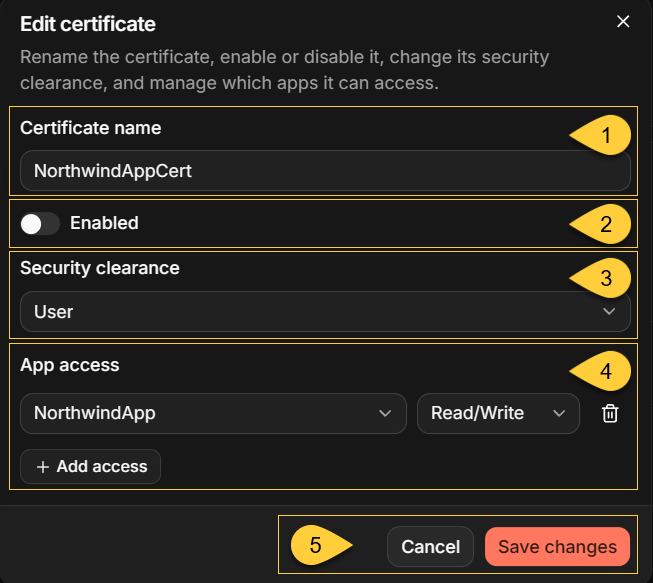
In the Client section, select Edit for the certificate you want to change.
-
Certificate name
Changes the name stored with the certificate in RavenDB. Required.
Renaming does not change the certificate itself or the names of previously downloaded files. -
Enabled
Enables or disables the certificate.
See Disable or remove a certificate. -
Security clearance
Changes the clearance between Operator and User.- Saving with Operator clearance grants access to every RavenDB database and clears the stored App access grants.
- Saving with User clearance restricts access to the apps listed under App access.
-
App access
Adds, removes, or changes the database permissions assigned to a User certificate. -
Save changes
Applies the changes and displays Certificate “<name>” updated.Cancel closes the dialog without saving.
If the form has unsaved changes, Quill asks you to confirm before discarding them.
What editing does not change
Editing updates the certificate’s registered name, state, clearance, and permissions.
It does not issue a new certificate or private key:
- The thumbprint and validity dates remain unchanged.
- Applications continue using the certificate files they already have;
no certificate redeployment is required after a name or permission change. Existing connections may retain their previous access until they reconnect, as described in Disable or remove a certificate. - The Dashboard cannot change or recover the password of a downloaded
.pfx, and it cannot download the archive again. If you still have the private key, you can re-export it locally with a different PFX password.
If the private key is unavailable, generate a replacement certificate, deploy it, and then disable or remove the old certificate.
Unlike the Generate dialog, the Edit dialog accepts a User certificate with no app grants.
Removing the final row displays No access granted — this certificate cannot reach any app.,
but Save changes remains available.
The certificate remains enabled and the Dashboard displays None under APP ACCESS,
but it cannot access any RavenDB database after existing connections close.
Disable or remove a certificate
Disable a certificate
Disabling a certificate prevents it from authenticating new connections.
To disable a certificate, turn Enabled off in the Edit certificate dialog and select Save changes.
The certificate remains in the list with the Disabled state,
and RavenDB rejects new connections that present it as though the certificate were unknown.
Turn Enabled back on to restore access.
Clients can continue using the same certificate files.
Retry any failed request; RavenDB re-authenticates a still-open connection that it rejected while the certificate was disabled after detecting the certificate update.
You do not need to reconnect explicitly.
Delete a certificate
Deleting a certificate permanently removes a registered client certificate.
The Dashboard does not provide a delete action; certificates must be deleted in RavenDB Studio.
Before continuing:
-
To delete a User or Operator certificate, authenticate to RavenDB Studio with a different Operator or Cluster Admin certificate. If no suitable certificate is available, generate and install another Operator certificate.
-
To delete a Cluster Admin or Cluster Node certificate, authenticate with a different Cluster Admin certificate.
To delete the certificate:
- Select Open database.
- In RavenDB Studio, go to Manage Server > User Access Management.
- Delete the certificate.
- Return to the Dashboard and select Refresh.
Prefer disabling when you want a reversible action or want the certificate to remain visible as a record of previous access.
Existing connections are not terminated
-
RavenDB authenticates a client certificate when a connection is established.
Disabling or deleting a certificate, lowering its clearance, or removing an app grant does not change the authorization already associated with an open connection. -
A client that keeps an existing connection open can therefore continue operating with its previous access until that connection closes.
-
To make a known application use the new permissions, close its connections or restart the application.
If a certificate is compromised and every existing connection must be terminated, restart the Quill container.
This interrupts the entire Quill instance.
Refresh and errors
When you open the view, the Dashboard loads the certificate list unless it can reuse a recently cached result.
Returning to the view shortly after leaving can therefore show the existing list.
The list is reloaded after you successfully generate or edit a certificate.
Quill does not poll for changes or reload the list when the browser window regains focus.
Select Refresh to reload the list at any time, especially after changing a certificate in RavenDB Studio.
The button is disabled while a reload is in progress.
If the list cannot be loaded, the view displays:
- Could not load certificates
- Refresh the page or try again in a moment.
- A Retry button
If a generate or edit request fails, its dialog remains open and displays the error above the action buttons.
The Dashboard shows the reason returned by the server when available;
otherwise, it displays a generic message such as Request failed with 500.