Dashboard: AI Connection Strings View
-
An AI connection string contains the provider connection details and model settings that an agent uses to reach a language model.
-
AI connection strings are server-wide and shared by every app in Quill.
Create each connection string once; you do not configure a separate copy for each app. -
Agents refer to connection strings by name.
Select a connection string when you create or edit an agent. -
In this article:
The AI connection strings view
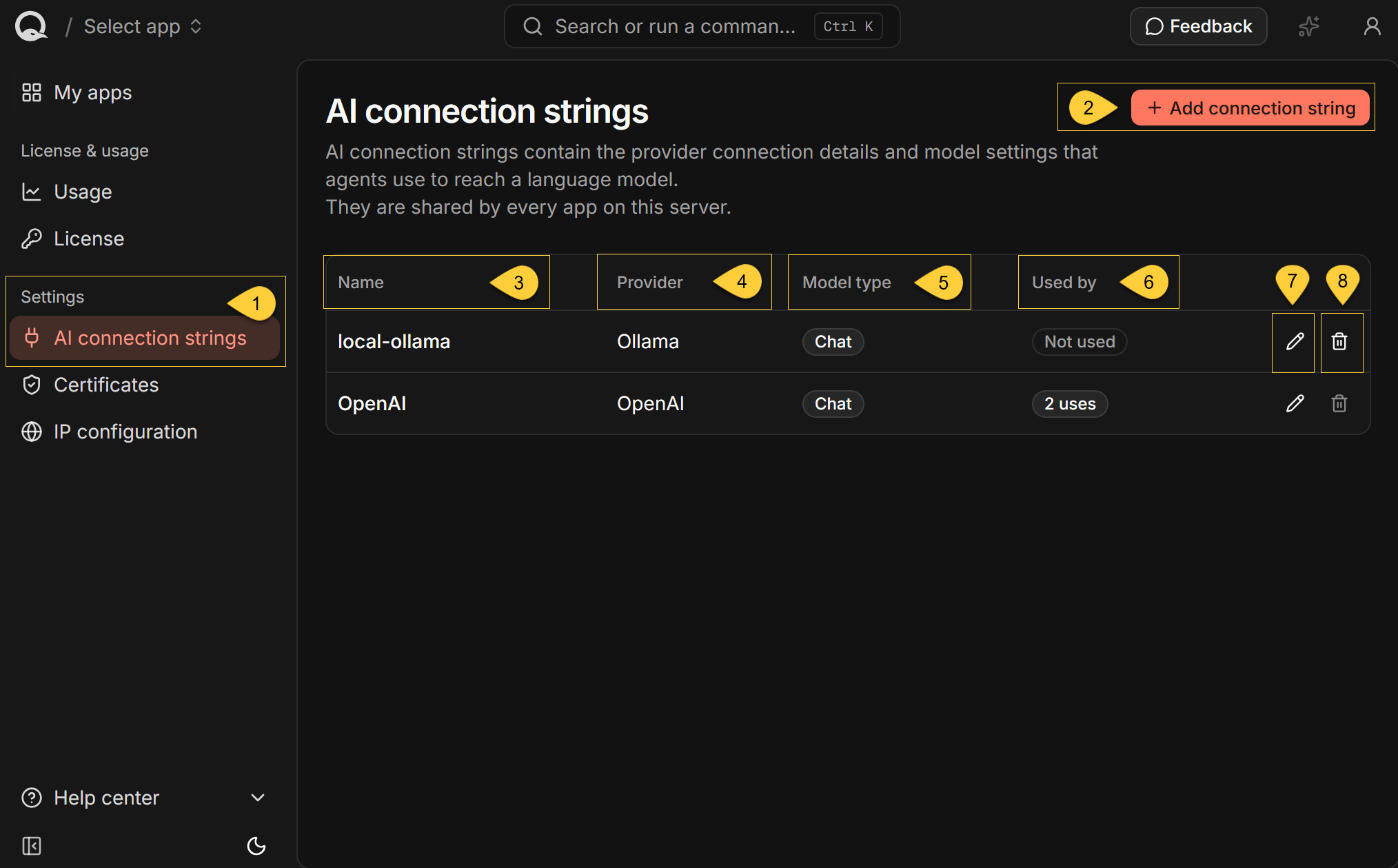
The Dashboard lists all server-wide AI connection strings, including strings created directly through RavenDB rather than from this dashboard. It does not list database-specific AI connection strings.
-
In the Dashboard, select AI connection strings under Settings.
-
Add connection string
Opens a side panel for creating an AI connection string. -
Name
The name used to identify the connection string in the Dashboard and when selecting it for an agent. -
Provider
Shows the configured language model provider. -
Model type
Shows whether the connection string is forChatorText embeddings.
Quill agents requireChat. -
Used by
ShowsNot used, or the number of agents and tasks that use the connection string, such as2 uses.
Hover over the number to list each use and the app it belongs to. -
Edit
Opens a side panel for editing the connection string's settings. -
Delete
If the connection string is not in use, opens a confirmation dialog for permanently deleting it.
If it is in use, the delete icon is dimmed and does not open the dialog;
hovering over it shows "Can’t be deleted while in use".
Learn more in: Delete an AI connection string.
If no server-wide AI connection strings have been configured, the table displays "No connection strings yet."
To finish creating an agent, its app must have an available Chat connection string that uses a supported provider.
Add an AI connection string
-
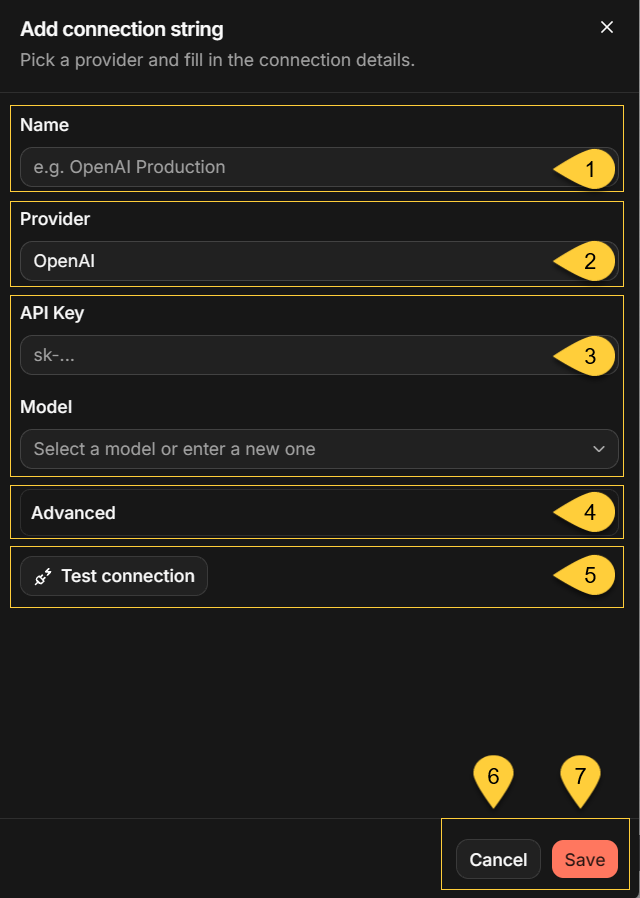
Name
Enter a name that identifies the connection string to your agents.Use a unique name. Creating a connection string with an existing name replaces the settings stored under that name without displaying a warning. Every agent that refers to the name will then use the replacement settings.
-
Provider
Select OpenAI, Azure OpenAI, or Ollama. -
Connection details
Enter the provider connection details and model settings described below.The Model field suggests available models when Quill has the connection details needed to contact the provider:
the API key for OpenAI, the API key and endpoint for Azure OpenAI, or the URI for Ollama.
You can also enter a model that does not appear in the suggestions. -
Advanced
Expand Advanced to configure optional settings for the selected provider. -
Test connection
Tests the current settings without saving the connection string. -
Cancel
Closes the side panel without saving.
If you have unsaved changes, Quill asks you to confirm before discarding them. -
Save
Tests the current settings if needed and saves the connection string only after verification succeeds.
You can create multiple connection strings for the same provider.
This allows different agents to use different credentials, endpoints, or models from that provider.
OpenAI settings
| Field | Required | Description |
|---|---|---|
| API Key | Yes | The API key used to authenticate with OpenAI. |
| Model | Yes | The model the agent will use. Suggestions are loaded after you enter the API key. |
The Advanced section contains:
| Field | Description |
|---|---|
| Endpoint (optional) | Overrides the default OpenAI endpoint. Use this for an OpenAI-compatible provider. |
| Organization ID (optional) | Sets the OpenAI-Organization request header. |
| Project ID (optional) | Sets the OpenAI-Project request header. |
| Reasoning effort (optional) | Sent to the provider as entered. Supported values vary by model; OpenAI values must be lowercase, such as low or high. Leave empty for the model default. |
| Enable prompt cache | Reuses cached prompt prefixes across conversation turns to reduce latency and cost. Enabled by default. |
| Set temperature | Overrides the model's default randomness with a value from 0 to 2. |
When you enter a custom endpoint that is not hosted by OpenAI, the side panel displays an Experimental provider warning.
Azure OpenAI settings
| Field | Required | Description |
|---|---|---|
| API Key | Yes | The API key used to authenticate with the Azure OpenAI resource. |
| Endpoint | Yes | The endpoint of the Azure OpenAI resource, such as https://my-resource.openai.azure.com/. |
| Model | Yes | The model used by the connection string. Suggestions are loaded after you enter the API key and endpoint. |
| Deployment Name | Yes | The name of the Azure OpenAI deployment that serves the model. |
The Advanced section contains Enable prompt cache and Set temperature,
with the same behavior described for OpenAI.
Ollama settings
Ollama is marked Experimental.
The results produced by a local model can be significantly worse than those produced by a hosted model.
| Field | Required | Description |
|---|---|---|
| URI | Yes | The address of the Ollama server. It is prefilled with http://localhost:11434/; Quill loads model suggestions from this URI. |
| Model | Yes | The model the agent will use. You can select a suggested model or enter its name. |
The Advanced section contains:
| Field | Description |
|---|---|
| Thinking mode | Controls whether the model exposes its reasoning steps before answering. Select Default, Enabled, or Disabled. |
| Set temperature | Overrides the model's default randomness with a value from 0 to 2. |
The URI must be reachable from inside the Quill container.
If Ollama runs outside that container, do not use localhost;
from inside the container, localhost refers to the container itself.
Test and save the connection
Test the connection
Click Test connection to verify that:
- Quill can reach the provider using the entered connection details and the selected model can complete a request.
- The selected model supports function tools, which every Quill agent requires.
When both checks pass, the button changes to Connection verified.
If verification fails, the side panel displays the reason so you can correct the settings or select a different model.
A verified result applies only to the provider and settings that were tested. Changing the selected provider or any of its settings clears the verified result and changes the button back to Test connection.
Save the connection string
You do not need to test the connection separately before saving. If the current settings have not already been verified, clicking Save or Save changes runs the same verification. Quill saves the connection string only if verification succeeds.
Close without saving
If you close the Add connection string or Edit connection string side panel with unsaved changes, Quill asks you to confirm before discarding them.
Edit an AI connection string
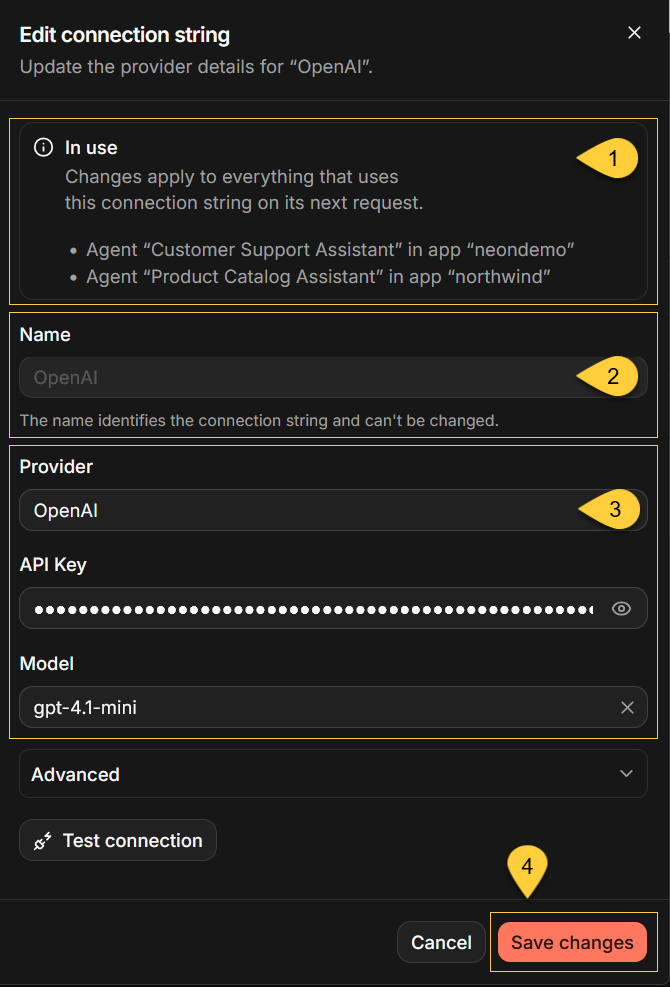
Click the edit icon in the connection string's row to open the Edit connection string side panel.
The side panel displays the stored settings.
-
In use
Lists the agents and tasks that use the connection string. -
Name
The name cannot be changed because agents and tasks refer to the connection string by name.
To use a different name, create a new connection string, update every agent or task that refers to the old connection string, and then delete the old connection string. -
Provider and Model
Remain editable when only Agents use the connection string, as shown above.
If a GenAI or Embeddings generation task uses it, these fields are disabled,
along with related fields such as Deployment Name for Azure OpenAI.
To change these settings, create a new connection string. -
Save changes
Quill can save changes only toChatconnection strings that use a supported provider.
Quill runs the connection test unless the current settings are already verified, and saves only if verification succeeds.Saving changes updates the server-wide connection string under its existing name.
Any agent or task that refers to that name will use the updated settings on its next request.
Provider API keys can be viewed in the Dashboard
When you edit an OpenAI or Azure OpenAI connection string, the side panel loads the complete stored provider API key. The key is masked by default, but an authenticated Dashboard operator can reveal it by clicking the eye icon.
Treat access to the Dashboard as access to these provider credentials. The provider API key is separate from the Dashboard API key used to authenticate to the Dashboard.
Delete an AI connection string
A connection string can be deleted only when it is not in use.
Check the Used by column to determine whether it can be deleted.
When the connection string is not in use
If Used by shows Not used, the delete icon is available.
Click the icon, then click Delete in the Delete connection string? dialog.
Quill permanently deletes the connection string. This cannot be undone.
When the connection string is in use
If Used by shows a usage count, such as 2 uses, the delete icon is dimmed and cannot be used.
Hover over the usage count to see what uses the connection string:
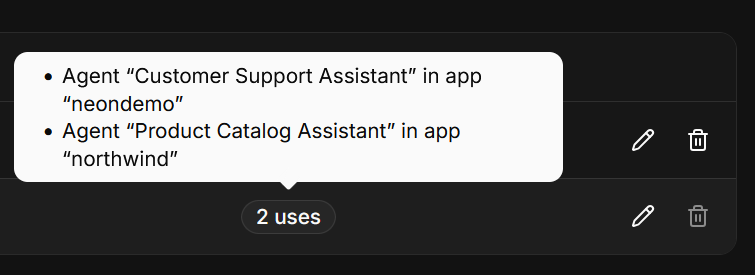
Remove each listed use:
Agent “<agent>” in app “<database>”
Open the identified app. In the agent's Basic settings, select another connection string, or delete the agent if it is no longer needed.GenAI task “<task>” in app “<database>”orEmbeddings task “<task>” in app “<database>”
Open the identified database in RavenDB Studio and reconfigure or delete the task.
In these labels, <database> is the name of the app's database.
After removing all uses, return to AI connection strings.
When Used by shows Not used, delete the connection string.
If the Used by information is out of date
The Used by column reflects the uses present when Quill last loaded the table.
If an agent or task is configured to use the connection string after the table was loaded,
for example in RavenDB Studio or another browser tab, the delete icon may still appear available.
If you open the dialog and click Delete, Quill leaves the connection string unchanged.
The dialog remains open, displays "This connection string is still in use. Remove what uses it first:",
and lists the current uses.
Reload the page to refresh the Used by column.