Channels: Web widget
-
A web widget is a Quill app channel that opens to a chat box on your website page.
When a visitor to your page uses the chat box to ask a question, the channel carries the question to an agent of your Quill app.
The agent then queries the app's internal database, and answers the visitor through the channel, in the chat box. -
A visitor to the website needs no Quill account or any knowledge of Quill to use the chat box.
-
The chat box is embedded in your website page using an embed link generated by Quill.
Add the web widget channel and generate the embed link for the chat box using Quill's management dashboard, as explained below. -
The chat box can also be embedded in a phone app, in a component that displays web pages as a browser does.
This article follows the website case. -
A chat box embed link is valid for a period and a number of chats of your choice.
-
Each chat box opens a single conversation thread over the web widget channel. All page visitors that use the same chat box take part in the same conversation; users of a different chat box participate in a different conversation.
-
In this article:
Prerequisites
Before adding a web widget channel, make sure you have:
- An agent to answer the chat box's users.
The web widget channel is added for a specific agent, and the conversation is then carried over the channel between the chat box users and the agent.
Learn to add an agent in Getting started: Adding an AI agent. - Editing rights on the website page you want to add the chat box to.
You need these rights so you can edit the page's HTML and add to it the embed link that opens the chat box. - A Quill deployment with a public address that your visitors' browsers can reach.
The chat box is served by your Quill deployment, not by your website.
A deployment running in an environment isolated from the internet, like your own machine or a private company network, will be able to serve only browsers with access to this environment, e.g., your own browser.
Adding the channel
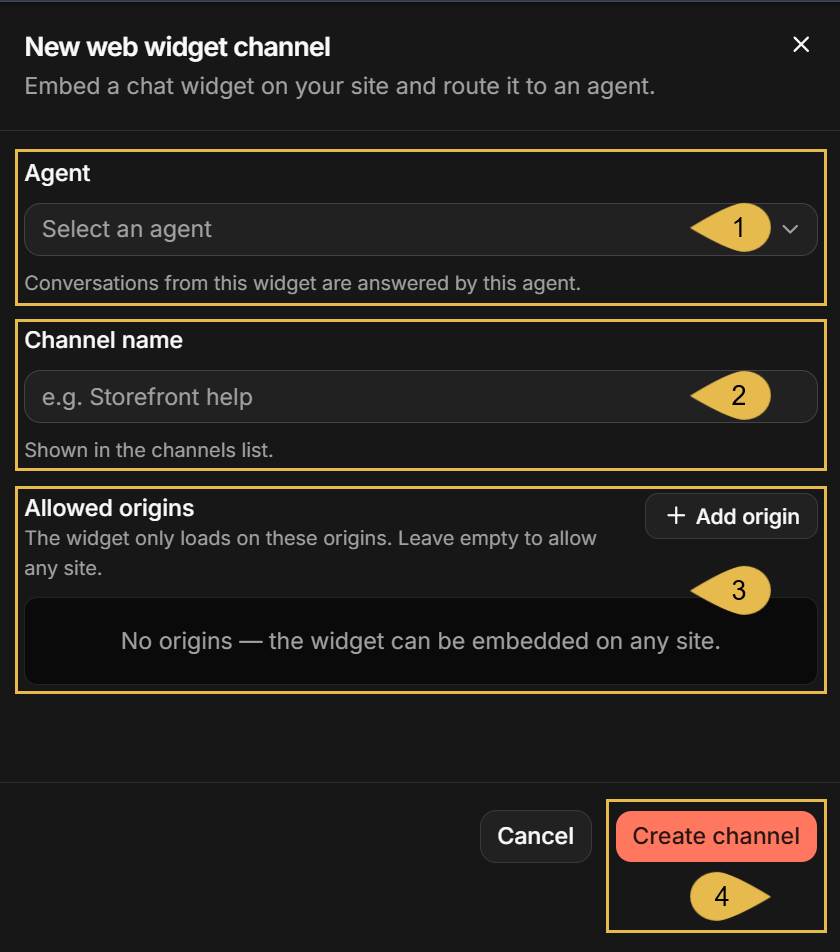
A web widget channel is added using Quill's management dashboard, in a short form that asks you to:
- Select the agent that will answer the chat box's users.
- Give the channel a name.
- Specify the websites that are allowed to embed the chat box.
Opening the Add channel menu
Enter your app's Channels view by opening
My apps in the management dashboard, selecting your app, and clicking the sidebar Channels option.
To add a new web widget channel, click the New channel button and select Web widget in the channel types menu.
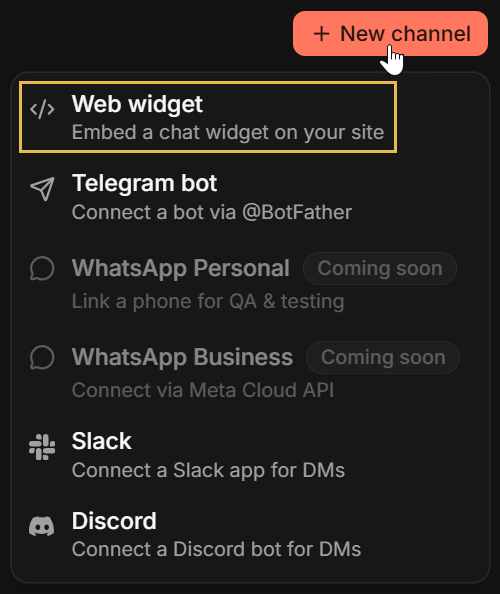
Additional entry points to the Add channel menu:
- You can open the same menu using the Add channel button in the app overview Channels section.
- The Add agent wizard ends on an Add a channel stage carrying the same Add channel button, so a channel can be added for the new agent right after creating it.
Filling in the channel form
Selecting Web widget opens the New web widget channel form:
-
Agent
Select the agent that will answer the chat box's users.When the form opens while running the Add agent wizard, the newly created agent is selected automatically and the Agent field is omitted.
-
Channel name
Enter a name for the channel (e.g.,Catalog chat).- The name will be displayed on the channel's box in the Channels view.
-
Allowed origins
Choose the websites permitted to embed the chat box.
Click Add origin and enter the website's address with no page path, one entry per website (e.g.,https://shop.example.com).-
While the list is empty, any website is permitted to embed the chat box.
Listing your own websites here is recommended, so no other websites can embed the chat box.
-
The list can be edited later, see Editing the channel name and allowed origins.
-
-
Create channel
Click to add the channel to the app.
Checking the new channel
Once created, the new channel is listed in the Channels view, under the Web widgets group.
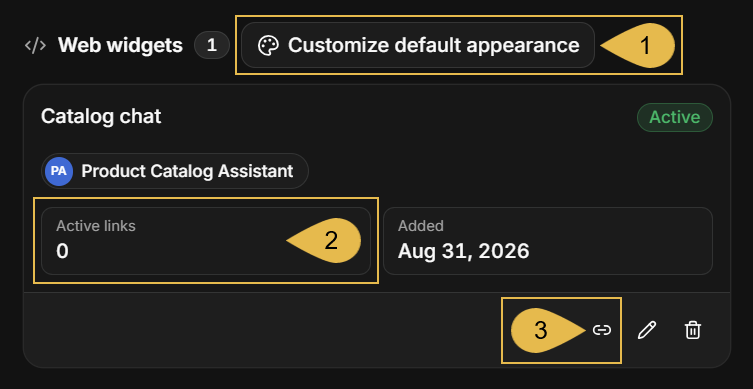
- Customize default appearance
Set the default appearance of the app's chat boxes.
See The Customize appearance tab. - Active links
The number of embed links that were generated for the channel and can still be used. - Generate link
Generate an embed link for the channel.
See Generating an embed link.
The channel box also shows the channel's status (Active in the depicted box), the agent the channel was added for,
and the date the channel was added.
The pencil and trash icons are used to edit or delete the channel, see Managing the channel.
Generating an embed link
- A web widget channel can carry multiple conversations between your users and the agent that you added the channel for.
- An embed link is the address of a single conversation carried over the web widget channel.
When placed on your website page, an embed link opens a chat box to the conversation. - Joining a conversation through a chat box requires no sign-in or any other procedure.
- The conversation ends when the embed link expires, reaches its chat limit, or is revoked.
When the chat box's users send their next message, they will be notified that the conversation has ended
and further messaging will be disabled.
A new conversation requires a new embed link.
Two ways to generate the link
Having your backend generate the link:
Embed links are normally generated by your backend, which automatically serves each page visitor or app user a unique link.
This way different visitors and users conduct their own conversations with Quill agents.
When a visitor's conversation ends, the backend can automatically replace the link with a fresh one that opens a new conversation.

To learn more about generating embed links automatically, see:
- The Embed tab section below.
- The dedicated Embed the Chat Widget article.
Generating the link manually:
You can also generate an embed link yourself, using the dashboard, to test the agent, the chat box,
and the behavior of the conversation.
Be aware that all the users of a chat box opened using the same embed link participate in the same
conversation and see its common history, and that when the conversation ends no mechanism replaces
the link automatically.

Generate an embed link manually using the Generate embed link dialog.
To open the dialog:
- either click the chain icon on the channel's box in the Channels view (see Checking the new channel),
- or click Generate link in the Active links tab of the channel's details view (see The Active links tab).
Setting the link limits
The Generate embed link dialog has two panels.
The first panel is used to set the embed link limits, provide values for agent parameters (if the agent has any
parameters), and generate the embed link.
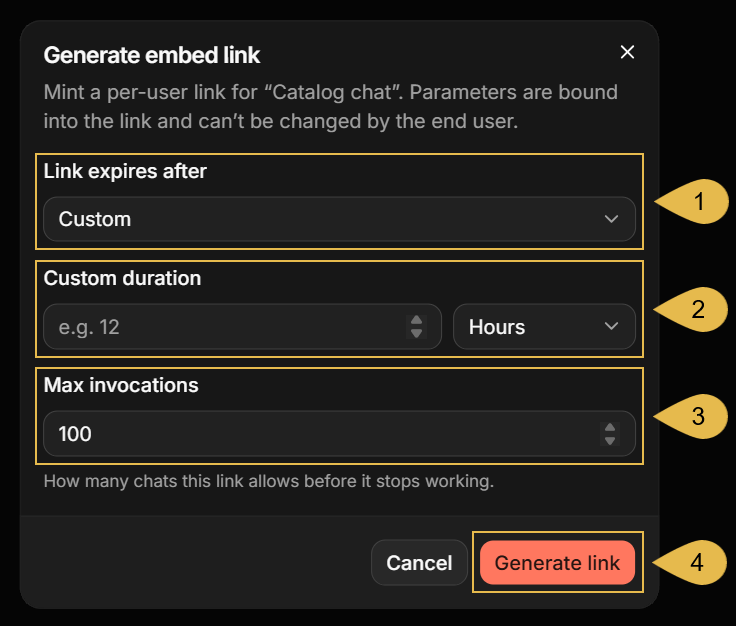
- Link expires after
Select the period after which the link stops working: 1 hour, 4 hours, 24 hours, 7 days, or Custom. - Custom duration
Shown when Link expires after is set to Custom.
Enter a number and select the time unit (seconds, minutes, hours, or days), for a period of 1 minute to 30 days. - Max invocations
Enter the maximum number of chats allowed through this link before it stops working (100 by default, up to 1,000,000). A chat is a single question and its answer. - Generate link
Generate the embed link.
If the channel's agent has parameters, an additional field is shown for each parameter,
requiring you to provide values for all parameters before the embed link can be generated.
See Binding agent parameters.
Copying the link
Use the second dialog panel to copy and test the generated link.
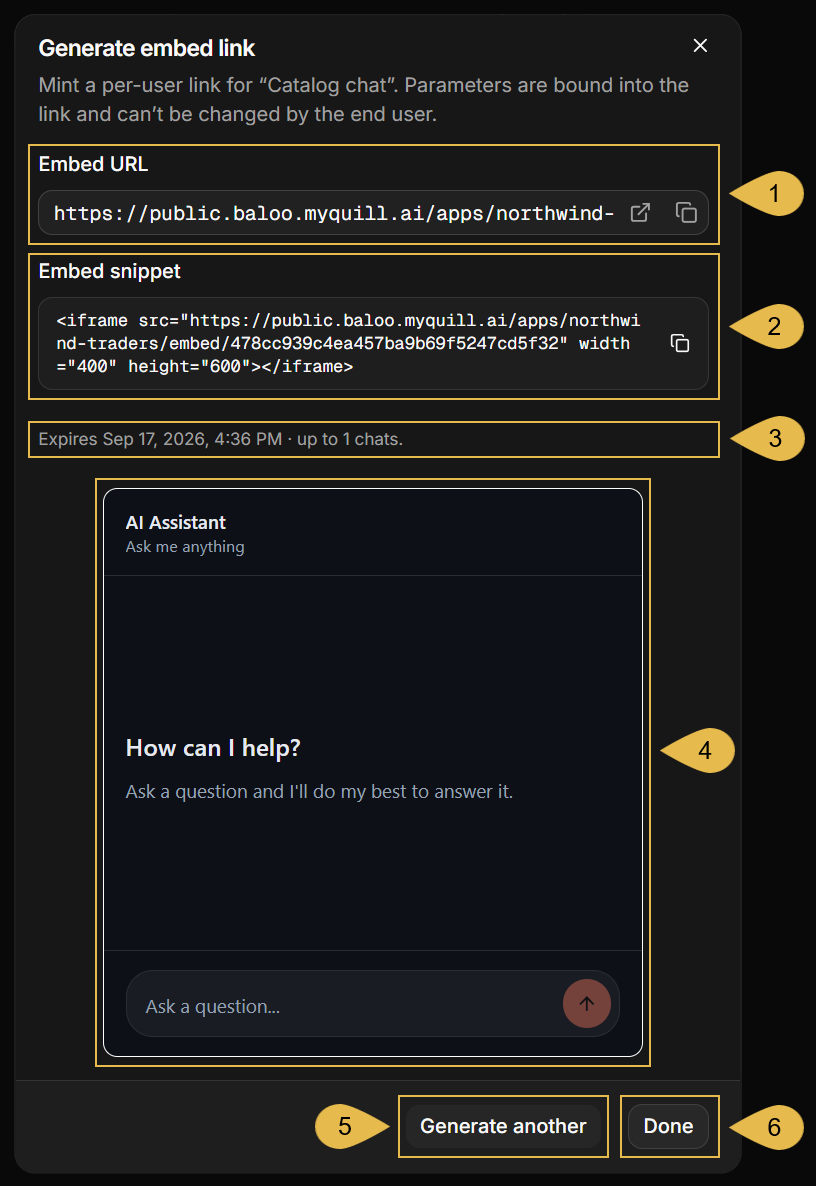
-
Embed URL
The embed link: the address of the chat box's conversation.
You can copy the URL and open it in a new browser tab to see and test the chat box. -
Embed snippet
The same address, wrapped in an<iframe>element that you can paste into your website page.
See Placing the embed snippet on your page. -
The link's limits
An informative summary of the date and time the link expires, and the number of chats it is allowed to serve, as set in the first dialog panel. -
Preview
A working chat box, opened through the new link.
Questions asked here are answered by the agent.Be aware that chats you make using the preview are counted, reducing the number of chats left for the link.
-
Generate another
Generate another link for the channel. The link you just generated will remain valid.
Clicking this button will open the first dialog panel with the values you already set. -
Done
Click to close the dialog.
Placing the embed snippet on your page
Paste the embed snippet into your website page's HTML, where you want the chat box to appear.
<iframe src="https://public.<domain>/apps/<slug>/embed/<token>" width="400" height="600"></iframe>
- When embedded, the snippet is a part of your website page and you can set its width and height to fit the chat box to your page layout.
- The chat box itself is not created by your page, but served by your Quill deployment
into the
<iframe>element when the page is loaded. - When you want your backend to generate a link for each visitor, get the snippet from the Embed tab, which also shows the request your backend needs to send Quill to obtain the link.
- When you generate an embed link manually, get the snippet from the Generate embed link dialog and paste it into the page's HTML as is.
Chatting through the channel
Once the embed snippet is added to your website page, any page visitor can chat with the agent through the chat box.
Starting a conversation
- The chat box opens on a welcome screen showing a header with a title and a subtitle, a greeting, and a question field.
These texts, and the look of the chat box, can be modified using the channel's Customize appearance tab. - Visitors can enter questions and send them using the arrow button or the Enter key from their keyboard.
- The agent's reply is streamed into the chat box as the agent composes it.
- While the reply is being composed, the arrow button turns into a stop button; clicking it stops the reply, but the chat is still counted against the link's limit.
- Reloading the page (e.g., by pressing F5) reloads the chat box as well.
As long as the embed link is valid, the reloaded chat box will contain the full conversation history.
See Invalid links for the outcome when the link is no longer valid. - Streaming, the conversation's context, and the behavior common to all channels, are covered in the channels overview.
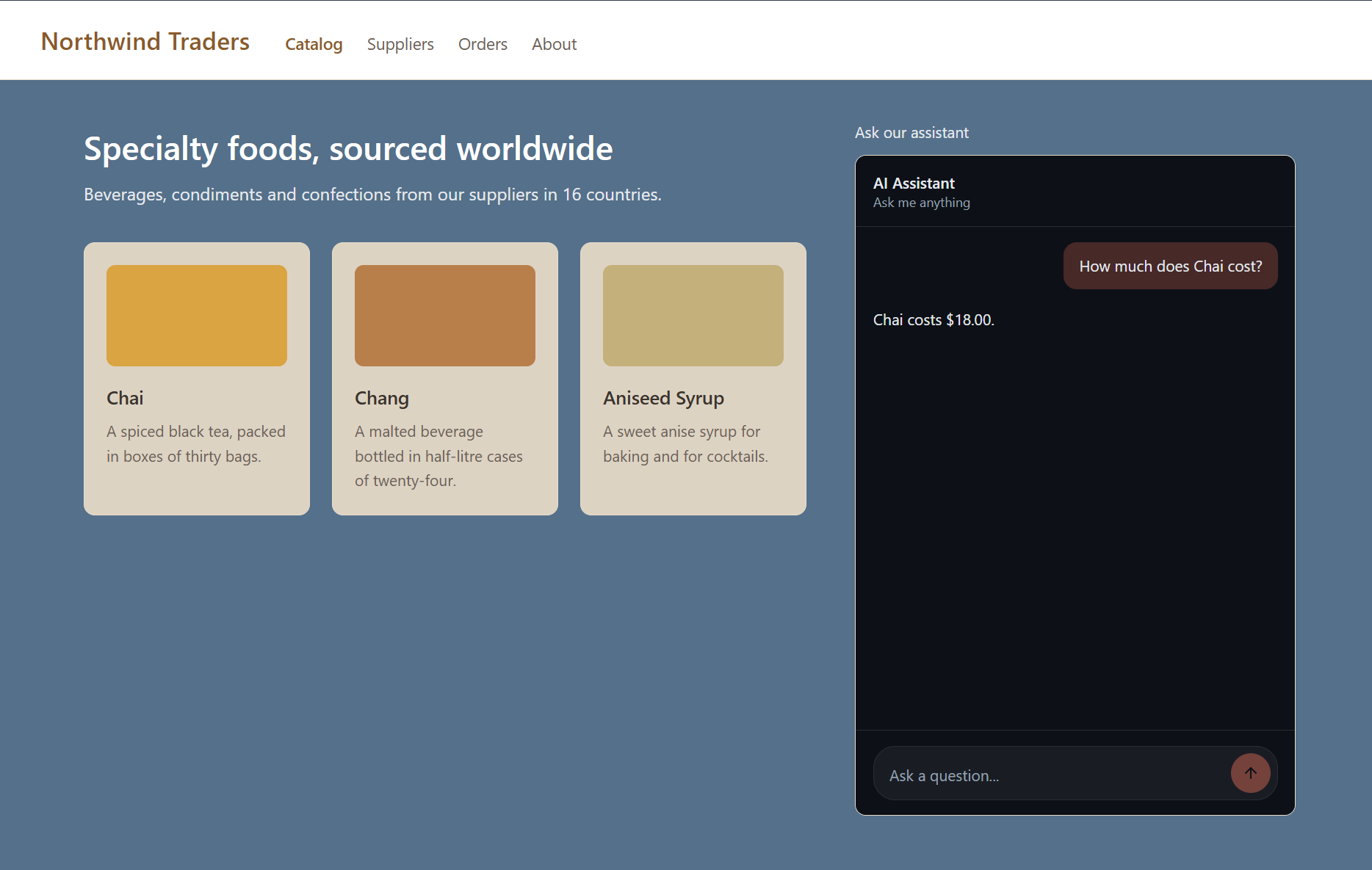
The image below shows a chat box on a catalog page, after the visitor's first question.
Invalid links
An embed link becomes invalid when:
- The link expired (i.e., the period set for it has passed).
- The link was revoked.
- The link has served the number of chats set for it.
- The channel is paused or deleted.
What a visitor sees then depends on the reason the link is no longer valid.
The link has expired or was revoked, or the channel is paused:
The chat box is replaced by a notice that the conversation has ended.
An expired link shows this notice for about a minute, until Quill removes its record.
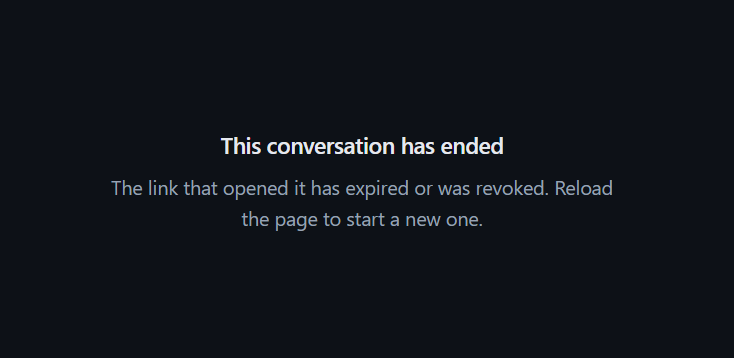
Reloading the page opens a new conversation only when your backend serves the page with a new embed link. See Placing the embed snippet on your page.
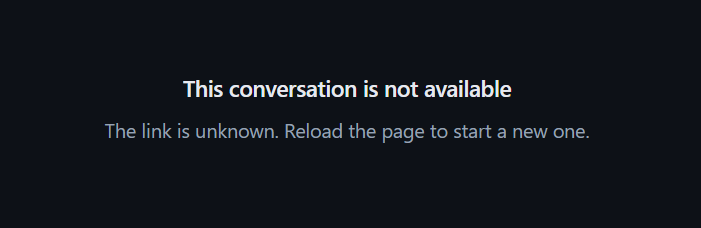
The link is unknown:
The channel was deleted, or the link expired and its record was already removed.
Quill removes an expired link's record about a minute after it expires.
The chat box is replaced by a notice that the conversation is not available.
The link has served all the chats set for it:
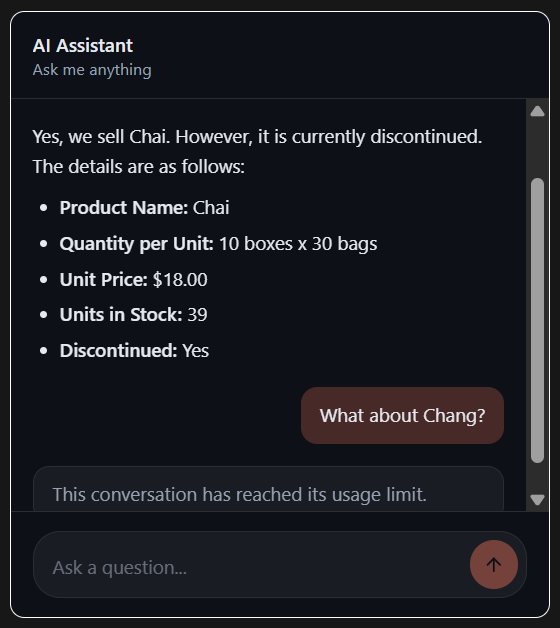
The chat box still opens, containing the conversation history, but a new question is answered with a notice that the conversation has reached its usage limit, and the question field is disabled.
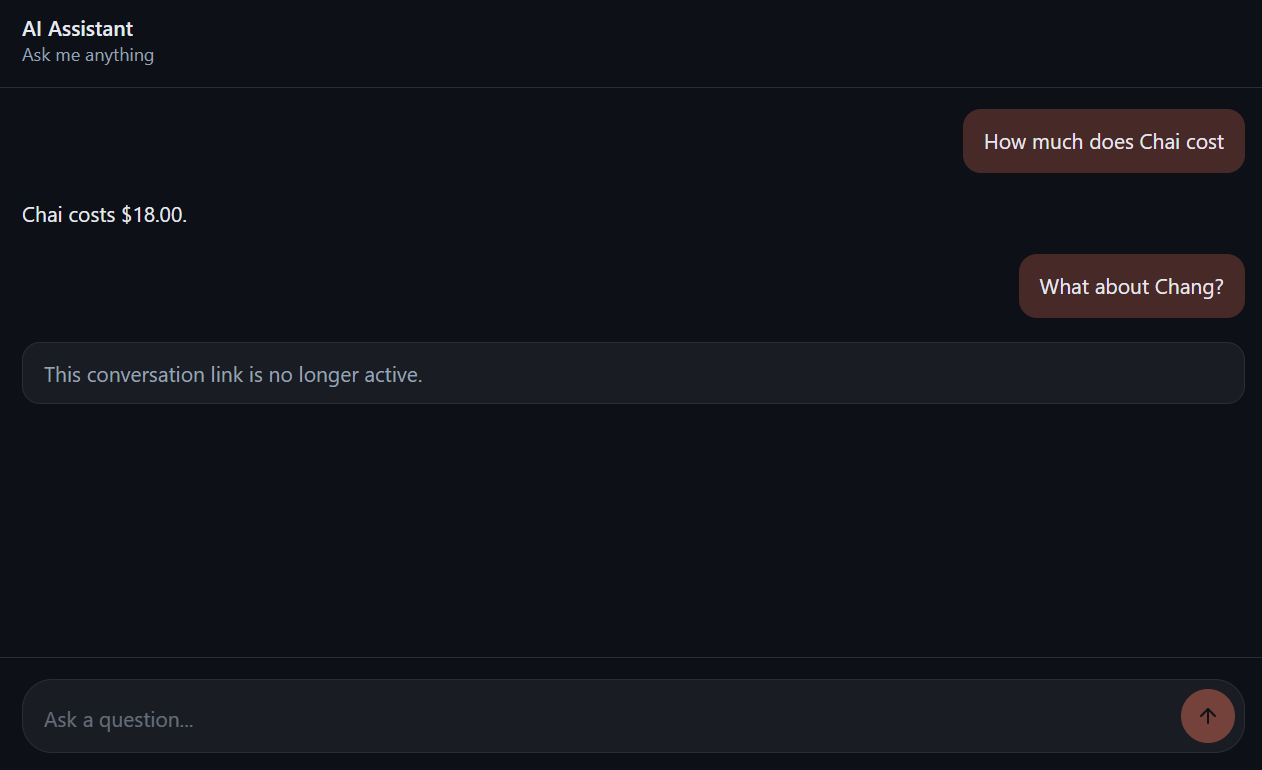
The link expired or was revoked, or the channel was paused, while the chat box was open:
The next user question is answered with a notice that the link is no longer active, and the question field is disabled.
Reloading the page then shows the notice that the conversation has ended.
Binding agent parameters
Query tools
- When the agent receives a chat box user's question over the channel, the agent forwards the question to the LLM.
- While composing an answer, the LLM may send the agent a query request, naming the query tool to use.
The agent will find the requested tool in its configuration, fetch the RQL query associated with this tool, query Quill's internal database, and return the results to the LLM. - The LLM may send the agent several query requests before returning its final answer.
Query parameters
The RQL query associated with a query tool may include parameters, written as $name placeholders.
e.g., from Customers where Phone = $customerPhone
Before running the query, the agent replaces each placeholder with a value, provided either by the channel or by the LLM.
Agent parameters: values provided by the channel
When the agent finds a parameter in the query, it checks whether the agent configuration defines an
agent parameter that carries the same name.
If an agent parameter of the same name exists, the agent uses the value the channel provided for this parameter when
the conversation started.
In a web widget channel, agent parameter values are bound to the chat box embed link:
you provide values for all agent parameters while generating the embed link, and from then on
the values are passed to the agent with each question asked in the chat box.
e.g., the customer's phone number is passed to the agent with each of the customer's questions.
-
An embed link can be generated manually, using the Generate embed link dialog.
If the channel's agent has parameters, the dialog opens with a field for each parameter, labeled with the parameter's name. The following dialog, for example, is for a channel whose agent has a single parameter,customerPhone.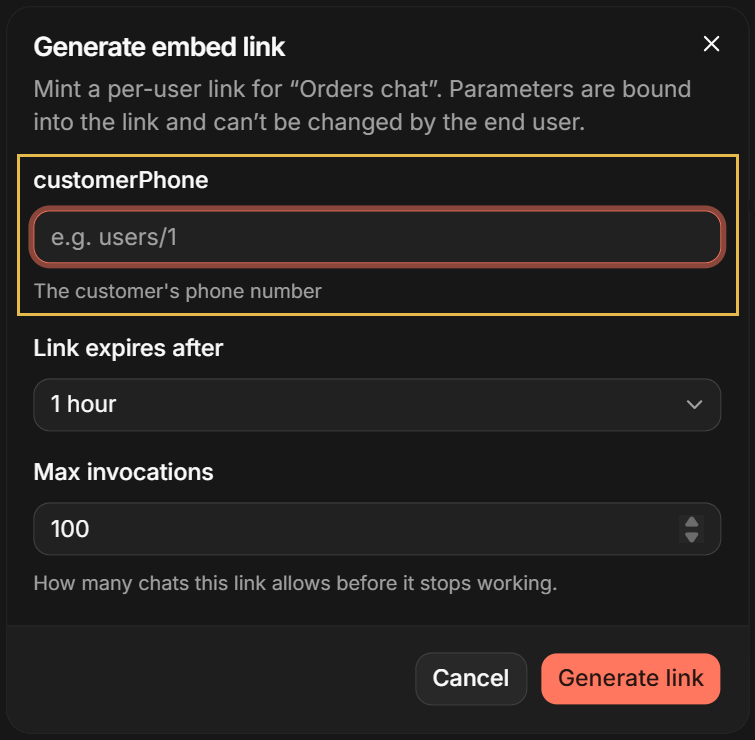
- Every parameter needs a value before the link can be generated.
Strings and numbers are entered in a text field.
Booleans are set using a toggle.
Arrays are entered one value at a time using the Add value button. - The bound values apply to every chat held over the link, and chat box users can neither see nor change them.
- The values bound into each active link are listed in the Parameters column of the Active links tab.
- Every parameter needs a value before the link can be generated.
-
When an embed link is generated automatically by your backend, it can carry the values of the visitor it is generated for, so a site that serves many customers can pass each customer's own data to the agent.
Learn to generate embed links with parameter values in How agent parameters are bound.
The bound values are checked against the agent's parameters when the embed link is generated.
If the agent's parameters are changed later, e.g., a parameter is added or its type is changed, questions asked through the links
generated before the change fail (see Troubleshooting). Generate new embed links after such a change.
Values provided by the LLM
A query parameter's value may also be provided by the LLM, when the LLM requests the agent to run the query.
The values the LLM is expected to provide are defined in the query tool's Sample parameters object or
Parameters JSON schema (see Agent tools).
e.g., a query tool retrieves a product's price by the product's name.
While requesting the query, the LLM provides the product name it found in the user's question, the agent replaces the
$productName placeholder with this name, runs the query, and returns the price to the LLM.
Agent parameters have precedence over values provided by the LLM.
If the LLM provides a value for a query parameter, and an agent parameter of the same name is defined,
the agent parameter's value will override the value provided by the LLM.
Managing the channel
Opening the channel's details view
Once the channel is added, it gets a channel box in the Channels view's Web widgets group.
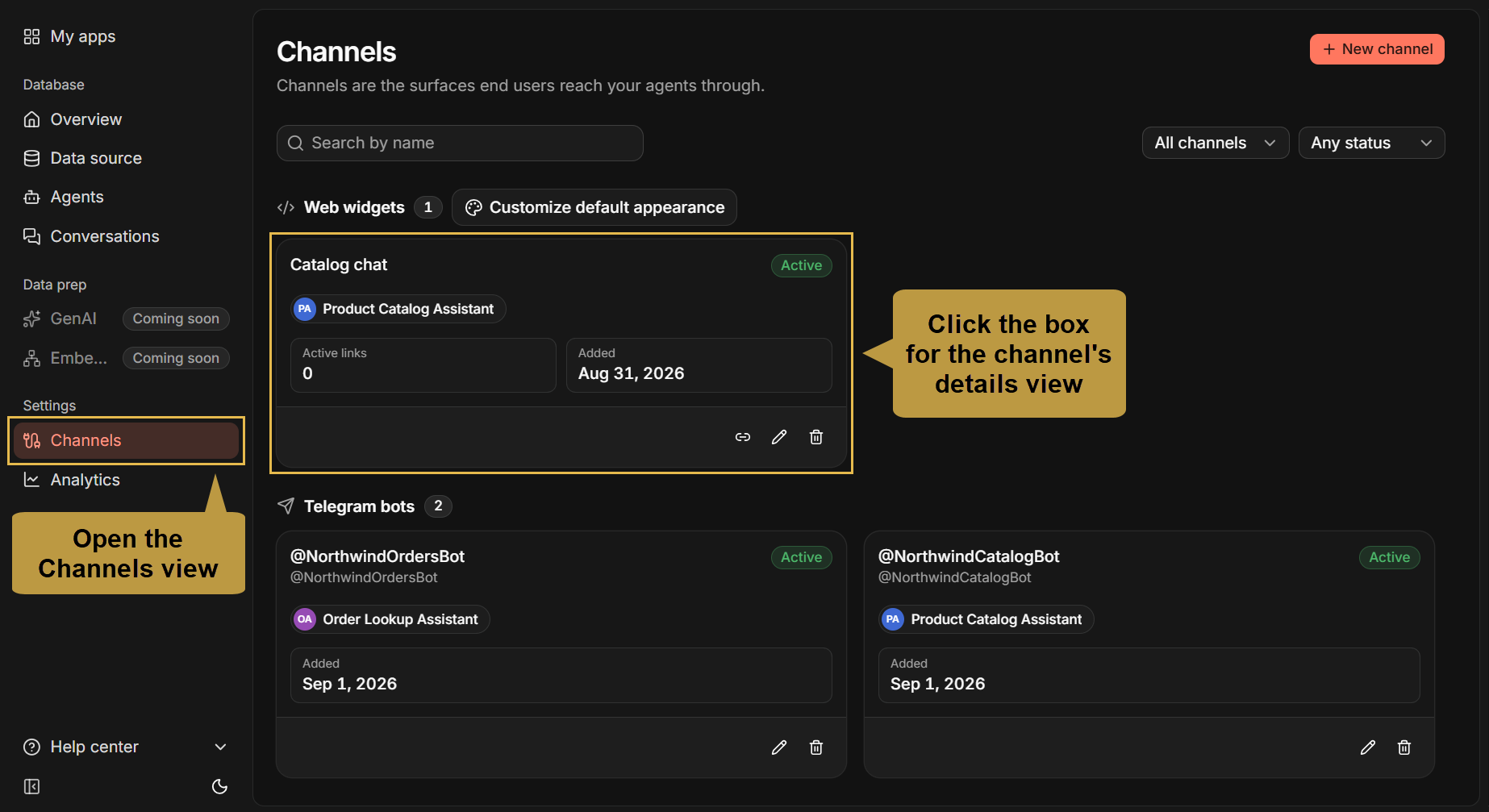
Click the channel box to open the channel's details view with its management options.

- The view's header is common to all channel types, showing the channel's status, a Pause/Resume button, and a ⋮ menu with Edit and Delete controls.
- The management tabs under the header present options specific to the channel: Embed, Active links, and Customize appearance.
Pausing and deleting the channel
To pause or resume the channel, click the Pause/Resume button.
To delete the channel, select Delete in the header's ⋮ menu.

Pausing and deleting are described in the Channels view article, in
Pausing and resuming a channel and
Deleting a channel.
For a web widget channel:
- While the channel is paused, questions asked in its chat boxes are not answered: a user who sends
a question is notified that the link is no longer active, and reloading the page shows a notice saying that
this conversation has ended.
As long as the channel is paused, no embed link can be generated for it: the Generate link buttons on the channel box and in the Active links tab are disabled.
Once the channel is resumed, any embed link that has neither expired nor been revoked will work again and reloading the page shows the chat box with its conversation history. - When the channel is deleted, its embed links stop working, and any page that embeds a deleted channel's link shows a notice that the conversation is not available.
Conversations that were held for paused or deleted channels are kept, and remain available in the app's Conversations view.
Editing the channel name and allowed origins
To change the channel's name or the websites allowed to embed its chat boxes, select Edit in the header's ⋮ menu.
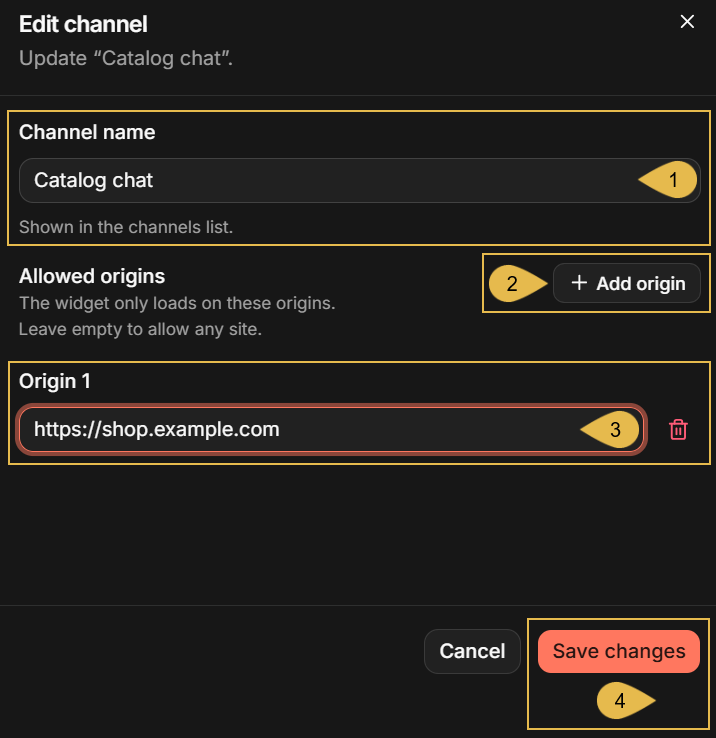
- Channel name
Enter the channel's name. - Add origin
Add an entry to the list of websites allowed to embed the chat box. - Origin 1
An allowed origin that was already entered, composed of the website's address with no page path. - Save changes
Save the form.
- The origins list is checked each time a page loads the chat box and each time a question is sent, so any change to the list is quickly applied to every existing embed link of the channel.
- When a website is removed from the list, the browser of a visitor to the site will refuse to display the chat box in the
<iframe>element. - A website that is added to the list can embed any of the channel's embed links, including links generated before it was added to the origins list.
The management tabs
The Embed tab:
The Embed tab holds the two elements needed to have your backend generate embed links automatically: the request your backend sends to Quill's API, and the snippet you place on your page or in your app to carry the returned link.
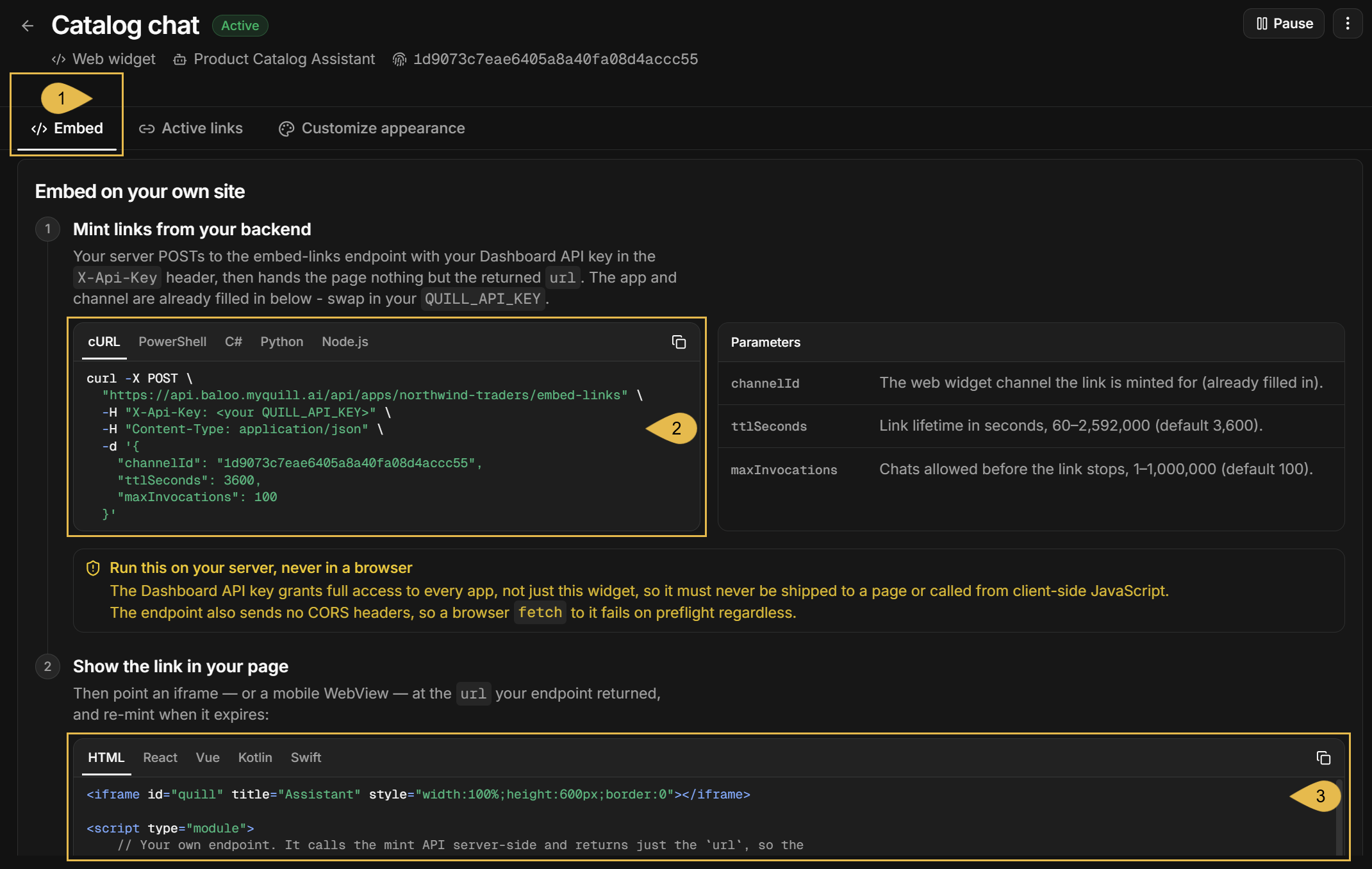
-
Embed
Open the tab. -
The request
The request that your backend needs to send to Quill's API to generate an embed link.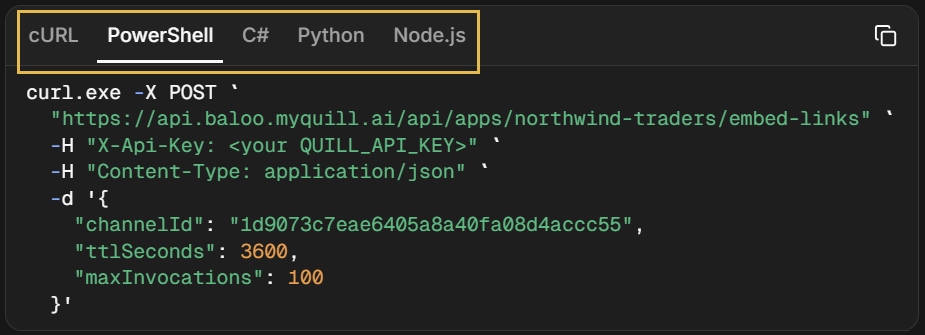
-
The app and the channel are already filled in; you still need to enter the Dashboard API key.
-
Your backend needs an endpoint that the snippet (see below) can call.
The endpoint sends the request to Quill with the Dashboard API key each time the snippet calls it,
and returns nothing but the embed link.The Dashboard API key grants access to every app of your deployment,
and must never reach the visitor's browser. -
Select the script or language you want to see the request in:
cURL,PowerShell,C#,Python, orNode.js.These are samples: the request is a plain HTTP call, and your backend can send it using any language.
-
Learn more in Mint links from your own backend.
-
-
The embed snippet
The snippet that carries the returned link. Place the snippet on your page or in your app.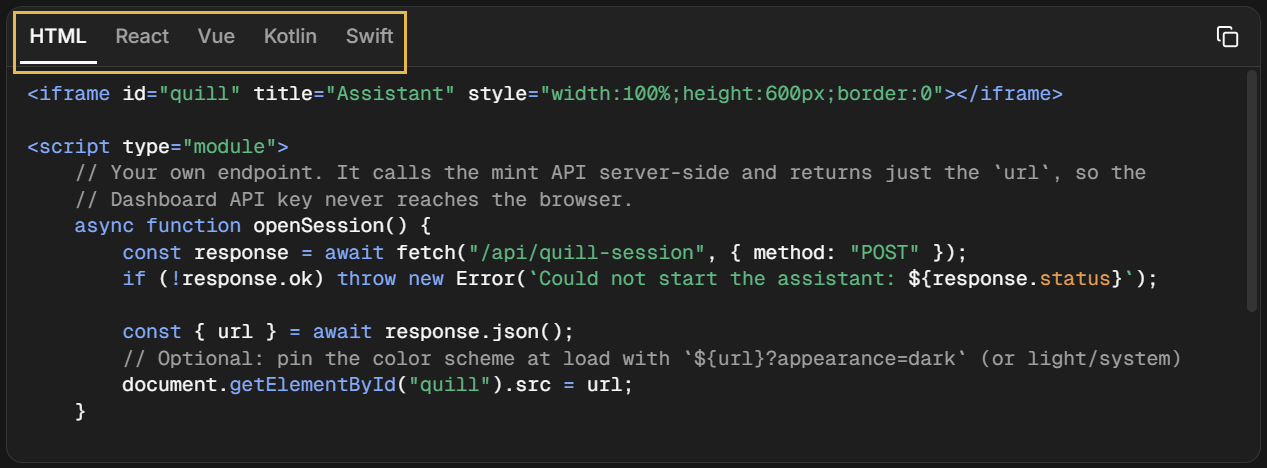
-
Select the language or framework that matches your platform:
plainHTML,React, orVuefor your website page,
KotlinorSwiftfor a chat box opened from a phone app.These are samples: they can be adapted to any framework able to embed a web page and call your endpoint.
-
The snippet calls your endpoint whenever the page or the app opens the chat box.
Your backend decides which link to return: a new link (to open a new conversation), or a link it already served this visitor (to resume the conversation held over it). -
While the chat box stays open, it notifies the snippet that hosts it whenever the conversation ends (whether the link expired or served all its chats), the snippet asks the endpoint for another link, and when the link arrives a new conversation opens in the chat box.
-
Learn more in Place the iframe on your page.
-
The Active links tab:
The Active links tab lists the channel's embed links that have neither expired nor been revoked, newest first.
An embed link that has served all the chats it was allowed to serve is still listed, since it has not expired.

-
Active links
Open the tab. -
Generate link
Open the Generate embed link dialog. -
Token
The token used to identify this link. -
Parameters
Agent parameter values bound to the link, or a dash when the agent has no parameters.
See Binding agent parameters. -
Created
The date and time the link was generated. -
Expires
The date and time the link expires.
During the link's last 24 hours, the time is shown as a warning badge, as in the depicted row. -
Usage
The number of chats held using the link so far, out of the number of chats allowed for it.
The count is highlighted when the link nears its limit, and marked in red when the limit is reached: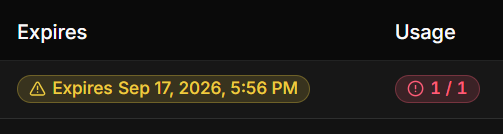
-
Copy link, Preview link, and Revoke link
Copy the embed link,
Preview the link in a dialog like the one that presented it when it was generated,
or Revoke the link to end its conversation at once.Revoking a link cannot be undone.
The channel's other links are not affected, and a confirmation is requested first: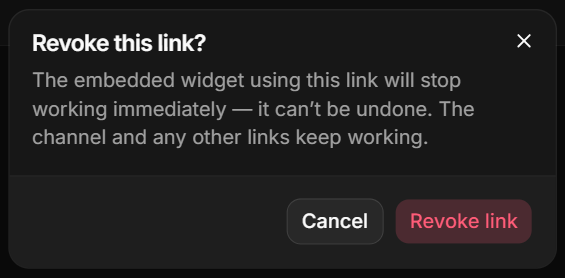
The Customize appearance tab:
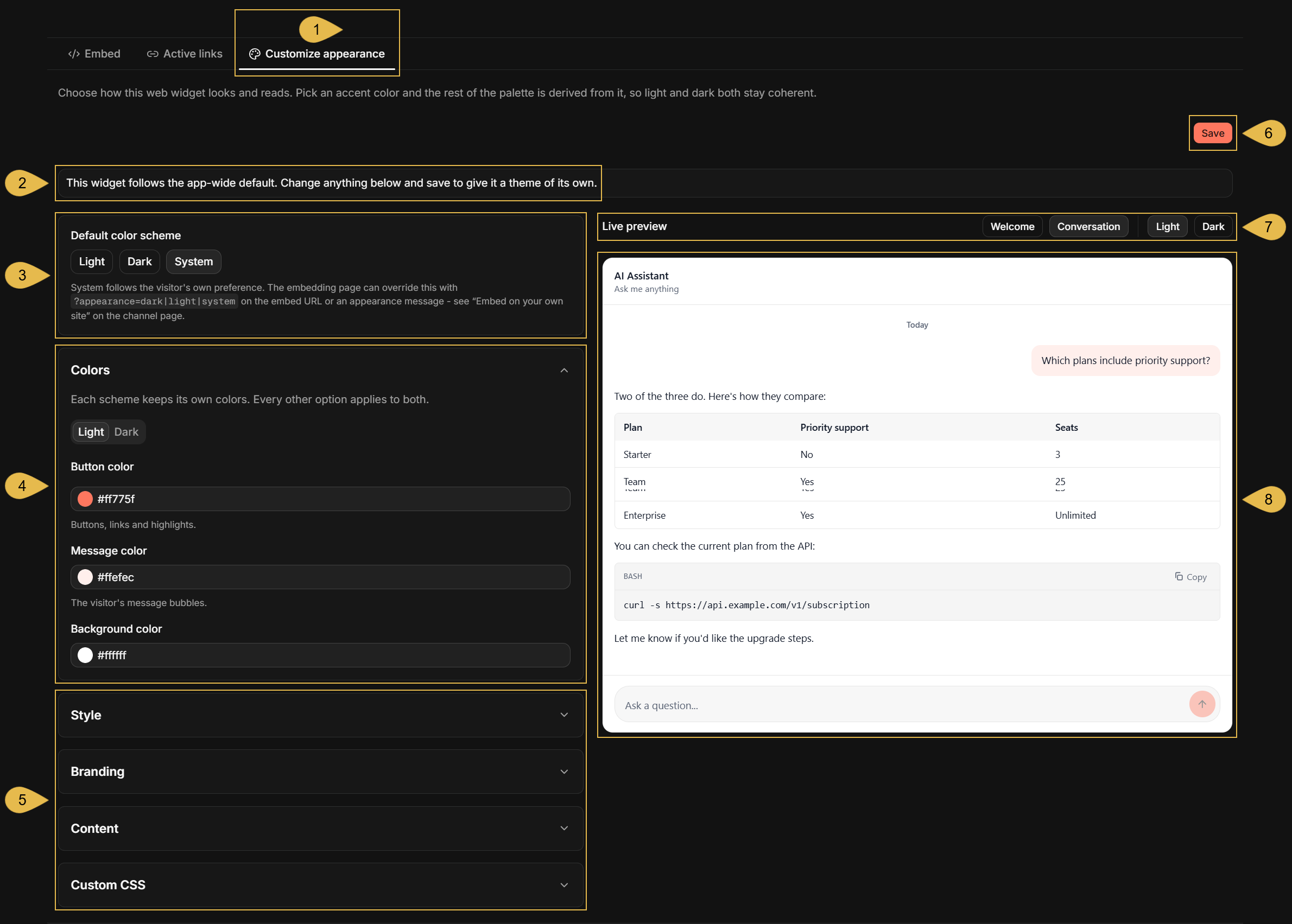
The Customize appearance tab holds the chat box's theme: its colors, style, branding, and texts.
- The chat boxes of a new channel follow the app-wide default theme, defined using Customize default appearance in the Channels view (see Checking the new channel).
- Changing anything in this tab and saving the settings gives the channel a theme of its own.
- Customize appearance
Open the tab. - The theme's status
Whether the channel follows the app-wide default theme or has a theme of its own. - Default color scheme
Select Light, Dark, or System (following the visitor's own preference). - Colors
Set the button, message, and background colors, separately for the light and the dark scheme. - Style, Branding, Content, and Custom CSS
Expand a section to set:- The chat box's style (corner radius, font, and font size).
- The chat box's branding (header, logo, title, and subtitle).
- The chat box's content (greeting, the suggested prompts, the question field's placeholder text, and a disclaimer).
- Your own CSS.
- Save
Save the theme.
Once the channel has a theme of its own, a Follow app default button next to Save is used to return the channel to the app-wide default theme. - Welcome/Conversation and Light/Dark
Select the screen and the color scheme shown in the live preview. - The live preview
A chat box with the theme applied, updated as you change the theme.
Web widget limitations
- A channel can list up to 32 allowed origins.
Wildcards, like*.example.com, are not accepted.
See Filling in the channel form. - Anyone who has an embed link can open it, without visiting a website.
The Allowed origins list can prevent websites from embedding the chat box, but cannot prevent a user from opening the link in a browser and participating in the conversation. - The limits of an embed link cannot be changed after the link is generated.
To allow more chats or a longer validity period, generate a new embed link.
See Setting the link limits. - The chat box accepts text only.
Users can type questions in the question field, but cannot send files or images.
See Starting a conversation. - Quill answers at most 60 questions per minute from a single IP address.
Further questions sent from the same address within the minute are answered with a notice asking to try again in a moment.
Troubleshooting
Symptoms met by the users of every channel type are listed in the channels overview, in Troubleshooting.
The symptoms below are shown by a web widget channel when something goes wrong, each with its likely cause and what to do about it.
In the dashboard
- Creating or saving the channel fails with "is not an origin (scheme+host[:port] only)".
Likely cause: an Allowed origins entry carries more than the website's address, e.g., a page path (https://shop.example.com/help).
What to do: enter the website's address only (https://shop.example.com), as described in Filling in the channel form. - Creating or saving the channel fails with "wildcard '*' is not an allowed origin".
Likely cause:*was entered in Allowed origins to permit every website.
What to do: leave the list empty to permit every website, or list each website by its address. - The
New web widget channelform shows "Create an agent first" instead of its fields.
Likely cause: the app has no agent yet.
What to do: add an agent, as described in Prerequisites, and then add the channel. - The
Generate linkbutton is disabled.
Likely cause: the channel is paused.
What to do: resume the channel, as described in Pausing and deleting the channel.
On your website page
- The chat box does not appear: the
<iframe>element remains empty, or shows a browser message that the page cannot be displayed.
Likely cause: the website is not in the channel's Allowed origins list, or is listed with a different scheme or port (e.g.,http://where the site is served overhttps://, orhttp://localhostwithout the port the site runs on).
What to do: add the website's exact address to the list, as described in Editing the channel name and allowed origins. - A question is answered with "Something went wrong. Please try again. (HTTP 403)".
Likely cause: the website was removed from the channel's Allowed origins list after the page loaded the chat box.
What to do: add the website's address back to the list, as described in Editing the channel name and allowed origins. - The chat box is replaced by a notice, or a question is answered with a notice, that the conversation has ended,
is not available, is no longer active, or has reached its usage limit.
Likely cause: the embed link is no longer valid. The cause behind each notice is given in Invalid links.
What to do: generate a new embed link and place it in the page instead of the invalid link, as described in Placing the embed snippet on your page; if the channel is paused, resume it. - A question is answered with "Too many requests right now. Please try again in a moment."
Likely cause: more than 60 questions were sent within a minute from the user's IP address, typically because users behind a shared address, like a company network, are counted together. See Web widget limitations.
What to do: advise the user to wait a moment and send the question again. - A question is answered with "the value bound for parameter '...' is not a valid ...".
Likely cause: a value bound into the embed link does not match an agent parameter's type, e.g., because the type was changed in the agent after the link was generated.
What to do: generate a new embed link with a valid value, as described in Binding agent parameters. - A question is answered with "Chat failed. See server logs for details."
Likely cause: the agent failed to produce the answer, e.g., because the LLM service or the app's database could not be reached, or because the agent has a parameter that the link does not bind (a parameter added to the agent after the link was generated).
What to do: verify that the LLM service behind the agent's AI connection string can be reached, as described in Dashboard: AI connection strings; if the agent's parameters were changed, generate a new embed link. The server logs name the exact error.