Channels: Telegram bot
-
A Quill Telegram bot channel lets your users converse with an agent of your app in a private chat with a bot on Telegram.
Users can chat with the bot using any Telegram client, and the agent will answer from the app's internal database. -
The bot is created using @BotFather, an official Telegram bot that creates other bots, free of charge.
@BotFather also issues the bot token, a credential that Quill needs to operate the bot.
Quill collects the incoming messages from Telegram, so the deployment needs no public address or open inbound port. -
The channel is added from Quill's management dashboard, using one short form that asks you to select one of the agents you created and provide the bot token and a channel name.
- If the selected agent has parameters, the form also asks you to settle each parameter's value.
You can either provide a fixed value, or take the value from the Telegram user the bot is chatting with, e.g., the user's phone number. - When an agent parameter takes the user's phone number, the bot will ask each user it chats with to share the number before answering the user's first question.
- If the selected agent has parameters, the form also asks you to settle each parameter's value.
-
In this article:
Prerequisites
Before adding a Telegram bot channel, make sure you have:
- An agent in your app.
The channel is added for one of the app's agents, and this agent will answer the users who chat with the bot.
To add an agent, see Getting started: Adding an AI agent. - A Telegram account.
The bot is created in a private chat with @BotFather from your Telegram account.
Once the channel is added, you can try the bot out from the same account. - Access to Telegram from the machine running Quill.
The only connection the bot needs is the one Quill opens to Telegram's servers,api.telegram.org, over HTTPS.
The users' messages travel to Quill over this connection too, so a deployment that cannot be reached from the internet, like one running on your machine, can still operate a bot.
Creating a bot using @BotFather
To create the bot, open a chat with @BotFather in your Telegram client and send this command: /newbot
The genuine @BotFather carries Telegram's blue verification mark next to its name.
@BotFather then asks for two details, one at a time:
- A name for the bot.
e.g.,Northwind Traders Catalog
This name will appear at the top of users' chats with the bot. - A username for the bot.
e.g.,NorthwindCatalogBot
The username has to be unique across Telegram and end inbot.
The username is the bot's address on Telegram: users find the bot by it, and Quill names the channel after it (unless you name the channel yourself).
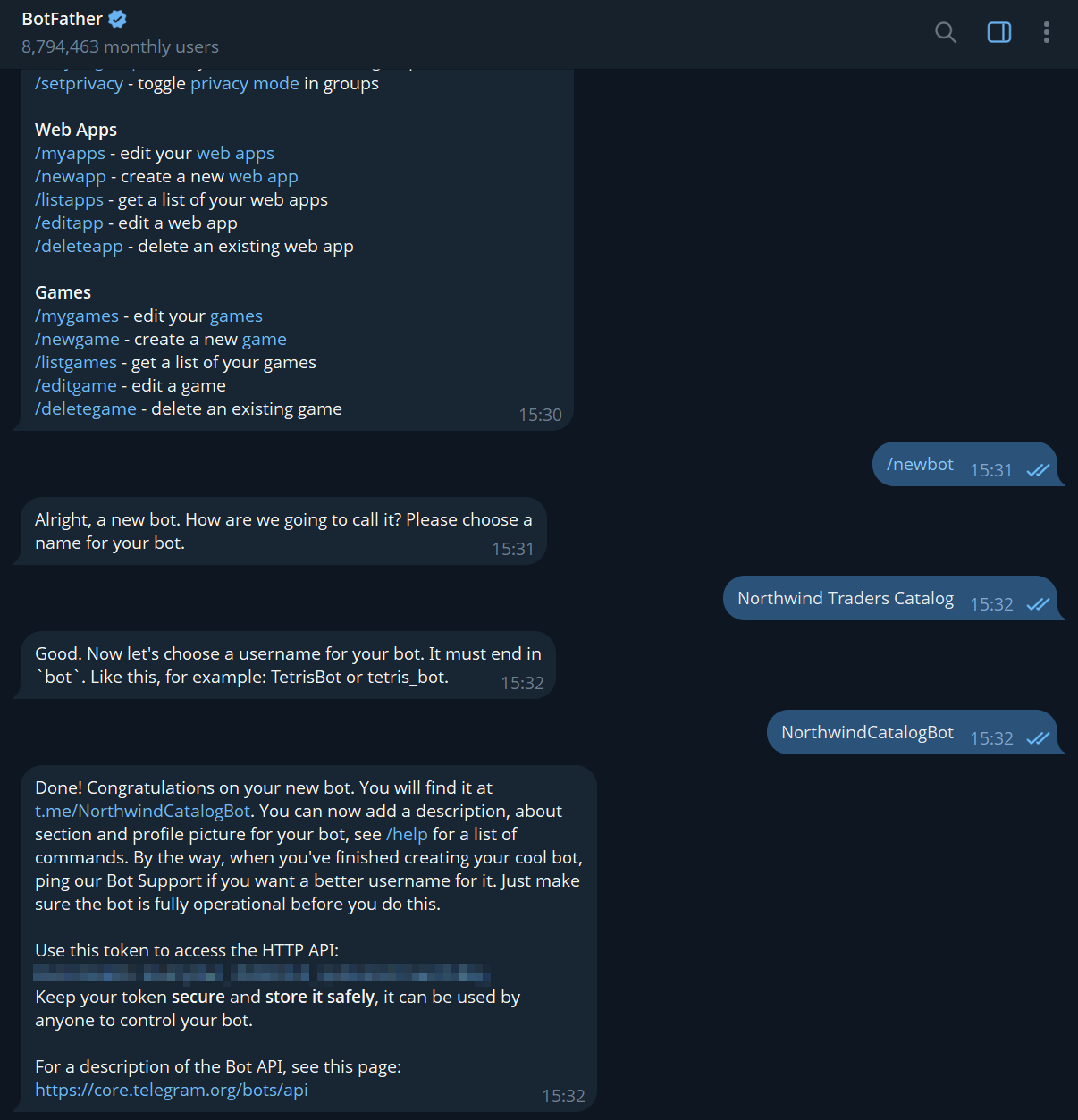
@BotFather's final message carries the bot token (the string after "Use this token to access the HTTP API").
Copy the token: you will need to hand it to Quill in the next section,
Connecting the bot to your app.
The bot token is a secret: anyone holding it can control the bot, read the messages users send to it, and answer in the bot's name.
If the token ever leaks, have @BotFather issue a new token and enter it in the channel as described in
Rotating the bot token.
Connecting the bot to your app
To connect the bot to the app, add a Telegram bot channel for one of the app's agents.
- The channel is added in a short form that asks you to provide the bot token issued by @BotFather, and to select the agent that will answer the users.
- Once the channel is added, Quill starts operating the bot, and messages sent to the bot will reach the agent.
Opening the Add channel menu
In Quill's management dashboard, open the app from My apps. The app's Overview holds a Channels section: click the section's Add channel button to open the menu of channel types, and select Telegram bot.
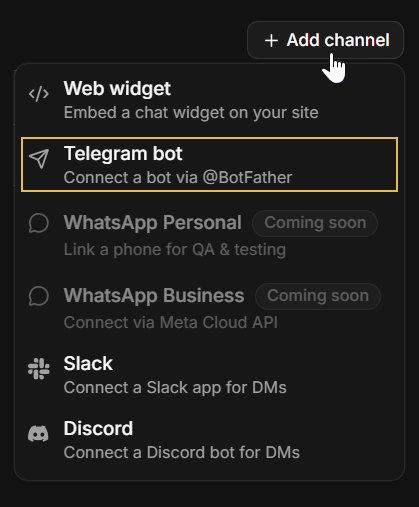
The Add agent wizard ends on an Add a channel stage that shows
the same Channels section, so a bot can also be connected right after its agent is created.
The form then has no Agent field: the channel is added for the agent the wizard just created.
Filling in the channel form
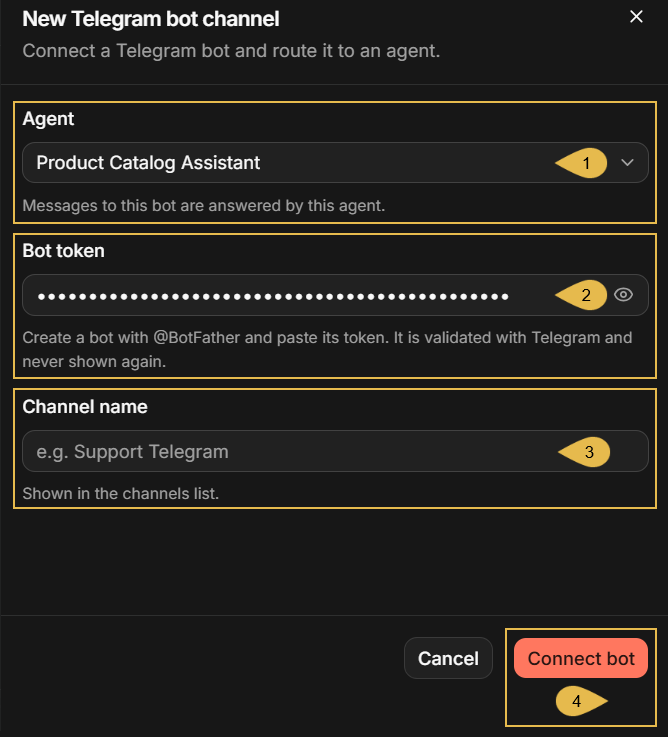
Selecting Telegram bot opens the New Telegram bot channel form.
-
Agent
Select the agent that will answer the bot's users. The list holds the app's agents.When the form is opened from the Add agent wizard, the channel is added for the newly created agent and this field is absent.
-
Bot token
Paste the token you received from @BotFather. The field shows the token as dots; click the eye icon to reveal it.
Quill validates the token with Telegram when the channel is added, and never displays it again afterwards. -
Channel name
Enter a name for the channel (e.g.,Support Telegram).
The name will be displayed on the channel's box in the Channels view. -
Connect bot
Click to add the channel. If Telegram rejects the token, or the bot is already connected to another channel, the form will report the error and no channel will be added.
Checking the new channel
The new channel appears in the Channels section:

- Channel name
The channel's name, with the bot's username beneath it.
In this example the name was left empty, so the channel is named after the username. - Status
Active: the channel is enabled; Disabled: the channel is paused.
Pausing and resuming a channel is described in App: Channels view. - Active links
Embed links belong to web widget channels; a Telegram bot channel has none, so the column shows a dash.
Chatting with the bot
Once the channel is added, the bot is reachable by anyone on Telegram. A user who finds the bot, by its username or through a
search, can open a private chat with it and ask questions, and the agent will answer from the app's internal database.
The users need no account with Quill and no instructions. This section describes the chat as an end user experiences it, so that
you know what to expect and what to tell your users.
Starting a conversation
A first chat with a bot opens in Telegram with a Start button, and clicking the button sends the /start command.
The bot answers with a greeting, and from then on every message the user sends is a question to the agent.
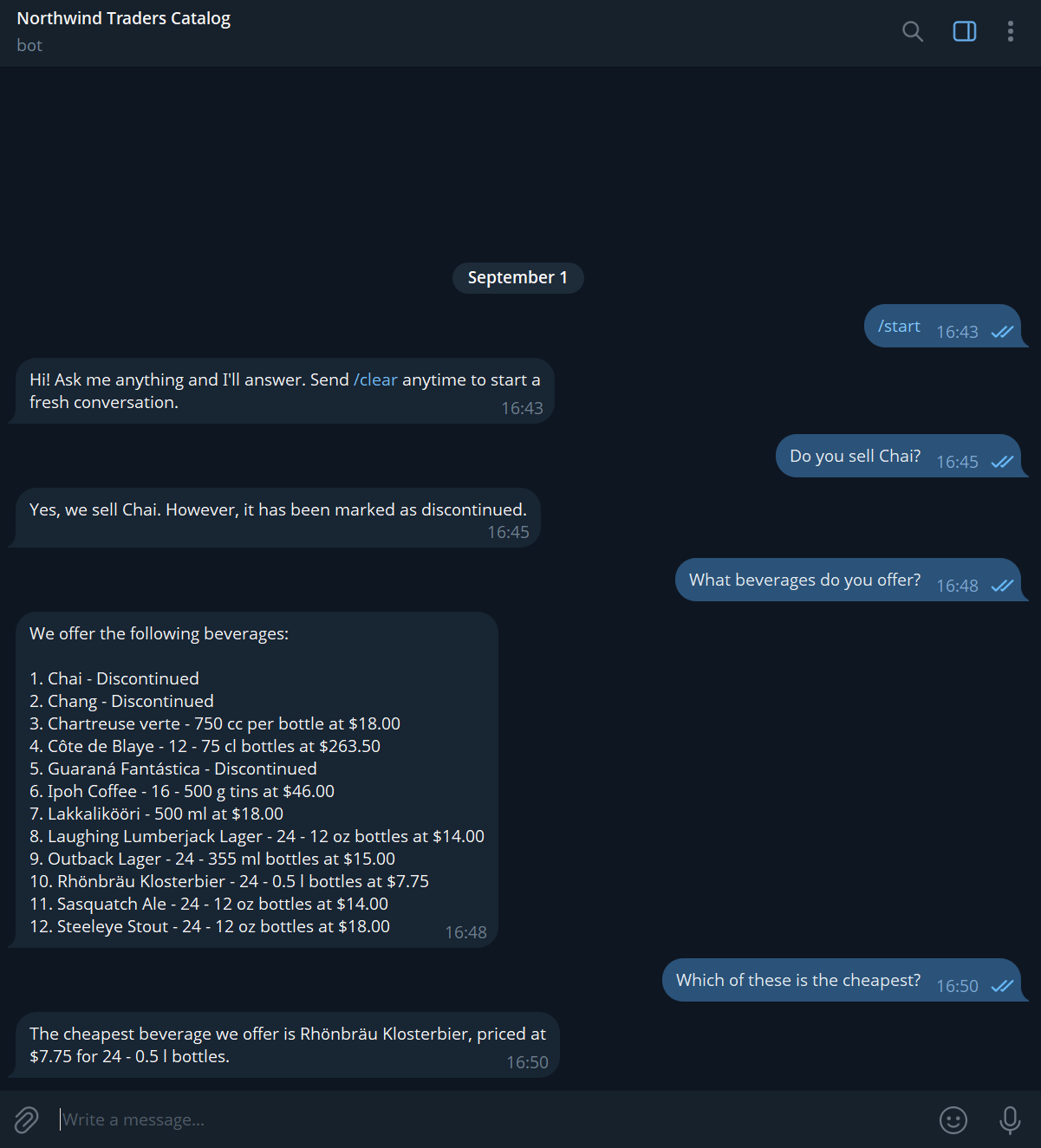
Messages a user sends while the bot is still answering are gathered and answered together, as a single question, as long as the
queue Quill keeps for this chat has room.
The bot recognizes only two Telegram commands: /start and /clear. Any other string is handled as text, even if preceded by /.
The behavior common to all channels, like the streaming of the reply and the conversation's context, is described in the channels
overview, in Behavior and limitations common to all channels.
Clearing the conversation
The agent remembers a conversation for one day at most: at midnight UTC the agent forgets the earlier exchange, and the next
message is answered without the earlier context.
A user can also start afresh at any moment by sending /clear. The bot confirms, and the next message opens a new conversation.
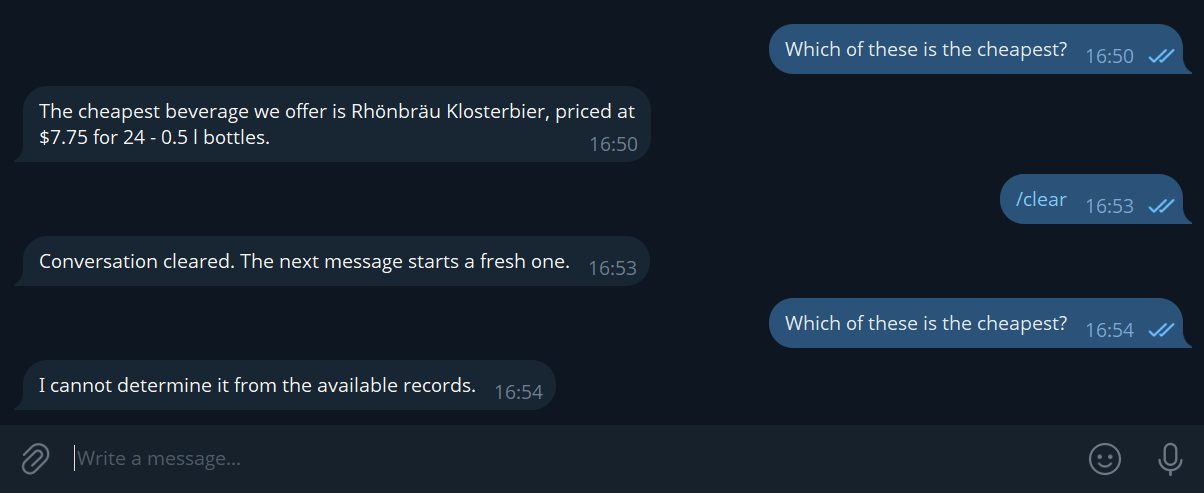
In the chat above, the question answered before /clear can no longer be answered after it, since the list the question referred to
is no longer part of the conversation.
Clearing also deletes the conversation from the app's Conversations view in the management dashboard.
Messages the bot ignores
The bot answers text-only messages. A photo, a document, a sticker, or a voice message gets no reply.
A contact card is accepted only when an agent parameter takes the user's phone number, as described in
Binding agent parameters; otherwise the card is ignored as well.
The bot answers in private chats only. Added to a group, the bot posts one refusal and then stays silent in the group.
Binding agent parameters
Some agents have parameters: values the agent's queries require, and that must come from the channel rather than be chosen by
the LLM. e.g., the phone number of the customer whose orders the agent looks up.
When you add a Telegram bot channel for such an agent, the form asks you to bind each parameter to a source, which can be:
- A constant value that you type, which is then the same for all bot users.
- A detail of the Telegram user who is messaging the bot: the user's Telegram id, username, or phone number.
The parameter then carries a different value for each user, so that each user is answered about this user's own data.
This section describes the sources a parameter can be bound to, and what a user meets when the bot needs the user's phone number.
Choosing a source for each parameter
When the selected agent has parameters, the channel form presents a Parameters section with one row per parameter, labeled
with the parameter's name, e.g., customerPhone.
In each parameter row, select where the parameter's value comes from:
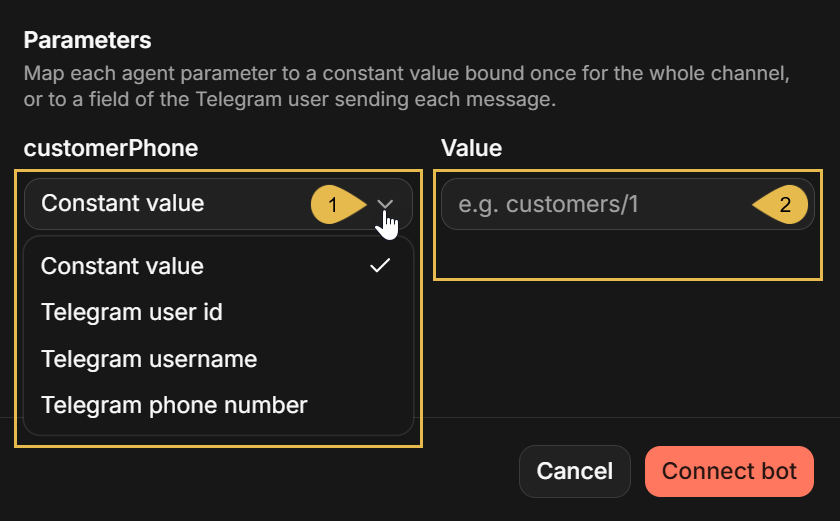
-
The parameter's source
Select the source from the list:- Constant value
A value that you type in the form. Quill will then pass this value to the agent with every message, from every user. e.g., to mark every user of this bot as a member of a specific customer group. - Telegram user id
The numeric id of the Telegram user who sent the message. - Telegram username
The Telegram username of the user who sent the message, without the@. A user who has no username set will be asked to add one before the agent answers. - Telegram phone number
The phone number of the user's Telegram account. The user will be asked to share the number once, as described in Sharing the phone number.
The user id, username, and phone number sources tie the answers to the Telegram user, and suit an app whose data holds these details.
- Constant value
-
Value
The value to bind when the source is Constant value.
In this article's example, customerPhone is bound to Telegram phone number, as the following sections show.
The bindings can be changed later in the channel's Parameters tab, described in the
Parameters tab section of Managing the channel.
Sharing the phone number
When a parameter is bound to the account's phone number, the bot asks for the number right after /start, or before answering the
first question:
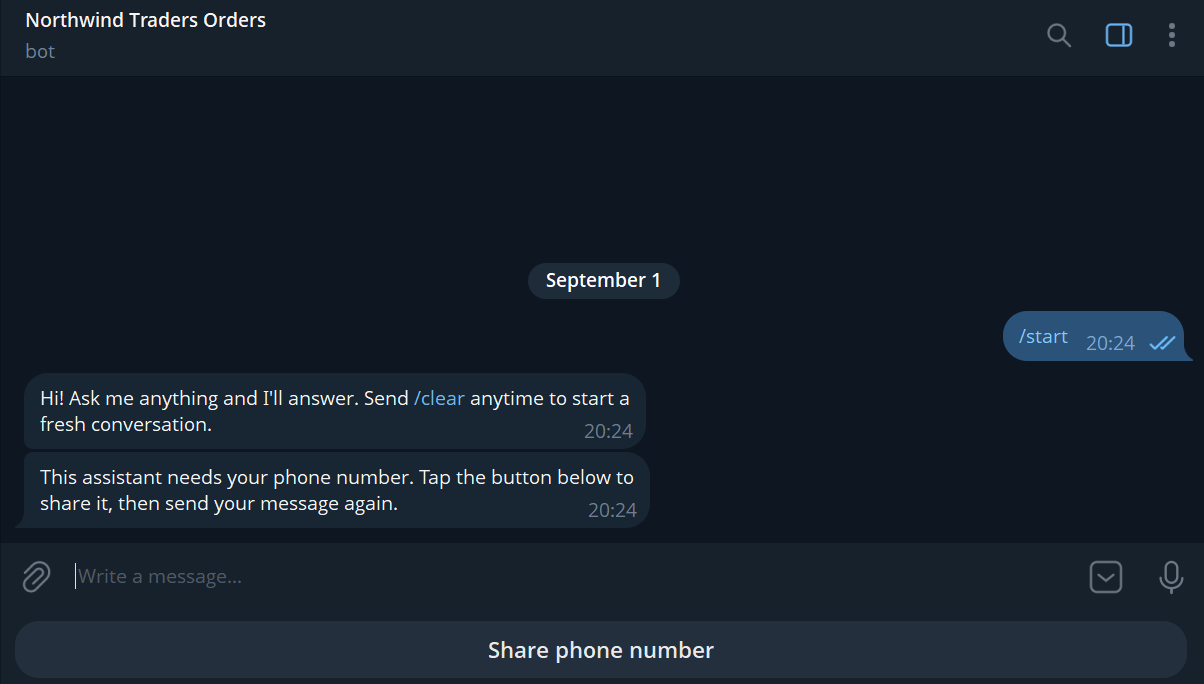
The request comes with a Share phone number button, which Telegram shows in place of the keyboard.
Pressing the button asks the user to confirm sharing the number, and then posts the user's contact card to the chat.
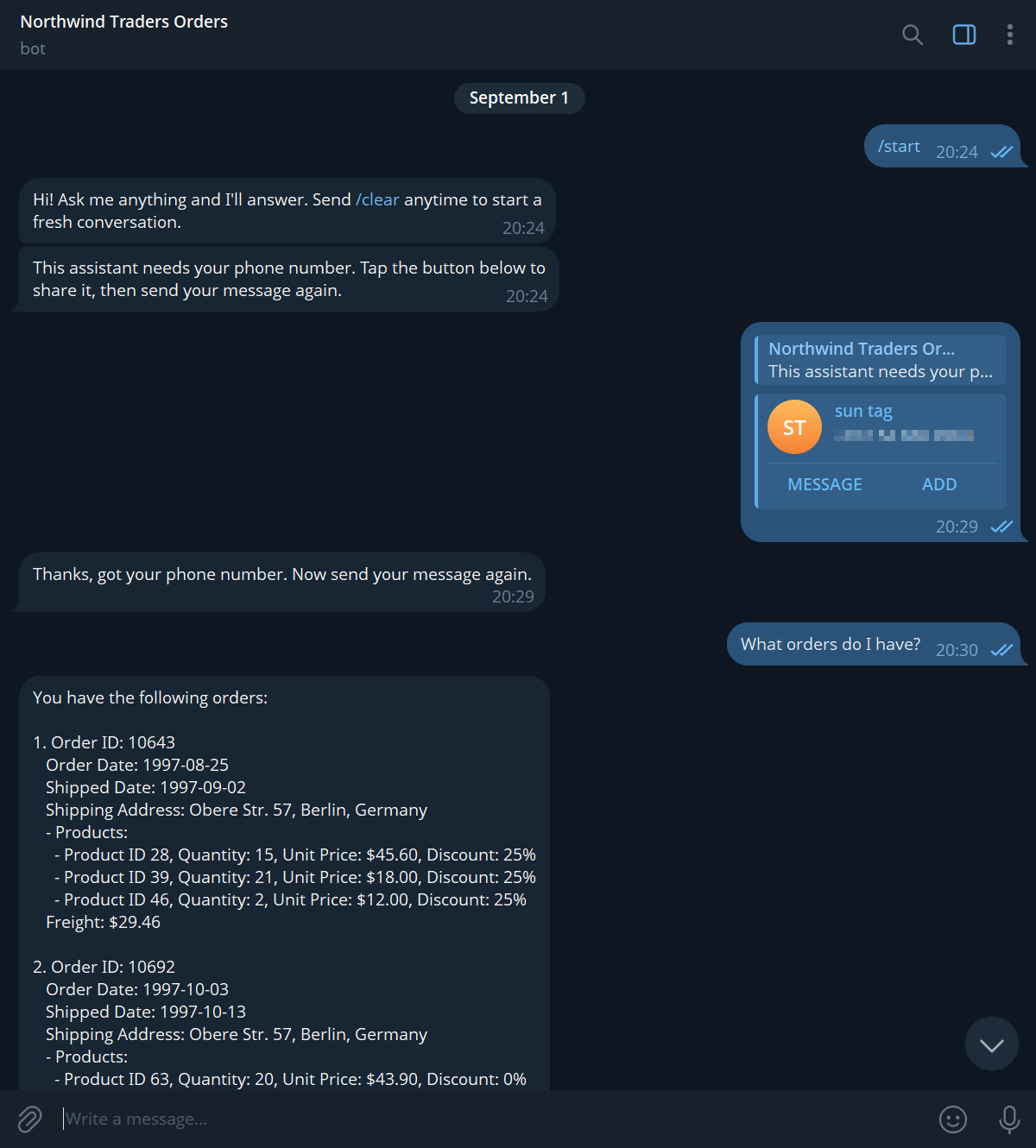
- The bot confirms that the number was received.
Questions sent before the number is shared are not answered, and have to be resent once it is shared. - From then on the number is passed to the agent with every message from this user.
Its use is up to the agent's queries: in this example, they find the customer's own orders. - Telegram sends the number as the user's contact card.
The bot will only accept the sender's own card: a card taken from the user's address book, holding another person's number, will be refused, and the request will be repeated.
Returning users
The shared number is kept for the channel and the Telegram user. In later chats the user is answered right away, and neither
/clear nor the daily roll of the conversation makes the bot ask for the number again:
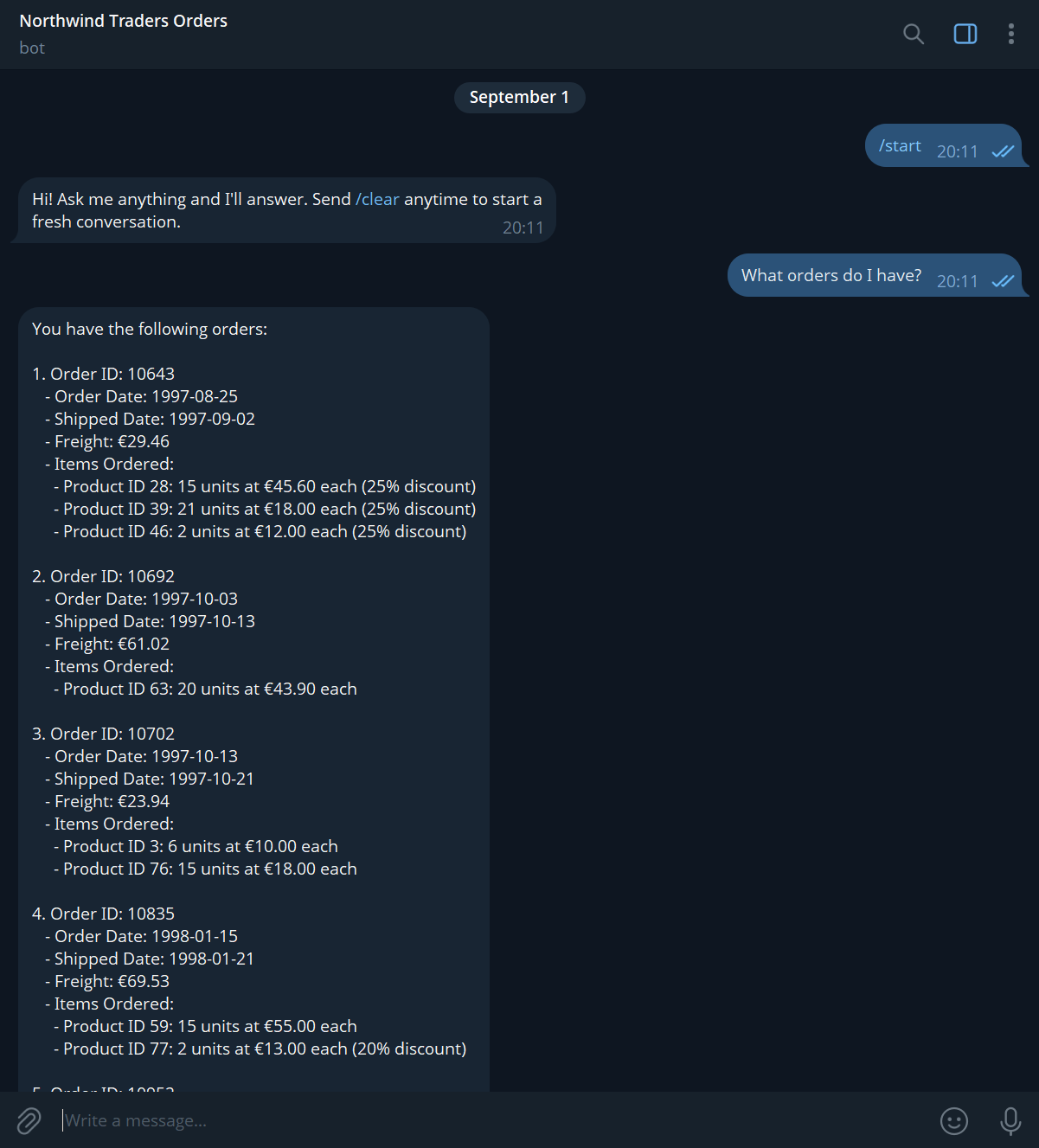
A new channel, even one added for the same bot, knows nothing of earlier shares and asks the user to share the phone number again.
Managing the channel
Once added, the channel is managed from its details view, described in App: Channels view: the view's header carries the Pause/Resume button and the ⋮ menu with Edit and Delete, common to every channel type, and the tabs below the header are specific to the channel type.
To open the details view, open the app from My apps in Quill's management dashboard, select Channels in the sidebar, and click the channel's box:
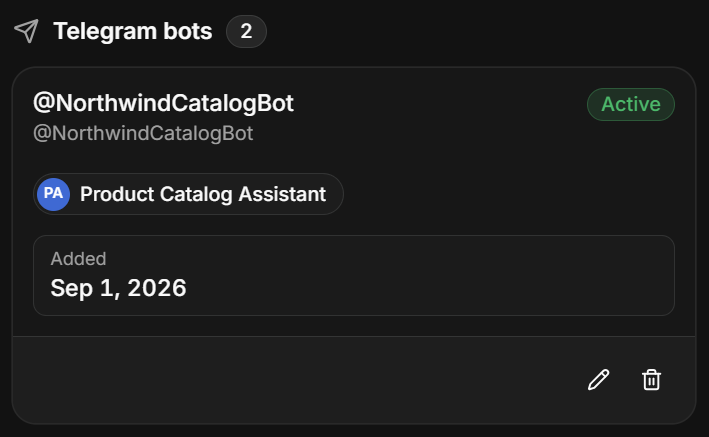
Pausing and deleting the channel
To pause or resume the channel, click Pause/Resume in the header; to delete it, select Delete in the header's ⋮ menu.

Both actions are explained in the Channels view article, in Pausing and resuming a channel and Deleting a channel. Each of them also has a Telegram side, explained here:
- A paused bot stops answering, and messages users send meanwhile are held by Telegram for up to 24 hours, to be answered if the channel is resumed within this time.
- A deleted channel stops the bot, but the bot itself remains yours on Telegram, and its token can be used to connect it again.
Rotating the bot token
To replace the bot token, select Edit in the header's ⋮ menu, and rotate the token in the Edit channel form.
If you have @BotFather issue a new token for any reason (e.g., because the existing token leaked), you can switch the channel to
the new token here.
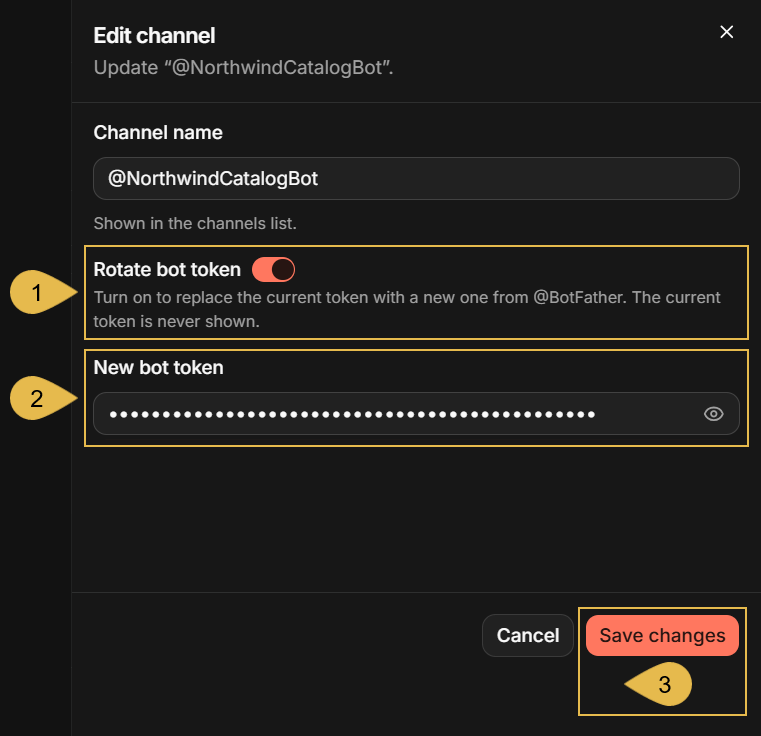
- Rotate bot token
Turn the toggle on to replace the current token. - New bot token
Paste the new token. Quill will validate the token with Telegram before saving it.
The token has to belong to the same bot as the current one; the token of a different bot is refused. - Save changes
Click to save.
The bot continues to answer under the new token; the old token is no longer used.
The tabs of the details view
The details view presents an informative Connect tab, a Parameters tab that allows you to change the bindings of the agent's parameters, and a Bot messages tab that allows you to replace the bot's own messages with texts of yours:
The Connect tab
The Connect tab shows the bot's address on Telegram, which you can hand to your users so they can open a chat with the bot,
and the two commands a user needs in the chat, /start and /clear.
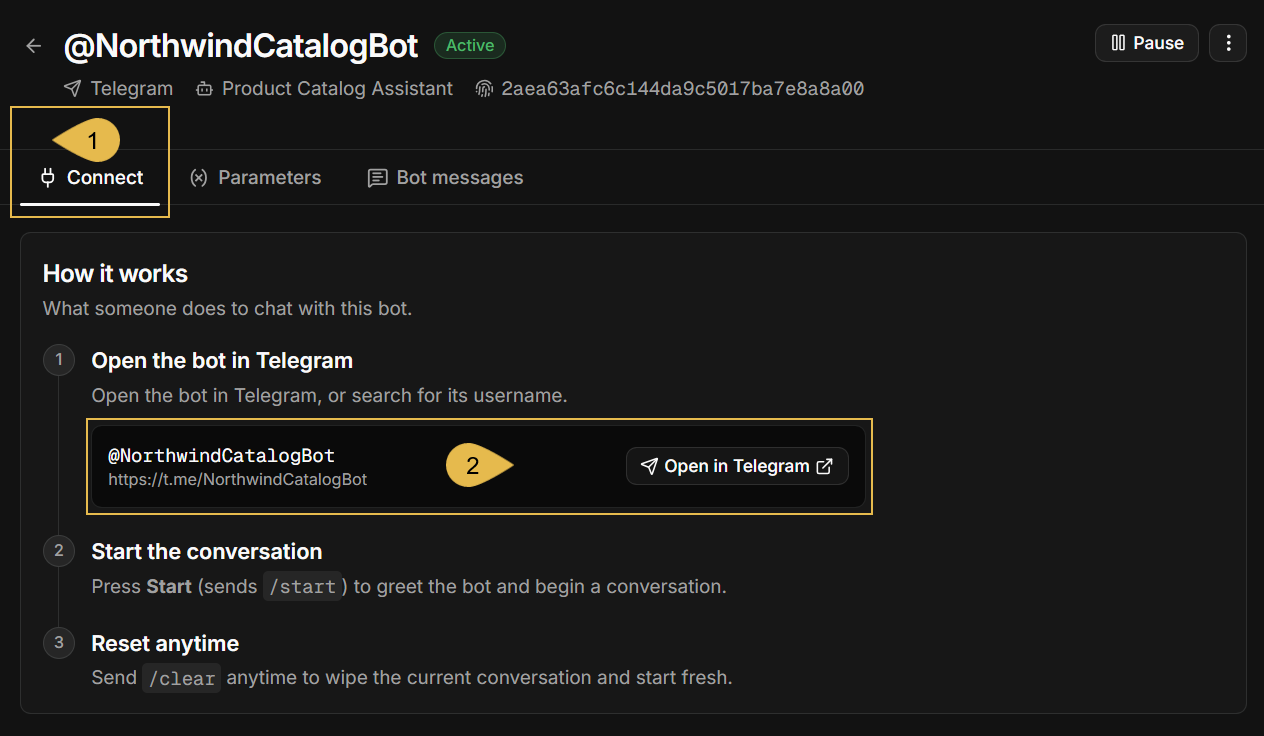
- Connect
Open the Connect tab. - @NorthwindCatalogBot
The bot's address on Telegram: the linkhttps://t.me/<username>, formed from the bot's username, which your users can open in any Telegram client.
Click Open in Telegram to open a chat with the bot in your own Telegram client.
The Parameters tab
The Parameters tab lists the agent's parameters and the source each of them is currently bound to, as set when the
channel was added, and lets you change the bindings.
A parameter that is added to the agent configuration
after the channel was added appears in this tab unbound, and the bot will not answer until the parameter is bound: users are told
that the assistant is not fully configured yet.
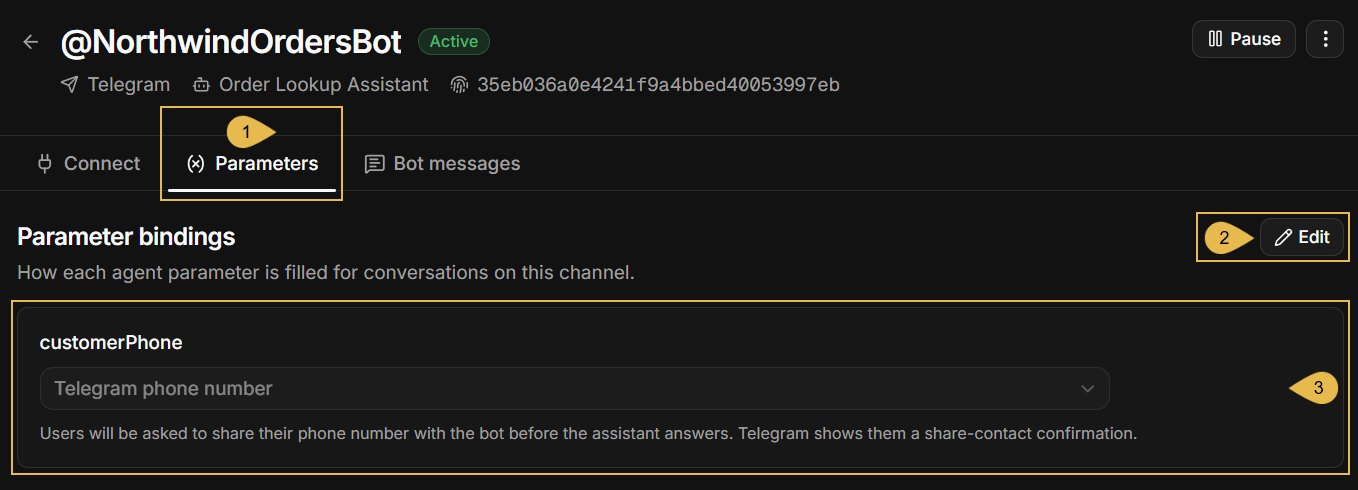
- Parameters
Open the Parameters tab. - Edit
Click to make the bindings editable, and click Save when done. - customerPhone
The example agent has one parameter,customerPhone: the phone number its queries use to find a customer's orders (see Binding agent parameters).
Each row shows a parameter's name and the source the parameter is bound to; here, the Telegram phone number.
The Bot messages tab
Besides replying to user messages, the bot sends messages of its own: the greeting, the confirmation after /clear, the requests
for the user's details, and the notices sent when the bot cannot answer.
The default text of each of these messages is shown in the Bot messages tab, and can be replaced with a text of your own.
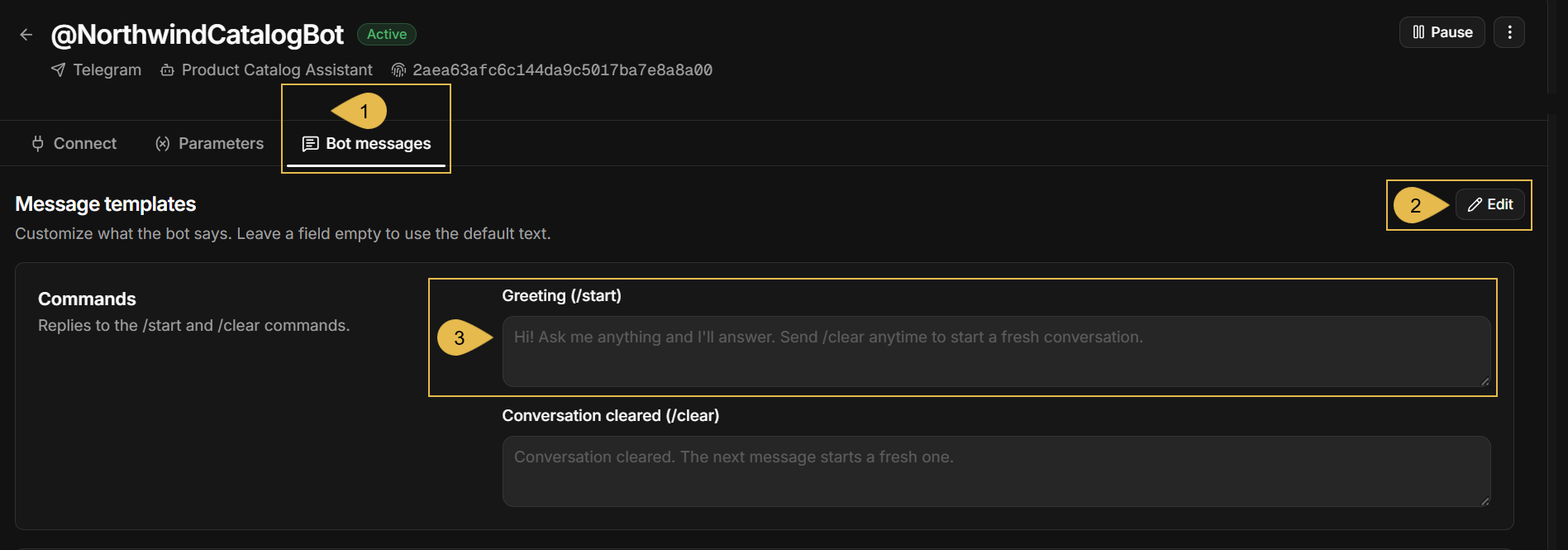
- Bot messages
Open the Bot messages tab. - Edit
Click to make the message fields editable, and click Save when done. - Greeting (/start)
The bot's reply to/start. Type a text of your own, or leave the field empty to keep the default text.
The available messages are arranged in the Bot messages tab by groups, as listed below. In the example above, only the Commands group is visible.
- Commands: the replies to
/startand/clear. - Collecting details: the requests for a username or a phone number, the label of the Share phone number button, and the confirmations.
- Errors & limits: the notices sent when the agent is not fully configured, when a chat is overloaded, when a message failed, and when the bot is added to a group.
Telegram bot limitations
A Telegram bot channel is designed to allow any Telegram user to reach the bot and be answered by the agent.
The limits below follow this design and Telegram's own rules. None of them can be changed in the channel's settings.
- Anyone on Telegram can chat with the bot.
The channel cannot select the users that will have access to the bot: any Telegram user who finds the bot can ask it questions.
Agent parameters bound to the Telegram user can tie the answers to this user's own data, but cannot turn anyone away. - One bot per channel, one agent per channel.
See Channels and agents in the channels overview. - The bot answers in private chats only.
Added to a group, the bot posts one refusal and then stays silent in the group. - The bot answers text-only messages.
A photo, a document, a sticker, or a voice message gets no reply. A contact card is accepted only when an agent parameter takes the user's phone number. - The agent remembers a conversation for one day at most.
A user can make the agent forget sooner by sending/clear, as described in Clearing the conversation.
See also Behavior and limitations common to all channels in the channels overview. - Messages sent faster than the bot answers may go unanswered.
See Behavior and limitations common to all channels in the channels overview.
Troubleshooting
Symptoms met by the users of every bot type, not just of a Telegram bot, are listed in the channels overview, in Troubleshooting.
The symptoms below are shown by a Telegram bot channel when something goes wrong, each with its likely cause and what to do about it.
The first symptoms are seen in Quill's management dashboard: in the channel form, in the Edit channel form, and in the Channels
view. The rest are encountered by the bot's users in their chats with the bot on Telegram.
The bot's messages are quoted in their default form, shown in The Bot messages tab; a channel with
customized messages shows your texts instead.
In the dashboard
- Clicking
Connect botfails with "invalid bot token format".
Likely cause: the token pasted in the form may be incomplete or mistyped. A bot token is the bot's numeric id, a colon, and a secret string, e.g.,123456789:AA....
What to do: copy the whole token from @BotFather's message, as described in Creating a bot using @BotFather, and paste it in the form's Bot token field. - Clicking
Connect botfails with "telegram rejected the bot token".
Likely cause: the token may have been replaced using @BotFather, so Telegram no longer accepts the old one.
What to do: paste the token @BotFather issued last in the form's Bot token field; if you are not sure which token is current, have @BotFather issue a new one and paste it. - Clicking
Connect botfails with "could not reach telegram" or "telegram did not respond".
Likely cause: the machine running Quill may have no access toapi.telegram.org, as required in Prerequisites; a firewall or a proxy blocking the address is the usual cause.
What to do: allow outgoing HTTPS connections from the machine running Quill toapi.telegram.orgin the firewall or proxy that blocks them, or ask your network administrator to. - Clicking
Connect botfails with "bot @... is already connected".
Likely cause: the bot is already connected to another channel, in this app or in another app of the deployment; a bot can serve only one channel. When the channel is in another app, the message names that app.
What to do: delete the channel that holds the bot, in this app or in the app the message names, as described in Pausing and deleting the channel; or create another bot using @BotFather, as described in Creating a bot using @BotFather, and paste the new bot's token in this form instead. - Clicking
Save changesin theEdit channelform fails with "the token belongs to a different bot".
Likely cause: the new token may have been copied from @BotFather's message about a different bot.
What to do: paste the token of the bot the channel was added for in the New bot token field of the Edit channel form.
To switch to a different bot, add a new channel for that bot instead, as described in Connecting the bot to your app. - The channel shows as
Activein the Channels view, but the bot does not answer.
Likely cause: the bot token may have been replaced using @BotFather, so Telegram no longer answers the requests Quill makes with the old one.
The dashboard shows no warning for a replaced token, and messages users send meanwhile are lost.
What to do: enter the token @BotFather issued last in the channel, as described in Rotating the bot token. - The channel shows as
Disabledin the Channels view, and the bot does not answer.
Likely cause: the channel was paused, using Pause in the header of its details view.
Messages users send while the channel is paused are held by Telegram for up to 24 hours, and are answered if the channel is resumed within this time.
What to do: resume the channel, as described in Pausing and deleting the channel.
On Telegram
- The bot replies "This assistant is not fully configured yet. Please contact whoever set up this bot."
Likely cause: the agent may have a parameter the channel does not bind, e.g., a parameter added to the agent after the channel was added.
What to do: bind the parameter in the channel's Parameters tab. - The bot replies "Sorry - something went wrong handling that message. Please try again."
Likely cause: the agent failed to produce the answer, e.g., because the database it queries or the LLM service it uses could not be reached.
What to do: verify that the app's database, and the LLM service behind the agent's AI connection string, can be reached. The connection string can be tested as described in Dashboard: AI connection strings. Then try the bot from your own Telegram account. - The bot replies "This assistant needs your Telegram username. Set one in Telegram Settings and send your message again."
Likely cause: a parameter is bound to Telegram username, and the user has no username set in Telegram.
What to do: advise the user to set a username in Telegram's settings and send the question again; or bind the parameter to another source, in the channel's Parameters tab. - The bot replies "I only work in one-on-one chats. Message me directly to start a conversation." in a group, and then stays
silent there.
Likely cause: the bot was added to a Telegram group; the bot answers in private chats only.
What to do: hand the users the bot's address, shown in the channel's Connect tab, and advise them to open a private chat with the bot at that address. - The bot asks a returning user for the phone number again.
Likely cause: the channel may have been deleted and added again. The number is kept per channel, so a new channel has no record of the number the user shared.
What to do: advise the user to share the number again. See Returning users.