Unlock RavenDB GenAI Potential with Attachments

Highlights
- RavenDB GenAI now works with attachments like PDFs, images, and logs for richer AI context.
- Build AI-powered workflows like image search, support triage, and resume screening directly in your database.
- Eliminate external pipelines by bringing AI processing closer to your data inside RavenDB.
RavenDB 7.1 introduced a major feature: GenAI. It is a highly customizable feature that brings AI directly into RavenDB, eliminating the need for complicated scripts or external orchestration. GenAI could enrich your documents with AI-generated data, based on the prompt & document context. You could automate labeling, generate summaries, enrich documents with metadata, build intelligent workflows, and more…
All without writing scripts and code that keep things synchronized. It was a big step in keeping AI closer to the data it operates on.
Some real-world use cases were still limited, though. GenAI could only see the document content, not its extensions. If context had been placed in an attachment, like a PDF or a JPG photo, the LLM couldn’t access it.
This changes now. With the latest release, RavenDB GenAI can work directly with attachments. PDFs, images, logs, and more, can be passed straight into the model, so the AI has the same context your users operate on. If you keep your files outside the database, remote attachments work here too.
Here is what you can hand to the model, and the method you use for each:
| Method | File types | Example use |
|---|---|---|
ctx.withPdf | .pdf | Resume screening |
ctx.withJpeg | .jpg, .jpeg | Image summarization |
ctx.withPng | .png | Error screenshots |
ctx.withWebp | .webp | Product photos |
ctx.withGif | .gif | Animated captures |
ctx.withText | .txt, .log, .json, .xml | Log and trace triage |
Each of these takes an attachment loaded with loadAttachment(name), and you can call several of them on the same context, so one task can reason over a screenshot, a log, and a PDF together.
Let’s look at three examples of how we can leverage this feature.
Image vector search without an image model!
Image vector search, in short called image search, is a way of finding images based on their actual content rather than just manually assigned labels. What it does is it first transforms images into their vector embeddings. This allows users to search either by typing a description or by providing a similar image.
In a previous article, we demonstrated how to set up image vector search using a script and an external image model. Now, thanks to methods like withJpeg or withPng, we can do that in RavenDB without the need for a model that supports images. You can generate an image summary, vectorize summaries within the text model, and enable semantic search over it.
Generating the image summary
In our RavenDB database, we have a collection called images with such documents:
{
    "Name": "Gravel Bike",
    "FileName": "bike.jpg",
    "ImageSummary": null,
    "@metadata": {
        "@collection": "Images",
        "@flags": "HasAttachments"
    }
}
We want bike.jpg to be searchable not just as a bike, but also by its appearance and meaning. For that, we want to create GenAI to generate a description of this image for us. We do that with the following code:
var genAiTaskConfig = new GenAiConfiguration()
{
    Collection = "Images",
    Name = "GenAiTask",
    ConnectionStringName = GenAiConnectionStringName,
    Prompt = "Describe the attached image in one short, factual sentence. Do not invent details.",
    SampleObject = JsonConvert.SerializeObject(new { ImageSummary = "A concise factual description" }),
    UpdateScript = "this.ImageSummary = $output.ImageSummary;",
    GenAiTransformation = new GenAiTransformation()
    {
        Script = """
                 const file = this.FileName;
                 const ctx = ai.genContext({ Name: this.Name });
                 const att = loadAttachment(file);

                 if (file.endsWith('.png')) ctx.withPng(att);
                 if (file.endsWith('.jpg') || file.endsWith('.jpeg')) ctx.withJpeg(att);
                 if (file.endsWith('.webp')) ctx.withWebp(att);
                 if (file.endsWith('.gif')) ctx.withGif(att);
                 """
    }
};

store.Maintenance.Send(new AddGenAiOperation(genAiTaskConfig));
This code snippet creates a new GenAI task that summarizes document context (product name and image). Then it puts the summary inside ImageSummary field. It supports multiple types of file extensions as well.
Vectorizing the summaries
This gives us descriptions in the document. Let’s now vectorize the summaries using the Embeddings Generation Task. We use this script to get the embeddings quickly:
private static void InitializeEmbeddingsGenerationTask(IDocumentStore store)
{
    // 1. Register AI connection string (to OpenAI in this example)
    var embeddingsGenerationConnectionString = new AiConnectionString
    {
        Name = "openai-embeddings",
        ModelType = AiModelType.TextEmbeddings,
        OpenAiSettings = new OpenAiSettings(
            apiKey: "YOUR_API_KEY",
            endpoint: "https://api.openai.com/v1",
            model: "text-embedding-3-small") // use 3-large for even better results
    };

    store.Maintenance.Send(
        new PutConnectionStringOperation<AiConnectionString>(embeddingsGenerationConnectionString));

    // 2. Add an embeddings generation task
    var embeddingsGenerationConfig = new EmbeddingsGenerationConfiguration()
    {
        Collection = "Images",
        Name = "EmbeddingsGenerationTask",
        Identifier = "emb-gen",
        ConnectionStringName = "openai-embeddings",
        EmbeddingsPathConfigurations = new List<EmbeddingPathConfiguration>()
        {
            new EmbeddingPathConfiguration()
            {
                Path = "ImageSummary",
                ChunkingOptions = new ChunkingOptions()
                {
                    ChunkingMethod = ChunkingMethod.PlainTextSplit,
                    MaxTokensPerChunk = 2048
                }
            }
        },
        ChunkingOptionsForQuerying = new ChunkingOptions()
        {
            ChunkingMethod = ChunkingMethod.PlainTextSplit,
            MaxTokensPerChunk = 2048
        }
    };

    store.Maintenance.Send(new AddEmbeddingsGenerationOperation(embeddingsGenerationConfig));
}
This script sets up embedding generation in RavenDB for all ImageSummary fields from every document in the Images collection. The vectors don’t land on the source documents. RavenDB keeps them in a dedicated embeddings collection named @embeddings/Images, and the emb-gen identifier is what ties them back to our index in the next step.
Indexing and querying
Let’s add vector search index definition that uses our task, which we’ll query to get semantically relevant results:
// The entity behind the Images collection shown above
public class Image
{
    public string Id { get; set; }
    public string Name { get; set; }
    public string FileName { get; set; }
    public string ImageSummary { get; set; }
}

public class ImageWithEmbeddings_ByImageSummary :
    AbstractIndexCreationTask<Image, ImageWithEmbeddings_ByImageSummary.IndexEntry>
{
    public class IndexEntry
    {
        // Holds the embeddings produced by the 'emb-gen' task
        public object VectorFromText { get; set; }
    }

    public ImageWithEmbeddings_ByImageSummary()
    {
        Map = images => from image in images
            select new IndexEntry
            {
                // Pass the document field to index,
                // and the identifier of the task that generated its embeddings
                VectorFromText = LoadVector("ImageSummary", "emb-gen")
            };

        // Vector search requires the Corax search engine
        SearchEngineType = Raven.Client.Documents.Indexes.SearchEngineType.Corax;
    }
}
Deploy it once with new ImageWithEmbeddings_ByImageSummary().Execute(store); or let IndexCreation.CreateIndexes pick it up on startup.
And finally, let’s write a query:
using (var session = store.OpenSession())
{
    var results = session
        .Query<ImageWithEmbeddings_ByImageSummary.IndexEntry,
               ImageWithEmbeddings_ByImageSummary>()
        .VectorSearch(
            fieldFactory => fieldFactory.WithField(x => x.VectorFromText),
            valueFactory => valueFactory.ByText("Bicycle"),
            minimumSimilarity: 0.70f)
        // Project back to the source documents rather than index entries
        .OfType<Image>()
        .ToList();
}
This code performs a vector search using our freshly generated embeddings and returns the matching document.
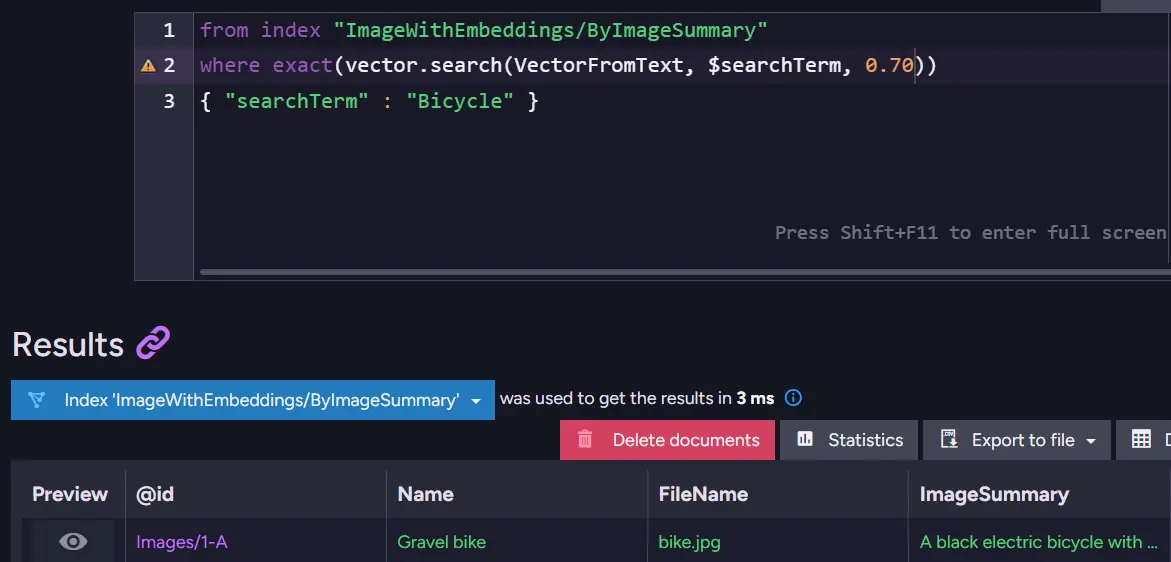
And doesn’t show any of the other two files:
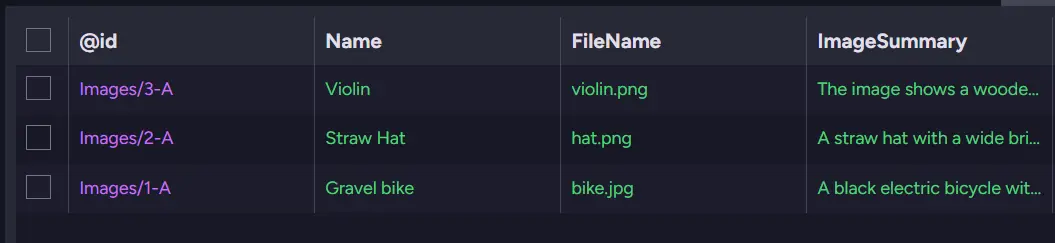
This way, you can achieve AI image search without an external image model for generating embeddings, saving you a lot of time and resources that you’d need to spend on incorporating a new AI model into your system.
You can extend it by adding logic to filter the results further before returning them to the user, or adjust it for the scale of your system.
If you’d like to see how to use an external model and add image-to-image search, check out our dedicated guide on AI image search with RavenDB.
Support triage that understands attachments!
Handling customer support at a large scale often means digging through long email threads, screenshots, and logs just to understand what went wrong. A single support ticket may contain multiple messages and attached files, like error logs or images. Manually going through all this takes time, especially when a company receives hundreds of tickets daily.
With RavenDB and GenAI, we can automate the first step of triage: summarizing the issue, estimating severity, and assigning the ticket to the correct team. This doesn’t replace support employees; it will help them prioritize tasks more efficiently.
The ticket document
Let’s say your Tickets documents capture conversations (maybe not that exaggerated with details from the customer side… 😉) like the one below:
{
    "Title": "Timeouts during checkout",
    "Emails": [
        {
            "From": "customer@example.com",
            "To": "support@company.com",
            "Date": "2025-09-19T08:42:00Z",
            "Subject": "Checkout timing out",
            "Body": "Hello, I am noticing that the checkout process does not complete and the loading spinner continues indefinitely. This prevents transactions from going through.",
            "Attachments": [
                "checkout-error.png",
                "browser-log.txt"
            ]
        },
        {
            "From": "support@company.com",
            "To": "customer@example.com",
            "Date": "2025-09-19T09:10:00Z",
            "Subject": "Re: Checkout timing out",
            "Body": "Thank you for reporting this. Could you please confirm which browser and version you are using, as well as any relevant network conditions?",
            "Attachments": []
        },
        {
            "From": "customer@example.com",
            "To": "support@company.com",
            "Date": "2025-09-19T09:25:00Z",
            "Subject": "Re: Checkout timing out",
            "Body": "I am using Chrome 128 on Windows 11. I have observed that the issue occurs when connected via Wi-Fi, but not on mobile data.",
            "Attachments": [
                "network-trace.json"
            ]
        }
    ],
    "Summary": null,
    "Severity": null,
    "OwningTeam": null,
    "@metadata": {
        "@collection": "Tickets",
        "@flags": "HasAttachments",
        "collection": "Tickets"
    }
}
We automatically fill in three fields:
- Summary: 1–2 sentences describing the main failure
- Severity: Low, Medium, or High
- OwningTeam: [Network, Database, Backend, Frontend, DevOps]
The triage task
To process it all, we use this GenAI task:
var genAiTaskConfig = new GenAiConfiguration()
{
    Collection = "Tickets",
    Name = "GenAiTask",
    ConnectionStringName = GenAiConnectionStringName,
    Prompt = "You are triaging a support ticket. Read the conversation and every attached file (logs, traces, and screenshots) and return: Summary (<= 2 sentences), Severity one of [Low, Medium, High], and OwningTeam from [Network, Database, Backend, Frontend, DevOps].",
    SampleObject = JsonConvert.SerializeObject(new
    {
        Summary = "Short summary of the main failure",
        Severity = "Medium",
        OwningTeam = "Backend"
    }),
    UpdateScript = """
           this.Summary = $output.Summary;
           this.Severity = $output.Severity;
           this.OwningTeam = $output.OwningTeam;
           """,
    GenAiTransformation = new GenAiTransformation()
    {
        Script = """
         let SingleStringEmailsInfo = "";

         for (let email of this.Emails) {
             let emailInfo = `From: ${email.From}
             To: ${email.To}
             Date: ${email.Date}
             Subject: ${email.Subject}
             Body:
             ${email.Body}`;

             SingleStringEmailsInfo += emailInfo;
         }

         const ctx = ai.genContext({
             Title: this.Title,
             SingleStringEmailsInfo: SingleStringEmailsInfo
         });

         for (let email of this.Emails) {
             for (let attachmentName of email.Attachments) {
                 let attachment = loadAttachment(attachmentName);

                 if (!attachment) {
                     continue;
                 }

                 if (attachmentName.endsWith('.txt') || attachmentName.endsWith('.log') ||
                     attachmentName.endsWith('.json') || attachmentName.endsWith('.xml')) {
                     ctx.withText(attachment);
                 }
                 if (attachmentName.endsWith('.png')) ctx.withPng(attachment);
                 if (attachmentName.endsWith('.jpg') || attachmentName.endsWith('.jpeg')) ctx.withJpeg(attachment);
                 if (attachmentName.endsWith('.webp')) ctx.withWebp(attachment);
                 if (attachmentName.endsWith('.gif')) ctx.withGif(attachment);
             }
         }
         """
    }
};


store.Maintenance.Send(new AddGenAiOperation(genAiTaskConfig));
Running it
Script automatically fills our task:
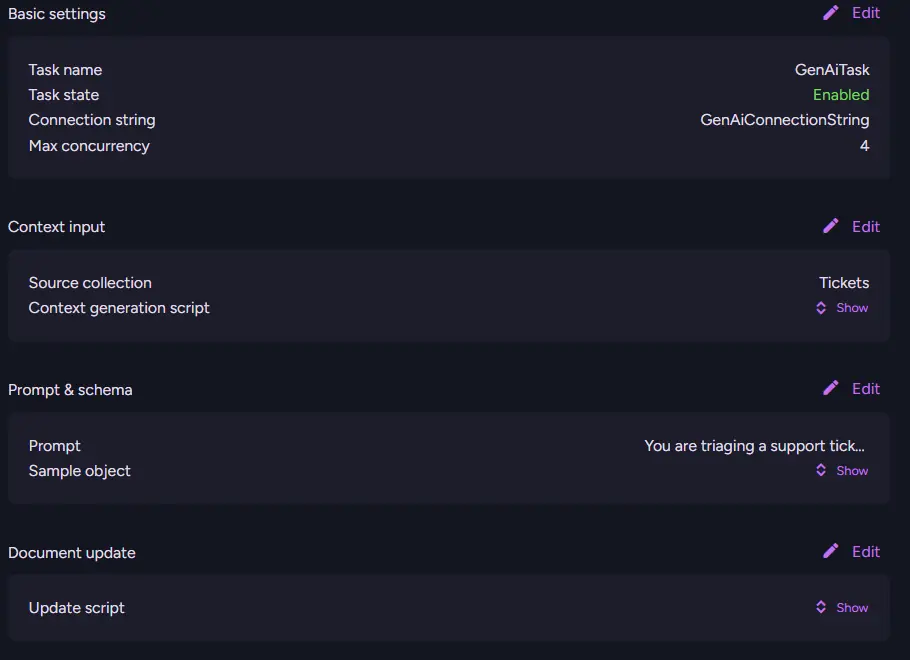
An interesting and important part of this GenAI task, being precise, the source collection script is:
SingleStringEmailsInfo += emailInfo;
It takes our email content and puts it into a single string. This makes GenAI treat all our emails as one and not three separate messages. We do it that way in order to summarise whole tickets and not just separate emails in one go.
Before the task, our document had three null fields:
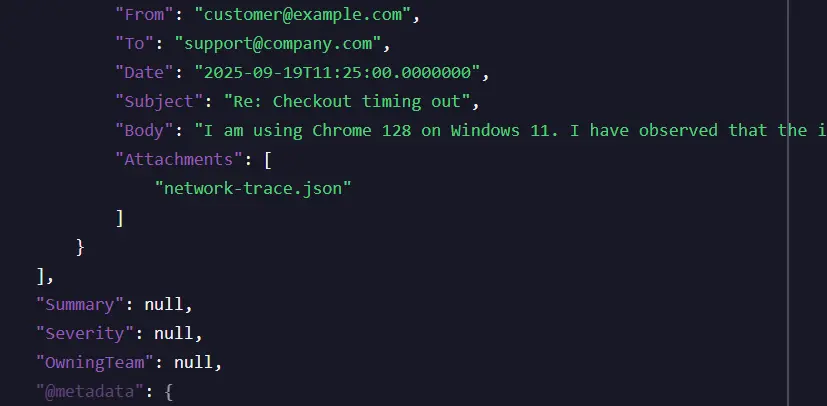
After task they are filled:
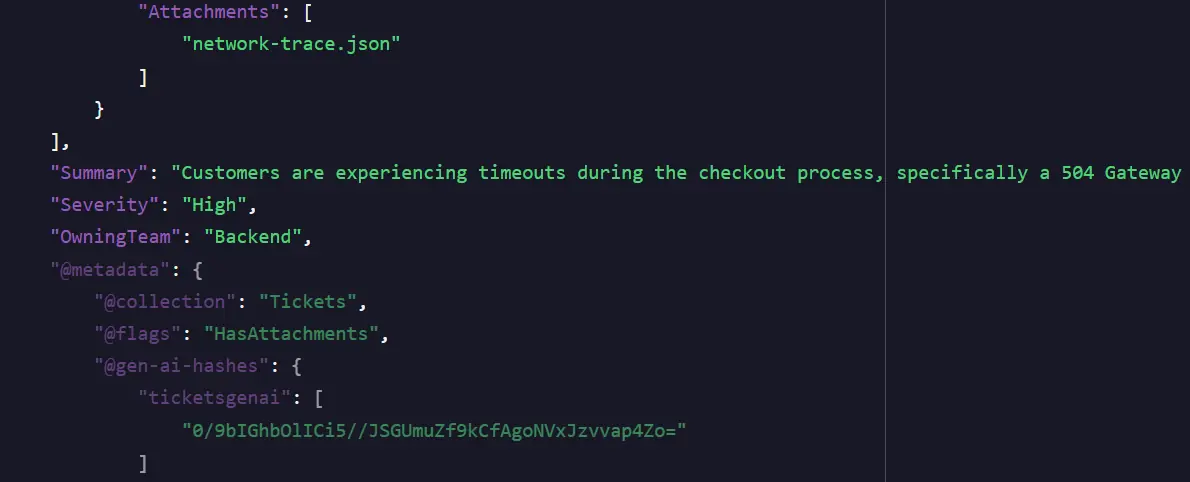
"Summary": "The checkout process is experiencing timeouts, specifically during payment requests, which leads to a 504 Gateway Timeout error.",
"Severity": "High",
"OwningTeam": "Backend",
All that is left is attaching this to your own frontend. This way, whoever opens the ticket later doesn’t need to scan the whole conversation - they get the essential information up front.
Resume pre-viewer with PDF attachments
When handling incoming applications in large companies, a common problem is dealing with irrelevant resumes. Simply documents that have nothing to do with the role. Manually opening every PDF just to discard them wastes valuable time, especially if you can have hundreds or thousands of such files. With GenAI, we can automate the first step: checking whether a resume is on-topic for the advertised position, giving context to recruiters.
Of course, we are not using AI to make decisions; we are simply filtering completely irrelevant profiles. Ultimately, you are writing your scripts, and you can modify them to suit your needs ⚙️
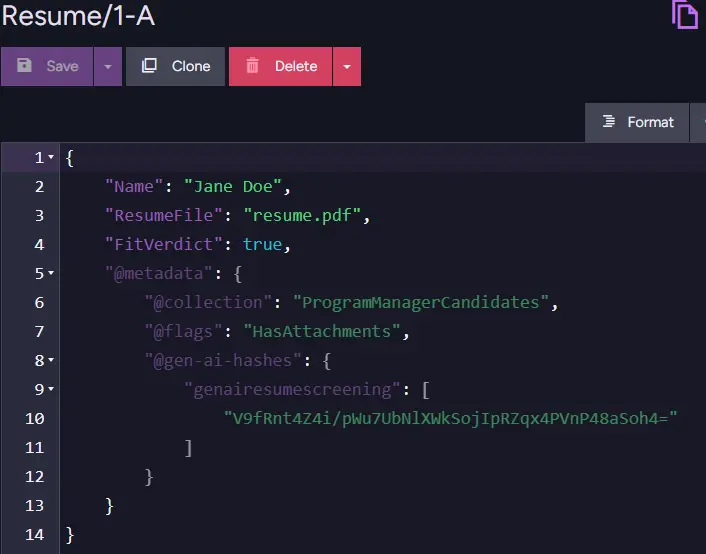
Just as with images, where we can attach files and let RavenDB process them, the same approach applies to PDFs. In this case, the resume is stored as an attachment. Then it’s used to generate a simple decision:
“Does this resume appear to be from a candidate for our role, or is it completely irrelevant?”
The candidate document
Our database contains a collection called ProgramManagerCandidates with documents like this:
{
    "Name": "Jane Doe",
    "ResumeFile": "resume.pdf",
    "FitVerdict": null,
    "@metadata": {
        "@collection": "ProgramManagerCandidates",
        "@flags": "HasAttachments"
    }
}
The screening task
We now configure a transformation that takes each document, loads the resume, and runs it through an AI prompt. Let’s make one just for the Program Manager role:
var genAiTaskConfig = new GenAiConfiguration()
{
    Collection = "ProgramManagerCandidates",
    Name = "GenAiResumeScreening",
    ConnectionStringName = GenAiConnectionString,
    Prompt = """
             You are screening a resume PDF for a Program Manager role in a large IT corporation migrating between cloud and on-prem data centers.
             Decide if the candidate fits. Base decisions ONLY on the provided resume.
             """,
    SampleObject = JsonConvert.SerializeObject(new
    {
        FitVerdict = false,
    }),
    UpdateScript = "this.FitVerdict = $output.FitVerdict;",
    GenAiTransformation = new GenAiTransformation()
    {
        Script = """
                 const fileName = this.ResumeFile;
                 if (!fileName) return;

                 const ctx = ai.genContext({
                   CandidateName: this.Name,
                 });

                 const att = loadAttachment(fileName);
                 ctx.withPdf(att);
                 """
    }
};

store.Maintenance.Send(new AddGenAiOperation(genAiTaskConfig));
The script first checks whether the candidate has an attached file. It then creates context with the candidate’s name, while the target role stays in the prompt. The attached resume is loaded into the context with ctx.withPdf. The AI runs the given prompt and returns field: FitVerdict (true/false) - whether this resume is relevant or not.
Summary
GenAI is a highly customizable feature, giving us nearly unlimited options; your imagination is the limit. If you are interested in more AI features, we suggest looking at the latest feature: AI Agents, covered in A Practical Look at AI Agents with RavenDB. Agents take attachments too, and Beyond Text: Adding File Attachments to RavenDB AI Agents shows how.
Interested in checking what you can do with this feature yourself? Download RavenDB and grab your free developer license. If you want to share any of your awesome ideas that use this feature, or you have questions about it, join our Discord Developers Community.
Frequently Asked Questions
Which file types can RavenDB GenAI read from attachments?
Images through withPng, withJpeg, withWebp, and withGif, PDFs through withPdf, and plain text formats such as .txt, .log, .json, and .xml through withText. You pick the method per attachment inside the source collection script, so a single task can mix screenshots, logs, and documents in one context.
How do I pass an image attachment to a GenAI task?
Load the attachment by name with loadAttachment(fileName), then attach it to the generation context with the method matching its format:
const att = loadAttachment(this.FileName);
const ctx = ai.genContext({ Name: this.Name });
ctx.withJpeg(att);
The bytes travel to the model alongside the JSON you passed to ai.genContext, so the prompt sees both the document fields and the file.
Does GenAI work with remote attachments?
Yes. If your files live outside the database as remote attachments, loadAttachment resolves them the same way, so the task script does not change.
Can I do image vector search in RavenDB without an image embedding model?
Yes. Have GenAI write a short factual description of each image into a document field, point an Embeddings Generation Task at that field, and index it with LoadVector. Searches then run against the text embeddings, so a text model is all you need.
Can one GenAI task handle several attachments on the same document?
Yes. Call the appropriate with* method once per file before the task runs. The support triage example above loops over every email in the ticket and attaches each of its files, which is what lets the model reason across a log, a trace, and a screenshot together.
Where do the generated embeddings get stored?
Not on the source documents. RavenDB writes them to a dedicated embeddings collection, @embeddings/<Collection>, and the task identifier you pass to LoadVector is what links them back to your index.