Spatial Search in RavenDB: Radius, Polygon, and Reverse Queries

RavenDB offers native spatial search without external plugins. Store point coordinates or polygon shapes in your documents and query by radius, custom shapes, or reverse point-in-polygon lookup, using the same indexing workflow you use for all other fields. This guide walks through all three query types with a working Python demo.
Spatial data tends to create an impression that you need to learn a dedicated tool from scratch before you can do anything useful with it. The technical concepts like storing coordinates and polygons may look simple at first, but once you dig a little deeper, they can become surprisingly hard to navigate through. Geospatial tools often do not help newcomers get started smoothly due to convoluted technical documentation.
Yet many applications only require a handful of straightforward operations. Your app users may want to find entries near a point, determine whether a location fits within a region, or map coordinates to named areas.
These are simple ideas that do not require advanced infrastructure, and RavenDB keeps this approachable. You can store points or shapes directly in your documents and query them with the same workflow you use for other fields. This makes spatial search feel like a natural extension of the database rather than a separate feature you need to learn from scratch.
Why use RavenDB for spatial search
Most databases require a dedicated geospatial extension or a separate service to handle spatial search. In RavenDB, spatial search is built in. Once your documents store coordinates or shapes in the correct format, you can query them immediately using the same session and index workflow you already use for everything else.
The system is also designed for precision. RavenDB supports three indexing strategies for spatial data, two of which work with Cartesian systems as well as geographical ones, giving you accuracy down to roughly 2.5 meters. That is precise enough to distinguish individual rooms in a building. More on the strategies and how they differ here.
So it’s built in, precise, and fits naturally into your existing workflow. What can you actually do with it?
Spatial search capabilities
RavenDB’s spatial search supports all the common use cases. The simplest is to query by radius within a chosen distance of a chosen point. All you need are coordinates to select the center of your radius. You can also calculate the distance from your point (the middle of the radius) to the queried object.
Another subfeature is querying by shape. You define your shape either as a circle or a polygon. While circle lets you write radius capability just differently, polygon, on the other hand, lets you define any shape this way. You define your shape using WKT, and you are ready to search. WKT is described later in the article; click here to skip there.
You can also search using polygons defined in the same way as the second method. If you pre-define shapes like districts, you can point to space and then return the district it’s in.
Respectively, as we allow indexing points and WKT shapes, you can achieve anything you need with spatial indexes, including shape-by-shape search. RavenDB's spatial search capability is ready for any use case, both simple and more advanced.
All those usages depend on how you use your indexes and queries, and there is, of course, more you can do.
Dynamic vs static index
Queries over spatial data behave the same as regular RavenDB queries, so we can either let RavenDB generate an auto-index (dynamic) or create a predefined index (static) manually. Dynamic indexes are good if you are satisfied with the default search options, and you are fine with the first query being slower (while the index is being created).
On the other hand, a static index gives you full control over your index. You choose what will be inside and can also add more advanced logic. With a static index, you don’t need to worry that it will get automatically deleted after 72 hours (by default) of reduced usage.
In the end, those differences depend on project specification, and depending on your usage, you might or might not be fine with using dynamic indexes. If you are in doubt, you can start with a dynamic index, and if you need more control than expected, you can change it into a static one.
But what do we have under the hood?
How this system works
This section discusses the technical details of RavenDB and the components that make it work. If you prefer to view the demo first, click this link.
Cartesian and geographical
RavenDB has two systems: Cartesian and geographical. Both systems mostly support the same strategies. Geographical, that is the default one, can work with three indexing strategies.
- BoundingBox
- QuadPrefixTree
- GeoHashPrefixTree
The Cartesian system supports those except for GeoHashPrefixTree, as the name suggests, it is dedicated to geographical systems. What are the differences between these three systems?
The BoundingBox strategy is the simplest and most direct. When you store a point or a polygon, RavenDB calculates the smallest possible rectangle that contains the entire shape. This rectangle is written into the spatial index. Similarly, during a query such as a radius search or a polygon check, RavenDB first compares your search area against the index's bounding boxes. Rectangle against rectangle is cheap to evaluate. Because of this, BoundingBox is fast and reliable for general usage. It can be less efficient for irregular shapes, because the bounding rectangle may still include a larger space than the actual geometry.
QuadPrefixTree uses a hierarchical grid that becomes more detailed with each level. You can think of this system as covering the world with a grid of four squares. Each square is then split into another four smaller squares. Those smaller squares can be split again and again if you want even more detail. When RavenDB indexes a point or a polygon, it marks the cells that contain the shape at the chosen precision level. During a spatial search, the engine can directly look up the cells that overlap your search region. This limits the amount of data that needs more checks. Quad trees work well for large areas and for dense clusters of points, because each level of subdivision keeps the data spatially organized.
GeoHashPrefixTree works similarly, but instead of grid cells, it uses geohashes. A geohash is a compact string that represents a location. Each additional character increases precision and zooms in on a smaller part of the map. RavenDB stores these prefixes in the index. When you perform a spatial search, RavenDB converts your search region into a set of geohash prefixes and immediately filters the entries that match them. Since nearby locations produce similar prefixes, this system is very efficient for geographical data. It is tied to Earth's coordinate system, so it is used only in geographic mode, not in Cartesian mode.
All three strategies support the same spatial search features. The difference lies in how they use space and how they query your data. BoundingBox keeps things simple and light. QuadPrefixTree provides precision at the grid level. GeoHashPrefixTree provides compact indexing that naturally works with real-world coordinates. When it comes to precision, both QuadPrefixTree and GeoHashPrefixTree have around 2.5 meters of precision, but QuadPrefixTree uses more bytes. Why GeoHash is more compact? It needs only 9 levels of depth to reach the same precision QuadPrefixTree reaches in 23 levels.
| Strategy | Coordinate systems | Precision | Depth levels | Best for |
|---|---|---|---|---|
| BoundingBox | Geographic + Cartesian | Rectangle bounds | N/A | General use, simple shapes, fastest queries |
| QuadPrefixTree | Geographic + Cartesian | ~2.5 m | 23 | Large areas, dense point clusters |
| GeoHashPrefixTree | Geographic only | ~2.5 m | 9 | Real-world coordinates, most compact storage |
How to describe point and polygon
The first thing we need to understand is how we describe points. We do that with basic coordinates. In both Cartesian and geographic systems, you input longitude and latitude to describe where your point is. The same numbers work regardless of the indexing strategy. A point is simply a location with two values.
To define a shape, we use a “well-known text” markup language called in short WKT. If you are not familiar with it, let us briefly describe how it works. You describe your geometry with a simple keyword followed by a list of coordinates. The structure is built to be human-readable, so even a long shape is easy to understand at a glance.
We use mainly two shapes:
- POLYGON
A closed shape defined by a list of coordinates. The first coordinate must match the last one to indicate that the shape is closed.
POLYGON((10 10, 20 10, 20 20, 10 20, 10 10))
When defining a polygon, list the points in counterclockwise order. That way, the system understands that the area inside the shape is what you want. If you list the points clockwise instead, some systems may interpret it the opposite way, selecting everything outside the polygon instead of the area inside it.
A polygon can also contain a hole. This is done by adding a second set of coordinates, this time clockwise, after the outer boundary.
POLYGON((0 0, 10 0, 10 10, 0 10, 0 0), (3 3, 7 3, 7 7, 3 7, 3 3))
- CIRCLE
RavenDB accepts circles; the format works similarly to the polygon syntax.
CIRCLE(12.4924 41.8902, 5)
Here, the first part describes the center, and the second part, divided by a comma, describes the radius.
WKT lets you describe your shapes consistently. When you put a polygon or a circle into the index, RavenDB converts that shape into whatever structure your indexing strategy needs. You only provide coordinates. After that, the index handles precision, grid subdivision, and comparisons.
Once your geometry is stored, you can run spatial queries on it. You can check if a point is inside a polygon. You can search within a radius. You can define districts or regions and return the area that contains a specific coordinate. Everything begins with a WKT definition.
Demo: how we use spatial search
Now that we have covered the theory, let’s look at the demo and see how to build it with RavenDB. The examples below use RavenDB 7.2 and the RavenDB Python client with FastAPI. The demo is coded in Python and is available to clone via this link.
Let’s start from the beginning. We git clone the repository and uv sync for dependencies, and then start it with uv run python main.py. What we get is this view.
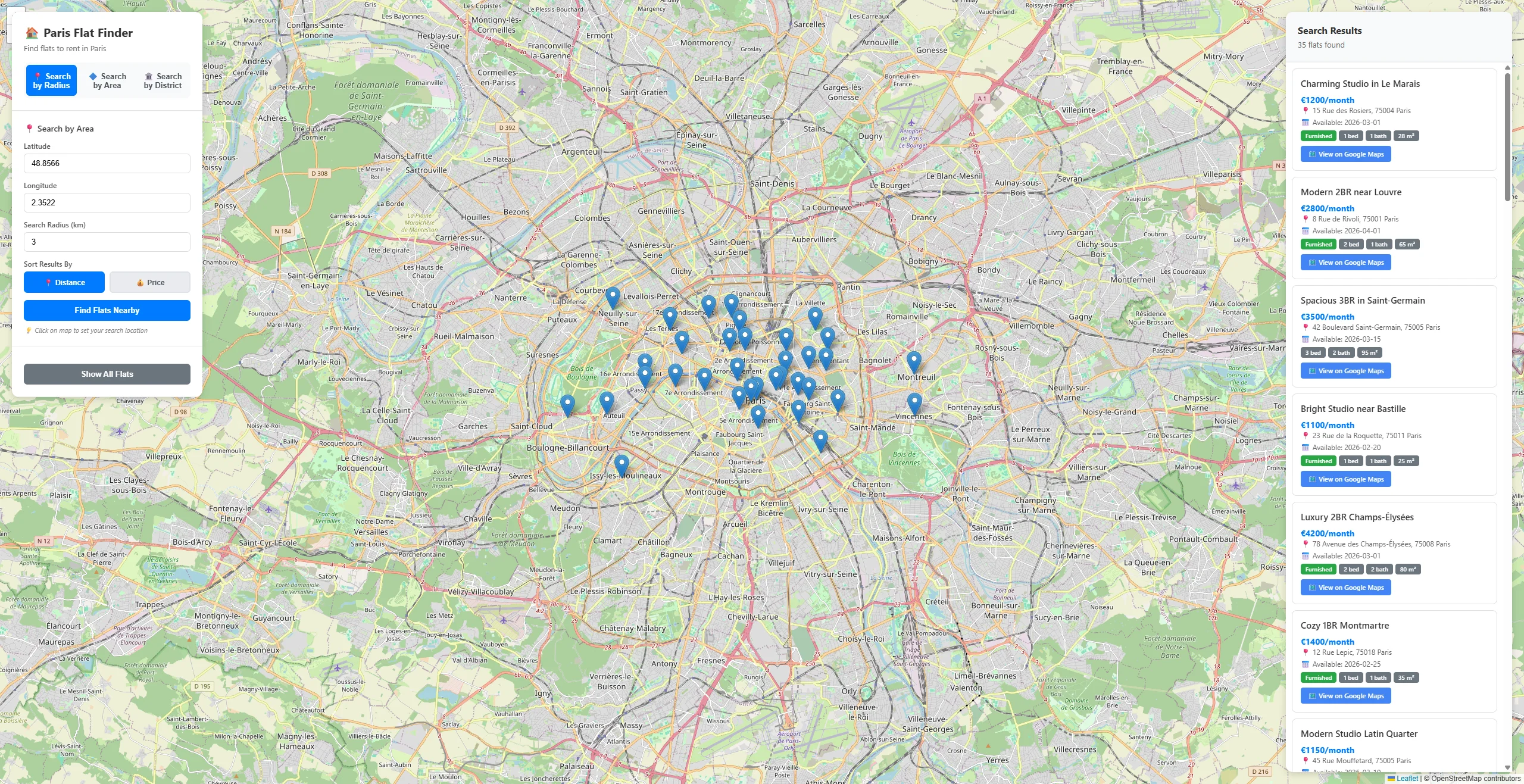
Now let's dive into the app and see what it's capable of. We will go through three demos:
- Search by radius
- Search by any shape
- Searching shapes by point (reverse search)
Let’s start with the first function, searching by radius.
Part 1: search in radius
This option is selected by default on the top left. All you need to do is click anywhere and select a radius if the default search radius does not suit you. This gives us points within the radius; in this demo, those are flats in Paris.
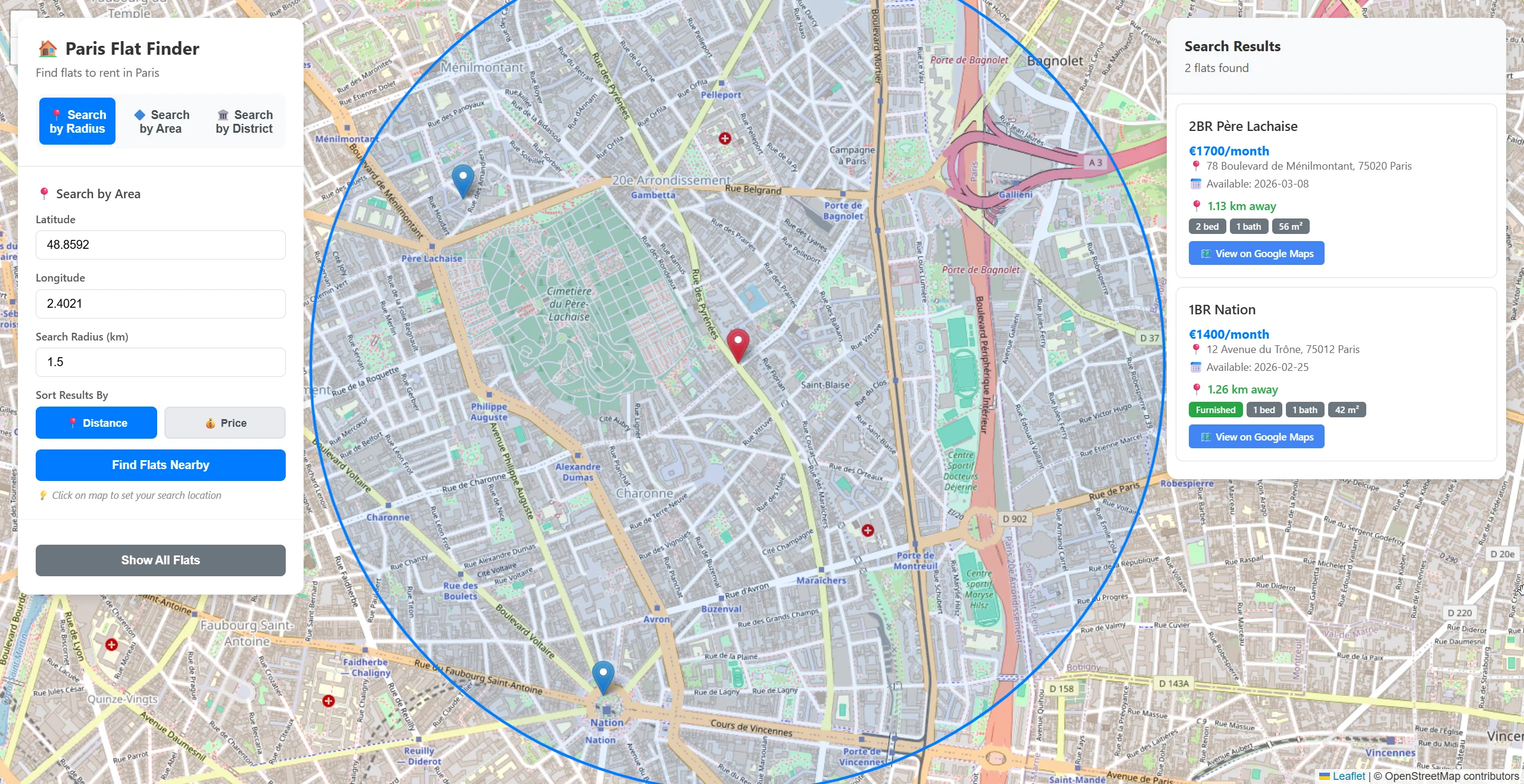
As you can see, a search by radius excludes any other flats outside the radius, leaving us with only two results. We also get information about the flats themselves and the distance to them from our point. This is how flat data looks inside.
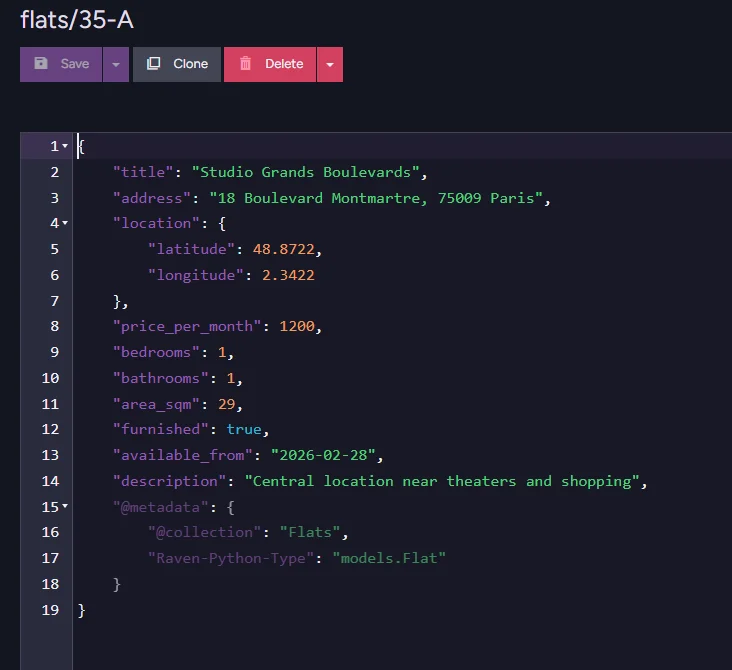
But how do we map those flats on a map?
Part 1 setup
Let’s walk through the code and find the piece responsible for the radius search. The part we are looking for looks like this.
@app.post("/api/search/radius", response_model=List[FlatResponse])
async def search_by_radius(request: SearchByRadiusRequest):
    with store.open_session() as session:
        query = session.query_index_type(Flats_SpatialIndex, Flat)

        query = query.within_radius_of(
            "location",
            request.radius_km,
            request.latitude,
            request.longitude,
            SpatialUnits.KILOMETERS,
        )

        if request.sort_by == "price":
            query = query.order_by("price_per_month")
        else:
            query = query.order_by_distance(
                "location",
                request.latitude,
                request.longitude
            )

        results = list(query)

        response = []
        for flat in results:
            metadata = session.advanced.get_metadata_for(flat)
            distance = metadata.get("@spatial", {}).get("Distance")
            response.append(convert_to_response(flat, distance))

        return response
First, we define the endpoint and open a session in order to communicate with RavenDB. Then we have this part of code that is querying using index we prepared that looks like this:
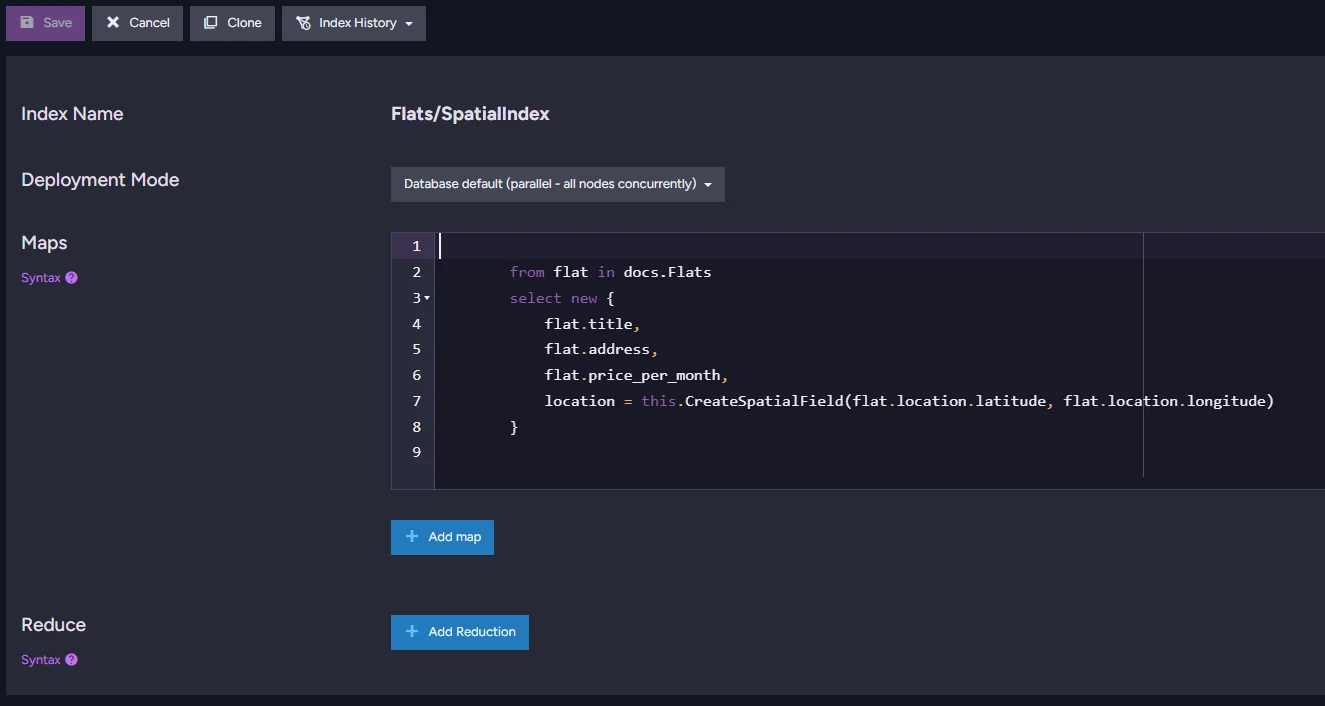
query = session.query_index_type(Flats_SpatialIndex, Flat)

query = query.within_radius_of(
    "location",
    request.radius_km,
    request.latitude,
    request.longitude,
    SpatialUnits.KILOMETERS,
)
Additionally, we provide information for our query. Location selects the field with spatial data in, latitude and longitude define the center of the radius, meanwhile, radius_km tells RavenDB how big the radius is. Last line SpatialUnits.KILOMETERS simply tells RavenDB to use kilometers.
if request.sort_by == "price":
    query = query.order_by("price_per_month")
else:
    query = query.order_by_distance(
        "location",
        request.latitude,
        request.longitude
    )
To keep everything sorted, we let the user select price or distance, then query for the data needed to sort it. Then after everything is ready…
results = list(query)

response = []
for flat in results:
    metadata = session.advanced.get_metadata_for(flat)
    distance = metadata.get("@spatial", {}).get("Distance")
    response.append(convert_to_response(flat, distance))
return response
…we execute the query and retrieve the distance to the selected point from the metadata, so we can display it alongside the flat data. This is all the code you need to search by radius. Fast and easy without the need for any advanced concepts, just a simple query by field generated by the index. All we had to do was provide the coordinates and the desired range. Let’s go and query by any shape.
Part 2: search by shape
The second option in our demo allows us to search not by distance from a point, but by a custom shape.
Instead of saying “show me flats within 3 km of this point”, we now say “show me flats inside this exact area.”
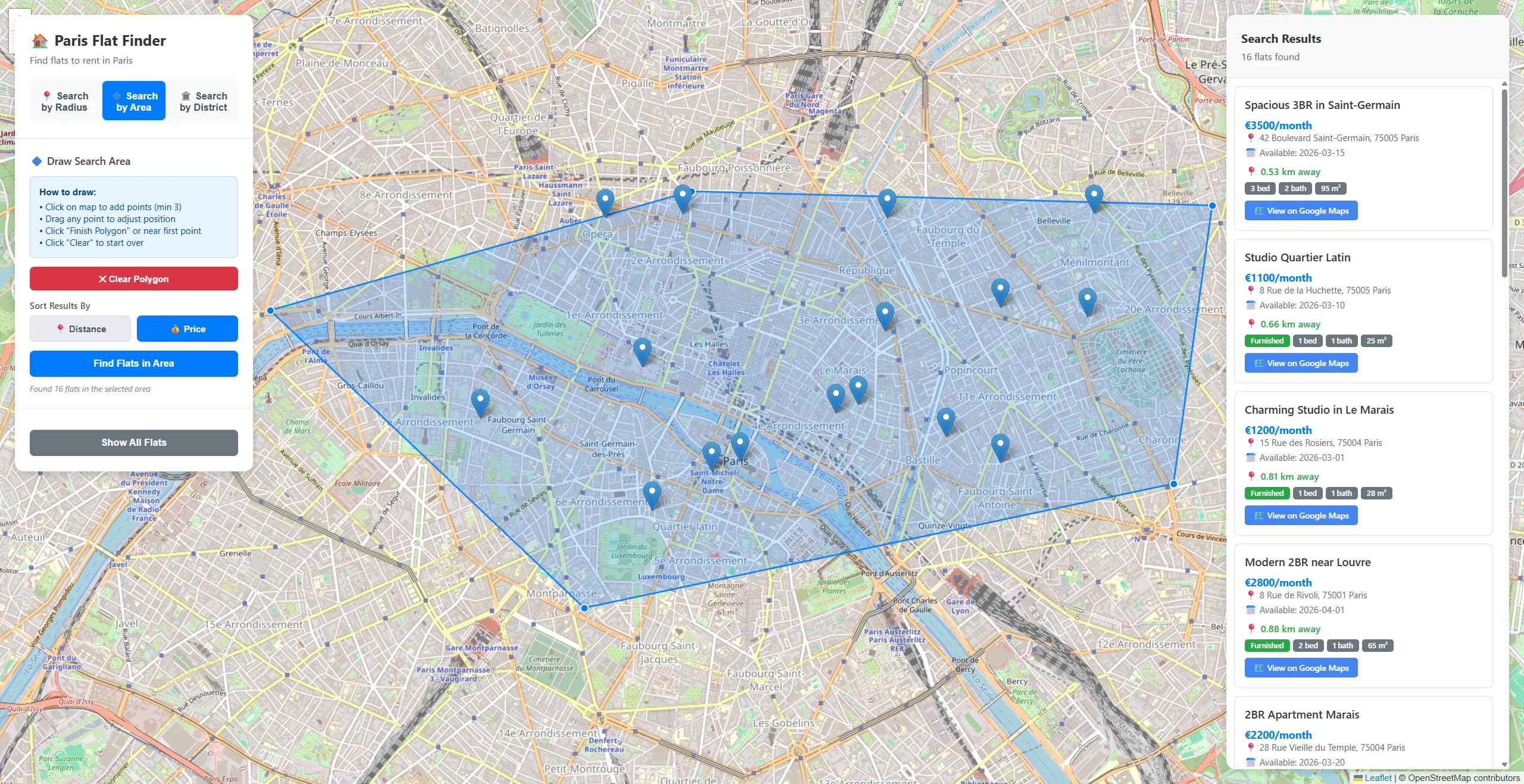
This is useful when the area you care about is not a perfect circle. Maybe you want to select only a specific neighborhood or exclude a specific zone. A polygon gives you full control.
Let’s walk through how this works in code.
Part 2 setup
The code used for the polygon includes elements we have encountered before, so we will mainly stop at places where new content is introduced. Part 2 code looks like this.
@app.post("/api/search/polygon", response_model=List[FlatResponse])
async def search_by_polygon(request: SearchByPolygonRequest):

    with store.open_session() as session:
        query = session.query_index_type(Flats_SpatialIndex, Flat)

        query = query.spatial(
            "location",
            lambda criteria: criteria.within(request.wkt)
        )

        if request.sort_by == "price":
            query = query.order_by("price_per_month")
        elif request.center_latitude is not None and request.center_longitude is not None:
            query = query.order_by_distance("location", request.center_latitude, request.center_longitude)

        results = list(query)

        response = []
        for flat in results:
            distance = None
            if request.center_latitude is not None and request.center_longitude is not None:
                metadata = session.advanced.get_metadata_for(flat)
                distance = metadata.get("@spatial", {}).get("Distance")
            response.append(convert_to_response(flat, distance))

        return response
Just like before, everything starts with defining an endpoint:
@app.post("/api/search/polygon", response_model=List[FlatResponse])
async def search_by_polygon(request: SearchByPolygonRequest):
We define a new route so the client can send us a WKT polygon string, sorting preferences, and optionally a center point.
The application needs a way to receive the shape from us. In this case, the shape is provided as WKT. We open a session exactly like in part 1 with:
with store.open_session() as session:
And we prepare the query using the spatial index:
query = session.query_index_type(Flats_SpatialIndex, Flat)
We are again using our predefined spatial index. What changes is how we filter the locations.
query = query.spatial(
    "location",
    lambda criteria: criteria.within(request.wkt)
)
We use RavenDB’s spatial search to return points within our polygon. We simply provide the WKT of the polygon, and RavenDB queries it. In the process of querying RavenDB interprets this WKT into an actual figure comparable to the spatial data existing in RavenDB’s index. The second part, the points we want to find, was prepared before when the data was indexed, giving us spaces ready to query. That is the benefit of using an existing spatial index. We only need to give RavenDB a polygon, and it interprets and queries it for us.
Just like in Part 1 before, we give the user sorting options, but with a twist.
if request.sort_by == "price":
    query = query.order_by("price_per_month")
elif request.center_latitude is not None and request.center_longitude is not None:
    query = query.order_by_distance("location", request.center_latitude, request.center_longitude)
A polygon does not have a defined “center”, so if we want to sort by distance, we must explicitly provide one. Next, we get our center and run our query.
results = list(query)

response = []
for flat in results:
    distance = None
    if request.center_latitude is not None and request.center_longitude is not None:
        metadata = session.advanced.get_metadata_for(flat)
        distance = metadata.get("@spatial", {}).get("Distance")
    response.append(convert_to_response(flat, distance))

return response
Just like in Part 1, RavenDB stores spatial calculation results in metadata. We do not compute the distance ourselves. We simply read what the database already calculated for us. RavenDB returns only flats that are inside the polygon, then sends them to the client.
We can also use similar logic and search all points inside the area.
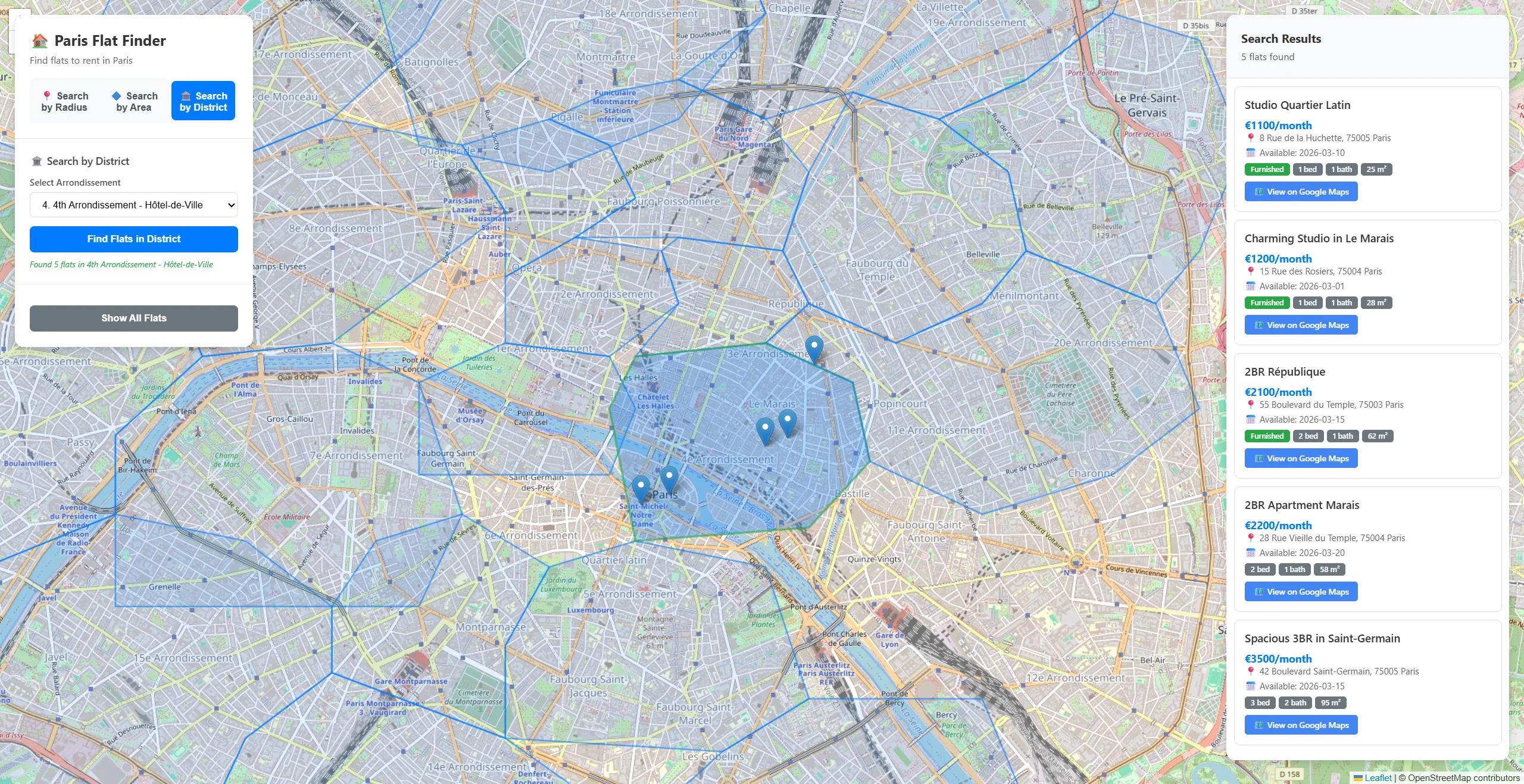
As you can see, those are districts that we had ready underneath it all. We can select them and see all flats in a specific area. How do we do this? Of course, we start with the endpoint and the opening session.
@app.get("/api/districts")
async def get_all_districts():
    with store.open_session() as session:
And then we simply query our districts and create a response for our app.
with store.open_session() as session:
    districts = list(session.query(object_type=District))

    return [{
        "name": district.name,
        "arrondissement_number": district.arrondissement_number,
        "description": district.description,
        "population": district.population,
        "boundary_wkt": district.boundary_wkt
    } for district in districts]
Then we can just connect search by shape type of code, and we can search all flats in the selected district.
Part 3: reverse search
You might have noticed that if we click on any flat, the district (4th Arrondissement - Hôtel-de-Ville on the image) it is in is shown.
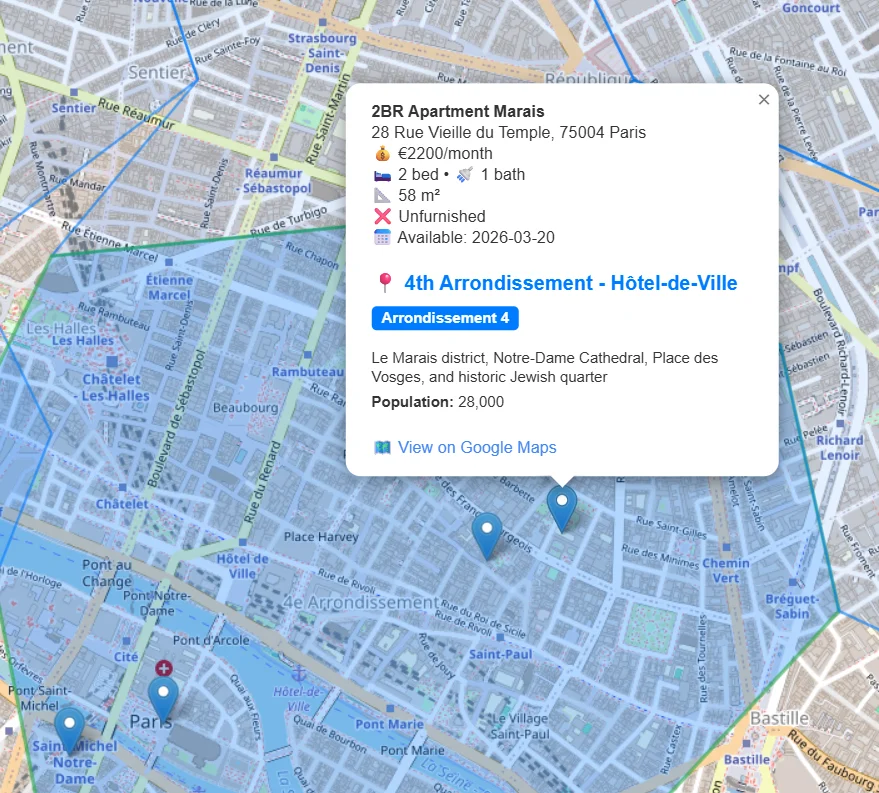
This is a reverse search. We select a point, and RavenDB returns the area it is in. Data of our districts look like this:
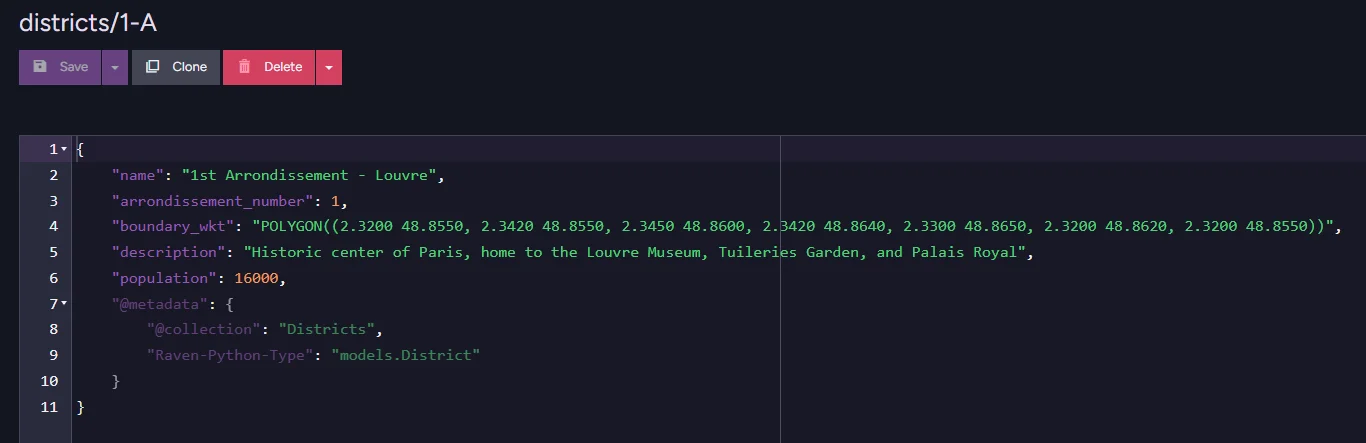
All those districts were indexed in RavenDB, and a field was created to hold interpreted spatial data. Static index that holds it looks like this:
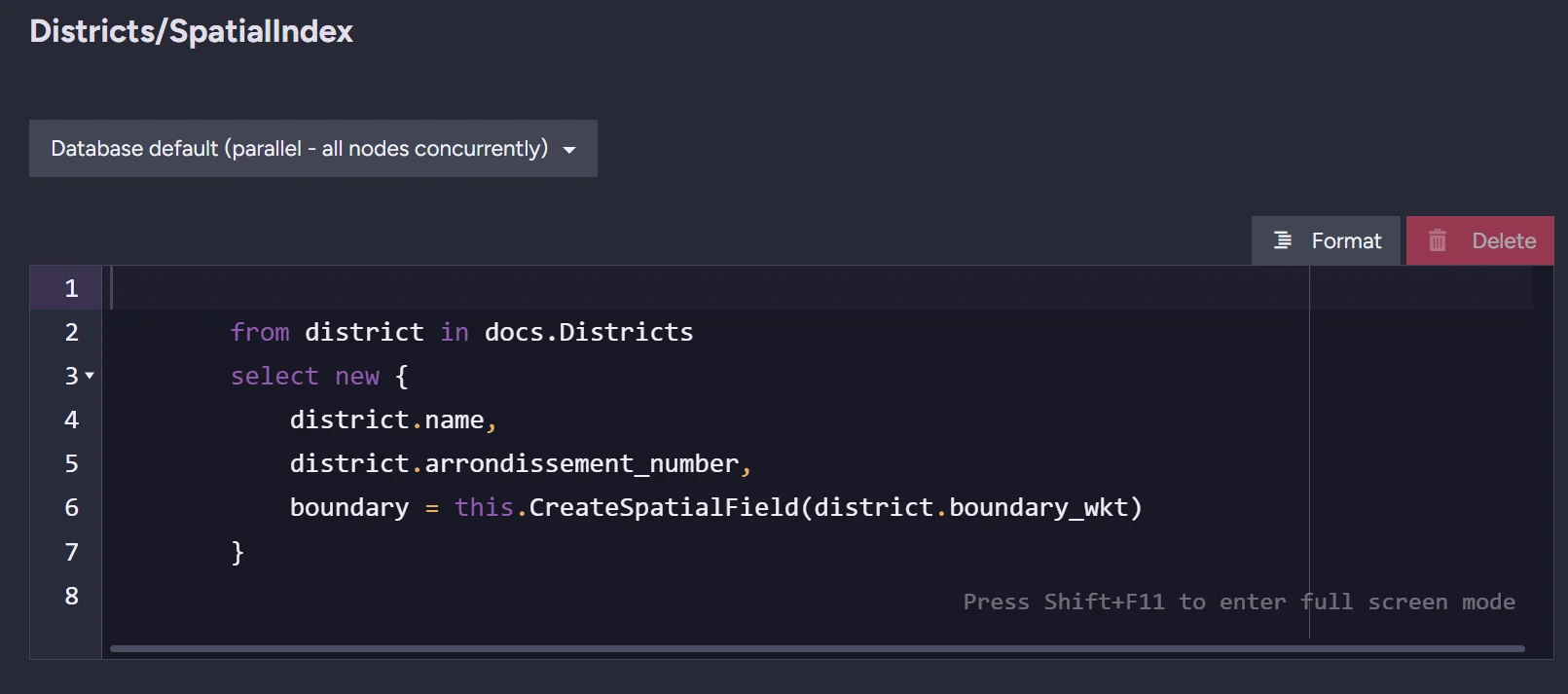
The only thing that distinguishes this index from a non-spatial one is a single field: boundary. This is the field that contains our prepared spatial data.
But how do we do this?
Part 3 setup
The whole code that searches the district from a point for us looks like this:
@app.post("/api/district/by-point", response_model=DistrictResponse)
async def get_district_by_point(request: GetDistrictByPointRequest):

    with store.open_session() as session:
        query = session.query_index_type(Districts_SpatialIndex, District)

        point_wkt = f"POINT({request.longitude} {request.latitude})"

        query = query.spatial(
            "boundary",
            lambda criteria: criteria.within(point_wkt)
        )

        results = list(query)

        if results:
            district = results[0]
            return DistrictResponse(
                name=district.name,
                arrondissement_number=district.arrondissement_number,
                description=district.description,
                population=district.population,
            )
        else:
            from fastapi import HTTPException
            raise HTTPException(
                status_code=404,
                detail=f"No district found for coordinates ({request.latitude}, {request.longitude})"
            )
We start with our endpoint and session.
@app.post("/api/district/by-point", response_model=DistrictResponse)
async def get_district_by_point(request: GetDistrictByPointRequest):
    with store.open_session() as session:
Then we query using a spatial index for districts with a point written in WKT. RavenDB will take its coordinates and convert them into a point in space.
query = session.query_index_type(Districts_SpatialIndex, District)
point_wkt = f"POINT({request.longitude} {request.latitude})"
Then we find the districts that contain the flat, in other words, we look for a boundary that contains a point.
query = query.spatial(
    "boundary",
    lambda criteria: criteria.within(point_wkt)
)
What’s left is to simply execute our query and return results.
results = list(query)
if results:
    district = results[0]
    return DistrictResponse(
        name=district.name,
        arrondissement_number=district.arrondissement_number,
        description=district.description,
        population=district.population,
    )
If nothing matches, we simply return that information.
raise HTTPException(
    status_code=404,
    detail=f"No district found for coordinates ({request.latitude}, {request.longitude})"
)
Summary
As you can see, RavenDB lets you query spatial data and use spatial search capabilities without becoming an expert in a completely new technology. Want to easily add more advanced capabilities to your application? You may consider combining semantic search with your spatial search to query by the best-matching description. You can find more about semantic search in RavenDB with Python and FastAPI in the companion guide.
Interested in RavenDB? Grab the free developer license for testing, or get a free cloud database. If you have questions about this feature, or want to hang out and talk with the RavenDB team, join our Discord Community Server. The invitation link is here.