rvn: The RavenDB Command-Line Tool, Command by Command

The tool next to the server
Most of the time, you manage RavenDB through Studio, its web interface, or a client API. That covers nearly everything you'll do with a server.
Every RavenDB server also ships with a command-line tool you might not have noticed: rvn. It sits in the same folder as the server, and it's there for the moments when a terminal is closer at hand than a browser.
Sitting next to the server gives rvn two things the usual tools don't have. It can talk to the server process directly, without HTTPS or a certificate. And it works on the same filesystem, so it can prepare files for a server or change them while the server is stopped.
That makes it handy in situations like these:
- You're on the server's machine, over SSH or
docker exec, and want its console or its live log without a browser. - The only admin certificate has expired, and Studio won't let you in.
- You want a cluster's setup as a file you can review, keep in version control and build again, instead of clicking through the Setup Wizard.
- You want to encrypt the server's own files, which only works while it's stopped.
In this guide, we'll see where rvn lives and how to run it. Then we'll go through its eight commands: when you'd reach for each one, what it expects, and what it leaves behind. The output comes from RavenDB 7.2.7. Let's dive into it!
Meet rvn
rvn ships with every RavenDB server, so there's nothing extra to install. It's a plain command-line program: each command does one job and has its own --help. Before we use any of them, let's find the tool and see how its eight commands fit together.
In the downloadable server package, rvn is in the Server folder, right next to Raven.Server (we checked the 7.2.7 Windows ZIP). It isn't part of the separate Tools package, so look for it wherever the server is installed. From that folder, run it as ./rvn in a Linux shell or .\rvn.exe in PowerShell.
In the official Docker image, it's at /usr/lib/ravendb/server/rvn, and /usr/bin/rvn links to it, so it's on the PATH. docker exec runs it as the ravendb user, the same user the server runs as. The Debian package uses the same layout, since the image is built by installing that package.
rvn --help lists the commands. In the Docker image, the list has seven, because windows-service is only in the Windows build:
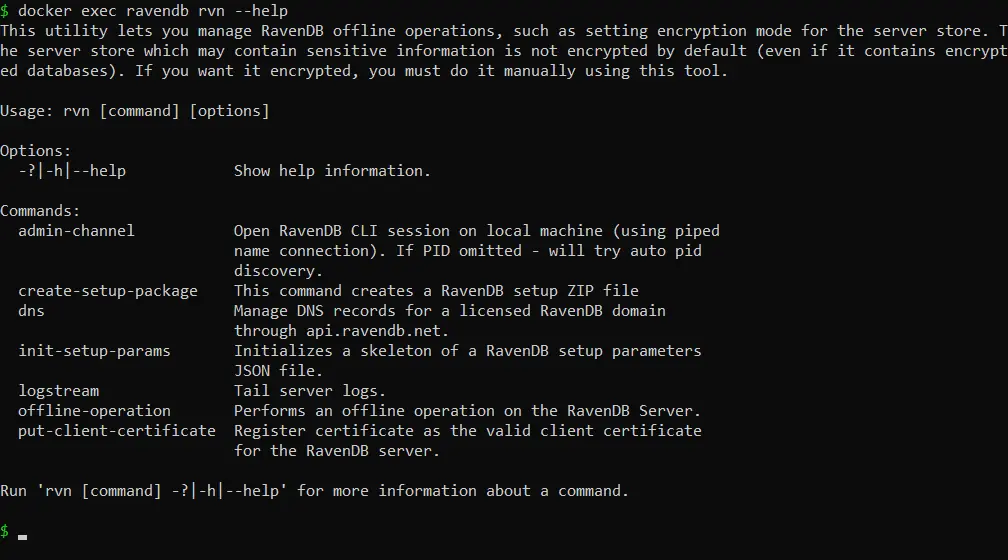
Here's when each command comes in handy, what it needs from you, and how you'd do the same job without rvn:
| Command | Use it when | What it needs | Without rvn |
|---|---|---|---|
init-setup-params, create-setup-package | You want a cluster's setup as a file you can review and reuse | A setup.json that describes the cluster | The Setup Wizard |
dns update | A node of a Let's Encrypt cluster changes its IP address | The license.json from a Let's Encrypt package | The Customers Portal, or the Setup Wizard again |
windows-service | You run RavenDB on Windows from the ZIP package | An elevated shell | None, but setup-as-service.ps1 runs it for you |
admin-channel | You need the server's console, or a way back in without a certificate | The server's OS user | The server's console, if it runs in a terminal |
logstream | You want the live log in a terminal | The server's OS user | Studio's Admin Logs view |
put-client-certificate | You register an admin certificate without the Setup Wizard | The server's URL and its certificate | Studio's User Access Management page |
offline-operation | You want to encrypt or decrypt the server store | A stopped server and its OS user | None |
Where the last column names another way, rvn is simply the terminal route to the same result. For a stopped server's files, it's the only one.
offline-operation groups four subcommands: encrypt, decrypt, get-key and put-key. Its help also lists init-keys and trust, which are placeholders in 7.2.7 that you can skip: init-keys prints "InitKeys is not implemented", and trust prints nothing.
When you script rvn, its exit codes tell you what happened. In our runs, a successful command returned 0 and a failed offline operation returned 1. admin-channel returned 2 when it couldn't tell which server to connect to, and 100 when it couldn't open the server's pipe.
The first commands we'll look at work before there's any server at all.
Setup packages
A setup package is a ZIP with what each node of a secured cluster needs: its settings, the server certificate, and an admin client certificate. The Setup Wizard, which a new server opens in the browser on first start, can build one, and so can rvn, from a JSON file that describes the cluster.
That file is what makes the rvn route worth taking. You can review it, keep it under version control, and build the same cluster from it again.
Two commands do the work. init-setup-params writes a template setup.json for the mode you pick, and once you've filled it in, create-setup-package turns it into the ZIP. With Let's Encrypt, that's:
rvn init-setup-params -m=lets-encrypt -o=setup.json
rvn create-setup-package -m=lets-encrypt -s=setup.json -o=cluster.zip
In our run on 7.2.7, a three-node Let's Encrypt package took 35 seconds, most of it spent waiting for DNS records. The ZIP held a folder per node with its settings.json and the server certificate, plus the admin client certificate as .pfx, .crt and .key files.
With a certificate of your own, use -m=own-certificate and pass the certificate with -c. That mode needs no internet access, since nothing is requested from Let's Encrypt.
Here's that mode in the Docker image, with a certificate from our own test CA. init-setup-params prints nothing, and we filled in its template as setup.json before building:
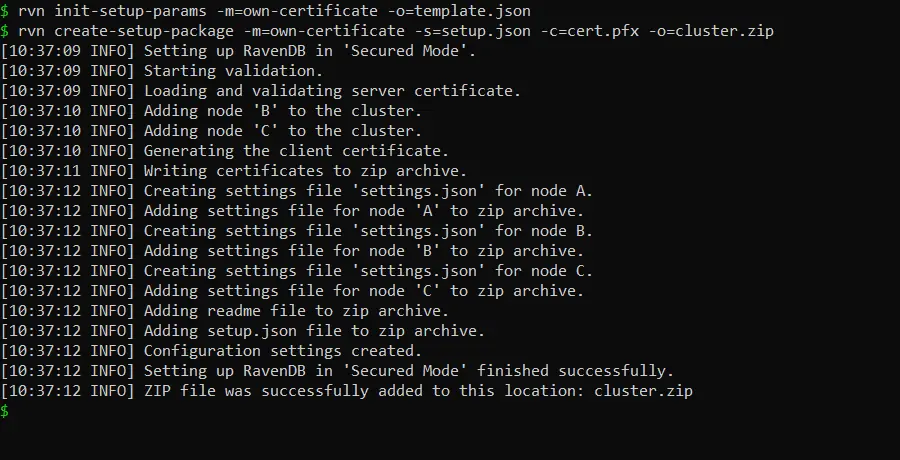
The template is a starting point, not a finished file. Fill in Email and LocalNodeTag, which the secured templates leave out, and give every node an explicit port. Before you build a Let's Encrypt package, also make sure RVN_CERT_PASS isn't set in your shell. rvn reads it as a certificate password, and that mode refuses to run with one.
If you deploy with the RavenDB Kubernetes Operator, add --generate-helm-values values.yaml to create-setup-package. It also writes a Helm values.yaml for the Operator, in both secured modes.
With the ZIP built, there are two ways to bring the nodes up. On each fresh server, the Setup Wizard's "Use setup package" option takes the ZIP and does the rest, from installing the certificate to joining the node to the cluster. You can also copy each node's settings.json and .pfx into the server's folder yourself, which suits containers and automation.
Placing the files by hand leaves a few steps to you: registering the admin certificate, activating the license and adding the nodes to the cluster. rvn covers the first one with put-client-certificate, which has its own chapter below. One more command belongs to this moment, and it picks up where a Let's Encrypt package leaves off.
DNS records
With a Let's Encrypt package, each node gets a DNS record under a RavenDB domain, such as a.yourname.development.run. The records are created when the package is built, so they point at the addresses setup.json had at that moment.
When a node moves to another IP address, or a new node joins, the records have to follow. rvn dns update changes them without building a new package.
It takes the license.json from the package, the full domain, and one -n for each change, mapping an IP address to a subdomain. Here's how we moved node d to a new address:
rvn dns update -l license.json -d rvn-guide-demo.development.run -n 192.168.56.1=d
rvn sends the change to api.ravendb.net, RavenDB's DNS service, and waits for it to confirm. Here's the output:
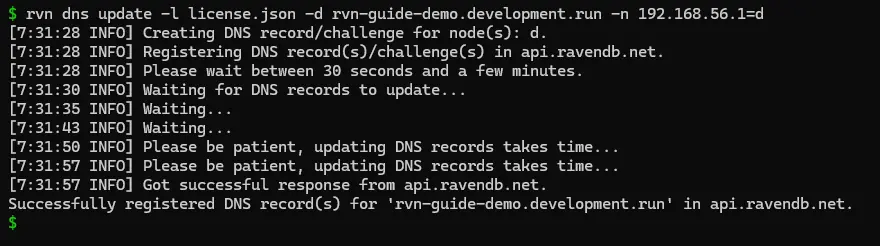
The command works for domains claimed under your license, and building a Let's Encrypt package is what claims one. For a domain that isn't claimed yet, the service answers NotFound: "Not registered. You need to claim the domain first."
dns update adds and updates records but doesn't remove them, so a record for a node you've retired stays in place. Subdomains can be up to 4 characters long, like node tags. A longer one fails with a message saying the name "can contain only alphanumeric characters and '-'".
"Successfully registered" means the service accepted the change, not that resolvers see it yet. In our 2 runs, the new record reached RavenDB's nameservers in under a minute once and in about 25 minutes the other time. Records have a TTL of 1800 seconds, so a resolver can keep the old address for up to 30 minutes. Give it that long before you send the same update again.
With certificates and DNS records in place, the next moment is installing the server itself.
Installing RavenDB as a service
A server started from a terminal stops when that terminal closes. For anything beyond a quick test, RavenDB should run as a service, so it starts with the machine and keeps running with nobody signed in.
On Linux, that's taken care of when you install. The Debian package registers RavenDB as a systemd service, defined in /lib/systemd/ravendb.service, and the Docker image runs the server as the container's main process. See Running as a Service for both systems.
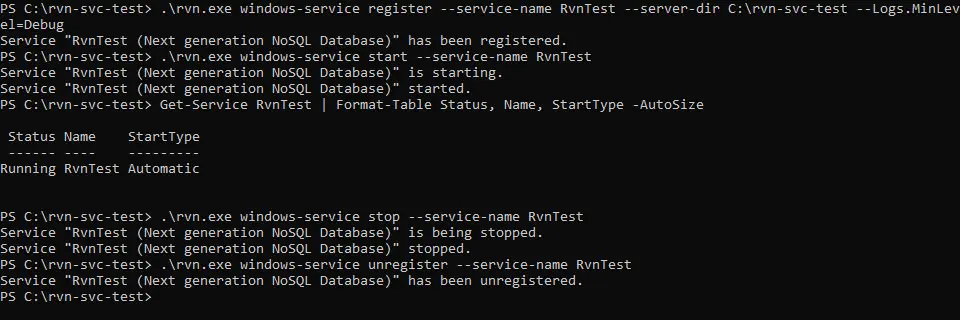
On Windows, the ZIP package leaves that step to you, and rvn windows-service does it: it registers the server as a service, and then starts, stops or removes it. The package's setup-as-service.ps1 script runs this same command with the default options.
Its four subcommands are register, start, stop and unregister, and each takes --service-name. Without it, the service is called RavenDB. All four change the machine's service configuration, so they need an elevated shell. From a normal one, register answers "Cannot register service ... due to insufficient privileges. Please use Administrator account to install the service."
Let's register a server. --server-dir points at the folder with Raven.Server.exe, and anything after the options goes to the server as arguments. We passed a log level:
.\rvn.exe windows-service register --service-name RvnTest --server-dir C:\rvn-svc-test --Logs.MinLevel=Debug
rvn confirms the registration with the service's display name:
Service "RvnTest (Next generation NoSQL Database)" has been registered.
The arguments became part of the service's command line, Raven.Server.exe --Logs.MinLevel=Debug --service-name "RvnTest", so they apply on every start. They were still there after a restart. The service's start type is automatic, so it comes up with Windows, and start and stop control it by name:
.\rvn.exe windows-service start --service-name RvnTest
.\rvn.exe windows-service stop --service-name RvnTest
unregister removes the service. In our run, the server folder and its data stayed where they were.
Here's the whole cycle in an elevated PowerShell, with Get-Service showing the service running between start and stop:
By default, the service runs as NT AUTHORITY\LocalService, a built-in Windows account with limited rights. That's enough to run the server. It matters later, because offline-operation has to run as the server's user, and you can't open a shell as LocalService. If you plan to encrypt the server store, register the service with --service-user-name and --service-user-password, under an account you can run rvn as.
If the service doesn't reach the Running state, start waits 60 seconds and then stops with an exception:
Unhandled exception. System.ServiceProcess.TimeoutException: The operation requested for service 'RvnTest' has not been completed within the specified time interval.
In our run, the service had stopped about a second after it started, because it couldn't read the server store's encryption key, a case the encryption chapter covers. Windows left it stopped. The reason was in the server's log file in its Logs folder, and the System event log recorded the stop as event 7023.
A service has no console to type server commands into. The next command brings that console back.
The admin channel
Studio and the client APIs reach a secured server only with a certificate it trusts. If the only admin certificate has expired or gone missing, neither of them can get in.
The admin channel is the way around that. rvn admin-channel connects to the server process on the same machine, without HTTPS or a certificate, and opens the server's own command-line interface.
It connects through a named pipe, a local channel between two processes on one machine, and needs the process ID (PID) of the server. With one server running, it finds the PID by itself:
rvn admin-channel
You get the server's prompt, the same one its console shows. With two servers on the machine, pass the PID. Without one, rvn lists the server processes it found, asks you to "specify RavenDB Server process manually", and exits with code 2.
The pipe opens only for the server's own OS user. On Linux, it's a socket in /tmp/ravendb-pipe/, in a folder only that user can open. In our Docker run, the nobody user got "Permission denied" and exit code 100, while root connected. On Windows, administrators can connect too, from an elevated shell.
In Docker, docker exec already runs as the server's user, so this is all it takes:
docker exec -it <container> rvn admin-channel
Here's a short session in our Docker container. rvn finds the server's process, the server prints its banner, and then info and logout run as typed:
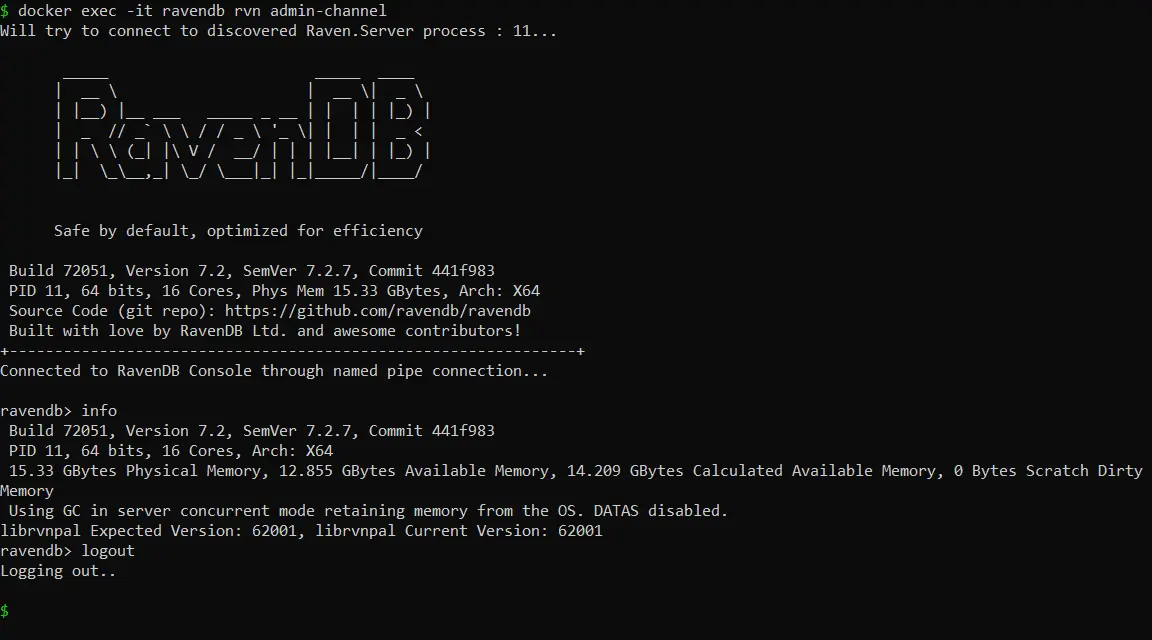
The channel accepts the server's CLI commands. help lists them all, and the RavenDB CLI page describes them. These are the ones you'll reach for most:
infois the first thing to run after connecting. It prints the server's build, PID, CPU cores and memory, so you know which server and version you're on before you change anything.prompt %Mputs the server's memory use into the prompt, which is handy while you watch a server under load.log debug no-consoleraises the log level without a restart, when you're chasing a problem and need more detail right now.restartServerrestarts the server gracefully, for example to apply asettings.jsonchange to a service that has no console.resetServerdoes the same.shutdown no-confirmationstops the server cleanly, without the confirmation question, so it fits scripts.generateClientCertandtrustClientCertget you back in when no admin certificate works anymore. They get their own walkthrough below.trustServerCertregisters another node's server certificate as trusted, which you need when each node of a cluster has its own certificate.replaceClusterCertreplaces the cluster's certificate, for example with a renewed certificate of your own before the old one expires.triggerCertificateRefreshruns the hourly certificate check right away. With a Let's Encrypt certificate from the Setup Wizard, it renews a certificate that's close to expiry and spreads it across the cluster.gc 2forces a full garbage collection, to see how much managed memory the server really needs.lowMemsimulates low memory and is meant for debugging only.logoutcloses the channel and leaves the server running.
stats is the one console command that stays in the console. Over the channel, it answers "'stats' command not supported on remote pipe connection. Use info or prompt %M instead".
Commands can also be piped in, which makes the channel easy to script:
printf 'info\nlogout\n' | rvn admin-channel <PID>
Getting back in without an admin certificate
The channel's most valuable job is getting you back into a secured server. We tested it on a secured 7.2.7 node where the admin API answered 403, since we had no admin certificate. To issue a new one:
- Open the channel on the server's machine, as the server's user.
- Run
generateClientCert rescue C:\rescue 3: the certificate's name, the output folder, and how many months it stays valid. - Take
admin.client.certificate.rescue.zipfrom that folder. It holds the certificate as.pfx,.crtand.keyfiles. - Use the
.pfxin your browser or client. It's registered with ClusterAdmin clearance, which gives full access to the cluster.
The admin API accepted the new certificate right away. See Certificate Management for what each clearance allows.
If you already have a certificate on disk, trustClientCert <name> <pfx> <password> registers it as ClusterAdmin instead. The certificate needs Client Authentication in its Extended Key Usage (EKU). Without it, the command answers that the certificate "cannot be used as a client certificate".
The channel splits arguments on spaces, and quotes don't hold a path together, so keep output folders and PFX paths free of spaces. A path like C:\path with spaces gets the command's usage message instead of a result.
Running admin scripts
For anything the commands don't cover, script server and script database <name> run admin JavaScript against the live server. Type the script, then EXEC to run it or cancel to drop it. Here's how we counted the documents in a test database:
script database rvntest
return database.DocumentsStorage.GetNumberOfDocuments();
EXEC
The server answered with the count, {"Result":0} for our empty database. The channel gives you the server's console. For its logs, rvn has a second pipe.
Tailing the logs
A server that runs as a service or inside a container has no console window to watch. Its logs still go to files, but reading them means finding the right folder and the newest file.
rvn logstream takes a shorter way. It connects to the running server on the same machine and shows its log in your terminal as it's written.
It finds the server the way the admin channel does, and takes a PID when more than one is running. The same user rules apply too, so in Docker you run it through docker exec:
docker exec -it <container> rvn logstream
rvn prints "Connected to RavenDB server. Tailing logs..." and the log's header line, then each entry as the server writes it. Ctrl+C ends the stream with "Stop tailing logs. Exiting..".
How much you see follows the server's log level, Logs.MinLevel. To see more without a restart, raise it from the admin channel with log debug no-console, which takes effect at once.
That makes logstream a good companion when you reproduce a problem. Raise the level in one terminal, start the stream in another, and run the failing operation while you watch what the server does with it.
The stream goes to standard output, so any tool that reads text can take it. You can keep only what matters, or save a copy while you watch, for example to attach to a support ticket:
docker exec <container> rvn logstream | grep -i -E "error|warn"
docker exec <container> rvn logstream | tee incident.log
The same works for a log shipper or a script of your own that reads from standard input.
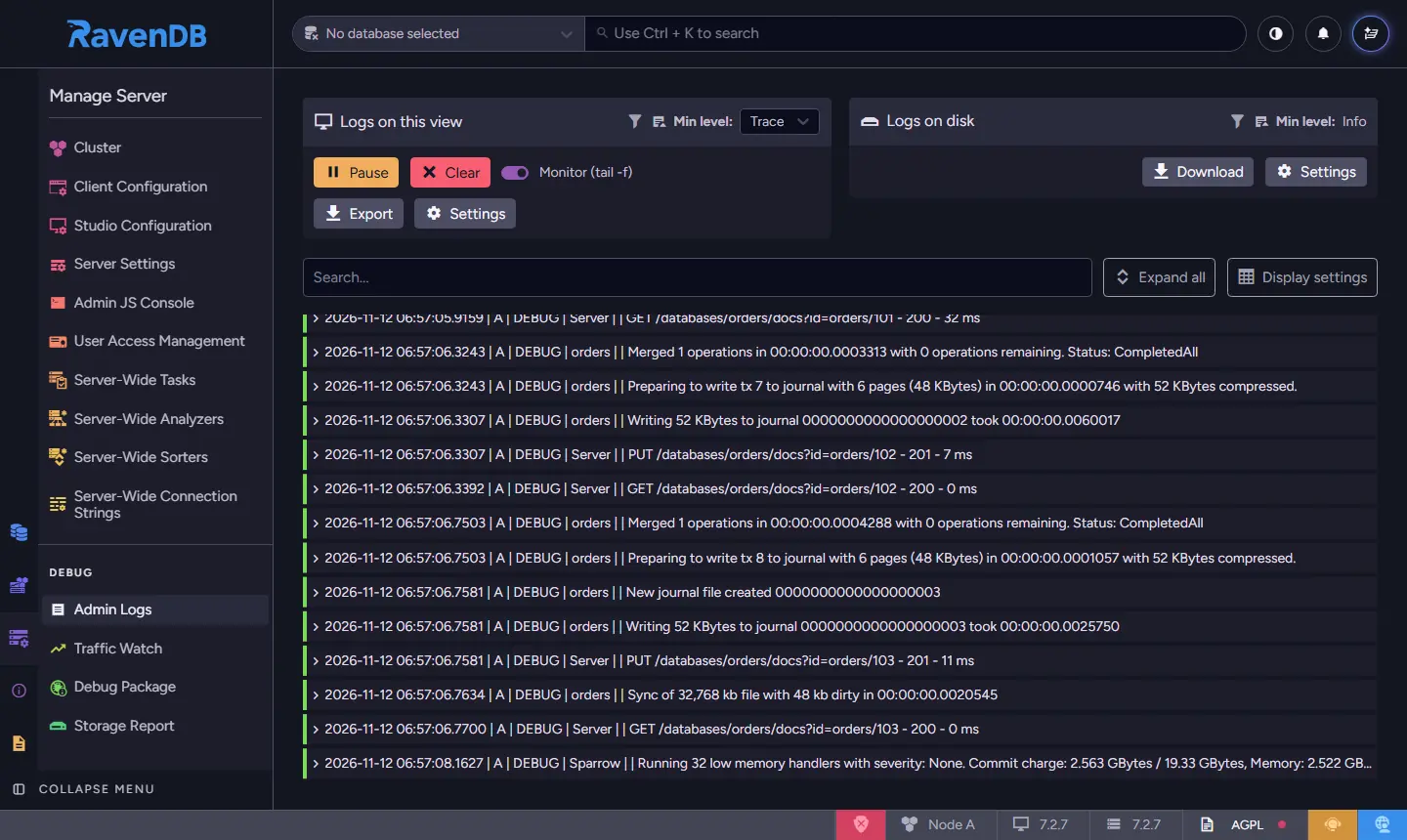
If you'd rather watch in a browser, Studio's Admin Logs view, under Manage Server > Debug, shows the same log.
Here's that view on our test server while we wrote a few documents to orders. Each request and write showed up as it happened:
Both pipes work only on the server's own machine. The next command works over the network.
Registering a client certificate
A secured cluster needs at least one client certificate with admin rights, or nobody can manage it. The Setup Wizard registers one for you, but when you place a setup package's files by hand, that step is yours.
rvn put-client-certificate does it from the command line. It takes the server's URL, the server certificate and the client certificate to register.
rvn connects to the server using the server certificate as its client certificate, and the server trusts its own certificate. That's why this works before any admin certificate is registered. It needs network access to the server and the server's .pfx file. With the files from our setup package, that's:
rvn put-client-certificate https://a.rvn-guide-demo.development.run:8081 A/cluster.server.certificate.rvn-guide-demo.pfx admin.client.certificate.rvn-guide-demo.pfx
On success, it prints nothing and returns 0. The certificate is registered as ClusterAdmin, named after its file without the .pfx, and the admin API accepted it right after.
If the server certificate comes from a private CA, the machine that runs rvn has to trust that CA. Ours didn't at first, and the command failed with "The remote certificate was rejected by the provided RemoteCertificateValidationCallback." Adding the CA to the container's trusted certificates fixed it.
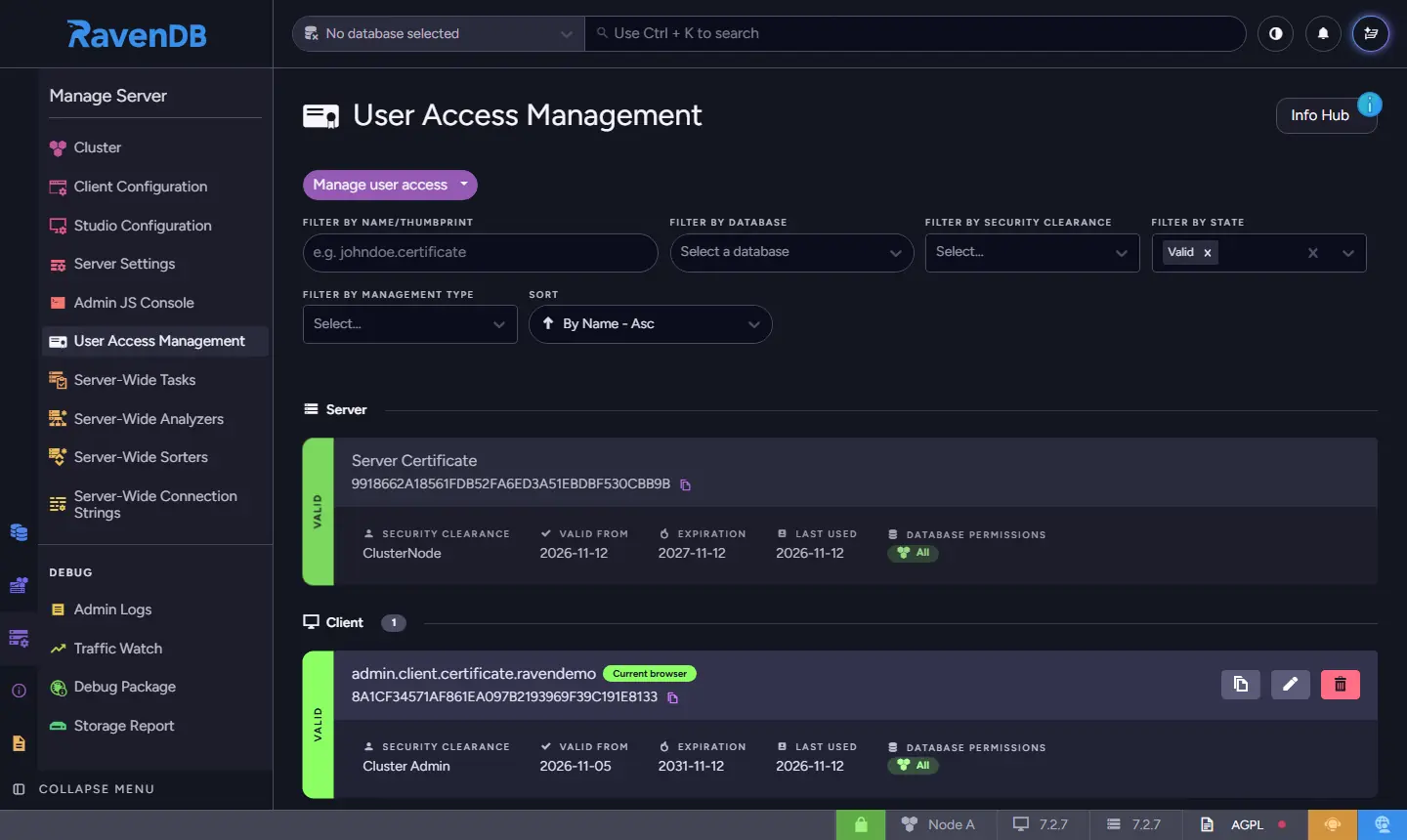
We registered the admin certificate from our own-certificate package this way, then opened Studio with it. Under Manage Server > User Access Management, it was listed as Cluster Admin:
The client certificate has to be a .pfx without a password, since the command has no password option. A protected one stops it with "The specified network password is not correct." For a protected certificate, use trustClientCert in the admin channel, which takes the password.
The two differ in one more way: put-client-certificate also accepted a certificate with no EKU at all, which trustClientCert refuses. Since it needs only a URL and two files, it fits provisioning scripts that set up a cluster without the wizard.
So far, every command has worked with a server that's running or not installed yet. The last one needs it stopped.
Encrypting the server store
Encrypting a database protects its documents, but the server keeps files of its own. The server store holds the cluster state, database records, compare-exchange values and client certificate definitions, and it isn't encrypted by default, even when every database on the server is.
Encrypting it is an offline job. The server has to be stopped, and rvn offline-operation does the work.
The server store lives in the server's System folder, and every offline-operation subcommand takes the path to that folder. Run rvn as the server's OS user, because the key it creates is protected for that user. Like all encryption at rest in RavenDB, it's meant for a server with authentication and HTTPS enabled.
Docker: set up the key first
The official image protects the server's secrets with a master key file, set through Security.MasterKey.Path to /etc/ravendb/security/master.key. rvn doesn't read that setting. It protects the key with $HOME/.ravendb/secret.key, and HOME is /var/lib/ravendb, outside the image's volumes.
So point both at the same file, on a volume of its own. The folder has to belong to the ravendb user, so we set that up first:
docker run --rm -u root -v ravendb-home:/var/lib/ravendb/.ravendb --entrypoint chown ravendb/ravendb:7.2.7 ravendb:ravendb /var/lib/ravendb/.ravendb
Then we started the server with that volume, its data volume, and the master key path, next to our usual settings:
docker run -d --name ravendb -v ravendb-data:/var/lib/ravendb/data -v ravendb-home:/var/lib/ravendb/.ravendb -e RAVEN_Security_MasterKey_Path=/var/lib/ravendb/.ravendb/secret.key ravendb/ravendb:7.2.7
With this setup, the encrypt run below wrote secret.key to the home volume, and the server read the encrypted store with it. Do this before you encrypt: a server that can't read the store won't start, and get-key and decrypt need the same key file.
The full cycle
We ran the whole cycle in that Docker setup, on the ravendb container with a database called orders. Outside Docker, the steps are the same: run rvn offline-operation from the server folder, as the server's user. Here they are:
- Stop the server. On a running server,
encryptfails with "The process cannot access the file because it is being used by another process" and exit code 1. - Encrypt the
Systemfolder. - Start the server again.
- Save the key with
get-keyand keep it away from the server's machine.
Here's the whole cycle in one terminal, with the printed key blurred:

For step 2, we ran rvn from a one-off container that shares the stopped server's volumes:
docker run --rm --volumes-from ravendb --entrypoint rvn ravendb/ravendb:7.2.7 offline-operation encrypt /var/lib/ravendb/data/System
rvn reports the key file it created:
Encrypt: /var/lib/ravendb/data/Temp.Encryption/secret.key.encrypted Created Successfully
The message names a Temp.Encryption folder, but the key file ends up in the System folder itself, as secret.key.encrypted, a 72-byte file in our run. The Temp.Encryption folder doesn't exist afterwards.
For step 4, get-key prints the key in plain text. Unlike encrypt, it worked with the server running:
docker exec ravendb rvn offline-operation get-key /var/lib/ravendb/data/System
GetKey: /var/lib/ravendb/data/System/secret.key.encrypted ***PLAIN TEXT*** key is: <your key>
You'll need that key to move the server store to another machine or user, and to restore its backups. Store it like any other secret, not next to the server.
After the restart in step 3, the server opened the encrypted store, listed orders with its document, and accepted a new write. To check that the encryption is real, look at Raven.voron, the server store's data file. On a Windows test server, our database's name appeared in it 6 times in plain text before encrypt and 0 times after.
Moving an encrypted store
The key file belongs to one OS user on one machine. If you copy the System folder without it, the server refuses to start: "Encountered an encrypted transaction when opening a non encrypted storage. Did you forget to provide the encryption key?"
On a new machine or under another user, the key file is there, but it can't be read. The server stops with "Unable to unprotect the secret key file ... Was the server store encrypted using a different OS user? In that case, you must provide an unprotected key (rvn offline-operation put-key)".
put-key fixes both cases. Run it as the server's new user, with the key get-key printed, and it writes a new secret.key.encrypted protected for that user:
rvn offline-operation put-key /var/lib/ravendb/data/System <your key>
rvn answers "Created Successfully". In our runs, the moved server started with all its databases afterwards, both for a copied folder on Windows and in a fresh Docker container. Note that put-key --help doesn't list the <key> argument, but the command needs it.
On Windows, the key is protected with DPAPI, Windows' per-user data protection, so the user matters on a single machine too. We encrypted from our own shell and then started the service as the default LocalService account, and the server stopped with the same "Unable to unprotect" error. Run encrypt and put-key as the account the service uses.
Before and after encryption
Create the databases this server will hold before you encrypt its server store. In our 7.2.7 runs, creating a new database on an encrypted server store returned HTTP 500. The server's log said "Serious failure in transaction merging thread, the database must be restarted!", on an unsecured test node and on a secured Let's Encrypt node alike.
Writes to the existing databases kept working, so orders took new documents as before. After decrypt, creating databases worked again. In the Docker run, invoices failed while the store was encrypted and was created right after decryption.
decrypt reverses the whole operation on a stopped server. It answers "Decrypt: Completed Successfully", removes secret.key.encrypted, and leaves the store in plain text, and the server starts as before.
In a cluster, an encrypted server store needs HTTPS between the nodes. An encrypted node won't connect to a node without it: "Connections from encrypted store must use HTTPS." In 7.2.7, that's the only rule, so the other nodes don't have to encrypt their own server stores.
Most of these steps stop with a clear message when something's off. The last chapter collects those messages in one place.
When rvn says no
Most rvn errors stop the command at once and say what's missing. A few arrive inside a stack trace or show up only when the server starts. Here are the ones you're most likely to meet, with their causes and fixes:
| Command | Message | Cause | Fix |
|---|---|---|---|
create-setup-package | "Name must be set" or "Email must be set", on the first line of a stack trace | License.Name or Email is empty | Fill them in; the own-certificate template has no Email |
create-setup-package | "LocalNodeTag must be set", several exceptions deep | LocalNodeTag is missing | Add "LocalNodeTag": "A" |
create-setup-package | "An invalid IP address was specified." | A hostname in Addresses | Use IP addresses |
dns update | "can contain only alphanumeric characters and '-' before the domain postfix" | A subdomain longer than 4 characters | Keep subdomains to 4 characters |
dns update | "Not registered. You need to claim the domain first." | The domain isn't claimed by this license | Build a Let's Encrypt package for it first |
admin-channel | "More then one Raven.Server process where found", exit code 2 | Two or more servers on the machine | Pass the server's PID |
admin-channel | "Permission denied", exit code 100 | Another OS user than the server's | Run as the server's user, or use docker exec |
admin-channel | "'stats' command not supported on remote pipe connection" | stats works only in the console | Use info or prompt %M |
admin-channel | The command's usage message | A path with spaces | Use a path without spaces |
trustClientCert | "It does not include the Extended Key Usage: Client Authentication" | The certificate isn't a client certificate | Use one with Client Authentication |
put-client-certificate | "The specified network password is not correct." | A password-protected .pfx | Export it without a password, or use trustClientCert |
put-client-certificate | "The remote certificate was rejected by the provided RemoteCertificateValidationCallback" | The server certificate's CA isn't trusted where rvn runs | Add the CA to that machine's trusted certificates |
windows-service register | "Cannot register service ... due to insufficient privileges" | A shell without admin rights | Open an elevated shell |
windows-service start | "TimeoutException: The operation requested for service ... has not been completed" | The service stopped while starting | Read the server's log and the System event log |
offline-operation encrypt | "The process cannot access the file because it is being used by another process" | The server is running | Stop the server first |
| Server start | "Encountered an encrypted transaction when opening a non encrypted storage" | System copied without secret.key.encrypted | Run put-key with the saved key |
| Server start | "Unable to unprotect the secret key file" | Another user, machine or master key | Run put-key as the server's user; in Docker, align the master key path |
Summary
rvn is an optional companion to Studio and the client APIs. Several of its commands do jobs you can also do in Studio, from a terminal instead of a browser. A few go where Studio can't, like the server's console without a certificate or the files of a stopped server.
- Before any server runs,
create-setup-packagebuilds a secured cluster's files from onesetup.json, anddns updatemoves Let's Encrypt records when nodes change address. - On Linux, the package makes RavenDB a service. On Windows,
windows-servicedoes it from an elevated shell, and the arguments you pass become part of every start. - On the server's machine,
admin-channelopens the server's console without a certificate, which is how you issue a new admin certificate when the old one is gone.logstreamshows the live log the same way. offline-operationencrypts the server store of a stopped server. Run it as the server's user, save theget-keyoutput, and create your databases first.
For every command the server's console accepts, see the RavenDB CLI docs.