Getting Started with GraphQL and RavenDB

Introduction
GraphQL is a query language that lets clients request precisely the data they need, offering an efficient alternative to traditional REST APIs. By batching multiple queries, GraphQL can fetch nested and related data in a single network request, optimizing bandwidth usage and improving performance.
Integrating GraphQL with RavenDB allows your application to make fewer requests and transfer only the required data, enhancing efficiency. You can easily fetch necessary data from RavenDB and other data sources by performing queries in a unified manner using GraphQL syntax.
What you’ll learn
In this article, you will learn how to use GraphQL to access data stored in RavenDB using Hot Chocolate running as a stand-alone ASP.NET Core GraphQL server.
Setup
Let’s see how to set up the ASP.NET Core project with Hot Chocolate, an open-source GraphQL server for the Microsoft .NET platform, having data integration support for RavenDB. This integration will translate paging, filtering, sorting and projections in GraphQL syntax into native RavenDB queries.
RavenDB server
Download the RavenDB server and run it locally by following the setup wizard. For the purpose of this demo we’ll be using Unsecured mode so the server will be available at http://localhost:8080 in the default configuration.
Next, let’s create a database named Northwind. We will utilize built-in RavenDB’s Sample Data set to showcase the GraphQL queries against RavenDB. So let’s deploy it to our database directly from the RavenDB Studio via Tasks > Create Sample Data.
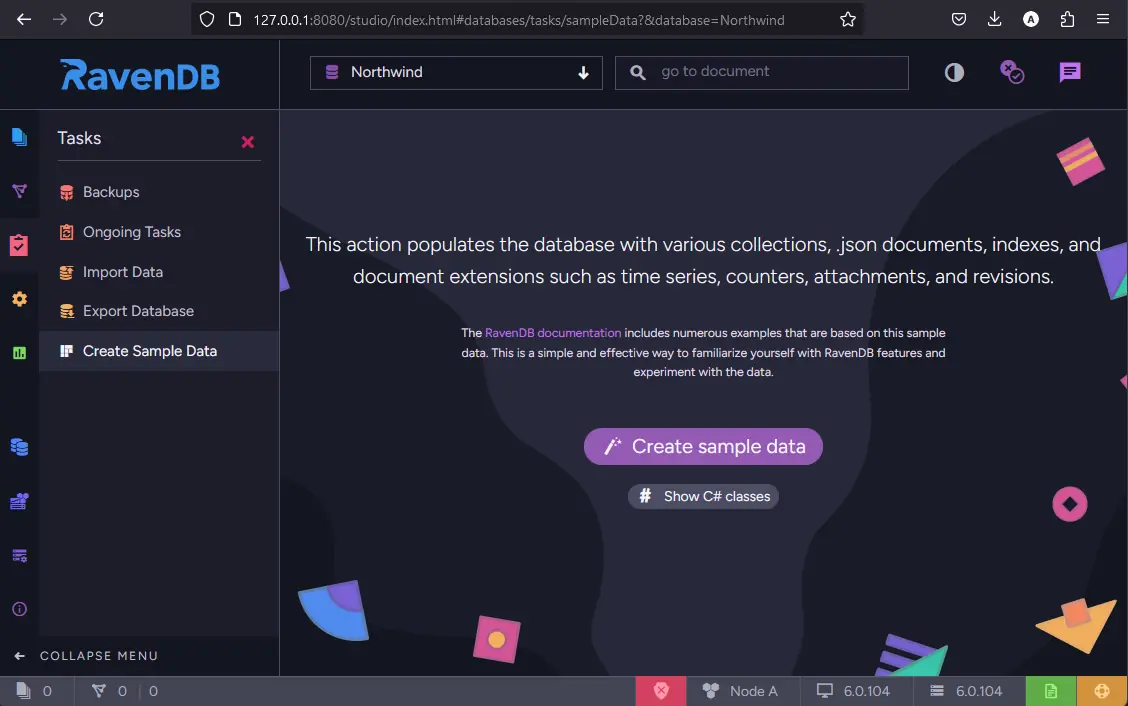
Note the Show C# classes option. It gives you C# classes for all entities used in the Sample Data set. You can copy them into the web project we’ll create in the next steps.
Create a new ASP.NET Core project
Now it’s time to start building up the web project. The command below creates a new directory called "GraphQL.RavenDB.Demo" containing your web application project’s files:
dotnet new web -n GraphQL.RavenDB.Demo
Install Hot Chocolate GraphQL package
The following package includes everything needed to get your GraphQL server up and running:
cd GraphQL.RavenDB.Demo
dotnet add package HotChocolate.AspNetCore
Install the RavenDB provider to your project
To execute queries against a RavenDB database, you need to add the RavenDB integration package:
dotnet add package HotChocolate.Data.Raven
Configure GraphQL server with RavenDB support
You can now open the project file in your favorite IDE. We’ll utilize the Hot Chocolate packages we just added to implement GraphQL server which will be able to handle queries that will be relayed to RavenDB server under the covers.
Starting the GraphQL server
Open the Program.cs file in the root of the project. Currently, it’s set up to return a simple "Hello World!" message from the root of the running server (e.g. https://localhost:7196).
var builder = WebApplication.CreateBuilder(args);
var app = builder.Build();

app.MapGet("/", () => "Hello World!");

app.Run();
```csharp

To add the Hot Chocolate GraphQL server to our web app’s services, call:

```csharp
builder.Services.AddGraphQLServer();
Next, let’s replace the MapGet() function with MapGraphQL(). This function adds a GraphQL endpoint to the endpoint configurations, which means our GraphQL server will be available at /graphql.
The code should look like this:
var builder = WebApplication.CreateBuilder(args);

builder.Services
	.AddGraphQLServer();

var app = builder.Build();

app.MapGraphQL();

app.Run();
Now you can run the project and navigate to the /graphql endpoint (e.g. https://localhost:7196/graphql). You’ll get Nitro, Hot Chocolate’s built-in GraphQL IDE. Nitro was called Banana Cake Pop until 2024, which is the branding you’ll see in the screenshots below.
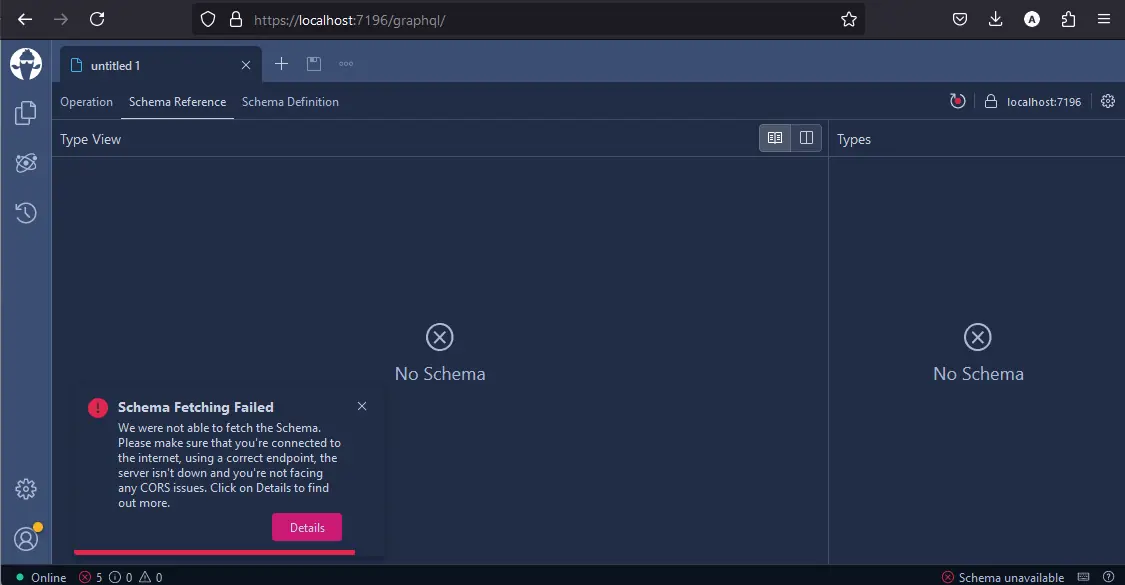
You’ll see some red alerts complaining about issues with the schema. We’ll take care of those in the next steps.
Configuring Document Store
Before we define the GraphQL schema, we need to configure the GraphQL server to use RavenDB as the data source. This involves adding an IDocumentStore instance to the services in the Program.cs file, which will establish the connection to the RavenDB server.
To do this, add the following line to the Program.cs file:
builder.Services.AddSingleton<IDocumentStore>(
	_ => new DocumentStore { Urls = new[] { "http://localhost:8080" }, Database = "Northwind" }.Initialize());
This line configures the dependency injection container to provide a singleton instance of IDocumentStore. It connects to the RavenDB server running at http://localhost:8080 and sets the default database to "Northwind". By calling Initialize(), we ensure the connection to RavenDB is ready to use.
With this configuration in place, we can access RavenDB in subsequent steps to fetch and manipulate data through our GraphQL server.
Schema
The GraphQL server needs a schema which defines types and their fields that are available for querying using GraphQL API. The schema can be defined using one of a few approaches:
- schema-first,
- code-first,
- annotation-based.
In this demo we’ll go with the code-first approach.
Data types
As stated above, we’ll be querying the built-in RavenDB Northwind sample database. The Show C# classes option mentioned earlier returns definitions of all types used in that data set. Let’s copy them into a Types folder in the root of our project, as a NorthwindTypes.cs file.
using System;
using System.Collections.Generic;
using Raven.Client.Documents.Session.TimeSeries;

namespace Orders
{
	public sealed class Company
	{
    		public string Id { get; set; }
    		public string ExternalId { get; set; }
    		public string Name { get; set; }
    		public Contact Contact { get; set; }
    		public Address Address { get; set; }
    		public string Phone { get; set; }
    		public string Fax { get; set; }
// redacted - Get the full code from the "Show C# Classes"
//            in the sample data windows
Query type
The Query type in GraphQL defines all the possible queries that clients can execute to fetch data from the GraphQL server. It acts as the entry point to the GraphQL schema.
public class Query
{
}
To expose data through the GraphQL server, we need to implement resolvers in this Query class. Resolvers are functions that fetch the data for specific fields in the schema. When a query is executed, GraphQL traverses the query tree and calls the corresponding resolver for each field.
Implementing Resolvers
Our resolvers retrieve data from the RavenDB database, so the implementation uses RavenDB’s session instance and simply calls Query() on the relevant collections.
public class Query
{
	[UsePaging]
	[UseProjection]
	[UseFiltering]
	[UseSorting]
	public IRavenQueryable<Order> GetOrders(IAsyncDocumentSession session)
    	=> session.Query<Order>();

	[UseProjection]
	public IExecutable GetEmployees(IAsyncDocumentSession session)
    	=> session.Query<Employee>().AsExecutable();
}
Notice that the resolvers take an IAsyncDocumentSession parameter. Hot Chocolate does not bind that type on its own, so the schema will fail to build unless you call RegisterDocumentStore() when configuring the server. That call is included in the complete Program.cs below.
Here, attributes like [UsePaging], [UseProjection], [UseFiltering], and [UseSorting] are applied. These attributes enable additional features such as pagination, projection, filtering, and sorting. You can learn more about these attributes in the Hot Chocolate documentation.
Registering the Query Type and Configuring Attributes
Before querying RavenDB, we need to register the Query type and configure the support for the mentioned attributes in the schema. Here is the complete code in Program.cs:
using GraphQL.RavenDB.Demo.Types;
using Raven.Client.Documents;

var builder = WebApplication.CreateBuilder(args);

builder.Services.AddSingleton<IDocumentStore>(
	_ => new DocumentStore { Urls = new[] { "http://localhost:8080" }, Database = "Northwind" }.Initialize());

builder.Services
	.AddGraphQLServer()
	.AddQueryType<Query>()
	.AddRavenFiltering()
	.AddRavenProjections()
	.AddRavenSorting()
	.AddRavenPagingProviders()
	.RegisterDocumentStore();

var app = builder.Build();

app.MapGraphQL();

app.Run();
Explanation
- DocumentStore configuration:
- The
DocumentStoreinstance is added to the services. It connects to the RavenDB server athttp://localhost:8080and uses the "Northwind" database.
- The
- GraphQL Server configuration:
- The GraphQL server is set up with the
Querytype. - Additional features such as filtering, projections, sorting, and paging are configured using
.AddRavenFiltering(),.AddRavenProjections(),.AddRavenSorting(), and.AddRavenPagingProviders(). .RegisterDocumentStore()teaches Hot Chocolate how to resolve theIAsyncDocumentSessionparameter our resolvers ask for, opening a session from the registeredIDocumentStorefor each request.
- The GraphQL server is set up with the
- Application Setup:
- The
MapGraphQLmethod maps the GraphQL endpoint. - The application is then run.
- The
This setup allows you to query data from RavenDB using GraphQL with advanced features like filtering, projections, sorting, and paging enabled.
Querying
Let’s utilize the features provided by the Hot Chocolate GraphQL server and its RavenDB integration, and fetch data from the RavenDB database. We’ll use the Nitro UI to send the queries in GraphQL syntax and review the results.
After startup, make sure you reload the GraphQL schema:
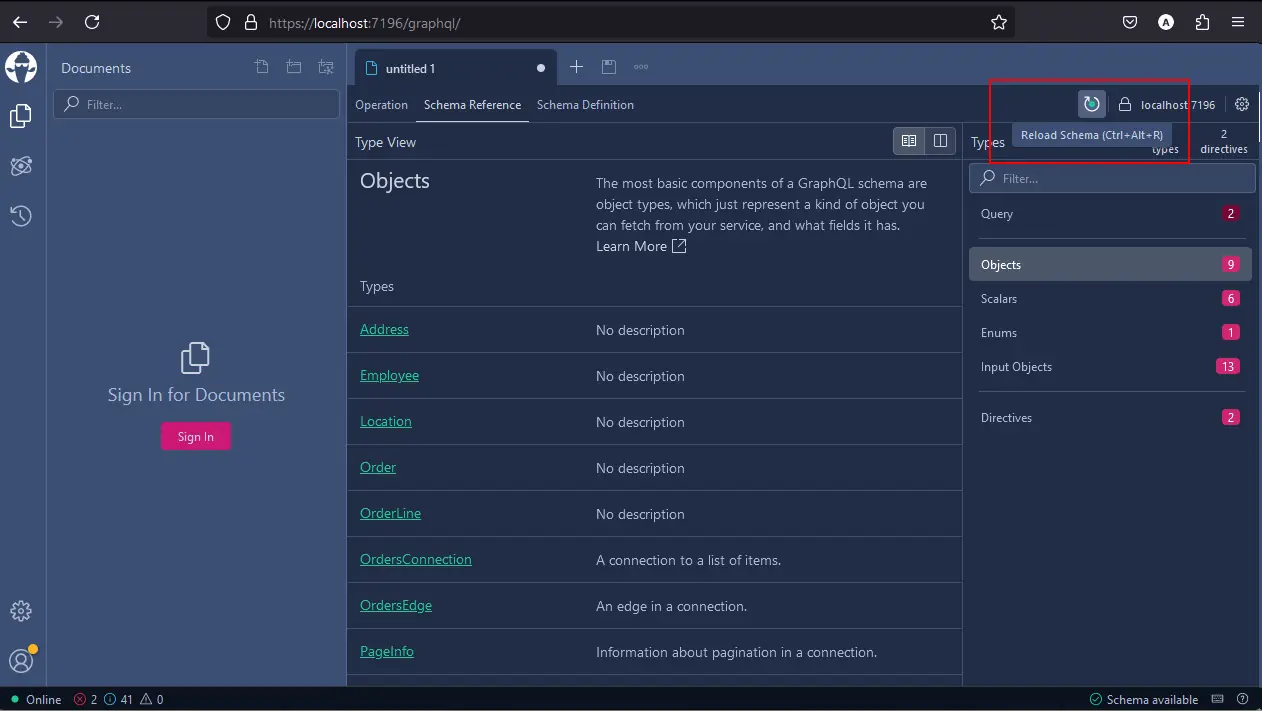
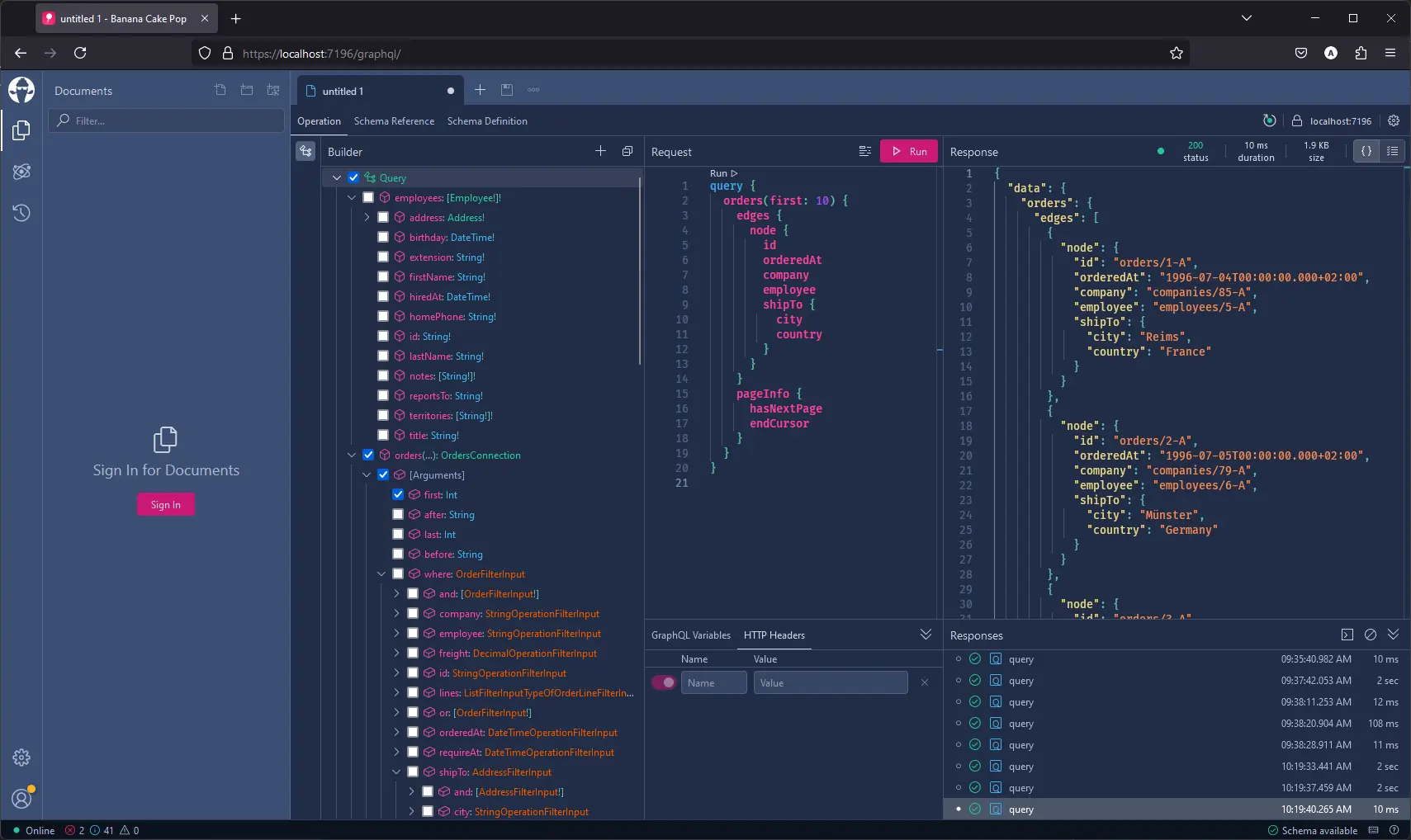
Then you’ll be able to execute queries:
Get a List of Orders with Paging
The following query will fetch a paginated list of orders. It retrieves the order ID, order date, company ID, employee ID, and some shipping address details. [UsePaging] turns this into RavenDB paging, so only the requested page is read from the server.
query {
  orders(first: 10) {
    edges {
      node {
        id
        orderedAt
        company
        employee
        shipTo {
          city
          country
        }
      }
    }
    pageInfo {
      hasNextPage
      endCursor
    }
  }
}
Get Employees with Projections
To retrieve a list of employees, including their IDs, names, and titles, run the following query. Because only a few fields are requested, [UseProjection] turns it into a RavenDB projection rather than loading whole documents:
query {
  employees {
    id
    firstName
    lastName
    title
  }
}
Get Orders with nested data and apply Filtering and Sorting
The query below returns orders where the shipping country is the “USA”, including order date, customer company ID, and shipping address. Results will be sorted descending by order date. The where and order arguments become server-side filtering and sorting.
query {
  orders(where: { shipTo: { country: { eq: "USA" } } }, order: { orderedAt: DESC }) {
    edges {
      node {
        id
        orderedAt
        company
        shipTo {
          city
          country
        }
      }
    }
  }
}
Summary
Integrating GraphQL with RavenDB using Hot Chocolate is straightforward and efficient. Once the web project is configured with Hot Chocolate and the RavenDB provider, you get precise data fetching that reduces both request count and data transfer, and the paging, projection, filtering, and sorting attributes handle the complex operations for you.
- The
HotChocolate.AspNetCoreandHotChocolate.Data.Ravenpackages are all you need to put a GraphQL server in front of RavenDB. IDocumentStoreis registered once as a singleton, andRegisterDocumentStore()lets resolvers take anIAsyncDocumentSessionparameter directly.[UsePaging],[UseProjection],[UseFiltering], and[UseSorting]translate GraphQL paging, projections, filtering, and sorting into native RavenDB queries handled by the Corax search engine, so nothing is filtered in memory.- Return
IRavenQueryable<T>when you want the full set of Raven-backed attributes, orAsExecutable()when a projection is all you need.