Cloud Portal: The Support Tab
Use the Support tab to contact our RavenDB Cloud support team.
The Support Tab
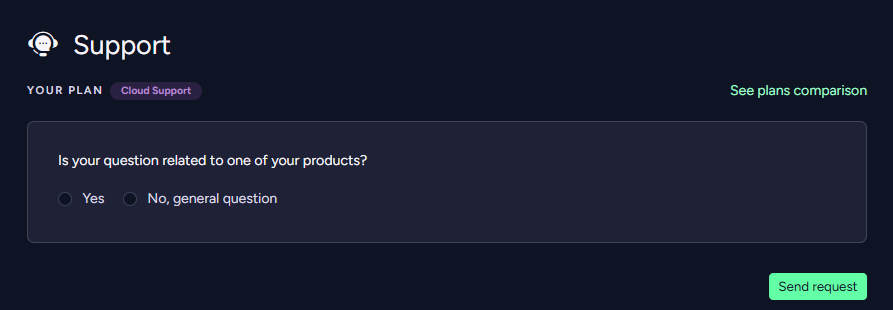
The root selection is between submitting a support request regarding a general topic or a product-related one.
A user with the account-level Support role can open both general and product-related support requests for any product on the account — including terminated ones — without needing the per-product Read permission. The Support role only allows filing support requests; it does not grant any operational rights on products.
Submit a General Support request
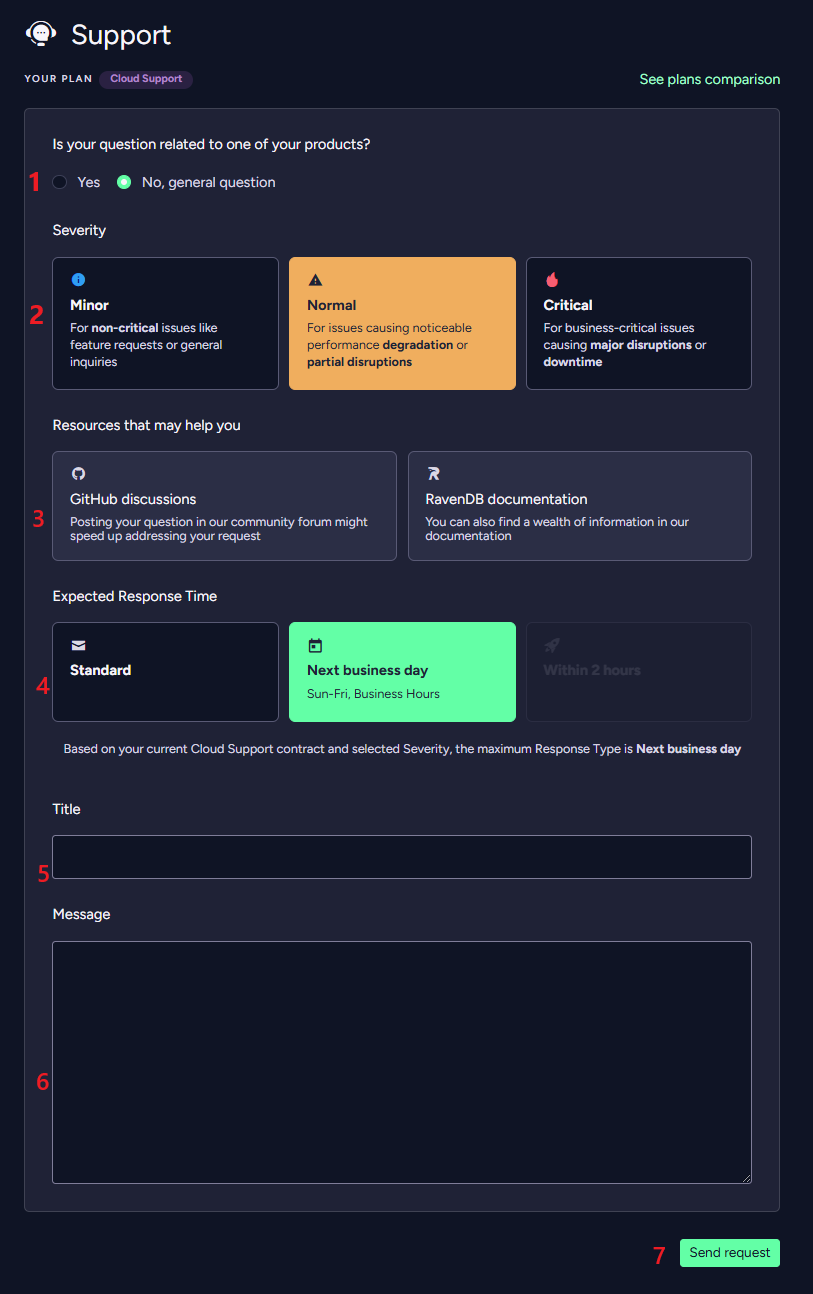
1. Under Is your question related to one of your products?, choose No, general question.
2. Select the Severity: Minor, Normal, or Critical.
3. Pass the Resources that may help you step — see below.
4. Select the Expected Response Time: Standard, Next business day, or Within 2 hours.
5. Enter a Title.
6. Enter your Message.
7. Click Send request.
You can read more about the Severity and Response time types in the Support page.
Submit a Product-Related Support Request
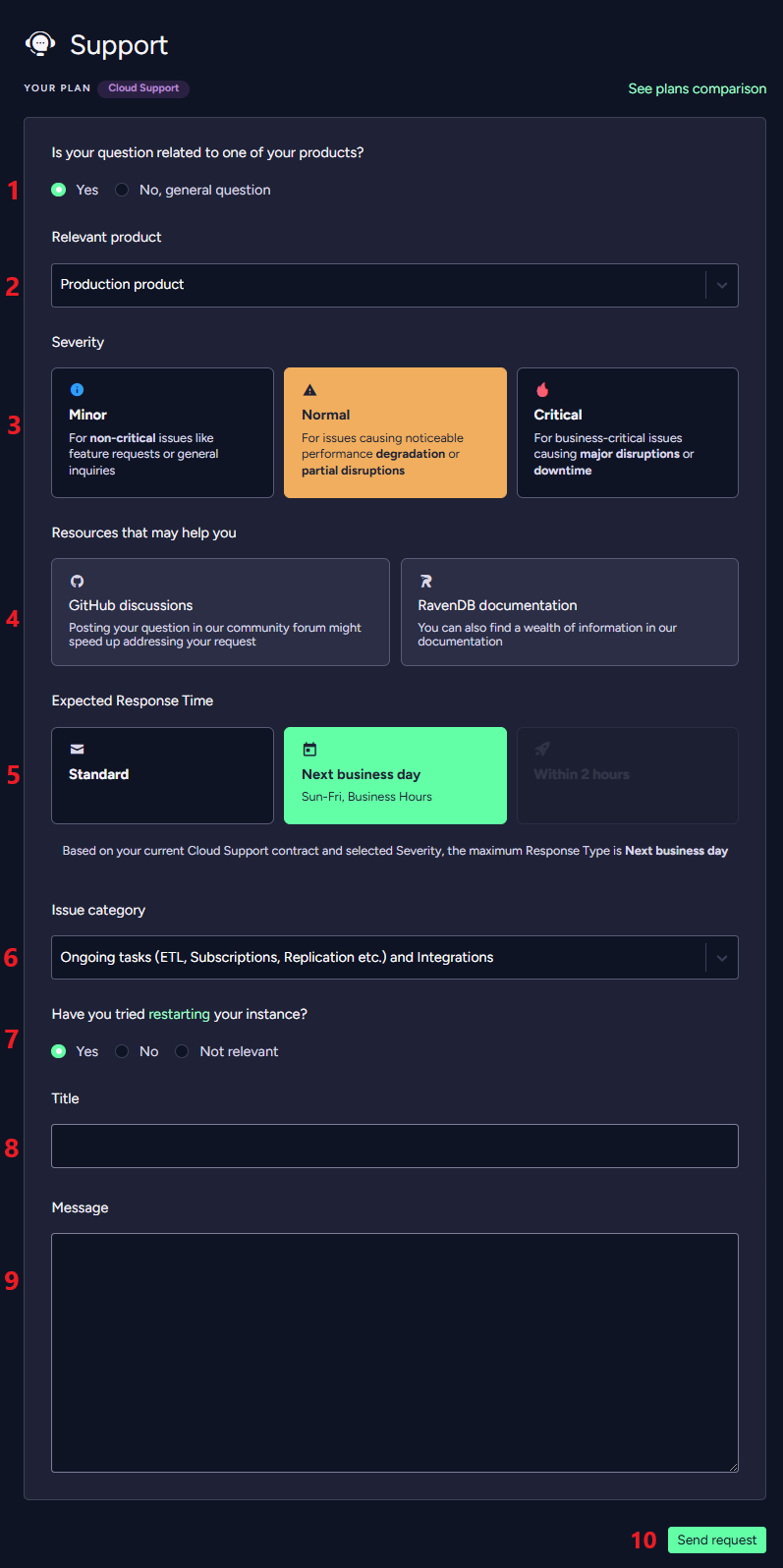
1. Under Is your question related to one of your products?, choose Yes.
2. Pick the Relevant product.
3. Select the Severity: Minor, Normal, or Critical.
4. Pass the Resources that may help you step — see below.
5. Select the Expected Response Time: Standard, Next business day, or Within 2 hours.
6. Select the Issue category.
7. Answer Have you tried restarting your instance? — Yes, No, or Not relevant.
8. Enter a Title.
9. Enter your Message.
10. Click Send request.
You can read more about the Severity and Response time types in the Support page.
Resources that may help you
Both flows include a step you cannot skip. After choosing the severity — and, for a product-related request, the product — the form shows a Resources that may help you panel linking to GitHub discussions and the RavenDB documentation, in case your question is already answered there.
Below it, Still looking for an answer? offers a Proceed to create support request button. The button is briefly disabled and counts down ("You can proceed within…") before it can be clicked.
The rest of the form — starting with the Expected Response Time section — only appears once you click that button. If you cannot find the response time options, this is why.
Request support from a product
You do not have to start from the Support view. Every product view carries a Subscription & support card, which offers direct links to the Documentation, GitHub discussions and the Discord community, and shows whether the product is covered by Paid support or the Free tier.
- With an active paid support option, the panel offers Request support for this instance. It takes you to the Support view with the question type set to product-related and this product already selected, so you only need to fill in the request itself. You can still change the selected product before submitting.
- Without a paid support option, the panel instead links to a comparison of the paid support plans. See Request to enable the Cloud Support option below.
Opening the Support view directly works exactly as before — no product is pre-selected.
Request to enable the Cloud Support option
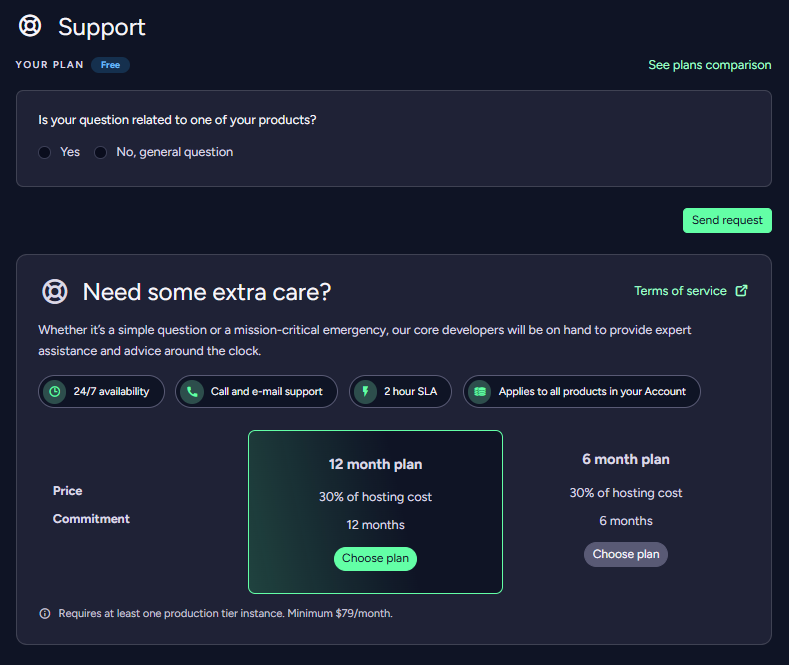
If your account is on the Free plan, the Support view also shows a Need some extra care? panel offering the paid support options. It lists what the option includes — 24/7 availability, call and e-mail support, a 2 hour SLA, and coverage for all products in your account — with a link to the Terms of service.
Two commitments are offered — a 12 month plan and a 6 month plan — each shown with its price and commitment length.
Click Choose plan on the one you want. An Upgrade to premium support dialog opens with a summary of the plan you picked, which you confirm with Send activation request.
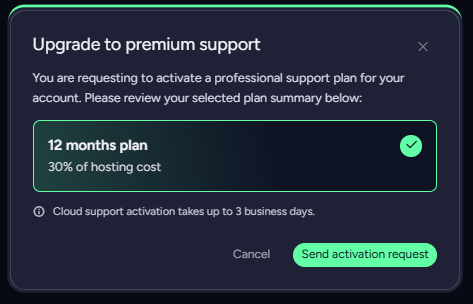
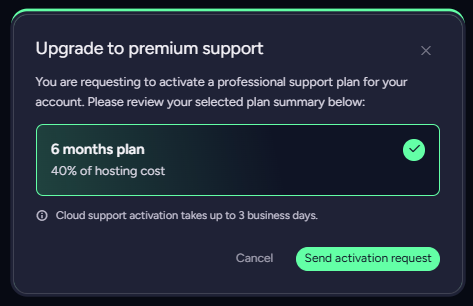
The paid support option requires at least one production tier instance. Its price is a share of your hosting cost, with a minimum of $79/month.
After verification, the support team will add the support option to your account, which will be confirmed in a separate email.
Cloud Support activation takes up to 3 business days.
You can read more about available support options in the Support page.