Cloud: Scaling
After a RavenDB Cloud instance has been set up, you can scale it up and down to modify the workload it can handle.
Instances of the Development Tier and Production Tier can be scaled up or down within their own Tier. Instance cannot be moved between Tiers, but data can be migrated between any two RavenDB instances using:
- Import/Export
- Restoring from Backup
- Replication
Scaling Up/Down - General
To scale a RavenDB Cloud instance, open your portal's Products tab and click the Manage button for the product you want to change.
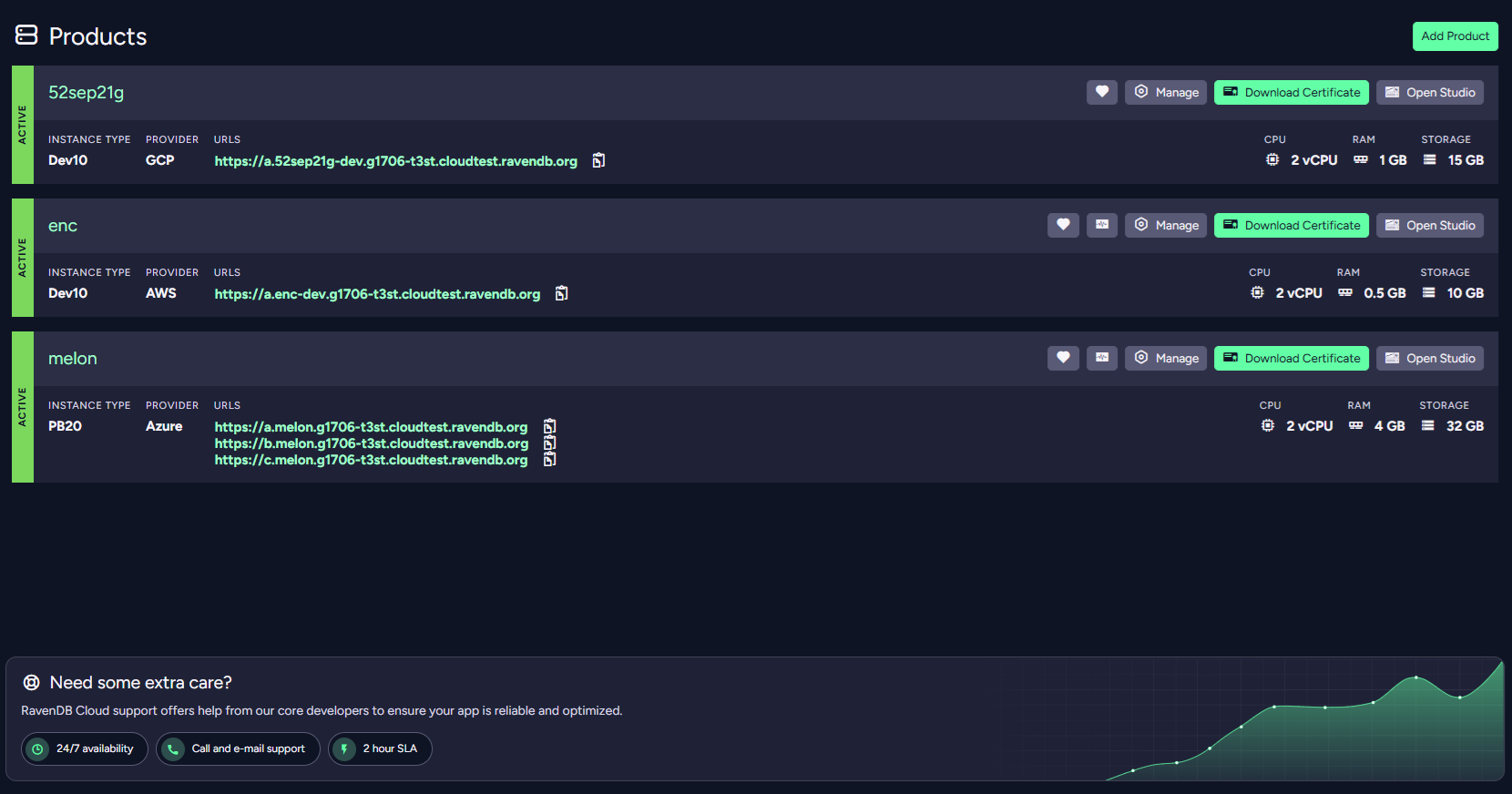
In the main section, you can find controls to Change Instance Type or Change Storage.
The scaling buttons are presented only for Development and
Production products.
The Free product doesn't show them because its Tier includes only one configuration.
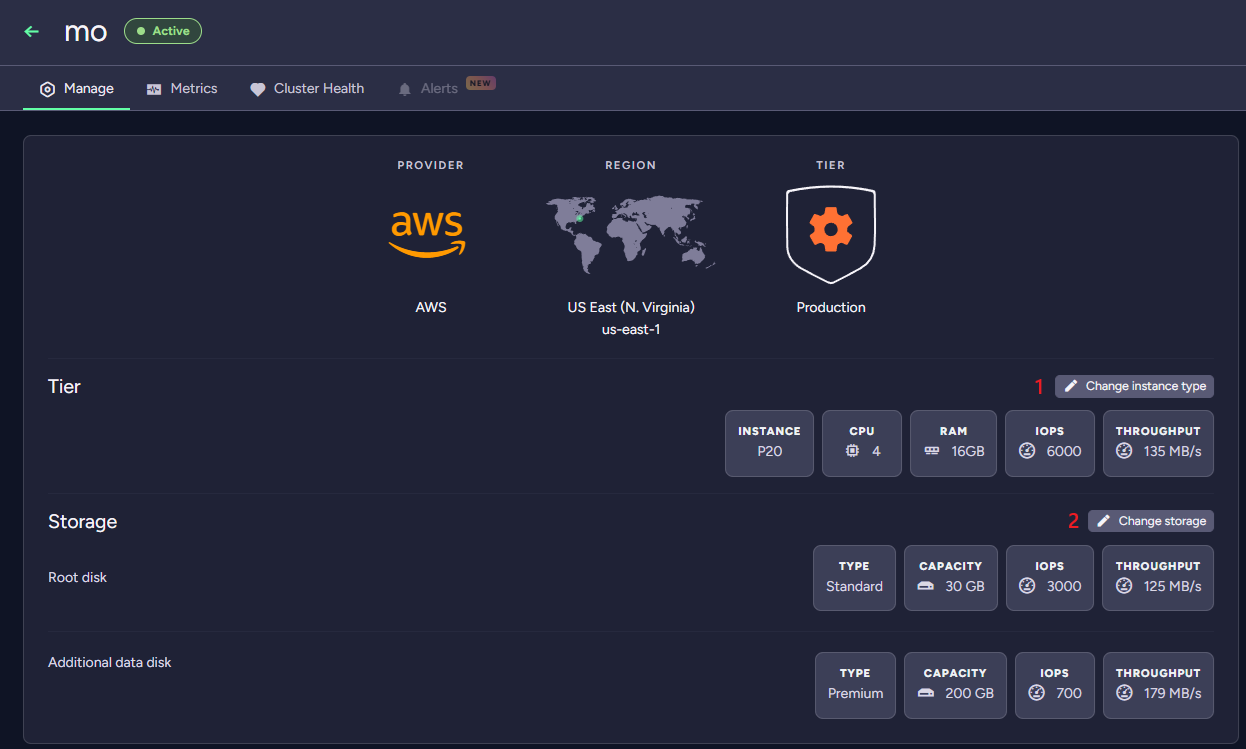
1. Click Change Instance Type to reconfigure your product.
2. Click Change Storage to modify your product's storage parameters.
Scaling a Development product brings it down
temporarily, while its single-node instance is being reconfigured.
Scaling a Production product does not bring it down,
because it is a multi-node cluster and the nodes are updated in a rolling update - one node at a time.
Instances have IO limits (IOPS and Throughput) and it may impact the Disk performance.
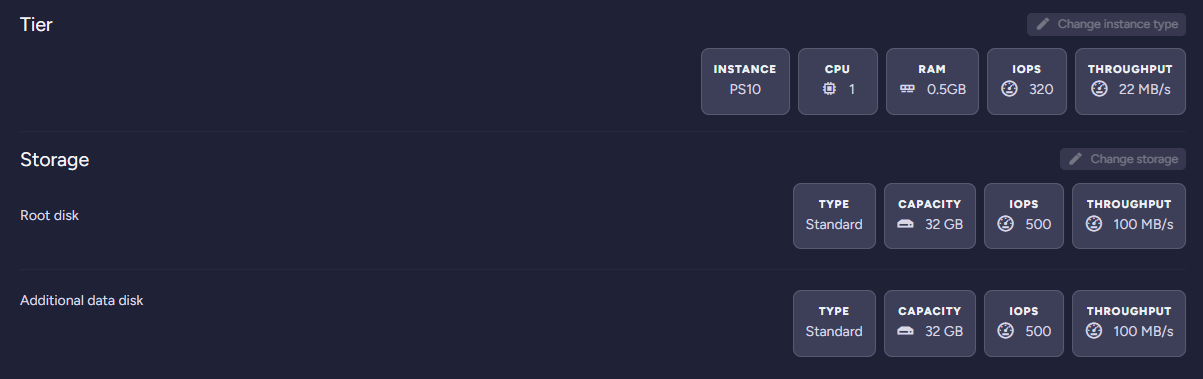
In the figure above, the Instance Throughput is lower than the Disk Throughput, so the instance type - not the disk - is what limits IO. To avoid IO throttling by the instance type, make sure to use an instance type able to fully utilize your disk capabilities.
Scaling - Change Instance Type
Use the CPU Priority and Cluster Size slide bars to compose a configuration that would allow your product to properly handle its expected workload.
Scaling product to P60 or P70 can be done only via support request.
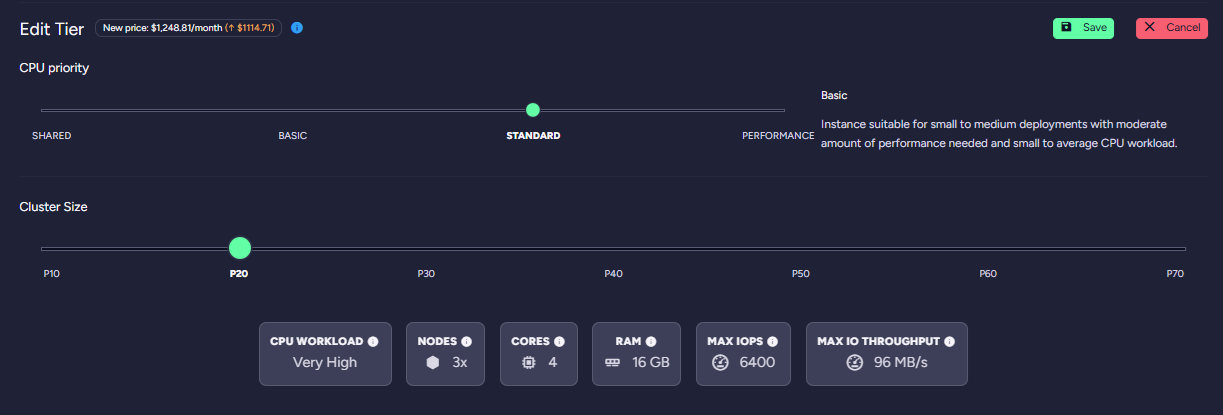
You can upscale or downscale only within the current Product Tier. The Development Tier Dev30 configuration,
for example, can upscale to Dev50, but not to the Production Tier PB10 configuration.
Your databases and data will be automatically migrated into your new configuration.
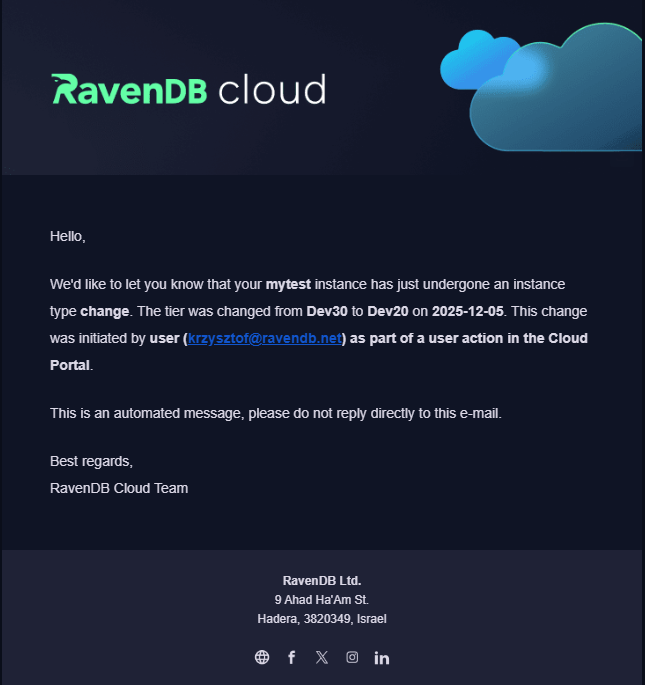
Once you upscale or downscale, you will receive an email notification of this operation.
Scaling - Change Storage
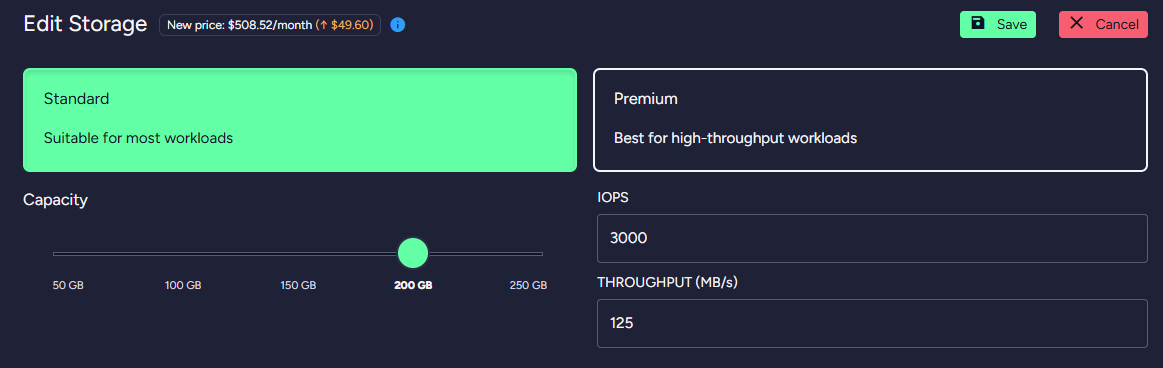
There are two types of storage: Standard and Premium. They differ significantly in capabilities and customization options depending on the cloud provider in question. Pick either to change your current storage capacity.
Storage can also grow on its own: with Automatic Storage Extension enabled, the disk is extended to the next available size once disk usage passes a threshold you set.
Storage changes are rate limited per product: at least 6 hours must pass between two changes on AWS, and 12 hours on Azure Premium disks. Until the window elapses the storage form reports how long is left.
AWS Disks
AWS Standard & Premium - Default Performance
The performance of Standard Disks is always the same, regardless of Disk size. The parameters are 3000 IOPS and 125 MB/s of Throughput.
For Premium Disks, the IOPS parameter is set to 500 by default. The Throughput parameter is based on the number of IOPS you have with the maximum of 4000MB/s.
AWS Premium - IOPS customization
The Premium Disk type on AWS lets you choose the number of IOPS (Input/Output Operations Per Second) that the instance can handle.
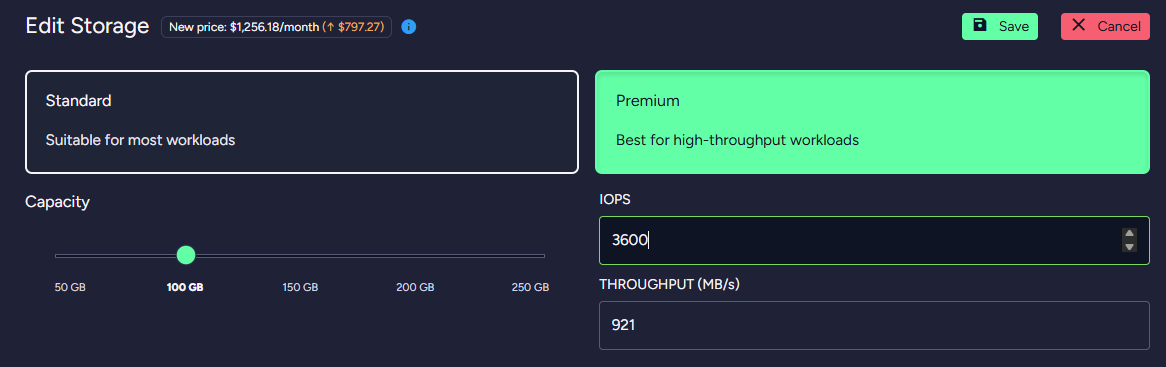
The cost per IOPS is dependent on the selected region.
Azure Disks
Azure Standard & Premium - Default Performance
The performance of Standard Disks is always the same, regardless of Disk size. The parameters are 500 IOPS and 60 MB/s of Throughput.
The performance of Premium Disks increases with their size.
For more details please visit the Pricing page.
Azure Premium - Azure Performance Tier customization
To handle events that temporarily require higher level of performance, the Premium Disk type on Azure lets you use a higher Performance Tier for as long as you need it. This feature allows you to increase the disk performance without increasing the disk size. You can then return to the original Tier when you no longer need the additional performance.
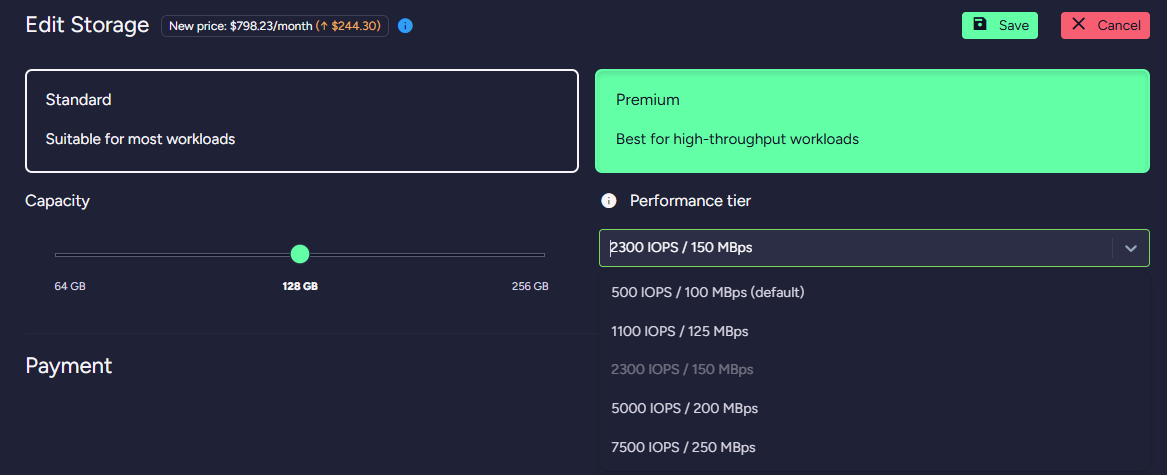
The cost of running on a higher Performance Tier is the same as running on a Disk of size for which a given Performance Tier is the default one.
Azure Premium SSD v2
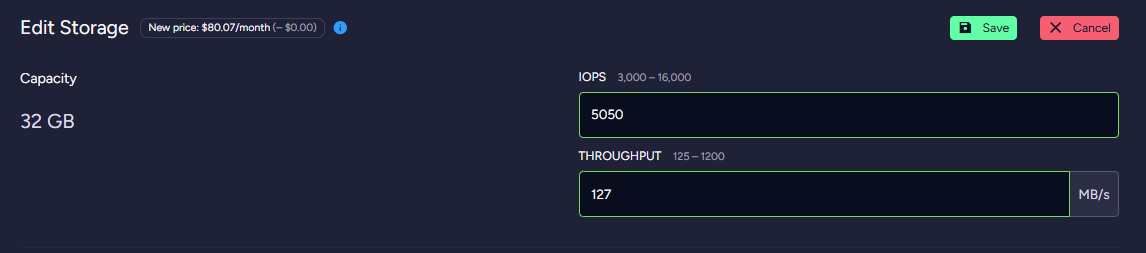
Premium SSD v2 is an Azure disk type available alongside Standard and Premium. It offers IOPS and Throughput that can be configured independently of the disk size, giving you finer control over storage performance and cost.
Availability and constraints:
- Available only as a data disk — it cannot be used as the OS disk. This means Premium SSD v2 is offered only for products that use the Single Data Disk layout (see Data disks). Products with the Root Only disk layout use Premium SSD v1; Premium SSD v2 is not available for them.
- Not available for PN* (ephemeral) instance types of the Performance Tier.
- Not available for products on a yearly payment plan.
- Available only in Azure regions that support Premium SSD v2. The portal automatically detects the region and shows the option only when it qualifies.
- Unlike Premium, Premium SSD v2 does not offer an Azure Performance Tier customization.
- IOPS and Throughput are configurable independently of the disk size. The available Throughput range depends on the configured IOPS value.
Switching to Premium SSD v2 is a one-way operation:
- Downgrade from Premium SSD v2 to Standard is not possible when using the Single Data Disk layout.
- Downgrade from Premium SSD v2 to Premium (v1) is not possible.
Plan the change carefully — once a product is on Premium SSD v2, it cannot be moved back.
There are two ways to start using Premium SSD v2:
- Migrate the storage to a Data Disk — when the product's region supports Premium SSD v2, the new data disk is automatically created as Premium SSD v2. The migration modal indicates when this is the case. See Data disks.
- Upgrade an existing Premium Single Data disk to Premium SSD v2 — if your product already runs on a Premium Single Data Disk and is eligible, the Upgrade to Premium V2 button is shown in the Storage section of the product page. See Managing an Existing Product in the portal documentation.
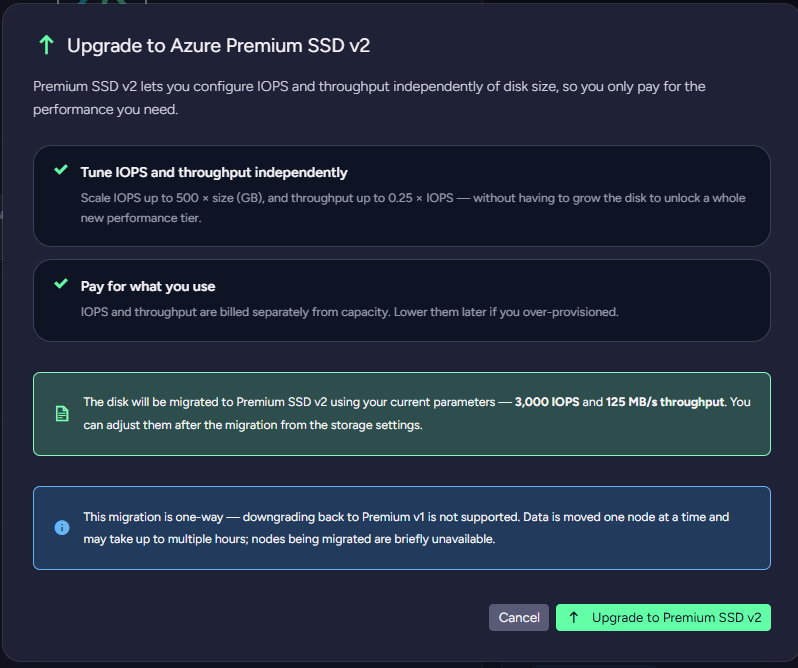
The upgrade is performed node by node. Each node being migrated is briefly unavailable, and the full operation may take multiple hours to complete. The migration uses your current IOPS and Throughput values; you can adjust them afterwards from the storage settings.
For Premium SSD v2, IOPS and Throughput are billed separately from disk capacity. For up-to-date rates, see the Pricing page.
Data disks
Data Disks are dedicated storage volumes used exclusively for RavenDB data. They are available for instances running in the Production Tier. These disks are entirely separate from the operating system disk, which remains isolated to ensure system stability and optimal performance.
The use of a data disk is mandatory for deployments requiring more than 1TB of storage.
Data Disk can be selected during instance creation or migrated to on already existing instances.
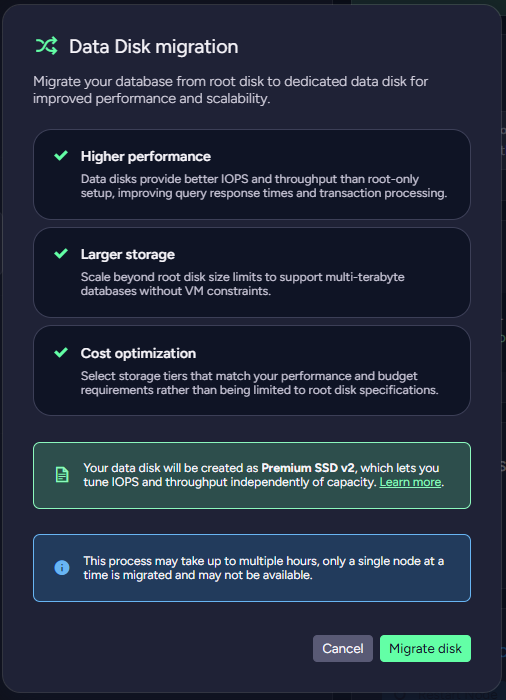
On Azure, when the product's region supports Premium SSD v2, migrating to a Data Disk automatically creates the new data disk as Premium SSD v2. The migration modal indicates this. See Azure Premium SSD v2 for capabilities and constraints.
GCP Disks
GCP offers only Premium Disk type.
Additional product nodes - General
The Production Tier products can be expanded by adding additional nodes to the cluster.
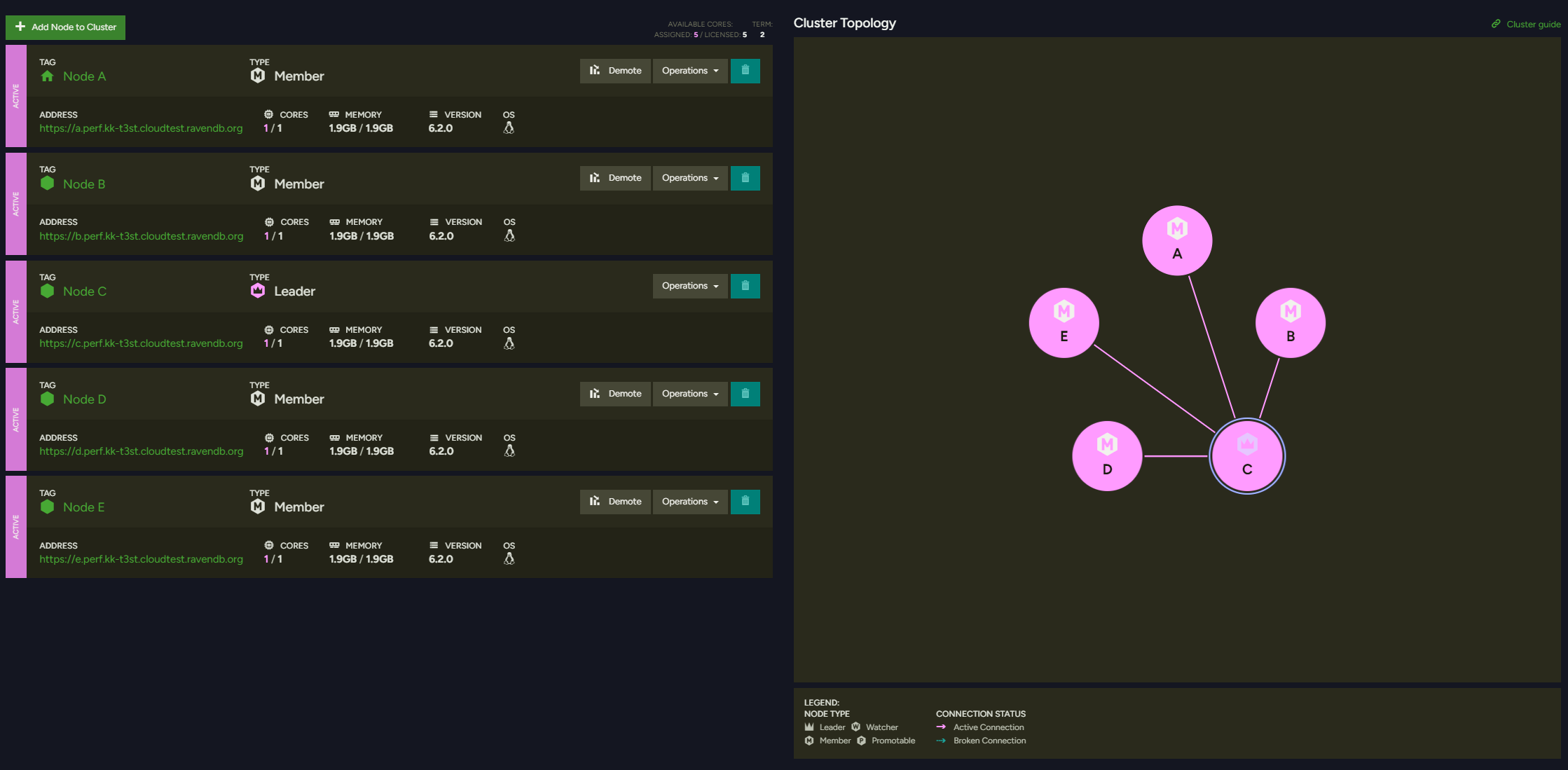
This option is not available for PS instance types.
The maximum number of additional nodes that can be added equals 3.
Nodes A, B, C cannot be removed.
The process of adding a new node does not guarantee that the node will be distributed in separated Availability Zone.
Additional product nodes - Adding a node to a database group
The new product node does not belong to any database group. The User should do this manually by adding the new node to the database group.
This operation is described here.