NoSQL Cloud Service: Overview
Running RavenDB as a cloud service frees you from operational overhead by passing much of the administration to the hands of RavenDB's developers and allowing them to maintain and optimize your instances for you, take care of cluster operations like adding or removing nodes, and run recurring tasks like backing up your data.
-
Our and your administration
Ridding you of administrative chores that don't require your attention is complemented by providing you with comfortable control over your data and database management via your account's Portal and the cloud version of our Studio management GUI. -
Resources
Some of your products may share their resources with other applications and users, while other products may occupy machines reserved for their usage only. Read about reserved clusters, burstable instances, and credits to understand more about your choices. -
In this page:
What do you get?
Some of the key reasons for running RavenDB on the cloud are -
- The high availability of a cloud service.
- The constant monitoring and healthcare of your products and their accommodating equipment.
- Your insulation from the cloud infrastructure's administration as we handle and continuously optimize it.
- The high security level.
- Regular backups to your database and settings.
- Our support.
Your Account
Your cloud-RavenDB account gathers your products' information, your details, and your contracts and billing data. We create your account and send you a link to its Portal as soon as you finish registering, so you can immediately start creating and handling your cloud products.
Register Your Account
To create a new account, enter https://cloud.ravendb.net/user/register and allow the wizard to walk you through the 5 simple stages of the registration procedure:
You can also start registration with the Sign in with Google, Sign in with GitHub or Sign in with Microsoft buttons on the login page. If no Cloud account exists yet for the email reported by the provider, a registration link is sent to that address and the registration form opens with the email already filled in. See Login with Google, GitHub or Microsoft.
- Account information
- Billing information
- Payment information
- Summary
1. Email
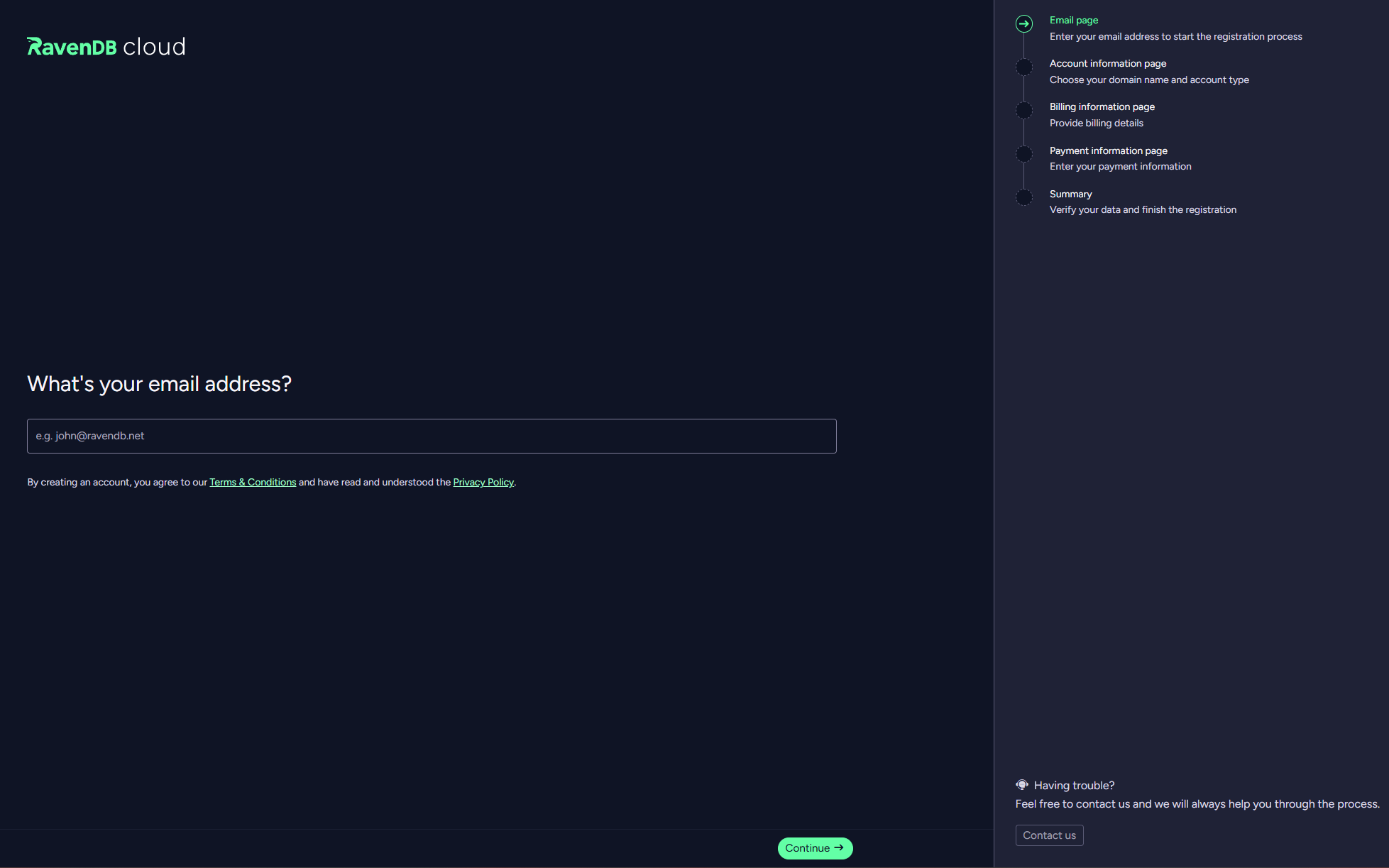
- Provide your email address.
- Read the terms & conditions and the privacy policy.
- Click the Continue button.
2. Account information
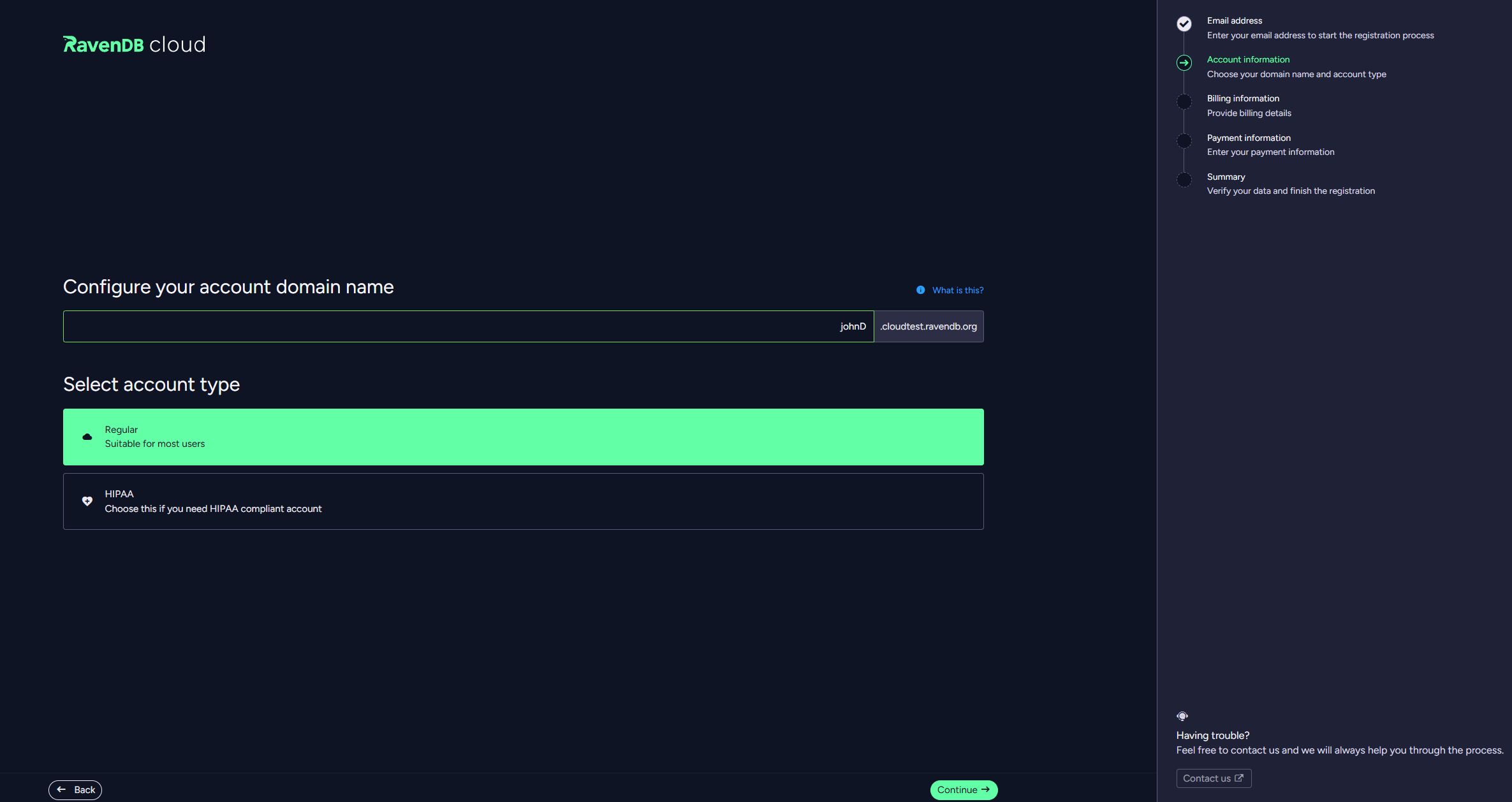
- Enter an unoccupied domain name of your choice, that would be used for your cloud products.
The domain name is typically your organization or project name and will be used in all your products' URLs. The procedure will check this name's availability. - Select your account type. For typical purposes, select the Regular button. If you need a HIPAA-compliant account, select the HIPAA button.
- Click the Continue button.
3. Billing information
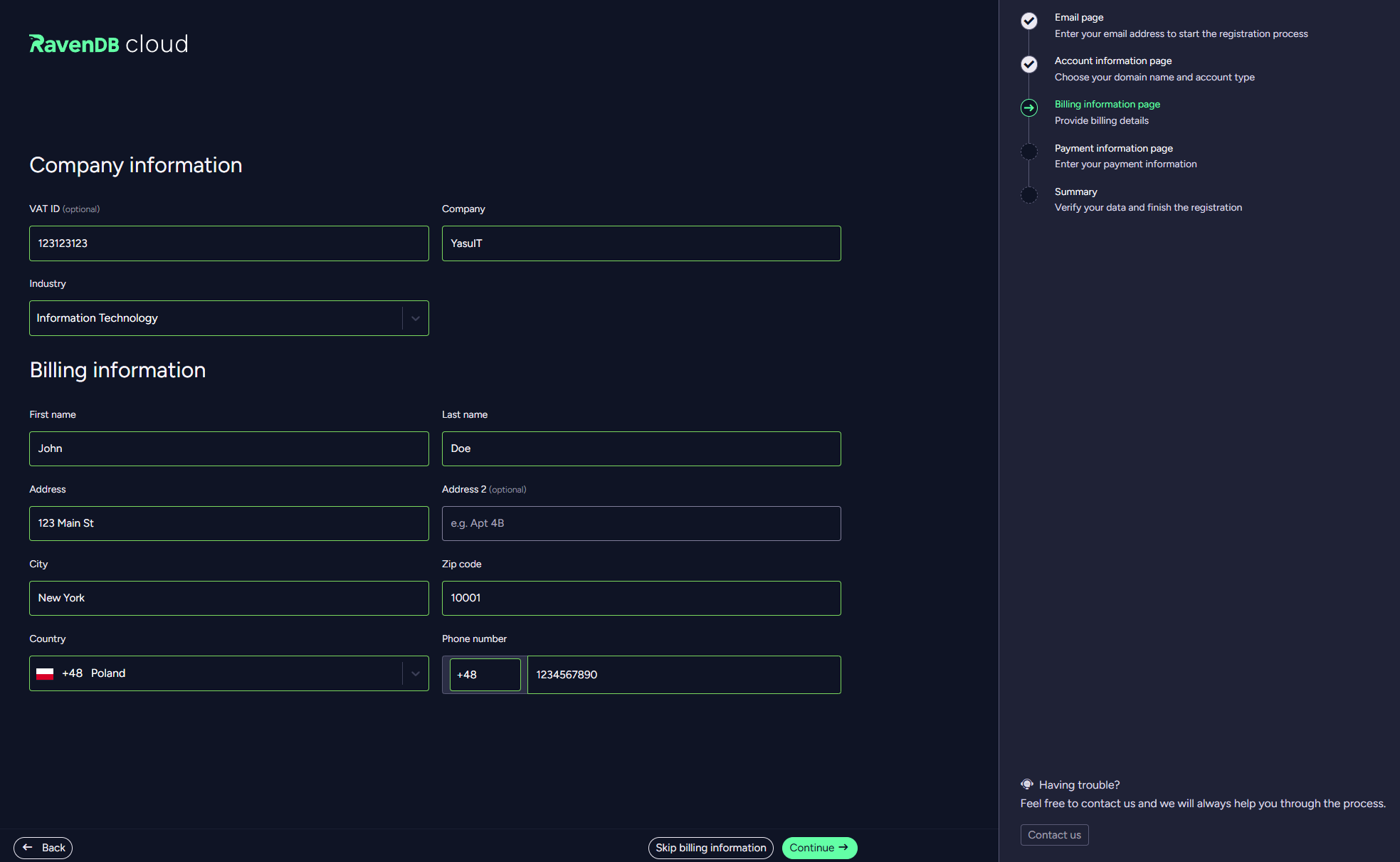
- Enter your billing information.
- Click the Continue button.
Click the Skip Billing Information button if you prefer to evaluate the cloud service for now using the free product.
4. Payment information
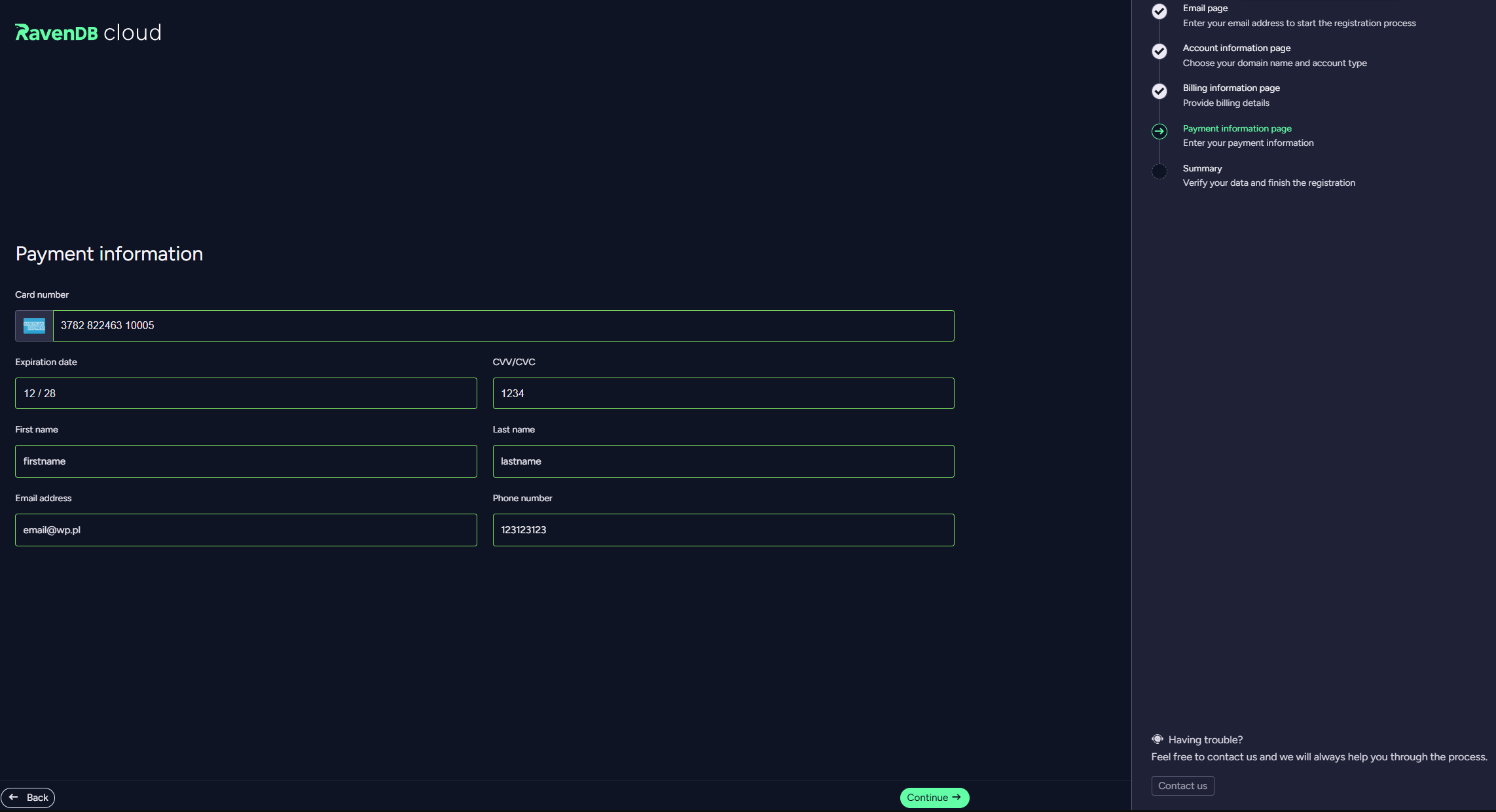
- Enter your payment information.
- Click the Continue button.
5. Summary
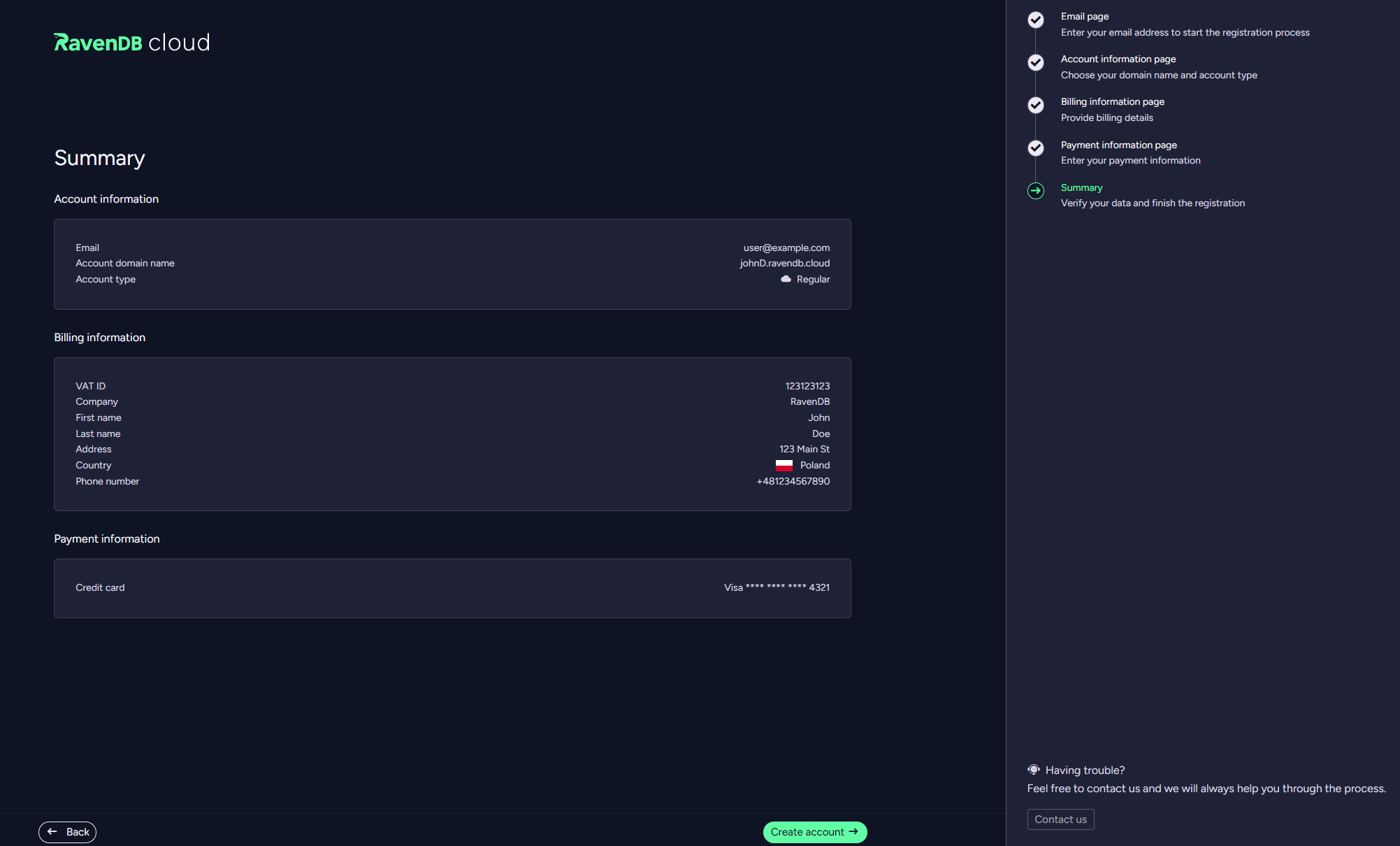
- Verify your choices, confirm you're not a robot, and click the Create account button to register your cloud account.
- You’ll receive an email with sign in link which allows you to sign in to the RavenDB Cloud portal.
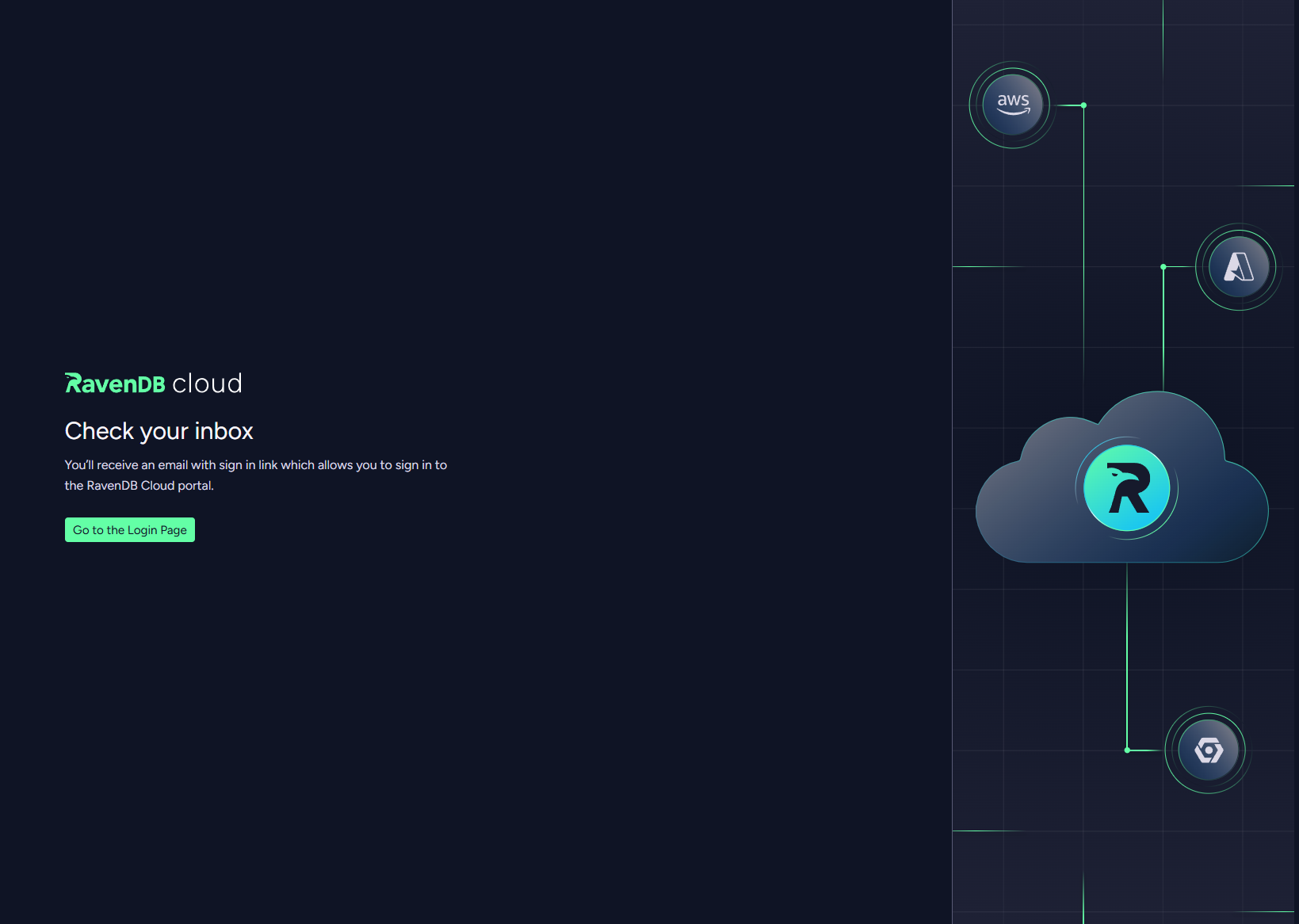
Signing up will send you a message with a link to your email.
- The sign-up process will send a registration link to your email.
- Click the link to enter your account. No password required.
- The link will expire after a while, use the login page to re-visit your account.
Login To Your Account
To access your account, click https://cloud.ravendb.net/user/login.
You can sign in either with a magic link sent to your email, or by using your Google, GitHub or Microsoft account.
Login with a magic link
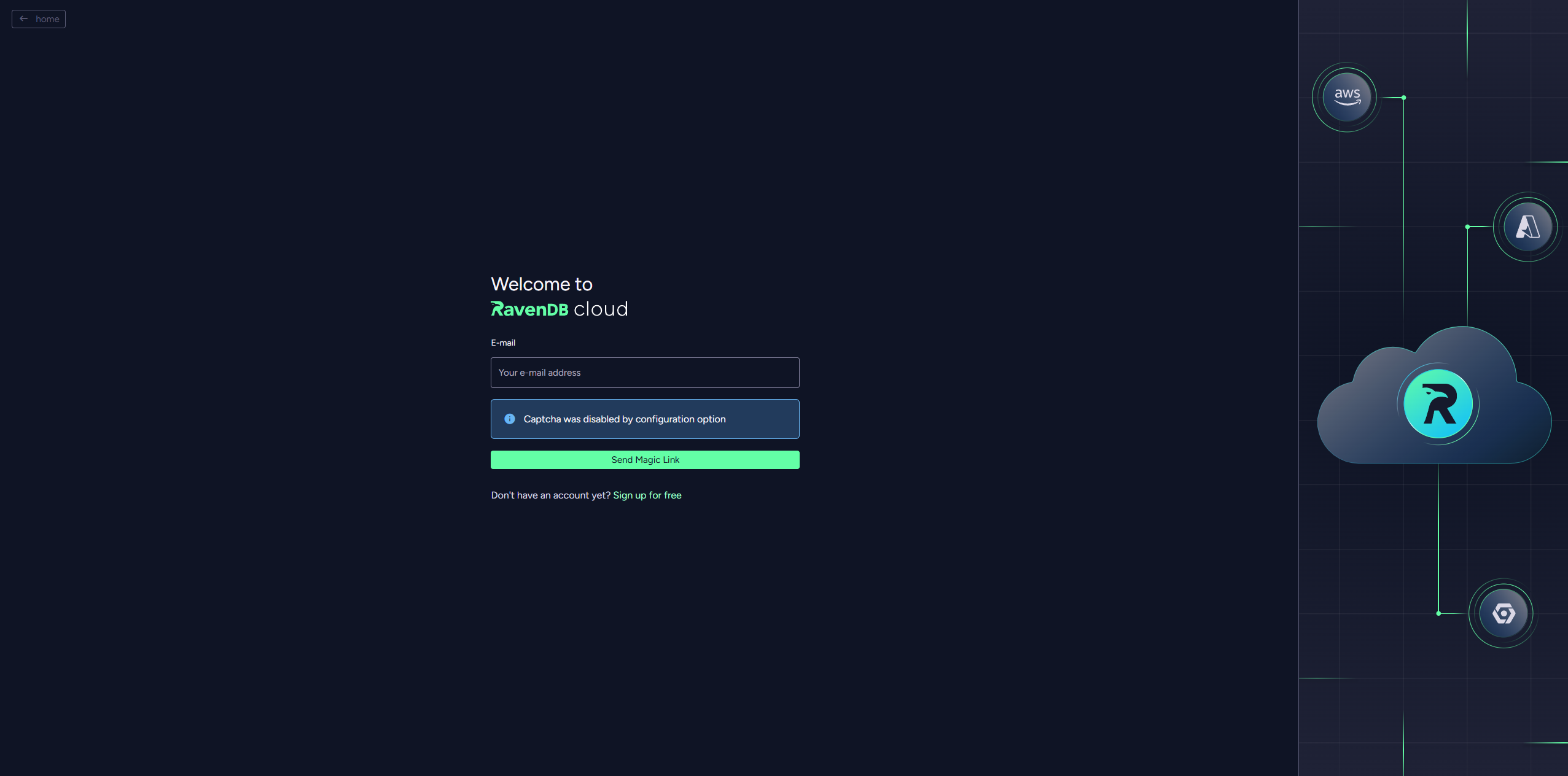
- Enter the same email address you provided during registration, confirm you're not a robot, and click the Send Magic Link button
-
The login procedure will send you a message with a link. Click the link to enter your account, no password required.
The magic link is expirable to make sure each visit is logged and keep account activity trackable and more secure.
An account can currently be managed by a single operator, we will soon add multiple-operators management.
We advise you to enable 2FA. Setup is described here.
Login with Google, GitHub or Microsoft
In addition to the magic link, you can sign in using your Google, GitHub or Microsoft account. The login page shows Sign in with Google, Sign in with GitHub and Sign in with Microsoft buttons below the magic-link form.
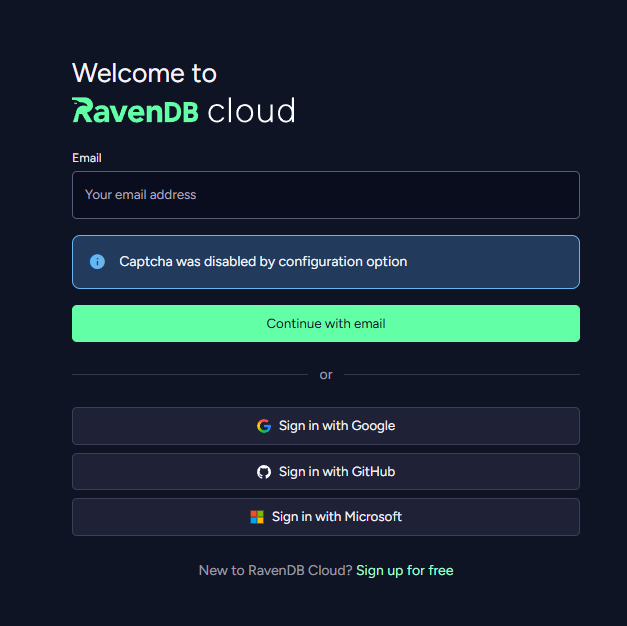
- Click the button for the provider you want to use.
- Authorize RavenDB Cloud at that provider.
- You are returned to RavenDB Cloud and signed in to the account whose email address matches the one reported by the provider.
Your RavenDB Cloud account is identified by email address. Single sign-on only succeeds when the email reported by the provider matches the email of an existing Cloud account.
RavenDB Cloud only accepts an email address that the provider itself vouches for:
- Google — the address must be verified on your Google account.
- GitHub — the address must be both verified and set as your primary email.
- Microsoft — a personal Microsoft account is accepted, because Microsoft verifies those addresses when the account is created. For a work or school (Microsoft Entra ID) account, the sign-in token must additionally carry proof that the tenant owns the address's domain - see the note below.
If the address cannot be verified, sign-in is refused. Verify it at the provider (or, on GitHub, set a verified address as primary) and try again.
A tenant administrator in Microsoft Entra ID can set a user's email address to a domain the tenant does
not own, so RavenDB Cloud does not take the address on trust. It requires the token to include the
optional claim that attests domain-owner verification (xms_edov), which a tenant administrator
enables for the application in Entra ID.
If your organization's tenant does not emit that claim, Microsoft sign-in fails with "Your Microsoft account's email address could not be verified", even though the address is correct. Ask your Entra ID administrator to enable the claim, or use a magic link instead.
When sign-in cannot complete
If sign-in cannot be completed you stay on the login page with an explanation. The most common cases:
| Message | What it means |
|---|---|
| The email address on the selected account has not been verified with your provider | The provider returned an address it does not report as verified. Verify it at the provider and retry. |
| The selected account does not expose an email address | The provider shared no email address - for example, because the permission was declined. Grant access to your email address and retry. |
| Your Microsoft account's email address could not be verified | A work or school account whose tenant does not attest domain ownership - see the note above. |
| Your Microsoft sign-in could not be processed | The token was internally inconsistent. This needs Support to look at it. |
| Provider authentication failed | Authorization failed or was cancelled at the provider. Retry, or use a magic link. |
| This sign-in method is currently unavailable | That provider is temporarily not configured. Use another provider or a magic link. |
You can always fall back to the magic link sign-in.
Users are responsible for enabling and maintaining Two-Factor Authentication (2FA) on their designated Single Sign-On (SSO) provider.
No Cloud account for the email
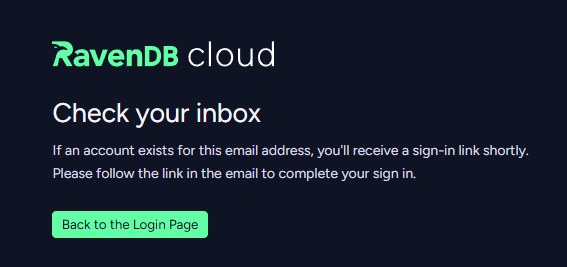
If no RavenDB Cloud account exists for the email returned by the provider, you are taken to a Check your inbox page and an email with a sign-in link is sent to that address. Following the link opens the registration form with the email pre-filled, so you can finish creating the account.
RavenDB on the Cloud
Instances, Provisioning and RavenDB Products
Cloud Instances
A cloud instance is a RavenDB server, allocated for you on a cloud provider like AWS or Azure.
Your cloud instances are fully managed by RavenDB Cloud, including security, monitoring, backups, and patches.
You get operator-level access to your RavenDB instances and can perform most admin operations on your own.
Provisioning
Each RavenDB product is provisioned as many instances as it requires. A production cluster for example is allocated three instances at a minimum, while a development server's single node is allocated a single instance.
RavenDB Products
Your RavenDB product can be a single server or a multi-node cluster.
Each server or cluster-node occupies a single cloud instance.
Different instances are equipped to your specifications to accommodate your different products and may be considerably different from each other in features, capabilities, and cost. The instances of a basic production cluster, for example, are burstable, while those of a higher-grade production cluster are reserved.
RavenDB Tiers
There are three types of RavenDB cloud products. They are explained in detail in the Tiers and Instances section, in the meantime - here are a few words about each.
The Free Tier
This tier offers a single product: a single-node RavenDB cloud server designated for experiments and evaluation.
It is operated by a low-end instance that is shared with other users and is equipped with the community subset of RavenDB features.
You can have only one free instance in your account. If you don't use your free instance for 30 days, it will be terminated.
The Development Tier
The development tier offers a set of server configurations that can handle increasingly
higher CPU load. All configurations are single-node servers, but a development server is equipped
with RavenDB's full features set.
Though superior to a free instance, a development instance still runs a single node on shared
hardware and is designated for development, not production.
The Production Tier
A production configuration is a full RavenDB cluster of at least three nodes. You can choose its components using the Portal from a set of pre-selected templates, or contact us and we'll custom-tailor your product for your specific production requirements, i.e. with a specific HW selection or a multi-region cluster.
| Tier | Sub-tiers | CPU | Options | SLA |
|---|---|---|---|---|
| Free | - | Very low | None | No |
| Development | Dev10-Dev70 | Very low - High | All | Yes |
| Production | By CPU Priority (Basic/Standard/Performance) By Cluster Size | Up to extra performance, high network and reserved NVMe | All | Yes |
Burstable vs. Reserved clusters
Reserved Clusters
Reserved clusters are production clusters of grade Standard or Performance. Their resources are pre-allocated and can be used only by them. Designed to run production systems with demanding workloads, these are the workhorses of the RavenDB Cloud.
Burstable Instances
Free instances, Development instances, and low-end ("basic") Production clusters are operated by
"burstable" CPUs. Such clusters are suitable for small to medium production loads but are limited
in the total amount of resources that they can consume.
RavenDB's burstable instance allows you to consume more resources for a short amount of time but will
throttle operations if the cluster uses more than its fair share of system resources.
Such clusters are useful because a RavenDB Cloud balances resource usage among the instances in the cluster.
If you expect moderate usage (with some peaks), choosing a burstable option can allow you to save about 20% of your costs.
Upgrading from Burstable to Reserved The RavenDB Cloud allows you to upgrade from a Basic production instance to a Standard or Performance cluster at will, with no impact on your system availability.
Budget, Credits and Throttling
Burstable instances are given a budget of CPU credits.
Credits are consumed when the instance uses computing and I/O resources, and are accumulated, up to a certain limit, when resource usage is low.
-
Burstable INSTANCES and throttling
When an instance's budget is consumed, its services are throttled.
For example, Indexing may be delayed and Requests may be denied.We throttle by denying resources, instead of charging you more.
RavenDB Cloud automatically attempts to balance the load between your cluster nodes. -
Burstable CLUSTERS and throttling
Basic-grade production clusters are burstable: each node of such a cluster is accommodated by a burstable instance.
When the budget of a burstable cluster is drained or nearly so, the cluster automatically shifts the workload to cluster nodes that still have credits to work with.
If the amount of work you're performing is large enough to drain the entire cluster's budget, it may still be throttled.
Use a suitable configuration.
The stronger your burstable instances are, the less susceptible they are to budget drainage and throttling.
If you are regularly warned or your product is actually throttled, consider upscaling its configuration.
Throttling Warnings
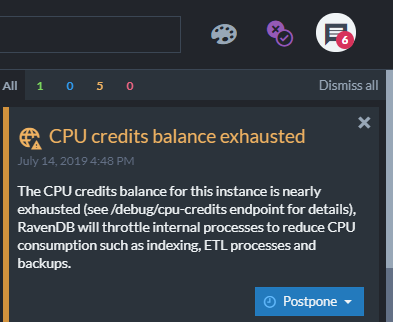
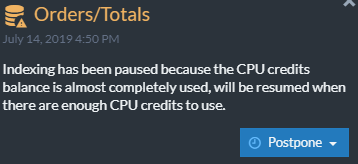
Your instances will warn you when their credits are about to finish, and inform you when throttling is performed.
They will also perform preemptive actions to lower resource usage.
How much is a CPU credit, and what's in my budget?
A single credit represents using 100% of the CPU for a full minute out of an hour.
You can view what's currently in your instance's budget, by adding /debug/cpu-credits to its URL.
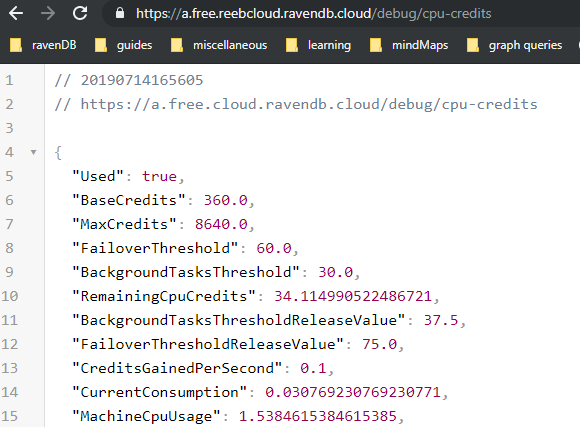 Note that the figures relate to CPU seconds; for CPU minutes, divide them by 60.
E.g., "MaxCredits": 8640.0 means your instance can accumulate an entitlement for up to 144 minutes of full CPU usage.
RavenDB Studio - Graphic User Interface
RavenDB provides a built-in GUI to monitor and manage your cloud instances.
Accessing RavenDB Cloud Studio

- Products
Navigate to the cloud portal "Products" tab to see your cloud instances. - URLS
Click on each node's URL only if you have already downloaded and installed the required certificate that gives your browser permission to access your cloud instance. - Download Certificate
Click to download the certificate and follow the step-by-step guide to installing the certificate. - Open Studio
Click "Open Studio" here or in the step-by-step certificate installation guide.
You'll need to select the correct certificate.
Choose the certificate with the name of your cloud instance.
The example image above shows the certificate name after the node-tag "a." in the URL. Choosing the wrong certificate will result in a recurring error when trying to access the Studio. - Product Labels Product labels describe current alerts for given product. Product alerts are described on Maintenance & Troubleshooting page.
What you can do with RavenDB Studio
- Your RavenDB servers
- Manage your cluster topology.
- Manage certificates.
- Manage your license and support plan options.
- Customize search analyzers.
- Access debug tools, logs, and metrics.
- Your RavenDB clusters
- You can see real-time statistics about your cluster with moveable widgets in the cluster dashboard.
- Your RavenDB databases
- Create or delete databases.
- Create and edit indexes.
- Run queries and patches.
- Set backups, replication, ETL, and other ongoing tasks.
- Manage documents and their extensions.
- Adjust settings.
- Occasionally, cloud instance settings are different than general RavenDB defaults.
See cloud-specific settings.
- Occasionally, cloud instance settings are different than general RavenDB defaults.