Cloud: Product Features
OLAP ETL
RavenDB Cloud provides OLAP ETL capabilities, allowing you to integrate your operational data with analytical data warehouses.
Usage of this feature is described here.
PowerBi
RavenDB Cloud supports direct integration with Power BI, a leading business analytics tool. This feature allows you to seamlessly connect your RavenDB data with Power BI for advanced visualization and reporting, enabling real-time insights and data-driven decision-making.
Usage of this feature is described here.
Power BI is a security-related feature: enabling or disabling it requires the Manager (or Admin) preset together with the Security admin add-on, while the Security admin add-on alone is enough to configure it once enabled.
Configuration
Your product will be restarted automatically node by node to apply settings needed for feature to work properly.
To access Power Bi Configuration View click Configure Button in Power Bi feature row. Here you can edit your IP addresses that will have access to RavenDB Power Bi port.

Power Bi IPs entries are CIDR ranges that define networks from which the connection is allowed.
Queue ETL
The Queue ETL feature enables you to export data from RavenDB to various queue systems, such as RabbitMQ or Kafka. This is particularly useful for scenarios where you need to process data asynchronously or distribute it to other microservices and applications.
Usage of this feature is described here.
Queue Sink
Queue Sink allows RavenDB Cloud to directly receive data from queues, making it easier to ingest data into your database from external systems or services. This feature is ideal for integrating with event-driven architectures where data is processed and ingested in real time.
Usage of this feature is described here.
Data Governance: Data Archival, Remote Attachments & Schema Validation
The Data Governance feature in RavenDB Cloud bundles several capabilities to help manage your data lifecycle and integrity.
Its primary function is Data Archival, which offers the ability to archive selected documents. Archived documents are compressed and can be handled differently by RavenDB functions (e.g. Indexing can exclude archived documents from indexes and Data Subscriptions can avoid sending archived docs to workers), helping to keep the database smaller and quicker and its contents more relevant.
Usage of Data Archival is described here.
Additionally, for newer server versions, enabling Data Governance grants access to Remote Attachments and Schema Validation.
- Data Archival: Available for RavenDB 6.0 and newer.
- Remote Attachments & Schema Validation: Automatically included if running RavenDB 7.2 or higher.
Monitoring
RavenDB Cloud allows you to monitor your RavenDB Cloud instances via SNMP and OpenTelemetry protocols.
SNMP is a widely used network management protocol that allows for the collection and organization of information about managed devices on IP networks. RavenDB Cloud leverages the OpenTelemetry SDK to send metrics data via the OpenTelemetry Protocol, allowing seamless data collection and analysis by an OpenTelemetry retriever.
Monitoring (SNMP / OpenTelemetry) is a security-related feature: enabling or disabling it requires the Manager (or Admin) preset together with the Security admin add-on, while the Security admin add-on alone is enough to configure it once enabled.
Enabling Monitoring also unlocks the product's Alerts tab, where you can have Cluster Health events emailed to you as a daily summary or as per-event custom alerts. See Alerts.
Disabling Monitoring discards the product's alert rules.
Configuration
Click the Configure button in the Monitoring feature row to configure this feature. You will be taken to the Monitoring Configuration View, which is divided into two tabs:
-
SNMP Configuration Tab:
-
In the first section, you can edit SNMP Monitoring IPs.
-
In the second section, you can view and update SNMPv3 Monitoring credentials.
-
-
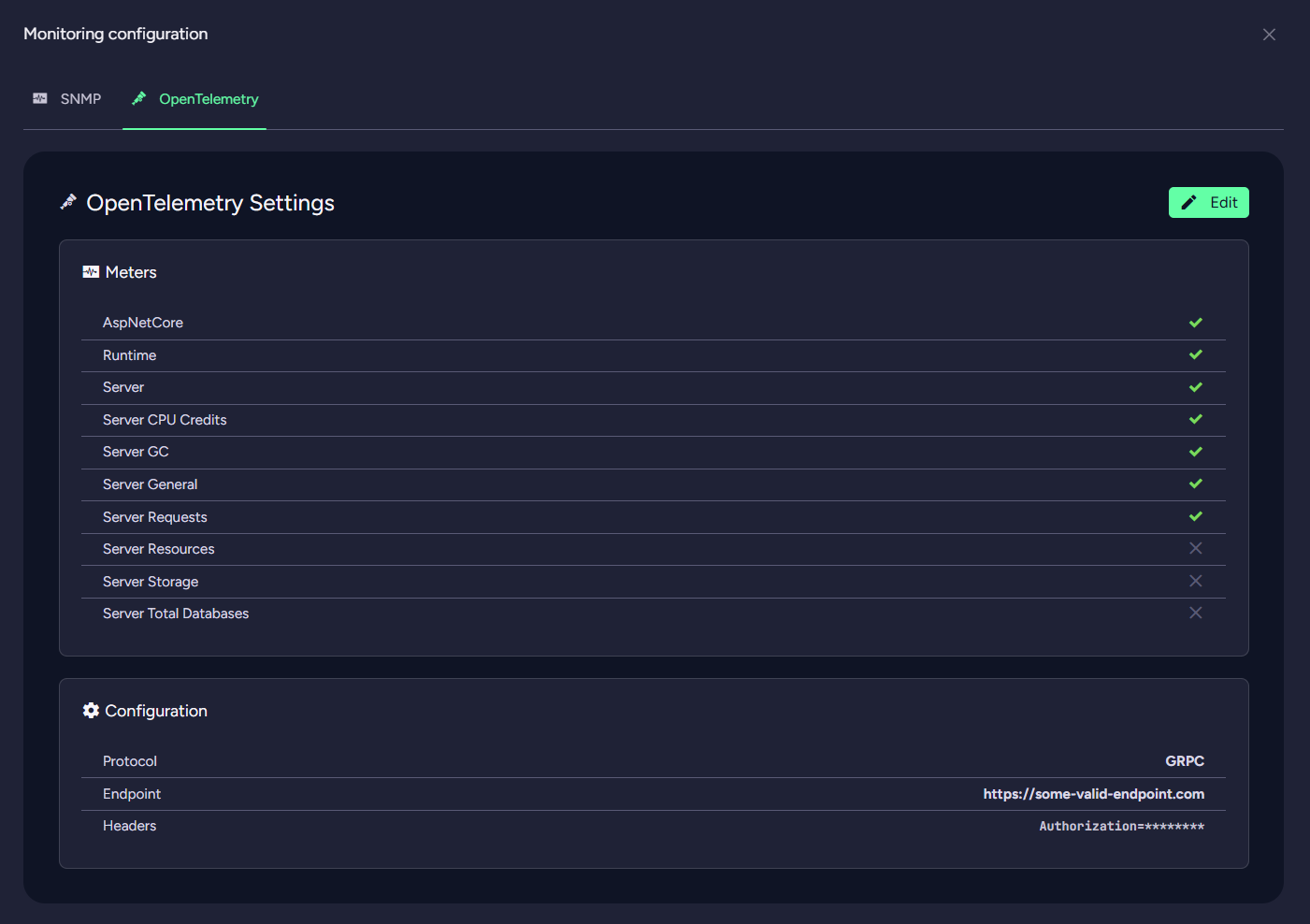
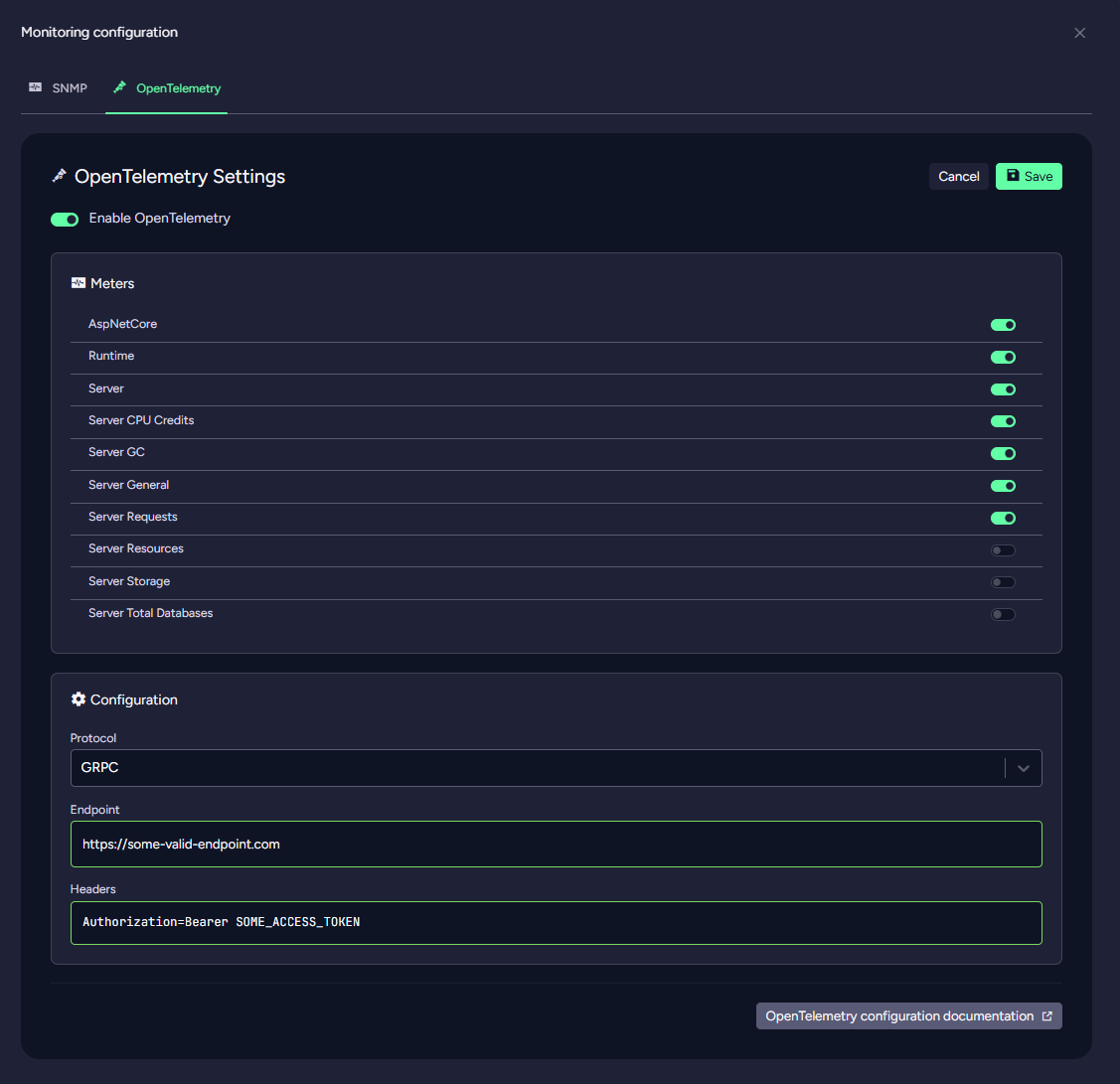
OpenTelemetry Configuration Tab:
-
Select which Meters should be collected.
-
Specify where these Meters should be sent.
-
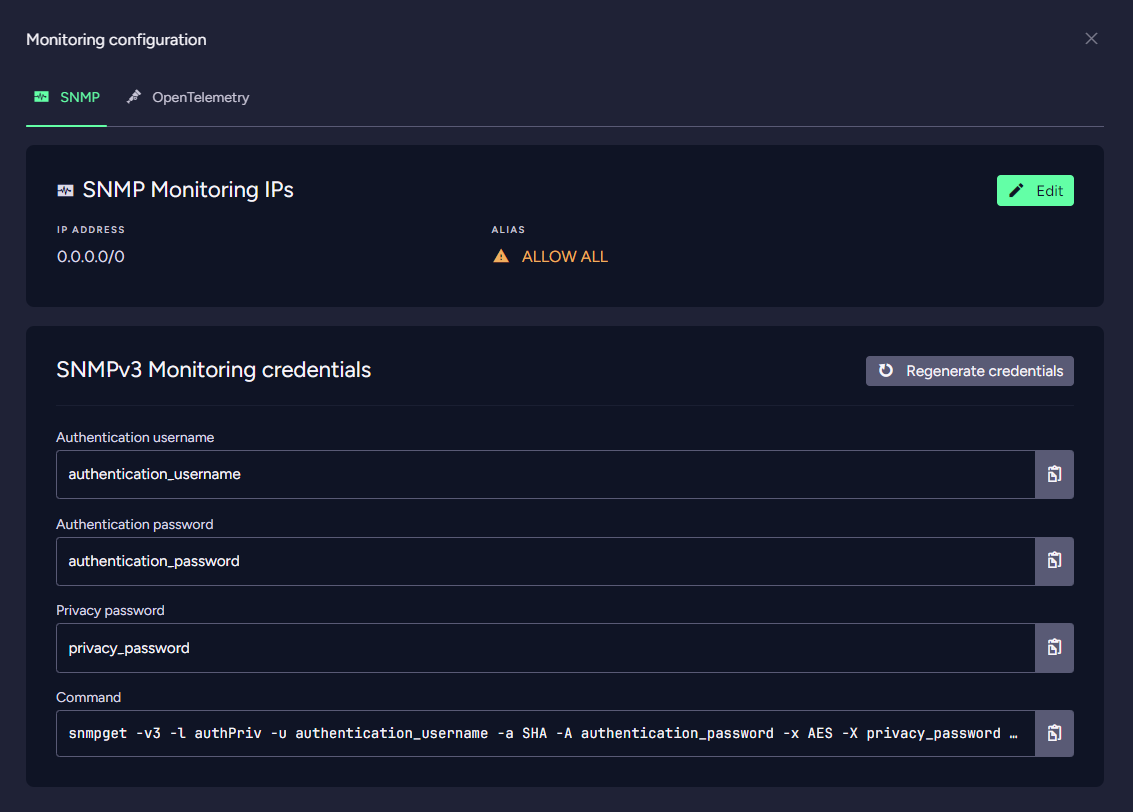
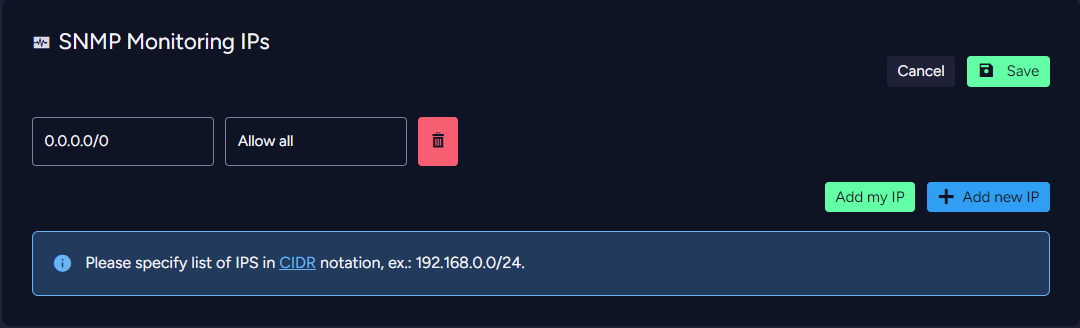
SNMP Monitoring IPs
Your product will be restarted automatically (node by node) to apply settings needed for feature to work properly.
This section allows you to specify IPs that will have access to your product using the SNMP protocol.
SNMPv3 Monitoring credentials
SNMPv3 is the most secure version of SNMP, providing enhanced security features over its predecessors. When setting up SNMPv3 monitoring for your RavenDB Cloud instances, you need to configure specific credentials that ensure secure communication between the SNMP agent on your end and the RavenDB.
Credentials required to connect to RavenDB Monitoring Endpoints are provided in this section. We also provide sample command you can use to test connection.
SNMP Monitoring IPs entries are CIDR ranges that define networks from which the connection is allowed.
OpenTelemetry Configuration
Your product will be restarted automatically (node by node) to apply settings needed for feature to work properly.
This section allows you to select meters and specify where these should be sent using the OpenTelemetry protocol.
You can read step by step OpenTelemetry & Grafana configuration here.
Autoscaling
RavenDB Cloud can resize your instance automatically, within a range you choose, so it follows your actual workload instead of being fixed to the size you provisioned.
Scaling is driven by three sustained signals, each watched independently:
- Load average — how busy the node's CPUs are.
- Available memory — how much memory is left for processing.
- IO wait — how much time the node spends waiting on disk.
Each signal has a low and a high limit, and each limit has its own duration. A limit must be breached for the whole of its duration before it counts, and a grace period then applies before the resize itself, so a brief spike never moves your instance.
Autoscaling range
Lowest type and Highest type bound the resizing. Autoscaling never moves your instance below the lowest or above the highest type, and both bounds are inclusive.
Configuration
Click the Configure button in the Autoscaling feature row to open the Autoscaling Configuration view, which is split into upscaling and downscaling parameters.
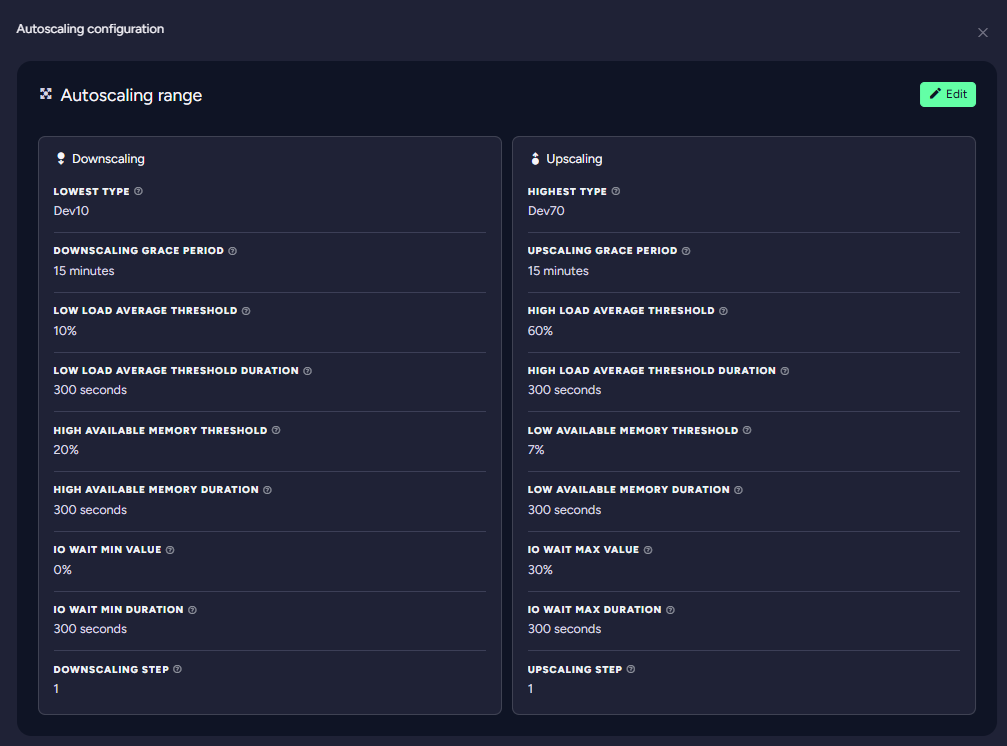
Upscaling parameters
| Parameter | Range | Description |
|---|---|---|
| Upscaling grace period | 3–60 min | The delay before upscaling begins after a high resource threshold is exceeded, so short spikes do not trigger a resize. |
| High load average threshold | 50–90% | The average load percentage, over the high load average threshold duration, that triggers upscaling. |
| High load average threshold duration | 180–600 sec | How long the average load must stay above the threshold before upscaling is triggered. |
| Low available memory threshold | 1–15% | The available memory percentage below which upscaling is triggered. |
| Low available memory duration | 180–600 sec | How long available memory must stay below the threshold before upscaling is triggered. |
| IO wait max value | 25–95% | The IO wait percentage above which upscaling is triggered. |
| IO wait max duration | 180–600 sec | How long IO wait must stay above the maximum before upscaling is triggered. |
| Upscaling step | 1–3 | How many instance sizes to move in one go. With a step of 2, a Dev10 scales up to Dev30. |
Downscaling parameters
| Parameter | Range | Description |
|---|---|---|
| Downscaling grace period | 3–60 min | The delay before downscaling begins after a low resource threshold is reached. |
| Low load average threshold | 1–35% | The average load percentage, over the low load average threshold duration, that triggers downscaling. |
| Low load average threshold duration | 180–600 sec | How long the average load must stay below the threshold before downscaling is triggered. |
| High available memory threshold | 20–90% | The available memory percentage above which downscaling is allowed. |
| High available memory duration | 180–600 sec | How long available memory must stay above the threshold before downscaling is triggered. |
| IO wait min value | 0–15% | The IO wait percentage below which the node is considered idle enough to allow downscaling. |
| IO wait min duration | 180–600 sec | How long IO wait must stay below the minimum before downscaling is triggered. |
| Downscaling step | 1–3 | How many instance sizes to move in one go. With a step of 2, a Dev30 scales down to Dev10. |
Load average and IO wait follow utilisation, so their low limits belong to downscaling and their high limits to upscaling. Available memory runs the other way — it is what's left, not what's used — so it is the low available memory limit that triggers upscaling and the high one that permits downscaling.
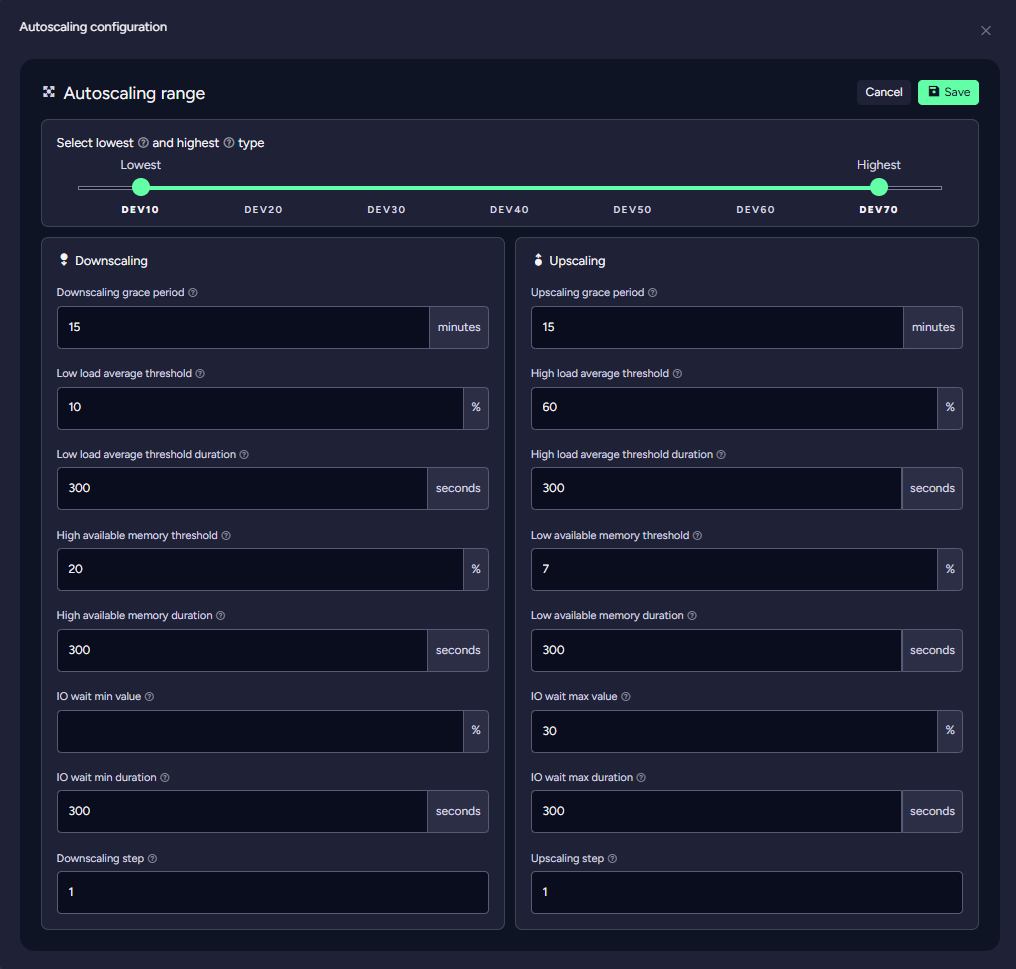
You can edit the Autoscaling parameters by clicking the Edit button.
Serverless Autoscaling
Serverless products autoscale on the same three signals, using the same defaults, but the feature is presented separately as Serverless Autoscaling and behaves differently in two ways:
- It is always enabled. You cannot turn it off yourself — a Serverless product that did not resize itself would not be serverless. Contact support if you need it disabled.
- Its configuration exposes only the instance range — the lowest and highest type, set with a slider. The thresholds and grace periods above are managed for you and are not editable.
To leave Serverless autoscaling behind entirely, switch the product to a regular deployment — see Switching to Regular Deployment.
AI Embeddings, GenAI & AI Agent
RavenDB Cloud provides an integrated solution that combines high-performance NoSQL capabilities with advanced vector indexing and querying features, enabling efficient storage and management of high-dimensional vector data.
RavenDB can now be combined with generative AI using LLM of your choice.
Usage of this feature is described here.
AI Embeddings is available only for RavenDB 7.0 and newer.
Gen AI & AI Agent are available only for RavenDB 7.1 and newer.
Snowflake ETL
Seamlessly integrate RavenDB Cloud with Snowflake using an ongoing ETL task. Automatically export data from RavenDB collections to your Snowflake data warehouse in near real-time. Define transformation scripts to shape the data before export, ensuring compatibility and efficiency for your analytics workflows. Ideal for building robust pipelines for business intelligence, reporting, and data science.
Usage of this feature is described here.
Automatic Storage Extension
RavenDB Cloud can extend your instance's disk automatically once disk usage passes a threshold you set, so a growing dataset does not run the product out of space while you are not watching.
The feature is enabled by default with a threshold of 90%, and the feature itself is free of charge — you are billed only for the larger disk it provisions, at the normal storage rate.
Automatic Storage Extension is offered on Development and Production tier products, except for Dev10 and PN-type instances. It is not offered on the Free tier.
Products that are not eligible have no Automatic Storage Extension row in the Additional Features table.
How it works
Each node reports its disk usage to RavenDB Cloud. Once usage exceeds the configured threshold, the disk is extended to the next larger size available for the current instance type — not to the size that would merely clear the threshold — and the product briefly enters Deploying changes while the volume is resized.
You are notified by email when this happens. The message states the previous size, the new size, and the maximum size your instance type allows, which is the point at which extension stops and an instance type upgrade becomes necessary.
On Azure Premium disks, disk performance follows disk size. When the new size belongs to a higher performance tier, the extension raises IOPS and throughput to that tier as well. Standard disks keep their fixed performance.
Configuration
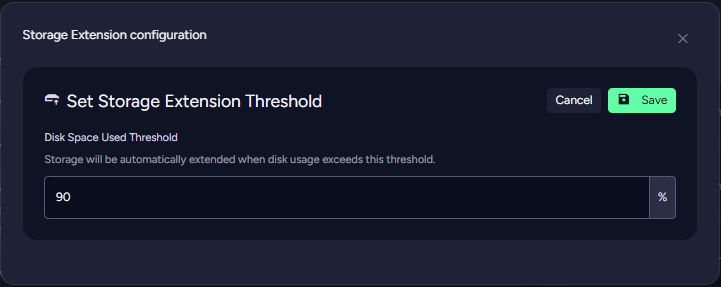
Click the Configure button in the Automatic Storage Extension feature row to open the Storage Extension configuration dialog, then click Edit to change the single setting it holds:
Disk Space Used Threshold — the percentage of disk usage above which the storage is extended. It accepts a value between 70 and 95, and defaults to 90.
- The product must be Active.
- The threshold cannot be changed on yearly contracts — only on On-Demand products.
- The feature itself must be enabled, which requires the Manager (or Admin) preset.
Where a condition is not met the Edit button is disabled and the reason is shown in its tooltip.
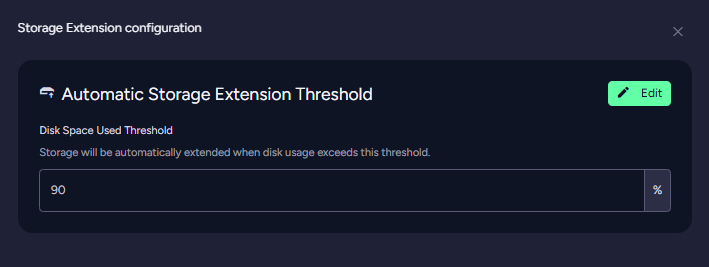
You can edit the threshold by clicking the Edit button.
Enabling and disabling
The Automatic Storage Extension row carries a Disable button while the feature is active, and an Enable button once it is off. Both require the product to be Active and the Manager (or Admin) preset; otherwise the button is disabled and its tooltip gives the reason.
While the feature is off, the disk is never extended automatically — no matter how full it gets — and the Configure button disappears with it.
When storage is not extended
Some products cannot be extended even with the feature on. In those cases nothing is resized and you receive an email instead, so the condition does not pass unnoticed:
| Condition | What happens |
|---|---|
| The instance type's maximum disk size is reached | No larger size is available. The email names your instance type and its limit; extension resumes only after you upgrade the instance type. |
| The cloud provider's root-disk limit is reached | Products whose data lives on the OS disk cannot grow past 1,000 GB on AWS and GCP, or 1,024 GB on Azure. Migrate the storage to a Data Disk to grow beyond that. |
| The product is on a yearly contract | Storage cannot be changed under a yearly contract. Contact support for a tailored solution. |
| The product is on the Free tier | Free tier storage is fixed. Reduce the stored data or move to a paid tier. |
At most one such email is sent per product per 24 hours, so a product sitting above its threshold does not produce a stream of identical messages.
Storage changes — automatic and manual alike — are rate limited per product: at least 6 hours must pass between two changes on AWS, and 12 hours on Azure Premium disks. An automatic extension that falls inside that window is skipped and retried later, so a disk filling up quickly may cross its threshold well before it grows.