Cloud: Backup And Restore
-
RavenDB cloud instances of the Free and Production tiers are regularly and automatically backed up.
-
You can also define custom backup tasks, as you would with an on-premises RavenDB server.
-
Development products do not offer mandatory backup by RavenDB Cloud.
You can define custom backup tasks for them. -
In this page:
The Mandatory-Backup Routine
Each database you create using a RavenDB cloud product, is assigned a mandatory-backup task that stores a full backup every 24 hours and an incremental backup every 1 hour with all the changes that took place since the last backup.
The mandatory backup process cannot be disabled.
We keep your backup files for no less than 14 days.
You can contact support to prolong this period, but not reduce it.
The Backup Task
The mandatory backup is a Server-Wide Backup task, so it covers every database on the product rather than being defined per database.
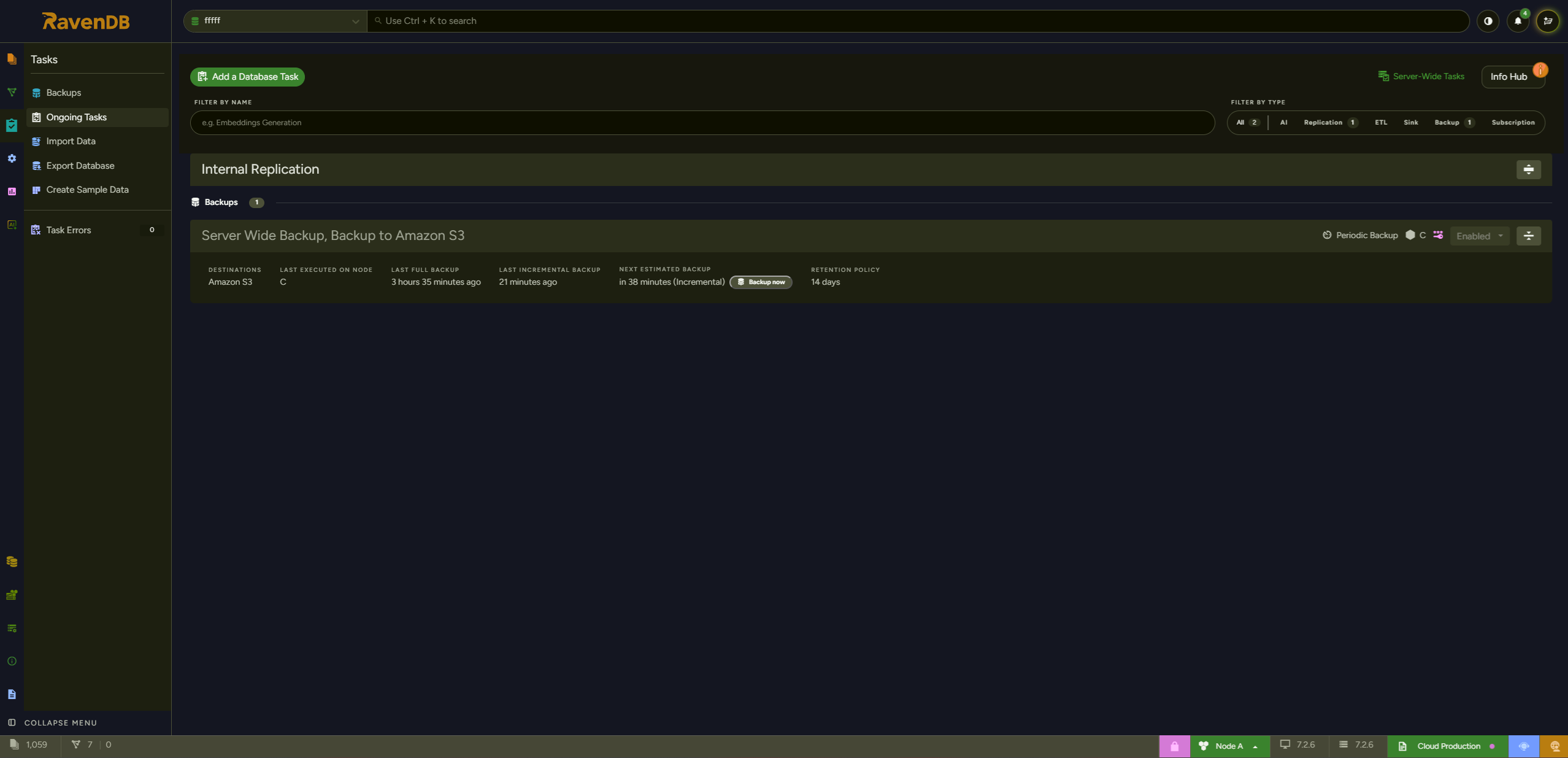
To view it, open your product's RavenDB Studio and -
- Choose any database on the product
- Open the Ongoing Tasks view
- Click the Server Wide Backup task.
Tier Requirements and Failure Disclaimer
Backups in RavenDB Cloud run on the instance itself, using the product's own compute, memory, and disk resources. Your selected tier must be sufficient to handle a full backup of every database hosted on that product.
Key constraints to keep in mind:
- The instance needs enough free disk space to stage the backup.
- The backup process places additional I/O and memory pressure on the instance on top of existing workloads during its run.
- On undersized tiers the backup job may time out, be terminated due to memory exhaustion, or fail mid-run — leaving you without a usable recovery point.
Example: A product running on a PS10 (entry-level Performance tier) that hosts a 500 GB database will reliably fail to complete backups. The instance does not have enough resources — disk IOPS, memory, or both — to snapshot a database of that size. Customers in this situation must upgrade to a higher tier before backups can succeed.
RavenDB is not liable for backup failures caused by a product tier that is insufficient for the size of the databases it hosts. It is the customer's responsibility to ensure the selected tier can sustain backup operations given their data volume.
Monitor backup health via the RavenDB Studio notification center and the available monitoring facilities (SNMP, OpenTelemetry, and others). If backups stop completing on small tiers, the most common cause is the instance running out of resources during the backup run. Upgrade your product tier to resolve the issue.
See Tiers and Instances for a full comparison of available tiers and their resource allocations.
Backup storage
Mandatory-Backup Storage
Backups created by the mandatory backup routine are stored in a RavenDB
cloud you have no direct access to.
You can view and restore them using your portal's Backups tab and the
management Studio.
A backup created for data hosted by a server in Europe or the US will be kept within the same geographical region, i.e. backups made for a database hosted in Europe are kept in Europe and backups made for a database hosted in the US are kept in the US.
Upon backup geographically closest AWS S3 bucket is used for backup storage e.g. :
-
if your RavenDB Cloud cluster has been created in Europe, it backs up to AWS S3 buckets in Europe.
-
if your RavenDB Cloud cluster has been created in the US, it backs up to AWS S3 buckets in the US.
Custom-Backup Storage
Custom-backup files can be kept using an Amazon service
(S3 or S3 Glacier) or a Microsoft service (Azure).
We recommend that you use a backup method local to your host cloud. If your product is hosted by Amazon AWS for example,
you can store your backup files on an Amazon S3 bucket.
All mandatory-backup files are compressed and encrypted. This is the case whether the backed-up database is encrypted or not.
If you define custom-backup tasks, you are responsible for their security. RavenDB offers backup encryption for custom backup as well, and we recommend that you use this option.
Charging For Backup storage
Mandatory-Backup charge
Mandatory-backup files are kept in RavenDB's own cloud.
We give backup storage of up to 1 GB per product per month for free.
Your backup storage usage is measured once a day, and you'll be charged each month based on your average daily usage.
Free-tier users that overuse backup storage may trim their database to fit the limitation, pay for the extra storage, or stop the product.
Custom-Backup charge
Your custom backups are kept in a storage location of your choosing, and charges for it are unrelated to RavenDB Cloud.
Make sure, however, that you're aware of all possible expenses related to your backups, including -
- Any external storage service you may be charged for (e.g. an S3 bucket)
- File transfer costs you may be charged for (especially if you are backing up outside the region / cloud you are using).
Backup Encryption
Your mandatory backup files are encrypted.
-
If your database is encrypted:
Your own database encryption key will be used to encrypt the backup as well.Be aware that RavenDB Cloud does NOT keep or manage your own database encryption keys.
If you lose a database encryption key we will NOT be able to help you decrypt the database itself nor its backup files.
KEEP YOUR ENCRYPTION KEYS SAFE! -
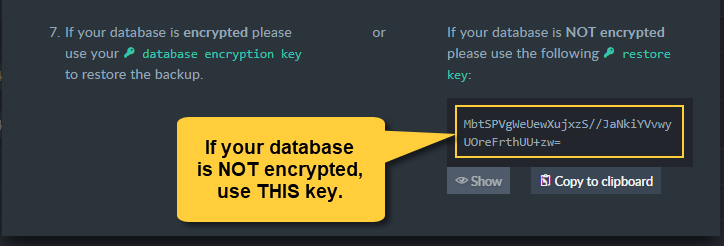
If your database is not encrypted:
We will encrypt its backup files using an encryption key that we manage and is unique to your account.
Creating a Custom Backup
You can create your own ongoing backup tasks
on your RavenDB cloud instance, as you would off-cloud.
Use your cloud instance's management Studio to create a new task.
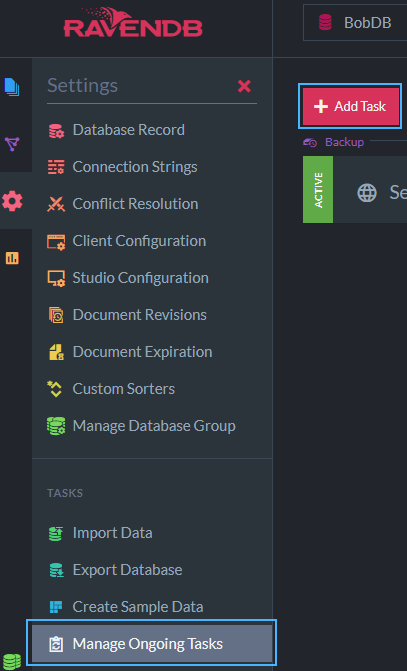
Add a Backup task
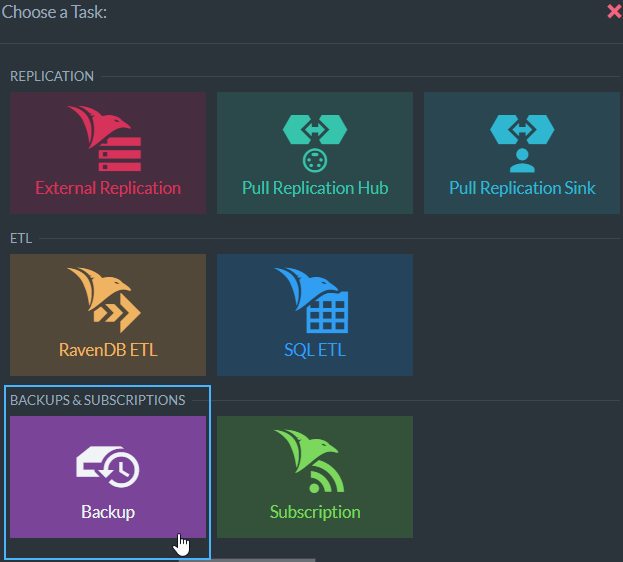
You can store custom-backup files on an unrelated cloud service like an S3 bucket, a Glacier vault, or an Azure platform.
Activate and configure your unrelated cloud storage service, e.g. the bucket in which your backup files would be kept.
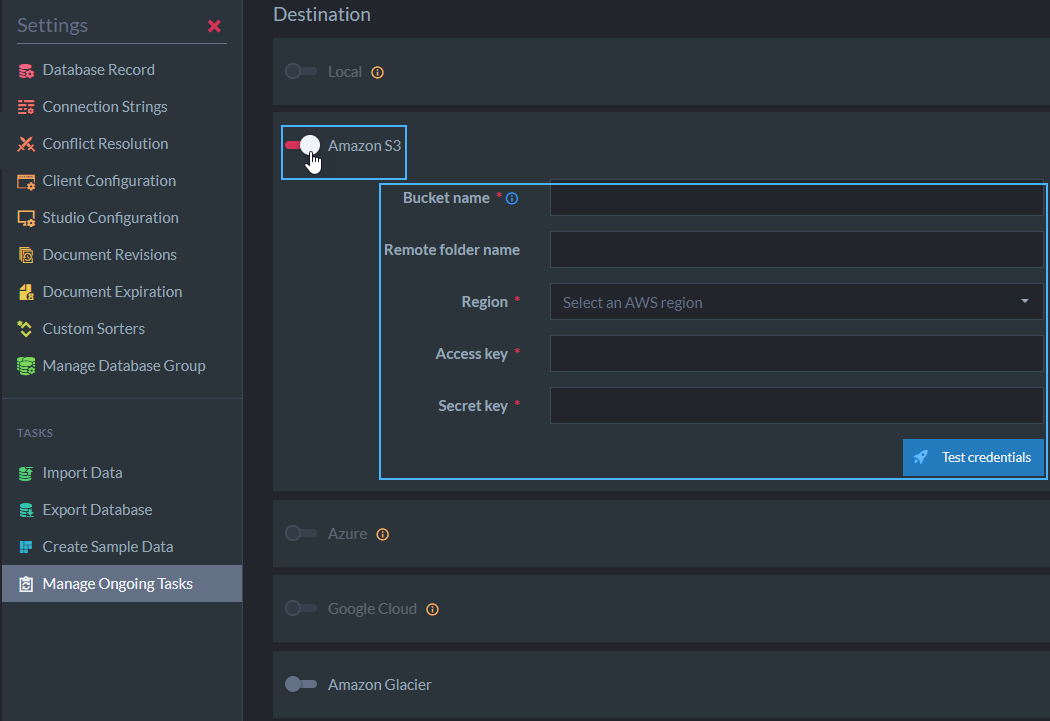
Restore Mandatory-Backup Files
View The mandatory Backups List
Backup files that have already been created, are listed in the backups tab.
- Open your portal's Backups tab, and choose the product whose database you want to restore.
Its backups will be shown, listed by the databases they've been created for. - Click "Generate Restore Link" for the database you want to restore.
The backup link window will open.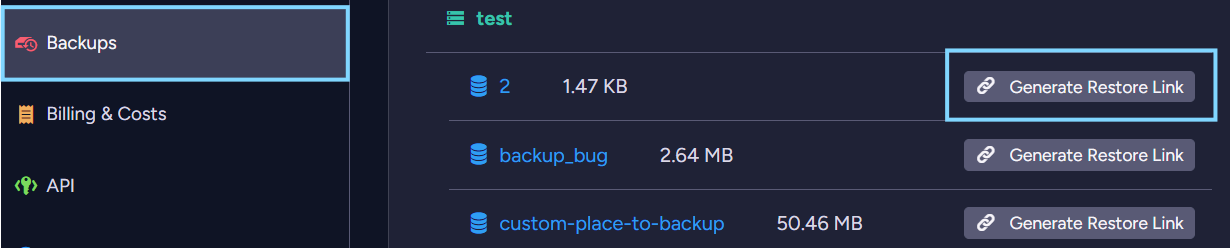
Restore the Database
Clicking the Generate Restore Link button will show you a simple procedure. Follow it to restore your database.
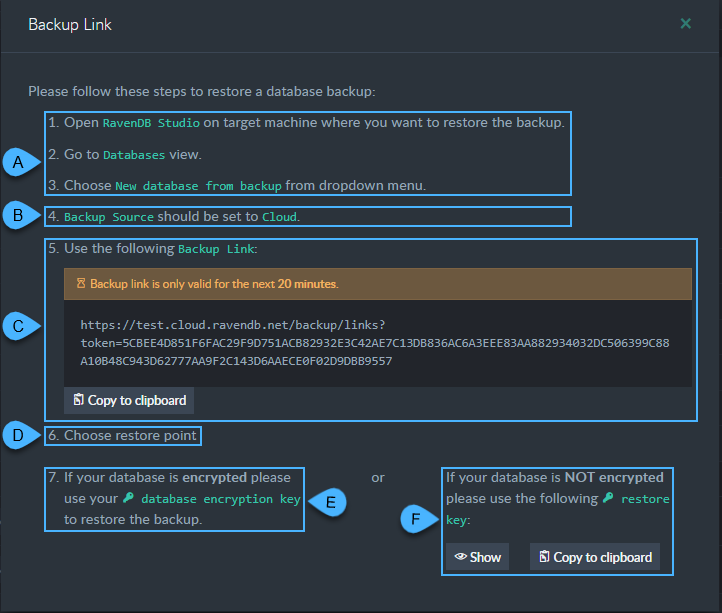
- A. Create a New Database From Backup
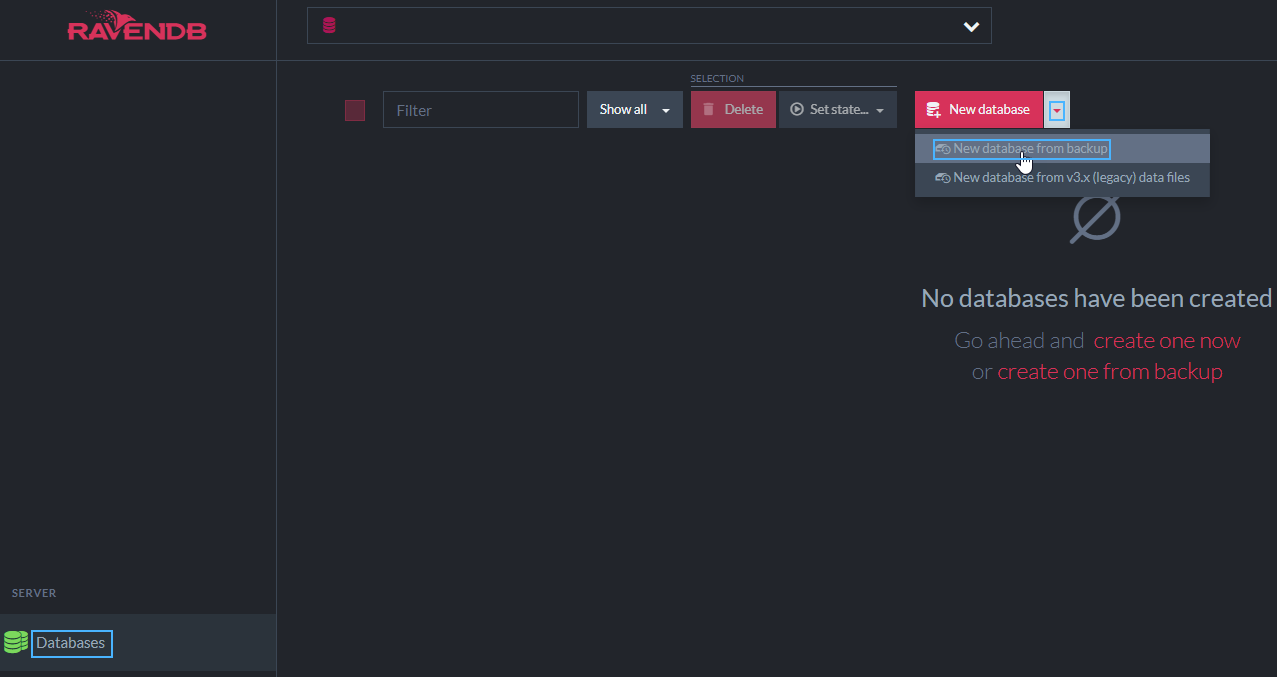
- B. Choose Cloud as your Source
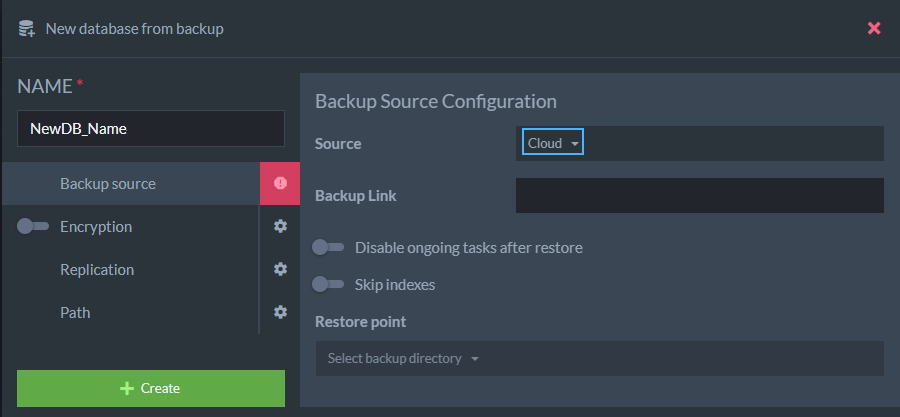
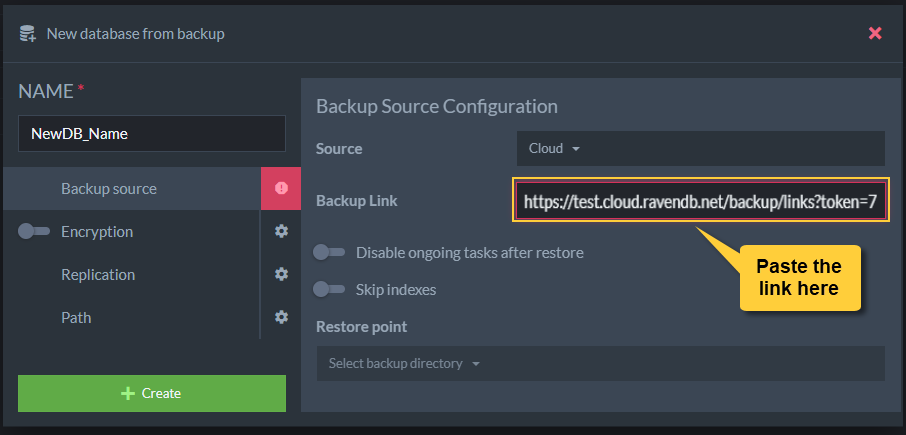
- C. Copy the Backup Link you've been given in the Backups Tab, to the Backup Link box here.
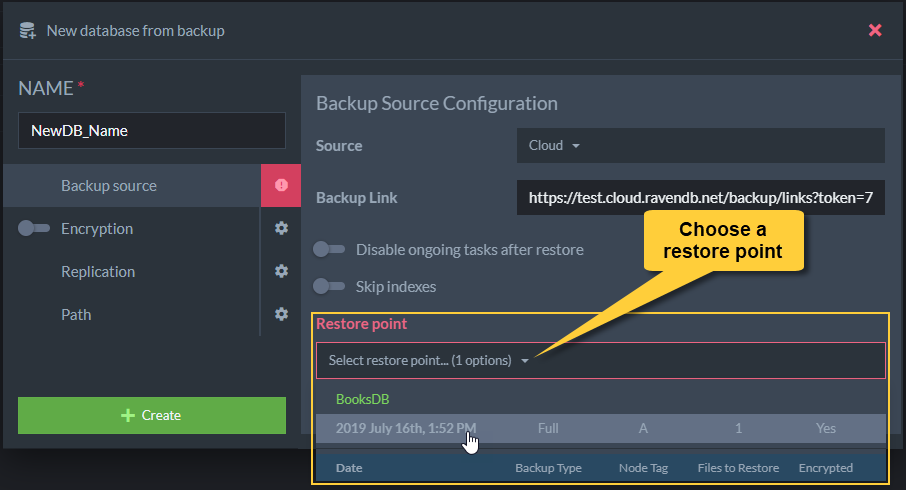
- D. Choose a Restore Point
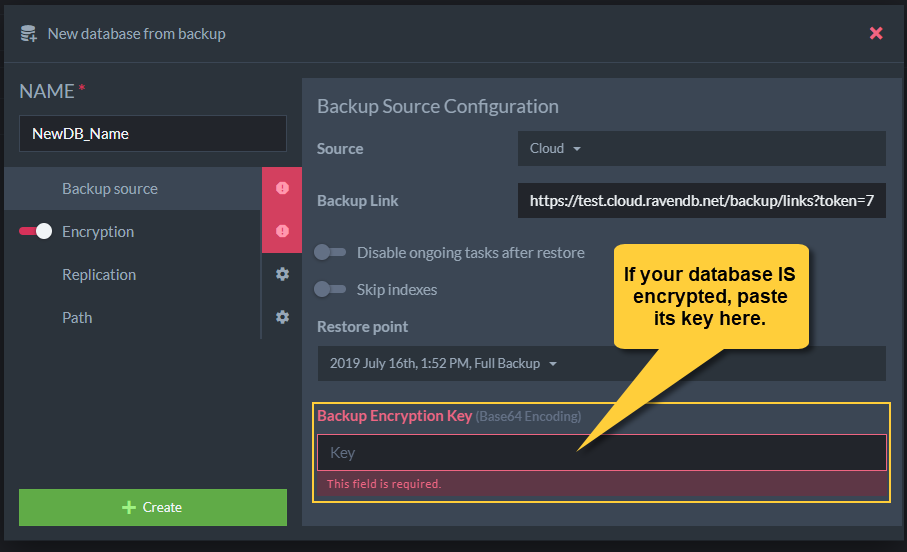
- E. Encryption Key for an Encrypted Database
If your original database is encrypted, its backup has been encrypted with the same key. Find it and paste it here.
- F. Encryption Key for an Unencrypted Database
If your original database is not encrypted, we used your account-wide encryption key to encrypt your backup file.
Copy it from the right Backups Tab box.