Kafka ETL Task
-
RavenDB ETL tasks for Apache Kafka:
- Extract selected data from RavenDB documents.
- Transform the data to new JSON objects and add the new objects to CloudEvents messages.
- Load the messages to topics of a Kafka broker.
-
Messages enqueued in Kafka topics are added at the queue's tail.
When the messages reach the queue's head, Kafka clients can access and consume them. -
Kafka ETL tasks transfer documents only.
Document extensions like attachments, counters, or time series are not transferred. -
This page explains how to create a Kafka ETL task using Studio.
Learn here how to define a Kafka ETL task using code. -
In this article:
Setup workflow
-
If your Kafka cluster does not use ACLs (Access Control Lists):
Create, test, and run the task as described in Creating a Kafka ETL task below. -
If your Kafka cluster does use ACLs:
- Create and save the task as described in Creating a Kafka ETL task below. Do not test or run it yet.
- Follow the steps in Prerequisites for a secure Kafka server below.
- Test and run the task.
Creating a Kafka ETL task
Open Kafka ETL Task View
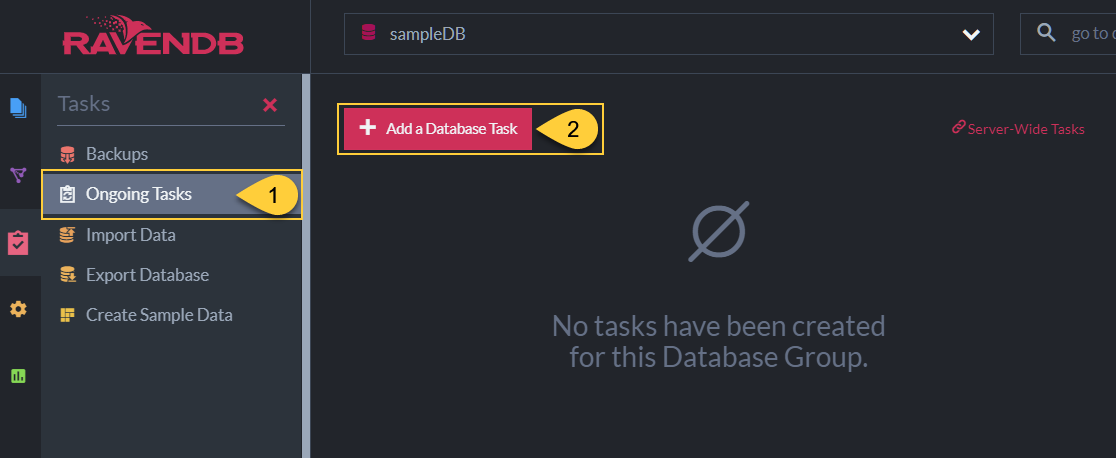
- Ongoing Tasks
Click to open the ongoing tasks view. - Add a Database Task
Click to create a new ongoing task.
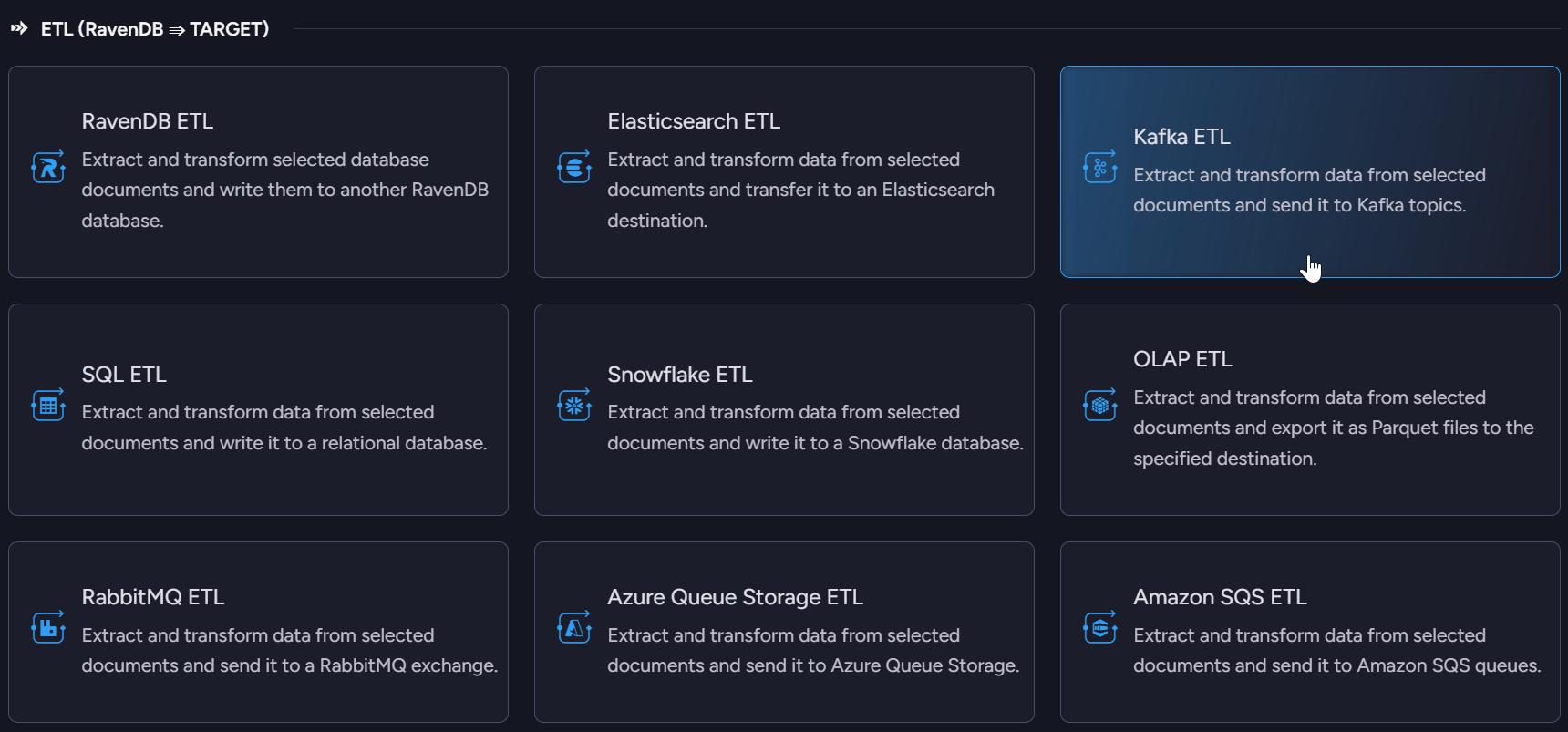
- Kafka ETL
Click to define a Kafka ETL task.
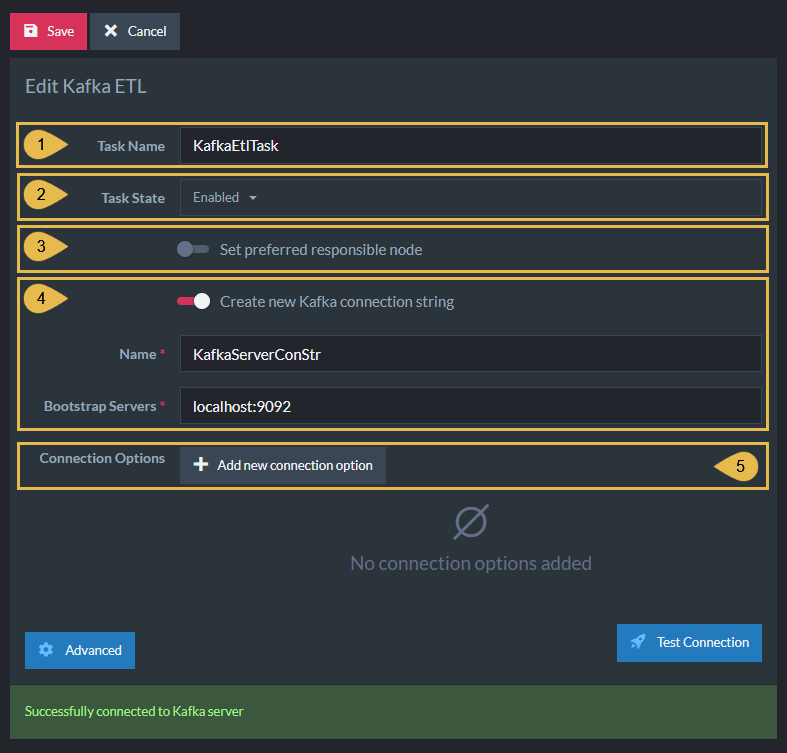
Define Kafka ETL Task
-
Task Name (Optional)
- Enter a name for your task.
- If no name is provided, the server will create a name based on the defined connection string,
e.g. Queue ETL to conStr.
-
Task State
Select the task state:
Enabled - The task runs in the background, transforming and sending documents as defined in this view.
Disabled - No documents are transformed and sent. -
Responsible Node (Optional)
- Select a node from the Database Group to be responsible for this task.
- If no node is selected, the cluster will assign a responsible node (see Members Duties).
-
Create new Kafka connection String
- Select an existing connection string from the list or create a new one.
- The connection string defines the destination Kafka broker/s URL/s.
- Name - Enter a name for the connection string.
- Bootstrap Servers - Provide at least one target
URL:Portpair.
To push messages to more than one server, use this format:localhost:9092, localhost:9093.
-
Add new Connection Option
An optional Key/Value dictionary.
This option can be used, for example, to provide the additional fields required to connect a secure Kafka server.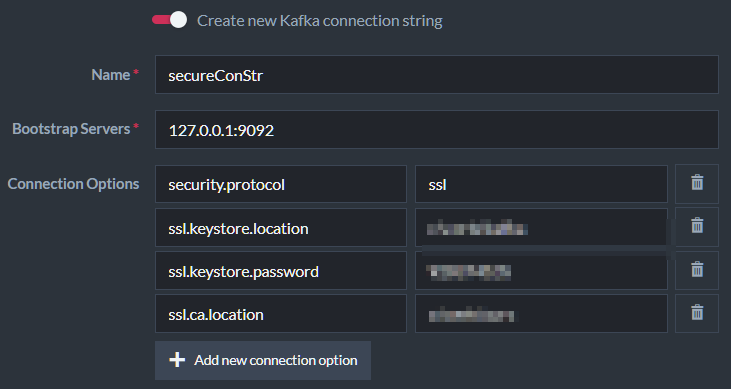
-
Test Connection
Click after defining the connection string, to test the connection to the Kafka topic.
Use RavenDB Certificate
If RavenDB has been set up securely, another option will show up: Use RavenDB Certificate.
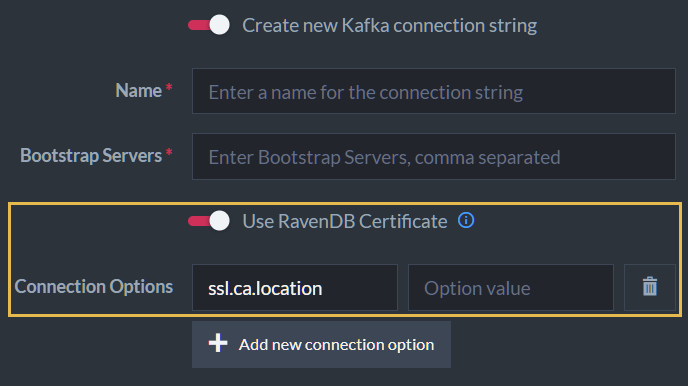
If enabled, the Kafka connection runs over SSL/TLS, and RavenDB authenticates with a client certificate derived from its cluster setup. The certificate is either the cluster server certificate itself (if it carries the client-auth EKU, the X.509 extension that permits acting as a TLS client) or a separate certificate that RavenDB issues from the server certificate's key pair.
Enabling Use RavenDB Certificate replaces the security options you would otherwise enter via Add new connection option.
A Kafka truststore is the broker's pool of certificates trusted for client TLS handshakes; a client certificate is accepted only if it chains back to an entry in the truststore.
To complete the setup, register RavenDB's cluster-wide certificate in Kafka's truststore on the target machine(s). The connection will fail until this registration is in place.
Options Per Topic
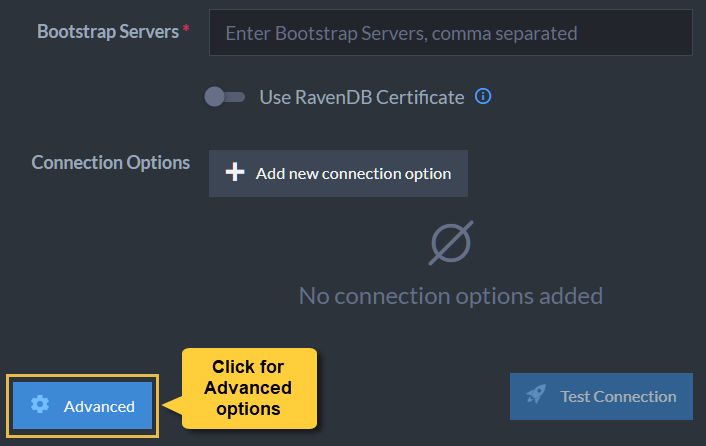
Clicking the Advanced button will display per-topic options.
In it, you'll find the option to delete documents from RavenDB while they were processed by the selected topic.
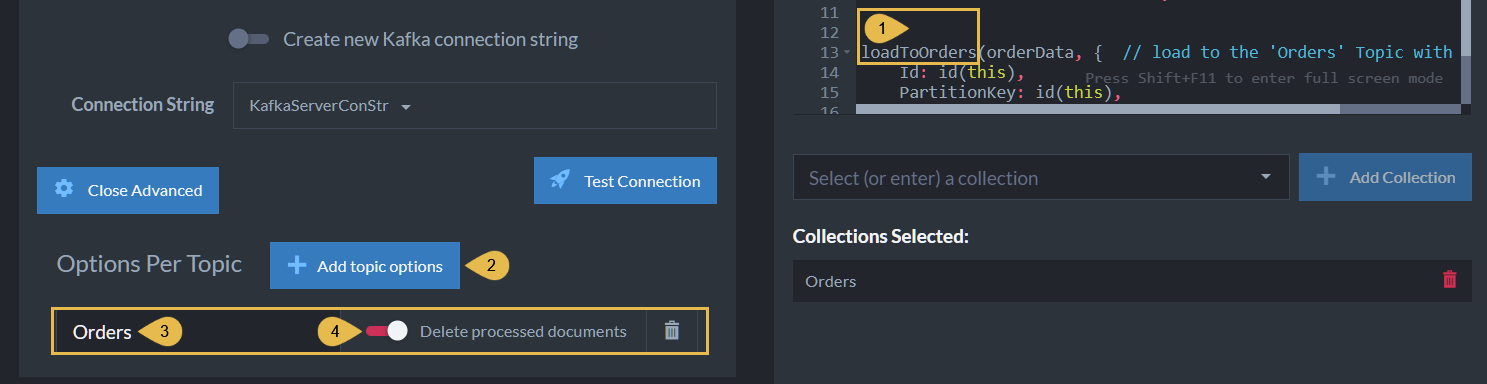
- The Topic
loadToOrdersis the script instruction to transfer documents to theOrderstopic. - Add Topic Options
Click to add a per-topic option. - Collection/Topic Name
This is the name of the Kafka topic to which the documents are pushed. - Delete Processed Documents
Enabling this option will remove from the RavenDB collection documents that were processed and pushed to the Kafka topic.Enabling this option will remove processed documents from the database.
The documents will be deleted after the messages are pushed.
Edit Transformation Script
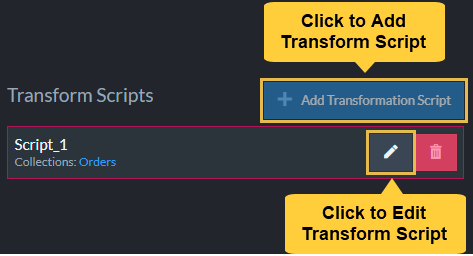
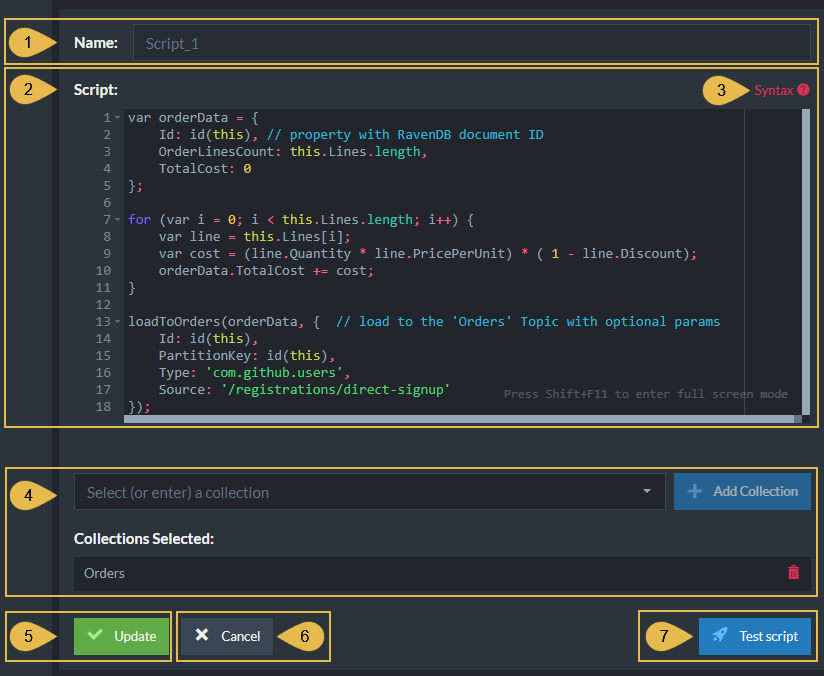
-
Script Name
Enter a name for the script (Optional).
A default name will be generated if no name is entered, e.g. Script_1. -
Script
Edit the transformation script.- Define a document object whose contents will be extracted from RavenDB documents and appended to Kafka topic/s.
E.g.,var orderDatain the above example. - Make sure that one of the properties of the document object is given the value
id(this).
This property will contain the RavenDB document ID. - Use the
loadTo<TopicName>method to pass the document object to the Kafka destination.
- Define a document object whose contents will be extracted from RavenDB documents and appended to Kafka topic/s.
-
Syntax
Click for a transformation script Syntax Sample. -
Collections
- Select (or enter) a collection
Type or select the names of the collections your script is using. - Collections Selected
A list of collections that were already selected.
- Select (or enter) a collection
-
Add/Update
Click to add a new script or update the task with changes made in an existing script. -
Cancel
Click to cancel your changes. -
Test Script
Click to test the transformation script.
Prerequisites for a secure Kafka server
What needs to be granted
When the Kafka cluster uses ACLs (Access Control Lists), two kinds of ACL grants must be set up on the cluster:
- WRITE on each target topic.
- WRITE and DESCRIBE on each RavenDB transformation script transactional ID.
The transactional ID is generated by RavenDB when the task is saved, see Reading the transactional IDs from Studio below.
For more on these grants and how the transactional ID is built, see Prerequisites for a secure Kafka server on the API page.
Reading the transactional IDs from Studio
-
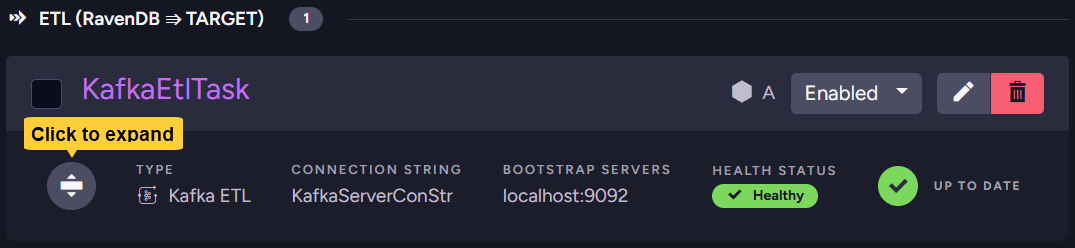
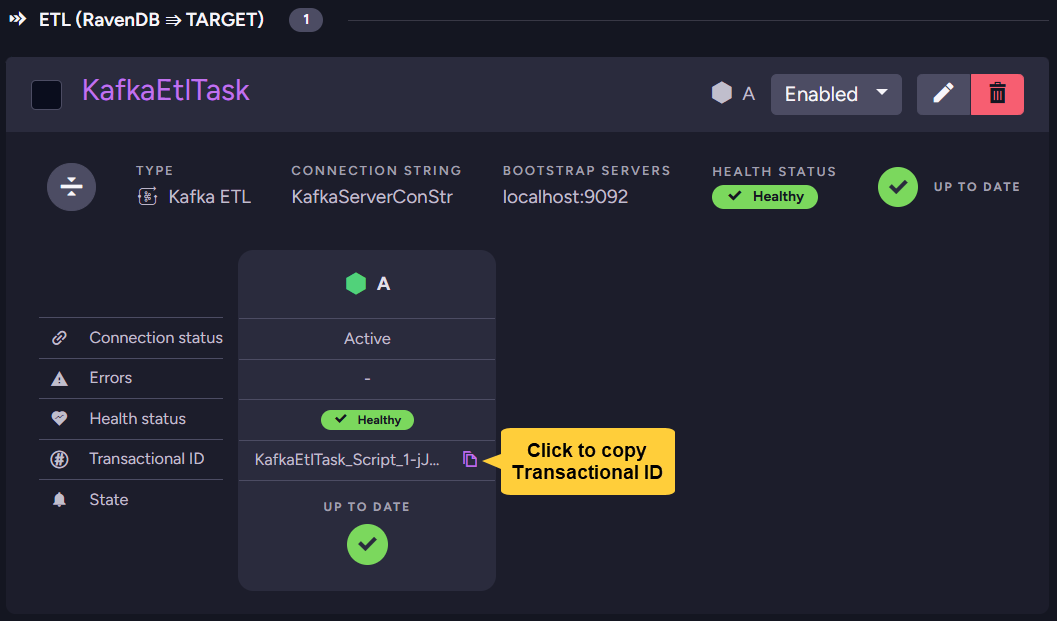
Saved tasks are listed in the Ongoing Tasks view; expand a task bar to find its scripts' transactional IDs.
-
Copy each transactional ID.
Entering the grants on the Kafka cluster
Configure the grants on the Kafka cluster using its admin tools.
The example below uses Apache Kafka's CLI; the same operations are available in vendor UIs like Confluent Cloud, AKHQ, or kafka-ui.
# Grant WRITE on a target topic
kafka-acls --bootstrap-server <broker> --add \
  --allow-principal User:<principal> \
  --operation Write --topic <topic-name>

# Grant WRITE and DESCRIBE on a transactional ID
kafka-acls --bootstrap-server <broker> --add \
  --allow-principal User:<principal> \
  --operation Write --operation Describe \
  --transactional-id <transactional-id-from-Studio>