Azure Service Bus Queue Sink Task
-
Azure Service Bus is Microsoft Azure's fully managed message broker.
The broker carries messages between applications (like microservices, or a web app and its background workers) through queues or topics with subscriptions. -
RavenDB can consume messages from Azure Service Bus by running an ongoing sink task.
The task reads JSON-formatted messages from a queue or a topic subscription, runs a user-defined script over each message, and stores the documents the script produces in RavenDB collections. -
This page explains how to create an Azure Service Bus sink task using Studio.
Learn more about RavenDB queue sinks here.
Learn how to define an Azure Service Bus sink task using the client API here. -
In this article:
Add a Database Task
To open the ongoing tasks view:
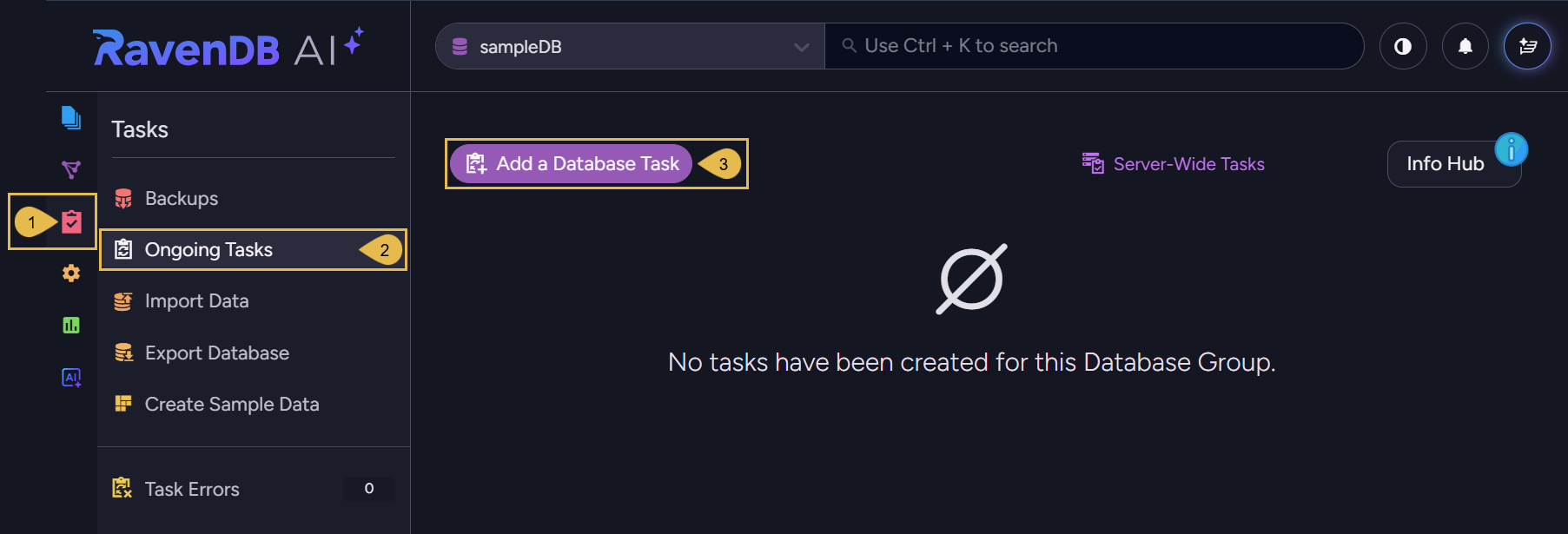
- Tasks
Click to open the Tasks menu. - Ongoing Tasks
Click to open the ongoing tasks view. - Add a Database Task
Click to create a new ongoing task.

- Click Azure Service Bus Sink to create the task.
Define an Azure Service Bus Sink Task
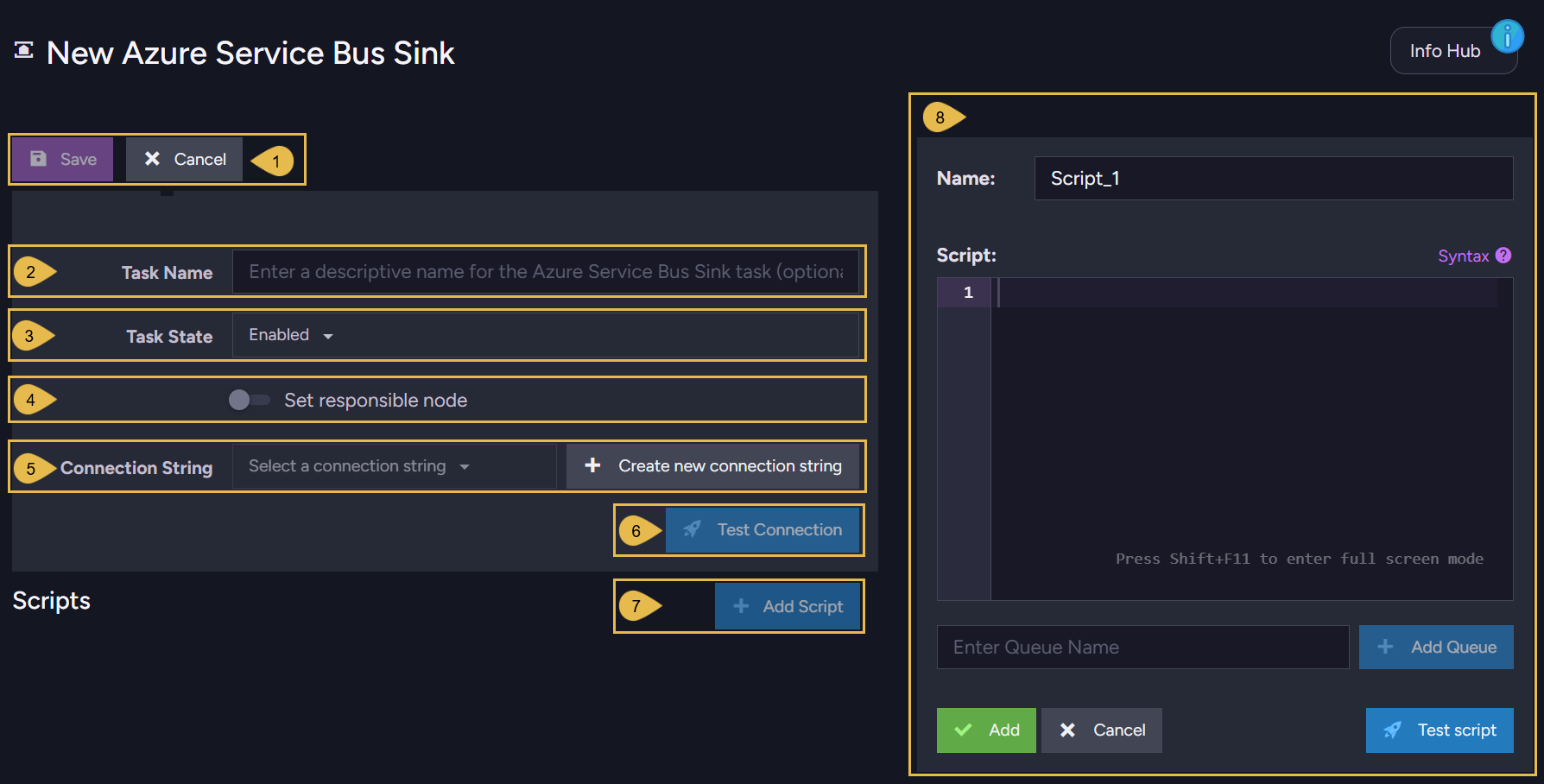
-
Save to store the configuration and exit. If the task is enabled it will start running.
Cancel to revoke the creation of a new task or the changes made to an existing task. -
Task Name (Optional)
- Enter a name for your task, e.g., Orders sink.
- If no name is provided, RavenDB will create a name based on the connection string,
e.g., Queue Sink to AzureServiceBusConStr.
-
Task State
Select the task state:
Enabled - The task runs in the background, reading messages, running the scripts, and storing documents as defined in this view.
Disabled - No messages are read or stored, and the task's scripts are inactive. -
Set responsible node (Optional)
- Select a node from the Database Group to be responsible for this task, e.g., node
A. - If no node is selected, the cluster will assign a responsible node (see Members Duties).
- Select a node from the Database Group to be responsible for this task, e.g., node
-
Connection String
The connection string holds the details RavenDB needs to reach your Azure Service Bus namespace.
Select an existing connection string from the list, or click Create new connection string to define a new one.
A new connection string requires a Name, e.g., AzureServiceBusConStr, and an Authentication method.
Learn about the three authentication methods below. -
Test Connection
After defining the connection string, click to test the connection to the Azure Service Bus namespace. -
Add Script
Click to add a script to the task and open the script editor.
Edit or delete an existing script from the list. -
Script editor
Define a script that turns the consumed messages into RavenDB documents, and the sources it reads from.- Name - Name the script, or leave it for the task to generate a name, e.g., Script_1.
- Syntax - Click for scripting assistance and sample scripts.
- Script - Write the script that processes each message, e.g.,
put(this.Id.toString(), this).
See Running user-defined scripts on the API page. - Enter Queue Name / Add Queue - Enter a source and click Add Queue to add it to the list.
A source is either a queue name, e.g.,orders, or a topic subscription written astopic;subscription, e.g.,orders-topic;ravendb-sub. - Add / Cancel - Add the script to the task, or update an existing one.
Cancel discards your changes. - Test script - Test the script against a sample message, without reading from Azure Service Bus or storing documents.
Authentication methods
An Azure Service Bus connection authenticates in one of three ways.
Select the method from the Authentication dropdown in the connection string dialog.
-
Connection String
A SAS (Shared Access Signature) connection string for the namespace, copied from the Azure portal.
It includes the namespace endpoint, a shared access key name, and the key itself.
e.g.,Endpoint=sb://<namespace>.servicebus.windows.net/;SharedAccessKeyName=<key-name>;SharedAccessKey=<key>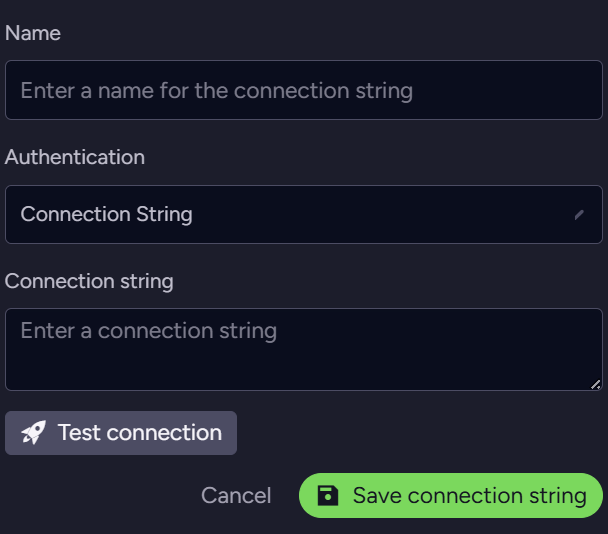
-
Entra ID
Authenticate with a Microsoft Entra ID application registration instead of a shared access key.
Provide the Service Bus Namespace, Tenant ID, Client ID, and Client Secret.
This keeps a shared key out of the configuration and allows granular control through Role-Based Access Control.
e.g., the Service Bus Namespacemynamespace.servicebus.windows.net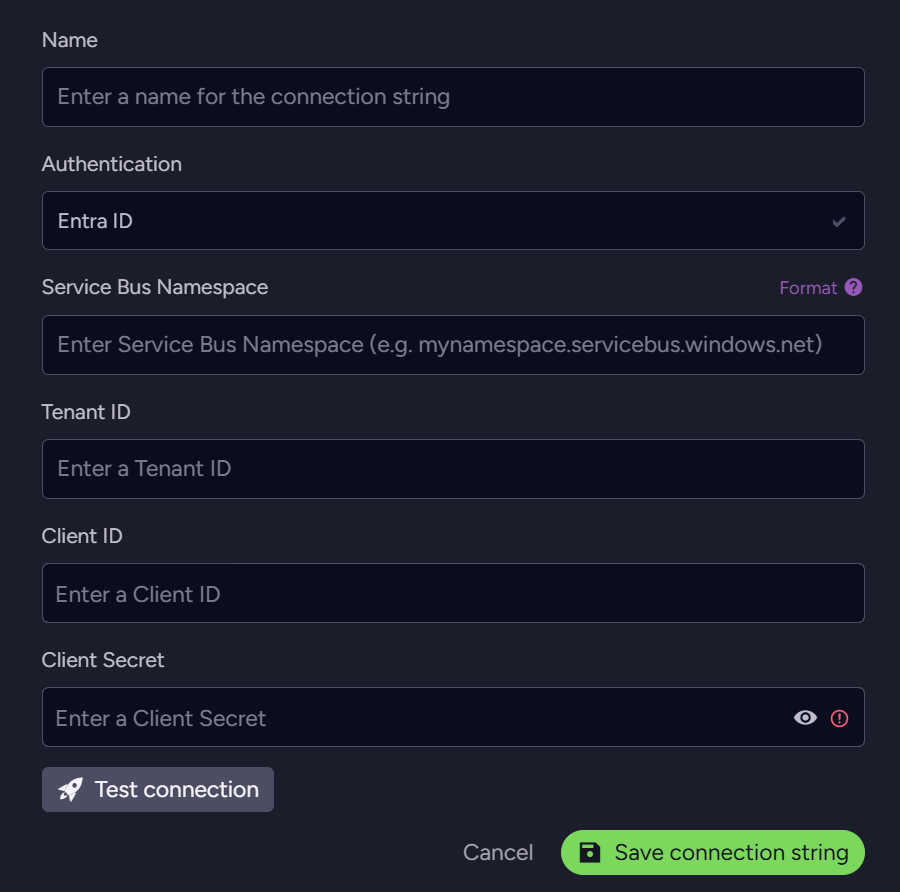
-
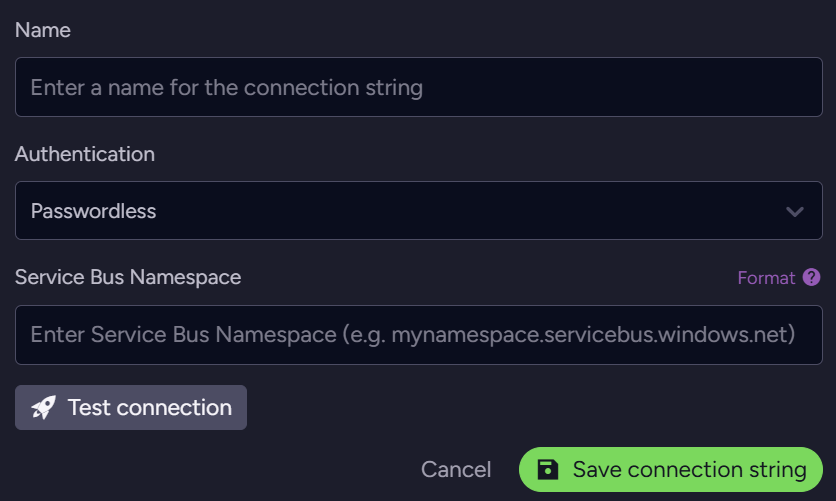
Passwordless
Authenticate with the managed identity of the machine hosting RavenDB, so no secret is stored in the configuration.
Provide only the Service Bus Namespace.
In Azure, grant this identity the Azure Service Bus Data Receiver role so it can read messages.
Assign the role on the whole namespace, or on the specific queue or topic the sink consumes from.
e.g., the Service Bus Namespacemynamespace.servicebus.windows.net