Import from Other Databases
-
You can import your existing NoSQL Databases to an empty RavenDB database.
-
Currently supported:
- MongoDB
- CosmosDB
-
You can import all collections, or select specific collections to import.
-
In this page:
Download Raven.Migrator Tool
To migrate data from your existing NoSQL database, you need to download an external tool called Raven.Migrator.
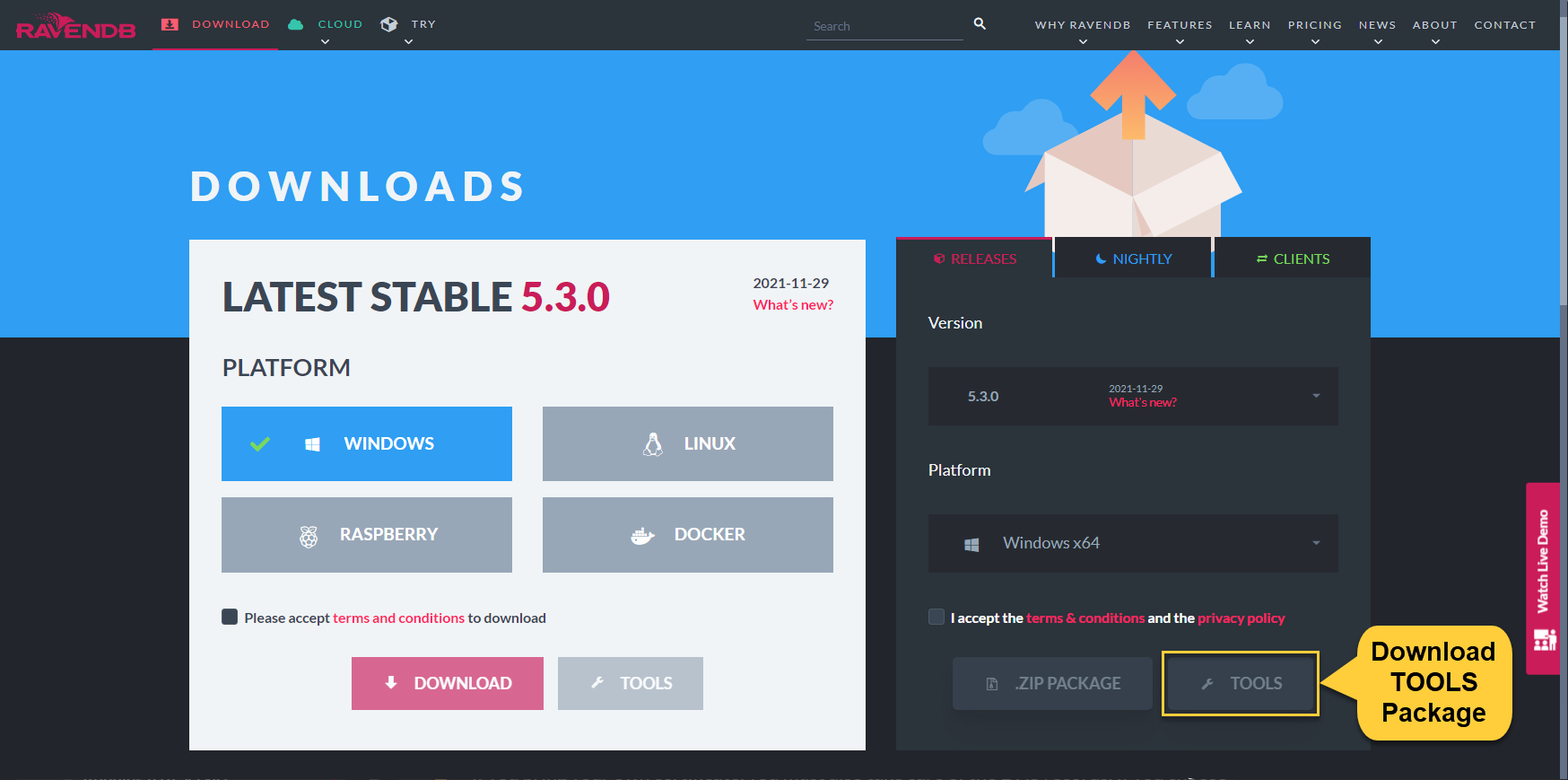
The application is available at ravendb.net/download, in the TOOLS package (see image below).
The Raven.Migrator tool can be found in the downloaded Tools folder.
Import from MongoDB
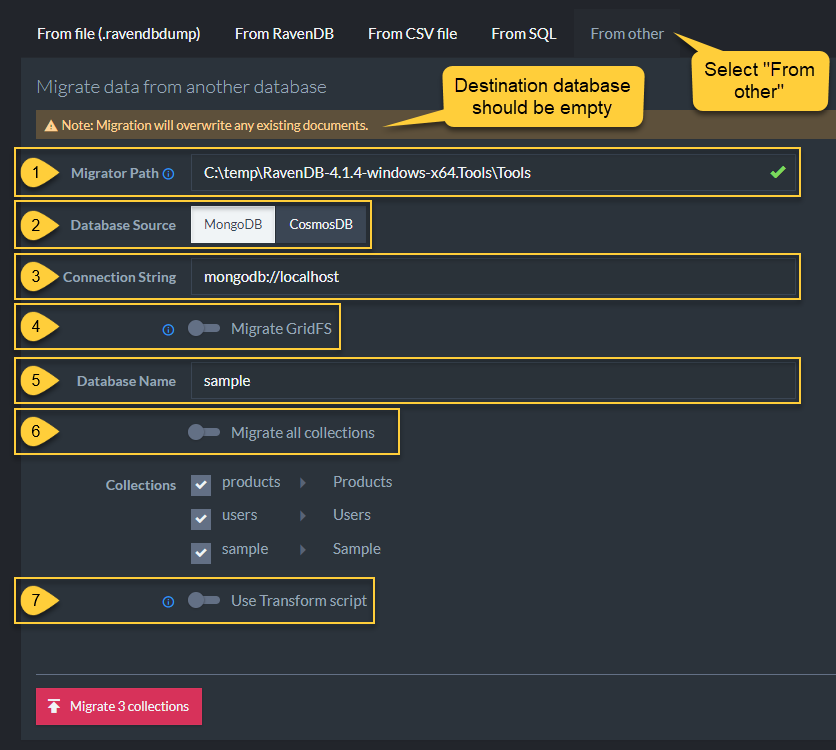
In the RavenDB Studio client on the left side, select Tasks -> Import Data.
-
Migrator Path
- Find
Raven.Migrator.exein the tools package. - Provide a path to
Raven.Migrator.exe's folder.
- Find
-
Database Source
- Select
MongoDB
- Select
-
Connection String
- Provide the connection string to your MongoDB instance.
-
Migrate GridFS
- Choosing this option will import GridFS attachments and save them as documents with attachments in the
@filescollection.
- Choosing this option will import GridFS attachments and save them as documents with attachments in the
-
Database Name
- Provide the name of the source database.
-
Migrate all collections
- You can either import all collections or select the collections you'd like to import.
- Optionally, you can rename the imported collections.
-
Use Transform script
- Use a JavaScript to filter / modify imported documents.
Import from CosmosDB
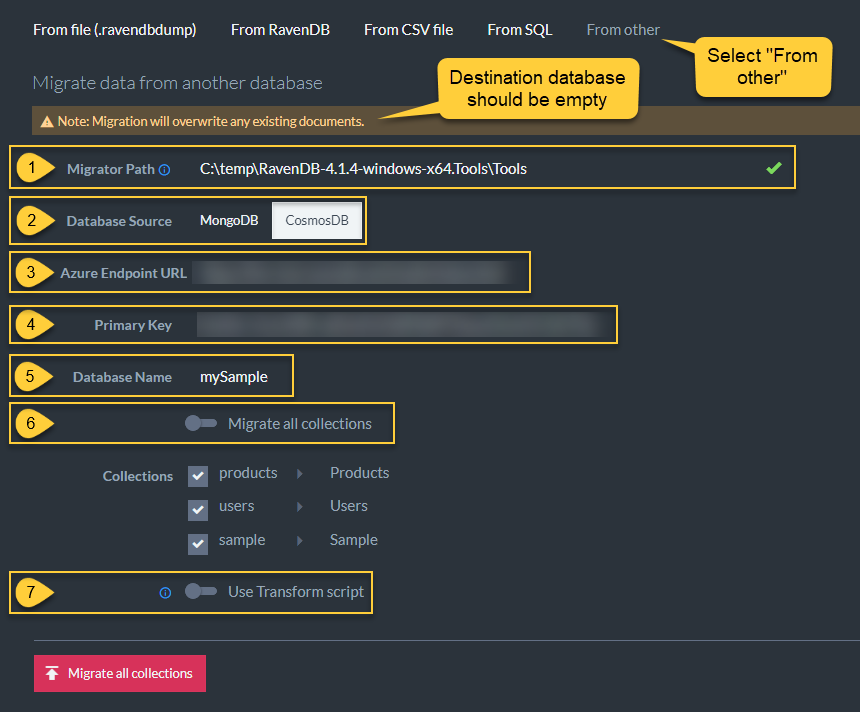
In the RavenDB Studio client on the left side, select Tasks -> Import Data.
-
Migrator Path
- Find
Raven.Migrator.exein the tools package. - Provide a path to
Raven.Migrator.exe's folder.
- Find
-
Database Source
- Select
CosmosDB
- Select
-
Azure Endpoint URL
- Provide a URL to CosmosDB database
-
Primary Key
- Provide the Primary key for CosmosDB
-
Database Name
- Provide the source database name
-
Migrate all collections
- You can either import all collections or select the collections you'd like to import.
- Optionally, you can rename the imported collections.
-
Use Transform script
- Use a JavaScript to filter / modify imported documents.