Document Revisions
-
Revisions configuration settings can be managed from the Document Revisions view.
-
Learn more about revisions here.
-
In this article:
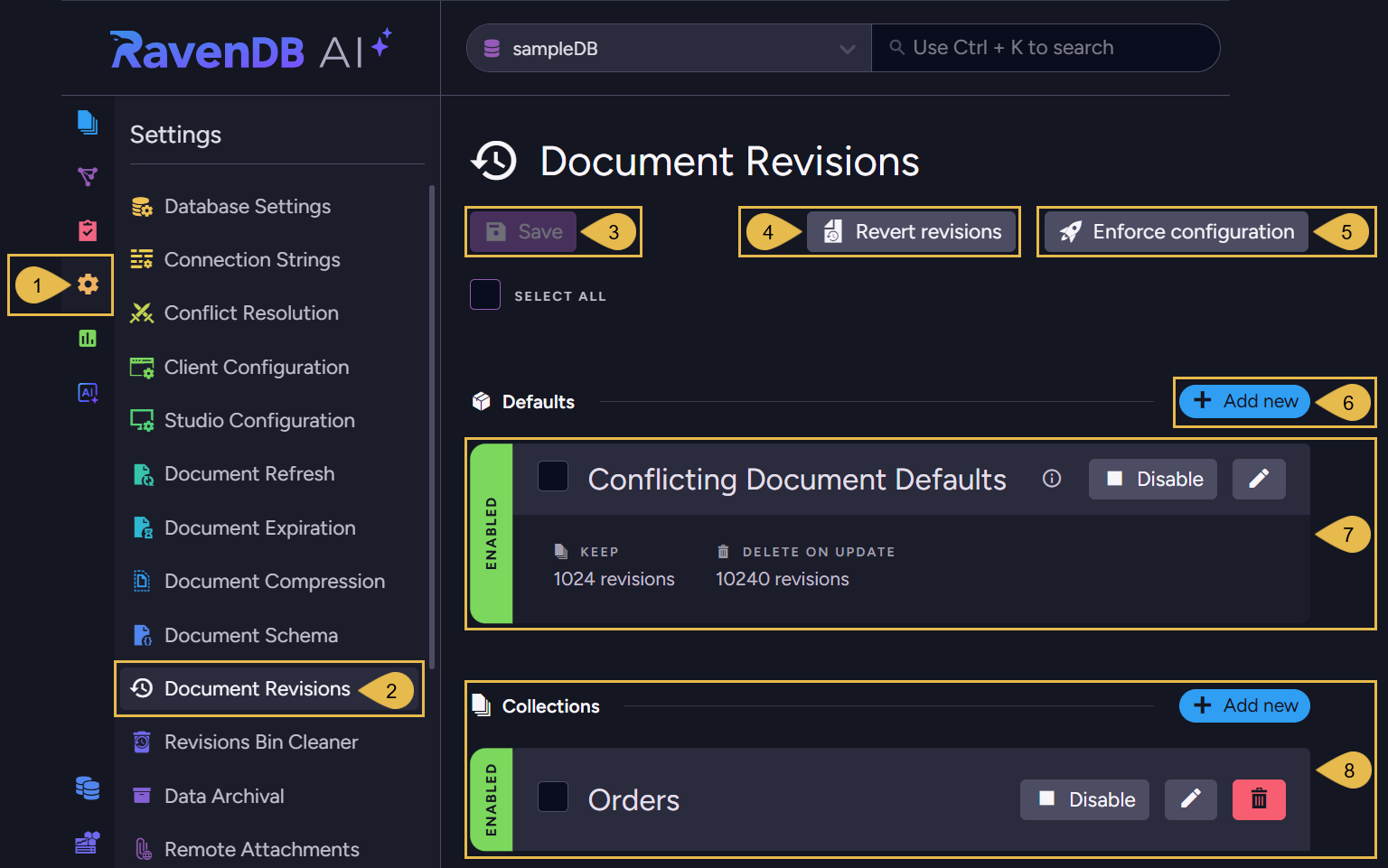
Document revisions view
-
Settings menu
Open the Settings menu. -
Document Revisions View
Open the Document Revisions view. -
Save
Apply your changes after modifying the configuration. -
Revert Revisions
Revert the database to its state at a specified point in time.
You can select whether to revert specific collections or revert all collections.
Only documents are reverted; other entities (such as ongoing tasks) will not be modified. -
Enforce Configuration
Enforce the revisions configuration.This operation may delete many revisions irrevocably and require substantial server resources.
Please read carefully the dedicated section. -
Add new: Define a default document revisions configuration
Define a default configuration that will apply to the documents of collections that no collection-specific configuration was defined for.There can be only one (or no) default configuration. After defining it, the "Add new" button is removed and the configuration is displayed and can be modified or deleted.
-
Conflicting document defaults
This is a pre-defined configuration for conflicting documents.
You can modify or disable it. -
Collection-specific configurations Define (Add new), edit, disable, or delete configurations for specific collections.
If a default configuration was defined, a collection-specific configuration will override it for this collection.
Revisions configuration
-
The Revisions configuration includes:
- A pre-defined configuration for conflicting documents.
- An optional default configuration that applies to all document collections that no collection-specific configuration is defined for.
- Optional collection-specific configurations that apply to documents of the collections they are defined for.
-
When no default configuration or collection-specific configurations are defined and enabled,
no revisions will be created for any document. -
When a document is subject to an enabled configuration, the configuration's rules apply to the document's revisions upon any modification of the document.
-
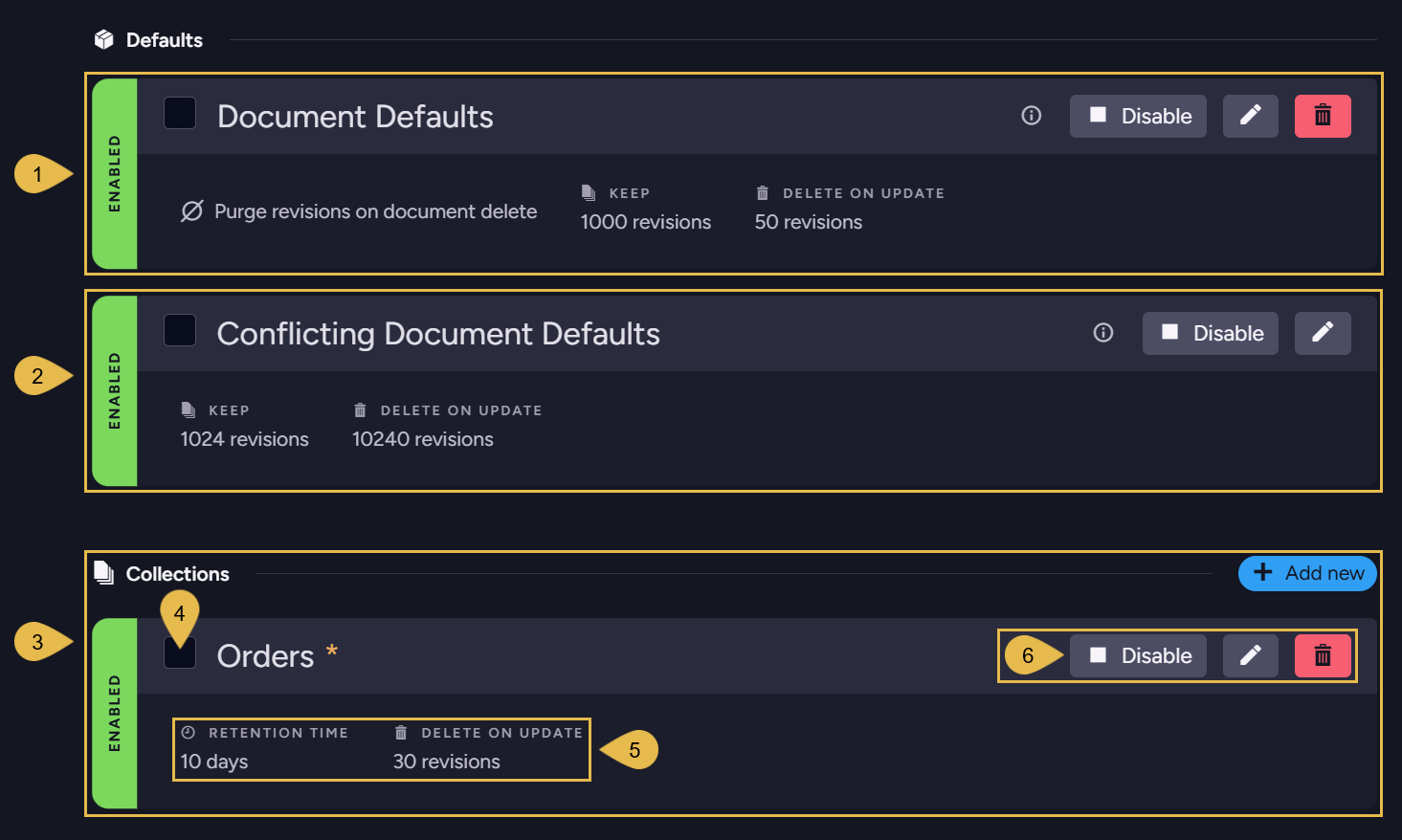
Document Defaults
This is the default revisions configuration that applies to all non-conflicting documents in all the collections that no collection-specific configuration is defined for.
The configuration is optional and can be removed. -
Conflicting Document Defaults
This pre-defined configuration applies to conflicting documents only.
When enabled, a revision is created for every conflicting item.
A revision is also created for the conflict resolution document.- This configuration can be modified but not removed.
- You can also disable the configuration if you are not interested in tracking document conflicts using revisions.
- When a default configuration is defined, it overrides the conflict defaults.
- Collection-specific configurations also override conflict defaults for the collections they apply to.
-
Collections
These are optional collection-specific configurations, whose settings override the default configuration and the conflicting document configuration for the collections they are defined for. -
Selection Box
Selecting a configuration evokes a state selector with which you can enable, disable, or delete the configuration.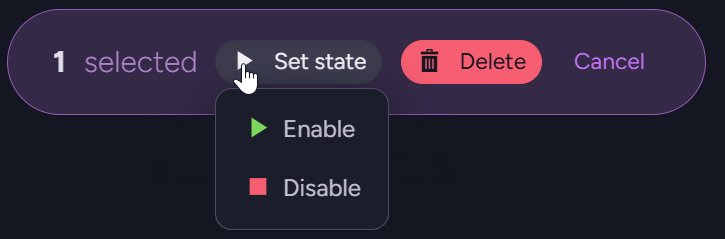
-
Configuration settings
Displays the values set for configuration options. See more about available settings below. -
Controls
- Disable/Enable - Click to Enable or Disable the configuration.
- Edit - Modify the configuration.
- Remove - Delete the configuration.
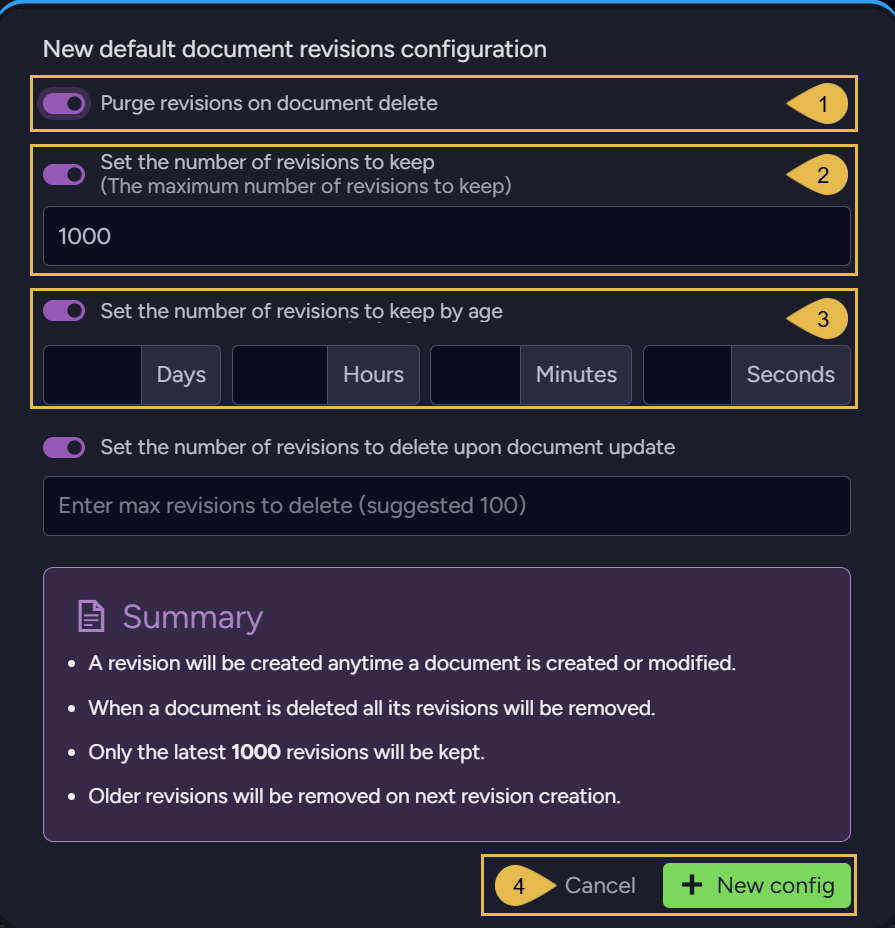
Define default configuration
-
Purge revisions on document delete
Enable if you want document revisions to be deleted when their parent document is deleted. -
Set the number of revisions to keep
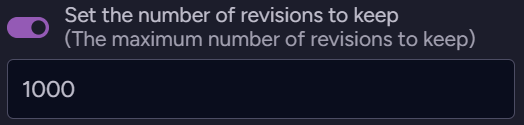
Enable to limit the number of revisions that will be kept in the revisions storage per document.
Upon revision creation (when the parent document is modified), if the number of revisions exceeds this limit, older revisions will be purged (starting with the oldest revision).When you define a new configuration, this option is enabled by default and set to 1000 (keeping the latest 1000 revisions).
If your license limits the number of revisions that you can keep to a lower number than 1000, the lower limit becomes the default instead.If no limit is set on the number of revisions to keep, Studio shows a warning:
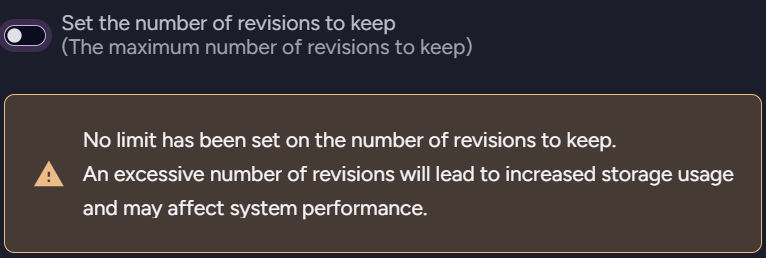
An age limit alone does not clear this warning, since the age limit does not cap the number of revisions.
Enabling the Set the number of revisions to keep option displays the following setting as well:

Enable to limit the number of revisions that RavenDB is allowed to purge per document modification.This will be the highest number of revisions that RavenDB is allowed to purge per document modification.
Setting this limit can reserve server resources if many revisions pend purging,
by dividing the purging between multiple document modifications. -
Set the number of revisions to keep by age

Enable to set a revisions age limit.
Revisions older than the defined retention time will be purged when their parent document is modified.- Enabling the age limit setting will also display the Set the number of revisions to delete upon document update option (see above).
-
Confirm to keep the modified default configuration, or Cancel.
Click Save when done.
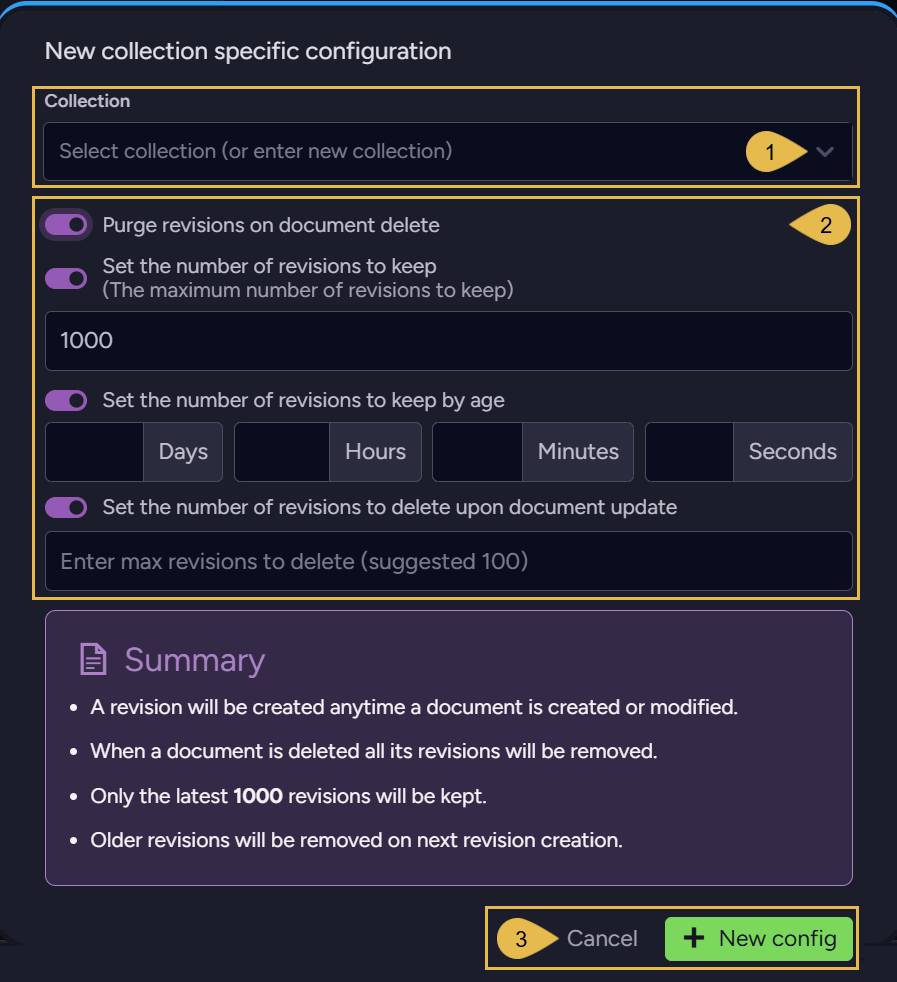
Define collection-specific configuration
-
Collection
Select a collection or enter its name. The configuration will be defined for this collection. -
Configuration options
These options are similar to those explained above for the default configuration,
the only difference is the configuration scope. -
Confirm to keep the modified collection-specific configuration, or Cancel.
Click Save when done.
Edit conflicting document defaults
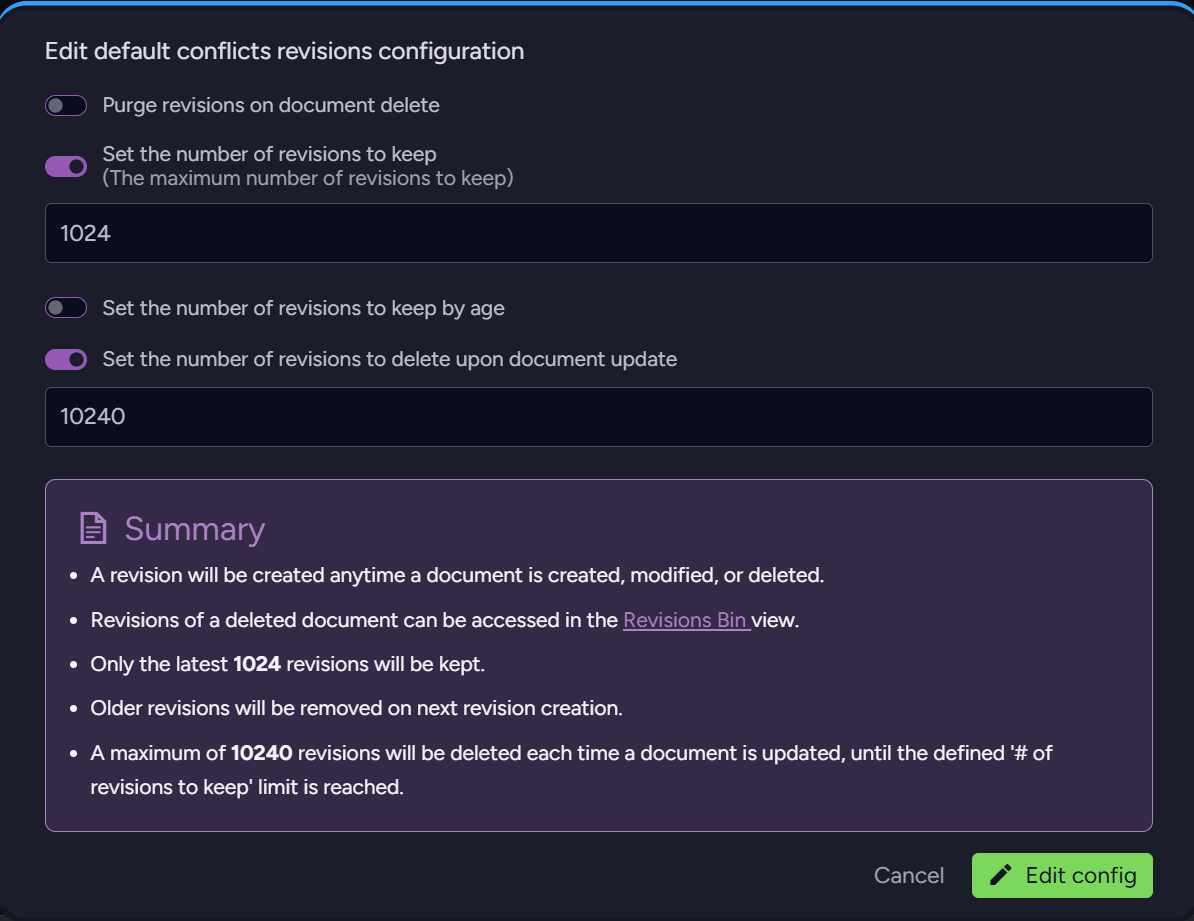
- The configuration settings are similar to those explained above for the default configuration.
Conflicting documents example:
-
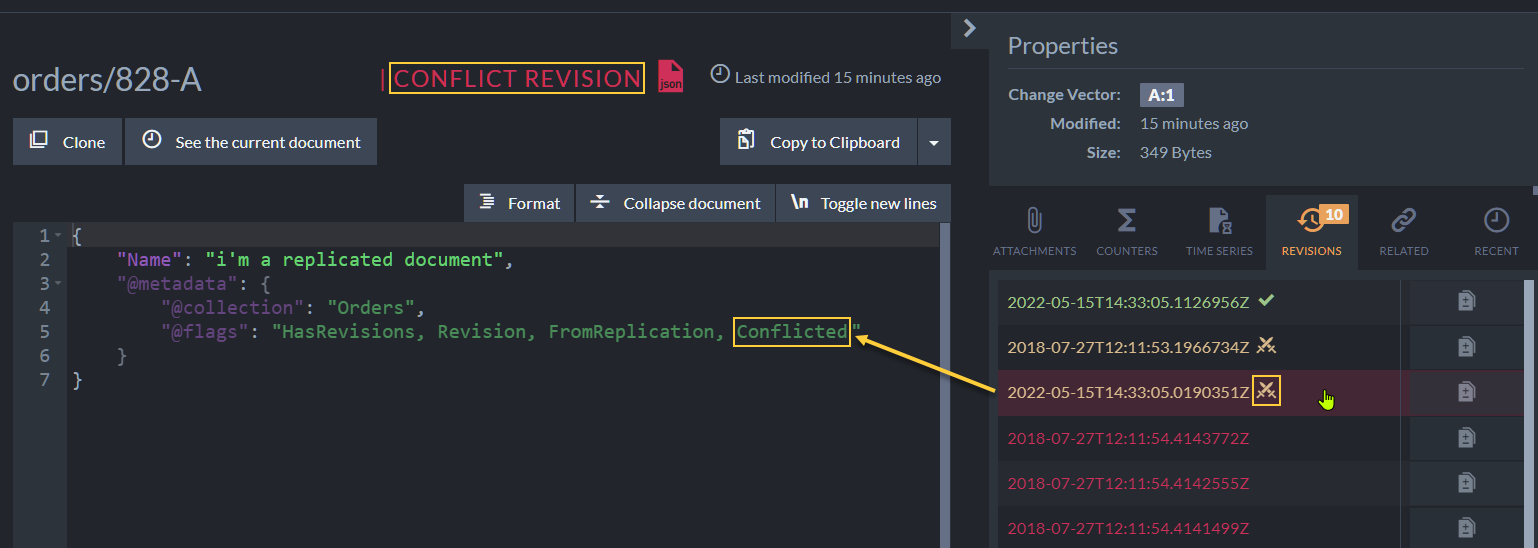
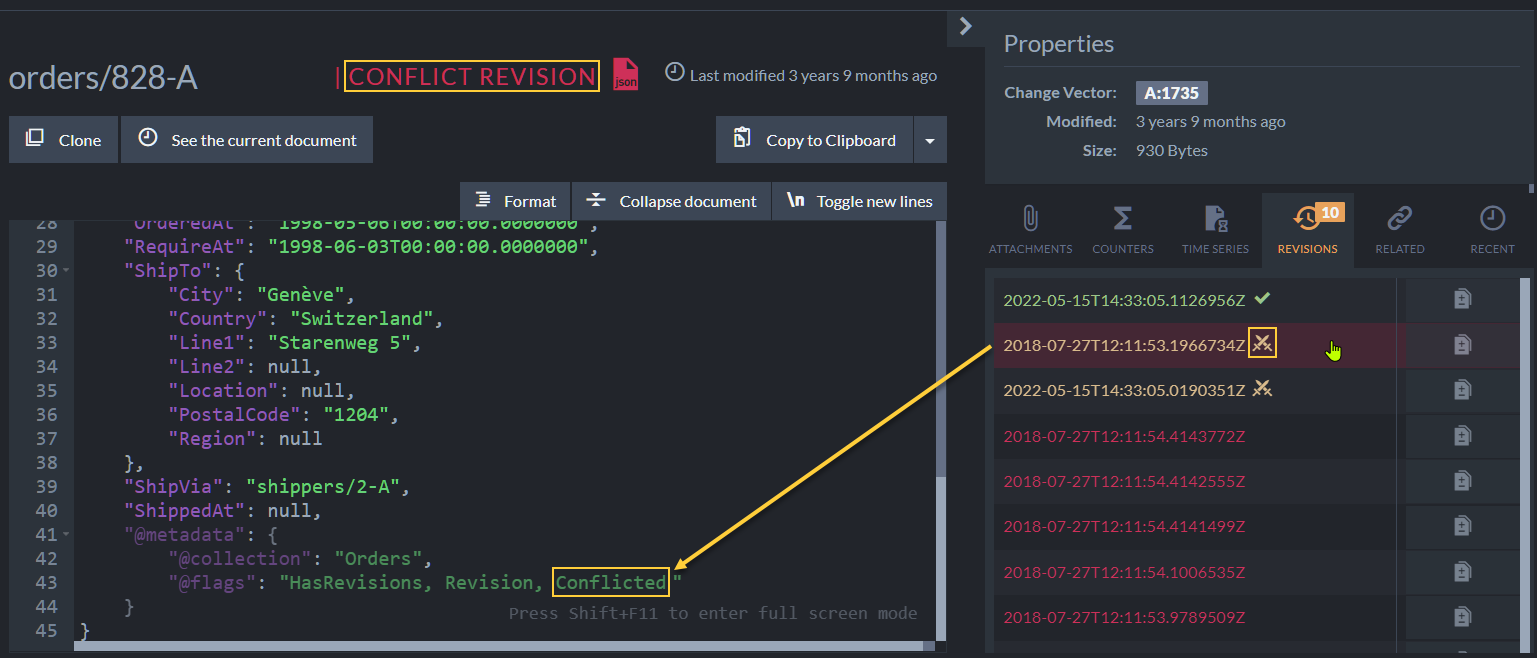
For the example below, we created a conflict by replicating into the database a document with an ID similar to that of a local document.
-
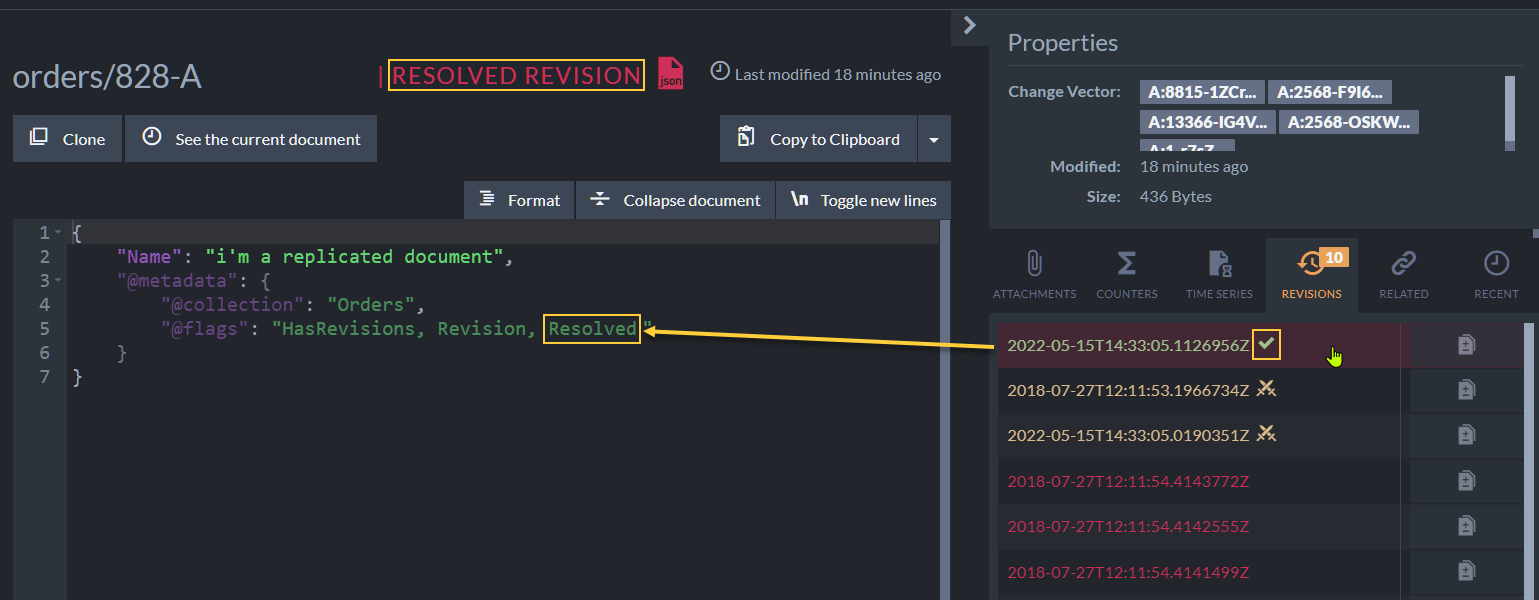
Revisions will be created when the documents enter a conflict and when the conflict is resolved.
So in this case, three revisions were created:- when the replicated document arrived and entered a conflict state.
- when the local document entered a conflict state on the arrival of the replicated document.
- when the conflict was resolved by replacing the local document with the replicated one.
In this example, the conflict was resolved by placing the replicated version as the current document. Learn more about conflict resolution here.
-
To see the revisions that were generated, open the document's Revisions tab.
The revision state is indicated by:- A red title at the top (i.e. "Conflict revision" or "Resolved revision").
- An icon next to the revision's creation time in the right Properties pane.
- A flag in the revision's
@flagsmetadata property (i.e. "Conflicted" or "Resolved").
- Incoming Document in Conflict
- Local Document in Conflict
- Conflict Resolved
Enforce configuration
The revision configuration rules are usually applied to a document's revisions only when the document is modified.
Use Enforce configuration to apply the current revision configuration rules to existing revisions, without waiting for each document to be modified.
Opening the dialog:
In the Document Revisions settings view, click Enforce configuration (top-right, next to Revert revisions).

The Enforce Configuration dialog:
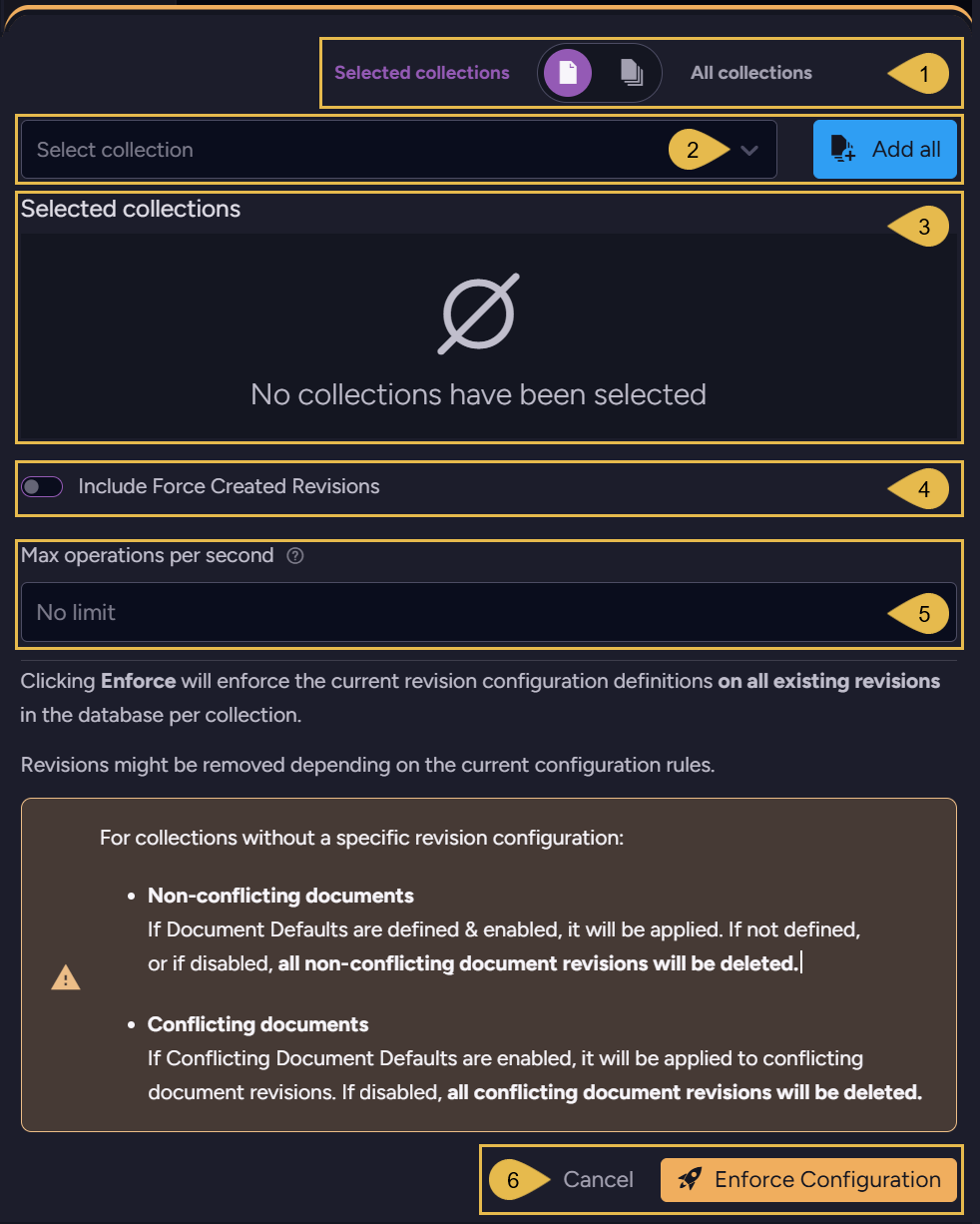
-
Collections scope
Toggle between All collections (enforce on the revisions of all collections)
and Selected collections (enforce only on the collections you choose). -
Select collection / Add all
When Selected collections is active, choose collections from the Select collection dropdown,
or click Add all to include them all. -
Selected collections
The selected collections will be displayed here. -
Include Force Created Revisions
- ON - Force-created revisions may also be removed by the operation.
- OFF (default) - force-created revisions are preserved.
-
Max operations per second
Limit the number of documents processed per second to throttle the operation and reduce its resource consumption on large datasets. Leave the field empty (No limit, the default) to apply no throttling. -
Click Enforce Configuration to run the operation, or Cancel to close the dialog without enforcing.
Clicking Enforce Configuration applies the current revision configuration definitions to existing revisions in the database, per collection. Revisions might be removed depending on the current configuration rules.
For collections that HAVE a specific revision configuration:
- The collection-specific configuration is applied per collection.
- Revisions that should be purged according to the configuration are deleted.
For collections that DON'T have a specific revision configuration:
- Non-conflicting documents:
- If Document Defaults are defined & enabled, they are applied.
- If NOT defined, or if disabled, ALL non-conflicting document revisions are deleted.
- Conflicting documents:
- If Conflicting Document Defaults are enabled, they are applied to the conflicting document revisions.
- If disabled, ALL conflicting document revisions are deleted.
-
Large databases may contain many revisions that will be deleted when the current configuration is enforced.
Running the operation can delete them all in a single enforcement run and may require substantial server resources. Schedule it accordingly. -
On large datasets, use the Max operations per second field to throttle the operation and reduce its resource consumption.
The same throttling is available programmatically via theMaxOpsPerSecondparameter.
See Enforce revisions configuration operation. -
Revisions in collections that no current configuration applies to may be deleted.
Make sure your configuration includes the default settings and collection-specific configurations needed to keep the revisions you want to preserve.