Choose Setup Method
-
After running the Setup Wizard and accepting the EULA as described in the Overview,
the next step is to choose the setup method you want to proceed with. -
In this article:
Available setup methods
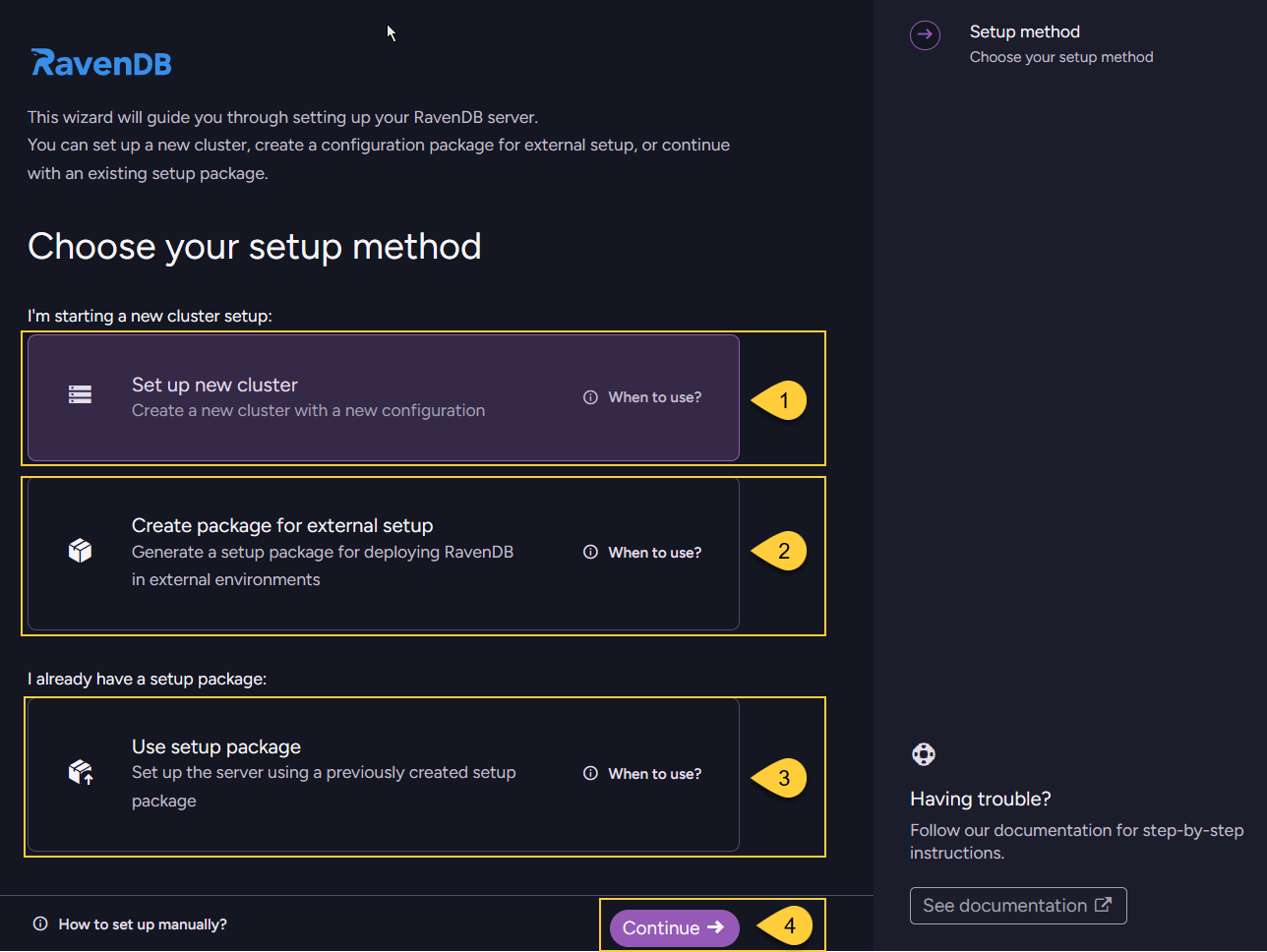
The following setup methods are available:
-
Set up a new cluster
Configure a new cluster (single-node or multi-node)
and start the first RavenDB instance on the machine where the Setup Wizard is running.
Learn more below in Set up a new cluster. -
Create a package for external setup
Prepare a configuration package without starting a server locally.
Learn more below in Create a package for external setup. -
Use an existing setup package
Apply a previously generated setup package to join a node to a cluster.
Learn more below in Use an existing setup package. -
Click "Continue" to proceed to the next step in the wizard, which is Providing the license key.
Set up a new cluster
-
Use this flow when you want to configure a new cluster (single-node or multi-node)
and start the first RavenDB instance on the machine where the Setup Wizard is running.
The wizard will guide you through the configuration process. -
At the end of this flow, the wizard generates a setup package (unless you are configuring a single-node unsecured cluster). If you define a multi-node cluster, you will use this generated package with the Use setup package method to add the remaining nodes to the cluster.
-
The following table summarizes the step-by-step flow for this setup method.
Step What you do ▶️ Run Setup Wizard ️Run run.ps1(Windows) orrun.sh(Linux).⚖️ Accept EULA ️Required to continue. 🔀 Choose setup method Select "Set up new cluster". 🔑 Provide license Enter your license key. 🔒 Choose security option Select how to secure your server. Available options:
- Let’s Encrypt
- Provide your own certificate
- Unsecured🌐 Configure node addresses Define the cluster topology.
Add nodes and set their IP addresses.⚙️ Additional settings Configure optional settings. 📝 Review setup Review your settings before proceeding. ⏳ Configuration in progress Wait while the wizard applies your configuration and certificate (if applicable).
A setup package (ZIP) is generated (unless configuring a single-node unsecured cluster).🚀 Start the first configured node Click "Restart server".
The node restarts and becomes operational.📦 Continue with
"Use setup package"If creating a multi-node cluster,
continue with "Use setup package" to add the remaining nodes.
Create a package for external setup
-
Use this flow when you want to prepare a configuration (single-node or multi-node) and deploy it elsewhere,
without starting a node on the local machine where the Setup Wizard is running. -
The Setup Wizard will generate a setup package (ZIP) containing the configuration,
which you can later apply on other machines (for example in isolated environments or automated deployment pipelines) using the Use setup package method. -
The following table summarizes the step-by-step flow for this setup method.
Step What you do ▶️ Run Setup Wizard ️Run run.ps1(Windows) orrun.sh(Linux).⚖️ Accept EULA ️Required to continue. 🔀 Choose setup method Select "Create package for external setup". 🔑 Provide license Enter your license key. 🔒 Choose security option Select how to secure your server. Available options:
- Let’s Encrypt
- Provide your own certificate
- Unsecured🌐 Configure node addresses Define the cluster topology.
Add nodes and set their IP addresses.⚙️ Additional settings ️Configure optional settings. 📝 Review setup Review your settings before proceeding. ⏳ Configuration in progress Wait while the wizard creates the setup package with your configuration. 📦 Continue with
"Use setup package"On each target machine, run the Setup Wizard and use Use setup package to set up and start the cluster nodes.
Use an existing setup package
-
Choose this flow when you already have a setup package (ZIP) created using one of the previous methods.
Use this method when:- Setting up an additional node in an existing cluster.
- Setting up a new cluster from a pre-configured package.
-
The Setup Wizard will apply the predefined configuration to the machine you run it on and add the node to the cluster.
-
Repeat this process on each target machine to complete the cluster setup for each node in the cluster.
| Step | What you do | |
|---|---|---|
| ▶️ | Run Setup Wizard | ️Run run.ps1 (Windows) or run.sh (Linux). |
| ⚖️ | Accept EULA | ️Required to continue. |
| 🔀 | Choose setup method | Select "Use setup package". |
| 📥️ | Upload setup package | Upload the setup package (ZIP) created earlier. |
| 🖥️ | Select node | Select the node you want to set up from the package |
| ⏳ | Configuration in progress | Wait while the wizard applies the configuration to this node. |
| 🚀 | Start the node | Click "Restart server". The node restarts and becomes operational. |
| 📦 | Continue with "Use setup package" | Repeat this process on each target machine to add the remaining nodes to the cluster. |