Create a Debug Package
-
Use the Gather Debug Info tool, available via Studio's Debug Package view, to collect diagnostic information about a server or a cluster into a single debug package
.zipfile. -
The debug package
.zipfile contains server information, per-database statistics and configuration, cluster state, and log files. -
See Debug Package Analyzer to learn how to analyze a debug package.
-
In this article:
Create a debug package
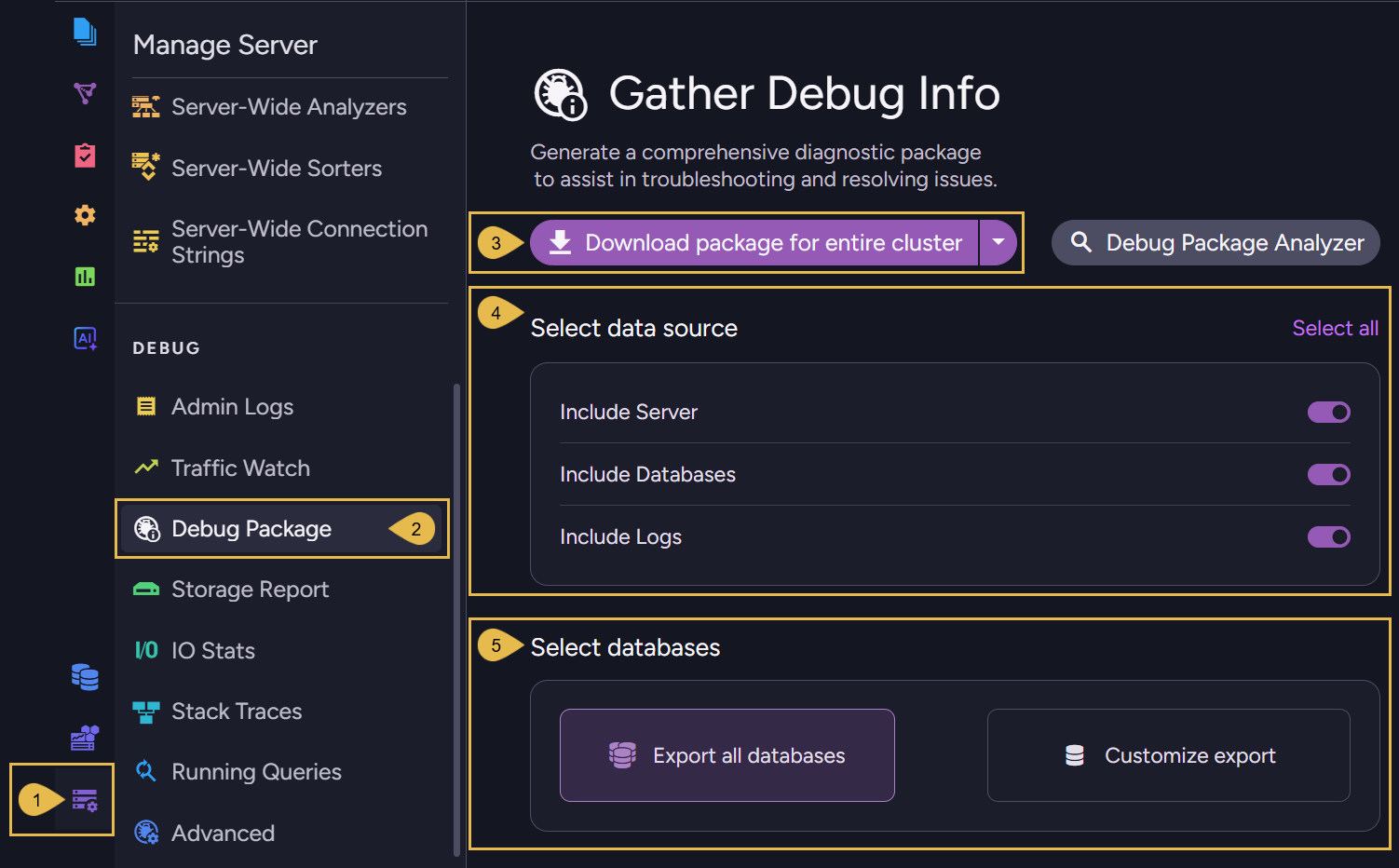
To create a debug package, go to Manage Server > Debug Package.
-
Manage Server
Click to open the Manage Server menu. -
Debug Package
Click to open the Debug Package view. -
Download package for entire cluster
Click to collect data from all cluster nodes and download the package as a.zipfile.
If you want to cancel the operation while the package is being prepared, click the Abort button.
To collect data only from the current server, select Download for current server only from the dropdown list.

-
Select data source
Choose whether to include in the package debug information related to the server, information related to your databases, logs, or select all for all three. -
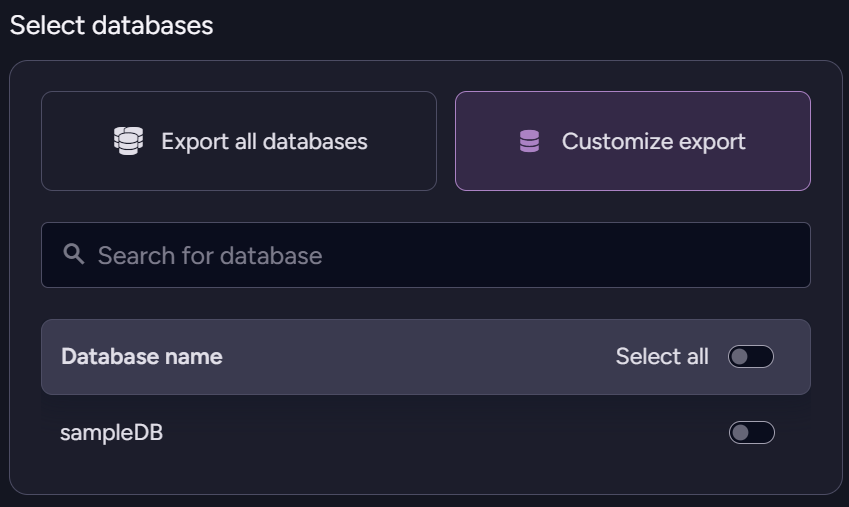
Select databases
Click Export all databases to include debug information related to all databases,
or Customize export for information related only to specific databases.
Download when Studio is unavailable
If Studio is unavailable, you can still download a debug package by sending an HTTP request to each node in the cluster.
See Collect Info for Support for the endpoint and the exact steps.