Authentication: SSO Certificates and Users
-
RavenDB can authenticate users who arrive through an SSO reverse-proxy application - GitHub, Google, Microsoft/Entra ID, or Windows/Kerberos - instead of issuing one X.509 client certificate per user.
-
The cluster needs to know two things to do this:
- Which SSO servers to trust - registered as certificates with
Usage = SsoServer. - How to map an SSO identity to RavenDB permissions - stored as SSO user entries with
Usage = SsoClient.
- Which SSO servers to trust - registered as certificates with
-
Both are managed from
Manage Server>User Access Managementin Studio, and live in the same certificate list as your regular server and client certificates. -
For end-to-end deployment of the SSO application itself, see the SSO Overview.
This page focuses on the certificate-management side of the workflow. -
In this article:
Required clearance and license
SSO is a commercial feature gated by the RavenDB license. Registering an SSO server certificate requires Cluster Admin clearance; SSO user entries can be managed by Operator clearance and above.
Register an SSO server certificate
The SSO server presents its public certificate to clients on https://<sso-domain>. Registering the
certificate in RavenDB tells the cluster "trust SSO identities forwarded by this server." Identification
is by public-key pinning hash, not by the certificate file itself.
Studio
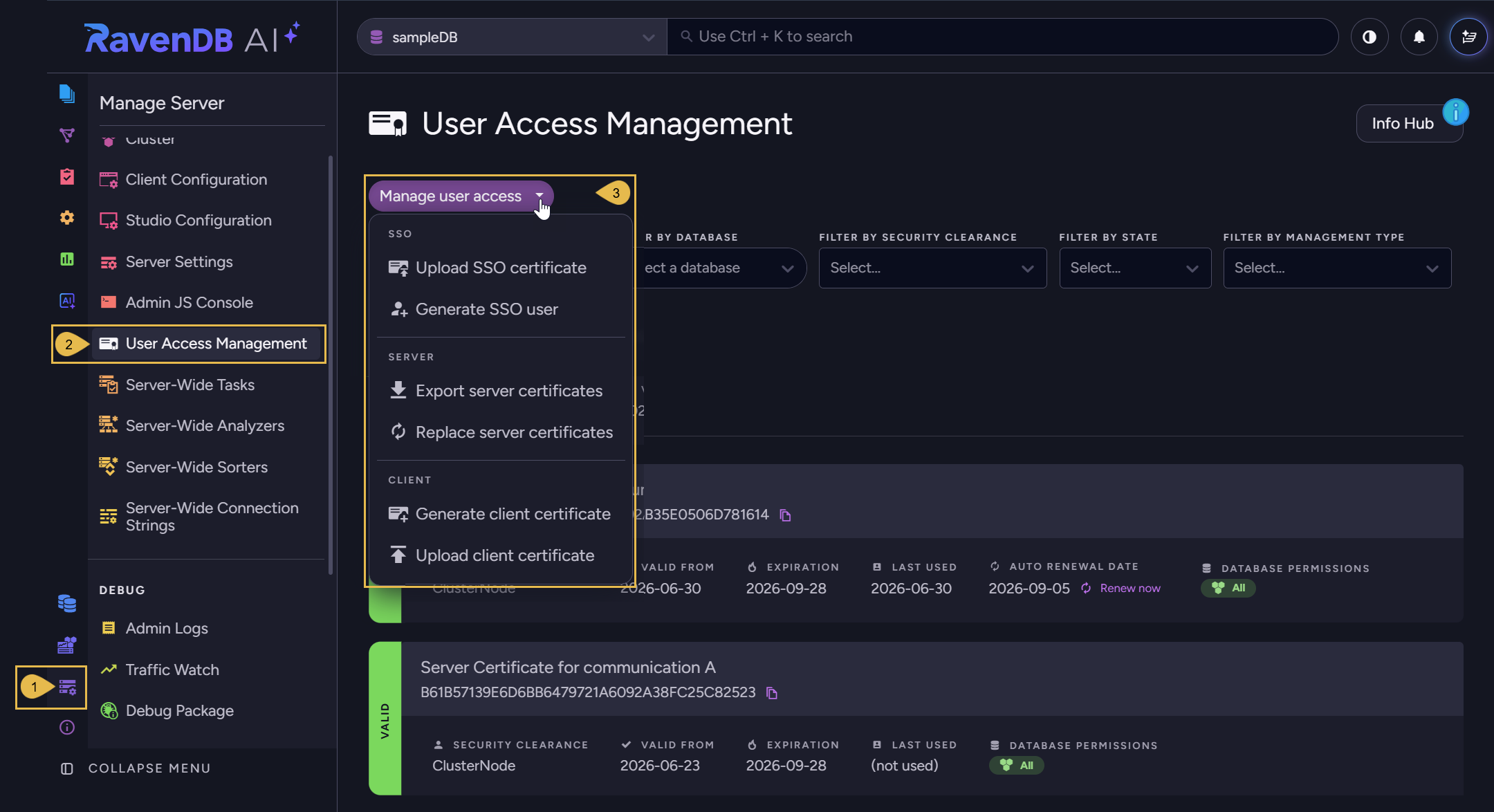
To register SSO server certificates and create SSO user entries, open:
Manage Server > User Access Management
-
Manage Server
Click to open the Manage Server menu. -
User Access Management
Click to open this page, where you manage SSO server certificates and SSO user entries, alongside the cluster's regular server and client certificates. -
Manage user access
Click to open this dropdown. The SSO actions are:- Upload SSO certificate
Register an SSO server certificate. - Generate SSO user
Create an SSO user entry.
- Upload SSO certificate
Upload SSO certificate
Click Upload SSO certificate to open the Register SSO server certificate dialog:
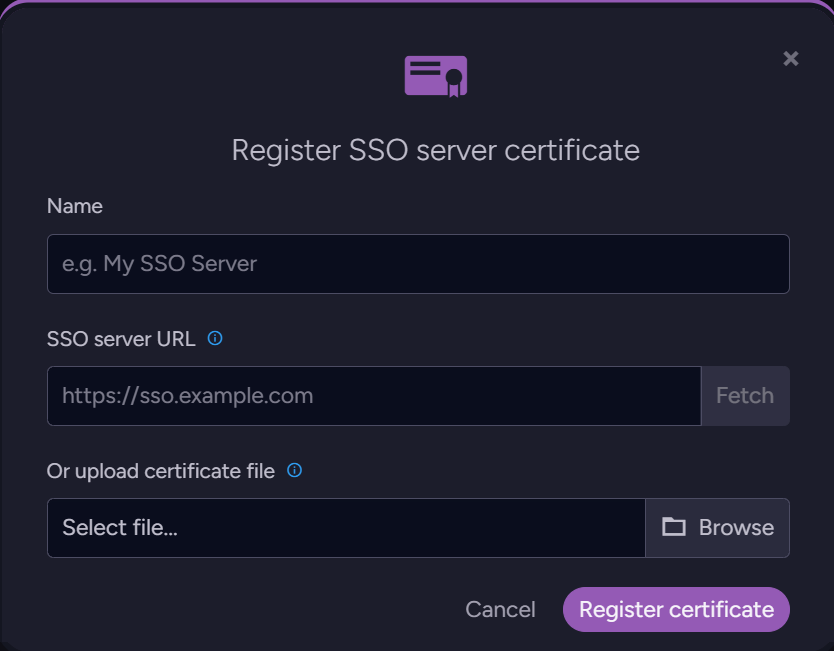
- Name
A display name for the certificate. - SSO server URL
Enter the SSO server's address and click Fetch. RavenDB downloads the public certificate fromhttps://<sso-url>/api/certificate, validates it, and shows the parsed details. - Or upload certificate file
Browse to a PEM or PFX file to provide the certificate yourself instead. - Register certificate
Saves the certificate as a trusted SSO server.
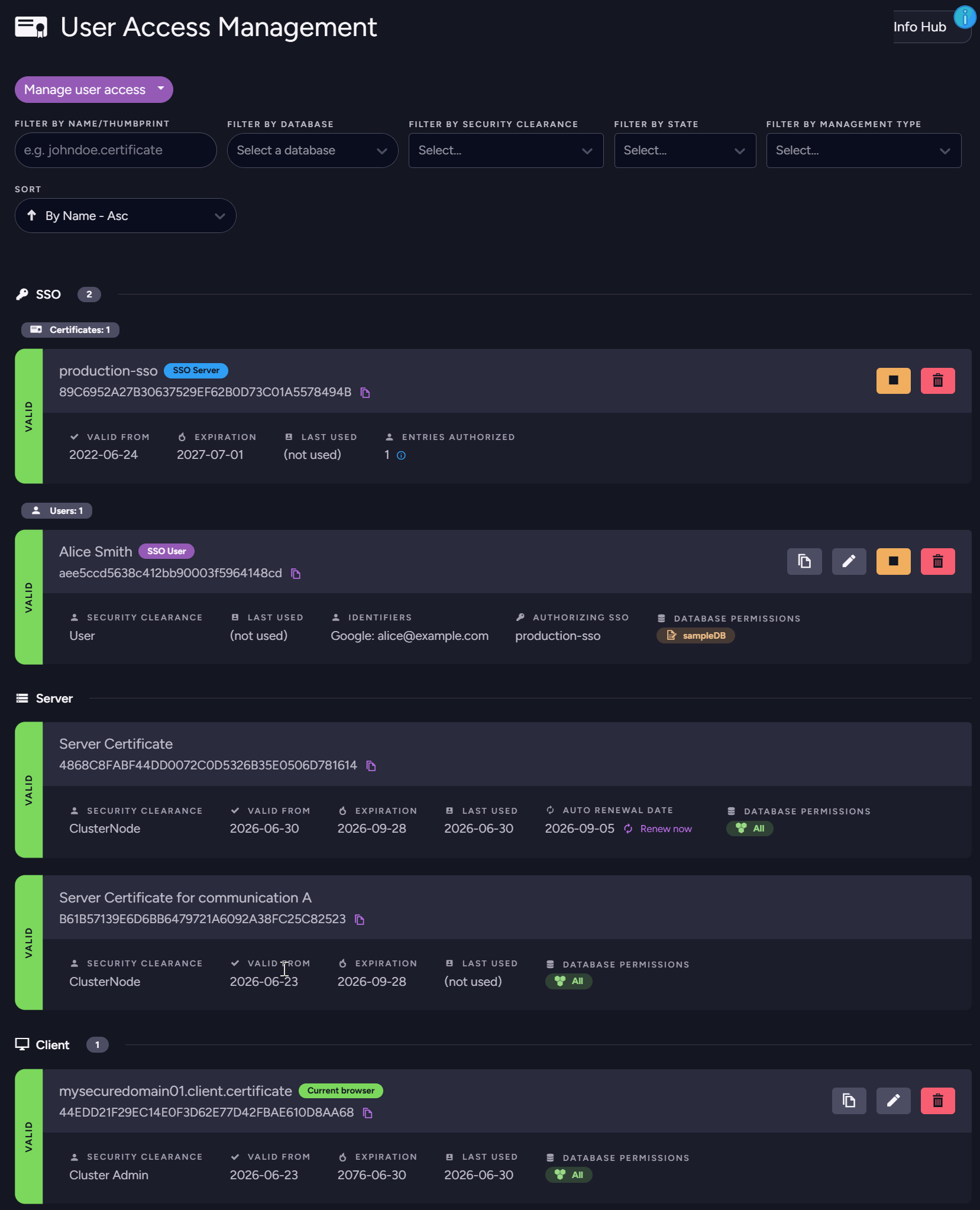
Once registered, the SSO server certificate appears under a dedicated SSO section of the certificates list, alongside any existing SSO user entries:
HTTP API
Every action in the Studio dialog above maps to a REST endpoint you can call directly.
Use these endpoints to automate SSO setup as part of a deployment pipeline, instead of registering
each certificate and user by hand in Studio.
PUT /admin/certificates
Content-Type: application/json

{
  "Name": "production-sso",
  "Certificate": "<base64-encoded certificate>",
  "Usage": "SsoServer",
  "SecurityClearance": "ValidUser",
  "Permissions": {}
}
To let the cluster fetch the certificate for you:
GET /admin/certificates/sso/server/fetch?url=https://sso.example.com
This downloads https://sso.example.com/api/certificate, validates it, and returns the base64 bytes -
hand them to PUT /admin/certificates above. The fetch is limited to 64 KB and times out after
10 seconds.
SSO server certificates cannot be generated by RavenDB - they belong to the SSO deployment and must be
imported. POST /admin/certificates with Usage = SsoServer is rejected.
Register an SSO user entry
An SSO user entry is a mapping from one or more SSO identities to a RavenDB security clearance and
database permissions. Each identity is a (Provider, Domain, Identifier) tuple:
| Field | Type | Example |
|---|---|---|
Provider | Github | Google | Microsoft | Windows | Windows |
Domain | string | Kerberos realm - only used when Provider = Windows; leave empty otherwise. |
Identifier | string | alice@example.com, GitHub username, etc. |
Each entry must trust the SSO servers it accepts identities from. You can either:
- list one or more
SsoServerPublicKeyPinningHashesfrom registered SSO servers, or - set
AllowAnySsoServer = trueto accept the identity from any SSO server registered in the cluster.
Listing multiple pinning hashes is how you give one user access through several SSO deployments (production + staging, for example) without duplicating the entry.
RavenDB's two-factor authentication does not apply to an SSO login. RavenDB cannot enforce a second
factor on the identity provider's side, so multi-factor enforcement is the SSO provider's
responsibility.
SSO users granted Operator or Cluster Admin clearance therefore sign in with no RavenDB-side
second factor, so configure your identity provider to require multi-factor authentication for
those users.
Studio
SSO user entries are created and managed in the Manage Server > User Access Management
view.
Generate SSO user
Click Generate SSO user to open the Add SSO user dialog:
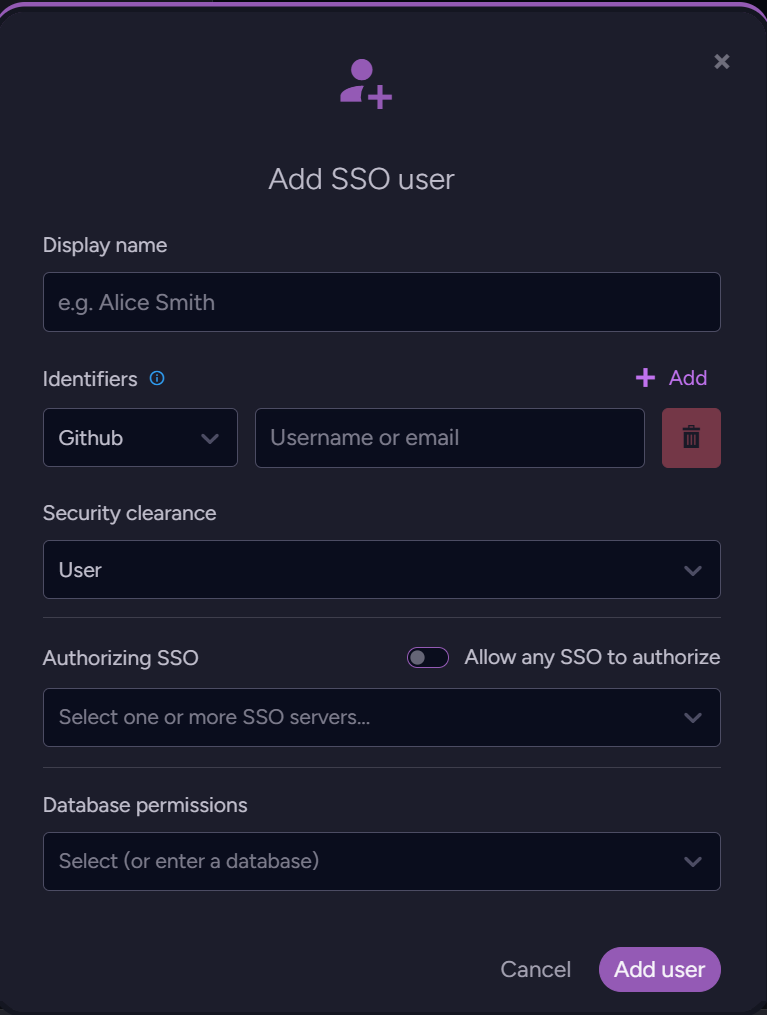
- Display name
A display name for the user entry. - Identifiers
Choose the provider and enter the identifier (a username or email).
For Windows, a Domain field appears for the Kerberos realm.
Click Add to map more than one identity to this entry. - Security clearance
The clearance to grant: Cluster Admin, Operator, or User. - Authorizing SSO
Turn on Allow any SSO to authorize to accept this identity from any registered SSO server, or leave it off and select the specific SSO servers this user is bound to. - Database permissions
The per-database access to grant. - Add user
Saves the SSO user entry.
HTTP API
The matching endpoint for an SSO user entry:
PUT /admin/certificates/sso/user
Content-Type: application/json

{
  "Name": "alice",
  "Usage": "SsoClient",
  "SsoIdentifiers": [
    { "Provider": "Google", "Domain": "", "Identifier": "alice@example.com" }
  ],
  "SsoServerPublicKeyPinningHashes": ["<pinning-hash-of-registered-sso-server>"],
  "AllowAnySsoServer": false,
  "SecurityClearance": "ValidUser",
  "Permissions": { "Northwind": "ReadWrite" }
}
Validation rules enforced by the endpoint:
Nameand at least one entry inSsoIdentifiersare required.- Either
AllowAnySsoServer = trueor at least one pinning hash. - Every pinning hash must reference a previously registered SSO server. Otherwise the request fails with a message pointing you back to the SSO server registration step.
- Each
(Provider, Domain, Identifier)tuple is unique cluster-wide - edit the existing entry instead of creating a second one for the same identity.
Renewing the SSO server certificate
RavenDB identifies trusted SSO servers by their public key pinning hash, not by the
certificate file.
Every SSO user entry that doesn't have AllowAnySsoServer = true is pinned to one or more
specific hashes.
Public-key pinning is the same mechanism RavenDB uses for implicit trust between server and client certificates.
If you renew the SSO server certificate with a new key pair, the hash changes and every
non-AllowAnySsoServer entry stops accepting logins through that server until you re-register the new
certificate and update each user entry's pinning list.
To keep SSO authentication working continuously across renewals, always renew the SSO server certificate with the same private key (the same Certificate Signing Request). The public key - and therefore the pinning hash - stays identical, and every existing SSO user entry keeps working without any change in RavenDB.
Practical guidance:
- Let's Encrypt via the bundled SSO
certbot- already pins--key-type rsaand--reuse-key, so renewals automatically keep the public key stable. No action is needed on the RavenDB side. - Manually managed certificates - when generating a renewal, re-use the existing CSR or private key rather than creating a fresh key pair. Most ACME clients and CAs accept a CSR-based renewal explicitly for this reason.
- If you must rotate the key - register the new SSO server certificate as a second
SsoServerentry before retiring the old one. Update every SSO user entry to include the new pinning hash alongside the old one. Once all clients are on the new certificate, you can remove the oldSsoServerentry and the old hash from the user entries.
Supported providers
SSO recognizes four identity providers:
SsoProvider | Typical Identifier | When to set Domain |
|---|---|---|
Github | GitHub username | Not used - leave empty. |
Google | Email address | Not used - leave empty. |
Microsoft | Email or object id | Not used - leave empty. |
Windows | user@DOMAIN | Required - set to the Kerberos realm. |
Domain is only consulted when Provider = Windows. For the OAuth providers it is ignored - leave it
empty (or omit it from the JSON payload).
Related reading
- SSO Overview - what the SSO application does and how the auth flow works.
- Deploying the SSO application - installer and Docker Compose setup.
- Certificate Renewal & Rotation - the public-key pinning hash mechanism that underpins SSO server trust.