CDC Sink: Create Task
-
A CDC Sink task consumes Change Data Capture streams from a relational source database
(PostgreSQL, SQL Server, or MySQL/MariaDB) and applies inserts, updates, and deletes to documents in RavenDB. -
This article shows how to create a CDC Sink task using the Client API, Studio, or REST API.
-
In this article:
Create a CDC Sink task via Client API
Use AddCdcSinkOperation to create a new CDC Sink task from a CdcSinkConfiguration.
The configuration references a registered SQL connection string by name.
CDC Sink uses the same SqlConnectionString type as SQL ETL;
the connection string's FactoryName determines the source engine.
Optionally set SkipInitialLoad = true only when the target RavenDB database already contains the initial data and the task should start from new CDC changes.
See Configuration Reference for the full list of configuration classes and properties.
- Sync
- Async
var config = new CdcSinkConfiguration
{
    // Unique name for the CDC Sink task
    Name = "OrdersSync",

    // Name of an existing SqlConnectionString,
    // its FactoryName selects the source database engine
    ConnectionStringName = "MyPostgresConnection",

    // Optional: set to true only if RavenDB already contains the initial data.
    // SkipInitialLoad = true,

    Tables = new List<CdcSinkTableConfig>
    {
        new CdcSinkTableConfig
        {
            // Map the source table to the Orders collection in RavenDB
            CollectionName = "Orders",
            SourceTableName = "orders",

            // Primary key columns are used to generate document IDs
            // and must be included in Columns
            PrimaryKeyColumns = new List<string> { "id" },

            // Map source columns to RavenDB document properties.
            Columns =
            [
                new CdcColumnMapping() { Column = "id",            Name = "Id" },
                new CdcColumnMapping() { Column = "customer_name", Name = "CustomerName" },
                new CdcColumnMapping() { Column = "total",         Name = "Total" },
            ]
        }
    }
};

// Execute the operation by passing it to Maintenance.Send
var result = store.Maintenance.Send(new AddCdcSinkOperation(config));

long taskId = result.TaskId;
var config = new CdcSinkConfiguration
{
    // Unique name for the CDC Sink task
    Name = "OrdersSync",

    // Name of an existing SqlConnectionString,
    // its FactoryName selects the source database engine
    ConnectionStringName = "MyPostgresConnection",

    // Optional: set to true only if RavenDB already contains the initial data.
    // SkipInitialLoad = true,

    Tables = new List<CdcSinkTableConfig>
    {
        new CdcSinkTableConfig
        {
            // Map the source table to the Orders collection in RavenDB
            CollectionName = "Orders",
            SourceTableName = "orders",

            // Primary key columns are used to generate document IDs
            // and must be included in Columns
            PrimaryKeyColumns = new List<string> { "id" },

            // Map source columns to RavenDB document properties.
            Columns =
            [
                new CdcColumnMapping() { Column = "id",            Name = "Id" },
                new CdcColumnMapping() { Column = "customer_name", Name = "CustomerName" },
                new CdcColumnMapping() { Column = "total",         Name = "Total" },
            ]
        }
    }
};

// Execute the operation by passing it to Maintenance.SendAsync
var result = await store.Maintenance.SendAsync(new AddCdcSinkOperation(config));

long taskId = result.TaskId;
AddCdcSinkOperationResult:
| Property | Type | Description |
|---|---|---|
TaskId | long | Assigned task ID |
RaftCommandIndex | long | Raft index of the command |
Create a CDC Sink task via Studio
Create task
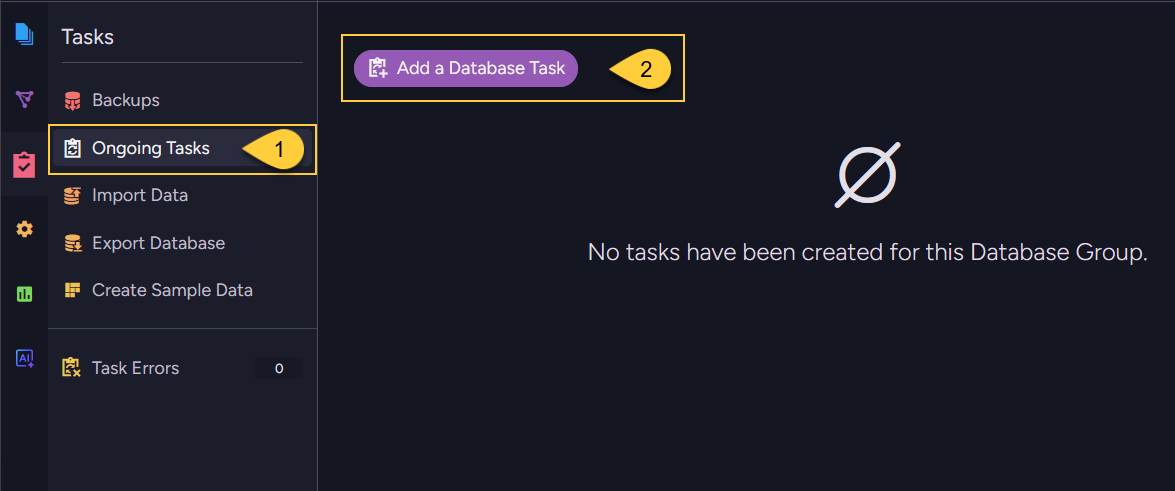
- Navigate to Databases → your database → Tasks → Ongoing Tasks.
- Click Add a Database Task
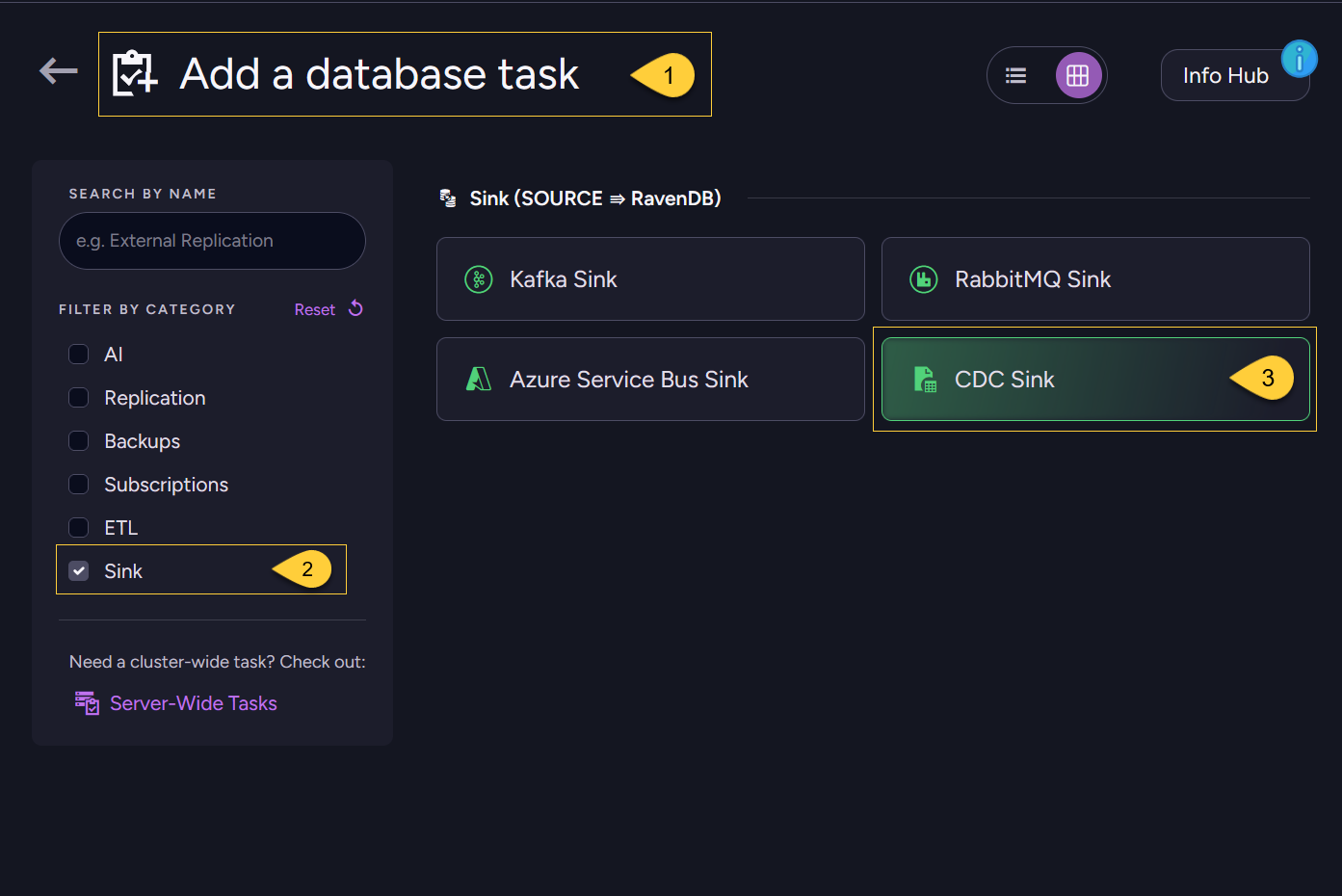
- The Add a database task view opens.
- Filter by the Sink category to show only source-to-RavenDB sink tasks.
- Select the CDC Sink task type.
Configure basic settings
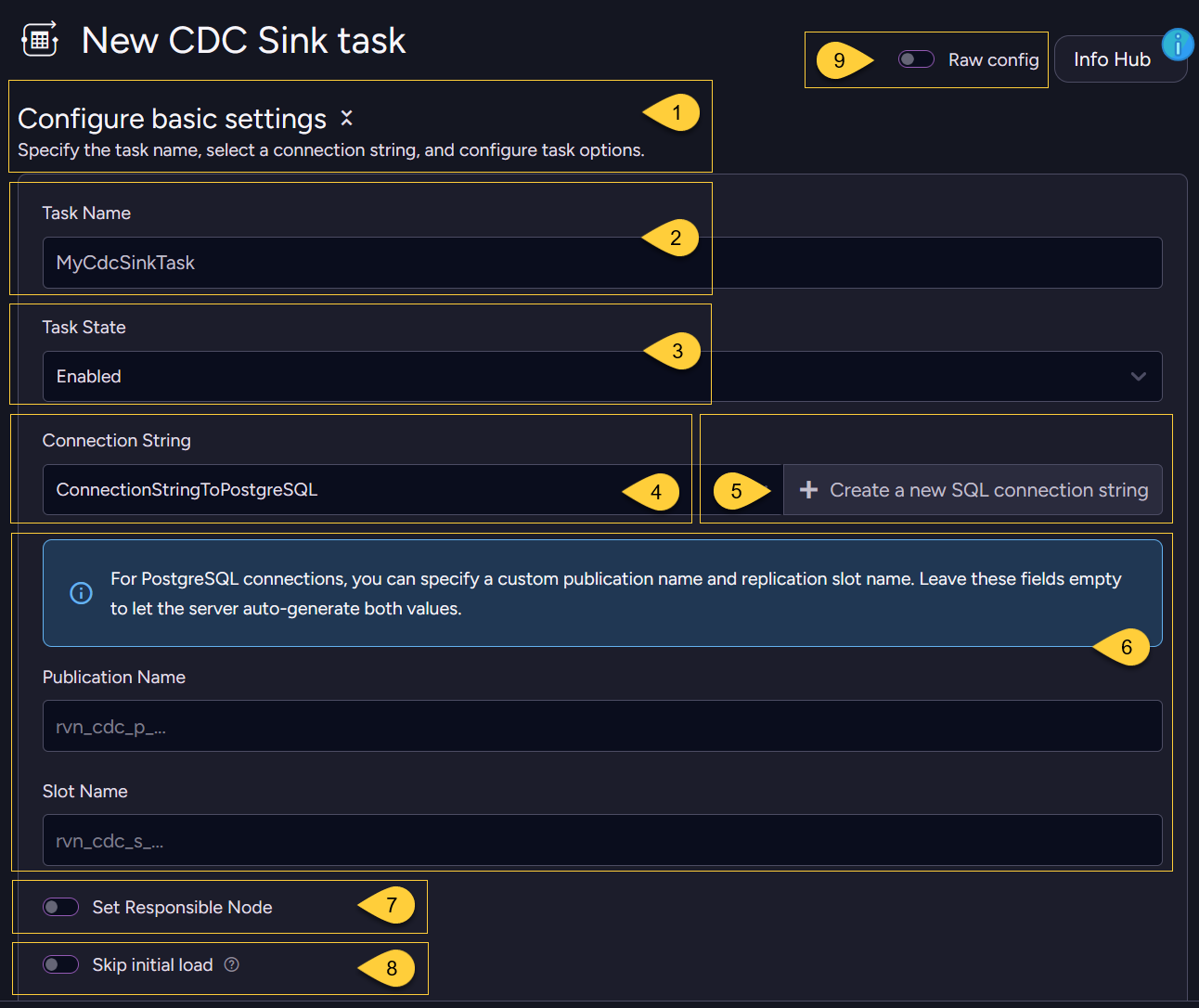
- Configure basic settings
In this section you specify the task name, select a connection string, and configure task options. - Task Name
Enter a unique name for the CDC Sink task. - Task State
Set the initial state, Enabled or Disabled. - Connection String
Select an existing SQL connection string to the source database. - Alternatively, click Create a new SQL connection string to define a new one.
- For PostgreSQL connections, you can optionally set a custom Publication Name and Slot Name.
Leave these fields empty to let the server auto-generate both values. - Set Responsible Node
Optionally pin the task to a specific node in the database group. - Skip initial load
Enable only if RavenDB already contains the initial data and the task should start from new CDC changes. - Raw config
Toggle to view or paste the task's JSON configuration directly.
Useful for copying a configuration between environments.
Schema explorer
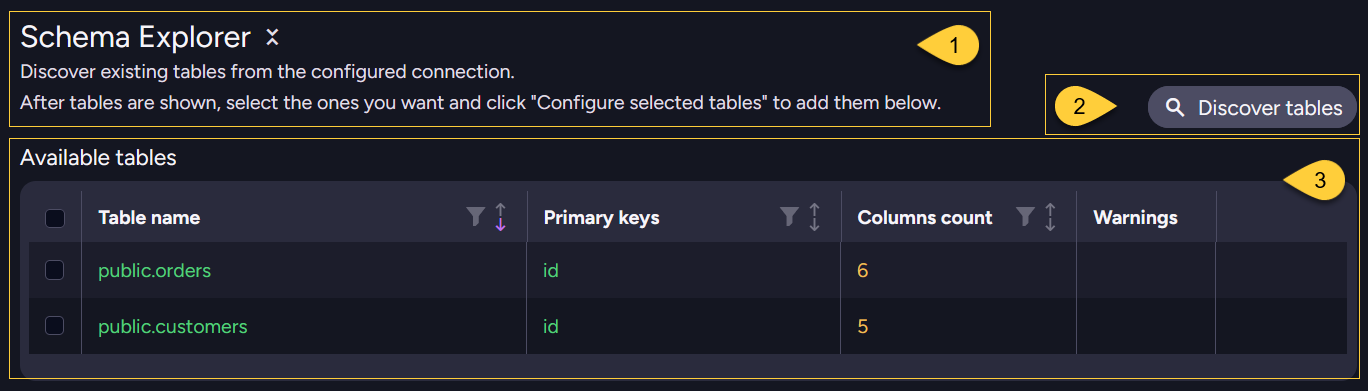
- Schema Explorer
In this section you can discover existing tables from the configured connection. - Discover tables
Click to query the source database for tables. - Available tables
Discovered tables appear here showing each table's name, primary keys, column count, and any warnings.
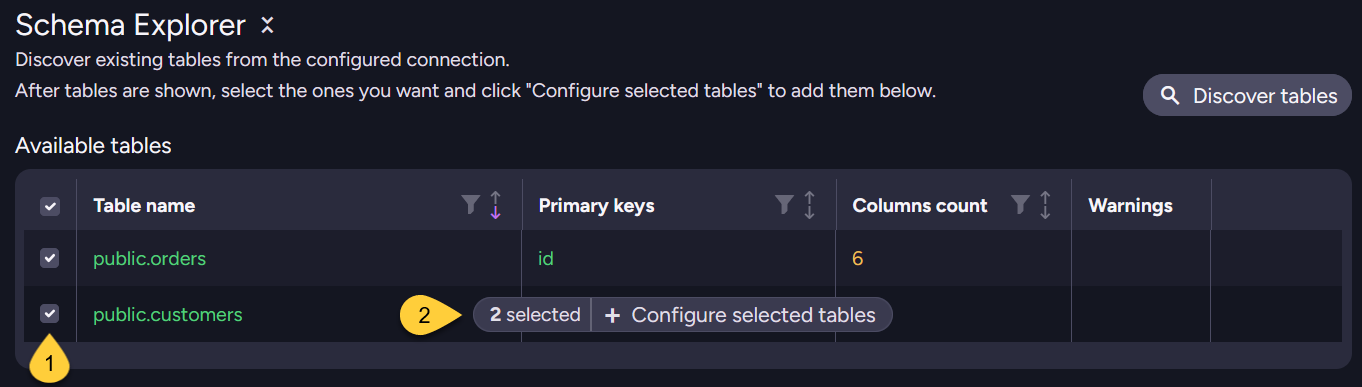
- Select tables
Check the box next to each source table you want to sink into RavenDB as documents. - Configure selected tables
Click Configure selected tables to add the selected tables to the configuration panel below,
where you map their columns to RavenDB collections and document properties.
Configured tables
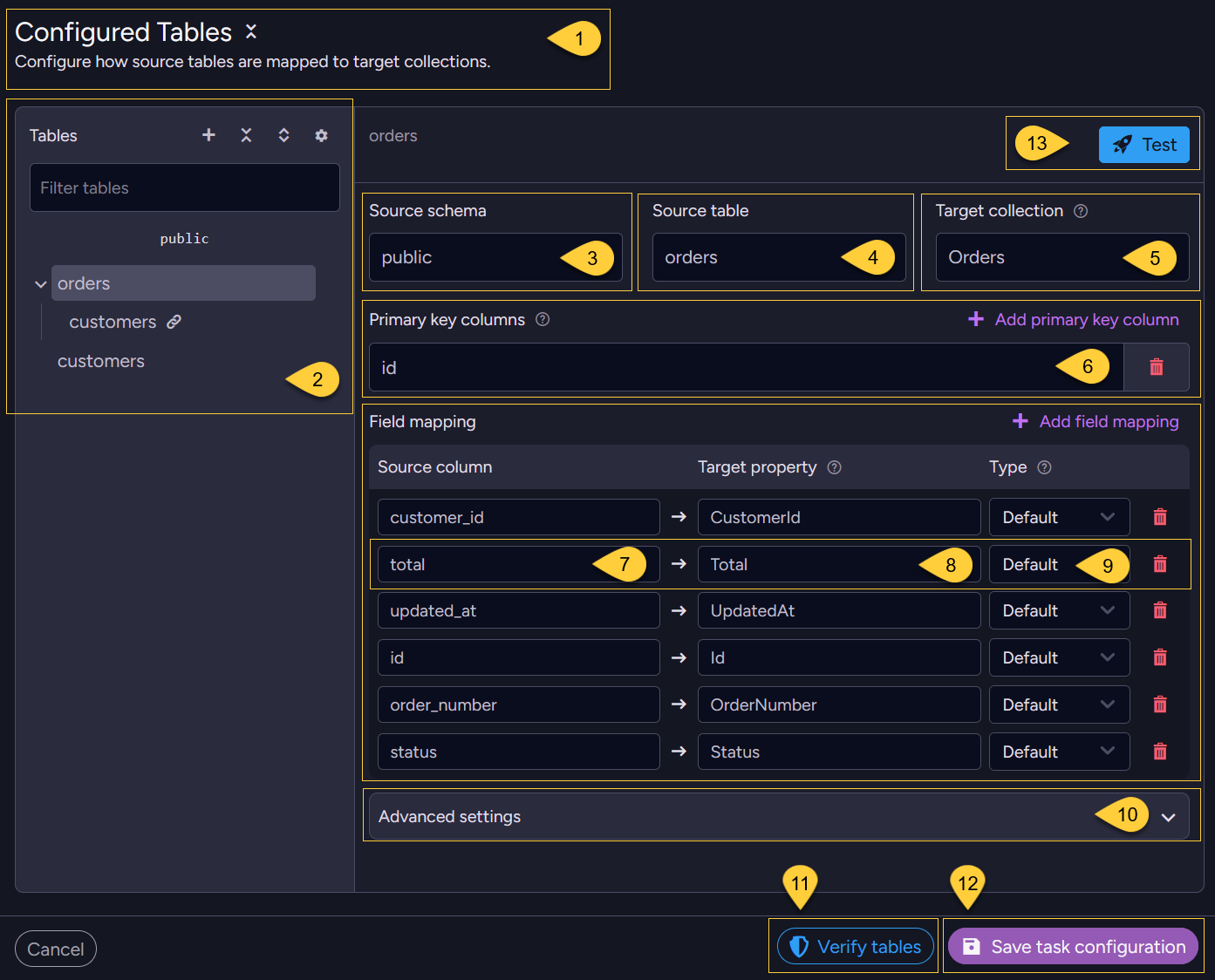
- Configured Tables - In this section, configure how source tables are mapped to target RavenDB collections.
- Tables - the list of configured tables. Select a table to edit its mapping.
- A table can be a root table (mapped directly to its own collection),
or a table nested under a root table - either linked or embedded (see the sections below). - In this example,
ordersis a root table withcustomersnested under it as a linked table (marked with 🔗);customersalso appears on its own as a separate root table.
- A table can be a root table (mapped directly to its own collection),
- Source schema - the schema the source table belongs to (e.g.
public). - Source table - the name of the source table.
- Target collection - the RavenDB collection that documents are written to.
- Primary key columns - Columns that uniquely identify each source row.
Their values are used to derive the RavenDB document ID.
Click Add primary key column to add more. - Source column - the column name in the source table. Click Add field mapping to add more.
- Target property - the RavenDB document field where the source column value will be stored.
- Type - select how the source column value is stored in the document:
Default- stored as a regular propertyJSON- parsed as JSON before storingAttachment- stored as a RavenDB attachment
- Advanced settings - expand to configure patch scripts and delete handling.
- Verify tables - click to check that the CDC flow can run against the configured source database and tables.
Learn more in Verify tables below. - Click Save task configuration to save the task once you've finished configuring all tables and their advanced settings.
Studio may first verify the configuration against the source database.
Learn more in Save the task configuration below. - Click Test to preview the mapping output before saving.
Add missing root tables
When a linked table references a source table that is not configured as a root table, Studio displays a warning above the configured tables.
The parent document will contain the linked document ID, but CDC Sink will not create the referenced document until the source table is also configured as a root table.
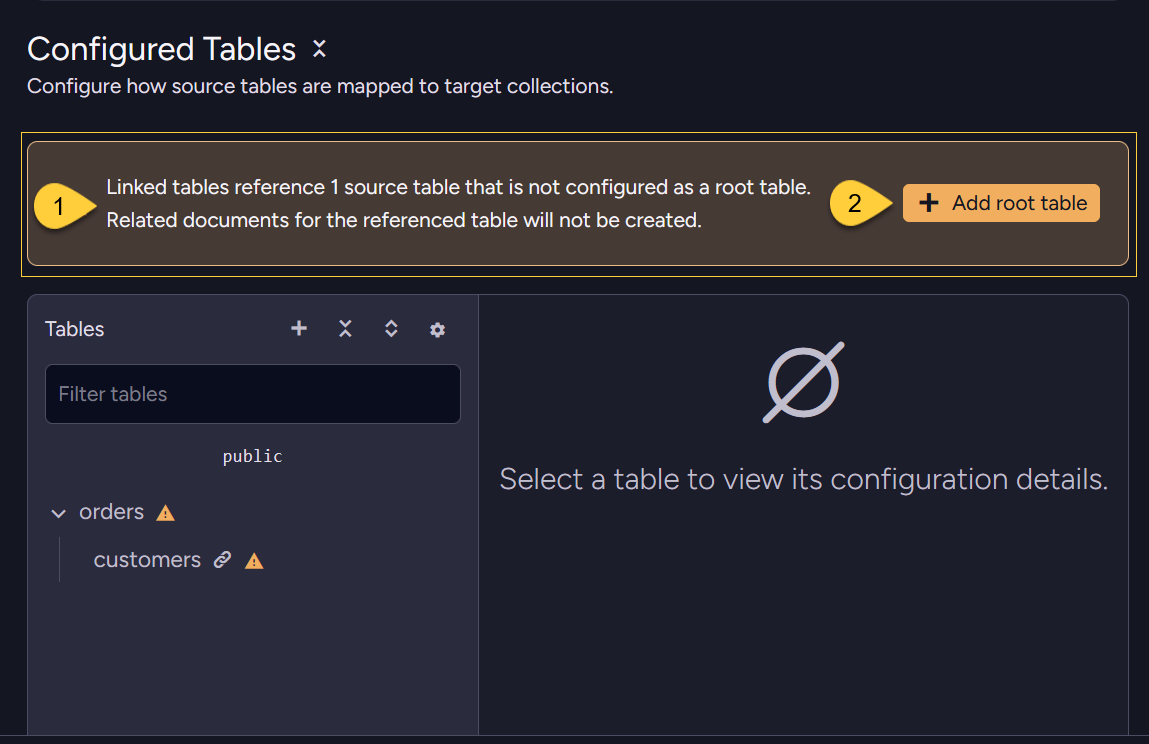
- Missing root table warning
Indicates how many referenced source tables are not configured as root tables. - Add root table
Click to open the Add root tables dialog.
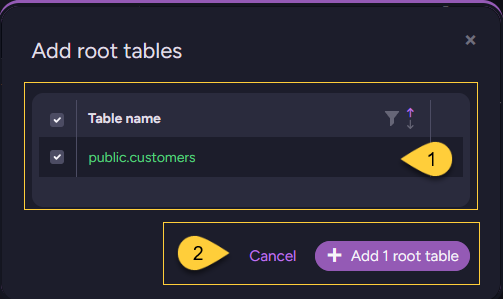
- Select the source tables that you want to configure as root tables.
Studio selects all missing tables by default. - Click Add 1 root table (or Add n root tables when multiple tables are selected).
Studio adds the selected tables to the configuration as root tables.
Review the generated mappings, then click Save task configuration to save the changes.
Configure linked tables
A linked table turns a foreign-key relationship into a document-ID reference: instead of copying the related row's data into the document, the parent document stores a reference (a document ID) to a document in another collection.
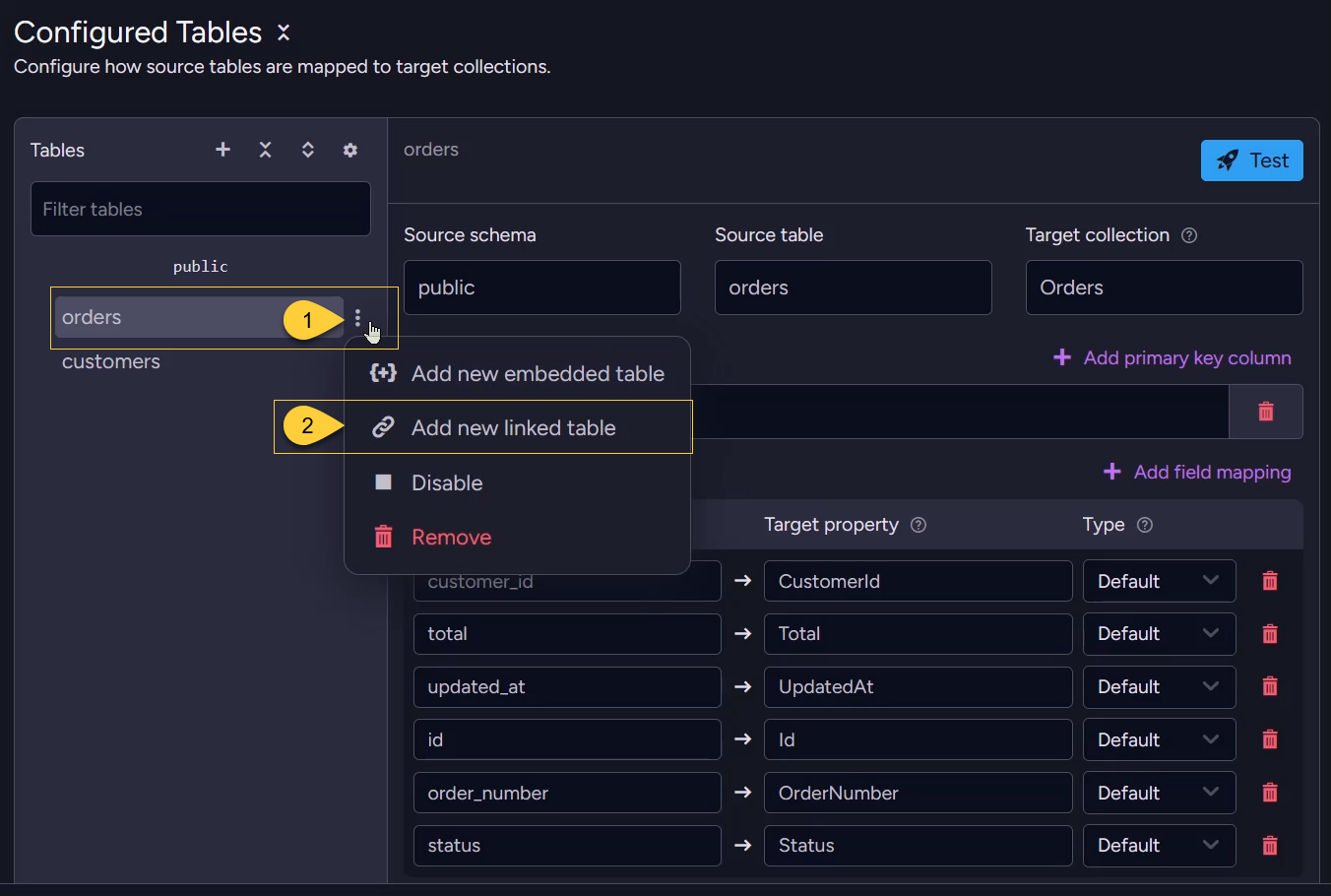
- On a root (or embedded) table in the Tables list, click the three-dots Table actions icon.
- Select Add new linked table.
In this example, the customers table is linked under the orders root table.
The resulting Order document gets a Customer property holding a document-ID reference into the Customers collection.
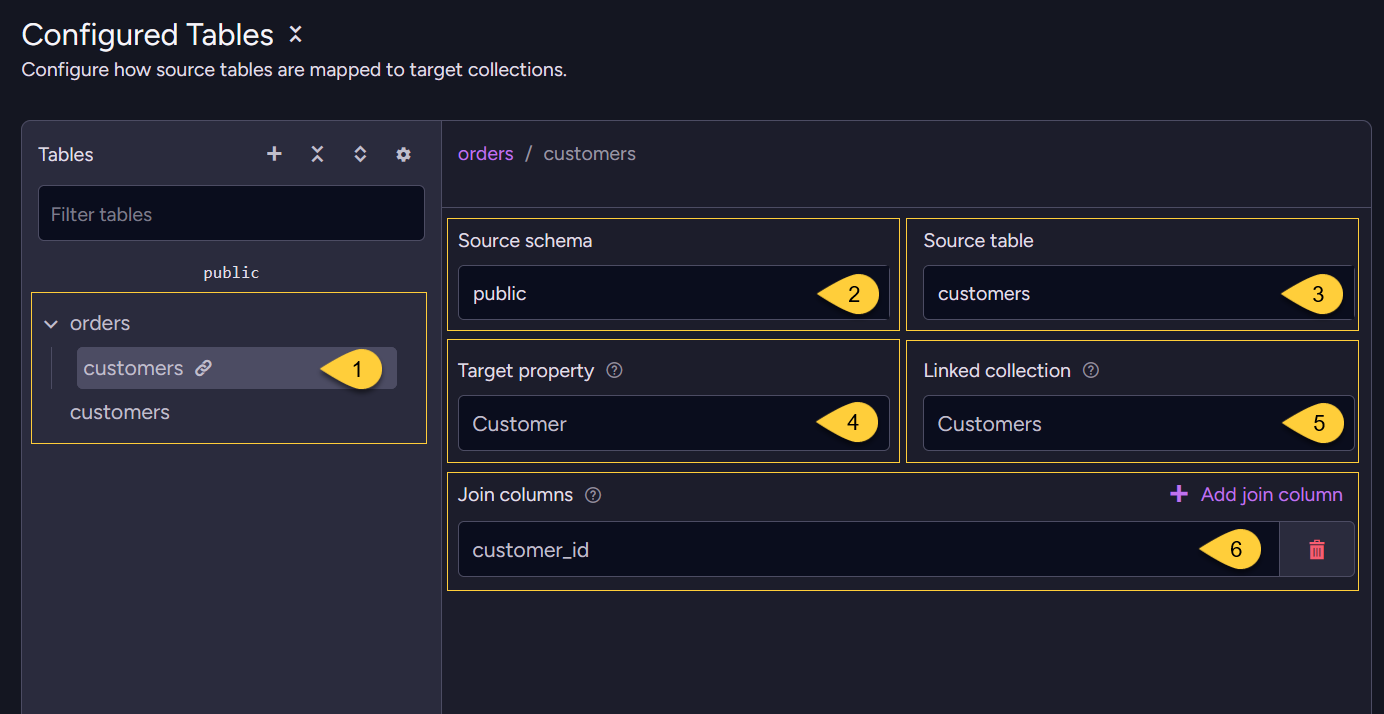
- The source table that is linked
- Source schema
The related source schema. - Source table
The related source table. - Target property
The RavenDB document field that will hold the reference to the linked (related) document. - Linked collection
The RavenDB collection the reference points to.
Its name is combined with the join column value(s) to form the referenced document ID
(e.g.Customers+customer_id→Customers/1). - Join columns
The foreign key column(s) used to join this linked table to the parent table.
Their values, combined with the linked collection name, form the related document ID.
Click Add join column for a composite key.
Configure embedded tables
An embedded table nests the related rows inside the parent document instead of referencing them.
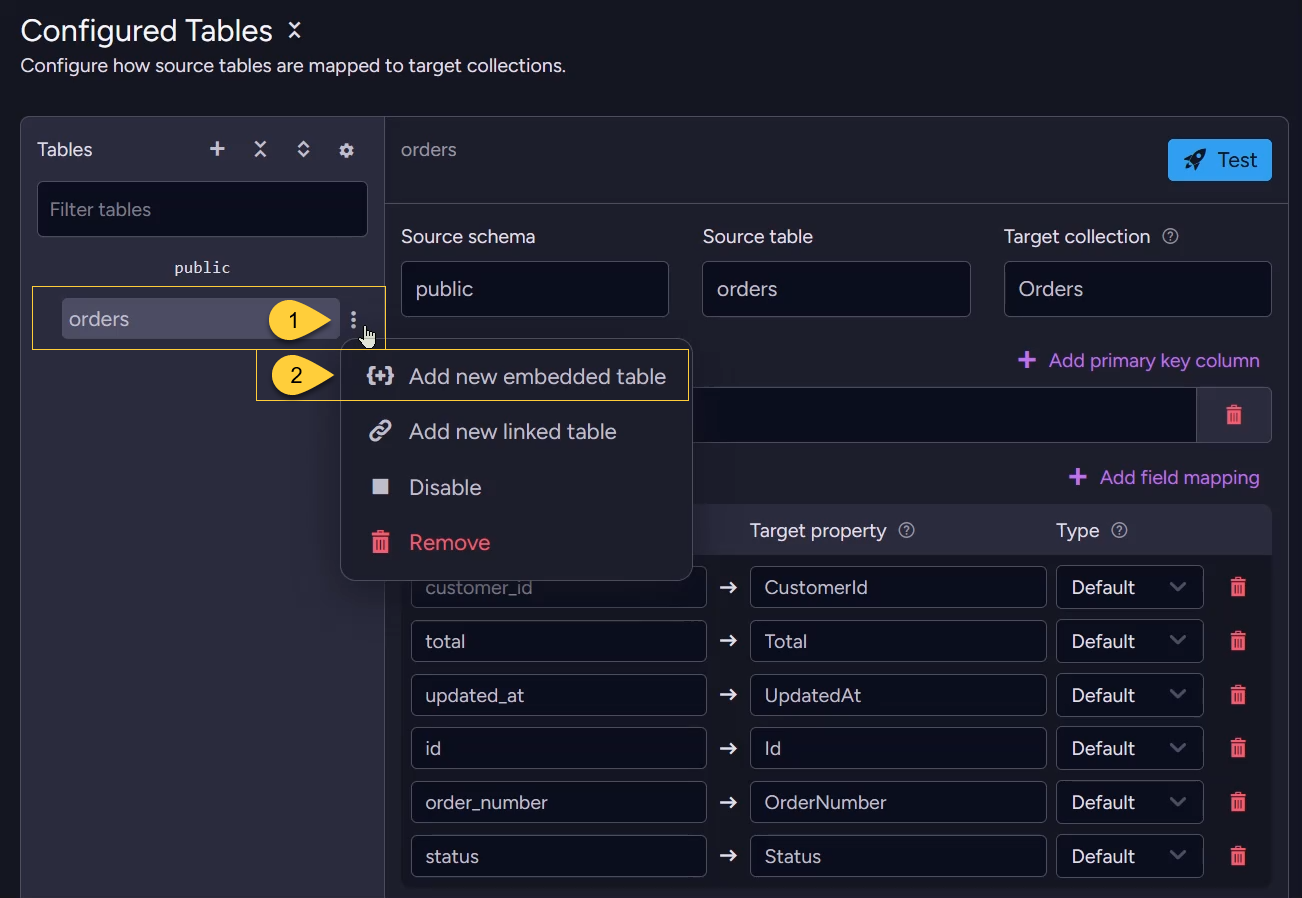
- On a root (or embedded) table in the Tables list, click the three-dots Table actions icon.
- Select Add new embedded table.
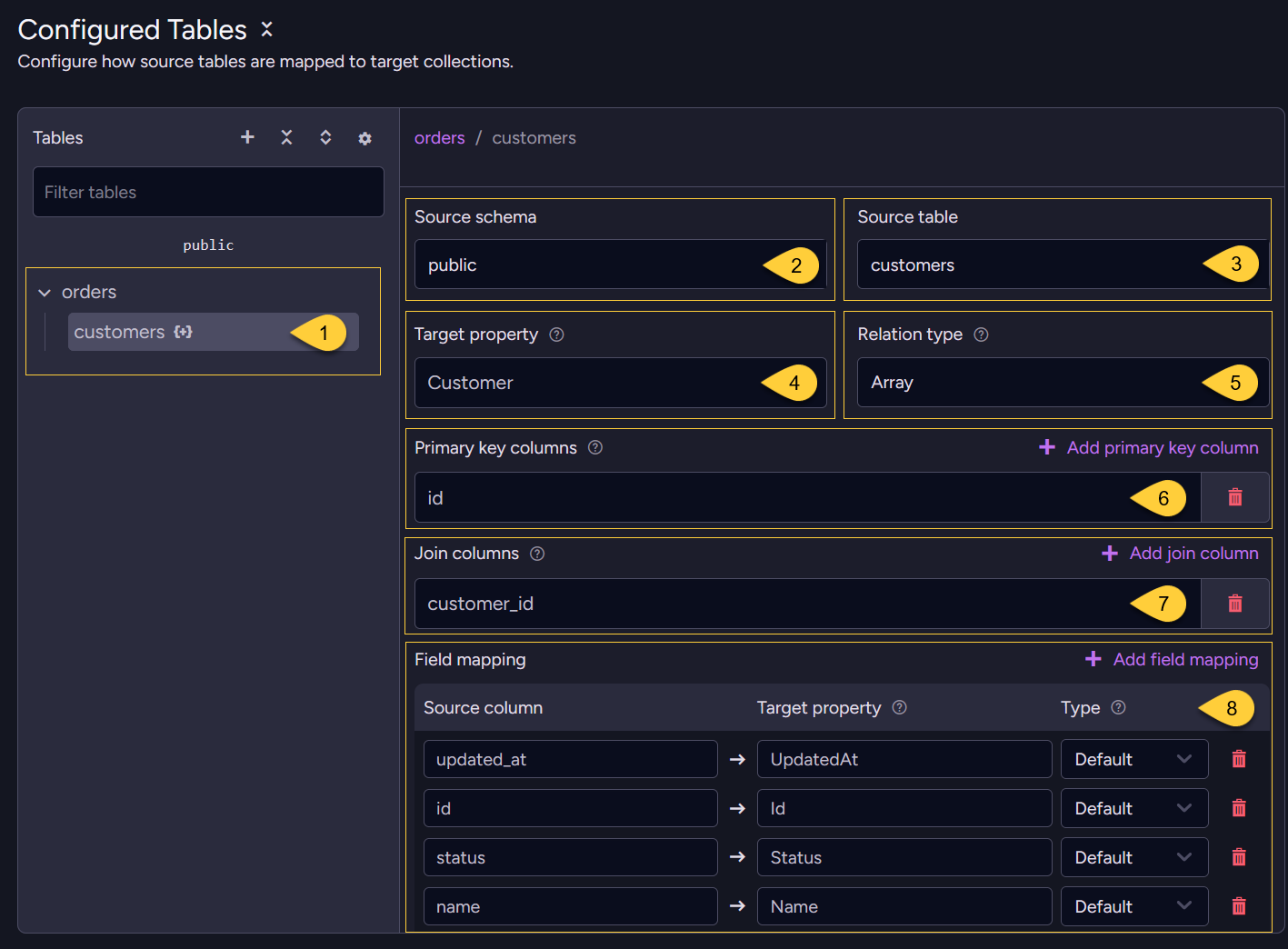
- The embedded table appears nested under its parent in the Tables list (marked with
{+}). - Source schema
The schema of the related source table (e.g.public). - Source table
The related source table (e.g.customers). - Target property
The RavenDB document field where the embedded related data will be stored. - Relation type
How related rows are embedded in the parent document:Array- multiple rows stored as an array of objectsMap- multiple rows stored as a keyed object (dictionary)Value- a single row stored directly as an object
- Primary key columns
Columns that uniquely identify rows in this related table. - Join columns
Columns used to match rows in this related table with rows from the root table. - Field mapping
Map the related table's columns to document properties,
each with its own Type (Default / JSON / Attachment).
Test mapping
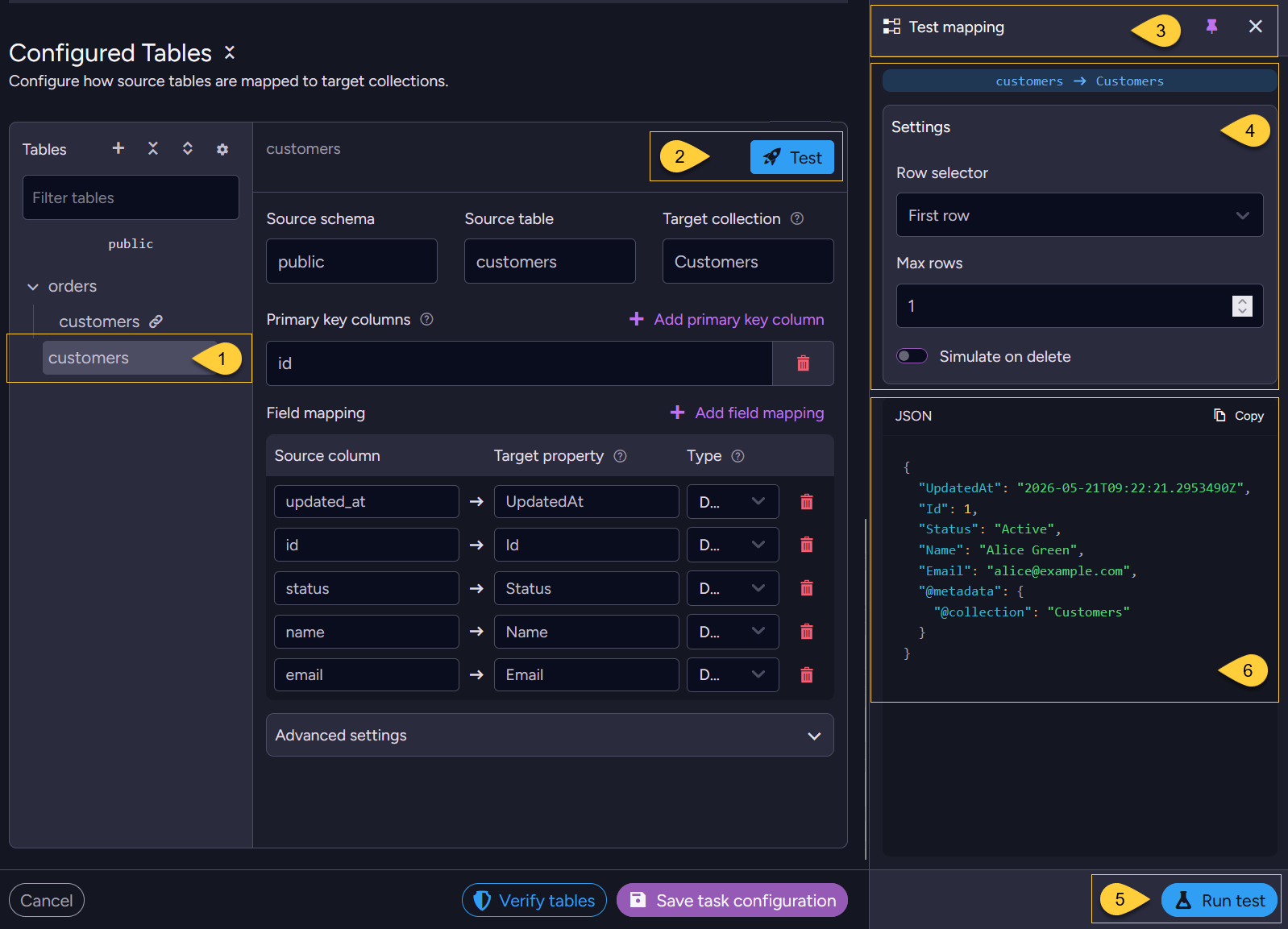
- Select the table whose mapping you want to test.
- Click Test to open the test panel.
- The Test mapping panel shows the selected table-to-collection mapping (e.g.
customers→Customers). - Settings
- Row selector
Choose which source rows to pull for the test:First row
Fetch rows from the top of the table.
Set Max rows to control how many rows to fetch and preview.
Each fetched row is turned into a RavenDB document, so you can preview multiple documents at once.Primary key
Fetch a single specific row by entering its primary key value(s).
For a composite primary key, enter one value per key column - together they identify one row.
- Simulate on delete
Run the test as if the rows were DELETE events instead of inserts/updates,
to preview your delete handling (Skip deletion / Delete patch).
- Row selector
- Click Run test to execute the test against the source data.
- The resulting RavenDB document(s) are shown as JSON.
Test mapping previews the documents produced from the selected table's rows.
It does not check whether the source database is ready for CDC, see Verify tables.
Advanced settings
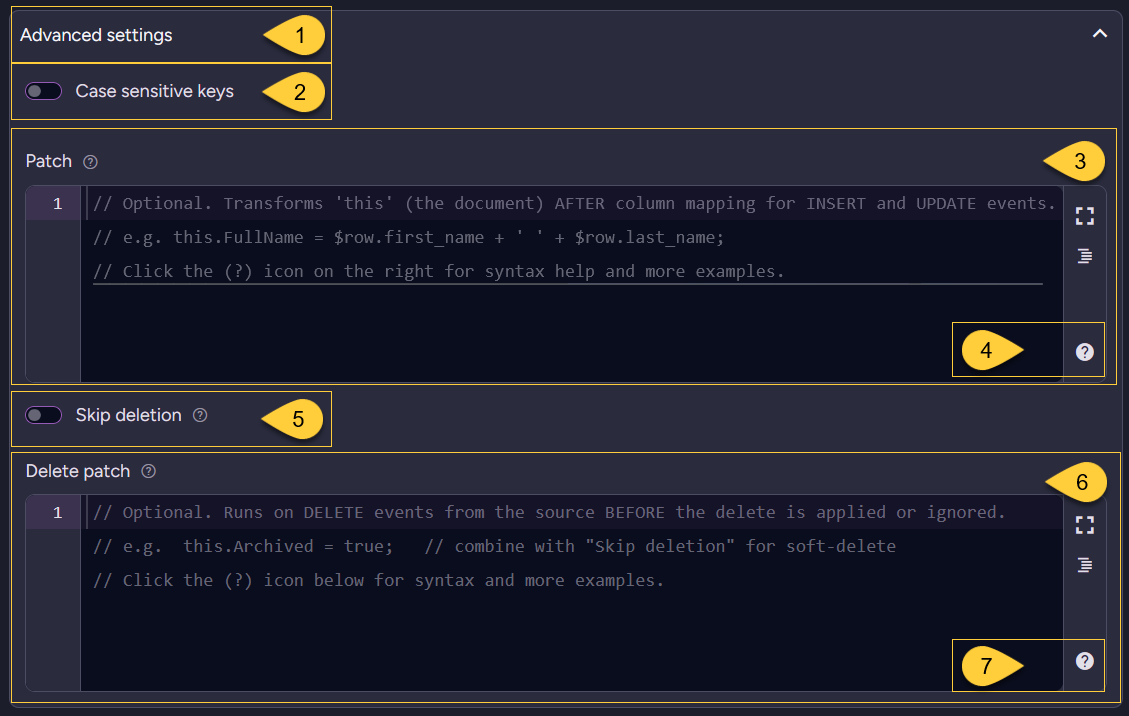
- Expand Advanced settings for the selected table.
- Case sensitive keys
This option is shown only for embedded tables.
ForArrayandMapembedded tables, it controls whether string primary-key values are matched case-sensitively when locating items within the parent document.
Enable it when values that differ only by letter case represent different keys. Default: off. - Patch
An optional script that transformsthis(the document) AFTER column mapping, on INSERT and UPDATE events. - Patch syntax help
Click the (?) icon for patch syntax help and examples. - Skip deletion
Enable to ignore source DELETE events (useful for soft-delete scenarios). - Delete patch
An optional script that runs on DELETE events BEFORE the delete is applied or ignored. - Delete-patch syntax help
Click the (?) icon for delete-patch syntax help and examples.
Verify tables

Use Verify tables to check that the CDC flow can run against the live source database for the configured connection string and tables before you save the task.
- Verification runs the same source-side setup and initial-load steps the task runs when it starts,
but reads at most one row from each configured table and does not stream changes.
It reads these rows even if Skip initial load is enabled. - Verification does not create the task, and does not write documents, checkpoints, or task state to RavenDB.
- When verification completes, it attempts to remove the CDC objects it created on the source database.
If cleanup fails, verification reports a warning.
Which objects are created depends on the source database, see PostgreSQL, SQL Server, or MySQL/MariaDB. - Disabled tables are not verified, see Enable/Disable a configured table.
- The RavenDB node you are connected to in Studio performs the verification.
The CDC Sink task may run on a different node.
When you click Verify tables, the button shows "Verifying tables..." while verification runs, and then the result:
-
Tables verified - verification completed without errors or warnings.

-
Tables verified with warnings - verification completed and reported warnings.
Warnings describe conditions the task may run into, or will handle itself, when it starts.
Warnings do not prevent saving the task.
-
Verification failed - verification stopped at the first error.
After fixing it, click Verify tables again to check for further errors.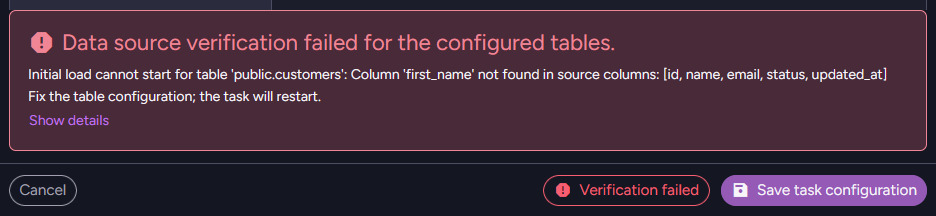
The error message describes what failed.
Errors about setting up CDC objects may include a command an administrator can run to fix the problem.
Click Show details, when available, to view the full error, including the stack trace.
The result applies to the connection string selection, PostgreSQL publication and slot names, and table configuration.
Changing any of them resets the button to Verify tables.
To interpret the result, see Troubleshooting: Table verification fails or returns warnings.
Save the task configuration
Click Save task configuration to save the task.
Before saving, Studio verifies the configuration if:
- the task is new, or
- the connection string selection, the PostgreSQL publication or slot name, or the table configuration has changed since the task was last saved.
If a verification result is already available for the current configuration, Studio uses it instead of verifying again.
This applies to results from Verify tables or an earlier save attempt, including results with warnings or a verification error.
If verification completes without warnings, the task is saved.
If verification reports warnings or fails, Studio asks you to confirm:
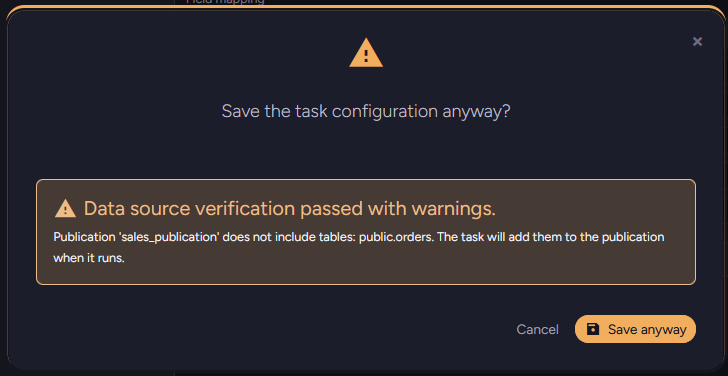
- Click Save anyway to save the task configuration despite the warnings or error.
The task may encounter the same problem when it starts. - Click Cancel to return to the configuration without saving.
If the verification request itself fails, for example because of a network error,
Studio shows it as a failed verification ("The dry run request failed. Check the Notification Center for details.").
A failed request is not reused as a verification result, so Studio verifies again on save when verification is required.
If that request also fails, you can still save with Save anyway.
The created task
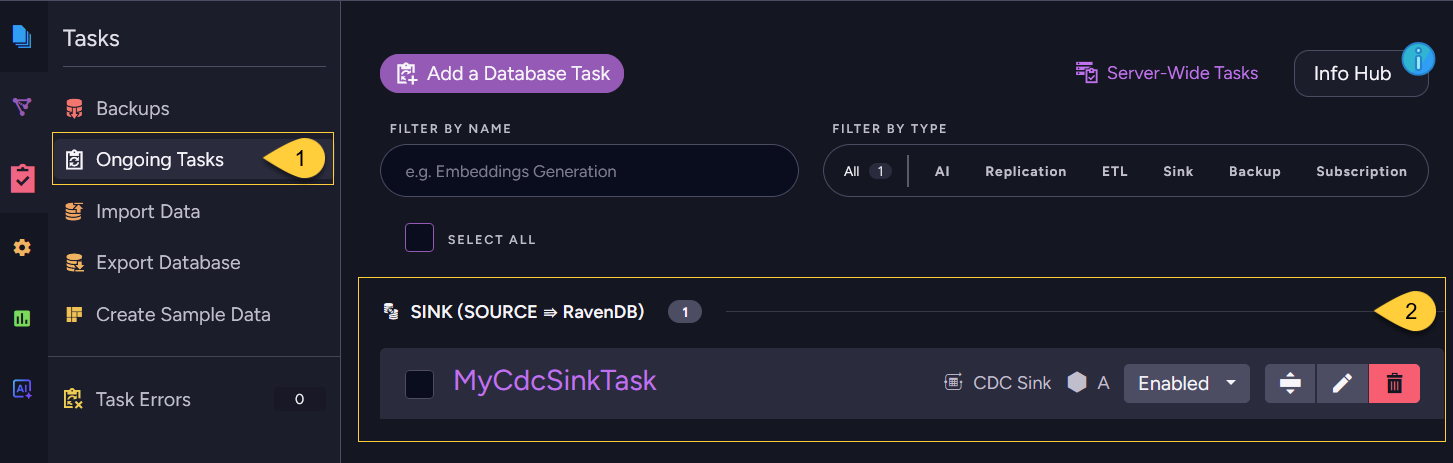
- The new task appears under Ongoing Tasks.
- It is listed under the SINK (SOURCE ⇒ RavenDB) group, showing the task name, its responsible node, and its state.
Use the controls on the right to enable/disable, edit, or delete the task.
Create a CDC Sink task via REST API
Discover the source database schema
Use this endpoint to list tables, columns, primary keys, and foreign keys from the source database.
Use the returned schema metadata to build the Tables section of the CdcSinkConfiguration before sending the create-task request.
The request body should include either:
ConnectionStringName, to use a saved SQL connection string, orConnection, to pass an inlineSqlConnectionString.
For PostgreSQL, you can include Schemas to limit schema discovery (defaults to ["public"]).
| Method | Endpoint | Auth |
|---|---|---|
POST | /databases/{databaseName}/admin/cdc-sink/schema | DatabaseAdmin |
Verify the configuration
Use this endpoint to run the CDC flow once against the source database before creating or updating the task,
as Verify tables does in Studio.
It does not create the task, and does not write documents, checkpoints, or task state to RavenDB.
The request body should include:
Configuration- theCdcSinkConfigurationto verify.Nameis not required.Connection- theSqlConnectionStringof the source database, passed inline.
This endpoint does not resolveConnectionStringName.
The response includes:
Success-trueif verification completed without an error. Warnings do not affect this value.Error- the full text of the error that stopped verification, ornull.Warnings- conditions reported during verification, including source cleanup failures.CompletedTables- the configured tables, asschema.table, whose initial-load step completed, including empty tables.
Verification uses a two-minute timeout that is refreshed as it reads the configured tables.
The total request can take longer, including source cleanup.
| Method | Endpoint | Auth |
|---|---|---|
POST | /databases/{databaseName}/admin/cdc-sink/dry-run | DatabaseAdmin |
Create the task
Send a PUT request whose body is the JSON CdcSinkConfiguration.
Omit the id query-string parameter to create a new task; the response returns the assigned TaskId.
| Method | Endpoint | Auth |
|---|---|---|
PUT | /databases/{databaseName}/admin/cdc-sink | DatabaseAdmin |