Database-level Custom Sorters
-
A custom sorter added at the database level can be used only in queries made on that database.
Once deployed, it can be used to sort query results in that database. -
Server-wide custom sorters are available for use in queries across all databases.
To learn how to define and deploy a server-wide custom sorter, see Server-wide custom sorters. -
If a database-level custom sorter and a server-wide custom sorter have the same name,
the database-level custom sorter will be used for the query. -
Custom sorters are available only when using the Lucene indexing engine; they are not available with Corax.
To learn how to write a custom sorter, see: How to write a custom sorter. -
In this article:
Add database-level custom sorter - via the Client API
Use PutSortersOperation to deploy one or more custom sorters to a specific database.
Deploying a custom sorter with an existing name replaces the previous version.
- Sync
- Async
// Assign the code of your custom sorter as a 'string'
string mySorterCode = "<code of custom sorter>";

// Create the 'SorterDefinition' object
var customSorterDefinition = new SorterDefinition
{
    // The sorter name must be the same as the sorter's class name in your code
    Name = "MyCustomSorter",

    // The code must be compilable and include all necessary using statements
    Code = mySorterCode
};

// Define the put sorters operation, pass the sorter definition
// Note: multiple sorters can be passed, see syntax below
var putSortersOp = new PutSortersOperation(customSorterDefinition);

// Execute the operation by passing it to Maintenance.Send
store.Maintenance.Send(putSortersOp);
// Assign the code of your custom sorter as a 'string'
string mySorterCode = "<code of custom sorter>";

// Create the 'SorterDefinition' object
var customSorterDefinition = new SorterDefinition
{
    // The sorter name must be the same as the sorter's class name in your code
    Name = "MyCustomSorter",

    // The code must be compilable and include all necessary using statements
    Code = mySorterCode
};

// Define the put sorters operation, pass the sorter definition
// Note: multiple sorters can be passed, see syntax below
var putSortersOp = new PutSortersOperation(customSorterDefinition);

// Execute the operation by passing it to Maintenance.SendAsync
await store.Maintenance.SendAsync(putSortersOp);
You can now order query results using the custom sorter.
- Query
- Query_async
- DocumentQuery
- DocumentQuery_async
- RQL
List<Product> products = session
    .Query<Product>()
    .Where(x => x.UnitsInStock > 10)
     // Order by field 'UnitsInStock', pass the name of your custom sorter class
    .OrderBy(x => x.UnitsInStock, "MyCustomSorter")
    .ToList();

// Results will be sorted by the 'UnitsInStock' value
// according to the logic from 'MyCustomSorter' class
List<Product> products = await asyncSession
    .Query<Product>()
    .Where(x => x.UnitsInStock > 10)
     // Order by field 'UnitsInStock', pass the name of your custom sorter class
    .OrderBy(x => x.UnitsInStock, "MyCustomSorter")
    .ToListAsync();

// Results will be sorted by the 'UnitsInStock' value
// according to the logic from 'MyCustomSorter' class
List<Product> products = session.Advanced
    .DocumentQuery<Product>()
    .WhereGreaterThan(x => x.UnitsInStock, 10)
     // Order by field 'UnitsInStock', pass the name of your custom sorter class
    .OrderBy(x => x.UnitsInStock, "MyCustomSorter")
    .ToList();

// Results will be sorted by the 'UnitsInStock' value
// according to the logic from 'MyCustomSorter' class
List<Product> products = await asyncSession.Advanced
    .AsyncDocumentQuery<Product>()
    .WhereGreaterThan(x => x.UnitsInStock, 10)
     // Order by field 'UnitsInStock', pass the name of your custom sorter class
    .OrderBy(x => x.UnitsInStock, "MyCustomSorter")
    .ToListAsync();

// Results will be sorted by the 'UnitsInStock' value
// according to the logic from 'MyCustomSorter' class
from "Products"
where UnitsInStock > 10
order by custom(UnitsInStock, "MyCustomSorter")

// Results will be sorted by the 'UnitsInStock' value
// according to the logic from 'MyCustomSorter' class
Add database-level custom sorter - via Studio
The custom sorters view
The custom sorters view lists all custom sorters that were uploaded from Studio and from the Client API.
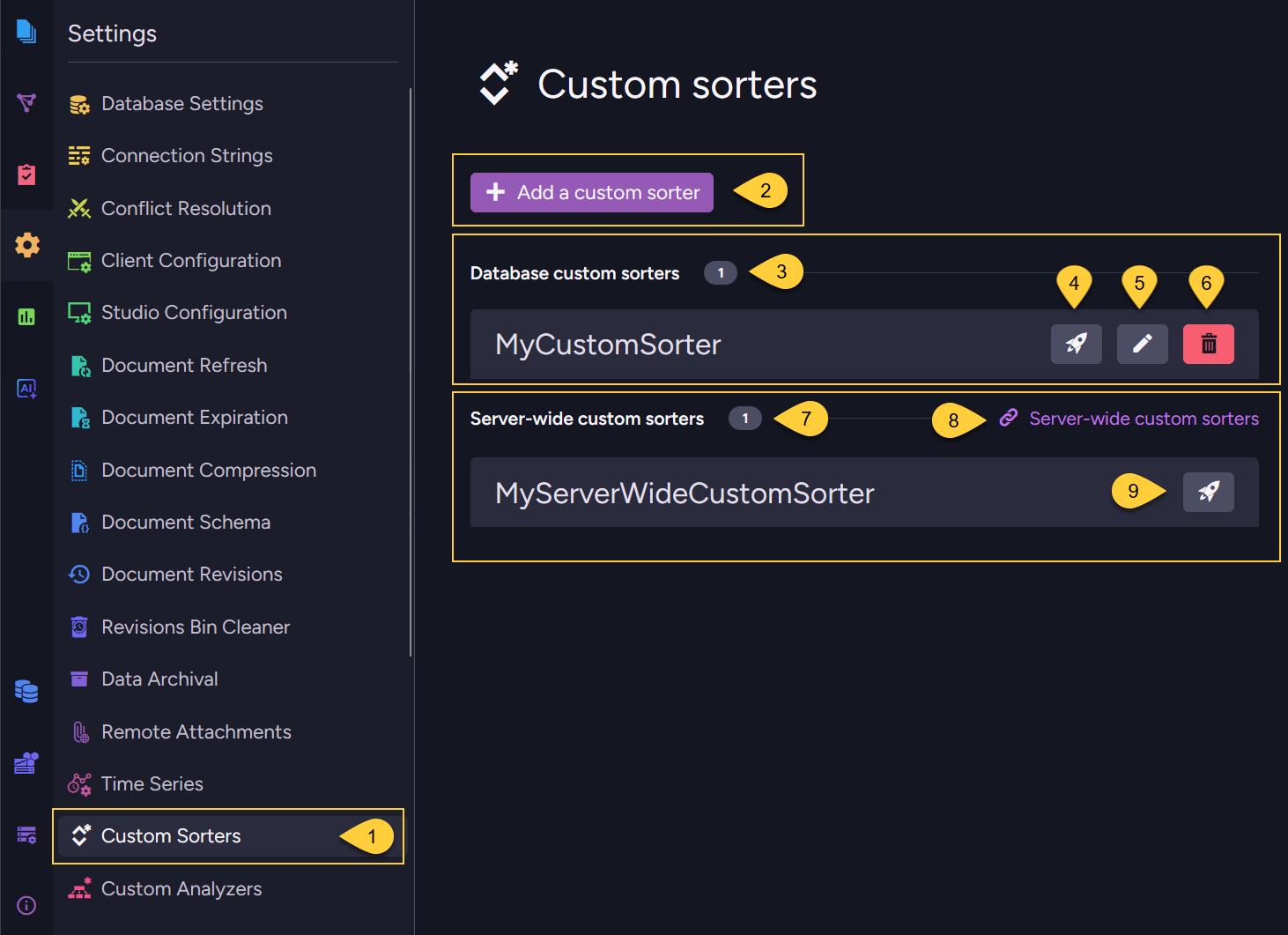
- Go to Settings > Custom Sorters.
- Click to add a new database-level custom sorter. See Add a custom sorter below.
- The custom sorters deployed for this database are listed here.
- Click to test this custom sorter. Learn more in Test custom sorter below.
- Click to edit this custom sorter.
- Click to delete this custom sorter.
- The server-wide custom sorters are listed here.
- Follow this link to manage the server-wide custom sorters.
- Click to test the server-wide custom sorter on this database.
Add a custom sorter
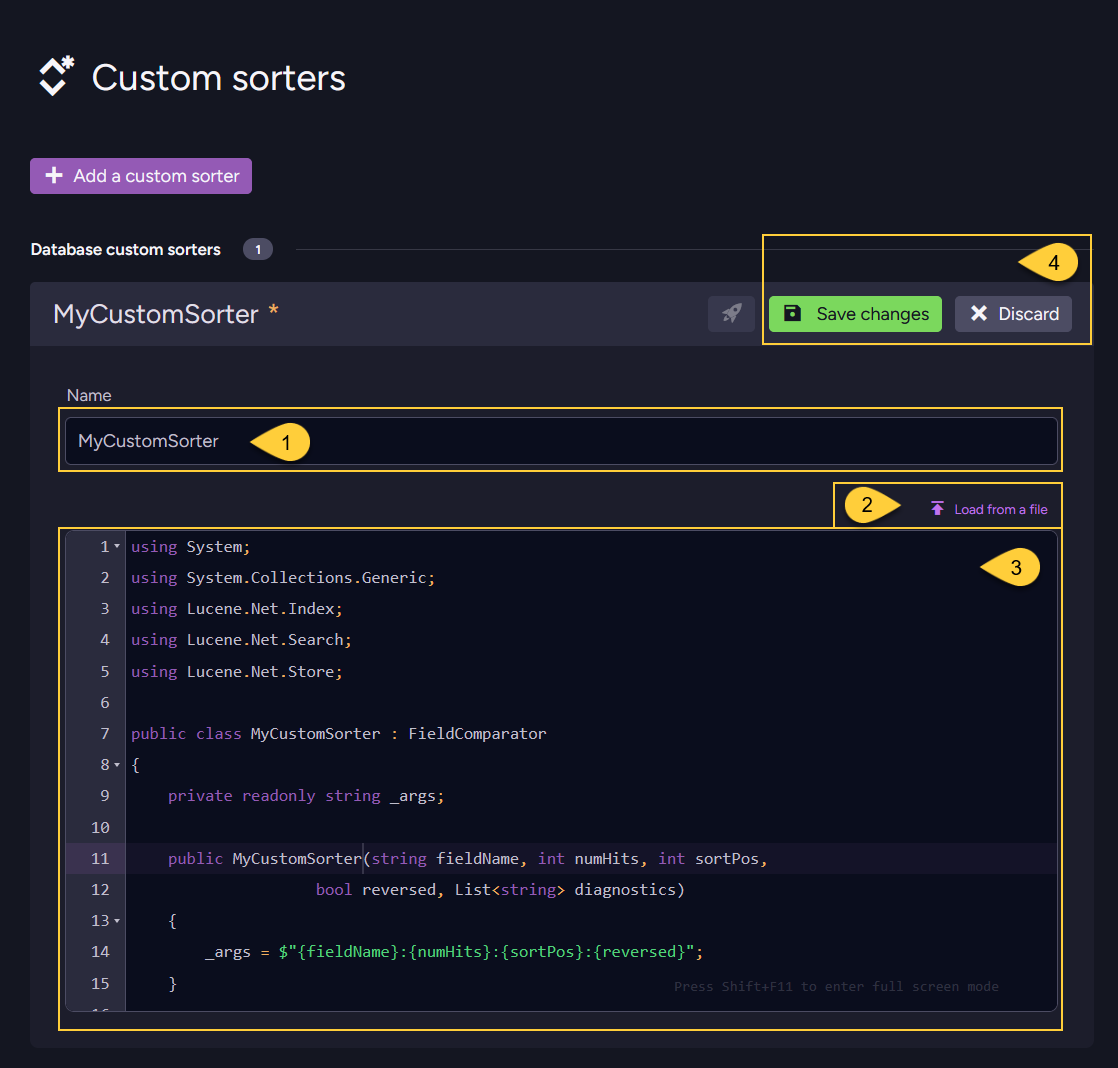
- The sorter name must be the same as the class name of your sorter.
- You can load the sorter's code from a
*.csfile. - Or, you can enter the code manually in this editor.
The sorter code must be compilable and include all necessaryusingstatements.
The sorter's class should inherit from Lucene.Net.Search.FieldComparator.
Learn more in How to write a custom sorter. - Save your sorter or discard.
Delete database-level custom sorter
In addition to deleting a custom sorter via The custom sorters view in Studio,
you can ues DeleteSorterOperation to delete a database-level custom sorter.
Once removed, the sorter will no longer be available for ordering query results in the associated database.
- Sync
- Async
// Define the delete sorter operation, pass the name of the sorter to delete
var deleteSorterOp = new DeleteSorterOperation("MyCustomSorter");

// Execute the operation by passing it to Maintenance.Send
store.Maintenance.Send(deleteSorterOp);
// Define the delete sorter operation, pass the name of the sorter to delete
var deleteSorterOp = new DeleteSorterOperation("MyCustomSorter");

// Execute the operation by passing it to Maintenance.SendAsync
await store.Maintenance.SendAsync(deleteSorterOp);
Test custom sorter
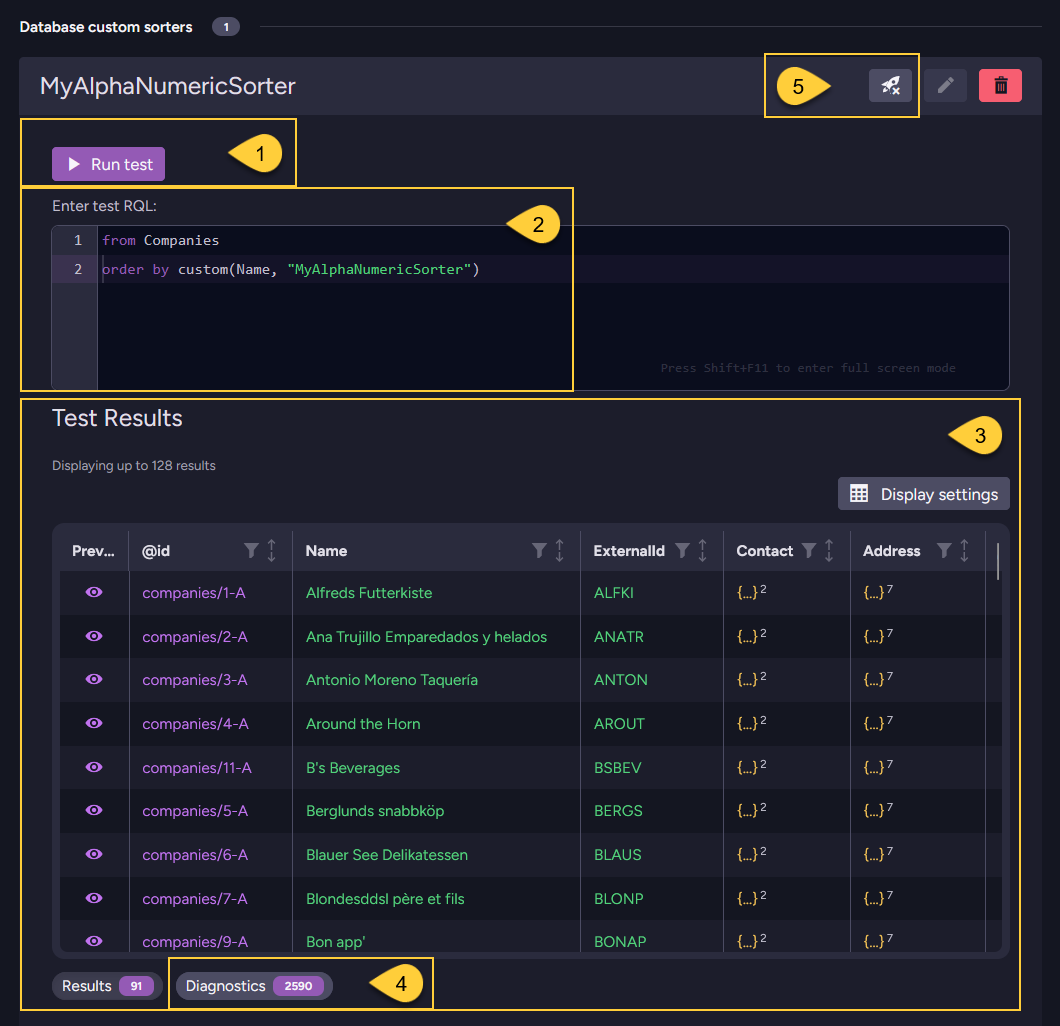
You can test a custom sorter from Studio before using it in a query, to verify that it works as expected.
Click the test button from the Custom sorters view to open the test panel:
-
Run test
Click to execute the test RQL entered in #2. -
Test RQL
Enter an RQL query that uses your custom sorter via thecustom()method.
For example:from Products order by custom(UnitsInStock, "MyAlphaNumericSorter") -
Results tab
Displays the documents returned by the test query, ordered according to your custom sorter logic. -
Diagnostics tab
Displays diagnostic messages collected while the custom sorter is executed. Studio runs the test query with diagnostics enabled, so you can verify that the sorter was invoked and inspect its execution flow.
Studio records comparator execution details during the test, such as calls toCompare,SetBottom, andCopy.
You can also add your own messages to this list - see Adding your own diagnostic messages. -
Click to close the test panel.
Adding your own diagnostic messages
The custom sorter's constructor receives a List<string> diagnostics parameter.
In normal queries, outside the Studio test panel, this parameter is null.
To add your own messages, store the list in the sorter and append to it from your comparator methods:
private readonly List<string> _diagnostics;
private readonly AlphaNumericFieldComparator _inner;

public MySorterWithDiagnostics(string fieldName, int numHits, int sortPos, bool reversed, List<string> diagnostics)
{
    _diagnostics = diagnostics;
    _inner = new AlphaNumericFieldComparator(fieldName, numHits);
}
You can then append messages while the sorter runs, for example, inside Compare.
Use the null-conditional operator (?.) when appending so your sorter behaves correctly in normal queries, where diagnostics is null.
public override int Compare(int slot1, int slot2)
{
    // Add your own diagnostic message
    _diagnostics?.Add($"Compare was called for slots {slot1} and {slot2}");
    return _inner.Compare(slot1, slot2);
}
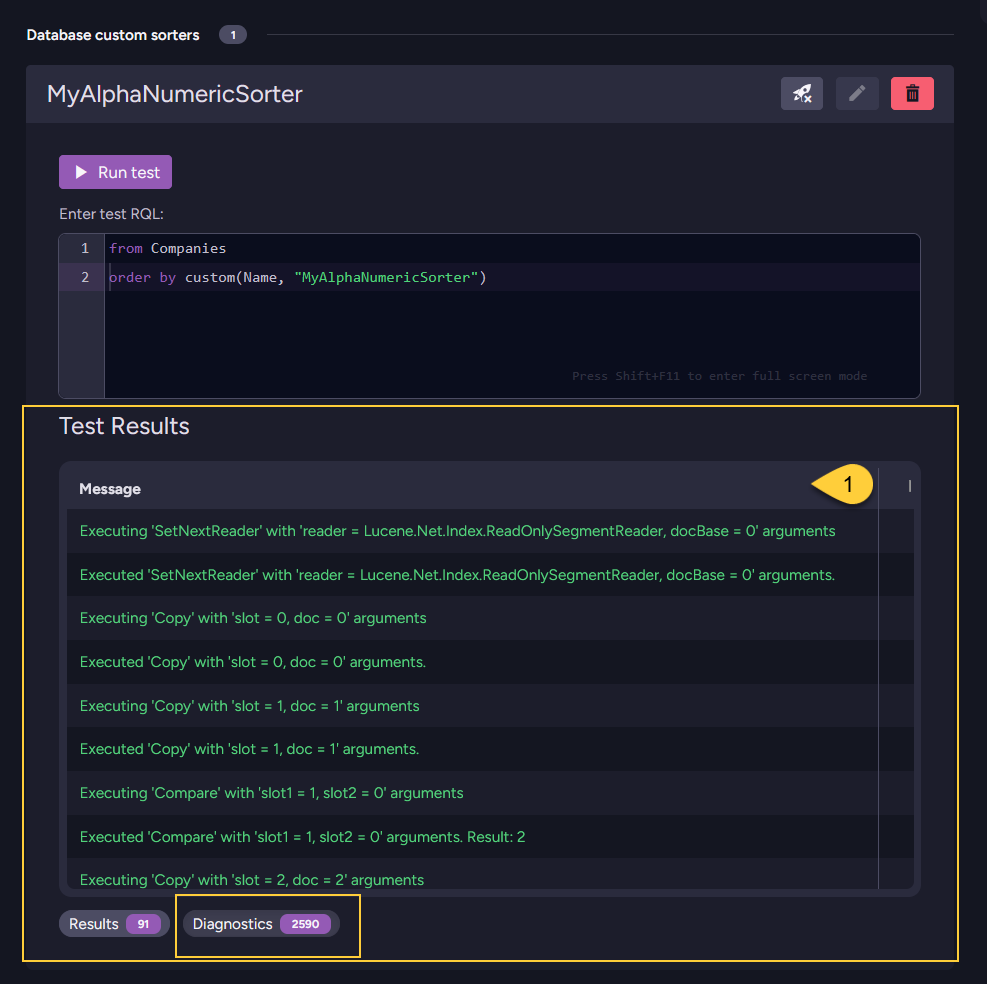
- The messages added to the diagnostics list appear in the Diagnostics tab alongside the messages Studio records during the test.
Syntax
PutSortersOperation
Deploys one or more custom sorters to the database scope.
public PutSortersOperation(params SorterDefinition[] sortersToAdd)
| Parameter | Type | Description |
|---|---|---|
| sortersToAdd | SorterDefinition[] | One or more sorter definitions to deploy. At least one is required. |
public sealed class SorterDefinition
{
    // The sorter's name. Must match the class name in the source code.
    public string Name { get; set; }

    // The complete C# source code of the sorter, including all `using` statements.
    // Must be compilable.
    public string Code { get; set; }
}
DeleteSorterOperation
Removes a custom sorter from the database scope.
public DeleteSorterOperation(string sorterName)
| Parameter | Type | Description |
|---|---|---|
| sorterName | string | The name of the sorter to remove. |