RQL Code Assistance
-
All queries sent to the RavenDB server use RQL, RavenDB’s rich query language.
To learn more about RQL, see What is RQL. -
RQL Code Assistance is a RavenDB Studio feature that helps you write RQL queries quickly and correctly
by providing context-aware auto-completion and real-time syntax checking.
While you type a query in Studio, RQL Code Assistance will:- Provide auto-completion (Ctrl+Space) for collections, document fields, indexes, functions, keywords, and operators relevant to your current query context.
- Update suggestions as you write, showing valid options for the next part of the query.
- Continuously check syntax and highlight errors with warning icons and detailed messages on hover.
-
RQL Code Assistance is available whenever you write a query in the following Studio views:
- In this article:
Auto-completion
-
To invoke auto-completion, press Ctrl+Space while writing RQL.
The relevant options for the current cursor location will be listed. -
Clicking a list item will add it to the query.
At the very beginning of a query, the suggested options will be the most basic ones:- from - to select a collection to query on
- from index - to select an index to query on
- declare function - to create a JavaScript function

- List of available options
- An available option
- Option type, which can be -
- A Collection
- A Document Field
- A Function
- A Keyword
- An Operator
As the query evolves, new options that are relevant to the current code are suggested.
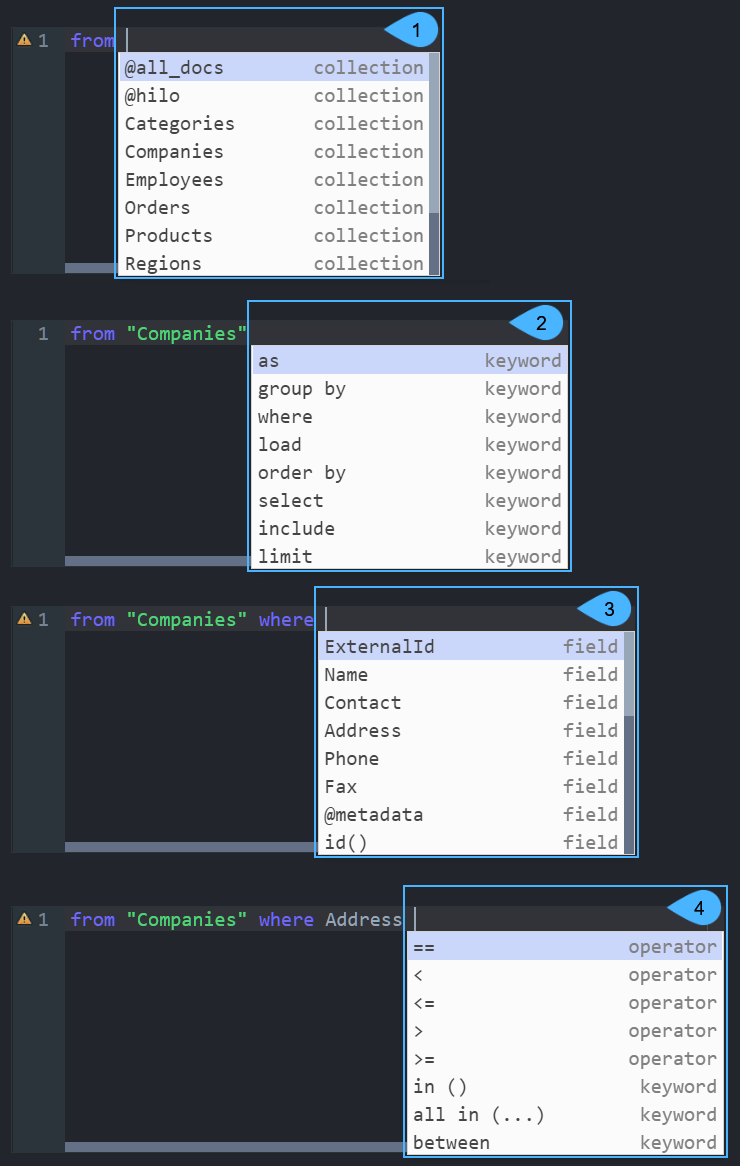
For the collection query shown above, auto-completion presents:
- The list of collections that can be queried
- The list of keywords that can be used with the selected collection
- The list of document fields that can be queried
- The list of operators and keywords that can be used
Syntax verification
- As you write your query, its syntax is continuously verified and errors are detected.
- When an error is detected, a warning sign is displayed on the left side of the editor.
- Hovering over the warning sign shows the error details.
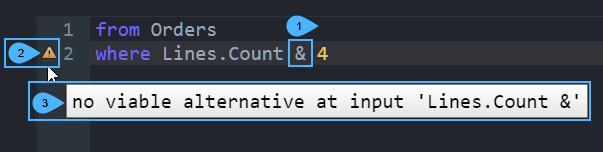
- Syntax error (this symbol cannot be used here)
- Warning Sign
- Error details
Hover over the warning sign to see the error details.