Performance Views: Running Queries
-
The Running Queries Studio view lists the queries a server is currently running, one row per query.
You can abort a query that runs for too long. -
Open the view from the
Manage Servermenu to list the queries of every database the server has loaded, or from a database'sStatsmenu for a single database. -
The view lists only the queries running on the node you are connected to, and only those that have been running for more than 100 milliseconds.
-
In this article:
The Running Queries view
The Running Queries view lists the queries the server is running right now, and drops each query from the list as the query completes.
- Users of every security clearance, including
User, can open the view. - Users with
Userclearance see only the queries of the databases their certificates grant access to.
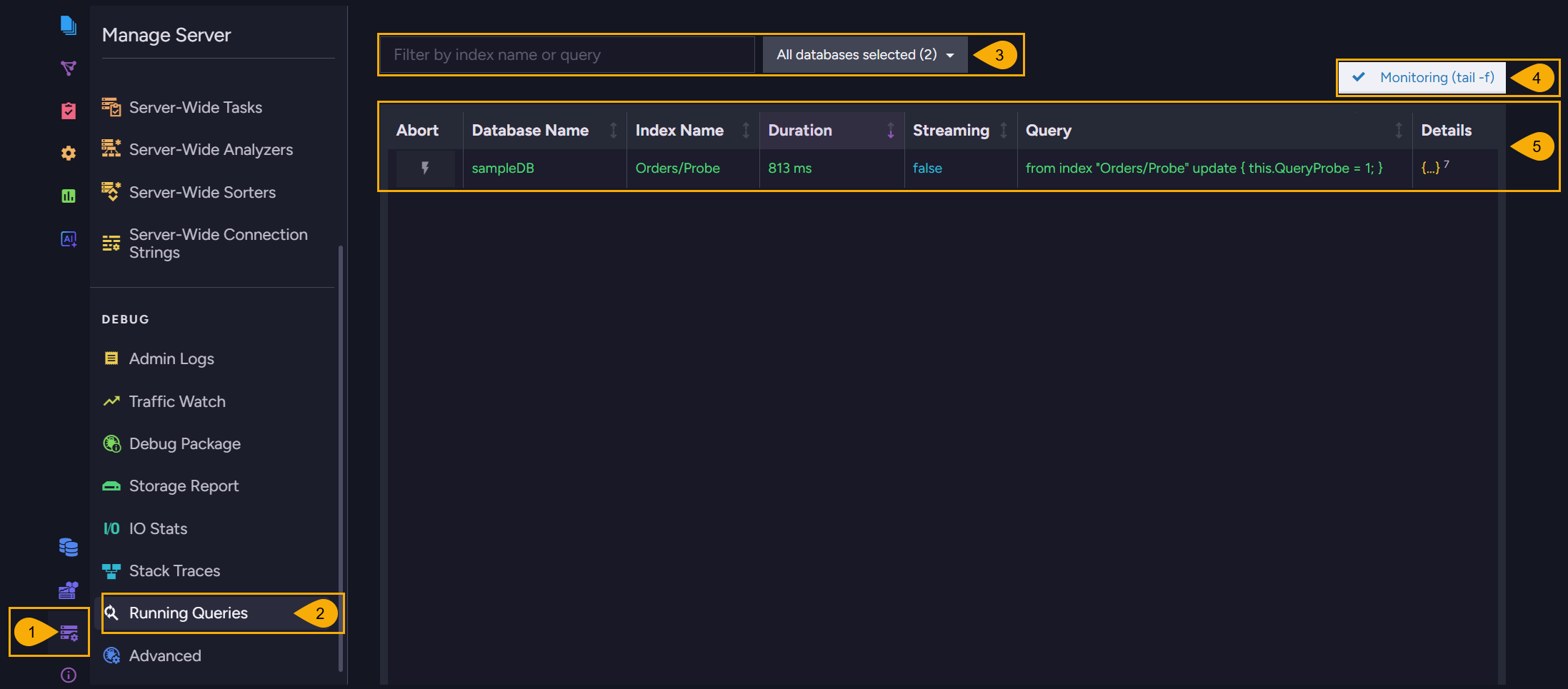
To open the view: Manage Server > Running Queries
-
Manage Server
Open theManage Servermenu. -
Running Queries
Open the Running Queries view, under theDebuggroup. -
Filters
Narrow the list of running queries:-
Enter a string to list only the queries whose index name or query text contains this string.
-
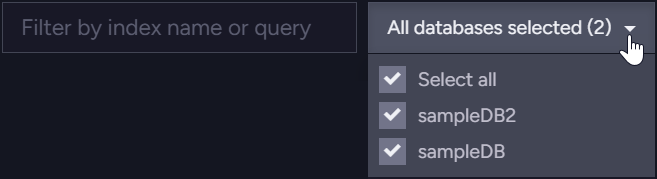
Use the database filter to select the databases whose queries are listed:
-
-
Monitoring (tail -f)
While this option is on, the list of running queries is updated about once a second.
Switching this option off stops the updates and keeps the listed rows on screen. This is useful while you read a long query.
Switching the option back on clears the rows on screen and resumes the updates. -
The list of running queries
The list holds one row per query, sorted by duration, with the longest running query first.
Patch and delete operations, when they run over an index, are listed as well and can be aborted like any other query.
-
A. Abort
Cancels the query listed in this row: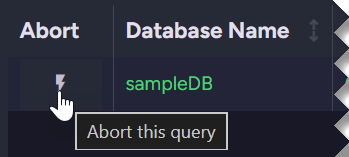
Clicking the
Aborticon opens a confirmation dialog: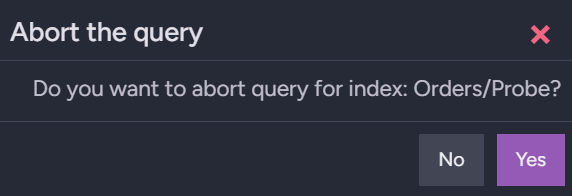
- The abort action does not stop the query on the spot: RavenDB signals the query to stop, and the query ends shortly afterwards.
- Until the query ends, the row remains listed and the query's duration keeps growing.
- The client that issued the query receives an error rather than results, since the query was
stopped before it could complete. The server reports the error as
System.OperationCanceledException. - RavenDB also cancels a query on its own when the query exceeds the time set by Databases.QueryTimeoutInSec, or, for a patch or delete operation, by Databases.QueryOperationTimeoutInSec.
-
B. Database Name
The database the query runs on. -
C. Index Name
The index that serves the query.
When RavenDB answers a query by creating an auto index, the auto index's name is shown:
-
D. Duration
The number of milliseconds since the query started. -
E. Streaming
truefor a query whose results are streamed to the client.
A streaming query can remain in the list far longer than an ordinary query, since it is listed for as long as the client keeps reading the query's results. -
F. Query
The RQL text of the query. -
G. Details
Hovering over this cell displays the settings the query was sent with: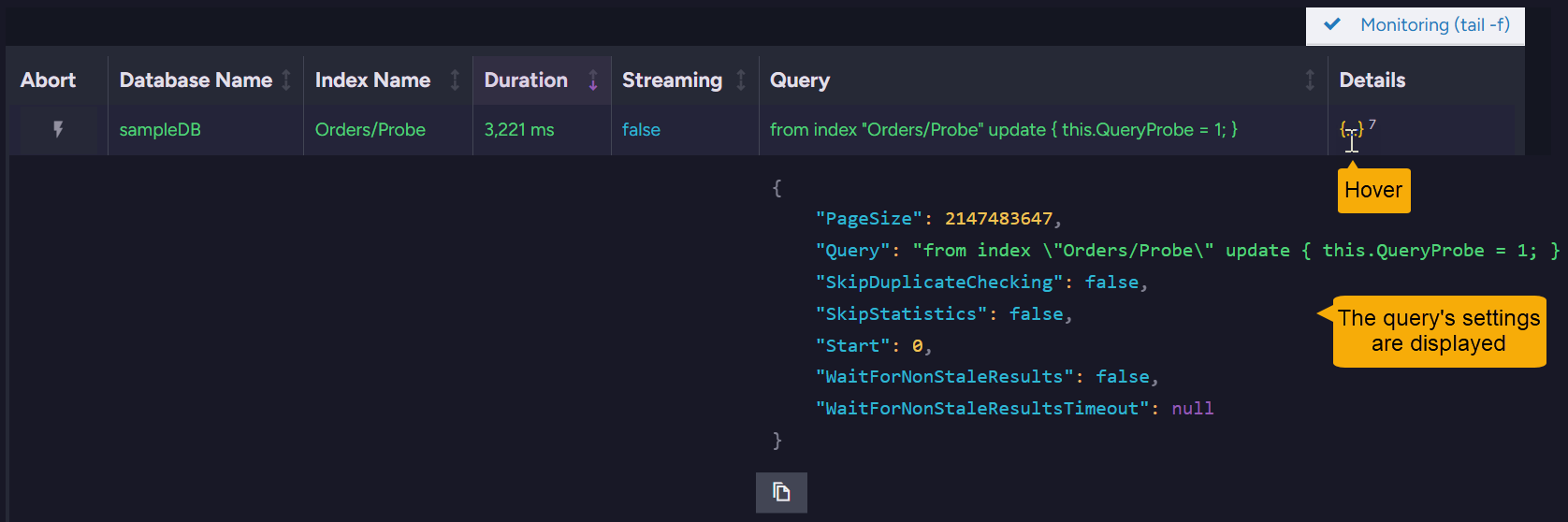
The values of the query's parameters are not displayed, so a query written with parameters cannot be read in full in this view.
-
Opening the view for a single database
The Running Queries entry appears in each database's Stats menu as well, but functions as a
shortcut to the view described above, under the
Manage Server menu, which opens with the database filter
already narrowed to the database you were working on.
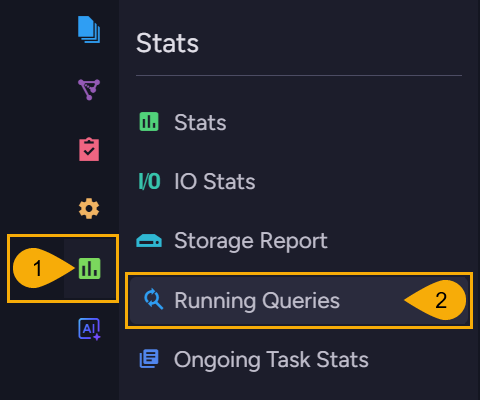
To open the view for one database: Stats > Running Queries
-
Stats
Open theStatsmenu. -
Running Queries
Open the Running Queries view for the current database.