Licensing Overview
-
RavenDB is activated using a JSON format license.
The license is sent to the email address provided while obtaining it. -
A few license types are available.
The license type you acquire and activate RavenDB with determines the database's feature set.- Learn more below about each license type.
- Visit the pricing page to see the entire feature set made available by each type.
-
Each license has a specific expiration date.
To renew your license, see renew license. -
In this article:
License types
Visit the pricing page to see which features are included with each license type.
Developer license
- The developer license is for development use only and isn't applicable for commercial use.
You must upgrade this license before going into production. - It is fully featured but temporary - the license lasts 6 months and can be renewed.
- Certificates whose expiration period exceeds 4 months cannot be used with this license.
Automatic renewal of Let’s Encrypt certificates is disabled. - When you are ready to go into production:
- Be sure to choose a license that offers all the features with which your client was developed.
If you use Let's Encrypt for the new license, you will not be able to simply replace the license since you are using a dev subdomain.
Instead, you can create a new cluster. - Upgrade to a production license and then replace the developer license.
- Be sure to choose a license that offers all the features with which your client was developed.
- The developer license can be obtained here.
Community license
-
A basic production-grade license.
-
Community licenses last one year and can be renewed every year.
-
Servers using a Community license are required to run the latest major version.
e.g., if RavenDB7.0is released and your server runs RavenDB6.2with a Community license, you will be required to upgrade RavenDB to version7.0.
Running RavenDB of an older version than the latest with a Community license will block your server's access to Studio.If you run your server with a Community license and a new RavenDB major version is released, Studio will continue to function for 14 days before it is blocked.
During this period, a pop-up notification will show when Studio is started: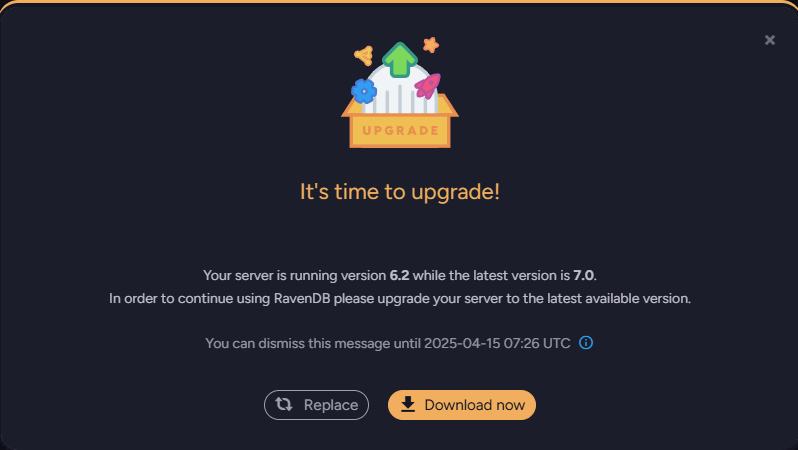
You can:
- Close the notification and keep on working
For 14 days, after which Studio will be blocked until the server is upgraded or the license replaced. - Replace your license
Acquire a non-Community license that allows you to use an older version. - Download a new server version
Upgrade to the latest major version.
- Close the notification and keep on working
Professional license
- A standard production-grade license.
- Extended automatically if the server has access to RavenDB's License server.
Enterprise license
- A high-performance, fully-featured production-grade license.
- Extended automatically if the server has access to RavenDB's License server.
RavenDB AI license
- A license for AI-powered applications, enabling all available features including the full AI stack: Embeddings generation, Vector search, GenAI integration, and AI agents.
- Extended automatically if the server has access to RavenDB's License server.
ISV licenses
- ISV licenses are commercial licenses that allow you to redistribute RavenDB with your software
for on-premise installation and use by your customers. - Available ISV license types are: Essential, Professional, and Enterprise.
- Contact RavenDB for more details.
ISV Bank-of-Cores license
An ISV Bank-of-Cores license allows you to generate RavenDB licenses on your own for a given number of cores.
If you purchase a 128-core license, for example, you can use it to generate 8 licenses for 8-core machines, 16 licenses for 4-core machines, or any other combination that suits your needs.
- Available bank-of-cores license types are: Essential, Professional, and Enterprise.
- The same license type, allowing the same feature set, is available for all generated sublicenses.
e.g., if the license type you acquire includes the AI integration feature, this feature will be enabled by all the sublicenses you create. - Contact RavenDB for more details.
Generating bank-of-cores licenses
-
When you purchase a bank-of-cores license, you are given a login key.
To generate licenses, enter your key at: https://licenses.ravendb.net/isv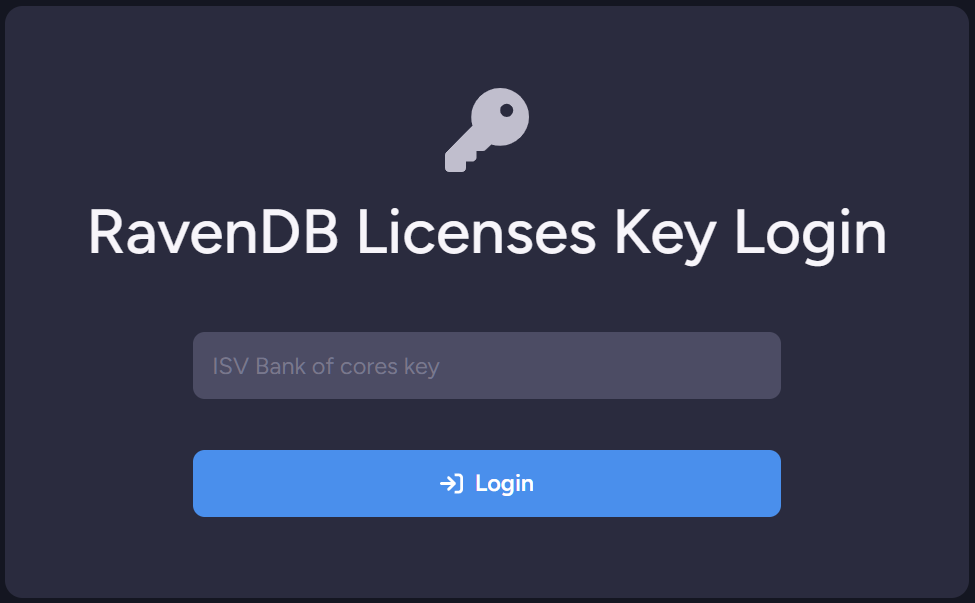
-
You will be requested to provide an email address associated with your license key.
Authorizing license generation through your email provides an additional security layer.
You can contact RavenDB's support to associate your key with additional addresses or with all addresses of a given domain.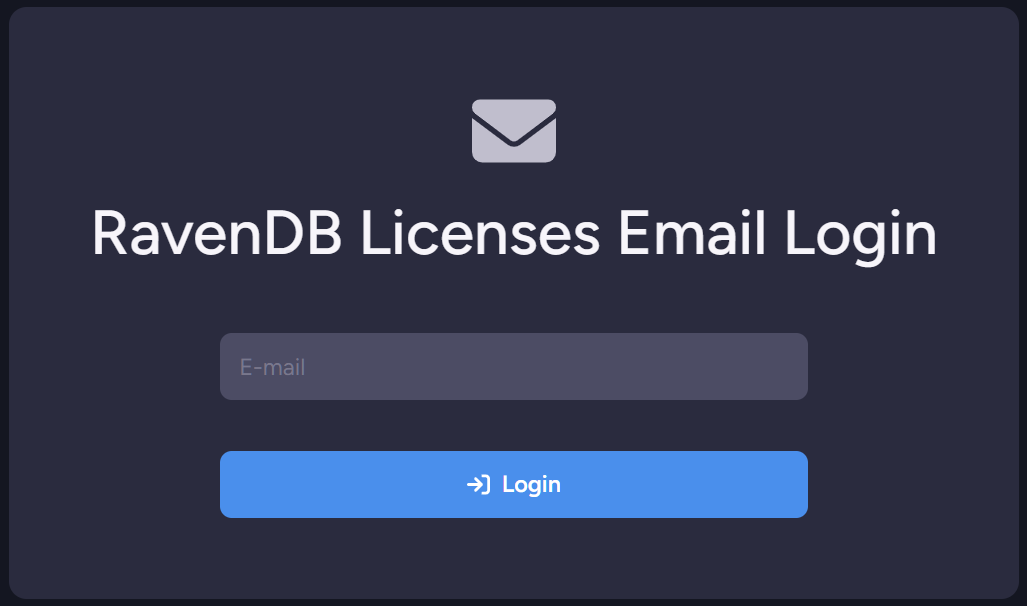
-
An email message with a sign-in link will be sent to the provided email address.
Use this link to enter the bank-of-cores management page.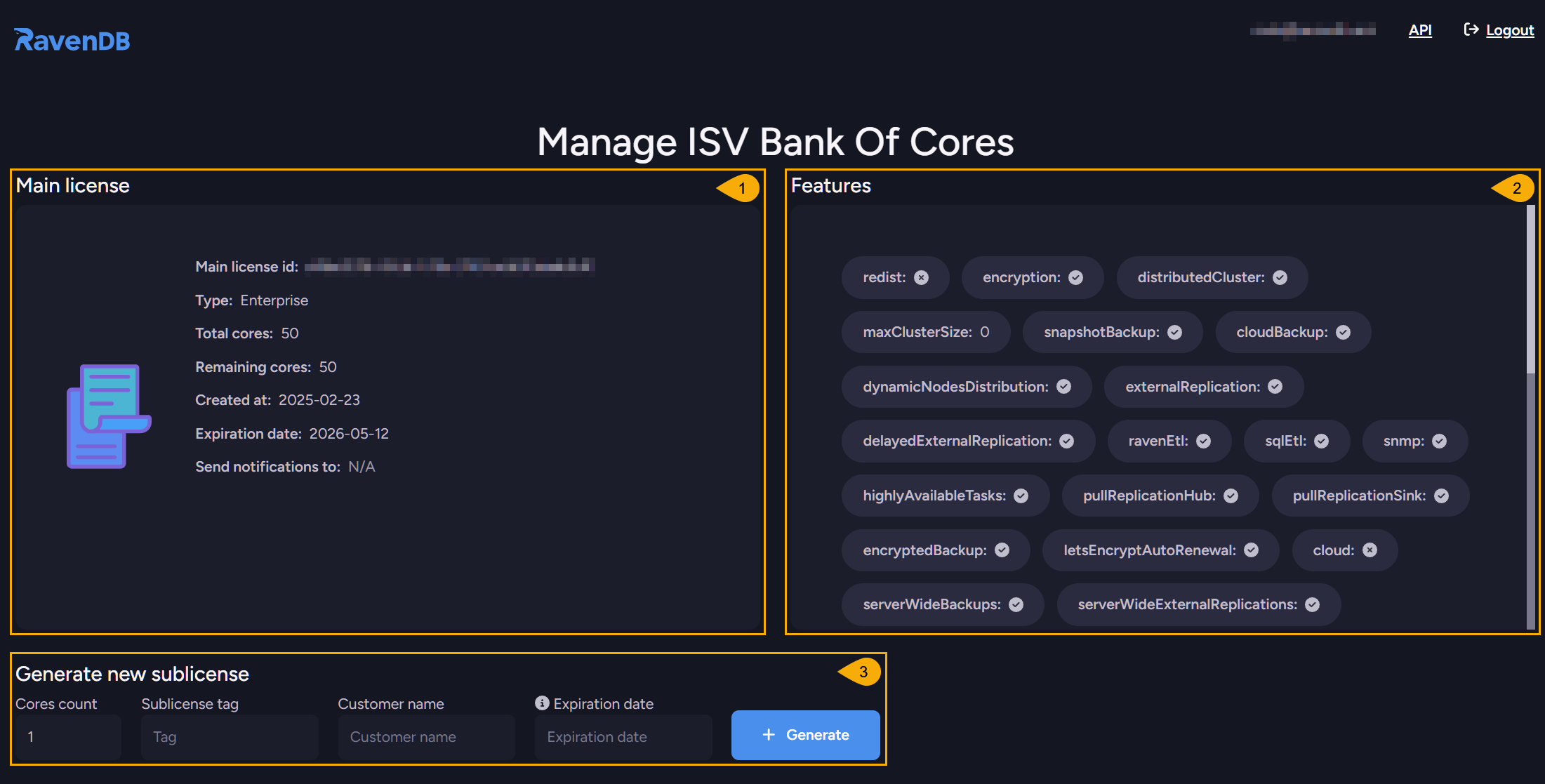
-
Main License
The details of your bank-of-cores license. -
Features
The features that are available for the licenses you generate here. -
Generate new sublicense
Use this section to assign cores to a new sublicense.
- Cores count - The number of cores you want to assign this sublicense.
- Sublicense tag - A tag you want to recognize the sublicense by.
- Customer name - The identity of the sublicense's owner.
- Expiration date - The date on which this sublicense will expire and its cores will be returned to your bank.
Note: Leaving this field empty will set the expiration date to that of the main license. - Generate - Click to generate the new sublicense.
-
-
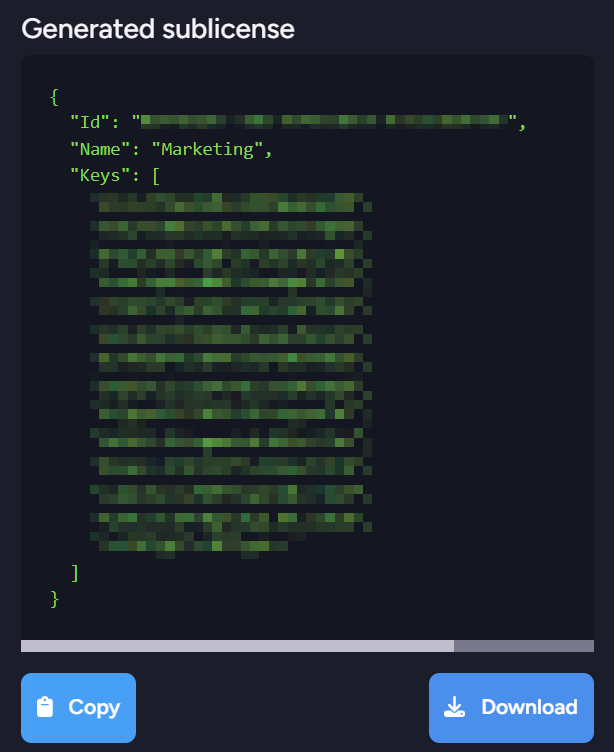
Generating a sublicense will create a key that you can copy or download and register RavenDB with.
-
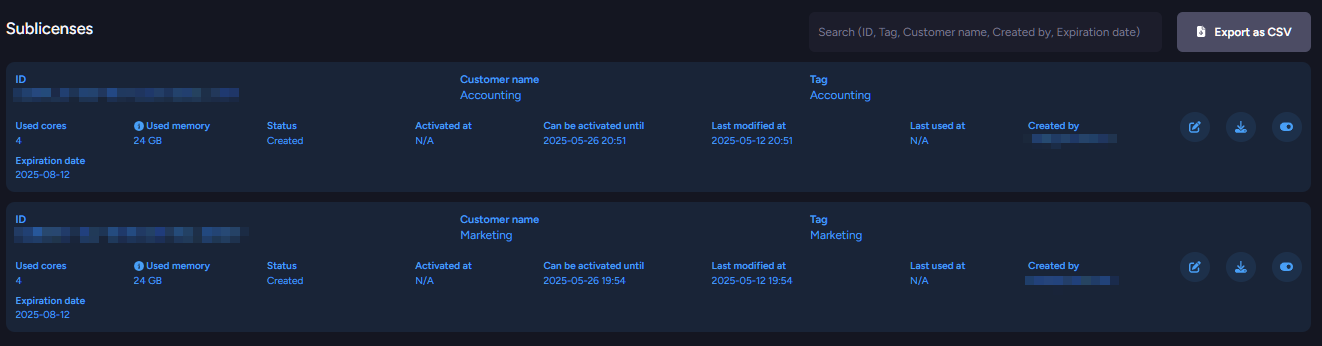
The new sublicense will then be listed in the sublicenses list at the bottom of the page.
Licensing an Embedded server
- The license types that can be applied to an embedded server are the same as those of a regular RavenDB server, providing the same feature sets.
- Licensing options can be applied using the
ServerOptions.LicensingOptionsclass:- Pass a license string via
ServerOptions.LicensingOptions.License. - Alternatively, pass a license file path via
ServerOptions.LicensingOptions.LicensePath.
- Pass a license string via
- For details and code samples, see the embedded server licensing section.
TestDriver server license
- TestDriver, used for unit tests, runs an embedded server that can be licensed in the same way as a regular embedded server.
- Make sure you license your TestDriver server so your tests are not affected by the limitations of an unlicensed server.
You can configure the server to throw a
LicenseExpiredExceptionif it fails to validate a license.
To enable this option, setTestServerOptions.Licensing.ThrowOnInvalidOrMissingLicensetotrue. - For a full explanation and code samples, see the TestDriver page.
Studio license management
-
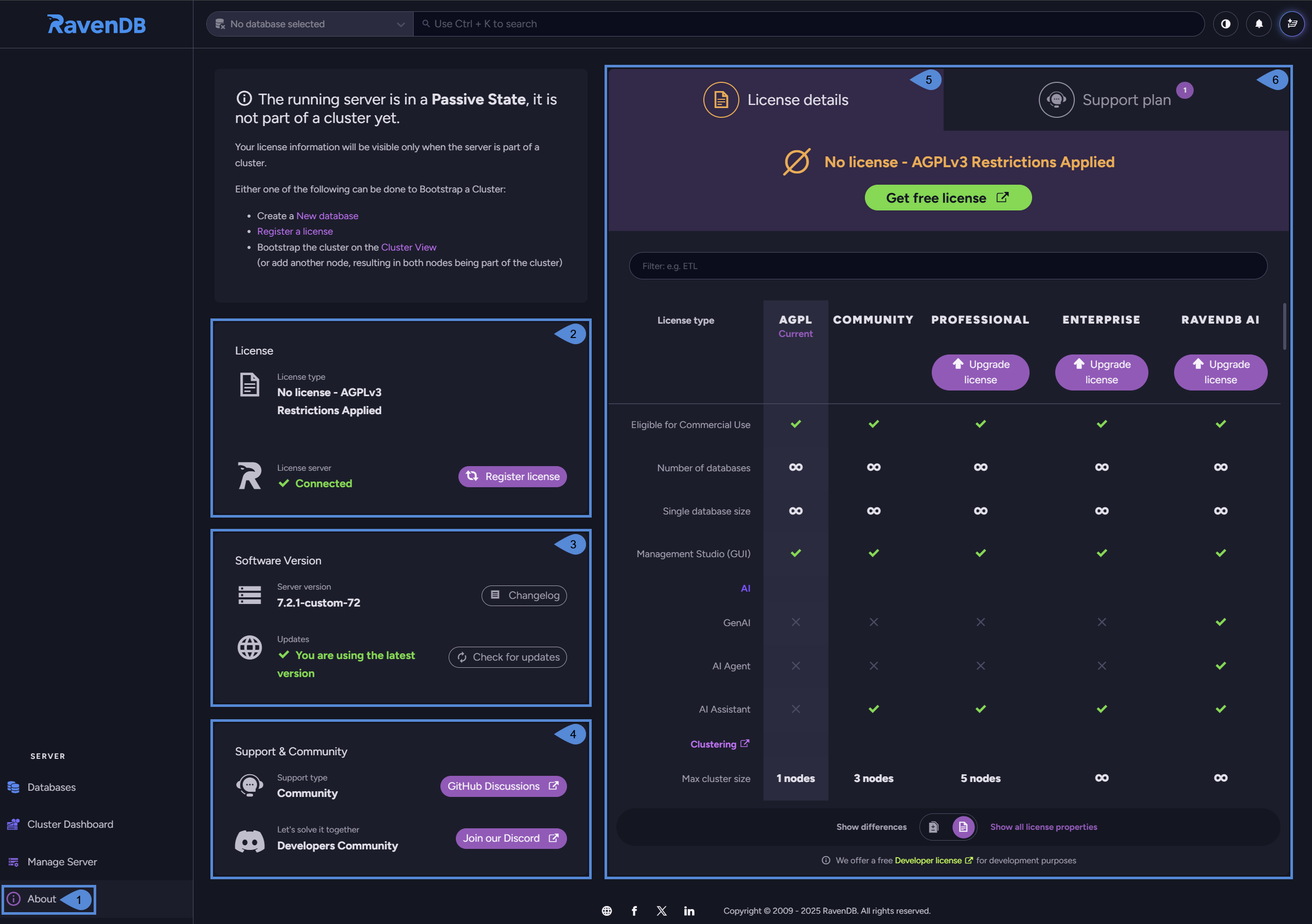
About
Click to open the About page and view RavenDB version, license, support info, and more. -
License
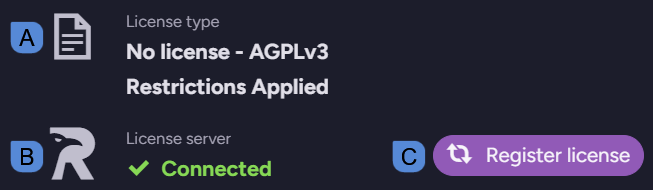
-
A. License type
Shows whether your server runs with a valid license,
and if so - displays the license type and expiration date. -
B. License server
Shows whether your server can reach the License server to update or renew the license.Connectivity issues are often caused by a firewall blocking the connection, or RavenDB running offline.
If the License server is unavailable, the following dialog will be displayed: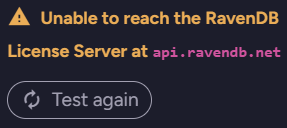
- Make sure that RavenDB has access to
api.ravendb.net. - Click Test again to recheck the connection.
- Make sure that RavenDB has access to
-
C. Register license
Click to submit and activate your license.When the license is activated, the Register license button will be replaced with these buttons:
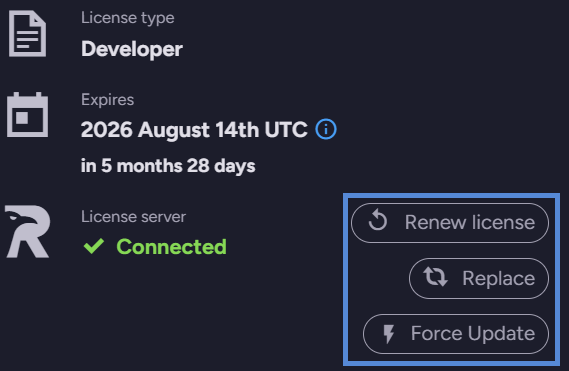
- Renew license
Use this button to renew your license and extend its validity, while retaining the same license ID.
Note that the Renew license button is only available for Developer and Community licenses, as other (commercial) licenses are automatically renewed. - Replace
Use this button to replace your license with a new one. - Force update
Use this button to trigger an immediate license update.
- Renew license
-
-
Software Version
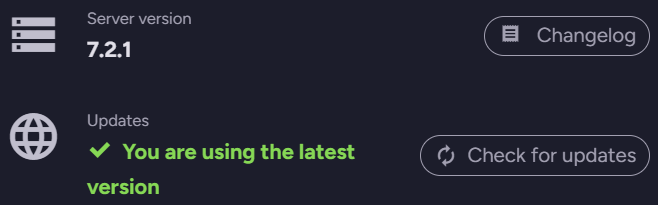
- Server version
Shows your current server version.
Click Changelog to see logged version changes. - Updates
Informs you whether you are using the latest server version.
Click Check for updates to see if an update is available.
- Server version
-
Support & Community
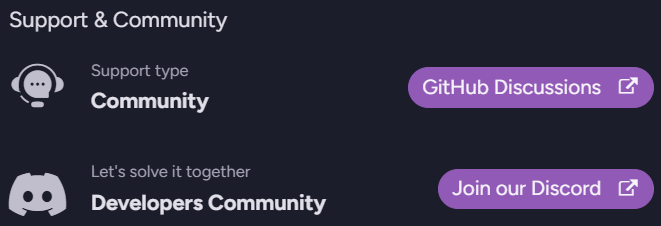
- Support type
Informs you of the support type you are entitled to,
and allows you to join our community GitHub Discussions. - Let's solve it together
Allows you to join our developers' Discord community.
- Support type
-
License details tab
Details the features that your license enables for your server.
Use the scrollbar to slide through the full features list.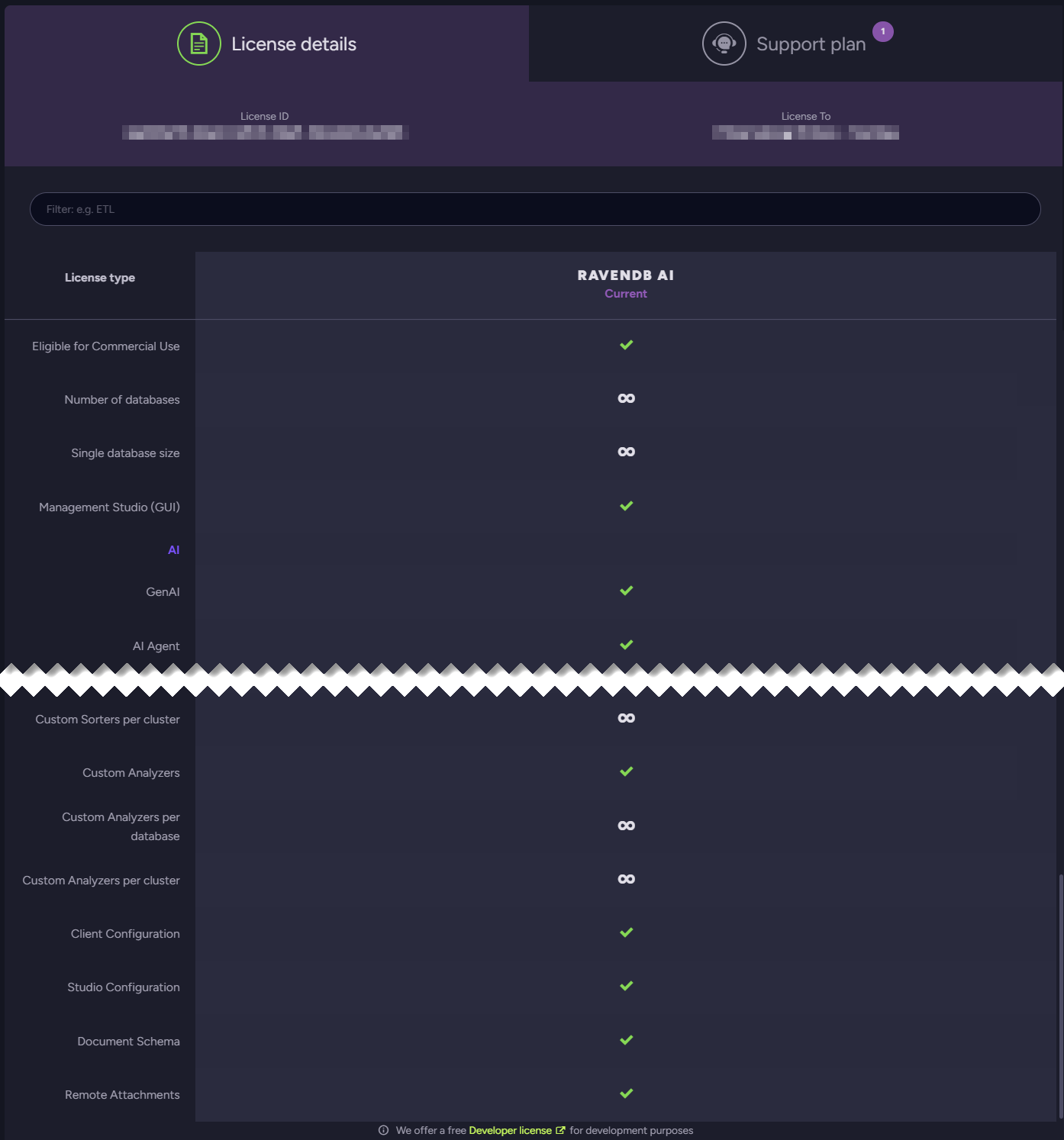
-
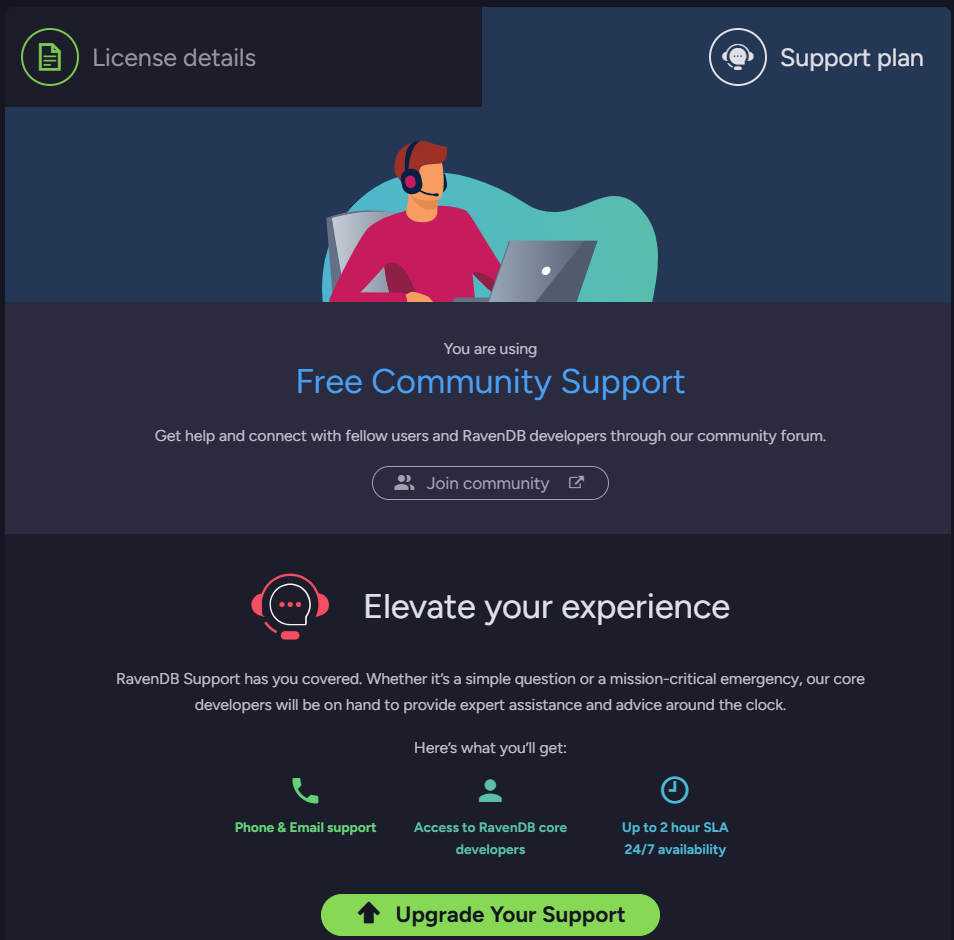
Support plan tab
Specifies your current support plan and allows you to upgrade it.