PostgreSQL Protocol: Power BI
-
Power BI can use RavenDB as a PostgreSQL data source, in both the Power BI Desktop application and the online service.
-
Both of Power BI's data connectivity modes are supported: Import and DirectQuery.
-
You can load entire collections into Power BI, or import the results of RQL or SQL queries.
-
Before connecting, verify that PostgreSQL integration is enabled for your RavenDB server, and your license enables Power BI.
-
The examples on this page use the Northwind sample data.
-
In this article:
Connect to RavenDB
To connect Power BI Desktop to a RavenDB database:
1. Get data:

- Click Get data on Power BI Desktop's Home ribbon.
2. Select the PostgreSQL database connector:
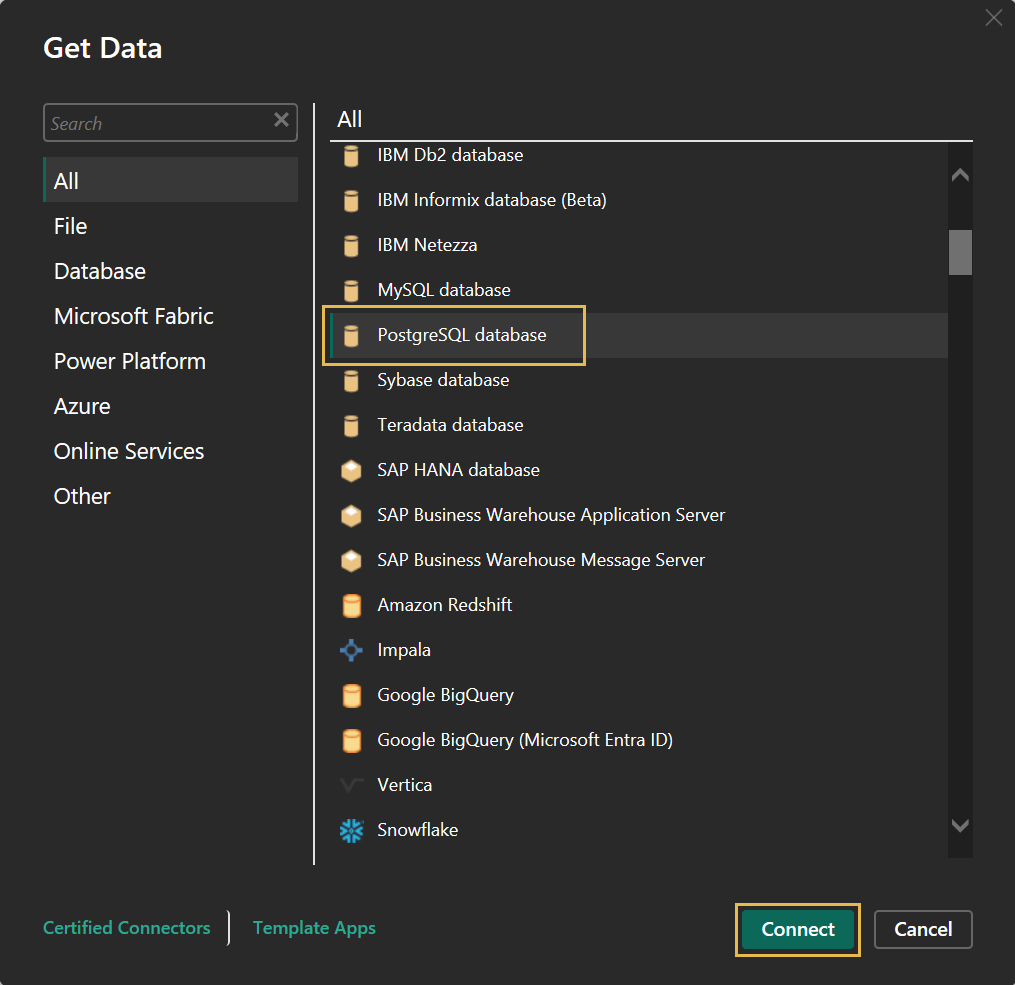
- Select the PostgreSQL database connector and click Connect.
3. Enter connection details:
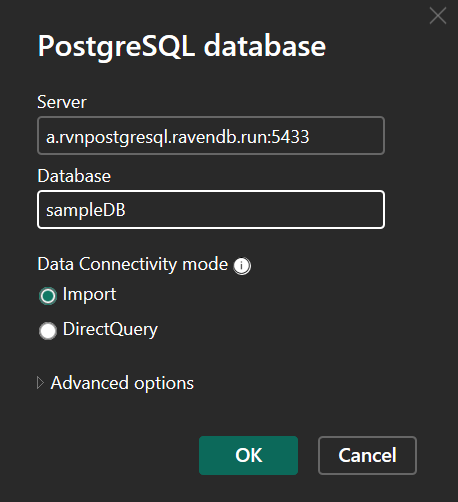
- Server
Enter the RavenDB server's URL and PostgreSQL port number in the form: Hostname:Port
e.g.,a.rvnpostgresql.ravendb.run:5433- Do not include the
https://prefix. - The default PostgreSQL port is 5433, and the port is configurable.
- Do not include the
- Database
Enter the name of the RavenDB database to retrieve data from. - Data Connectivity mode
Select Import or DirectQuery:- Import
Power BI copies the data you load into its own in-memory model.
The report works on this copy and responds quickly, but shows changes made in RavenDB only after you refresh the data.
Select Import when you're reporting on a stable snapshot of the data, e.g., a monthly sales summary. - DirectQuery
Power BI keeps no local copy, and queries RavenDB each time the report needs data.
Select DirectQuery when you're reporting on live data, e.g., for a dashboard that tracks orders as they arrive, or when the dataset is too large to load into memory.
- Import
- Click OK to connect to the database.
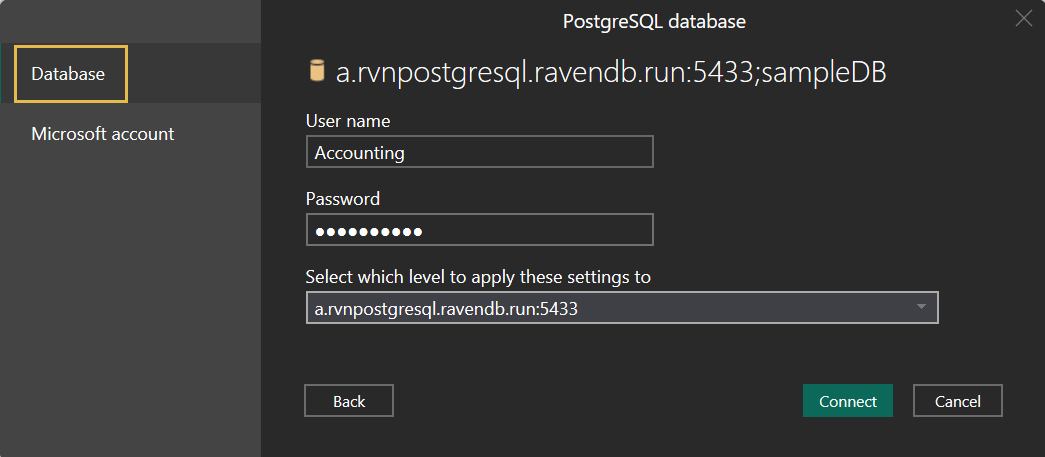
4. Provide credentials:
-
On your first connection to a server, Power BI opens a credentials dialog.
-
In the Database tab, provide the credentials that RavenDB requires to authenticate your Power BI client, and click Connect.
Power BI stores the credentials, so subsequent connections to this server skip this step.
Note that credentials are checked only when RavenDB runs as a secure server.To change or remove the stored credentials, go to File > Options and settings > Data source settings and select the server.
- Click Edit Permissions to enter different credentials.
- Click Clear Permissions to remove the stored credentials.
The next connection to the server will open the credentials dialog again.
Load collection data
After you connect Power BI to a database, the Navigator window opens:
1. Select collections:
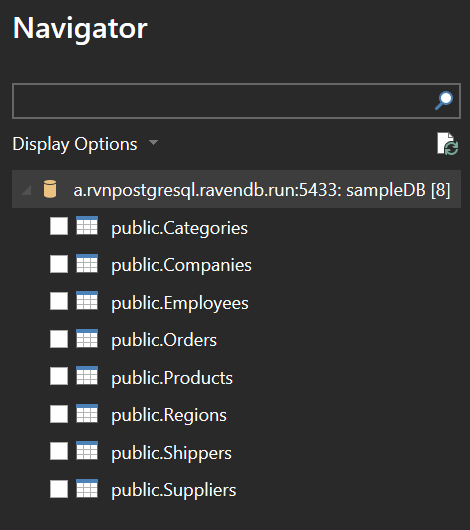
- The Navigator lists the database's collections as tables.
- Tick the collections whose data you want to load.
2. Preview and load the data:
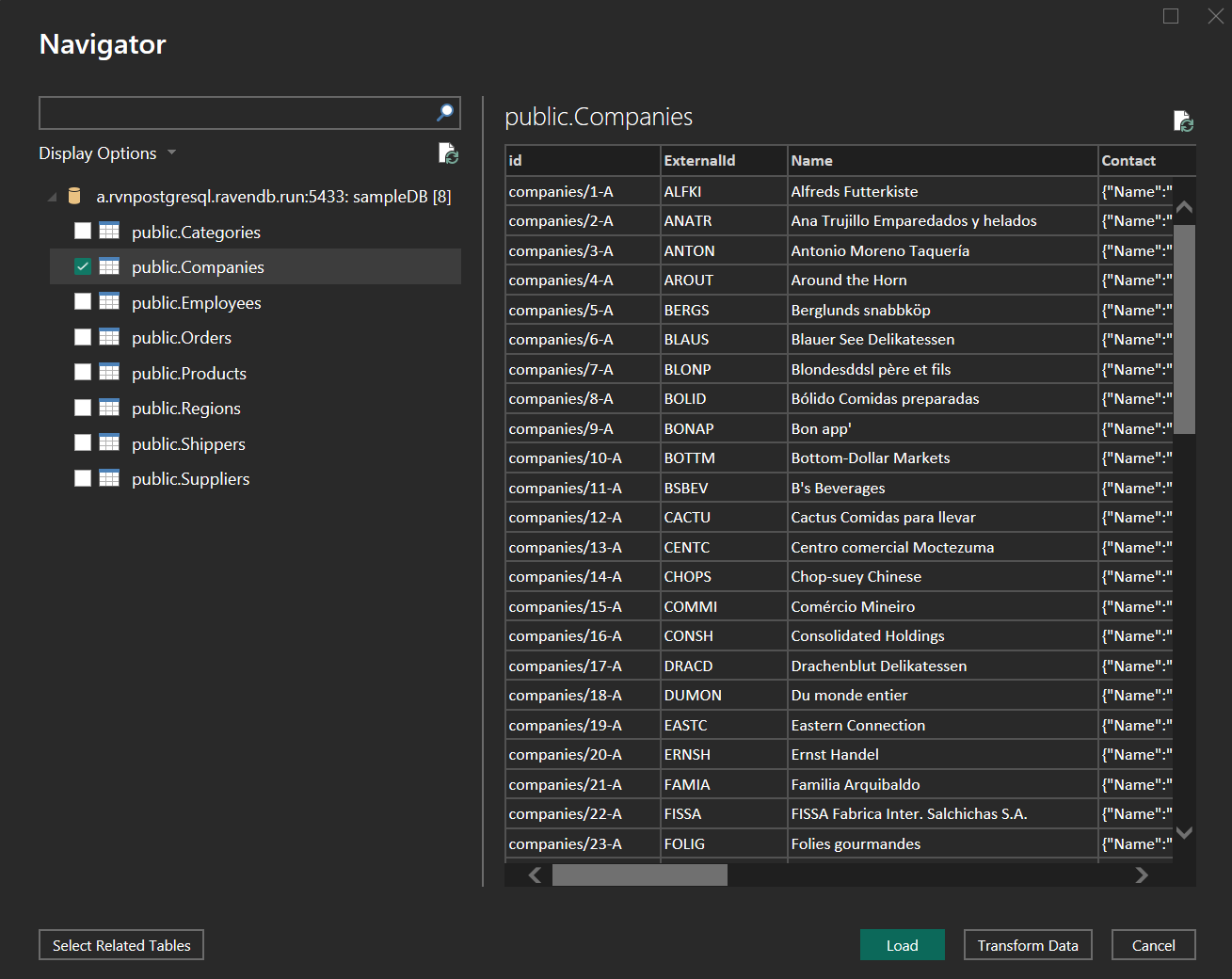
- Click a collection's name to preview its documents, one document per row.
- Click Load to retrieve the ticked collections into your report, or Transform Data to shape the collection data in the Power Query Editor first.
Query with RQL or SQL
Instead of loading whole collections, you can import just the results of a query.
1. Enter your query:
To import query results, open a new connection as explained above.
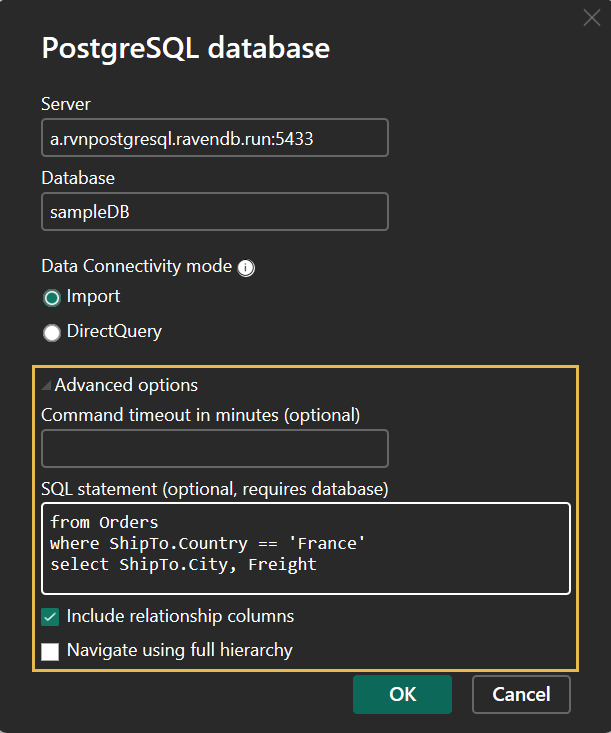
Click Get data > PostgreSQL database > Connect, and fill in the
connection details
as before: server, database, and connectivity mode.
-
Expand Advanced options and enter your query, written in RQL or in SQL, in the SQL statement box.
RavenDB detects the query language automatically.The following RQL query runs on the Northwind sample data, retrieving the destination city and freight charge of orders shipped to France.
from Orderswhere ShipTo.Country == 'France'select ShipTo.City, Freight
-
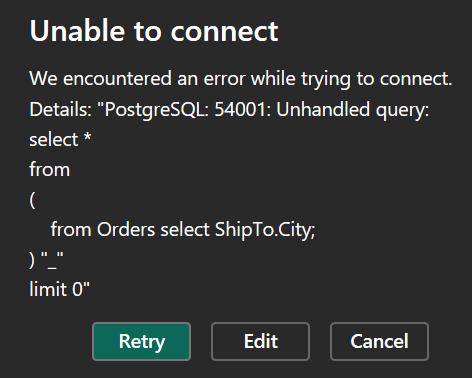
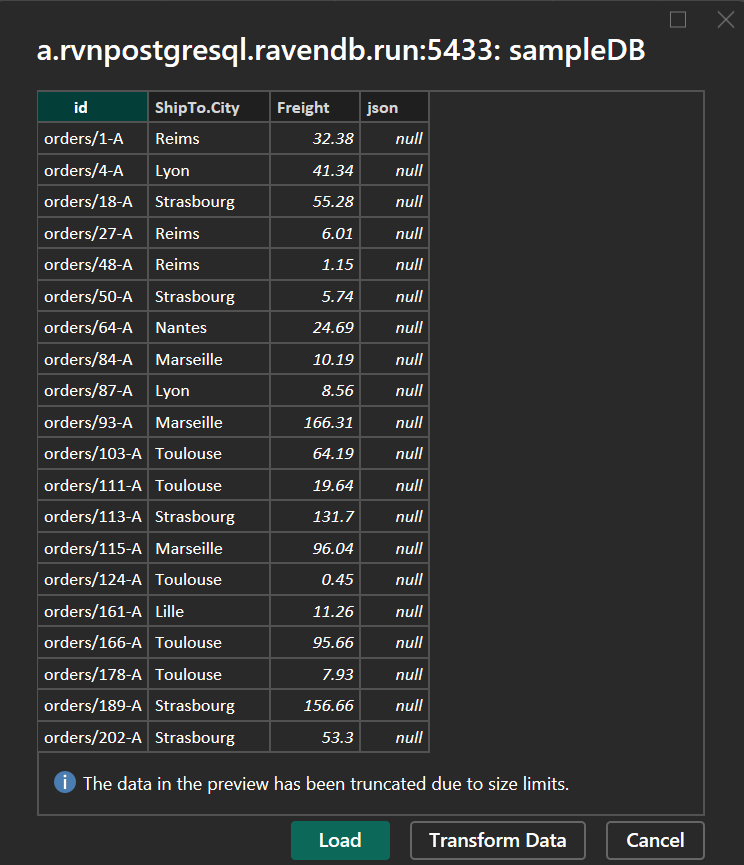
Click OK to run the query and preview its results.
2. Load the query results:
-
The preview shows only the fields the query selects, plus two columns added by RavenDB:
id, holding each document's ID, andjson, holding document properties that do not fit the regular columns.Earlier RavenDB versions exposed these columns as
id()andjson().
The server still recognizes these earlier names, so existing reports that referenceid()andjson()keep working. -
Click Load to retrieve the results into your report, or Transform Data to shape the results in the Power Query Editor first.
Incremental refresh
When a table is loaded in Import mode, Power BI can refresh it incrementally: instead of reloading the whole table, each refresh retrieves only the rows whose date field falls within a recent time window, and keeps earlier rows as they are.
- RavenDB supports Power BI's incremental refresh without requiring any setup on the
RavenDB side.
The date-window queries that Power BI sends are translated to RQL range filters and executed like any other query. - To set up incremental refresh, follow
Microsoft's incremental refresh documentation.
The setup runs entirely in Power BI, through these main stages:- Define two date/time parameters
with the reserved names
RangeStartandRangeEnd. - Filter the table
by a date field of the loaded collection, like an order's
OrderedAt, using these parameters. - Define the table's refresh policy: the historical period to keep, and the refresh period whose rows are reloaded on each refresh.
- Publish the report; the Power BI service applies the policy with each refresh.
- Define two date/time parameters
with the reserved names