Write validation: Studio
Manage schema validation using the Studio Document Schema view, to condition documents storage on their compliance with a defined JSON schema.
The Document Schema view
Use this view to create, test, and manage document schemas for your database collections.
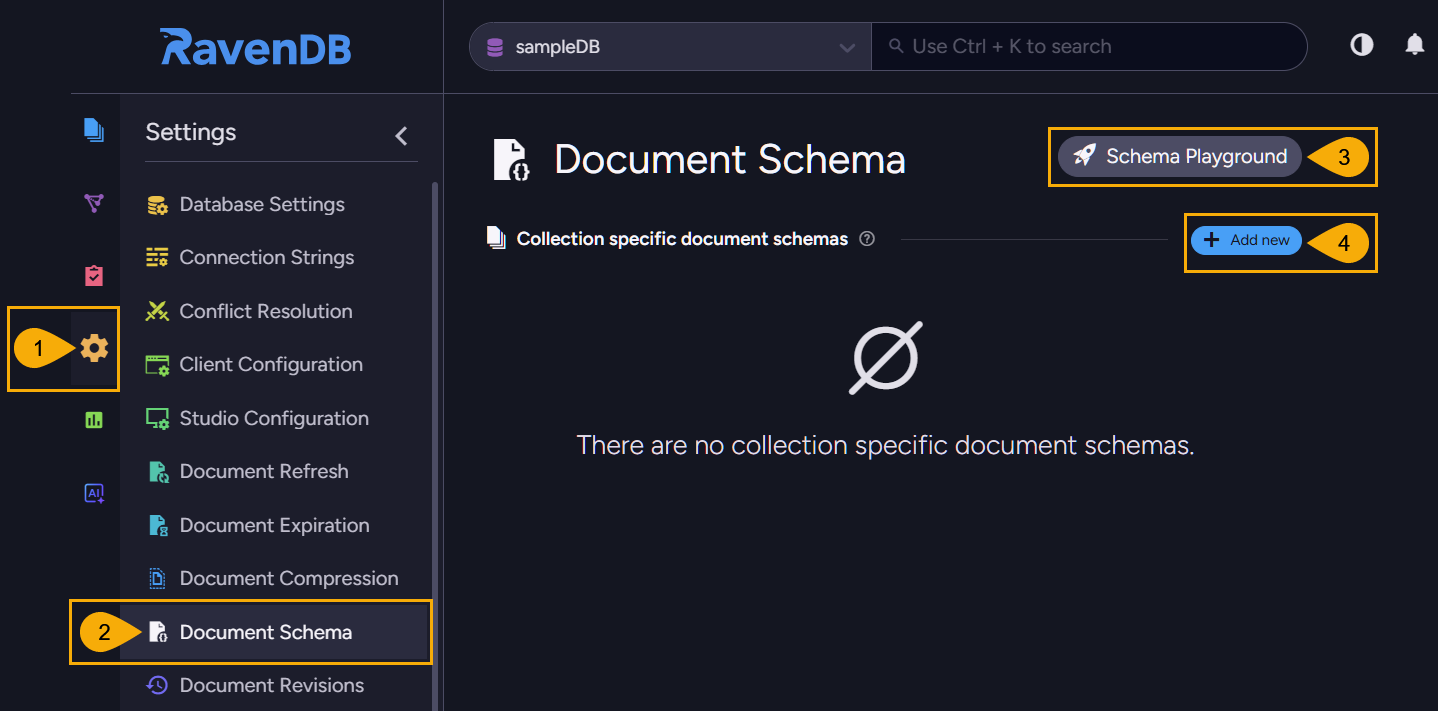
- Database settings
Click to open this view. - Document schema
Click to open this view. - Schema playground
Click to create and test schemas in a secluded playground. - Add new
Click to create a new schema associated with one of your document collections.
Creating a collection schema
To create a validation schema, open: Settings > Document schema > Add new

-
Select a collection
Pick the collection for which you want to validate documents.
You can create one validation schema per collection. If a collection is already associated with a schema, the collection name will not be listed here. -
Define the schema using JSON syntax
The depicted schema, for example, sets constraints for documents in the "Orders" collection: orders must include the string property "Company" and the positive numeric property "Freight".{"properties": {"Company": {"type": "string"},"Freight": {"type": "number","minimum": 0}},"required": ["Company","Freight"]} -
Save
Click to save and enable the schema.
When enabled, any document saved to the "Orders" collection will be validated against this schema.
E.g., attempting to save an "Order" document missing the "Company" field will generate a validation error:Raven.Client.Exceptions.SchemaValidation.SchemaValidationException: The required property 'Company' is missing.Note that once a schema is enabled for a collection, collection documents are validated when they are saved directly, as well as when they are added or modified by operations such as patching or ETL tasks.
See a list of operations that trigger validation.
Managing and Testing existing schemas
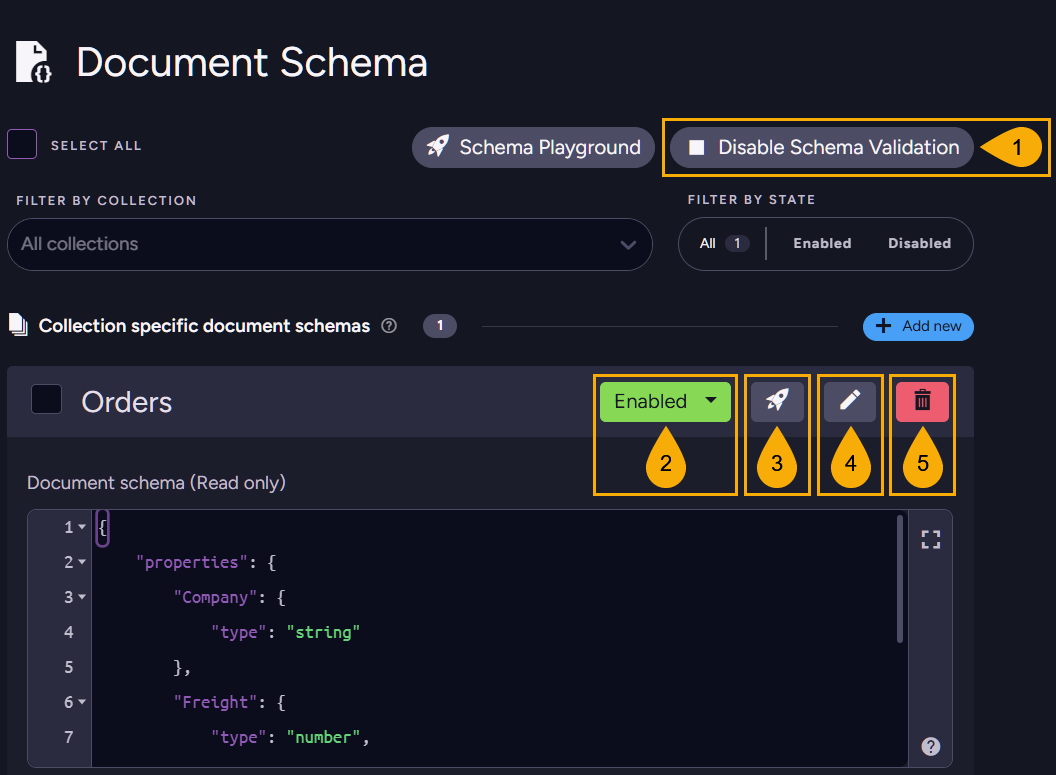
Existing schemas are listed in the Document Schema view, where you can disable, enable, test, edit, or delete schemas.
-
Disable/Enable schema validation for all database collections.
- Disable to deactivate validation for all collections regardless of individual collection settings (validation will not take place even when allowed locally for a collection).
- Enable to activate validation based on individual collection settings (validation will be enabled or disabled by per-collection configuration).
-
Disable/Enable schema validation for this collection.
- Disable to deactivate validation for this collection (regardless of global settings).
- Enable to activate validation for this collection (providing validation is enabled for the database).
-
Test
Click to test the validity of documents in the selected collection against the defined schema.
- A. Test settings
Validating a large number of documents against a schema can strain server resources.
Set Max documents to scan to the number of documents that you want to validate. E.g., set it to 100 to validate the first 100 documents in the collection.
Set Max error messages to return to the maximum number of validation errors to return. - B. Run test
Click to start the validation test.
When the test is complete, you will get a summary of the results, including the number of invalid documents and the errors that were generated for each invalid document.

- A. Test settings
-
Edit
Click to edit this schema. -
Delete
Click to delete this schema.
The schema playground
To create and test schemas in a secluded environment, without affecting your production data, open: Settings > Document schema > Schema Playground

-
Add new
Click to add a schema to the playground.
You can add multiple schemas to the playground, and test them all in a single run.
This can be helpful when, for example, you want to validate documents of multiple collections by checking for a specific field. -
Define a schema
- Collection
Select the collection that the schema will be associated with. - Document schema
Define the schema using JSON syntax.
In the depicted example we define two schemas:
The first, for the Orders collection, validates documents by field existence, type, and minimum value.The second schema, for the Products collection, validates documents by the minimum value of the "UnitsOnOrder" field.{"properties": {"Company": { "type": "string" },"Freight": { "type": "number", "minimum": 0 }},"required": [ "Company", "Freight" ]}{"properties": {"UnitsOnOrder": { "minimum": 5 }}}
- Collection
-
Run test
Click to run the validation test for all schemas defined in the playground.
The test will generate a summary of the results for each schema, including the number of invalid documents and the errors that were generated for each document.
- A. Test results
Scroll to view all error messages generated for each collection. - B. Test settings
Validating a large number of documents against a schema can strain server resources.
Set Max documents to scan to the number of documents that you want to validate. E.g., set it to 100 to validate the first 100 documents of each collection participating in the test.
Set Max error messages to return to the maximum number of validation errors to return for each collection participating in the test. - C. Run test
Click to re-run the test, e.g., after changing test settings.
- A. Test results
Validating a specific document
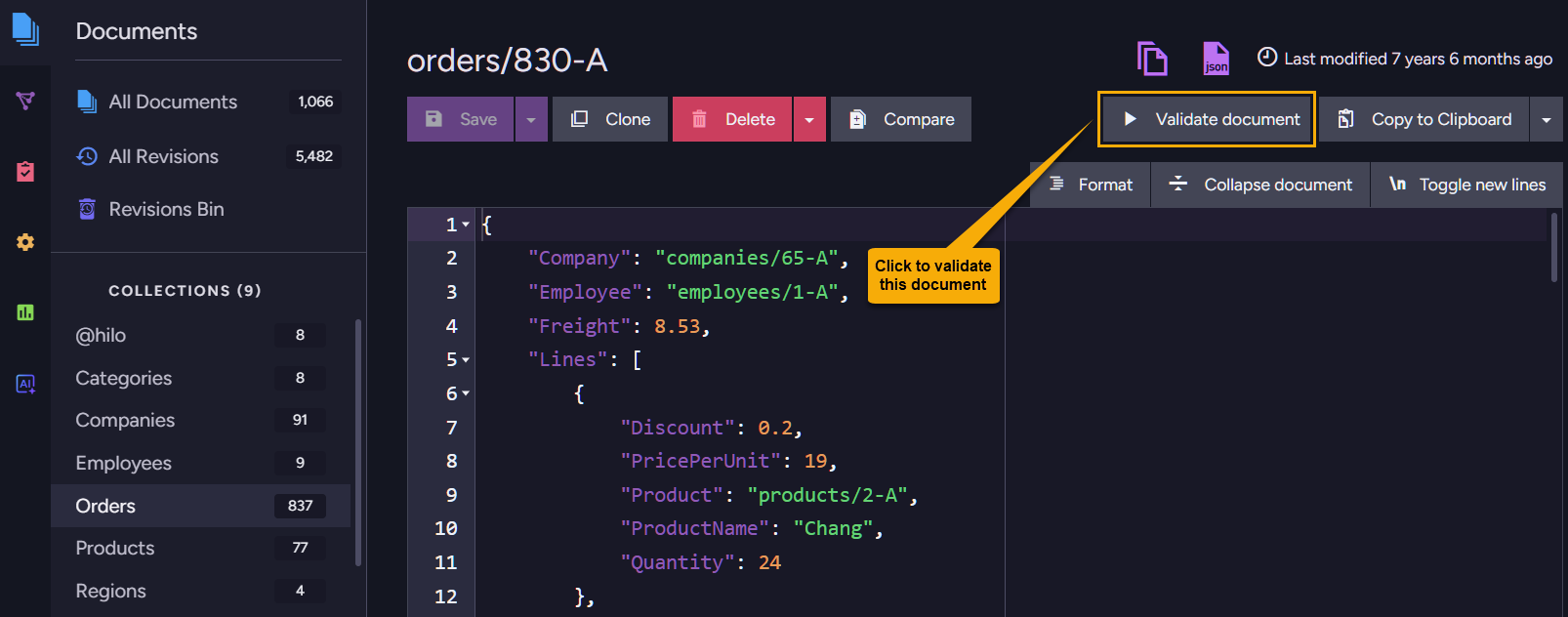
To validate a specific document against the schema defined for its collection, open the document view, select the document, and click the Validate document button.
- The validation button will be displayed only if a schema is defined for the document's collection.
- To validate a whole collection, use the Document Schema view Test as described above.
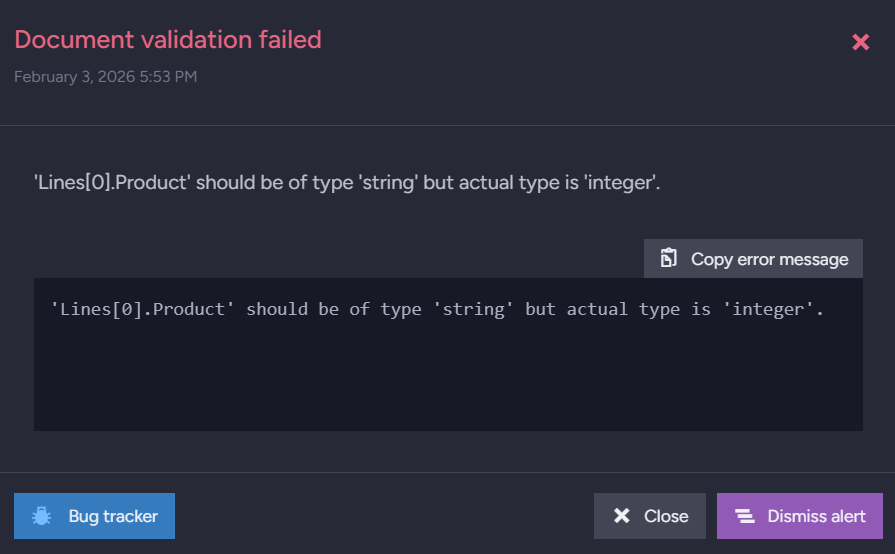
If the document fails the validation, an alert will appear.
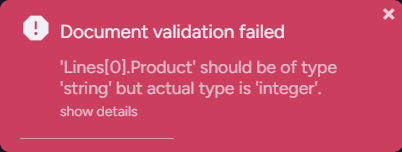
Click the alert to view the validation errors.