Auditing document compliance: Studio
To check document compliance with a validation schema via Studio, you can:
- Run a manual validation test operation, that goes through a collection or a part of it and reports invalid documents and their validation errors.
- Create an audit index, that validates documents during indexing and stores any validation error messages in the index, so the documents can be queried by compliance status and specific validation error messages.
Running a validation test
You can initiate a compliance test operation that validates documents against a schema, using either a defined schema listed in the Document Schema view or the Schema playground views.
Test a schema using the Document Schema view
The validation schemas that you already defined are displayed in the Document Schema view, where you can test each schema against documents in the associated collection.
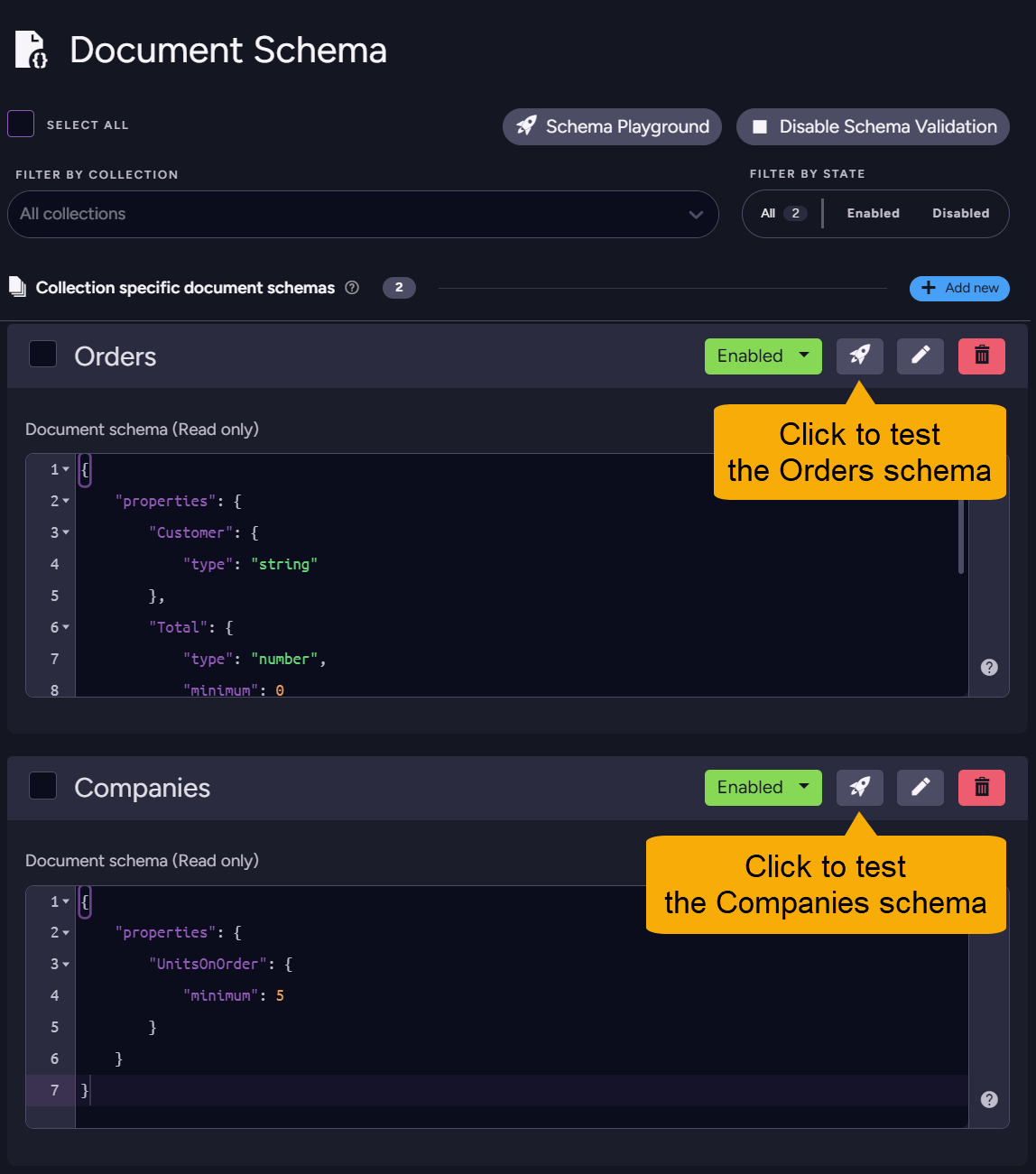
- Use this method to verify schema effectiveness and documents compliance with schema constraints.
- Test results include the number and names of invalid documents, and the validation error messages generated for each document.
- You can validate an entire collection or a specified number of documents. This is helpful when working with large collections.
- Find here a detailed explanation of this view.
Test a schema using the Schema Playground
The Document Schema view also provides an isolated playground environment for experimentation, allowing you to define schemas and try them out on your data without affecting your existing collections or schemas.
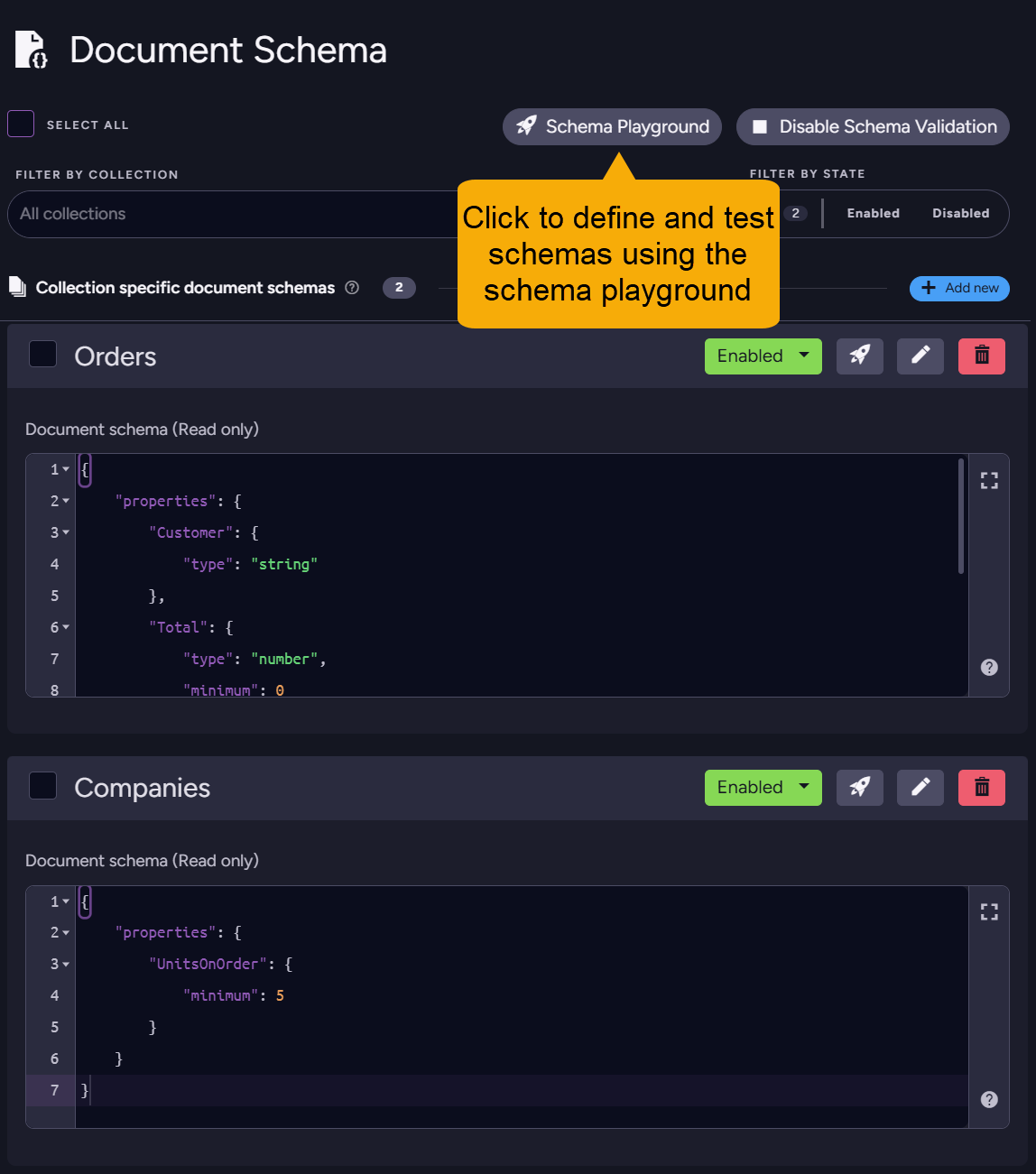
- Use the playground to experiment with schema definitions and test them against documents in your collections.
- You can validate an entire collection or a specified number of documents.
- You can test multiple schemas in a single run, including multiple schemas for the same collection. This is helpful when you want to compare the effectiveness of different schema definitions, validate a specific field across collections, or test a large dataset.
- Test results are presented per schema, detailing the number and names of invalid documents and the validation error messages generated for each document.
- Find here a detailed explanation of the playground.
Audit documents compliance by index
You can define an audit index that validates documents against a schema during indexing and stores any validation error messages in the index.
- The audit index can then be queried to find documents by compliance status and specific validation error messages.
- Indexing is performed continuously in the background, preparing for validation queries that remain quick and efficient even with large datasets.
Note that disabling validation for the database or for the collection does not disable auditing by an index.
Define a validation schema
The index will use the schema defined in its index configuration.
See how to add a schema to the index configuration below.
- If no schema is defined in the index configuration, the index will use the database-level schema.
- If no schema is defined either in the index configuration or at the database level, the index will not perform any validation.
Note: When the index uses a database-level schema, disabling validation at the database level will also disable auditing by the index.
However, when the index uses an index-level schema, disabling database-level validation will not disable auditing by the index.
Create the audit index
To create the index, open Indexes > List of indexes and click the New index button.
-
Name the index, and add to its map a call to the validation method:
Schema.GetErrorsFor()for a static index, orschema.getErrorsFor()for a JavaScript map.
Assign the value returned by the validation method to a dedicated index field, e.g.,Errors.- Static
- JavaScript
from doc in docslet errors = Schema.GetErrorsFor(doc)where errors != null && errors.Length > 0select new{Id = doc.Id,Errors = errors}map("@all_docs", (doc) => {let errors = schema.getErrorsFor(doc);if( errors != null && errors.length > 0)return {Id: id(doc),Errors: errors};}) -
Add the validation error messages field (defined in the map) to the index.
Set the Store option for this field to Yes, to store actual error messages in the index rather than just their tokens.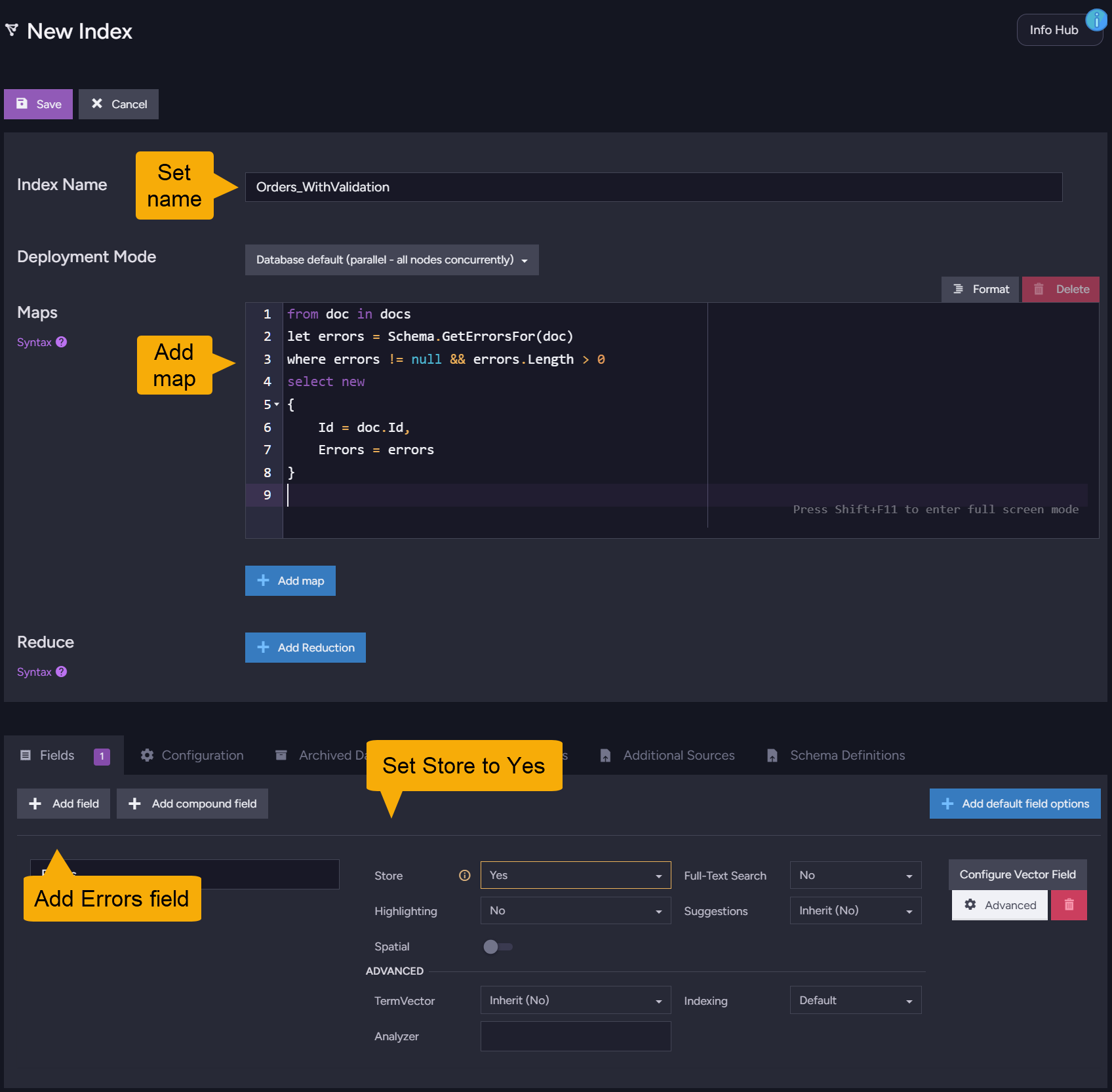
-
If you prefer that the index use an index-level schema, add it in the Schema definition tab.
Open the Schema definition tab and add a new schema definition.
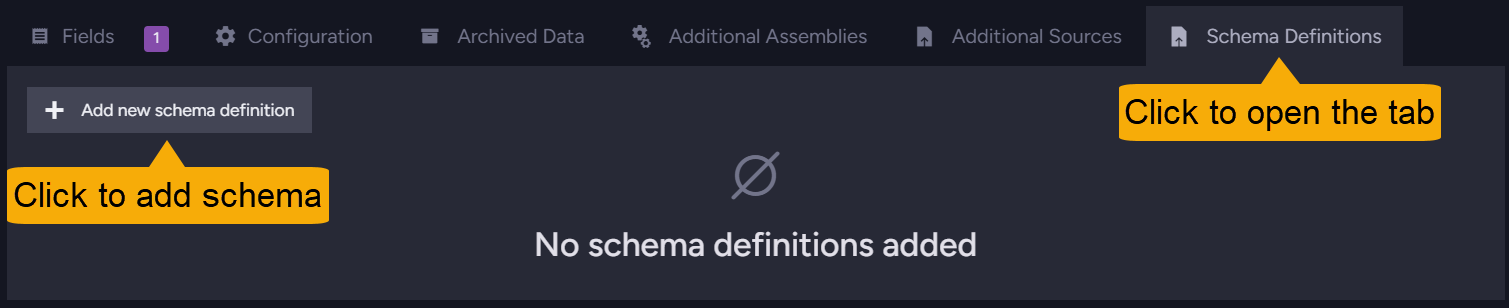
Select a collection to associate the schema with, and define the schema using JSON syntax.
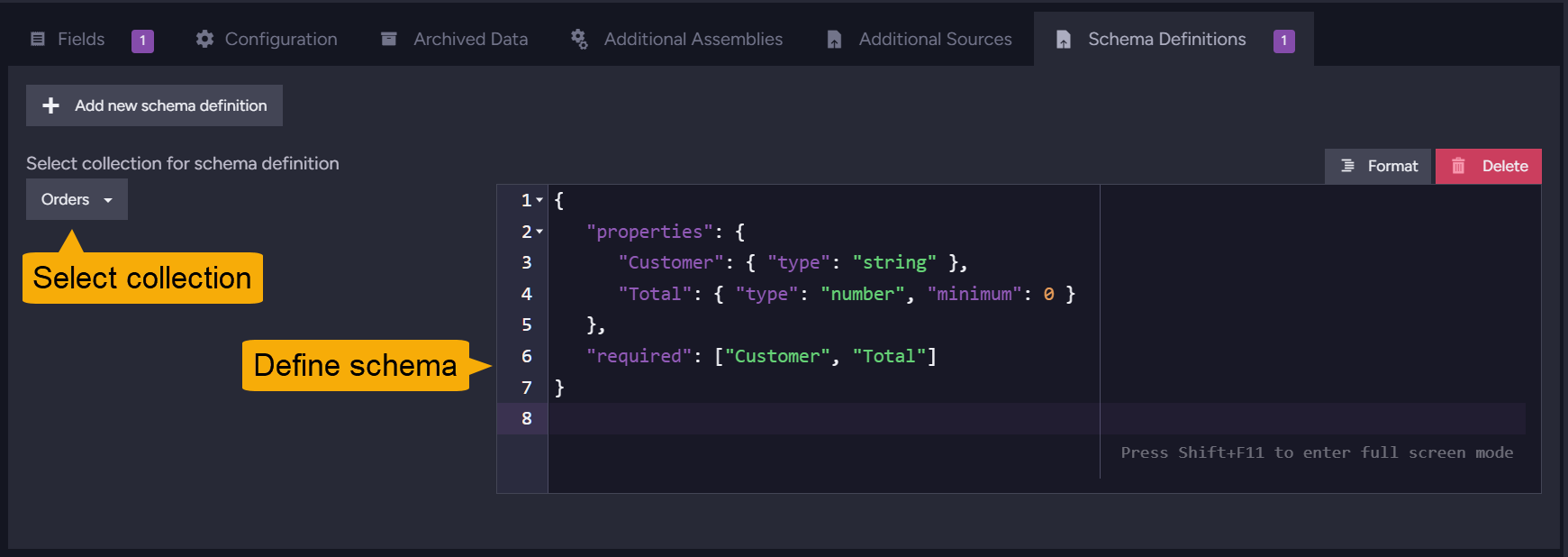
-
When you're done, remember to save the index.
Query the index
Query the index to find documents by compliance status and specific error messages.
-
While building or editing the index, you can use the Test Index bar to query the index and verify its functionality.

-
Run queries that filter documents based on the
Errorsfield.
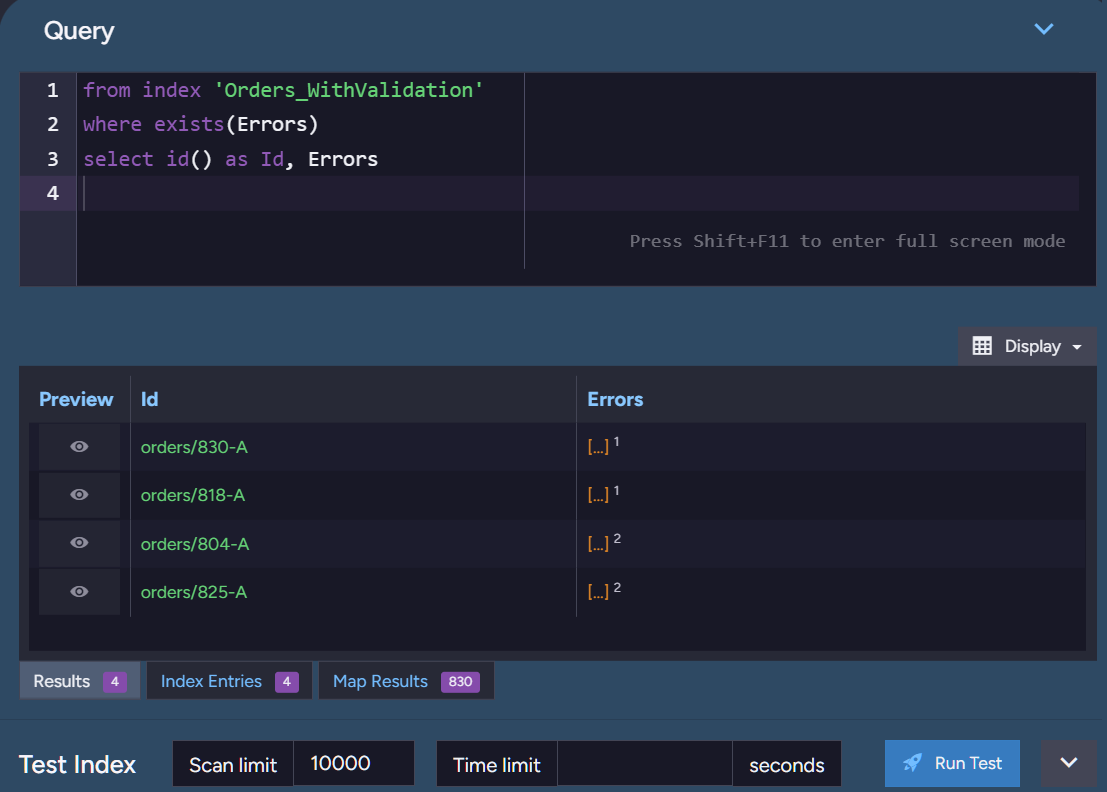
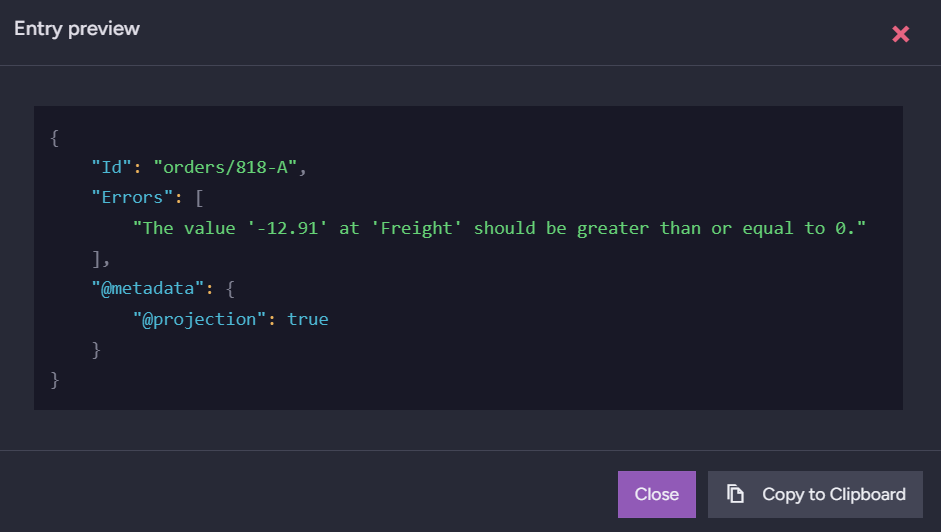
Click an item's preview (eye) icon to view the document details, including the validation error messages stored in the index.