Patch Multiple Documents Using Studio
-
Use the Patch View in Studio to apply a patch script to multiple documents in a single operation.
-
The entire patch script runs on the server:
the RQL query selects the documents, and the JavaScriptupdateclause modifies each selected document. -
To patch documents using the Client API, see:
-
In this article:
The patch view
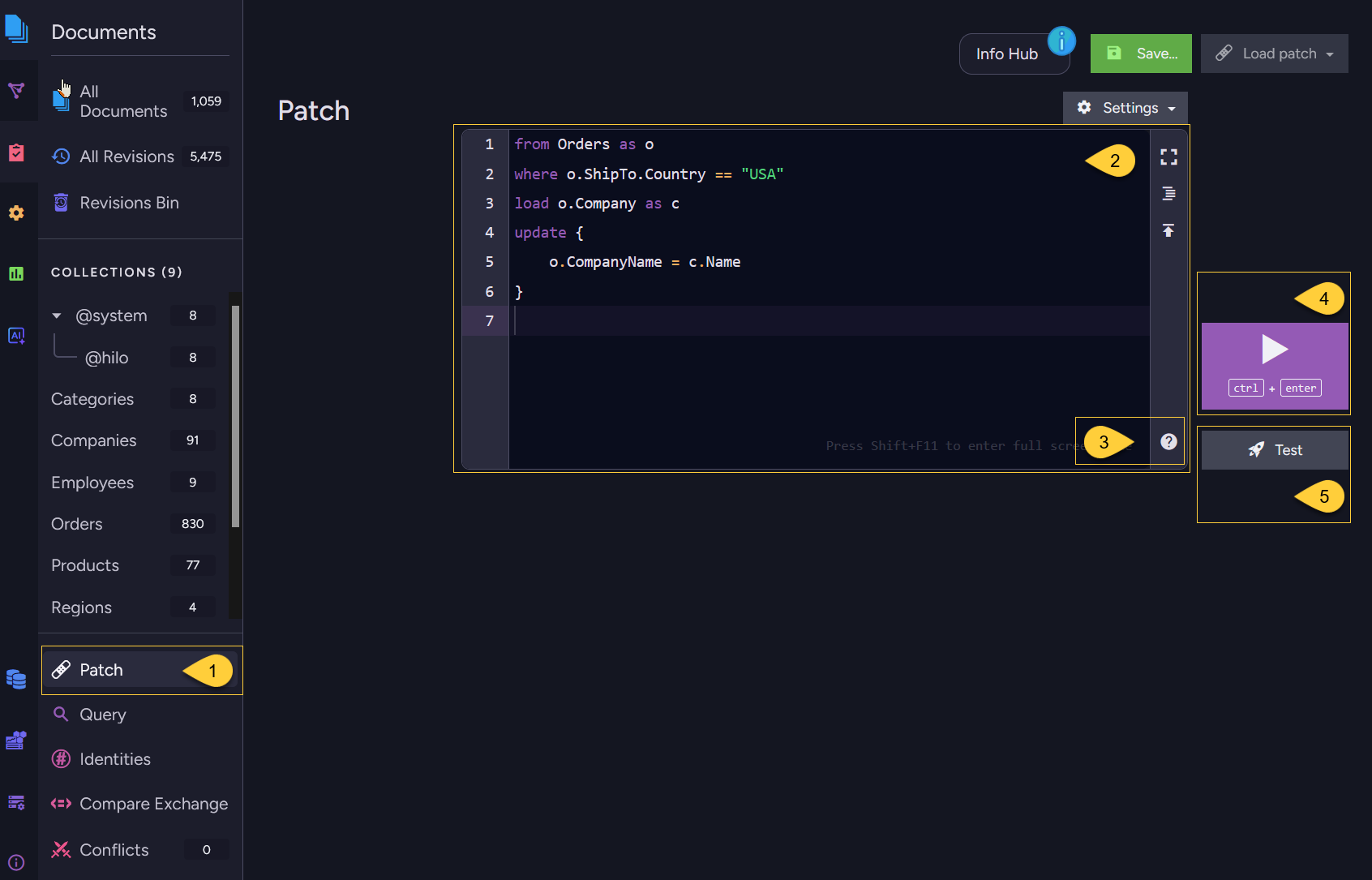
- Open the patch view
Go to Documents > Patch. - Enter the patch script
Enter your patch script in the editor. - Browse sample scripts and methods
Click the help icon to open:- Sample scripts - Browse sample patch scripts and load one into the editor.
- Methods - Browse available script methods and view their signatures, descriptions, and return types.
For additional examples, see Patch multiple documents using the Client API.
- Apply the patch
Click the play button or press Ctrl+Enter to apply the patch to the documents selected by its RQL query.
See Apply patch below. - Test the patch
Click Test to preview the patch on a selected document without modifying the stored document.
See Test patch below.
The patch script
-
A patch script consists of two parts:
-
The
query:
An RQL query that selects the documents to update.
The selection portion uses the same RQL syntax used to query collections and indexes. -
The
updateclause:
A JavaScript block that defines the changes to apply to each selected document.
-
-
When the patch is applied, the server runs the query and executes the
updateclause for each selected document. -
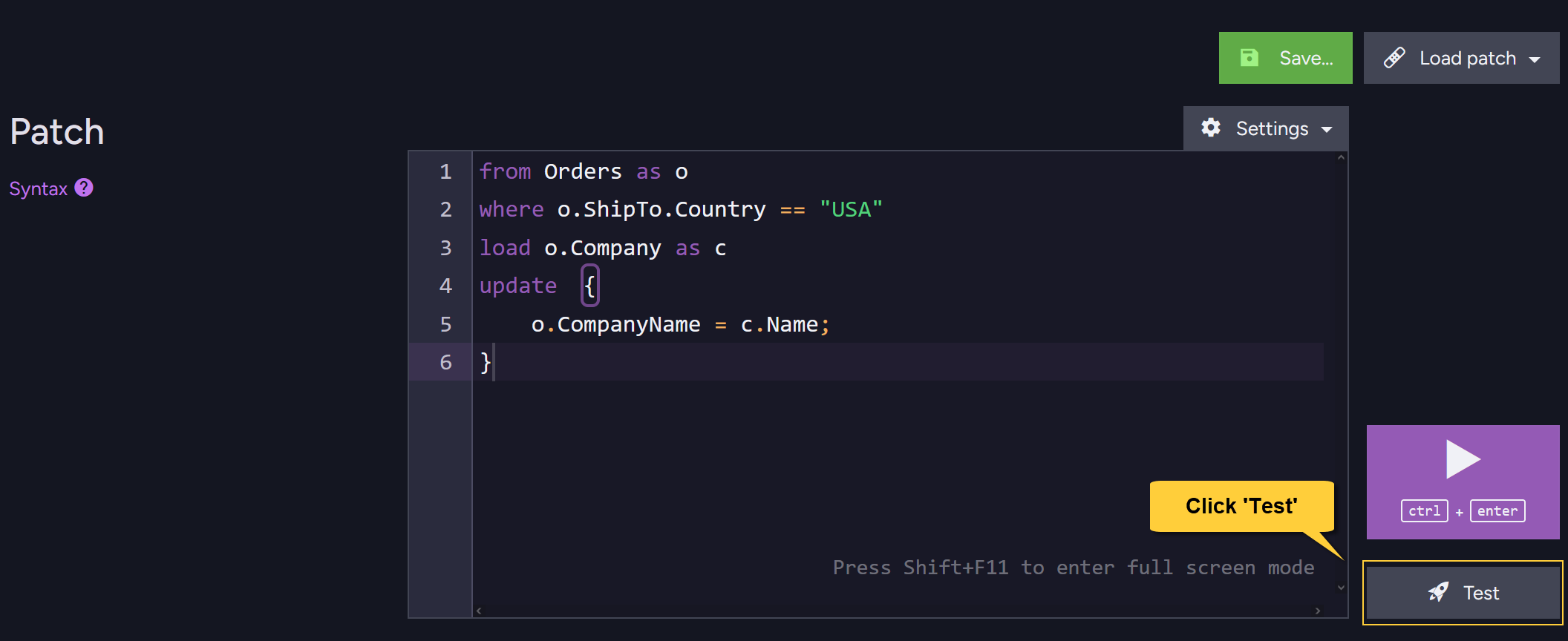
For example, the following script selects orders shipped to the USA, loads each order's related Company document, and adds the company's name to the order in a new
CompanyNamefield:
// Update a set of documents from the Orders collection:
// =====================================================

// The RQL part:
from Orders as o
where o.ShipTo.Country == "USA"
load o.Company as c


// The UPDATE part:
update  {
    o.CompanyName = c.Name;
}
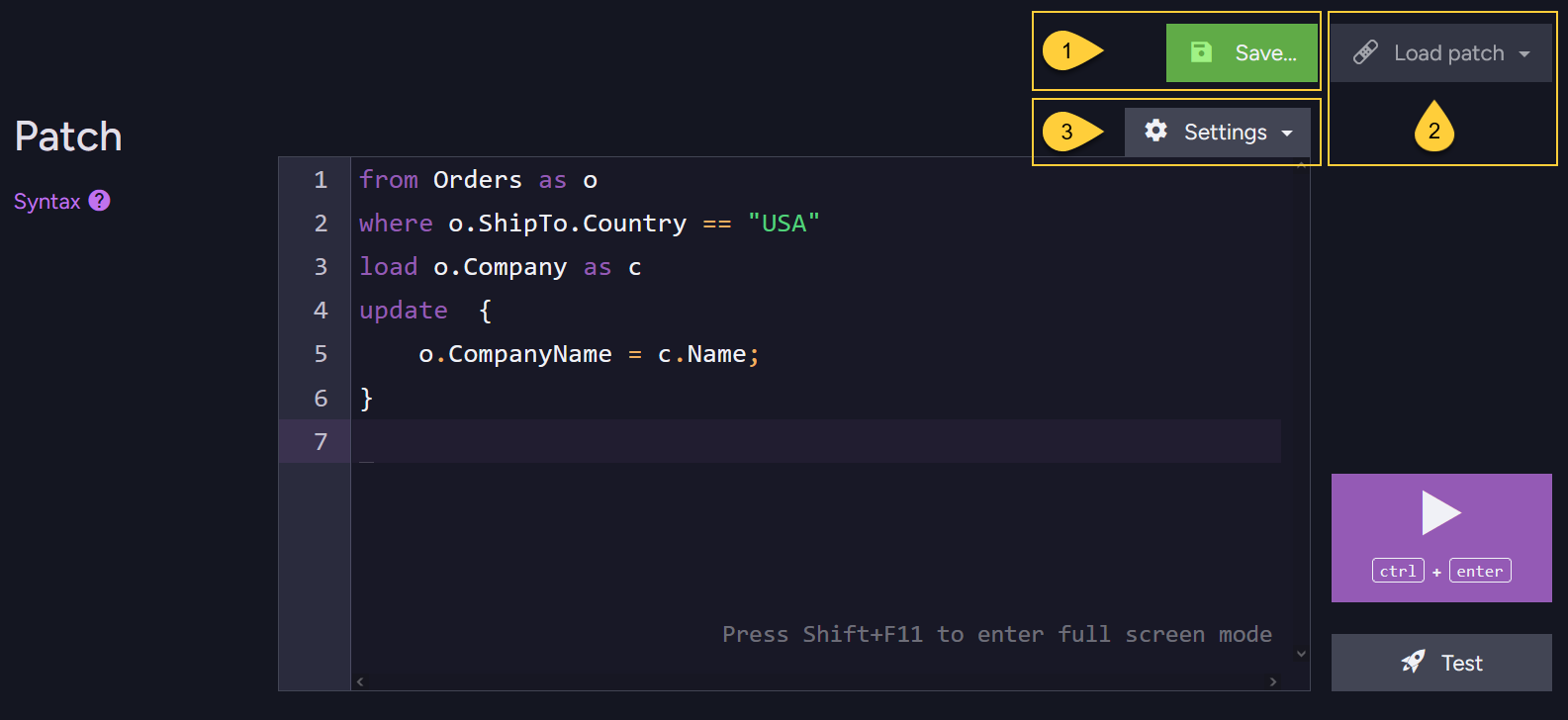
Patch configuration
-
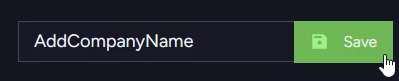
Save Patch
Click Save..., enter a name for the patch, and then click Save.
The patch is saved in the browser's local storage for the current database.
-
Load Patch
Click Load patch to view saved patches and recently executed patches.
Studio automatically stores up to six recent patches in the browser's local storage.
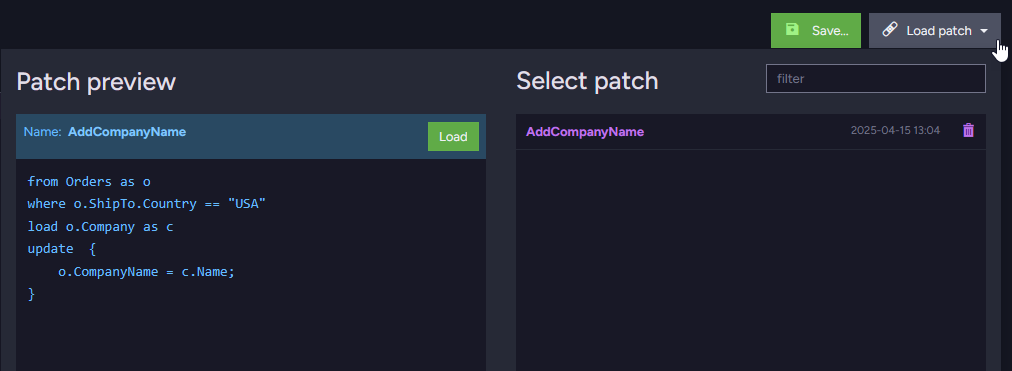
Hover over a patch name to preview its script.
Click the patch name or the preview's Load button to load it into the editor. -
-
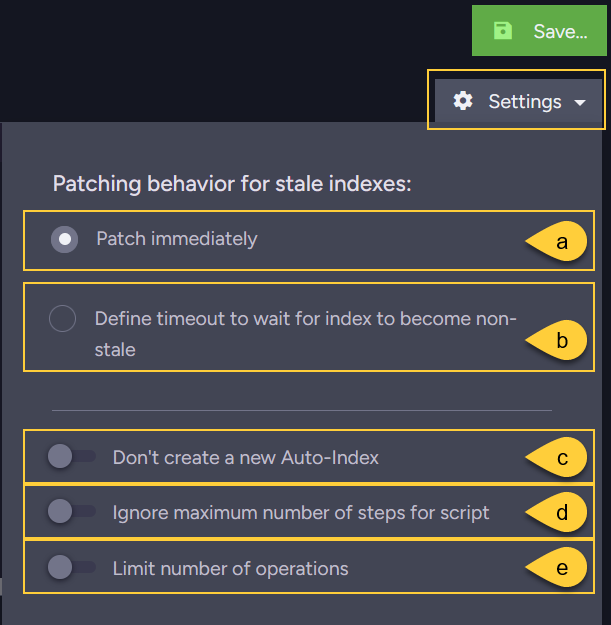
a. Patch immediately
Allow the patch to run without waiting for the index used by the query to become non-stale.
If the index is stale, document selection is based on stale index results. -
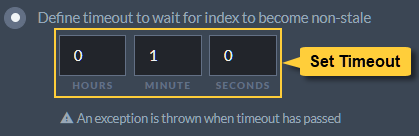
b. Define timeout to wait for index to become non-stale
Wait up to the specified timeout for the index used by the query to become non-stale.
If the timeout expires while the index is still stale, the operation fails with an exception and the patch is not applied.
-
c. Don't create a new Auto-Index
Prevent the patch query from creating a new auto-index.
If no existing index can satisfy the query, the operation fails with an exception.This toggle initially reflects the database's saved Studio configuration.
Changing it here affects patches run from this view but does not update the saved configuration.
To configure the default behavior for future Studio queries and patches, see Disabling Auto-Index Creation on Studio Queries or Patches. -
d. Ignore maximum number of steps for script
By default, the server limits the number of steps that a patch script can execute.
The limit is defined by Patching.MaxStepsForScript and defaults to 10,000.
Enable this option to ignore the limit for this patch operation. -
e. Limit number of operations
Set the maximum number of matched documents that the patch operation can process per second.

-
Test patch
-
Before applying a patch, use test mode to preview its effect on a selected document without persisting any changes.
-
Test mode does not execute the document-selection portion of the query.
Instead, Studio executes theupdateclause against the document whose ID you specify.
The query alias and anyloadclauses remain available to the update script. -
You can test the update against any existing document, even if that document would not match the query criteria.
Testing verifies the update script's behavior on that document;
it does not verify that the query selects the intended documents.
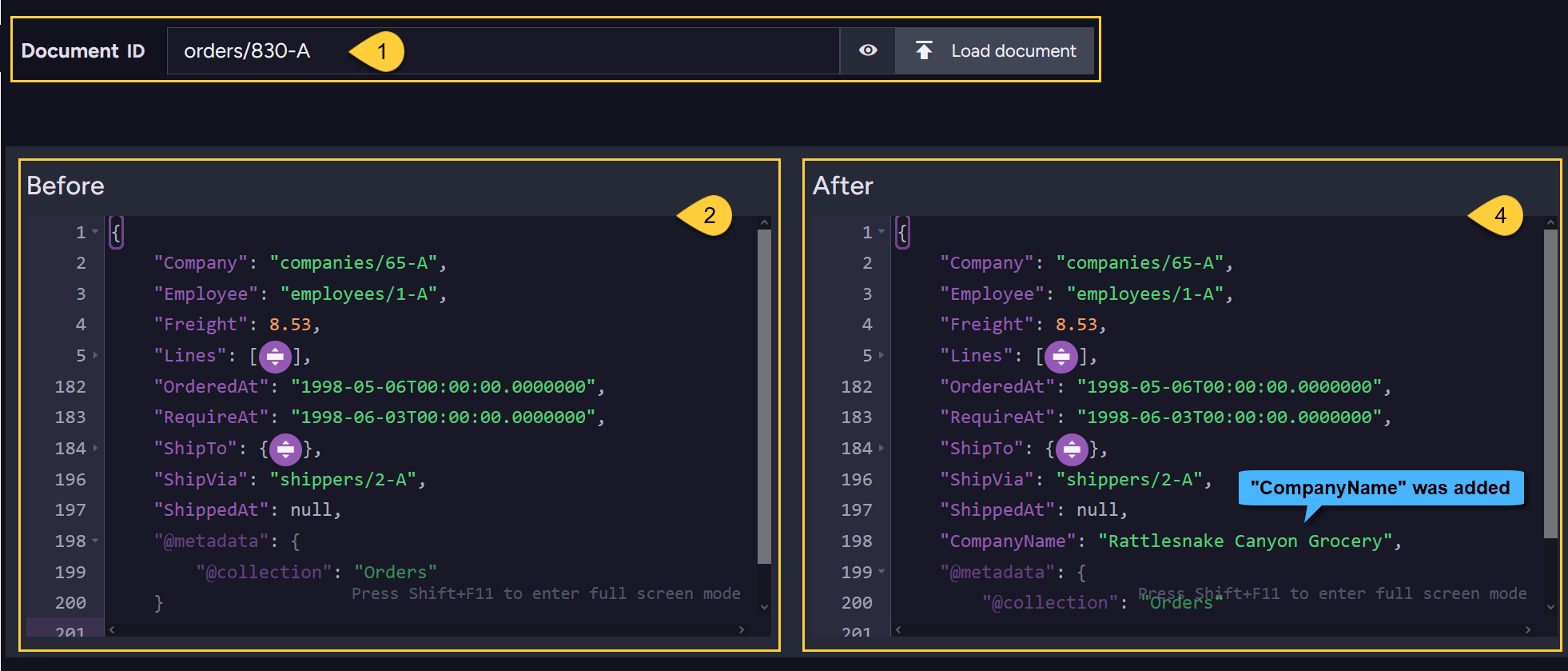
Click Test beside the patch editor to enter test mode:
The test view is displayed:
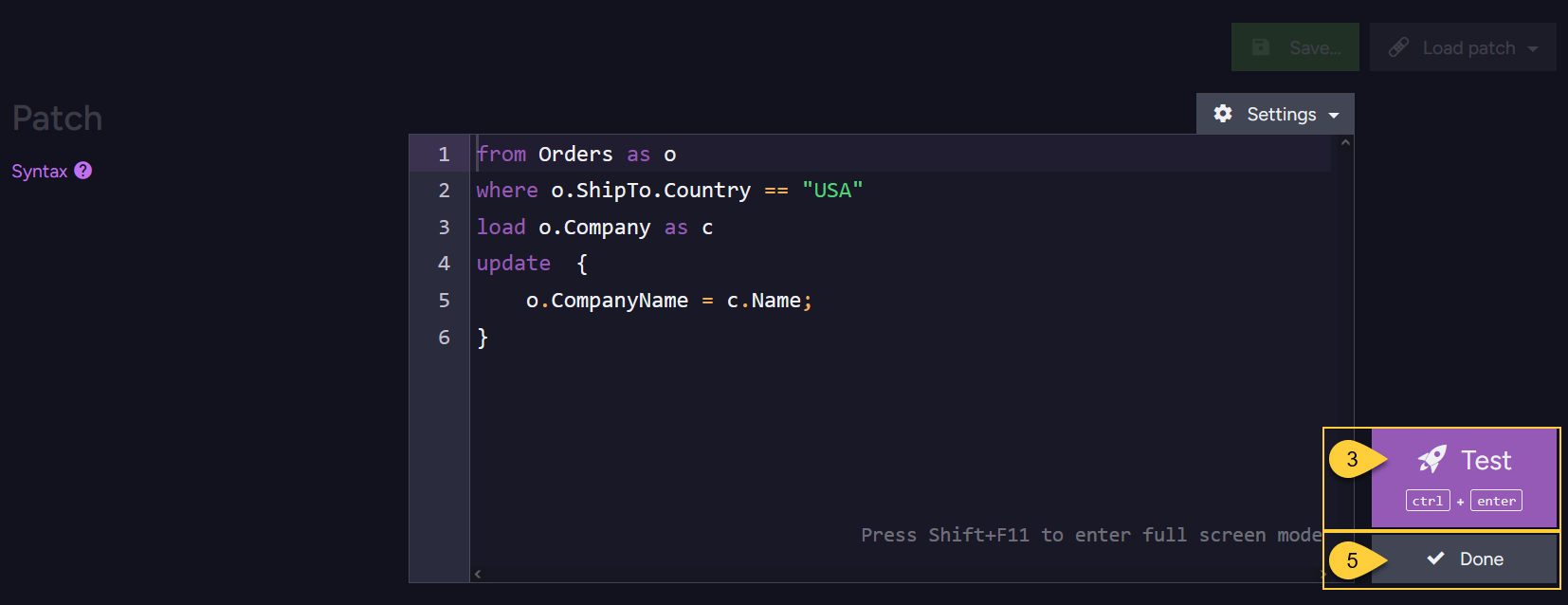
- Document ID
Enter the ID of the document to test, and then click Load document.
The original document appears in the Before area. - Before
View the original document before the test patch is applied. - Test
Click Test or press Ctrl+Enter to execute the patch against the selected document in test mode.
No changes are persisted. - After
View the document as it would appear after the patch.
In this example, the newCompanyNameproperty appears in the resulting document. - Done
Click Done to leave test mode and return to the patch view.
Output debug information when testing
-
Use
output(message)to display debugging information while testing a patch in Studio.
Each call adds a message to the Output tab in the test view. -
Calls to
output()are ignored when the patch operation runs normally;
they are not written to a server log.from Orders as oupdate {output("Freight before patch: " + o.Freight);o.Freight += 10;output("Freight after patch: " + o.Freight);}
Apply patch
Click the play button or press Ctrl+Enter to apply the patch.
Studio displays a confirmation dialog containing the number of matching documents and the selected patch settings.
Click Patch all to start the background operation.
The operation details dialog displays its progress:
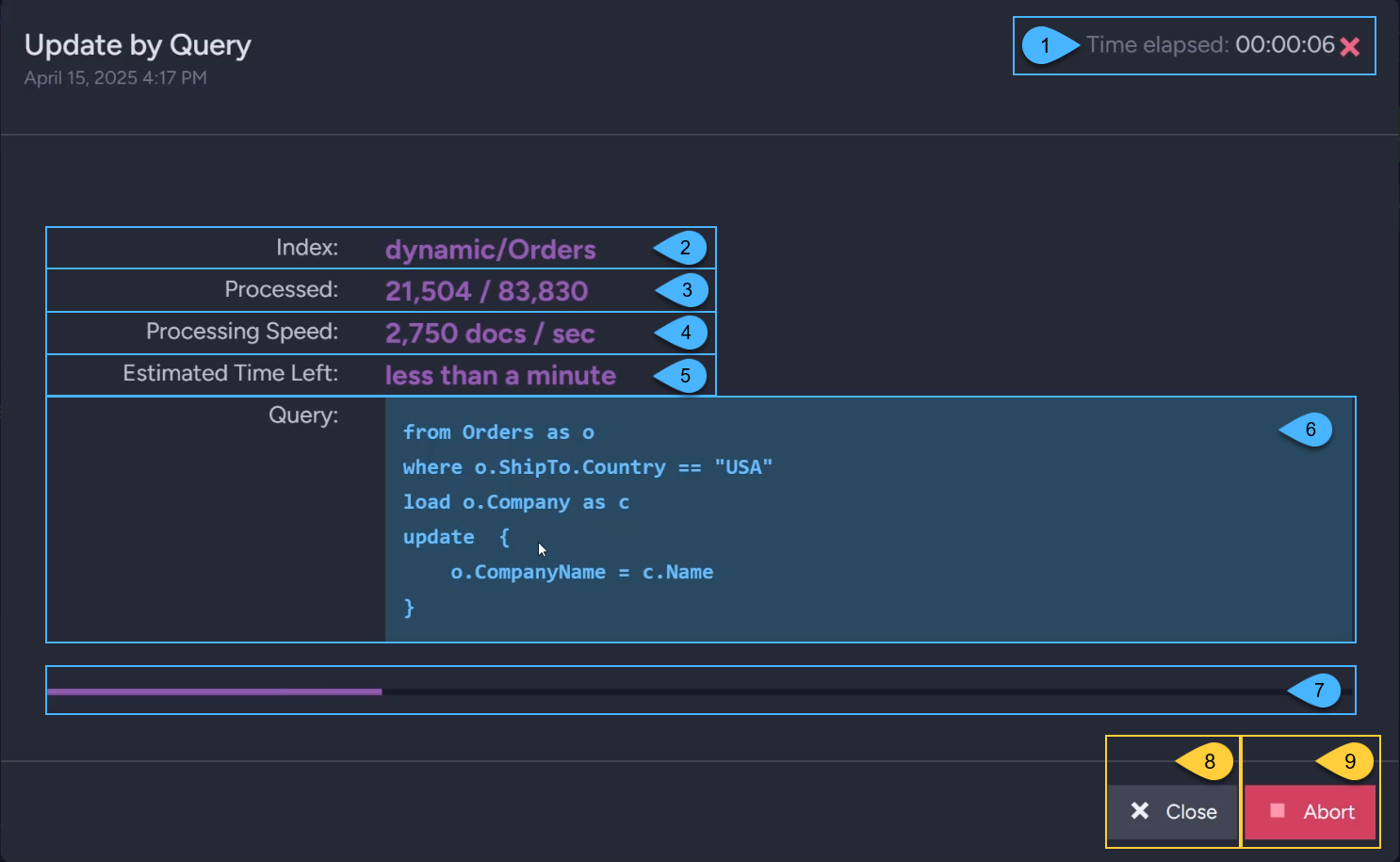
- Time elapsed
The time elapsed since the patch operation started. - Index
The query source used by the operation:- The index name, when the query explicitly specifies an index.
dynamic/<collection>for a dynamic query, as shown bydynamic/Ordersin this example.collection/<collection>for a collection query.
- Processed
The number of documents processed so far, followed by the total number of selected documents. - Processing speed
The average number of documents processed per second since the operation started. - Estimated time left
The estimated time required to process the remaining documents, based on the current average processing speed. - Query
The RQL query andupdateclause being executed. - Progress bar
The proportion of the selected documents processed so far. - Close
Close the dialog without stopping the patch operation.
You can reopen the dialog from the Studio's Notification Center. - Abort
Request cancellation of the patch operation. Studio asks for confirmation before sending the request.
Changes committed before cancellation takes effect are not rolled back.
Documents that have not yet been processed remain unchanged.