Document Refresh: Studio View
-
The document refresh feature re-saves an existing document once the time you schedule for it has passed, without changing the document's data.
Re-saving the document triggers features that react to document updates, like indexing, ETL tasks, and data subscriptions.
Use document refresh for documents that need to be processed at a later time, like documents that hold emails to send on a set date, room reservations to release once they expire, or reminders to raise when they are due. -
To schedule a document's refresh, set the
@refreshmetadata property of the document to the intended refresh time.
The@refreshproperty is removed when the document is re-saved. -
Use Studio's Document Refresh view to enable document refresh for a database, set the interval between checks for documents to refresh, and limit the number of documents the feature processes in a single run.
-
To enable and configure document refresh using the client API, and to learn how the feature refreshes documents, see Document Refresh: Client API.
-
In this article:
The Document Refresh view
The Document Refresh view can be opened by users with Admin access to the database,
or with an Operator or Cluster Admin security clearance.
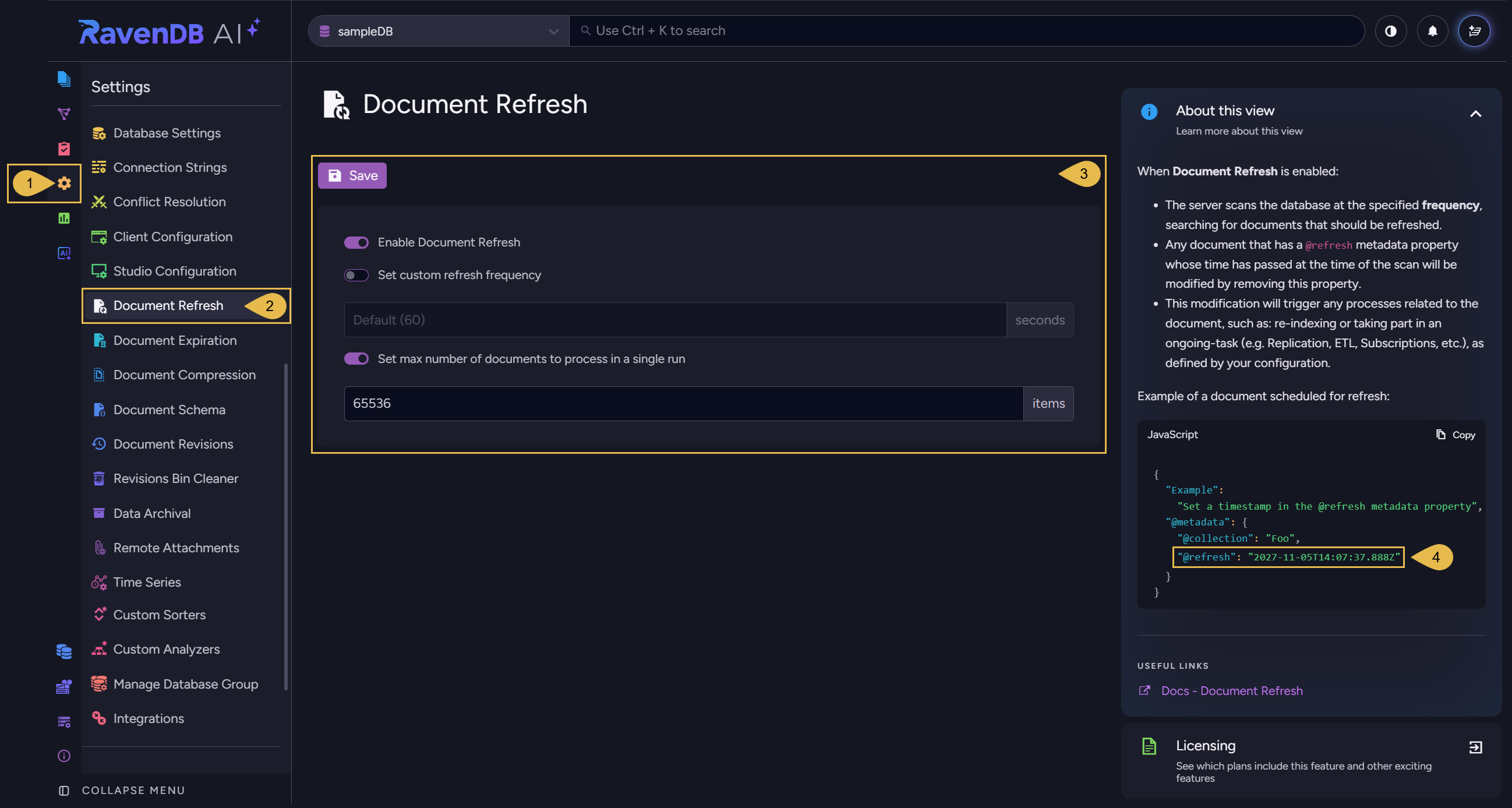
Settings > Document Refresh
-
Settings
Open the Settings menu. -
Document Refresh
Open the Document Refresh view. -
Document Refresh configuration
-
Save
Save the configuration.
Changes to the configuration take effect only after you save them. -
Enable Document Refresh
Toggle this option on to enable document refresh for the database, or off to disable the feature.- Turning this option on also turns on Set max number of documents to process in a single run (see below), with a value of 65536.
- Turning this option off also turns off the two options below it.
-
Set custom refresh frequency
Toggle this option on to set the interval (in seconds) at which the document refresh feature runs.
Each time the feature runs, it checks for documents to refresh and processes documents whose refresh time has passed.
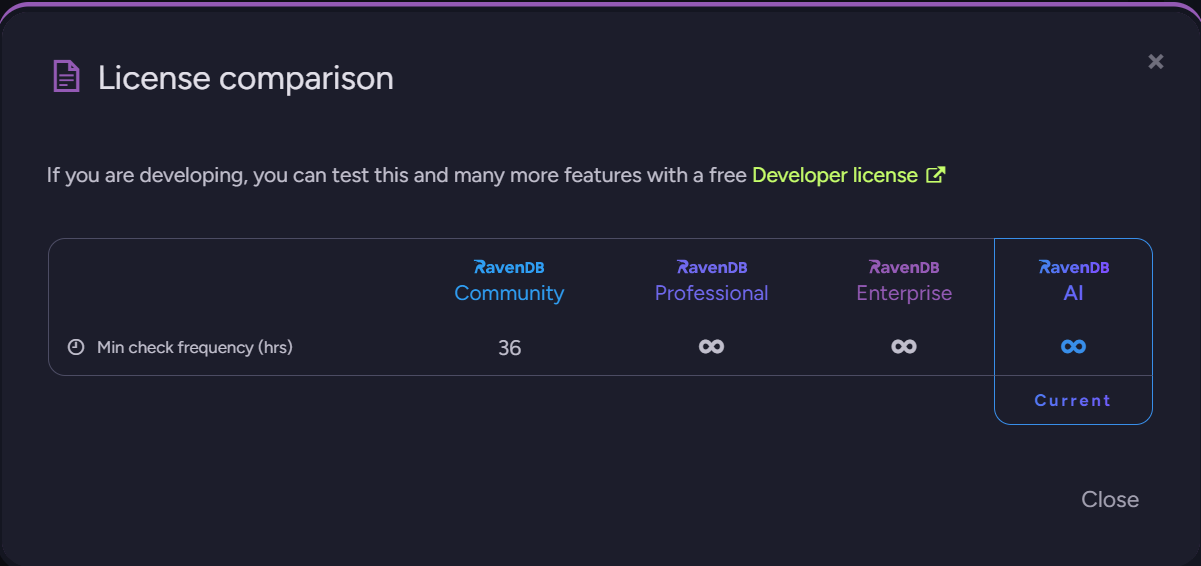
When this option is off, the default interval (60 seconds) applies.The allowed refresh frequency with a Community license:
When using a Community license, the document refresh feature cannot run more often than every 36 hours (129600 seconds).
To enable document refresh on a Community license, toggle Set custom refresh frequency on and set a frequency of at least129600seconds.-
To see the minimum refresh interval (in hours) allowed for each license, click the Licensing box at the bottom right of the view to open the License comparison dialog.
-
The Set custom refresh frequency input displays the minimum value (
Default (129600)), but Studio does not send this value unless you explicitly type it in. -
Saving the configuration with Enable Document Refresh toggled on and Set custom refresh frequency toggled off will fail, since Studio sends no frequency, and the server then applies the 60-second default, which the license does not allow.
-
A custom frequency lower than the allowed minimum value displays a warning, and Save is disabled.
-
-
Set max number of documents to process in a single run
Toggle this option on to limit the number of documents the feature processes in a single run.
When this option is off, any number of documents can be processed during a single run.- Each run processes the documents due for refresh in the order of their refresh times, earliest first.
Documents that share a refresh time are processed in the order of their document IDs. - If the number of documents due for refresh exceeds the set limit, the documents will be processed over multiple consecutive runs.
- Each run processes the documents due for refresh in the order of their refresh times, earliest first.
-
-
Example of a document scheduled for refresh
About this view shows a sample document whose@refreshmetadata property is set to a refresh time one year from today.
See Scheduling a document refresh below.
Scheduling a document refresh
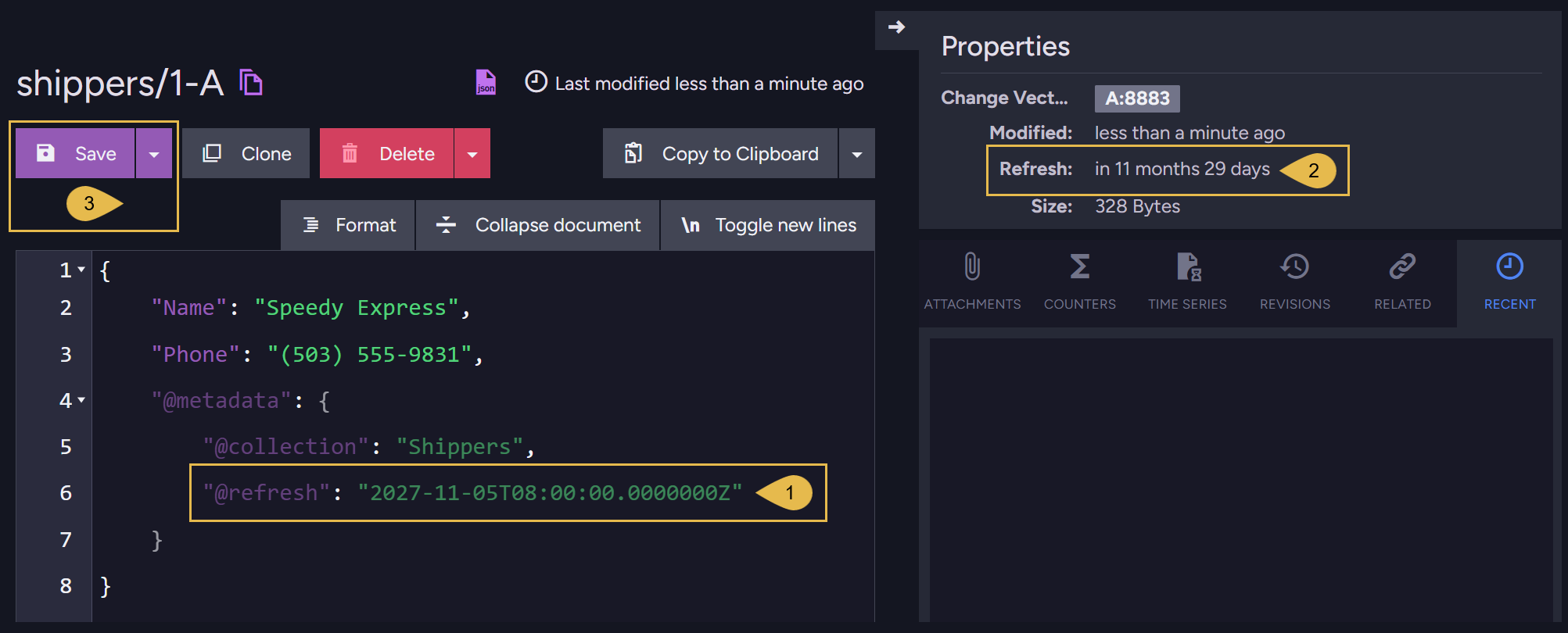
To schedule a document's refresh using Studio, open the document from the Documents view, add a @refresh property
to its metadata, and save the document.
-
@refresh
Add a@refreshproperty to the document's@metadata, and set the property's value to the intended refresh time.-
Add a time zone designator to the value (
Zfor UTC, or an offset from UTC) to specify the time zone of the refresh time.
A refresh time set without a time zone designator is read in the server machine's time zone. If this time zone differs from the one you meant, the document will be refreshed earlier or later than you intended.Examples:
"@refresh": "2027-11-05T08:00:00.0000000Z"sets the refresh time to 08:00 UTC."@refresh": "2027-11-05T10:00:00.0000000+02:00"sets the refresh time to 10:00 in a time zone two hours ahead of UTC, which is 08:00 UTC."@refresh": "2027-11-05T08:00:00.0000000"sets the refresh time to 08:00 in the server machine's time zone.
-
When the document is refreshed, the
@refreshproperty is removed from its metadata, so the document is refreshed only once.
To refresh the document again, set its@refreshproperty to a new time. -
Reverting a document to a revision also removes the
@refreshproperty from the reverted document.
See Reverting documents to revisions
-
-
Refresh
Once the document is saved, the Properties panel, on the right side of the document view, shows the time left until the document's refresh.
Hovering over the time left until the refresh shows the refresh date and time in UTC.-
If document refresh is disabled for the database, a warning icon is displayed next to the time left until the refresh:

The refresh is still scheduled:
- If you enable the feature before the refresh time, the document will be refreshed in the feature's first run after the refresh time.
- If the refresh time passes while the feature is disabled, the document will be refreshed in the feature's first run after you enable the feature.
- In both cases, the document may be refreshed in a later run if the number of documents due for refresh exceeds the maximum set for a single run using the Set max number of documents to process in a single run option above.
-
A document that is in conflict is not refreshed while the conflict remains, even after its refresh time passes.
See Conflicted documents
-
-
Save
Save the document.
The refresh is scheduled once you save the document.