Creating a data subscription: Studio
-
This page explains how to create a data subscription using Studio.
You can also create a subscription using the Client API. -
In this article:
Defining the subscription task
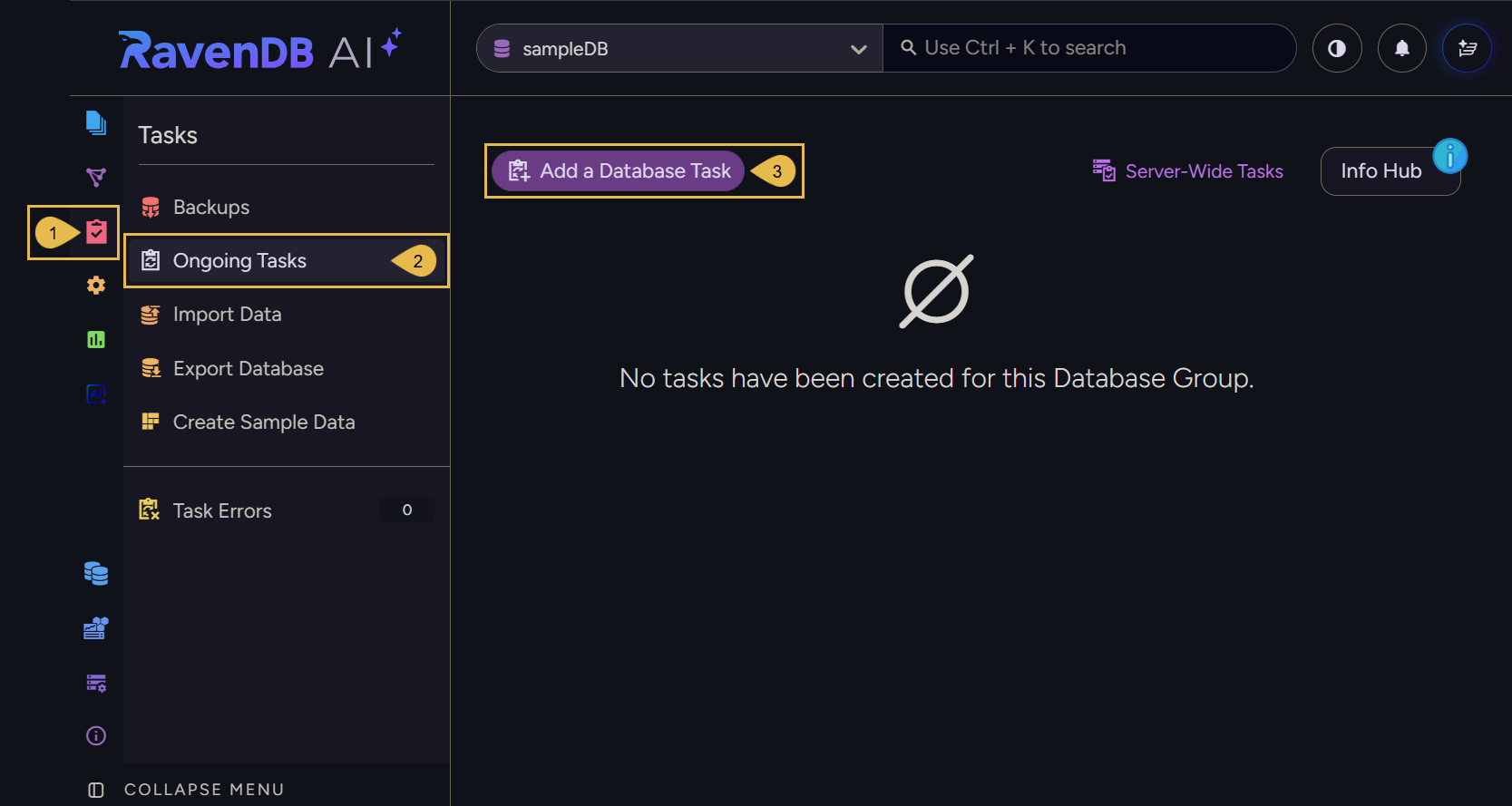
To create a subscription, open Tasks > Ongoing Tasks > Add a database task and select Subscription.
-
Open the Tasks menu.
-
Select Ongoing Tasks.
-
Click Add a database task and select Subscription.
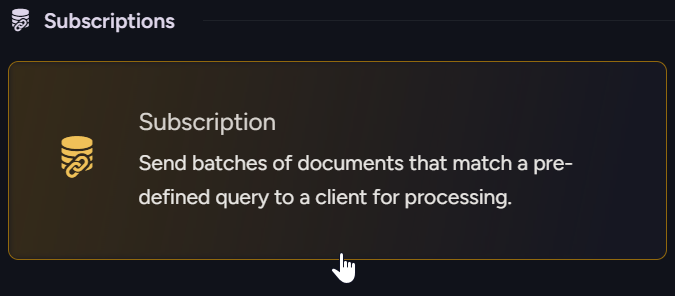
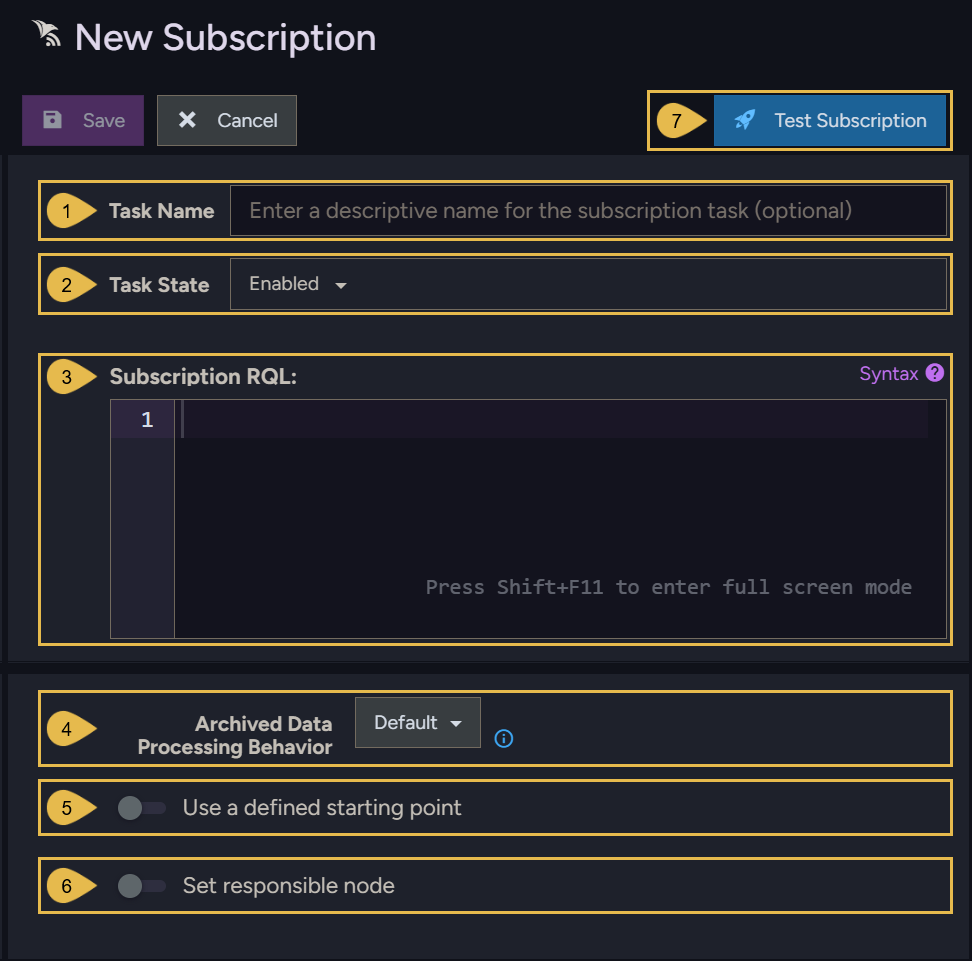
Enter a task name, then define the subscription:
-
Task name
Enter a name for the subscription task. -
Task state
Enable or disable the task. -
Subscription RQL
The subscription query, written in RQL, that defines the documents the server sends to the worker.
e.g.,from Orders
Click Syntax for help writing the query. -
Archived data processing behavior
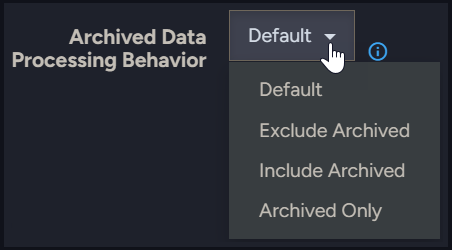
Set the subscription's handling of archived documents:
- Default: The subscription uses the behavior configured for the server or database.
- Exclude Archived: The subscription selects only non-archived documents.
- Include Archived: The subscription selects both archived and non-archived documents.
- Archived Only: The subscription selects only archived documents.
On a sharded database, this option has no effect, and all subscriptions handle archived documents as set by the Subscriptions.ArchivedDataProcessingBehavior configuration key.
To learn more about a subscription's handling of archived documents, see Data archival: Archived documents and subscriptions. -
Use a defined starting point
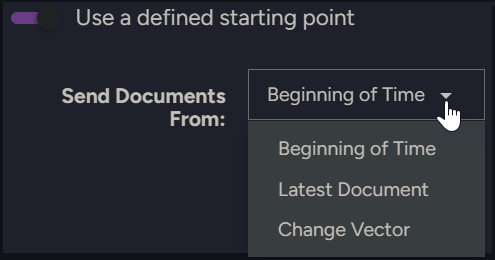
Set the point from which the server sends the first batch.
- Beginning of Time (default): the server sends every document matching the query, regardless of its creation or modification time.
- Latest Document: the server sends only documents created or modified after the subscription's creation.
- Change Vector: start from a specified document change vector.
-
Set responsible node
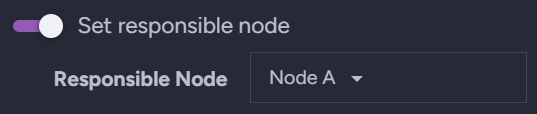
Toggle Set responsible node to choose the responsible node yourself.
By default, the server selects the responsible node. If that node goes down and your license includes highly available tasks, the server automatically reassigns the subscription to another node.-
When you select a responsible node manually, you can also pin it to the task. Pinning prevents another node from taking over if the responsible node goes down.

-
-
Test subscription
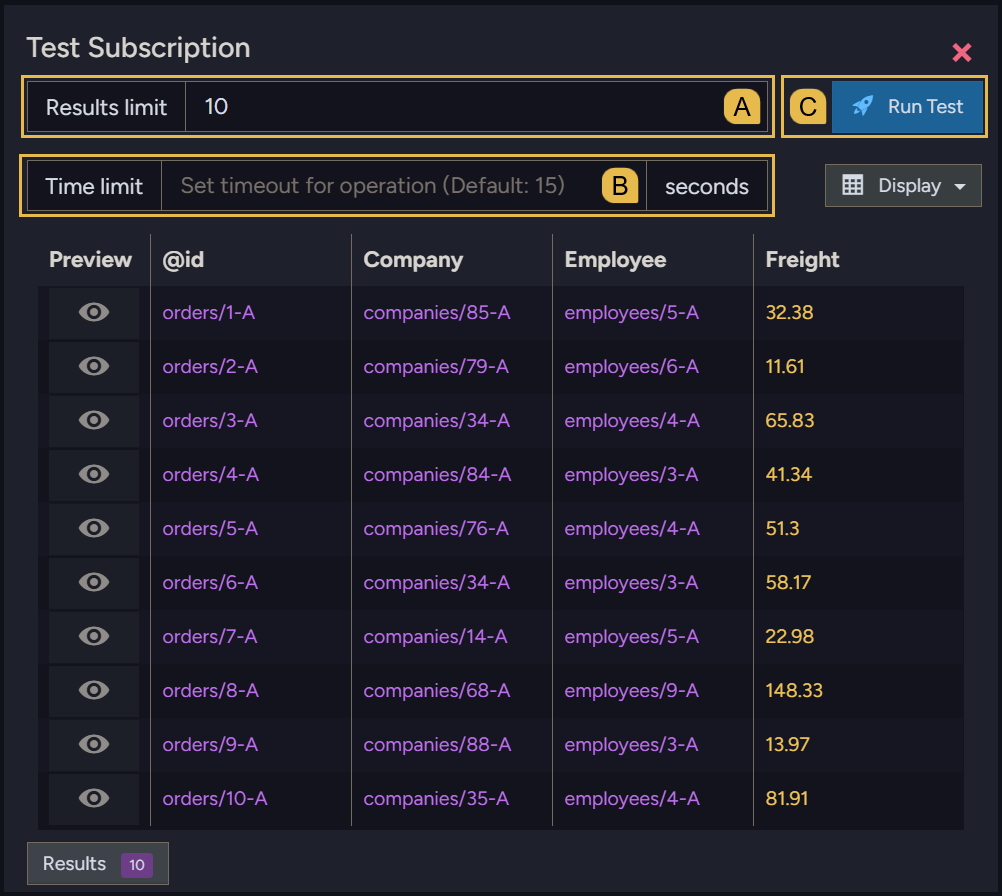
Testing shows the documents that match the subscription's query, so you can verify it before saving the task.
- A. Results limit - The maximum number of documents to retrieve for the test.
- B. Time limit - The test run time, in seconds. Default: 15.
- C. Run Test - Click to run the test and preview the matching documents in the results table.
Click Save to create the task, or Cancel to discard it.