Periodic database backup tasks
-
A periodic backup task automatically creates backups at predefined time intervals, based on a user-defined configuration that specifies the task schedule, backup type, and other settings.
-
You can create and manage periodic backup tasks using either the client API or Studio.
A backup task runs backup operations on its defined schedule. Once a backup operation is running, you can also delay or abort it. -
See the variety of backup configuration options and settings in:
Backup overview
Configuration syntax -
This article explains how to create periodic backup tasks for a single database.
Learn to create server-wide periodic backup tasks. -
In this article:
Creating and managing periodic backups using the client API
Creating a backup task
To create a periodic backup task:
-
Define a backup configuration using a
PeriodicBackupConfigurationinstance.
The configuration sets the schedule for backups creation and specifies other task settings, including:- The type of backups to create (logical backups or snapshot images).
- Backups scope and schedule (schedule full and/or incremental backups).
- Where to store backups (locally and/or remotely).
- Whether to use a retention policy to delete outdated backups.
- If and how to use encryption.
-
When the configuration is prepared, pass the instance to
UpdatePeriodicBackupOperationto create the backup task on the server and schedule the backup routine for the database. -
Example:
var config = new PeriodicBackupConfiguration{// Task nameName = "FullAndIncrementalBackup",// Create a logical backupBackupType = BackupType.Backup,// Run a full backup every 6 hoursFullBackupFrequency = "0 */6 * * *",// Run an incremental backup every 20 minutesIncrementalBackupFrequency = "*/20 * * * *",// Keep backups locallyLocalSettings = new LocalSettings{FolderPath = backupPath},// Also upload backups to AzureAzureSettings = new AzureSettings{// Use your Azure credentials here},// Keep backups for 7 daysRetentionPolicy = new RetentionPolicy{Disabled = false,MinimumBackupAgeToKeep = TimeSpan.FromDays(7)},// Encrypt backups using the database keyBackupEncryptionSettings = new BackupEncryptionSettings{EncryptionMode = EncryptionMode.UseDatabaseKey}};var operation = new UpdatePeriodicBackupOperation(config);var result = await store.Maintenance.SendAsync(operation);
Key configuration settings
Setting backup type:
-
Set the backup type using the backup configuration
BackupTypeenum property.
You can assign it withBackupType.Backupto create logical backups,
or withBackupType.Snapshotfor snapshot images.e.g.,
var config = new PeriodicBackupConfiguration{BackupType = BackupType.Snapshot,// other configuration settings...};
Setting backups scope and schedule:
-
Set backups scope (full and/or incremental) and schedule, using the backup configuration
FullBackupFrequencyandIncrementalBackupFrequencystring properties.
The schedule is set using a cron expression.e.g.,
var config = new PeriodicBackupConfiguration{// ...// Create a full backup every 6 hours, at minute 0FullBackupFrequency = "0 */6 * * *",// Create an incremental backup every 20 minutesIncrementalBackupFrequency = "*/20 * * * *",// ...}; -
See
FullBackupFrequencyandIncrementalBackupFrequencysyntax
Setting storage destinations:
-
Set storage destinations using the backup configuration storage classes:
- Local path:
LocalSettings - Amazon S3:
S3SettingsandAmazonSettings - Amazon Glacier:
GlacierSettingsandAmazonSettings - Azure Blob Storage:
AzureSettings - FTP server:
FtpSettings - Google Cloud Storage:
GoogleCloudSettings
e.g.,
var config = new PeriodicBackupConfiguration{// ...LocalSettings = new LocalSettings{FolderPath = backupPath},AzureSettings = new AzureSettings{// Use your Azure credentials here},// ...}; - Local path:
-
Optionally, you can set an external script that provides the destination settings at runtime.
-
To enable an external script (per destination) and set its parameters, use the destination's
GetBackupConfigurationScriptproperty.e.g., set an external script that applies to the local storage destination:
LocalSettings = new LocalSettings{// Optional default; script output will override it.FolderPath = @"D:\RavenBackups",GetBackupConfigurationScript = new GetBackupConfigurationScript{Exec = "powershell",Arguments = "-NoProfile -NonInteractive -ExecutionPolicy Bypass -File \"D\\RavenDB\\Backups\\local-settings.ps1\"",TimeoutInMs = 10_000}}
-
Setting retention policy:
-
Set backups retention policy using the backup configuration
RetentionPolicyproperty (of typeRetentionPolicy).- Use
Disabledto enable or disable the retention policy,
andMinimumBackupAgeToKeepto set a retention period. - Backups older than the retention period will be deleted the next time the backup task runs.
e.g.,
var config = new PeriodicBackupConfiguration{// ...RetentionPolicy = new RetentionPolicy{// Enable retention policyDisabled = false,// Set retention periodMinimumBackupAgeToKeep = TimeSpan.FromDays(7)},// ...}; - Use
Setting encryption:
Set backup encryption using the backup configuration BackupEncryptionSettings property (of type BackupEncryptionSettings).
-
Snapshots are exact images of the database, and as such are automatically encrypted when the database is encrypted (using the same encryption key as the database) or unencrypted when the database is not encrypted.
-
Logical backups can be encrypted or not, regardless of the database encryption.
-
Use
BackupEncryptionSettings.EncryptionModeto select if and how backups should be encrypted.
Available options are:EncryptionMode.None- Do not encrypt backupsEncryptionMode.UseDatabaseKey- Encrypt the backup using the same encryption key as the database.
This option is relevant only when the database is encrypted.EncryptionMode.UseProvidedKey- Use a key provided by the user.
This option can be used both when the database is encrypted and when it isn't.
If you use your own key, provide it viaBackupEncryptionSettings.Key.
e.g.,
var config = new PeriodicBackupConfiguration{// ...// Encrypt a logical backup using a user-provided keyBackupEncryptionSettings = new BackupEncryptionSettings{// A Base64-encoded encryption keyKey = "0eZ6g9f2k+GxH8c4Yv4xNwqzJ48m3o3x7lKQyqgQXct=",EncryptionMode = EncryptionMode.UseProvidedKey}// ...};
-
Getting backup task status
To retrieve the status of a backup task after its last run, use GetPeriodicBackupStatusOperation with the task ID.
- If you don't have the task ID, you can get it using
GetOngoingTaskInfoOperationwith the task name. - The retrieved status reflects the most recent completed backup run, whether it was scheduled or triggered manually.
- The status includes the number of backups performed by the task, and details about the last backup such as the backup timestamp, duration, destination path, and error information (if any).
See GetPeriodicBackupStatusOperation syntax
Example:
var operation = new UpdatePeriodicBackupOperation(config);
var result = await store.Maintenance.SendAsync(operation);

// Get the task ID
var backupTaskForStatus = await store.Maintenance.SendAsync(
    new GetOngoingTaskInfoOperation("FullAndIncrementalBackup",
        OngoingTaskType.Backup)) as OngoingTaskBackup;

long backupTaskId = backupTaskForStatus.TaskId;

// Get the backup status for this task
var statusResult = await store.Maintenance.SendAsync(
    new GetPeriodicBackupStatusOperation(backupTaskId));

var status = statusResult.Status;

// Status is null if no backup has run yet
if (status == null)
{
    // No backup has been executed yet for this task
    return;
}

// Check for errors in the last backup run
if (status.Error != null)
{
    // The last backup run failed
    string errorMessage = status.Error.Exception;
    DateTime errorTime = status.Error.At;
}

// Access last backup details
bool wasFull = status.IsFull;
long? lastEtag = status.LastEtag;
long? durationMs = status.DurationInMs;
DateTime? lastFullBackup = status.LastFullBackup;
DateTime? lastIncrementalBackup = status.LastIncrementalBackup;

// Access backup destination details
string? localBackupDir = status.LocalBackup?.BackupDirectory;
For a Sharded database:
If your database is sharded, use GetShardedPeriodicBackupStatusOperation instead.
It returns a separate PeriodicBackupStatus for each shard, in a dictionary keyed by shard number.
GetPeriodicBackupStatusOperationthrows anInvalidOperationExceptionif the database is sharded.GetShardedPeriodicBackupStatusOperationthrows anInvalidOperationExceptionif the database is not sharded.
// Get backup status for a sharded database
var shardedResult = await store.Maintenance.SendAsync(
    new GetShardedPeriodicBackupStatusOperation(backupTaskId));

// Statuses is a Dictionary<int, PeriodicBackupStatus> keyed by shard number
Dictionary<int, PeriodicBackupStatus> statuses = shardedResult.Statuses;

// Iterate over each shard's backup status
foreach (var (shardNumber, shardStatus) in statuses)
{
    DateTime? lastFull = shardStatus.LastFullBackup;
    DateTime? lastIncremental = shardStatus.LastIncrementalBackup;
    string? error = shardStatus.Error?.Exception;

    // Each shard has its own backup destination details
    string? localDir = shardStatus.LocalBackup?.BackupDirectory;
}
Updating a backup task
To update an existing backup task:
- If you don't know the ID of the task, retrieve the task by its name using
GetOngoingTaskInfoOperationand extractTaskId. - Create a new backup configuration that uses the same
TaskId.
Include in the new configuration all the settings you want to keep, as omitted settings may be reset to defaults or disabled. - Pass the updated configuration to
UpdatePeriodicBackupOperation.
Example:
// Retrieve the existing backup task by its name to get the TaskId
var ongoingTask = await store.Maintenance.SendAsync(
    new GetOngoingTaskInfoOperation("FullAndIncrementalBackup",
        OngoingTaskType.Backup)) as OngoingTaskBackup;

// Ensure the task exists
Assert.NotNull(ongoingTask);

// Extract the task ID
var taskId = ongoingTask.TaskId;

// Create a new backup configuration with the same TaskId
var updatedConfig = new PeriodicBackupConfiguration
{
    TaskId = taskId,
    Name = "DailyBackup",
    BackupType = BackupType.Backup,
    FullBackupFrequency = "0 */24 * * *",
    LocalSettings = new LocalSettings
    {
        FolderPath = backupPath
    },
    BackupEncryptionSettings = new BackupEncryptionSettings
    {
        Key = "myEncryptionKey",
        EncryptionMode = EncryptionMode.UseProvidedKey
    }
};

// Update the backup task with the new configuration
var updateOp = new UpdatePeriodicBackupOperation(updatedConfig);
var updateResult = await store.Maintenance.SendAsync(updateOp);
Deleting a backup task
To delete an existing backup task:
- If you don't know the ID of the task, retrieve the task by its name using
GetOngoingTaskInfoOperationand extractTaskId. - Pass the task ID to
DeletePeriodicBackupOperationto delete the task from the server.
Example:
// Get the task info to retrieve the TaskId
var backupTask = await store.Maintenance.SendAsync(
    new GetOngoingTaskInfoOperation("FullAndIncrementalBackup", OngoingTaskType.Backup)) as OngoingTaskBackup;

// Ensure the task exists
if (backupTask == null)
    throw new InvalidOperationException("The periodic backup task was not found.");

// Delete the task using its TaskId
await store.Maintenance.SendAsync(
    new DeleteOngoingTaskOperation(backupTask.TaskId, OngoingTaskType.Backup));
Managing backup operations
After defining a database backup task, it starts executing backup operations as scheduled.
You can:
- Trigger the immediate execution of a backup operation, outside of its task schedule.
- Delay a backup operation that the task has already started.
- Abort a backup operation that the task has already started.
Triggering an immediate backup operation
To trigger the immediate creation of a backup using an existing periodic backup task:
- If you don't have the task ID, fetch it using
GetOngoingTaskInfoOperation - Create a backup immediately using
StartBackupOperation, passing it the backup scope (full or incremental) and the ID of the periodic backup task to use.
Example:
// Create a backup immediately using an existing periodic backup task
// Fetch task info to get its ID
var existingPeriodicBackupTask = await store.Maintenance.SendAsync(
    new GetOngoingTaskInfoOperation("DailyBackup",
        OngoingTaskType.Backup)) as OngoingTaskBackup;

// Fetch the task ID
long existingTaskId = existingPeriodicBackupTask.TaskId;

// Choose whether to run Full or Incremental backup
bool isFullBackup = true; // false => incremental

// Create backup immediately
var backupOperationId = await store.Maintenance.SendAsync(new StartBackupOperation(isFullBackup, existingTaskId));
Delaying a running backup operation
To delay the execution of a currently running backup operation:
- Use
GetOngoingTaskInfoOperationto fetch the backup task info. - Ensure that the backup is currently running by checking the
OnGoingBackupproperty.If
OnGoingBackupisnull, there is no running backup operation to delay. - Take the operation ID from
OnGoingBackup.RunningBackupTaskId. - Pass the operation ID and the delay duration to
DelayBackupOperation.
Example:
// Fetch task info to get the ID of a currently running backup operation
var runningTask = await store.Maintenance.SendAsync(
    new GetOngoingTaskInfoOperation("DailyBackup",
        OngoingTaskType.Backup)) as OngoingTaskBackup;

// Ensure that the backup task exists and a backup is currently running

// If the backup task is not found
if (runningTask == null)
{
    throw new InvalidOperationException("The periodic backup task 'DailyBackup' is not found.");
}

// If there is no running backup operation
if (runningTask.OnGoingBackup == null)
{
    throw new InvalidOperationException("No running backup operation to delay.");
}

// Set delay duration to one hour
var delayDuration = TimeSpan.FromHours(1);

// Delay the backup using the operation ID and the delay duration
await store.Maintenance.SendAsync(new DelayBackupOperation(
    runningTask.OnGoingBackup.RunningBackupTaskId, delayDuration));
Aborting a running backup operation
-
To abort a periodic backup that was started by its task as scheduled:
- Fetch the running operation ID from the periodic task info.
- Kill the operation using the fetched ID.
Example:
// abort a backup operation When it was started by the task as scheduledvar runningOperationTask = await store.Maintenance.SendAsync(new GetOngoingTaskInfoOperation("DailyBackup",OngoingTaskType.Backup)) as OngoingTaskBackup;// Ensure that the backup task exists and a backup is currently running// If the backup task is not foundif (runningOperationTask == null){throw new InvalidOperationException("The periodic backup task 'DailyBackup' is not found.");}// If there is no running backup operationif (runningOperationTask.OnGoingBackup == null){throw new InvalidOperationException("No running backup operation to delay.");}// Abort the backup using the operation IDlong runningOperationId = runningOperationTask.OnGoingBackup.RunningBackupTaskId;await store.Commands().ExecuteAsync(new KillOperationCommand(runningOperationId)); -
To abort a backup that was triggered manually using
StartBackupOperation:- Extract the backup operation ID from the result returned by
StartBackupOperation. - Use the backup operation ID to abort the operation.
- Also extract and use the responsible node tag to ensure that the operation is aborted on the correct cluster node.
Example:
// Create backup immediatelyOperationIdResult<StartBackupOperationResult> startBackupOperation = await store.Maintenance.SendAsync<OperationIdResult<StartBackupOperationResult>>(new StartBackupOperation(isFullBackup, existingTaskId));// Extract the operation IDlong backupOperationId = startBackupOperation.OperationId;// Extract responsible node tagstring responsibleNodeTag = startBackupOperation.Result.ResponsibleNode;// kill the backup operation that was started manuallyawait store.Commands().ExecuteAsync(new KillOperationCommand(backupOperationId, responsibleNodeTag)); - Extract the backup operation ID from the result returned by
Note that after aborting the backup operation, you may need to manually clean up:
- Partial local files, left while creating the backup.
- Partial or temporary remote uploads.
Syntax
Methods
Task management
- UpdatePeriodicBackupOperation
- GetPeriodicBackupStatusOperation
- DeleteOngoingTaskOperation
Creates or updates a periodic backup task.
public UpdatePeriodicBackupOperation(PeriodicBackupConfiguration configuration)
Usage:
UpdatePeriodicBackupOperationResult result = await store.Maintenance.SendAsync(
    new UpdatePeriodicBackupOperation(configuration));
| Parameter | Type | Description |
|---|---|---|
| configuration | PeriodicBackupConfiguration | The backup configuration to create or update. To update an existing task, set TaskId to the ID of the task to modify. |
| Return value | |
|---|---|
UpdatePeriodicBackupOperationResult | Contains TaskId (long) — the ID of the created or updated task. |
Retrieves the status of the most recent backup run for a periodic backup task.
public GetPeriodicBackupStatusOperation(long taskId)
Usage:
GetPeriodicBackupStatusOperationResult result = await store.Maintenance.SendAsync(
    new GetPeriodicBackupStatusOperation(taskId));
| Parameter | Type | Description |
|---|---|---|
| taskId | long | The ID of the periodic backup task to retrieve status for. |
| Return value | |
|---|---|
GetPeriodicBackupStatusOperationResult | Contains Status (PeriodicBackupStatus) — the status of the last backup run.null if no backup has been executed yet. |
PeriodicBackupStatus properties:
| Property | Type | Description |
|---|---|---|
| TaskId | long | The ID of the periodic backup task. |
| BackupType | BackupType | The backup type (Backup or Snapshot). |
| IsFull | bool | true if the last run was a full backup, false if incremental. |
| NodeTag | string | The tag of the cluster node that performed the backup. |
| LastFullBackup | DateTime? | Timestamp of the last full backup. |
| LastIncrementalBackup | DateTime? | Timestamp of the last incremental backup. |
| LastEtag | long? | The last document etag included in the backup. |
| DurationInMs | long? | Duration of the backup run, in milliseconds. |
| FolderName | string | The name of the backup folder created for this run. |
| IsEncrypted | bool | Whether the backup was encrypted. |
| Error | Error | Error details if the last backup run failed, null otherwise.Contains Exception (string) and At (DateTime). |
| LastOperationId | long? | The operation ID of the last backup run. |
| DelayUntil | DateTime? | If the backup was delayed, the time at which it will resume. |
| LocalBackup | LocalBackup | Local backup details.BackupDirectory (string) contains the local path if local storage was configured as a backup destination, or null if local storage was only used as a temporary staging area for remote uploads.Also contains FileName (string) and TempFolderUsed (bool). |
| UploadToS3 | UploadToS3 | Amazon S3 upload status. null if S3 was not configured as a destination. |
| UploadToGlacier | UploadToGlacier | Amazon Glacier upload status. null if Glacier was not configured. |
| UploadToAzure | UploadToAzure | Azure Blob Storage upload status. null if Azure was not configured. |
| UploadToGoogleCloud | UploadToGoogleCloud | Google Cloud Storage upload status. null if Google Cloud was not configured. |
| UploadToFtp | UploadToFtp | FTP upload status. null if FTP was not configured. |
| Version | long | A counter that increments with each completed backup run for this task. |
All remote destination status classes (UploadToS3, UploadToGlacier, UploadToAzure, UploadToGoogleCloud, UploadToFtp) share the same properties:
| Property | Type | Description |
|---|---|---|
| Skipped | bool | Whether the upload to this destination was skipped. |
| UploadProgress | UploadProgress | Upload progress details, including UploadState (PendingUpload, Uploading, PendingResponse, Done), UploadedInBytes, TotalInBytes, BytesPutsPerSec, and UploadTimeInMs. |
| LastFullBackup | DateTime? | Timestamp of the last full backup uploaded to this destination. |
| LastIncrementalBackup | DateTime? | Timestamp of the last incremental backup uploaded to this destination. |
| FullBackupDurationInMs | long? | Duration of the last full backup upload, in milliseconds. |
| IncrementalBackupDurationInMs | long? | Duration of the last incremental backup upload, in milliseconds. |
| Exception | string | Error message if the upload to this destination failed. |
Deletes an ongoing task by its ID.
public DeleteOngoingTaskOperation(long taskId, OngoingTaskType taskType)
Usage:
ModifyOngoingTaskResult result = await store.Maintenance.SendAsync(
    new DeleteOngoingTaskOperation(taskId, OngoingTaskType.Backup));
| Parameter | Type | Description |
|---|---|---|
| taskId | long | The ID of the task to delete. |
| taskType | OngoingTaskType | The type of the ongoing task. Use OngoingTaskType.Backup for backup tasks. |
| Return value | |
|---|---|
ModifyOngoingTaskResult | Contains TaskId (long) and ResponsibleNode (string). |
- GetShardedPeriodicBackupStatusOperation
Retrieves the per-shard status of the most recent backup run for a periodic backup task in a sharded database.
For non-sharded databases, use GetPeriodicBackupStatusOperation instead.
public GetShardedPeriodicBackupStatusOperation(long taskId)
Usage:
GetShardedPeriodicBackupStatusOperationResult result = await store.Maintenance.SendAsync(
    new GetShardedPeriodicBackupStatusOperation(taskId));
| Parameter | Type | Description |
|---|---|---|
| taskId | long | The ID of the periodic backup task to retrieve status for. |
| Return value | |
|---|---|
GetShardedPeriodicBackupStatusOperationResult | Contains Statuses (Dictionary<int, PeriodicBackupStatus>) — a dictionary mapping each shard number to its backup status.Each value is a PeriodicBackupStatus with the same properties as the non-sharded result. |
GetShardedPeriodicBackupStatusOperationthrows anInvalidOperationExceptionif the database is not sharded.GetPeriodicBackupStatusOperationthrows anInvalidOperationExceptionif the database is sharded.
Operations
- StartBackupOperation
- DelayBackupOperation
- KillOperationCommand
Triggers the immediate execution of a backup using an existing periodic backup task.
public StartBackupOperation(bool isFullBackup, long taskId)
Usage:
OperationIdResult<StartBackupOperationResult> result =
    await store.Maintenance.SendAsync<OperationIdResult<StartBackupOperationResult>>(
        new StartBackupOperation(isFullBackup, taskId));
| Parameter | Type | Description |
|---|---|---|
| isFullBackup | bool | true — create a full backup.false — create an incremental backup. |
| taskId | long | The ID of the periodic backup task to use. |
| Return value | |
|---|---|
OperationIdResult<StartBackupOperationResult> | OperationId (long) — the ID of the running backup operation.Result.ResponsibleNode (string) — the tag of the node executing the backup. |
Delays a currently running backup operation by a specified duration.
public DelayBackupOperation(long runningBackupTaskId, TimeSpan duration)
Usage:
await store.Maintenance.SendAsync(
    new DelayBackupOperation(runningBackupTaskId, duration));
| Parameter | Type | Description |
|---|---|---|
| runningBackupTaskId | long | The ID of the running backup operation to delay. Obtained from OngoingTaskBackup.OnGoingBackup.RunningBackupTaskId. |
| duration | TimeSpan | The duration to delay the backup operation. |
Aborts a running backup operation.
public KillOperationCommand(long id)
public KillOperationCommand(long id, string nodeTag)
Usage:
// Abort a scheduled backup (no node tag needed):
await store.Commands().ExecuteAsync(
    new KillOperationCommand(operationId));

// Abort a manually started backup (specify the responsible node):
await store.Commands().ExecuteAsync(
    new KillOperationCommand(operationId, nodeTag));
| Parameter | Type | Description |
|---|---|---|
| id | long | The ID of the operation to abort. |
| nodeTag | string | (Optional) The tag of the node running the operation. Required when aborting a backup started via StartBackupOperation, to target the correct node. |
Classes
Backup configuration classes
- PeriodicBackupConfiguration
- BackupConfiguration
Periodic backup configuration
class PeriodicBackupConfiguration : BackupConfiguration
{
    string Name
    long TaskId
    bool Disabled
    string MentorNode
    bool PinToMentorNode
    RetentionPolicy RetentionPolicy
    DateTime? CreatedAt
    string FullBackupFrequency
    string IncrementalBackupFrequency
}
| Property | Type | Description |
|---|---|---|
| Name | string | The name of the periodic backup task.
|
| TaskId | long | The unique identifier for the backup task. |
| Disabled | bool | Indicates whether the backup task is disabled. |
| MentorNode | string | The mentor node responsible for executing the backup task. |
| PinToMentorNode | bool | Determines if the backup task should always run on the mentor node. |
| RetentionPolicy | RetentionPolicy | The retention policy associated with the backup task. |
| CreatedAt | DateTime? | The timestamp when the backup task was created. |
| FullBackupFrequency | string | Frequency of full backup jobs in cron format. |
| IncrementalBackupFrequency | string | Frequency of incremental backup jobs in cron format. If set to null, incremental backup will be disabled. |
Backup configuration
class BackupConfiguration
{
    BackupType BackupType
    BackupUploadMode BackupUploadMode
    SnapshotSettings SnapshotSettings
    BackupEncryptionSettings BackupEncryptionSettings
    int? MaxReadOpsPerSecond
    LocalSettings LocalSettings
    S3Settings S3Settings
    GlacierSettings GlacierSettings
    AzureSettings AzureSettings
    FtpSettings FtpSettings
    GoogleCloudSettings GoogleCloudSettings
}
| Property | Type | Description |
|---|---|---|
| BackupType | BackupType | Backup type (snapshot or logical backup) |
| BackupUploadMode | BackupUploadMode | Upload mode (via local storage or directly to destination) |
| SnapshotSettings | SnapshotSettings | Snapshot settings |
| BackupEncryptionSettings | BackupEncryptionSettings | Encryption settings |
| MaxReadOpsPerSecond | int? | Maximum number of read operations per second allowed during backup. |
| LocalSettings | LocalSettings | Local storage settings |
| S3Settings | S3Settings | Amazon S3 backup settings |
| GlacierSettings | GlacierSettings | Amazon Glacier backup settings |
| AzureSettings | AzureSettings | Azure backup settings |
| FtpSettings | FtpSettings | FTP-based backup settings |
| GoogleCloudSettings | GoogleCloudSettings | Google Cloud backup settings |
Classes and enums used in the backup configuration
- RetentionPolicy
- BackupType
- BackupUploadMode
- SnapshotSettings
A backup configuration property that defines backups retention policy.
class RetentionPolicy
{
    bool Disabled
    TimeSpan? MinimumBackupAgeToKeep
}
| Property | Type | Description |
|---|---|---|
| Disabled | bool | Indicates whether the retention policy is disabled. Default: false |
| MinimumBackupAgeToKeep | TimeSpan? | The retention threshold. Backups older than this age will be deleted. |
A backup configuration property that defines the backup type.
enum BackupType
{
    Backup,
    Snapshot
}
| Property | Description |
|---|---|
| Backup | Logical backup |
| Snapshot | Snapshot image |
A backup configuration property that defines the backups upload mode.
enum BackupUploadMode
{
    Default,
    DirectUpload
}
| Property | Description |
|---|---|
| Default | Store backup in local path and then upload to the destination |
| DirectUpload | Upload backup directly to the destination without storing locally |
A backup configuration property that defines snapshot images settings.
class SnapshotSettings
{
    SnapshotBackupCompressionAlgorithm? CompressionAlgorithm
    CompressionLevel CompressionLevel
    bool ExcludeIndexes
}
| Property | Type | Description |
|---|---|---|
| CompressionAlgorithm | SnapshotBackupCompressionAlgorithm? | The compression algorithm used for the snapshot image.Zstd or Deflate |
| CompressionLevel | CompressionLevel | The level of compression applied to the snapshot image.Optimal, Fastest, NoCompression, or SmallestSize |
| ExcludeIndexes | bool | Indicates whether indexes should be excluded from the snapshot image. |
- BackupEncryptionSettings
- EncryptionMode
A backup configuration property that defines backup encryption settings.
class BackupEncryptionSettings
{
    string Key
    EncryptionMode EncryptionMode
}
| Property | Type | Description |
|---|---|---|
| Key | string | An encryption key provided by the user. Used only if EncryptionMode.UseProvidedKey is selected.If EncryptionMode.UseDatabaseKey is selected, the database encryption key is used and Key is ignored. |
| EncryptionMode | EncryptionMode | The mode of encryption applied to the backup.None - No encryption.UseDatabaseKey - Use the database key for encryption.UseProvidedKey - Use a key provided by the user. |
A BackupEncryptionSettings property that defines the encryption mode.
public enum EncryptionMode
{
  None,
  UseDatabaseKey,
  UseProvidedKey
}
| Property | Description |
|---|---|
| None | No encryption. |
| UseDatabaseKey | Use the database key for encryption. |
| UseProvidedKey | Use a key provided by the user. |
Backup destinations classes
- LocalSettings
- AzureSettings
- FtpSettings
- GoogleCloudSettings
A backup configuration property that defines local storage settings.
class LocalSettings : BackupSettings
{
    string FolderPath
    int? ShardNumber
}
| Property | Type | Description |
|---|---|---|
| FolderPath | string | Path to a local folder. |
| ShardNumber | int? | An optional shard number, so the backup can be kept in the local path of a specific shard when a sharded database is used. |
A backup configuration property that defines Azure Blob Storage settings.
class AzureSettings : BackupSettings
{
    string StorageContainer
    string RemoteFolderName
    string AccountName
    string AccountKey
    string SasToken
}
| Property | Type | Description |
|---|---|---|
| StorageContainer | string | The Azure Blob Storage container name. |
| RemoteFolderName | string | A logical "folder" (prefix) inside the container. |
| AccountName | string | The storage account name. |
| AccountKey | string | The storage account access key. |
| SasToken | string | A Shared Access Signature token used instead of the access key. |
A backup configuration property that defines FTP storage settings.
class FtpSettings : BackupSettings
{
    string Url
    string UserName
    string Password
    string CertificateAsBase64
}
| Property | Type | Description |
|---|---|---|
| Url | string | URL for the FTP endpoint that backups are sent to. |
| UserName | string | The FTP username. |
| Password | string | The FTP password. |
| CertificateAsBase64 | string | A base64-encoded certificate to authenticate with when using FTPS. |
A backup configuration property that defines Google Cloud Storage settings.
class GoogleCloudSettings
{
    string BucketName
    string RemoteFolderName
    string GoogleCredentialsJson
}
| Property | Type | Description |
|---|---|---|
| BucketName | string | The name of the Google Cloud Storage bucket that backups are sent to. |
| RemoteFolderName | string | A logical "folder" (prefix) inside the bucket. |
| GoogleCredentialsJson | string | The service account credentials JSON (as a string) used to authenticate RavenDB to the Google Cloud Storage. |
- S3Settings
- S3StorageClass
- GlacierSettings
- AmazonSettings
A backup configuration property that defines Amazon S3 storage settings.
class S3Settings : AmazonSettings
{
    string BucketName
    string CustomServerUrl
    bool ForcePathStyle
    S3StorageClass? StorageClass
}
| Property | Type | Description |
|---|---|---|
| BucketName | string | S3 Bucket name. |
| CustomServerUrl | string | Custom S3 server URL. Used when targeting a custom server. |
| ForcePathStyle | bool | Force path style in HTTP requests.false - use virtual host style.true - use path style. |
| StorageClass | S3StorageClass? | Optional AWS S3 storage class for uploaded backup files. When null (not set), the default AWS storage class (Standard) is used. |
An optional S3Settings property that defines an AWS S3 storage class for uploaded backup files.
enum S3StorageClass
{
    Standard,
    StandardInfrequentAccess,
    OneZoneInfrequentAccess,
    IntelligentTiering,
    ReducedRedundancy,
    Glacier,
    GlacierInstantRetrieval,
    DeepArchive,
    ExpressOneZone
}
| Enum value | Description |
|---|---|
| Standard | Default storage class for S3. |
| StandardInfrequentAccess | For long-lived, infrequently accessed objects such as backups and older data. |
| OneZoneInfrequentAccess | For infrequently accessed objects. Stores data within a single Availability Zone only. |
| IntelligentTiering | Automatically moves objects between storage classes based on access patterns to optimize cost. |
| ReducedRedundancy | Same availability as Standard but at lower durability. Not recommended for new workloads. |
| Glacier | Archival storage for objects that are rarely accessed. When used, a retrieval request is required before restore. |
| GlacierInstantRetrieval | Archival storage with millisecond retrieval. |
| DeepArchive | Long-term archival for data that rarely, if ever, needs to be accessed. Lowest-cost storage class. When used, a retrieval request is required before restore. |
| ExpressOneZone | High-performance storage for latency-sensitive workloads. |
Backups stored using Glacier or DeepArchive cannot be restored directly.
Files in these storage classes are not immediately accessible; AWS requires a retrieval request before the data can be read, which can take minutes to hours (Glacier) or up to 12 hours (DeepArchive).
To restore from these storage classes, you must first manually initiate an AWS retrieval request and wait for the files to become available, then run the restore operation.
GlacierInstantRetrieval does not have this limitation, files are accessible immediately.
A backup configuration property that defines Amazon Glacier storage settings.
class GlacierSettings : AmazonSettings
{
    string VaultName
}
| Property | Type | Description |
|---|---|---|
| VaultName | string | Amazon Glacier Vault name. |
A base class for S3Settings and GlacierSettings, providing additional AWS settings.
class AmazonSettings : BackupSettings
{
public string AwsAccessKey
public string AwsSecretKey
public string AwsSessionToken
public string AwsRegionName
public string RemoteFolderName
}
| Property | Type | Description |
|---|---|---|
| AwsAccessKey | string | The AWS access key (username part). |
| AwsSecretKey | string | The AWS secret key (password part). |
| AwsSessionToken | string | Optional session token. |
| AwsRegionName | string | AWS region identifier, e.g., us-east-1, used to route requests to the specified regional endpoint. |
| RemoteFolderName | string | A logical "folder" (prefix) inside the bucket or vault. |
- BackupSettings
- GetBackupConfigurationScript
A base class for all backup destination settings classes.
class BackupSettings
{
    bool Disabled
    GetBackupConfigurationScript GetBackupConfigurationScript
}
| Property | Type | Description |
|---|---|---|
| Disabled | bool | Indicates whether this backup destination is disabled. |
| GetBackupConfigurationScript | GetBackupConfigurationScript | An optional script that provides storage settings at runtime, overriding task configuration storage settings (for a specific backup destination). |
A class that defines an external script used to provide backup storage settings at runtime.
public sealed class GetBackupConfigurationScript
{
    string Exec
    string Arguments
    int TimeoutInMs
}
| Property | Type | Description |
|---|---|---|
| Exec | string | The script executor, e.g., powershell. |
| Arguments | string | Arguments to be used by the executor, including the path to the external script that provides storage settings (for a specific backup destination). |
| TimeoutInMs | int | Maximum time in milliseconds to wait for the script to return storage settings. If the script does not the return storage settings within this time, the backup operation will be aborted. |
Creating and managing periodic backups via Studio
Creating a backup task
To create a periodic backup task, open Tasks > Backups > Create a periodic backup
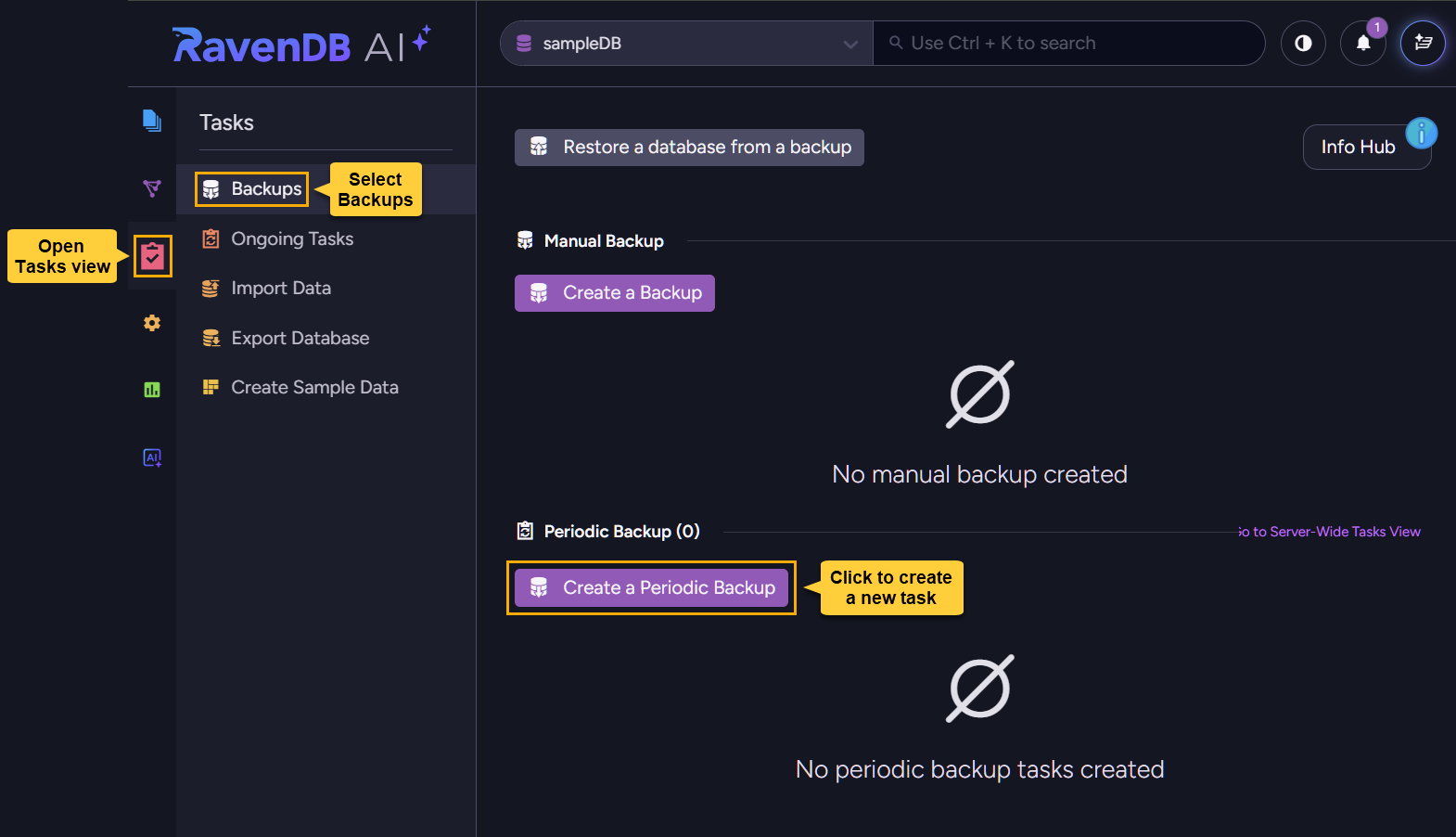
And then define and save the new task to start the backup schedule.
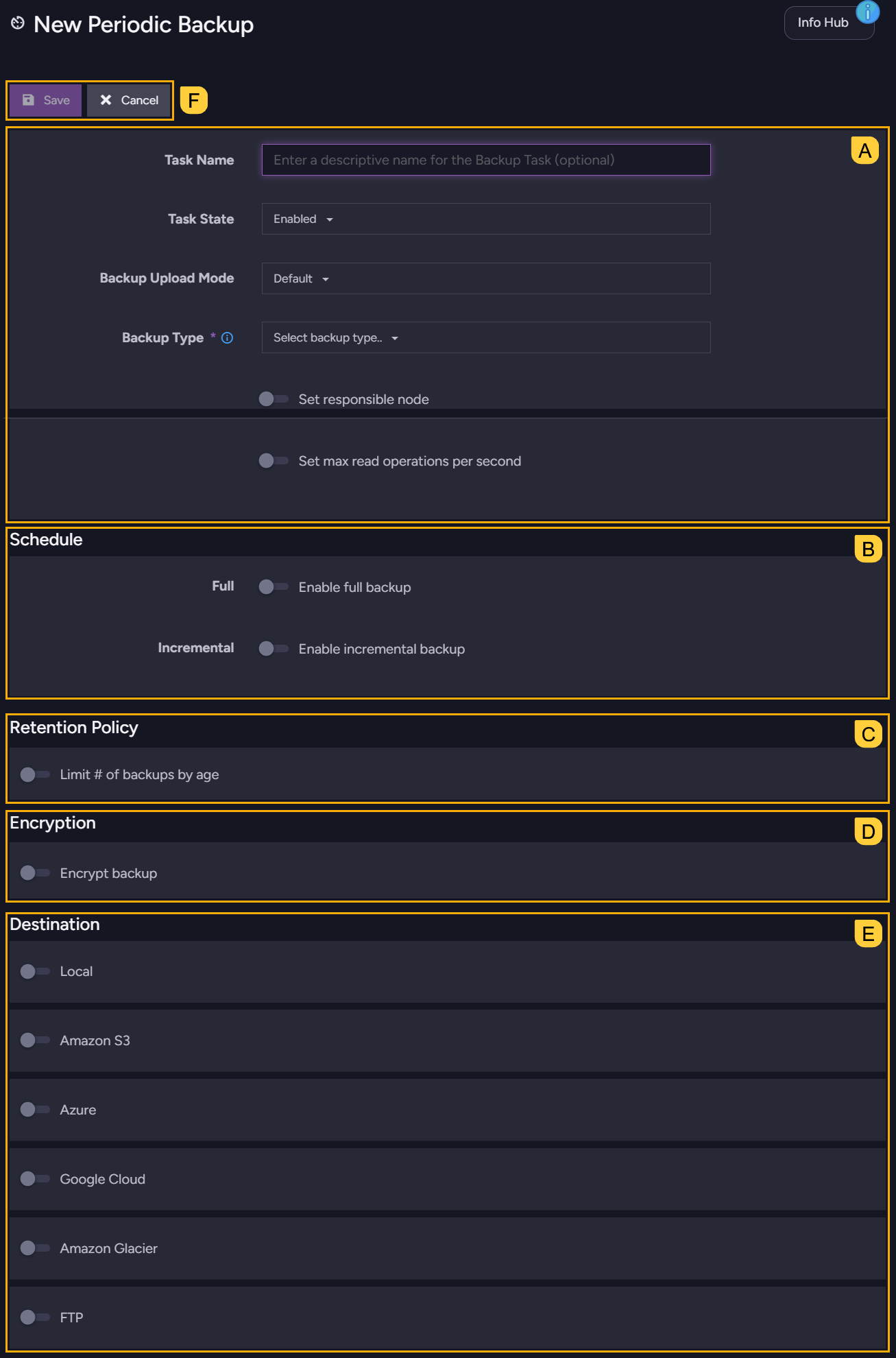
A. Defining basic task options
B. Scheduling full and incremental backups
C. Setting backups retention policy
D. Setting backup encryption options
E. Choosing where to store the backups
F. Saving and managing the task
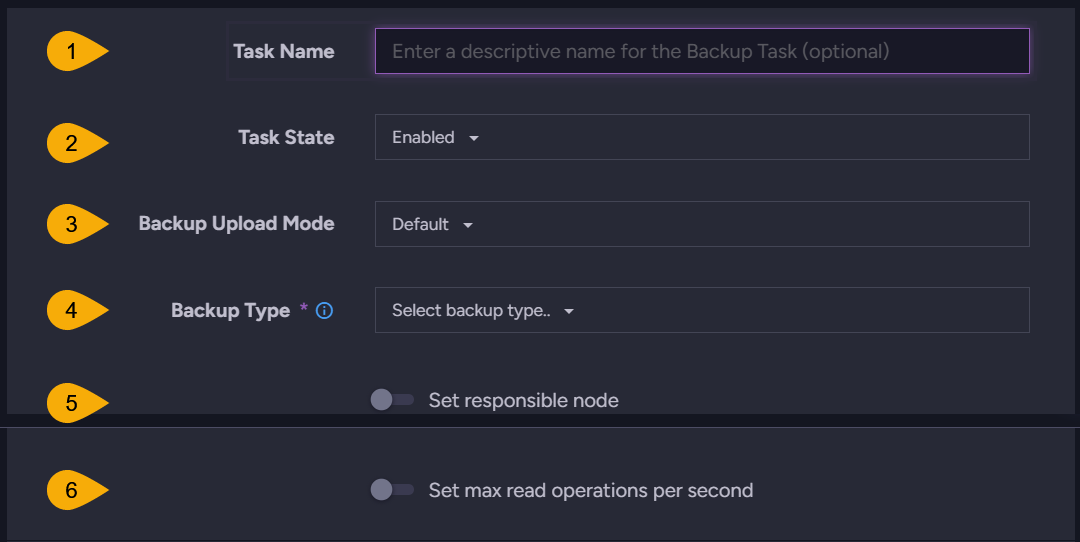
A. Defining basic task options
-
Task name
Enter a name for the task.
If no name is provided, RavenDB will automatically assemble a name from the backup type and destination, e.g.,Backup to Azure. -
Task state
The task can be enabled or disabled at creation or later on.
e.g., you may want to disable the task when an upcoming maintenance operation is planned. -
Backup upload mode
Select the preferred upload mode:- Default - store backups locally before uploading them to their destinations.
Storing backups locally provides a safety measure in case that uploading to the remote destination fails. - Direct upload - upload backups directly to their destinations without storing locally.
Direct upload can be used, for example, when the local storage space is limited.
- Default - store backups locally before uploading them to their destinations.
-
Backup type
Select the type of backup to create:-
Backup - create logical backups.
-
Snapshot - create snapshot images.
Note that though full backups can be in JSON (logical backups) or binary (snapshot images) format, subsequent incremental backups are always JSON-based.When snapshot is selected, a few additional options are available:
- Compression algorithm
Defines the compression algorithm used for snapshot images.
Available algorithms areZstdandDeflate. - Compression level
Defines the level of compression applied to snapshot images.
Options include:
No Compression: No compression applied
Fastest: Prioritizes speed, resulting in larger image files
Optimal: Balances compression efficiency and CPU usage
Smallest size: Achieves the smallest image size at the highest CPU cost. - Exclude indexes
Enable this option to exclude index data from snapshots, reducing image size and transfer time.
Note that this will increase restore time, as indexes will need to be recreated from their definitions and rebuilt by indexing all documents relevant to each index.
- Compression algorithm
-
-
Set responsible node
Select the cluster node that will be responsible for this Backup Task
If no node is selected, the responsible node will be assigned by the cluster. -
Set max read operations per second
Enter the maximum number of read operations per second that the task is allowed to make during backup.
Setting a read operations limit can reduce the impact of backup operations on server performance.
B. Scheduling full and incremental backups
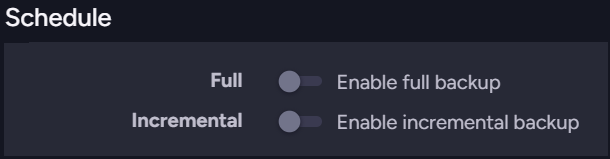
- Full
Set the frequency for full backups creation.
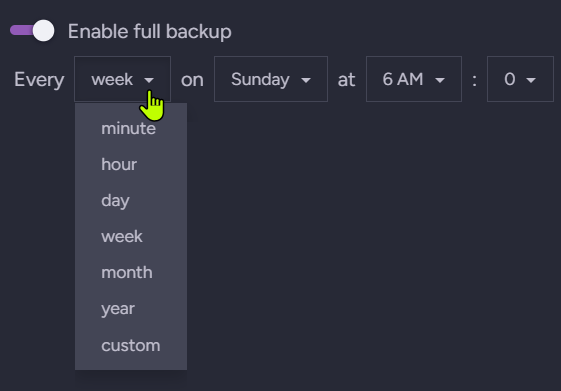
- Select a time unit (
year/month/week/day/hour/minute) to schedule backups by date, day of the week, daily hour, or minute. - Select custom to schedule the backup using a cron expression.
e.g., to generate a full backup every 6 hours, selectcustomand enter0 */6 * * *.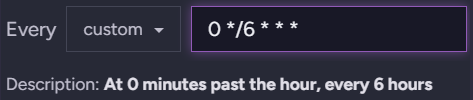
- Select a time unit (
- Incremental
Set the frequency for incremental backups creation using time units or a custom cron expression, as explained above for full backups.Note that if your full and incremental backup schedules overlap, a full backup will be created at that time, and the incremental backup will be skipped.
C. Setting backups retention policy
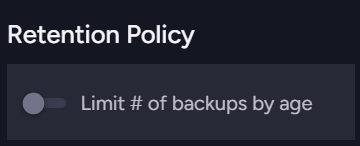
Enable Limit # of backups by age to set a retention policy, and set a retention period.
- Backups whose age exceeds the set retention period will be automatically deleted on the next backup task run.
- Note that the retention policy treats a full backup and its incremental backups as one unit, and will delete them all at the same time when the newest incremental backup in the group exceeds the retention period.
D. Setting backup encryption options

Use this section to configure encryption options for logical backups (when the selected backup type is backup).
-
These settings do not apply to snapshots because snapshots are exact replicas of the database and automatically reflect its encryption:
- If the database is encrypted, snapshots are encrypted as well, using the database encryption key.
- If the database is not encrypted, snapshots are not encrypted either.
-
Logical backups, on the other hand, can be encrypted or unencrypted regardless of the database encryption. You can configure the backup task to:
- Create unencrypted backups, even if the database is encrypted.
- Encrypt backups for an encrypted database using either the database encryption key or your own encryption key.
- Encrypt backups for an unencrypted database using your own encryption key.
Creating non-encrypted logical backups:
-
To create non-encrypted backups, disable the
Encrypt backupoption.
-
If you disable backups encryption on an encrypted database, a confirmation button will appear so you can affirm your choice, as creating non-encrypted backups for an encrypted database may have security implications.

Creating encrypted logical backups:
-
To create encrypted backups, enable the
Encrypt backupoption.
-
If the database is encrypted, you will be given the choice to use either the database encryption key or your own encryption key.
-
Use the database encryption key for simplicity, as you won't need to manage a separate encryption key for backups.

-
Or use your own encryption key for more control over backup encryption, e.g., to use a different key rotation policy for backups than for the database.

You will be given access to a key generator to create a strong encryption key, either use it or provide your own Base64 key.
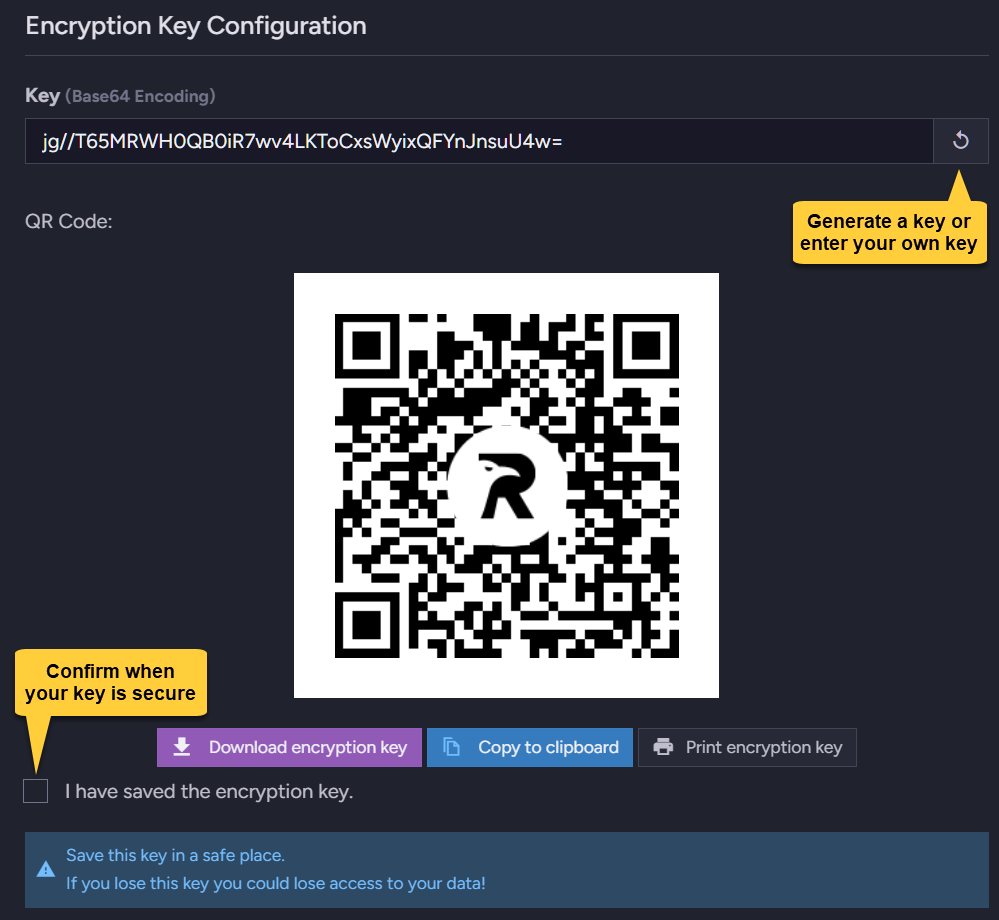
Be sure to secure your encryption key, as without it you will not be able to restore your backups!
-
-
If the database is not encrypted, you can still generate or enter your own key to encrypt the backups.
E. Choosing where to store the backups
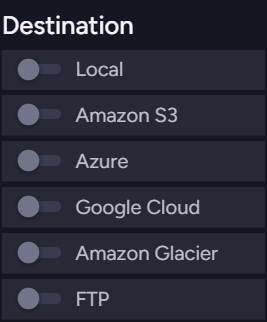
You can select one or more storage locations for your backups, both local and remote.
-
Each storage location has its own specific settings to configure.
e.g., Backup directory for local storage or Bucket name for Amazon S3.
Be sure to fill in the required settings for each selected storage location.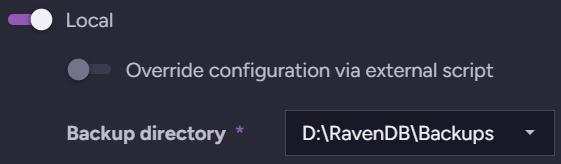
-
The Backup Upload Mode setting defined above applies to all remote storage locations, determining whether to store backups locally before transferring them to their destinations.
Overriding storage settings with an external script:
An Override configuration via external script option is available for each storage type.
Enabling this option allows you to apply an external script that overrides the storage settings at runtime.
This can be useful, for example, if you want to change the storage credentials often as a security measure.
Find a full explanation in the overview.
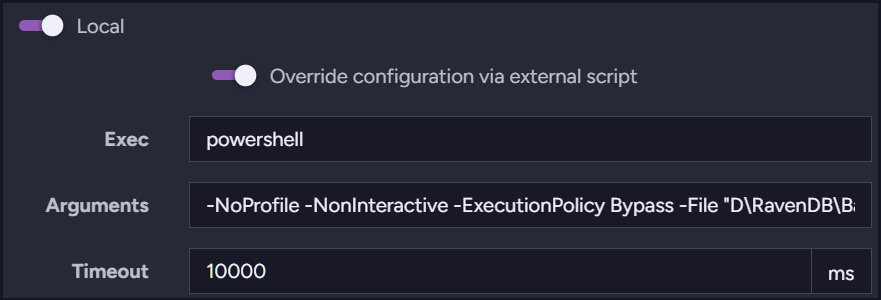
- Exec - The executor application that runs the external script.
e.g.,powershell - Arguments - Flags or parameters required by the executor, including the path to the external script.
e.g.,- Point the executor to a script kept in
D\RavenDB\Backups:-NoProfile -NonInteractive -ExecutionPolicy Bypass -File "D\RavenDB\Backups\local-settings.ps1" - Content of
local-settings.ps1, which outputs the local storage path in JSON format:@{ FolderPath = "D:\RavenDB\Backups\fullBackups" } | ConvertTo-Json -Compress
- Point the executor to a script kept in
- Timeout - The maximum time (in ms) that RavenDB will wait for the script execution to return the JSON output.
If the time limit is exceeded, the backup operation will fail.
e.g.,10000
F. Saving and managing the task

Save your task to create it on the server and start the backup schedule,
or Cancel to discard your changes.
After saving the task, it is listed at Tasks > Backups, where you can:
- View and expand task details.
- Open tasks for editing.
- Enable or disable tasks.
- Run a backup operation immediately outside of its task schedule.
- Delete tasks.
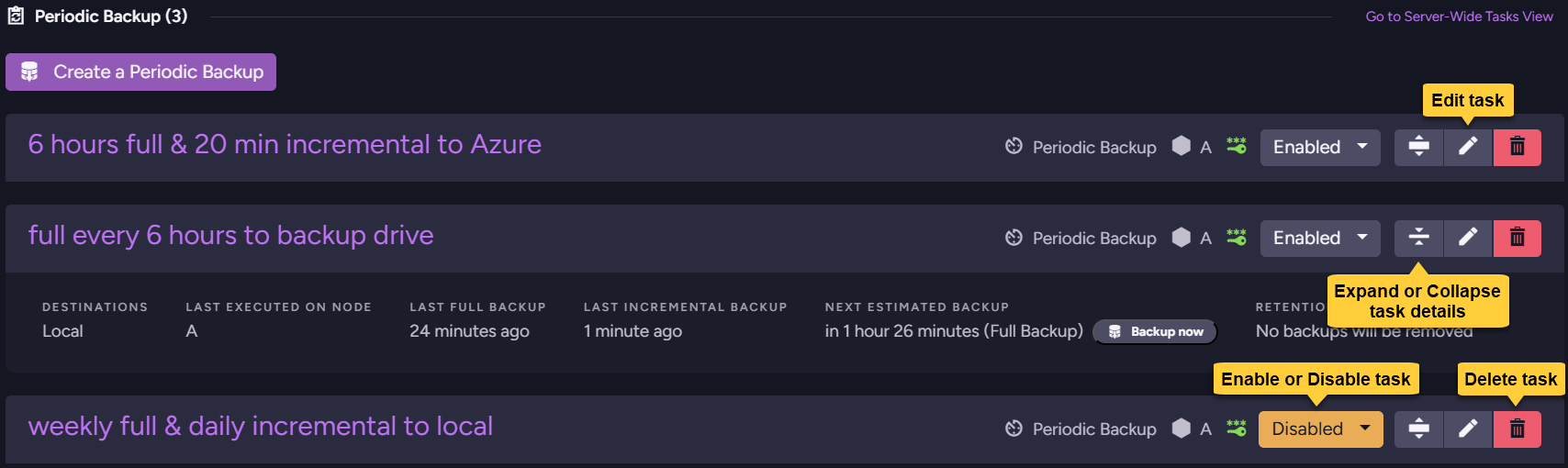
Running a backup operation immediately
You can use a defined periodic backup task to create a backup immediately, outside of the tasks's defined schedule.
To do this, locate the task in Tasks > Backups, expand its details bar, and click Backup now.

You will be given the option to create a full or an incremental backup immediately, based on the task configuration.

Delaying or aborting a running backup operation
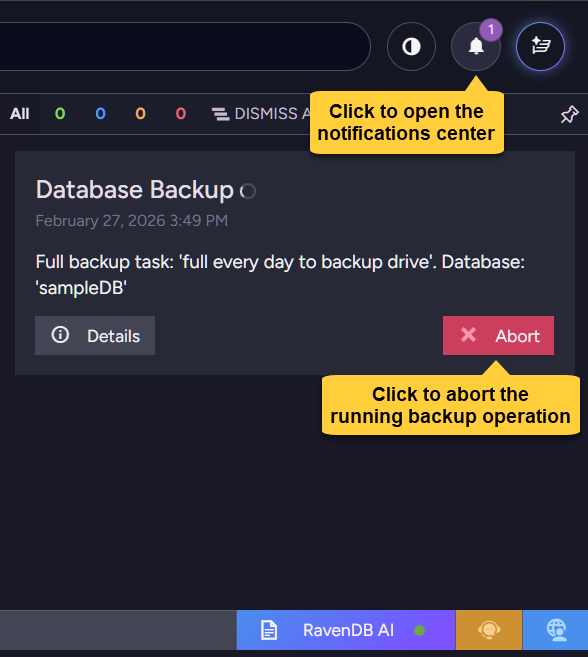
To delay or abort a running backup operation (e.g., when a backup takes longer than expected or you need to free up server resources), open the notifications center and find the notification added for the running backup operation.
-
To abort the operation, click the notification's Abort button.
-
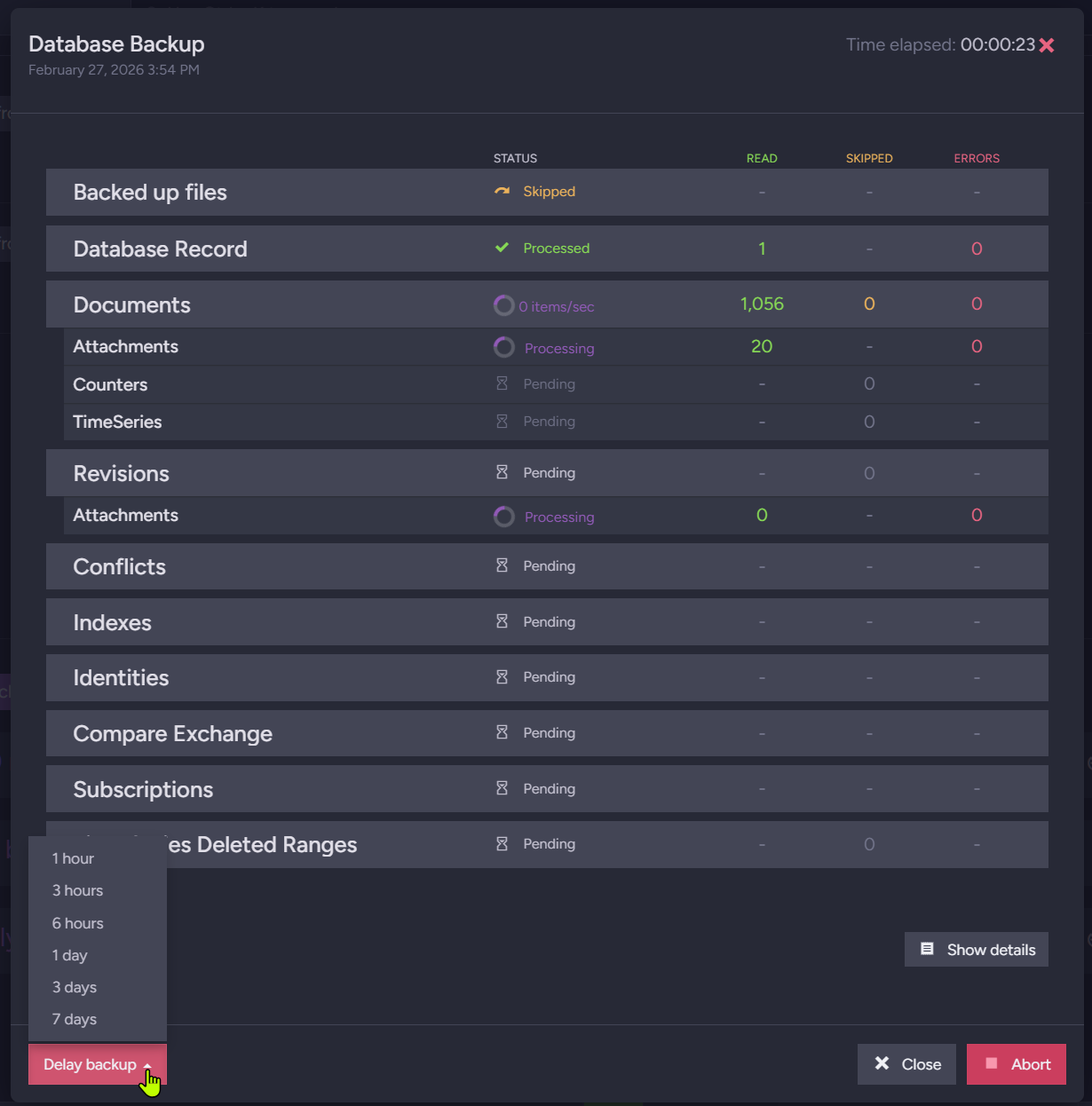
To delay the operation:
- Click the notification's Details button.

- When the operation details view opens, click the Delay backup button at the bottom and select the delay duration. The backup operation will resume when the set period elapses.
- Click the notification's Details button.