One-time database backup
- Database backups are typically scheduled using periodic backup tasks and created automatically according to the defined schedule.
However, you can also back up any database on demand, whenever needed.
-
You can define a one-time backup configuration and run it to create a backup immediately.
-
You can also trigger any periodic backup task defined for your database, to create a backup now.
- In this article:
Running a one-time backup operation using the client API
Defining and running a one-time backup operation
To define and run a one-time backup operation:
- Define a backup configuration using a
BackupConfigurationinstance. - Pass the instance to
BackupOperationto run the backup.
Example:
// Set the backup configuration
var config = new BackupConfiguration
{
    // Set backup type
    BackupType = BackupType.Backup,

    // Store in a local folder
    LocalSettings = new LocalSettings
    {
        FolderPath = @"D:\RavenDB\Backups"
    }
};

// Run backup operation
Operation<StartBackupOperationResult> op =
    await store.Maintenance.SendAsync(new BackupOperation(config));
Setting backup type:
-
Set the backup type using the backup configuration BackupType enum property.
You can assign it withBackupType.Backupto create logical backups,
or withBackupType.Snapshotfor snapshot images.e.g.,
var config = new BackupConfiguration{// ...BackupType = BackupType.Snapshot,// ...};
Setting storage destinations:
-
Set storage destinations using the backup configuration storage classes:
- Local path:
LocalSettings - Amazon S3:
S3SettingsandAmazonSettings - Amazon Glacier:
GlacierSettingsandAmazonSettings - Azure Blob Storage:
AzureSettings - FTP server:
FtpSettings - Google Cloud Storage:
GoogleCloudSettings
e.g.,
var config = new BackupConfiguration{// ...LocalSettings = new LocalSettings{FolderPath = backupPath},AzureSettings = new AzureSettings{// Use your Azure credentials here},// ...}; - Local path:
Setting encryption:
Set backup encryption using the backup configuration BackupEncryptionSettings property.
-
Snapshots are exact images of the database, and as such are automatically encrypted when the database is encrypted (using the same encryption key as the database) or unencrypted when the database is not encrypted.
-
Logical backups can be encrypted or not, regardless of the database encryption.
-
Use
BackupEncryptionSettings.EncryptionModeto select if and how backups should be encrypted.
Available options are:EncryptionMode.None- Do not encrypt backupsEncryptionMode.UseDatabaseKey- Encrypt the backup using the same encryption key as the database.
This option is relevant only when the database is encrypted.EncryptionMode.UseProvidedKey- Use a key provided by the user.
This option can be used both when the database is encrypted and when it isn't.
If you use your own key, provide it viaBackupEncryptionSettings.Key.
e.g.,
var config = new BackupConfiguration{// ...// Encrypt a logical backup using a user-provided keyBackupEncryptionSettings = new BackupEncryptionSettings{// A Base64-encoded encryption keyKey = "0eZ6g9f2k+GxH8c4Yv4xNwqzJ48m3o3x7lKQyqgQXct=",EncryptionMode = EncryptionMode.UseProvidedKey}// ...};
-
Aborting a running backup operation
To abort a backup operation:
- Pass the operation ID to
KillOperationCommand. - Also pass to
KillOperationCommandthe operation node tag, so it would target the cluster node that runs the backup operation.
Example:
  // Set the backup configuration
var config = new BackupConfiguration
{
    // Set backup type
    BackupType = BackupType.Backup,

    // Store in a local folder
    LocalSettings = new LocalSettings
    {
        FolderPath = @"D:\RavenDB\Backups"
    }
};

// Run backup operation
Operation<StartBackupOperationResult> op =
    await store.Maintenance.SendAsync(new BackupOperation(config));

// Abort the backup by killing the running operation
long operationId = op.Id;
string nodeTag = op.NodeTag;

await store.Commands(store.Database).ExecuteAsync(
    new KillOperationCommand(operationId, nodeTag));
Note that after aborting the backup operation, you may need to manually clean up:
- Partial local files, left while creating the backup.
- Partial or temporary remote uploads.
Syntax
Backup configuration
- BackupConfiguration
Backup configuration
class BackupConfiguration
{
    BackupType BackupType
    BackupUploadMode BackupUploadMode
    SnapshotSettings SnapshotSettings
    BackupEncryptionSettings BackupEncryptionSettings
    int? MaxReadOpsPerSecond
    LocalSettings LocalSettings
    S3Settings S3Settings
    GlacierSettings GlacierSettings
    AzureSettings AzureSettings
    FtpSettings FtpSettings
    GoogleCloudSettings GoogleCloudSettings
}
| Property | Type | Description |
|---|---|---|
| BackupType | BackupType | Backup type (snapshot or logical backup) |
| BackupUploadMode | BackupUploadMode | Upload mode (via local storage or directly to destination) |
| SnapshotSettings | SnapshotSettings | Snapshot settings |
| BackupEncryptionSettings | BackupEncryptionSettings | Encryption settings |
| MaxReadOpsPerSecond | int? | Maximum number of read operations per second allowed during backup. |
| LocalSettings | LocalSettings | Local storage settings |
| S3Settings | S3Settings | Amazon S3 backup settings |
| GlacierSettings | GlacierSettings | Amazon Glacier backup settings |
| AzureSettings | AzureSettings | Azure backup settings |
| FtpSettings | FtpSettings | FTP-based backup settings |
| GoogleCloudSettings | GoogleCloudSettings | Google Cloud backup settings |
Classes and enums used in the backup configuration
- BackupType
- BackupUploadMode
- SnapshotSettings
A backup configuration property that defines the backup type.
enum BackupType
{
    Backup,
    Snapshot
}
| Property | Description |
|---|---|
| Backup | Logical backup |
| Snapshot | Snapshot image |
A backup configuration property that defines the backups upload mode.
enum BackupUploadMode
{
    Default,
    DirectUpload
}
| Property | Description |
|---|---|
| Default | Store backup in local path and then upload to the destination |
| DirectUpload | Upload backup directly to the destination without storing locally |
A backup configuration property that defines snapshot images settings.
class SnapshotSettings
{
    SnapshotBackupCompressionAlgorithm? CompressionAlgorithm
    CompressionLevel CompressionLevel
    bool ExcludeIndexes
}
| Property | Type | Description |
|---|---|---|
| CompressionAlgorithm | SnapshotBackupCompressionAlgorithm? | The compression algorithm used for the snapshot image.Zstd or Deflate |
| CompressionLevel | CompressionLevel | The level of compression applied to the snapshot image.Optimal, Fastest, NoCompression, or SmallestSize |
| ExcludeIndexes | bool | Indicates whether indexes should be excluded from the snapshot image. |
- BackupEncryptionSettings
- EncryptionMode
A backup configuration property that defines backup encryption settings.
class BackupEncryptionSettings
{
    string Key
    EncryptionMode EncryptionMode
}
| Property | Type | Description |
|---|---|---|
| Key | string | An encryption key provided by the user. Used only if EncryptionMode.UseProvidedKey is selected.If EncryptionMode.UseDatabaseKey is selected, the database encryption key is used and Key is ignored. |
| EncryptionMode | EncryptionMode | The mode of encryption applied to the backup.None - No encryption.UseDatabaseKey - Use the database key for encryption.UseProvidedKey - Use a key provided by the user. |
A BackupEncryptionSettings property that defines the encryption mode.
public enum EncryptionMode
{
  None,
  UseDatabaseKey,
  UseProvidedKey
}
| Property | Description |
|---|---|
| None | No encryption. |
| UseDatabaseKey | Use the database key for encryption. |
| UseProvidedKey | Use a key provided by the user. |
Backup destinations classes
- LocalSettings
- AzureSettings
- FtpSettings
- GoogleCloudSettings
A backup configuration property that defines local storage settings.
class LocalSettings : BackupSettings
{
    string FolderPath
    int? ShardNumber
}
| Property | Type | Description |
|---|---|---|
| FolderPath | string | Path to a local folder. When set, backups are kept in this path and will not be deleted. |
| ShardNumber | int? | An optional shard number, so the backup can be kept in the local path of a specific shard when a sharded database is used. |
A backup configuration property that defines Azure Blob Storage settings.
class AzureSettings : BackupSettings
{
    string StorageContainer
    string RemoteFolderName
    string AccountName
    string AccountKey
    string SasToken
}
| Property | Type | Description |
|---|---|---|
| StorageContainer | string | The Azure Blob Storage container name. |
| RemoteFolderName | string | A logical "folder" (prefix) inside the container. |
| AccountName | string | The storage account name. |
| AccountKey | string | The storage account access key. |
| SasToken | string | A Shared Access Signature token used instead of the access key. |
A backup configuration property that defines FTP storage settings.
class FtpSettings : BackupSettings
{
    string Url
    string UserName
    string Password
    string CertificateAsBase64
}
| Property | Type | Description |
|---|---|---|
| Url | string | URL for the FTP endpoint that backups are sent to. |
| UserName | string | The FTP username. |
| Password | string | The FTP password. |
| CertificateAsBase64 | string | A base64-encoded certificate to authenticate with when using FTPS. |
A backup configuration property that defines Google Cloud Storage settings.
class GoogleCloudSettings
{
    string BucketName
    string RemoteFolderName
    string GoogleCredentialsJson
}
| Property | Type | Description |
|---|---|---|
| BucketName | string | The name of the Google Cloud Storage bucket that backups are sent to. |
| RemoteFolderName | string | A logical "folder" (prefix) inside the bucket. |
| GoogleCredentialsJson | string | The service account credentials JSON (as a string) used to authenticate RavenDB to the Google Cloud Storage. |
- S3Settings
- GlacierSettings
- AmazonSettings
A backup configuration property that defines Amazon S3 storage settings.
class S3Settings : AmazonSettings
{
    string BucketName
    string CustomServerUrl
    bool ForcePathStyle
    S3StorageClass? StorageClass
}
| Property | Type | Description |
|---|---|---|
| BucketName | string | S3 Bucket name. |
| CustomServerUrl | string | Custom S3 server URL. Used when targeting a custom server. |
| ForcePathStyle | bool | Force path style in HTTP requests.false - use virtual host style.true - use path style. |
| StorageClass | S3StorageClass? | Optional AWS S3 storage class for uploaded objects. |
A backup configuration property that defines Amazon Glacier storage settings.
class GlacierSettings : AmazonSettings
{
    string VaultName
}
| Property | Type | Description |
|---|---|---|
| VaultName | string | Amazon Glacier Vault name. |
A base class for S3Settings and GlacierSettings, providing additional AWS settings.
class AmazonSettings : BackupSettings
{
public string AwsAccessKey
public string AwsSecretKey
public string AwsSessionToken
public string AwsRegionName
public string RemoteFolderName
}
| Property | Type | Description |
|---|---|---|
| AwsAccessKey | string | The AWS access key (username part). |
| AwsSecretKey | string | The AWS secret key (password part). |
| AwsSessionToken | string | Optional session token. |
| AwsRegionName | string | AWS region identifier, e.g., us-east-1, used to route requests to the specified regional endpoint. |
| RemoteFolderName | string | A logical "folder" (prefix) inside the bucket or vault. |
Triggering a backup task to run a backup operation immediately
Each periodic backup task, including server-wide derived tasks, can be triggered to run a backup operation immediately, outside of its schedule.
Triggering a regular backup task to run a backup operation immediately
Triggering a server-wide derived task to run a backup operation immediately
Running a one-time backup operation using Studio
Defining and running a one-time backup operation
To back up a database immediately:
-
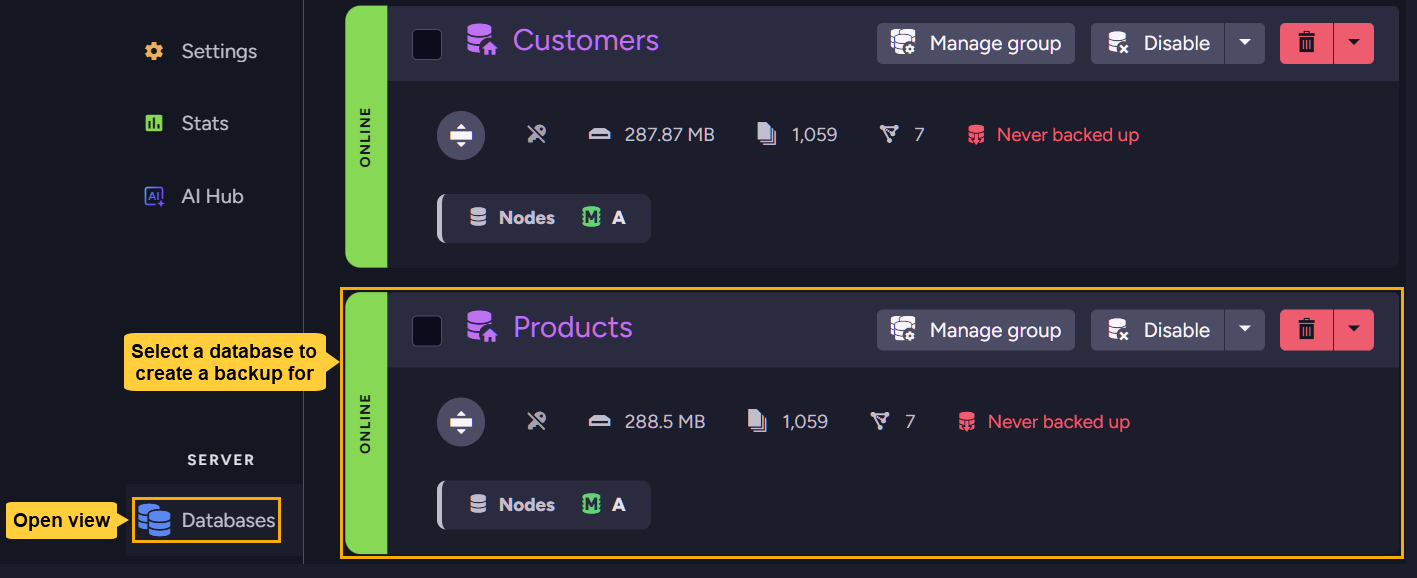
Select the database you want to back up from the Databases view.
-
Open: Tasks
>Backups>Manual Backup>Create a Backup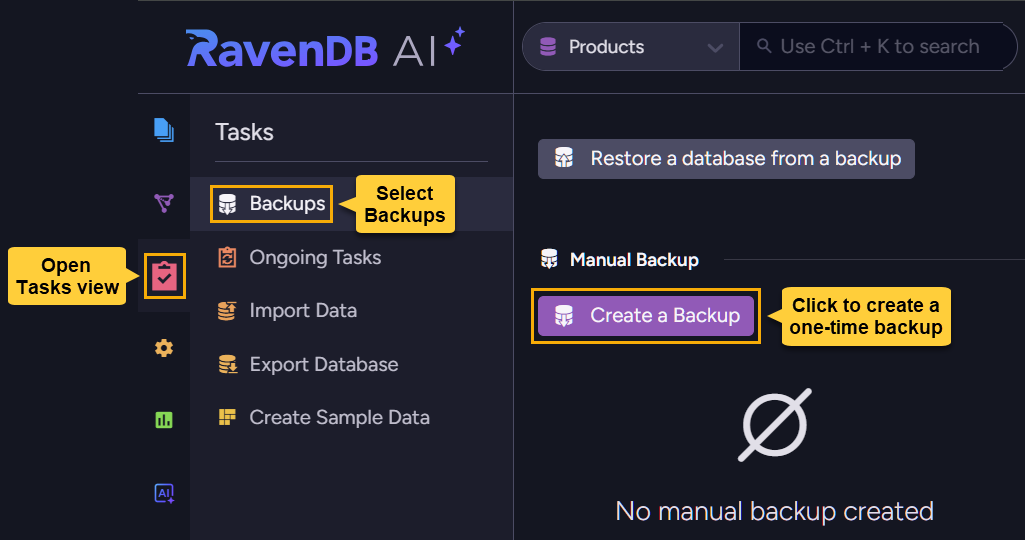
-
Define and run the backup operation.
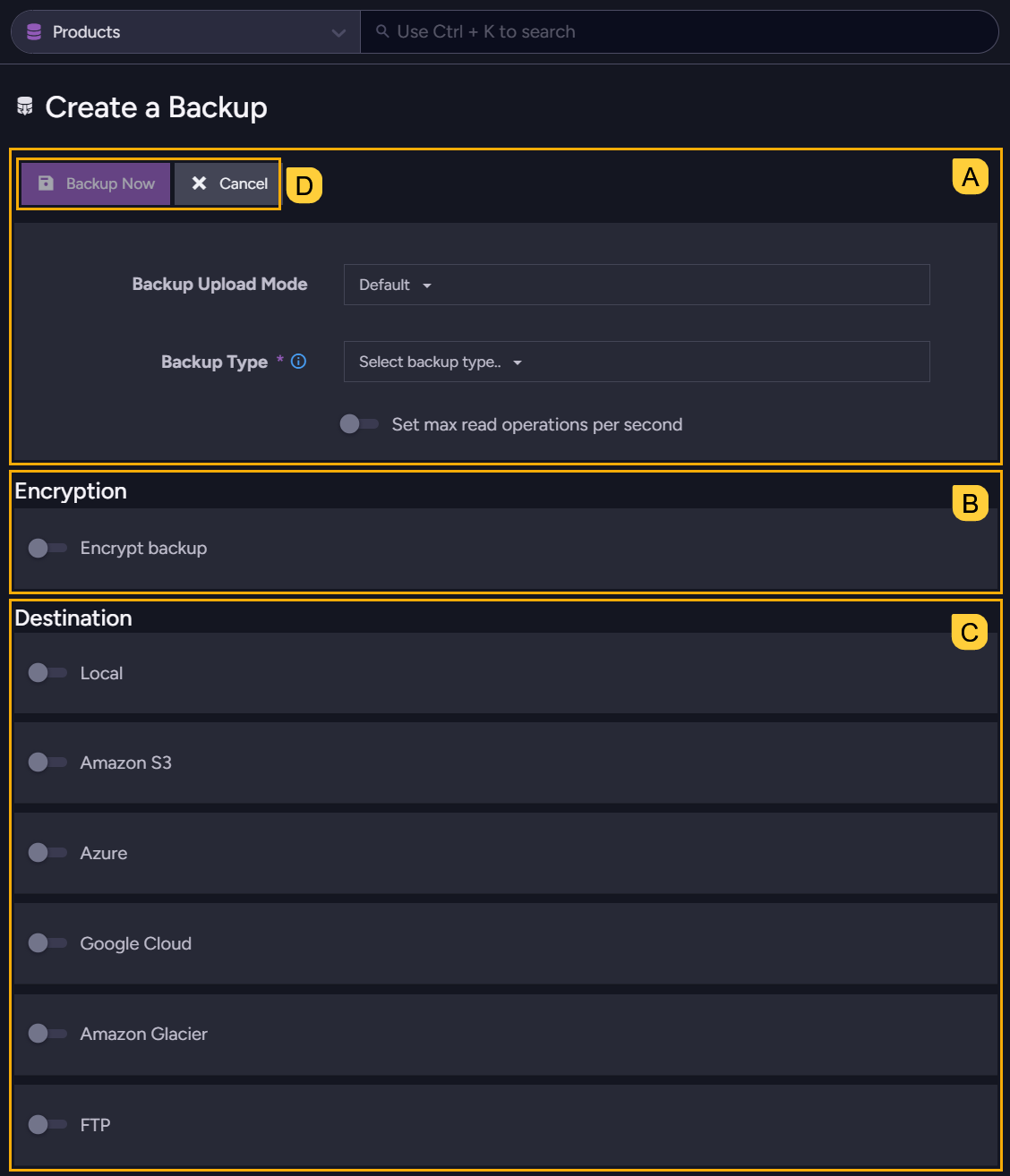
A. Define basic backup options
B. Set backup encryption options
C. Choose where to store the backup
D. Run the backup operation
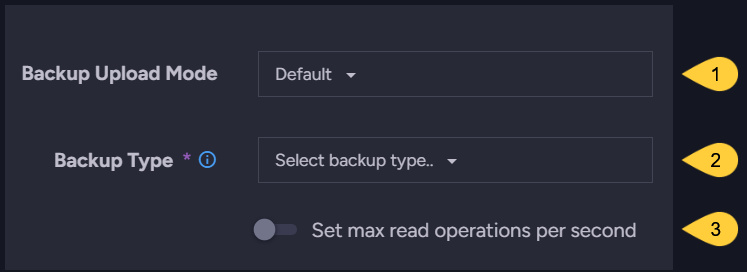
A. Define basic backup options
-
Backup upload mode
Select the preferred upload mode:- Default - store the backup locally before uploading it to any remote destination.
Storing the backup locally provides a safety measure in case the upload fails. - Direct upload - upload the backup directly to its destinations without storing locally.
Direct upload can be used, for example, when the local storage space is limited.
- Default - store the backup locally before uploading it to any remote destination.
-
Backup type
Select the type of backup to create:-
Backup - create a logical backup.
-
Snapshot - create a snapshot image.
When snapshot is selected, a few additional options are available:
- Compression algorithm
Defines the compression algorithm used for the snapshot image.
Available algorithms areZstdandDeflate. - Compression level
Defines the level of compression applied to the snapshot image.
Options include:
No Compression: No compression applied
Fastest: Prioritizes speed, resulting a larger image file
Optimal: Balances compression efficiency and CPU usage
Smallest size: Achieves the smallest image size at the highest CPU cost. - Exclude indexes
Enable this option to exclude index data from the snapshot, reducing image size and transfer time.
Note that this will increase restore time, as indexes will need to be recreated from their definitions and rebuilt by indexing all documents relevant to each index.
- Compression algorithm
-
-
Set max read operations per second
Enter the maximum number of read operations per second that the task is allowed to make during backup.
Setting a read operations limit can reduce the impact of backup operations on server performance.
B. Set backup encryption options

Use this section to configure encryption options for a logical backup (when the selected backup type is backup).
-
These settings do not apply to a snapshot because a snapshot is an exact replica of the database and automatically reflects its encryption:
- If the database is encrypted, the snapshot will be encrypted as well, using the database encryption key.
- If the database is not encrypted, the snapshot will not be encrypted either.
-
A logical backup, on the other hand, can be encrypted or unencrypted regardless of the database encryption. You can:
- Create an unencrypted backup, even if the database is encrypted.
- Encrypt the backup for an encrypted database using either the database encryption key or your own encryption key.
- Encrypt the backup for an unencrypted database using your own encryption key.
Create a non-encrypted logical backup:
-
To create a non-encrypted backup, disable the
Encrypt backupoption.
-
If the database you want to back up is encrypted and you disable backup encryption, a confirmation button will appear so you can affirm your choice, as creating a non-encrypted backup for an encrypted database may have security implications.

Create an encrypted logical backup:
-
To create an encrypted backup, enable the
Encrypt backupoption.
-
If the database is encrypted, you will be given the choice to use either the database encryption key or your own key.
-
Use the database encryption key for simplicity, as you won't need to manage a separate encryption key for backups.

-
Or use your own encryption key for more control over backup encryption, e.g., to use a different key rotation policy for backups than for the database.

You will be given access to a key generator to create a strong encryption key, either use it or provide your own Base64 key.
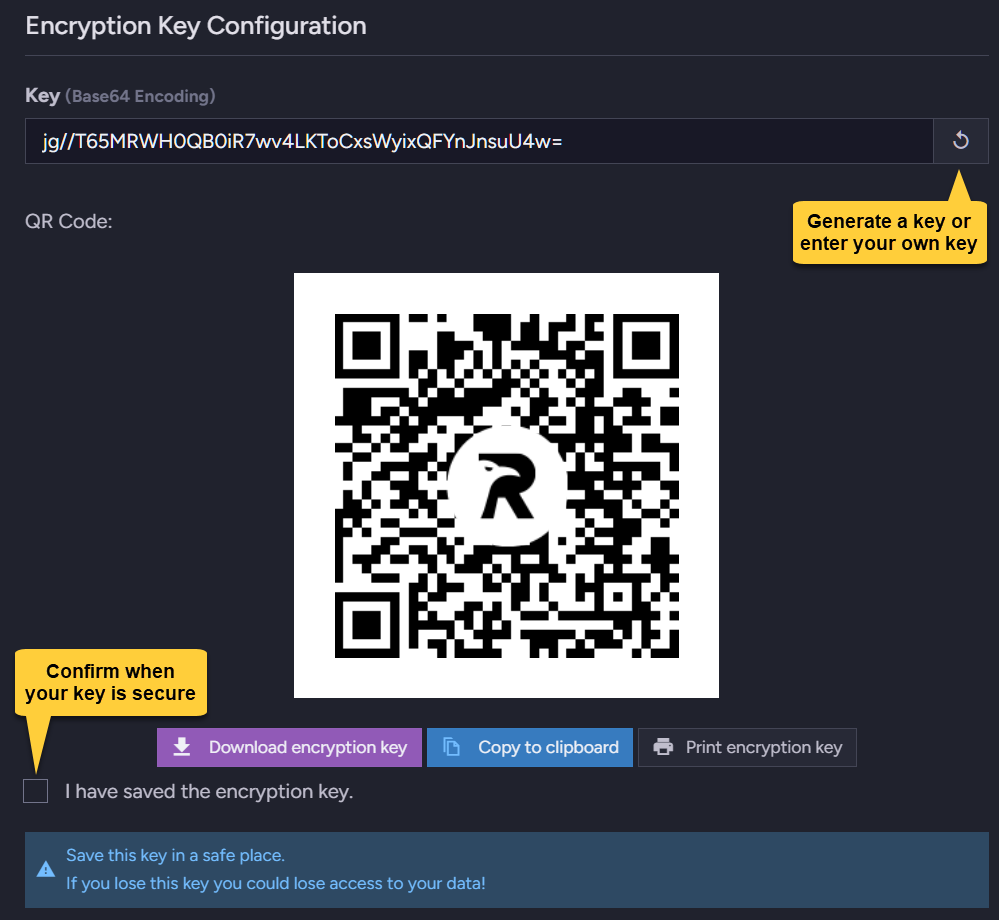
Be sure to secure your encryption key, as without it you will not be able to restore your backups!
-
-
If the database is not encrypted, you can still generate or enter your own key to encrypt the backups.
C. Choose where to store the backup
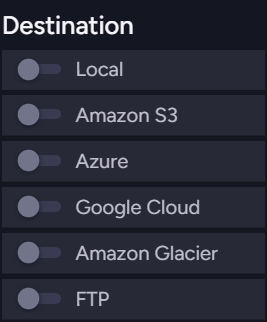
You can select one or more storage locations for the backup, both local and remote.
-
Each storage location has its own specific settings to configure.
e.g., Backup directory for local storage or Bucket name for Amazon S3.
Be sure to fill in the required settings for each selected storage location.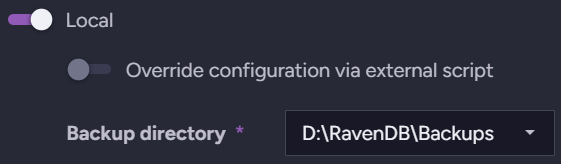
-
The Backup Upload Mode setting defined above determines whether to store the backup locally before sending it to any remote destination.
D. Run the backup operation

Click Backup Now to back up the database by your settings.
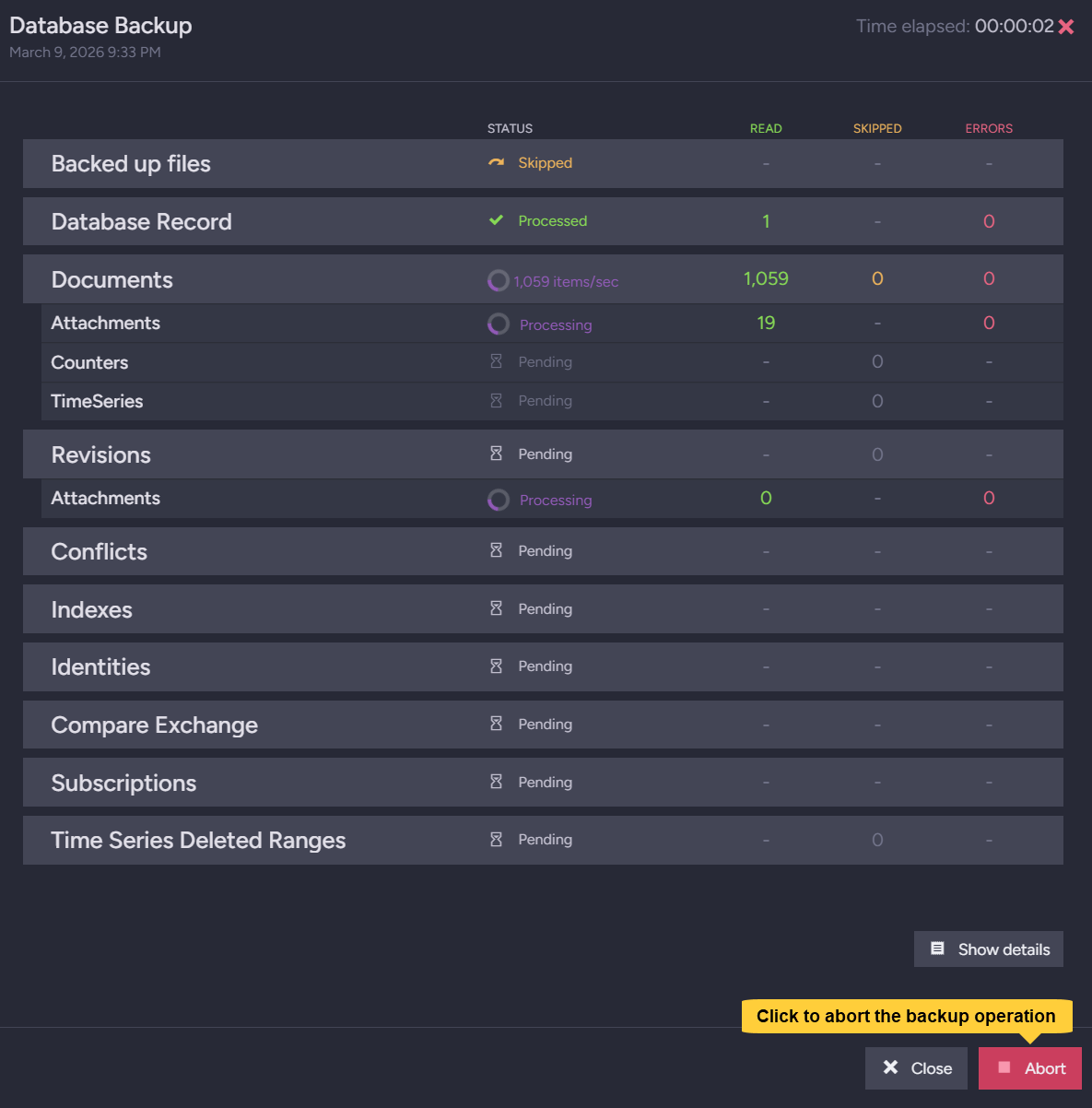
- While the backup is being created, you can follow its progress.
- To abort the backup operation, e.g., if it takes longer than expected and you need to free up server resources, click the Abort button.
Note that aborting the operation may require manual cleanup of partial local files and/or remote uploads.
Triggering a backup task to run a backup operation immediately
Each periodic backup task, including server-wide derived tasks, can be triggered to run a backup operation immediately, outside of its schedule.
Triggering a regular backup task to run a backup operation immediately
Triggering a server-wide derived task to run a backup operation immediately