Search Engine: Corax
-
Corax is RavenDB's native search engine.
It is used by RavenDB indexes to handle queries and provides an in-house alternative to the Lucene search engine. -
Lucene remains available, and you can choose whether RavenDB uses Corax or Lucene for new indexes.
The search engine can be configured server-wide, per database, and per index (static indexes only). -
RavenDB queries are handled through indexes.
When a query does not match an existing index, RavenDB can create an auto-index for it.
The selected search engine determines which engine is used when new auto or static indexes are created. -
The default search engine depends on your license.
If the search engine is not explicitly configured, RavenDB uses a license-based default:- Community, Developer, and servers without a license default to Corax.
- All other license types, such as Professional and Enterprise, default to Lucene.
Explicitly selecting the search engine overrides this license-based default.
Selecting the search engine
You can select the search engine at the following scopes:
- Server-wide, for all databases hosted by the server.
- Per database, overriding the server-wide setting for a specific database.
- Per static index,
overriding the server-wide and database-level settings for a specific static index.
Per-index search engine selection is available only for static indexes.
Use these configuration options to select the search engine:
- Indexing.Auto.SearchEngineType
Selects eitherLuceneorCoraxfor auto indexes.
This option can be set server-wide or per database. - Indexing.Static.SearchEngineType
Selects eitherLuceneorCoraxfor static indexes.
This option can be set server-wide, per database, or per index. - For additional Corax configuration options, see Configuration options.
The selected search engine applies only to NEW indexes
-
Existing indexes keep using the search engine they were created with even if you later change the server-wide or database-level setting. For example, if
Indexing.Static.SearchEngineTypewas set toCoraxand you later change it toLucene, new static indexes will use Lucene. Existing static indexes that were created while Corax was selected will continue using Corax. -
To make an existing index use a different engine, reset the index after changing the relevant search engine setting.
Corax-only cases
Some features require Corax regardless of the default search engine configuration:
-
Vector search
Vector search is supported only by Corax.
Auto-indexes created for vector search queries use Corax automatically,
even if the configured default engine is Lucene. -
Static indexes with vector fields
Static indexes that define vector fields must use Corax.
If such an index is configured to use Lucene, RavenDB rejects the index. -
Auto-index to static-index conversion
When RavenDB converts an auto-index with vector fields to a static index definition,
the resulting static index is set to Corax as well.
Select search engine: Server-wide
To select the search engine for all databases hosted by the server, modify the server's settings.json file.
For example:
{
    "Indexing.Auto.SearchEngineType": "Corax",
    "Indexing.Static.SearchEngineType": "Corax"
}
Select search engine: Per database
To select the search engine for a specific database, modify the database's search engine settings.
You can do this from Studio or from the Client API:
-
From Studio:
Open the Studio's Database Settings view and enterSearchEnginein the search bar to find the search engine settings. ClickEditto modify the default search engine.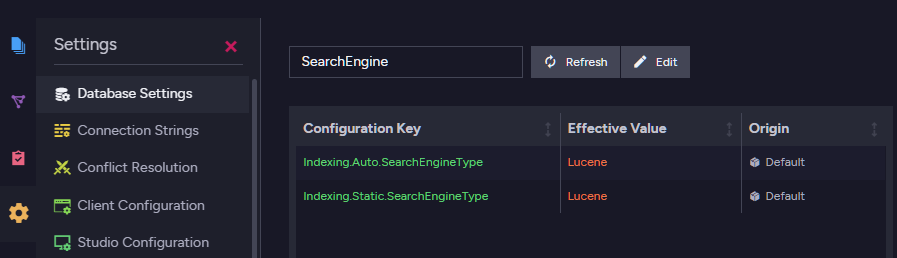
-
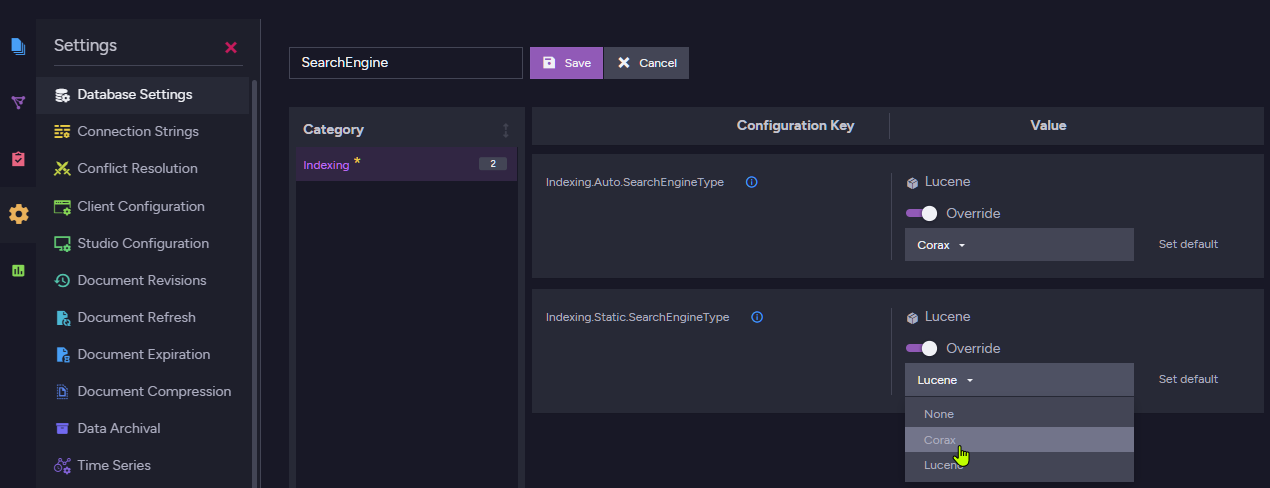
Select your preferred search engine for Auto and Static indexes.
-
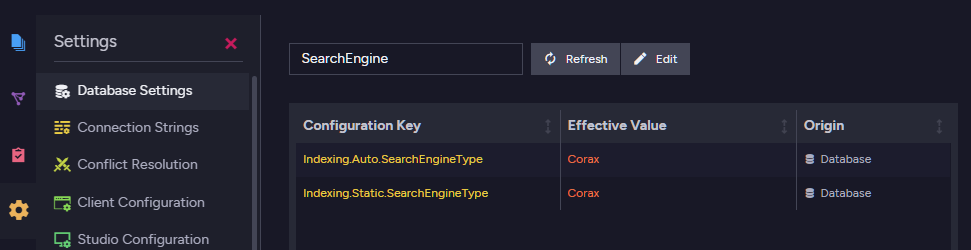
To apply the new settings, either disable and re-enable the database or restart the server.
-
From the Client API:
You can also set these database-level search engine settings via the Client API using PutDatabaseSettingsOperation.
This operation updates settings on an existing database and replaces the database settings dictionary, so include any existing settings you want to keep. Reload the database for the changes to take effect.
Select search engine: Per static index
You can select the search engine for a specific static index, overriding the server-wide and database-level settings.
Select index search engine via Studio:
-
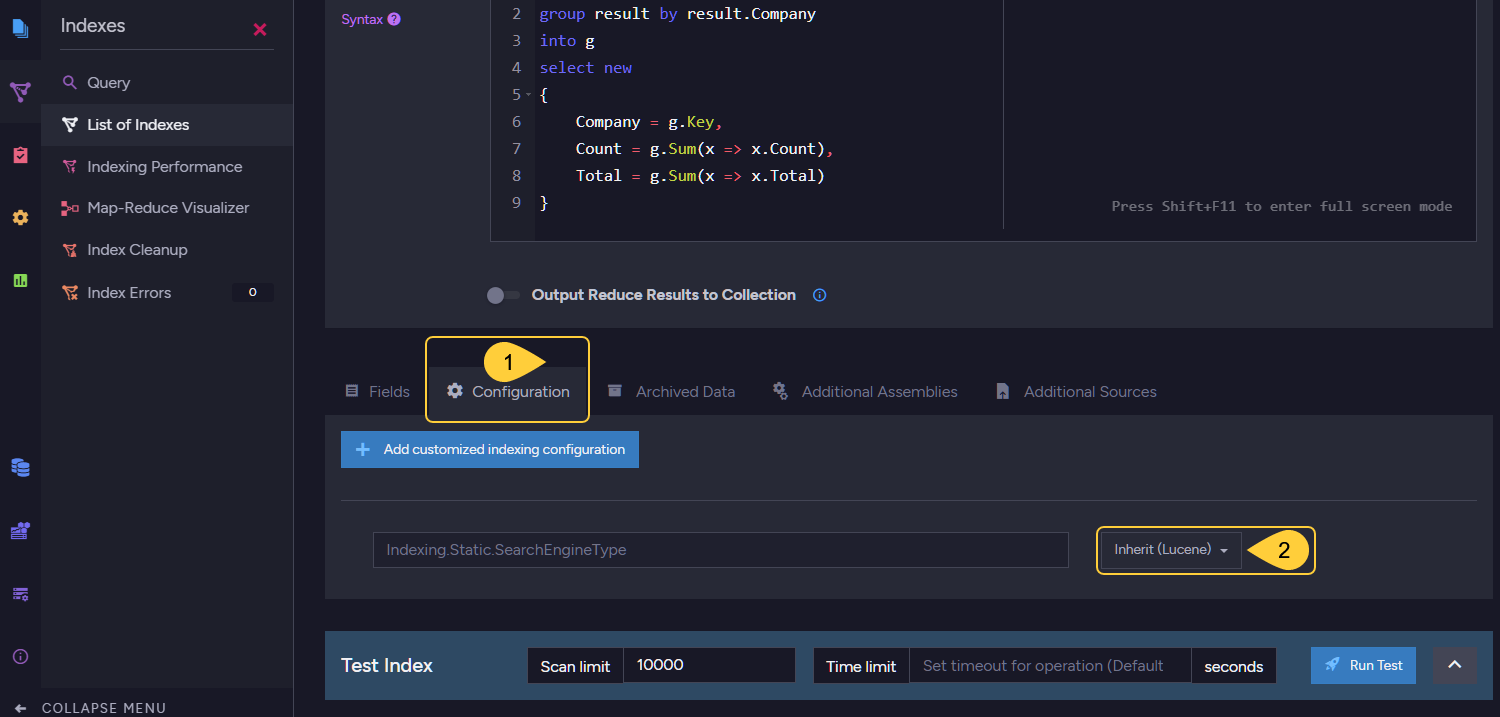
Open Studio's Index List view, and select the static index whose search engine you want to set.
-
Open the index Configuration tab.
-
Select the search engine for this index.

-
-
The indexes list view will show the changed configuration.
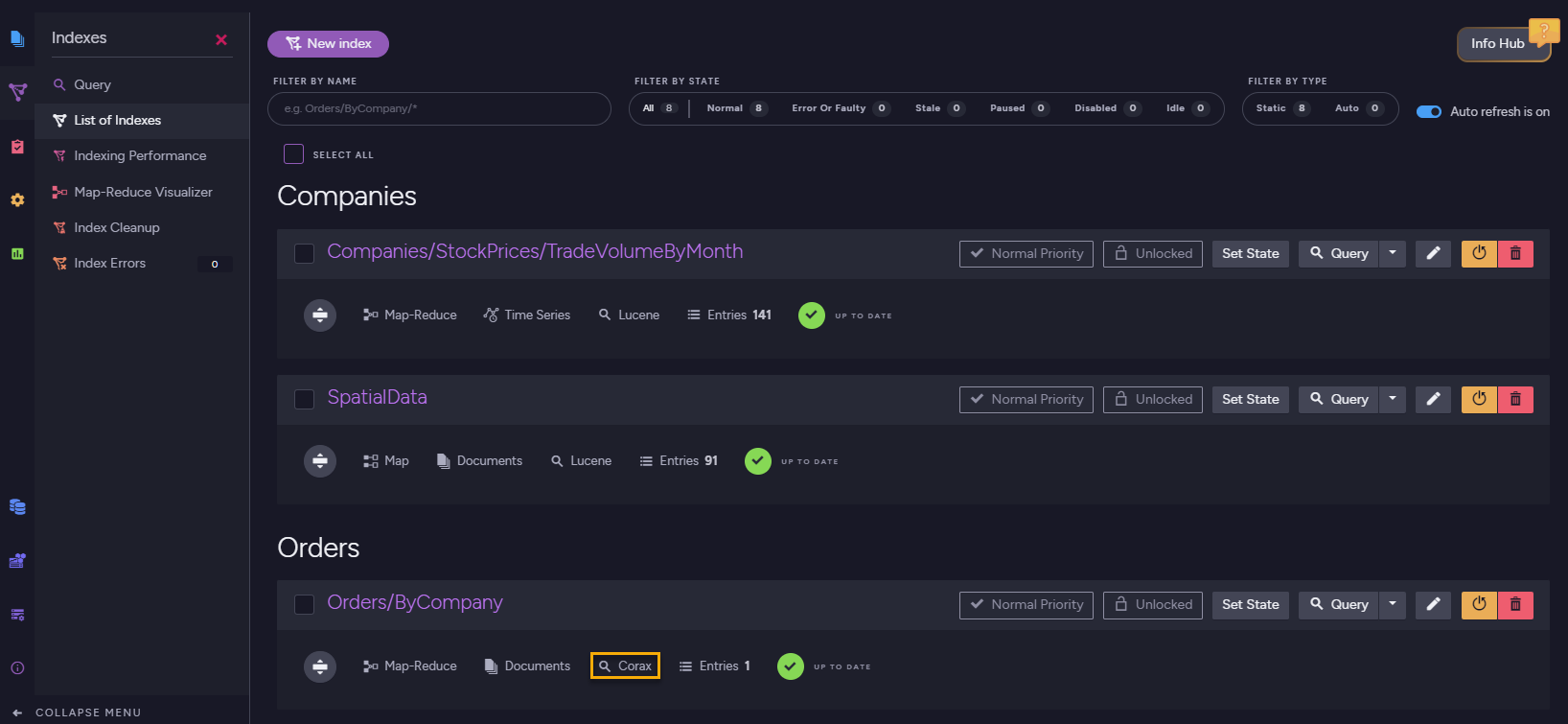
Select index search engine using code:
When defining a static index using the API, set the SearchEngineType property.
Available values are SearchEngineType.Lucene and SearchEngineType.Corax.
// The index definition:
private class Products_ByAvailability : AbstractIndexCreationTask<Product>
{
    public Products_ByAvailability()
    {
        Map = products => from product in products
                          select new
                          {
                              product.Name,
                              product.UnitsInStock,
                              product.Discontinued
                          };

        // Set the search engine type
        SearchEngineType = Raven.Client.Documents.Indexes.SearchEngineType.Corax;
    }
}

// Deploy the index:
new Products_ByAvailability().Execute(store);
Unsupported features
The following Corax limitations currently apply.
Unsupported during indexing:
- Setting a boost factor on an index-field is not supported.
Note that boosting the whole index-entry and query-time boosting withboost()are supported. - Indexing spatial shapes that are not points is not supported.
Note that spatial points are supported, including WKT values that represent points.
Unsupported while querying:
- Fuzzy search is not supported.
- Proximity search is not supported.
- Including query explanations is not supported
- Custom sorters are not supported.
Complex JSON properties:
Complex JSON properties cannot currently be indexed and searched by Corax.
Read more about this in Handling complex JSON objects below.
Unsupported where methods:
- lucene() is not supported.
- intersect() is not supported.
Using an unsupported feature with Corax will fail the relevant indexing or query operation.
The exception type and message depend on the unsupported feature.
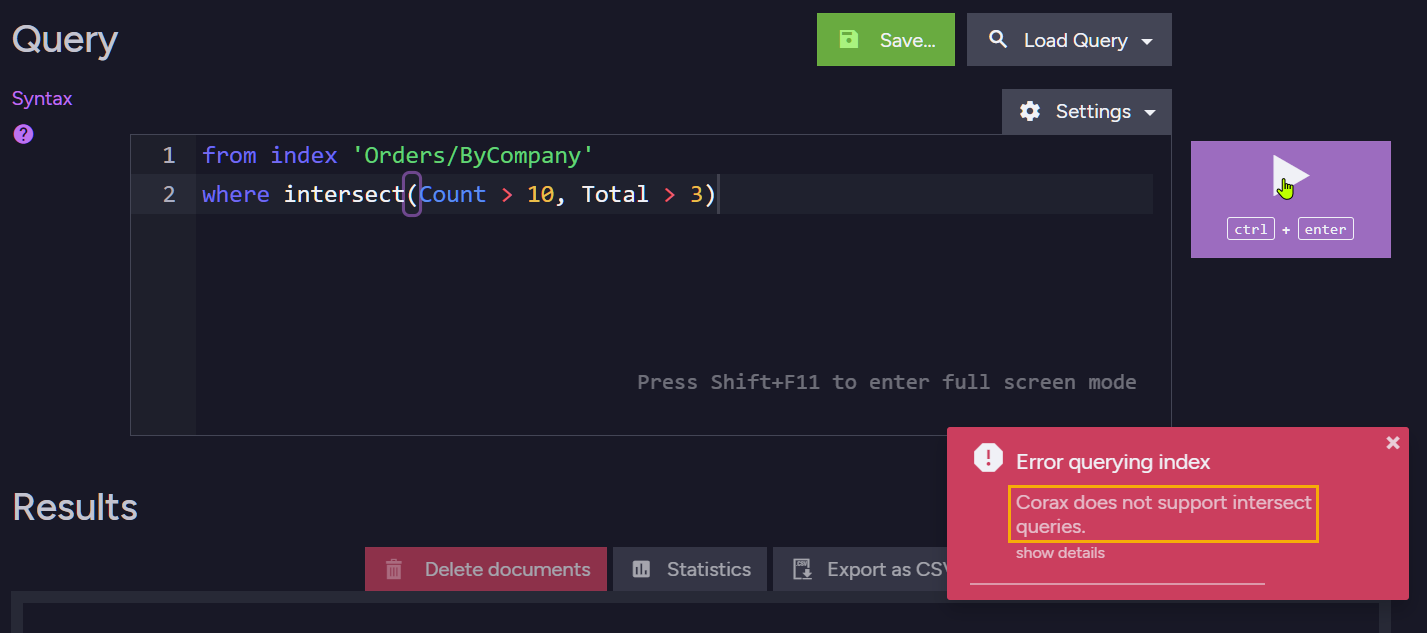
For example, the following query uses the intersect() method, which is currently not supported by Corax.
from index 'Orders/ByCompany'
where intersect(Count > 10, Total > 3)
If the Orders/ByCompany index uses Corax, running this query will fail.
Handling complex JSON objects
What is a complex JSON object
Consider the following Orders document:
{
    "Company": "companies/27-A",
    "Employee": "employees/2-A",
    "ShipTo": {
        "City": "Torino",
        "Country": "Italy",
        "Location": {
            "Latitude": 45.0907661,
            "Longitude": 7.687425699999999
        }
    }
}
The Location property is a complex JSON object.
It contains simple properties, such as Latitude and Longitude,
but Location itself is not a simple searchable value.
-
Lucene can index a complex field as a JSON string.
-
Corax does not support indexing the whole complex JSON object as a single text value, because indexing an entire object as text is usually not useful for search. The exact behavior depends on whether the index is an auto-index or a static index; see How Corax handles complex fields while indexing below.
To work with complex objects, use one of the following approaches:
1. Index simple properties from the object
Index the specific values that you need to query.
from order in docs.Orders
select new
{
    Latitude = order.ShipTo.Location.Latitude,
    Longitude = order.ShipTo.Location.Longitude
}
2. Store the complex field for projection only
If queries need to project the whole object but do not need to search inside it, disable indexing for the field and store it. Projection queries would be able to project it.
If you do not need to project the whole object from the index, do not map the complex object as an index-field.
Index only the simple properties you need.
A stored field can be projected directly from the index.
This can make projections faster, but increases index storage size.
-
To store a field's content and disable its indexing via Studio:
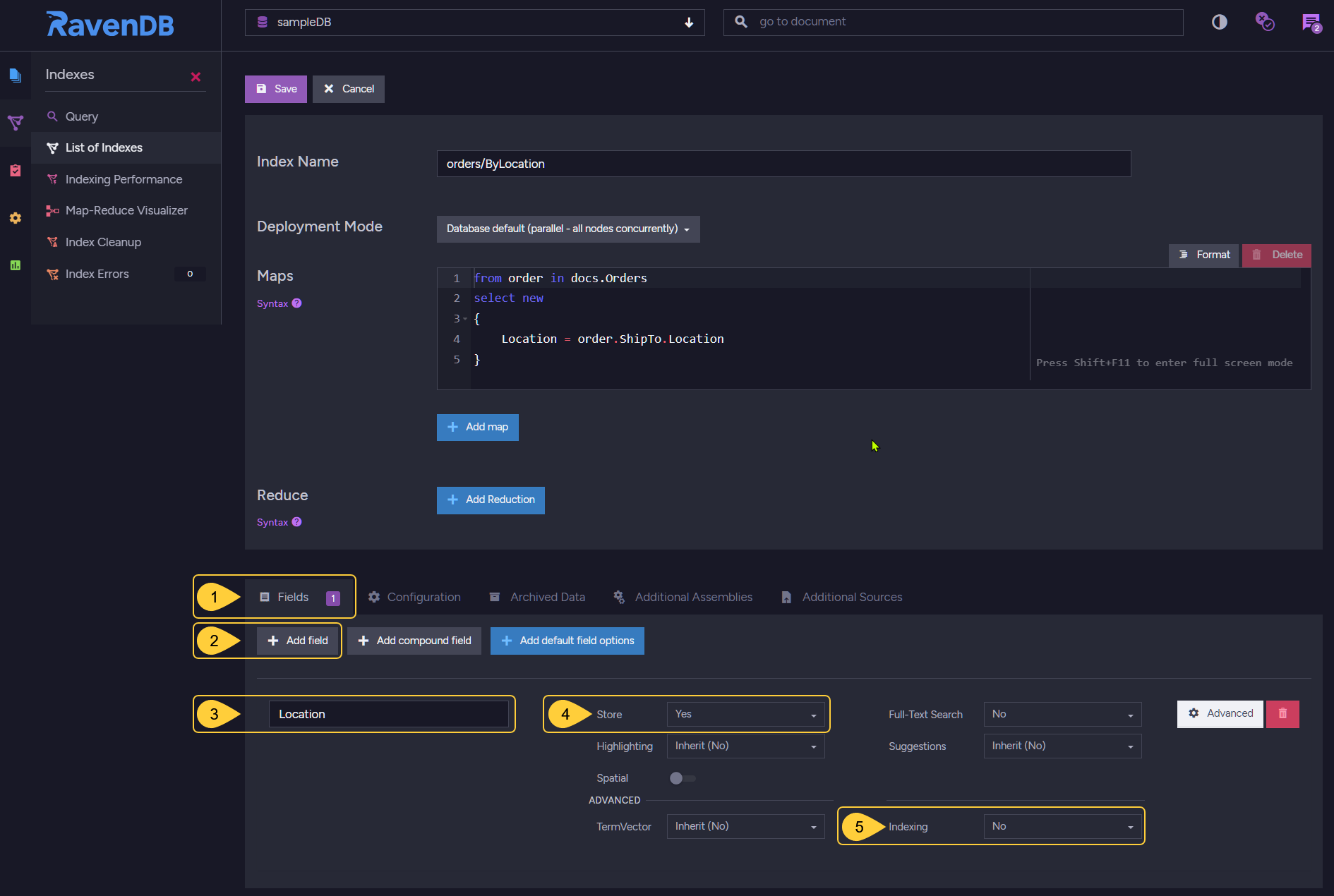
- Open the index definition's Fields tab.
- Click Add Field.
- Enter the complex field name, for example
Location. - Set Store to Yes.
- Set Indexing to No.
-
To store a field's content and disable its indexing using code:
private class Orders_ByLocation : AbstractIndexCreationTask<Order>{public Orders_ByLocation(){Map = orders => from order in ordersselect new{order.ShipTo.Location};SearchEngineType = Raven.Client.Documents.Indexes.SearchEngineType.Corax;// Disable indexing for the field// Do not index the complex object as a searchable fieldIndex("Location", FieldIndexing.No);// Store the field if you want to project it from the index.// (storing is the only way to retrieve a complex field from the index// when its indexing is disabled, since it won't be indexed)Store("Location", FieldStorage.Yes);}}
3. Serialize the complex object explicitly
You can explicitly serialize the complex object to a string.
- Use ToString()
- Not supported by Corax
from order in docs.Orders
select new
{
    // Convert the complex object to JSON text
    Location = order.ShipTo.Location.ToString()
}
from order in docs.Orders
select new
{
    // This will fail when using Corax
    Location = order.ShipTo.Location
}
Serializing a complex object to a single string can make it indexable by Corax, but the result is usually poor input for analyzers and is not commonly used for searches. It can still make sense when you only need to project the serialized string.
4. Use Lucene to index the whole object as JSON text
If you specifically need the whole complex object to be indexed as a single string value, use Lucene as the index's search engine.
Lucene supports this behavior directly, while Corax does not.
With Corax, prefer indexing the specific simple properties you need to query.
How Corax handles complex fields while indexing
-
Auto indexes
If an auto-index maps a complex field, Corax indexes a placeholder value (JSON_VALUE) for that field
and raises a complex-field alert.This allows basic existence or non-null checks, such as
exists(Field)orField != null,
but the object's inner values are not searchable through that field.Consider querying on individual fields of that object or using a static index.
-
New static indexes (created or reset in RavenDB 6.2 or later)
Static Corax indexes behave according to the Indexing.Corax.Static.ComplexFieldIndexingBehavior configuration option.-
If
ComplexFieldIndexingBehavioris set toThrow:
Corax throws aNotSupportedInCoraxExceptionwhen the index attempts to index a complex object as a whole. This is the default behavior. -
If
ComplexFieldIndexingBehavioris set toSkip:
Corax skips indexing terms for the complex field without throwing an exception.
If the field is stored, it can still be used for projection.
-
-
Old static indexes (created using RavenDB
6.0.xor older)
Older static Corax indexes use legacy behavior for backward compatibility.If the index maps a complex field but the field has no explicit indexing option,
RavenDB disables indexing for that field.If the field was explicitly configured with indexing other than
No,
Corax throws once and then disables indexing for that field to avoid repeated indexing errors.After the index is reset, it no longer uses the legacy behavior. It behaves like a new static index, and complex-field indexing is controlled by
Indexing.Corax.Static.ComplexFieldIndexingBehavior.
Compound fields
What are compound fields?
-
Compound fields are an expert-level Corax optimization intended for very large datasets and specific query patterns.
-
A compound field is an internal Corax index-field that combines two index-field values into a single order-preserving key. Corax can use this key to optimize queries that filter by one field and order by another field.
The regular index-fields remain separate and queryable.
The compound field is added in addition to them for Corax's internal optimization and is not queried directly. -
For example, an index definition that includes
CompoundField("Category", "UnitsInStock")
adds an internal index-field namedcompound(Category,UnitsInStock).
Corax can use this compound field to optimize a query that filters byCategoryand orders byUnitsInStock,
without executing a separate sorting pass. -
Use compound fields when the same filter-then-sort query pattern is run repeatedly over a large dataset.
When is optimization applied?
The compound-field optimization applies only when the query has a single equality filter on the first compound-field component and orders by the second component.
Assume a Corax index defines this compound field: CompoundField("Category", "UnitsInStock")
In this case, Corax can optimize a query that filters by equality on Category and orders by UnitsInStock.
The optimization is NOT applied to the query when:
-
The filter on the first field is not an equality comparison
from index 'Products/ByCategoryAndUnitsInStock'where Category != "categories/1-A" // not an equality filterorder by UnitsInStock -
The query has additional
whereconditionsfrom index 'Products/ByCategoryAndUnitsInStock'where Category == "categories/1-A" and Name == "Chai" // extra where conditionorder by UnitsInStock -
The field order is reversed
from index 'Products/ByCategoryAndUnitsInStock'where UntisInStock == 25 // filter by the second fieldorder by Category // order by the first field -
The query has additional order by clauses
from index 'Products/ByCategoryAndUnitsInStock'where Category = "categories/1-A"order by UnitsInStock, Name // extra order by field// The additional order by field requires another sorting step,// so the query does not get the full skip-sort optimization.
Constraints and value limits
-
A compound field can currently be composed of exactly 2 fields.
-
Each of the two values in the compound field must be 255 bytes or less after Corax converts the value to the encoded form stored in the compound term.
This limit applies to each field value separately, not to the full compound field.Corax stores the two encoded values together and appends one byte that records the length of the first value.
The full compound term must fit within Corax's general 512-byte term limit, but the per-value 255-byte limit is the practical constraint to consider when defining compound fields. -
The limit is checked at indexing time.
RavenDB can accept and deploy the index definition, but indexing will fail when a document produces a compound-field value of 256 bytes or more, and anArgumentOutOfRangeExceptionwill be thrown. -
The 255-byte limit is checked after Corax converts each value to the encoded form stored in the compound key.
-
For string values, this includes running the field analyzer. The limit is based on the byte length of the analyzed term, not on the number of characters in the original string. Long text values, URLs, descriptions, or analyzer output can exceed the 255-byte limit, so avoid using long free-text fields in compound fields.
-
Non-string scalar values (numbers, dates and times, and booleans) are encoded in just a few bytes and never approach this limit.
nulland empty values produce no bytes and sort before non-empty values.
-
-
When choosing fields for a compound field, prefer short string values or fixed-size scalar values.
Example
The index:
In the index definition, call CompoundField with the two index-fields that match the query pattern you want Corax to optimize.
Pass the equality-filter field first and the order by field second.
The following index defines a compound field from Category and UnitsInStock:
private class Products_ByCategoryAndUnitsInStock :
    AbstractIndexCreationTask<Product, Products_ByCategoryAndUnitsInStock.IndexEntry>
{
    public class IndexEntry
    {
        // the 'regular' index-fields
        public string Category { get; set; }
        public long UnitsInStock { get; set; }
    }

    public Products_ByCategoryAndUnitsInStock()
    {
        Map = products =>
            from product in products
            select new IndexEntry
            {
                Category = product.Category,
                UnitsInStock = product.UnitsInStock
            };

        SearchEngineType = Raven.Client.Documents.Indexes.SearchEngineType.Corax;

        // Add a compound index-field to optimize queries
        // that filter by Category and order by UnitsInStock.
        CompoundField(x => x.Category, x => x.UnitsInStock);
    }
}
The index-fields include:
- The regular
Categoryindex-field. - The regular
UnitsInStockindex-field. - The internal compound index-field
compound(Category,UnitsInStock).
The query:
The query does not reference the compound field directly.
Corax uses it internally when a query filters by Category and orders by UnitsInStock.
- Query
- RQL
using (var session = store.OpenSession())
{
    var products = session
        .Query<Products_ByCategoryAndUnitsInStock.IndexEntry,
            Products_ByCategoryAndUnitsInStock>()
        .Where(x => x.Category == "categories/1-A")  // Filter by Category
        .OrderBy(x => x.UnitsInStock)                // Order by UnitsInStock
        .OfType<Product>()
        .ToList();
}
from index 'Products/ByCategoryAndUnitsInStock'
where Category = "categories/1-A"
order by UnitsInStock
You can also define a compound field from Studio when editing an index:
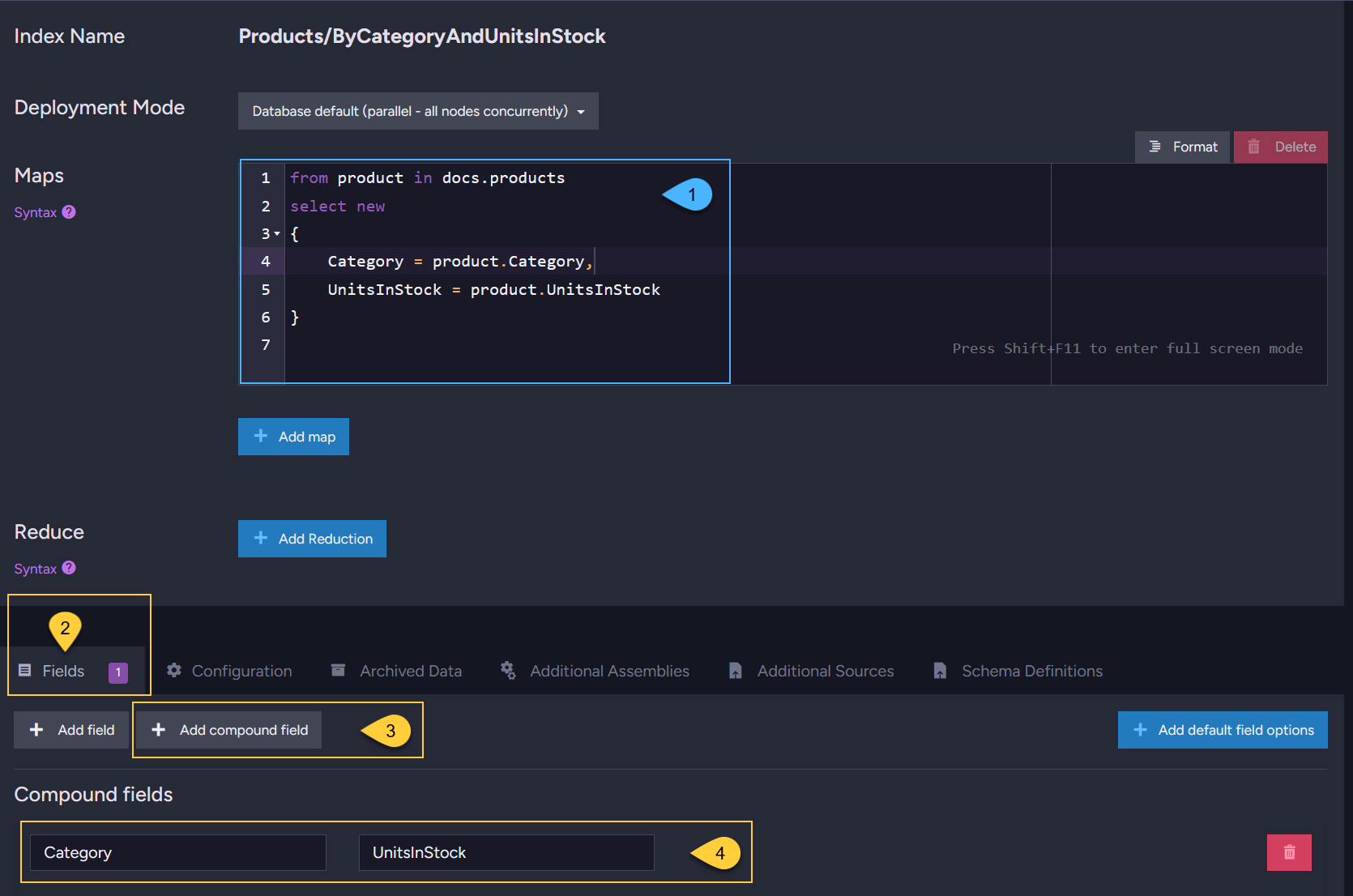
- Define the 'regular' index-fields in the Maps section.
- To define a compound field, open the Fields tab.
- Click Add compound field.
- Enter the two index-fields that compose the compound field.
The index-fields and their terms are visible in the "Terms view":
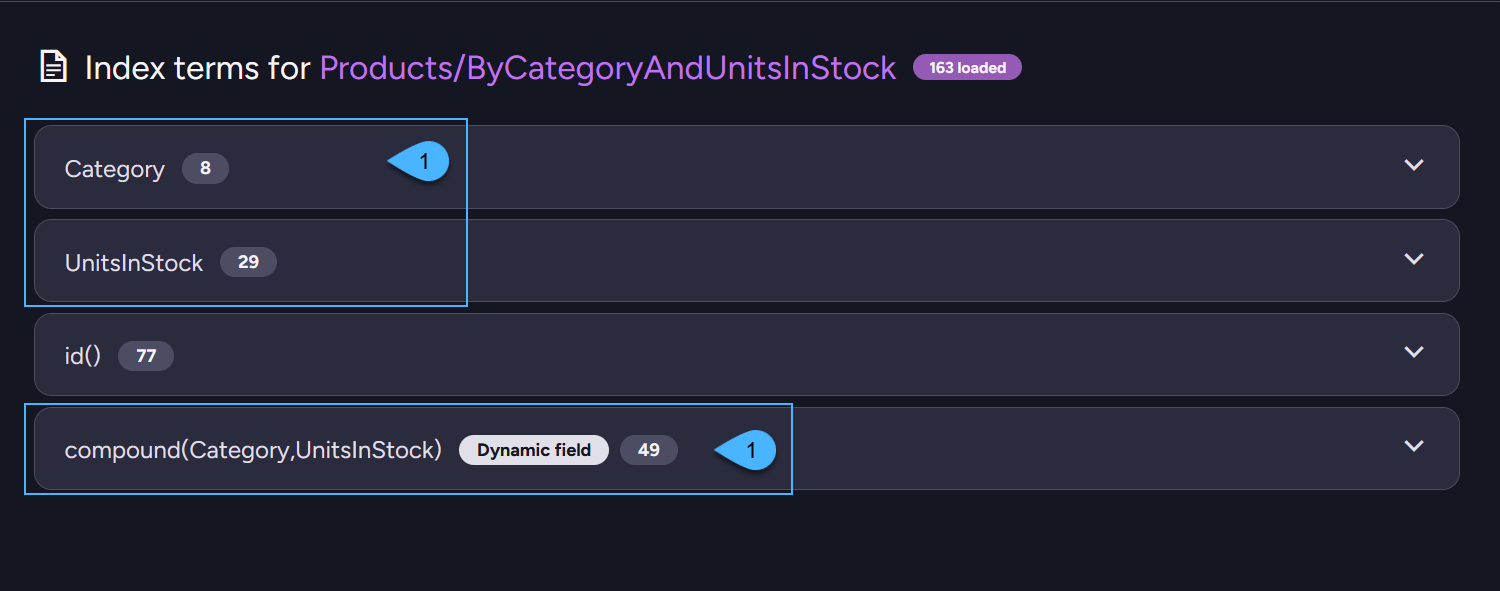
- The 'regular' index-fields.
- The internal compound index-field.
Expand an index-field to view its terms.
Limits
-
Corax indexes can contain more than
int.MaxValue(2,147,483,647) entries. -
Query paging over Corax indexes supports skipping more than
int.MaxValueresults.
This allows a query to skip beyond the 32-bit range and then take results from that position. -
The number of results that a single query can take and return is still limited to
int.MaxValue(2,147,483,647).
This limit applies to both Corax and Lucene, including projected results. -
Compound fields have additional constraints, including exactly 2 fields per compound field and a 255-byte limit per participating field value.
Learn more in Compound fields: Constraints and value limits.
Index training: Compression dictionaries
Compression dictionary training
When a Corax index is created over a document collection, RavenDB samples the indexed content and trains a compression dictionary for the index. The dictionary lets Corax encode index terms more compactly, reducing index storage size and improving the efficiency of subsequent indexing and querying operations.
Training happens before the index starts its regular indexing work, and only when the index does not already have a dictionary. It is performed only for Corax indexes over document collections, and is skipped for non-document source types, such as time series and counters.
Once trained, the dictionary is stored with the index and used for all subsequent indexing and querying operations.
Training limits
Training is bounded by two limits:
-
The number of documents sampled from the indexed collections.
By default, RavenDB samples up to100,000documents.
This limit is configured by Indexing.Corax.DocumentsLimitForCompressionDictionaryCreation. -
The memory budget for training.
The default budget scales with the server's platform and total available memory,
ranging from128 MBon ≤1 GB RAM or 32-bit servers up to2 GBon servers with more than 64 GB of RAM.
The actual memory used for sampling is a fraction of this budget.
This budget can be customized by Indexing.Corax.MaxAllocationsAtDictionaryTrainingInMb.
Training impact
The larger the indexed collections, the more useful the trained dictionary can be, and the more efficient the index becomes in terms of resource usage.
Training may take longer on large datasets or slower storage, because RavenDB needs to read the sample documents before regular indexing begins - both collection size and the storage system's IO speed affect how long training takes.
Resetting an index to retrain the dictionary
If an index was created while the relevant collections were still very small,
the trained dictionary may not be representative (or RavenDB may fall back to the default dictionary).
Once the collections hold a representative amount of data,
you can reset the index to train a new dictionary.
Whether a reset rebuilds the index in place or side-by-side depends on the configured reset mode.
The default reset mode is InPlace. When a side-by-side reset is used, the existing index continues serving queries until its replacement has been built.
Corax and the Test Index interface
Corax indexes created through Studio's Test Index interface do not train compression dictionaries.
The Test Index interface is intended for prototyping an index definition, and dictionary training would add unnecessary overhead to that workflow.
Configuration options
Common Corax configuration options include:
Search engine selection
-
Indexing.Auto.SearchEngineType
Set the search engine used by auto-indexes. -
Indexing.Static.SearchEngineType
Set the search engine used by static indexes.
General Corax options
-
Indexing.Corax.IncludeDocumentScore
Choose whether to include the score value in document metadata when sorting by score.
Disabling this option can improve query performance. -
Indexing.Corax.IncludeSpatialDistance
Choose whether to include spatial information in document metadata when sorting by distance.
Disabling this option can improve query performance. -
Indexing.Corax.MaxMemoizationSizeInMb
The maximum amount of memory that Corax can use for a memoization clause during query processing.
This configuration is an EXPERT level. Configure this option only if you are an expert. -
Indexing.Corax.DocumentsLimitForCompressionDictionaryCreation
Set the maximum number of documents used to train the compression dictionary for a Corax index.
Training will stop when it reaches this limit. -
Indexing.Corax.MaxAllocationsAtDictionaryTrainingInMb
Set the maximum amount of memory allocated while training Corax compression dictionaries.
Training will stop when it reaches this limit. -
Indexing.Corax.Static.ComplexFieldIndexingBehavior
Set how static Corax indexes handle complex JSON objects. -
Indexing.Corax.UnmanagedAllocationsBatchSizeLimitInMb
Set the unmanaged memory allocation limit for a single Corax indexing batch.
For the full list of indexing configuration options, see Indexing configuration.