Certificates View
-
Use the Certificates view to create, customize, import and export certificates.
-
In this article:
The Certificates view
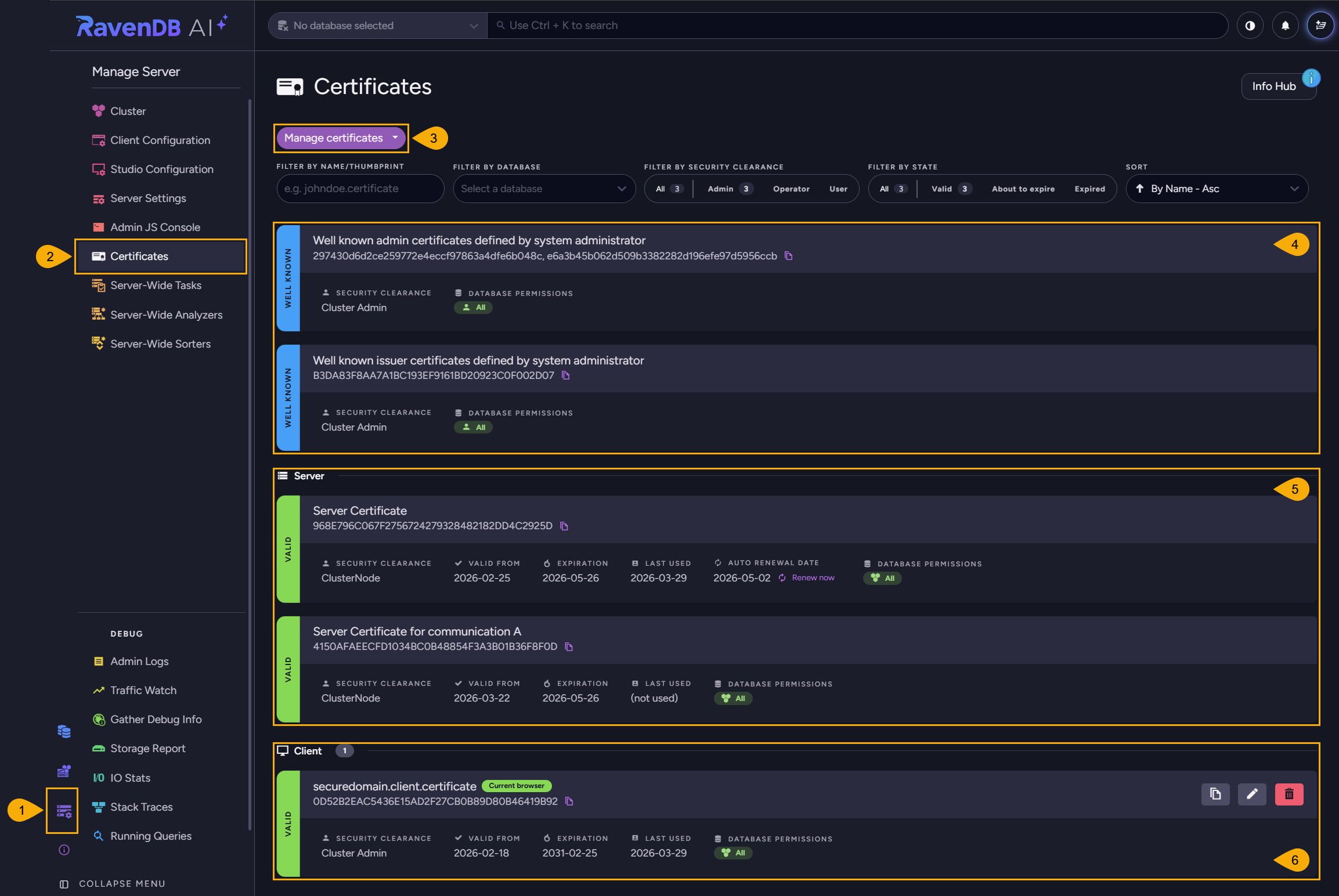
To open the certificates view: Manage Server > Certificates
-
Manage server
Server management options. -
Certificates
Open the certificates management view. -
Manage certificates
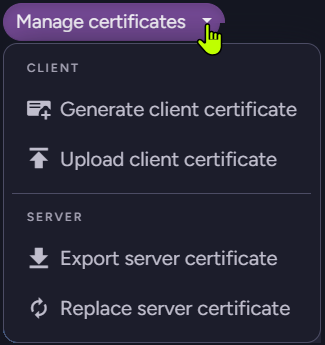
Manage client and server certificates.
- Generate client certificate
Create a new client certificate for secure access to RavenDB.
Assign permissions and security clearance as needed. - Upload client certificate
Register an existing client certificate to grant access to a user, application, or service.
This allows external clients to authenticate and interact with the server according to assigned permissions. - Export server certificate
Export the server certificate so it can be imported into other cluster nodes.
This is required for establishing secure, trusted communication between servers in a cluster. - Replace server certificate
Upload a new server certificate to replace the current one, updating the server’s identity for secure connections.
- Generate client certificate
-
Well-known certificates
- Well-known admin certificate
A client certificate defined by an administrator explicitly using its thumbprint, and given admin permissions. - Well-known issuer certificate
A CA (certificate authority) public certificate. Clients with certificates issued by this CA are trusted by the server and granted admin permissions.
- Well-known admin certificate
-
Server certificates
- Server certificate
This is the main server certificate, used by RavenDB to secure HTTPS connections for the server’s public endpoints.
It is used for:- Encrypting traffic between clients and the server.
- Authenticating the server’s identity to clients and other servers.
- Server certificate for communication A
This certificate is used for secure communication between cluster nodes.
TheArefers to the node's tag.
- Server certificate
-
Client certificate
Client certificates registered with this server are used to authenticate users and applications connecting to the database.
Each client certificate can be assigned specific permissions and security clearance levels, such as Cluster Administrator (ClusterAdmin), Operator, or User.
View and edit certificates
In the image below, the client certificates have different
security clearance and database permissions configurations.
This allows admins to protect database contents by customizing permissions.
For example, an application user can be given read/write access to the HR database, while project managers receive operator permissions on all databases.
You can grant different access levels by using different client certificates, each with its own set of permissions.
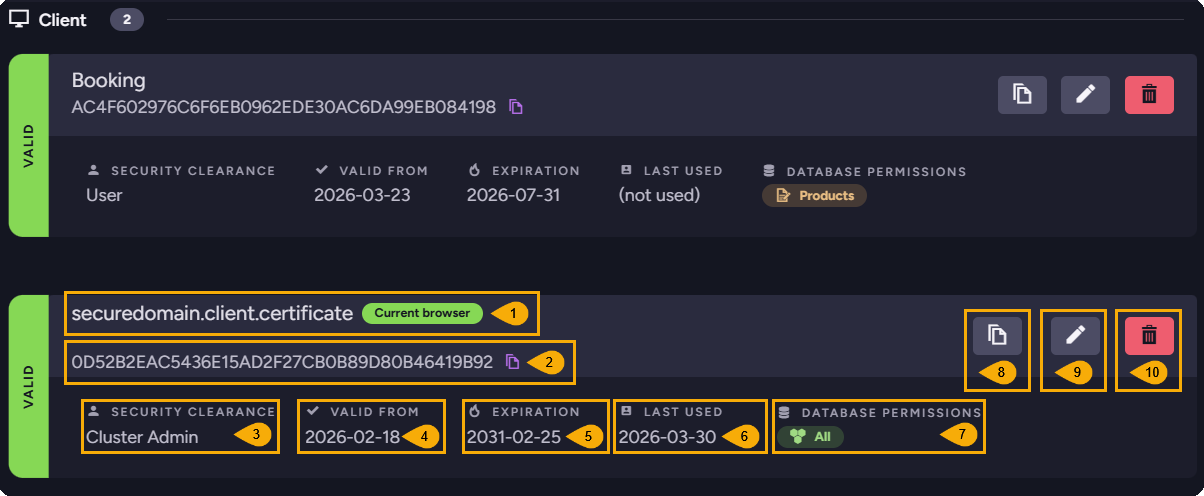
- Name
Client certificate name. - Thumbprint
Unique key for each certificate. - Security Clearance
Authorization level that determines the types of actions that can be performed with this certificate. - Valid From
Indicates when the certificate became valid. - Expiration
Client certificates are given 5 year expiration period by default. - Last Used
Time of the certificate's last usage (or "not used" to indicate it hasn't been used yet). - Database Permissions
The databases in this cluster that this client certificate has access to. - Clone certificate
You can create a new certificate with the same settings as an existing one by cloning it. - Edit Certificate
You can edit the certificate's security clearance and database permissions. - Delete Certificate
Deleting a certificate will revoke access for all clients using this certificate.
Generate a client certificate
Use this view to generate a client certificate directly via RavenDB.
Newly generated certificates will be added to the list of registered certificates.
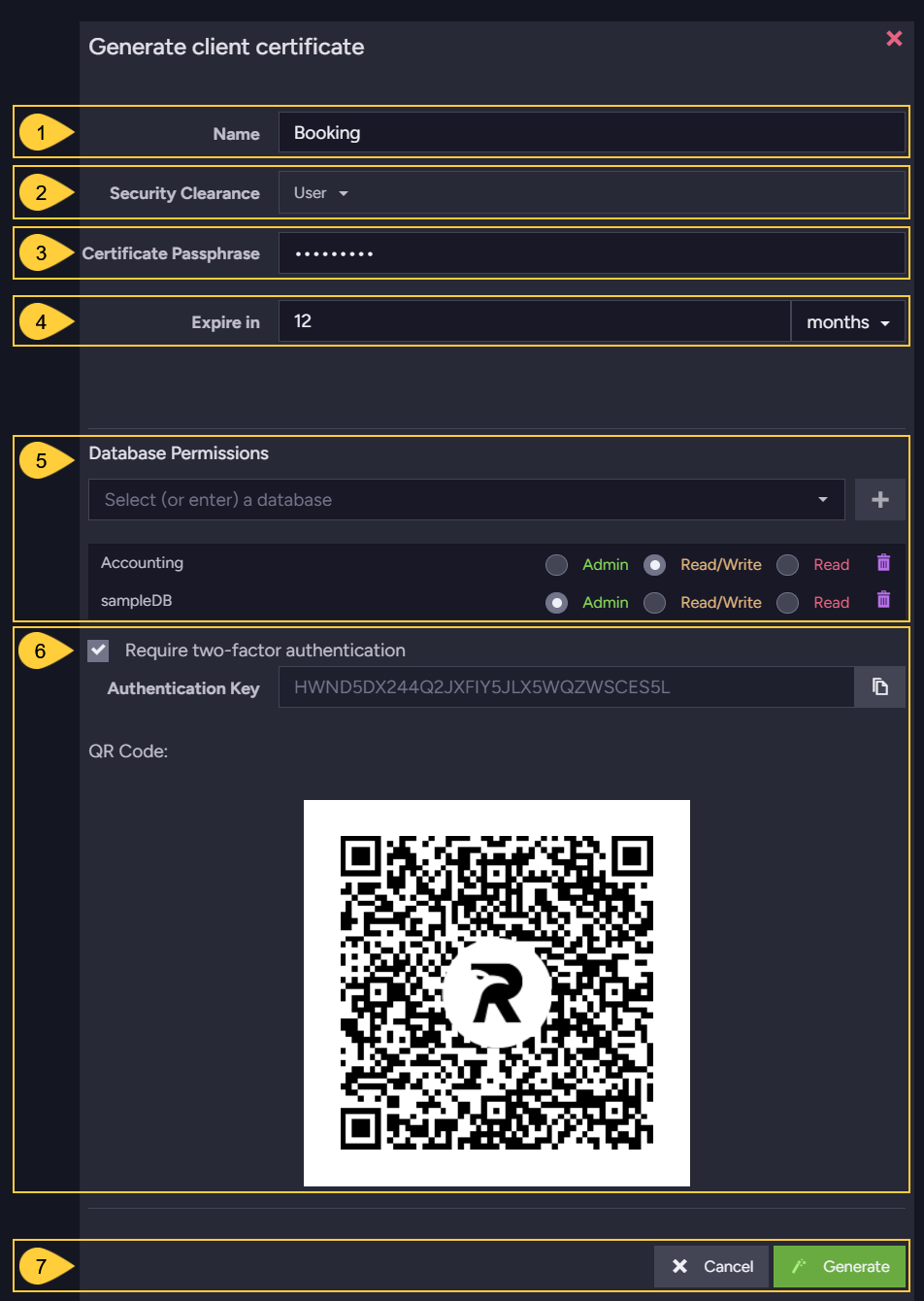
- Certificate Name
- Security Clearance Level
Read more here about available clearance levels. - Certificate Passphrase
- Expiration Period
Client certificate expiration is set to 5 years by default. - Database Permissions
Select the databases that this certificate gives access to,
and the allowed access level for each database. - Require two-factor authentication
Use this setting to add a two-factor authentication security layer to your certificate.-
Enabling two-factor authentication will display the certificate's authentication key and QR code.
-
You can then scan the QR code or copy the key by an external authentication application of your choice, e.g. Google Authenticator or 2FAS.
-
A client that connects Studio with a certificate that requires two-factor authentication, will be granted access only after providing a code generated by the external authentication service.
-
This is what Studio's clearance screen looks like when 2-factor authentication is used:
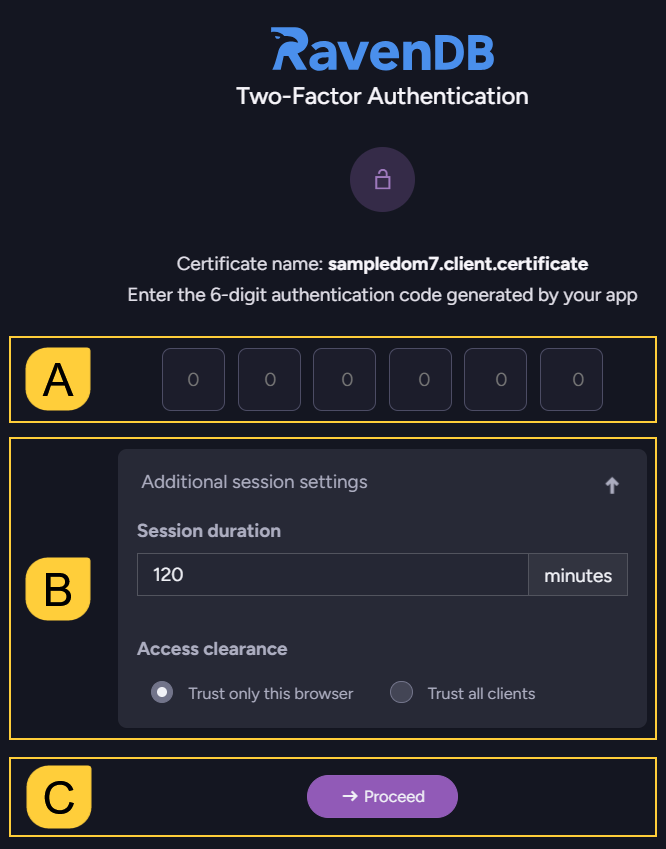
- A. Authentication Code
Provide a code generated by your 2-Factor authentication service. - B. Additional Settings
You can limit the session duration here.
You can also grant access only to this browser, or use this clearance screen to open Studio for other clients as well.
- A. Authentication Code
-
- Generate the certificate or Cancel.
The information collected in this view is used by RavenDB internally, and will not be stored in the certificate itself.
Enable communication between secure servers
To enable communication between two secure servers, you need to:
- Export (download) the
.pfxcertificate from the destination server. - Upload (import) the downloaded certificate into the source server.
Upload an existing client certificate
Use this option to upload an existing client certificate.
Uploaded certificates will be added to the list of registered certificates.
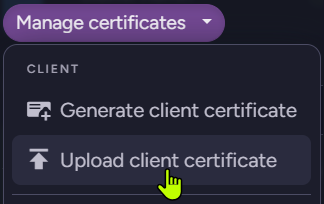
While uploading the client certificate you can modify its settings.
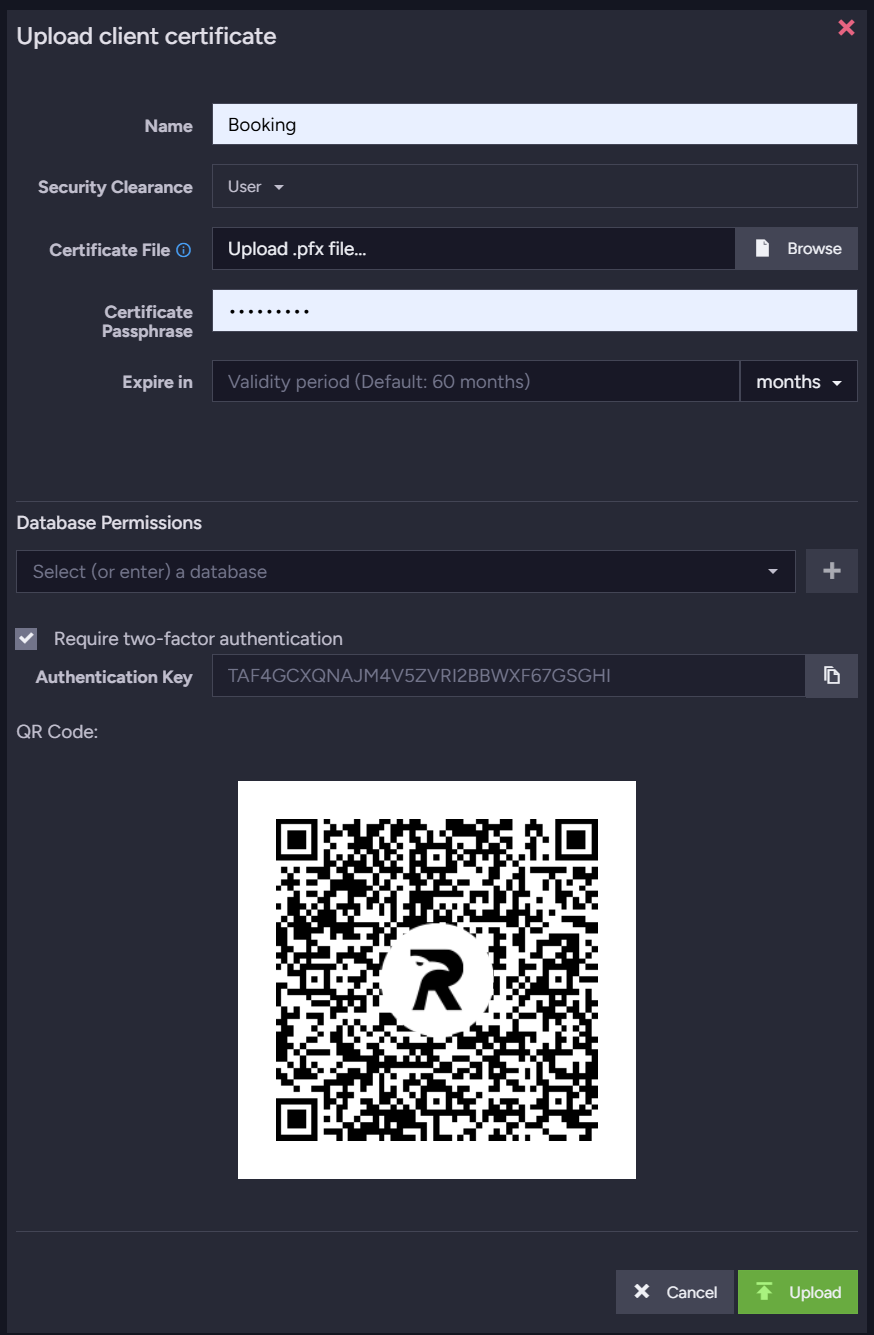
See the Generate a client certificate section to learn about the available settings.
Export server certificates
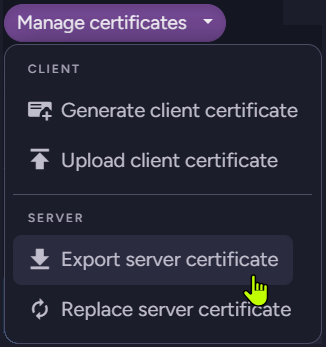
This option allows you to export the server certificate as a .pfx file.
In the case of a cluster that contains several different server certificates, a .pfx collection will be exported.
Certificate collections
.pfx files may contain a single certificate or a collection of certificates.
When uploading a .pfx file with multiple certificates, RavenDB will add all certificates to the list of registered certificates as a single entry, and explicitly allow access to all certificates by their thumbprint.