Additional Settings
-
After configuring your cluster nodes, as described in Node addresses,
the next step is to customize optional settings. -
In this article:
Additional settings
-
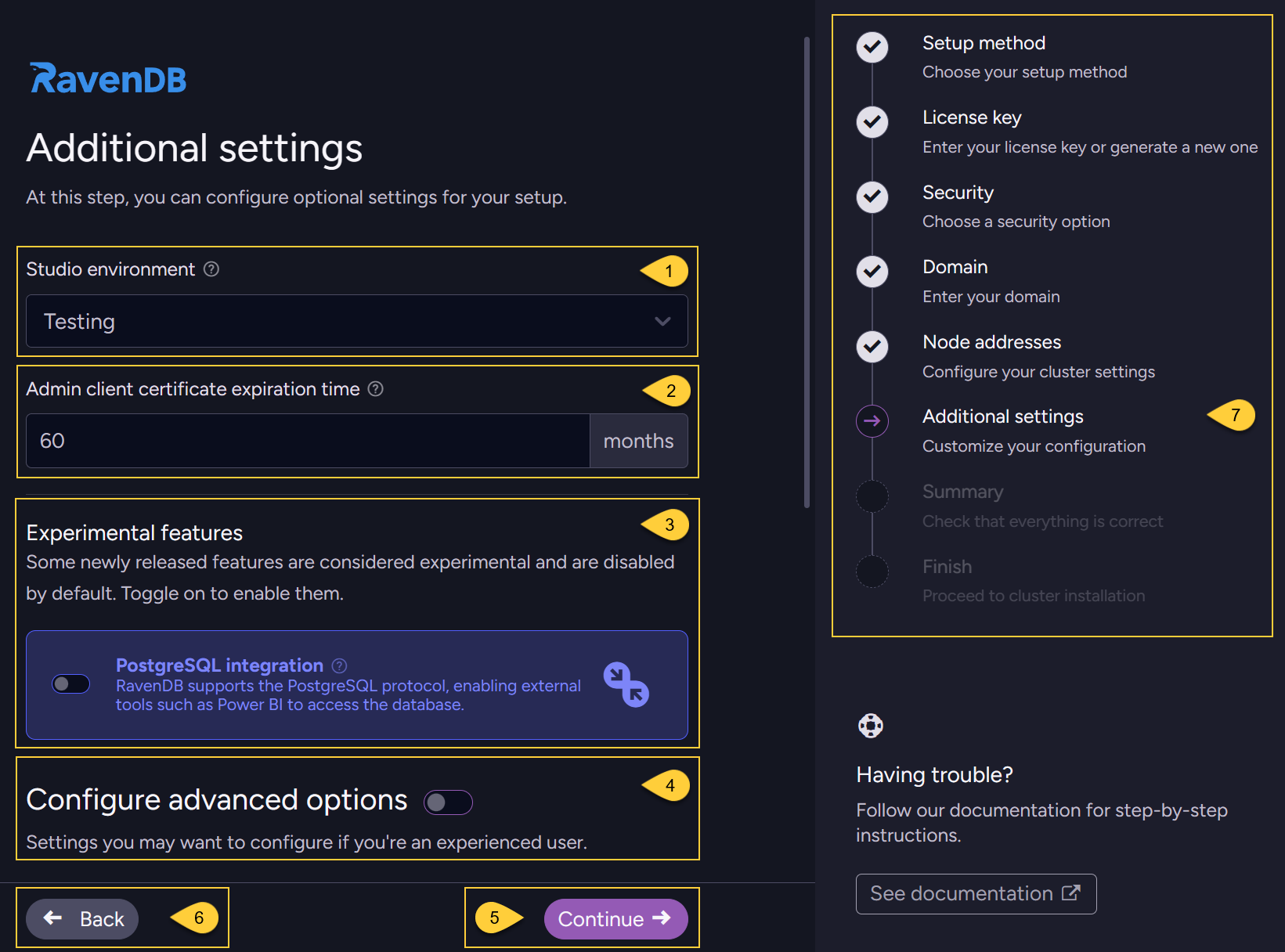
Studio environment:
You can select a text label that RavenDB Studio will display in the server UI.
This is only a visual identifier; it does not affect any settings or features.
It is meant to make it easier to distinguish between multiple environments when working with several servers.
You can choose from the following labels:- Production
- Testing
- Development
- None
When your server is up and running,
you can change this label at any time in RavenDB Studio in the Studio configuration view.In the wizard, this option is available only when you choose a Secure setup flow.
If you choose the Unsecured setup, this option will not appear in the wizard,
but you can still configure it later via the Studio configuration view.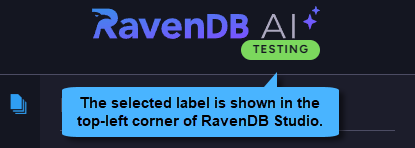
-
Admin client certificate expiration time:
This setting defines how long the admin client certificate will be valid.
By default, this is set to 60 months.
This option is available only when you choose a Secure setup flow in the wizard. -
Experimental features:
Some newly released features are considered experimental and are disabled by default.
For example, the PostgreSQL Protocol integration is currently an experimental feature.
Enabling it allows PostgreSQL-compatible clients (such as Power BI) to query data from a RavenDB database using the PostgreSQL wire protocol. This feature requires a license that includes the PostgreSQL Protocol.
Learn more in PostgreSQL Protocol. -
Configure advanced options:
Toggle this option on to expand the section.
Learn more below in Configure advanced options. -
Click "Continue" to proceed to the next step: Review setup.
-
Click "Back" to return to the previous step - Node addresses.
-
The navigation panel indicates your current step ("Additional settings") and the remaining steps in the wizard flow.
Configure advanced options
-
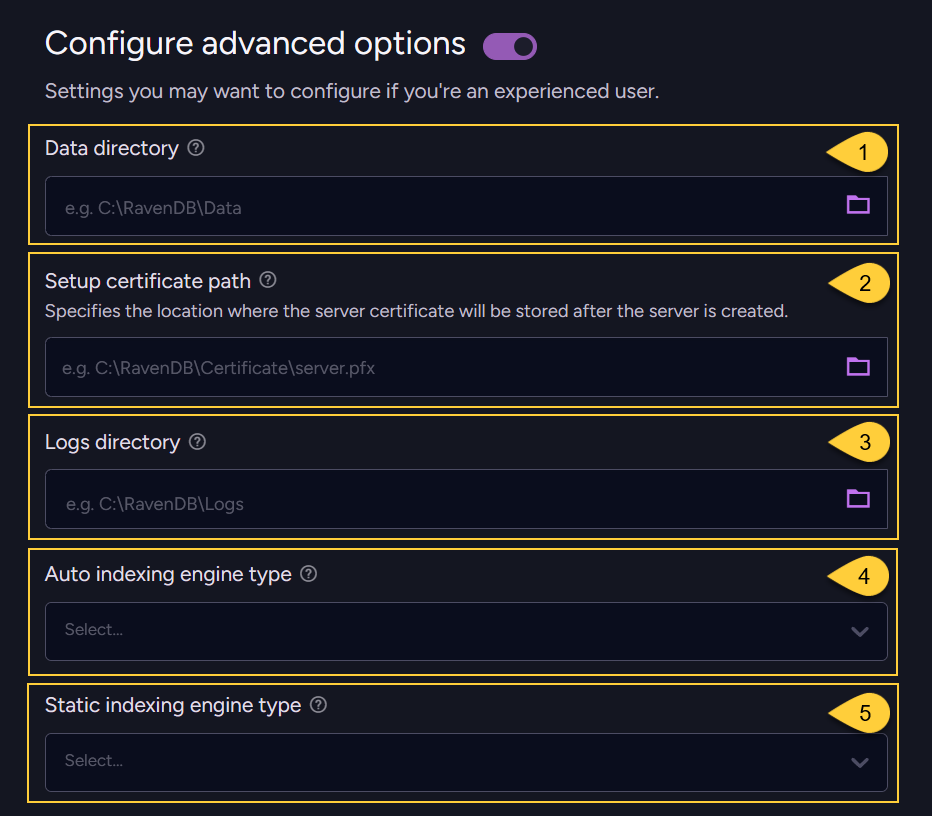
Data directory:
By default, RavenDB stores your data (databases, documents, and indexes) in theRavenDatadirectory under the extractedServerfolder.You can customize this location. The value you enter will be written to the settings.json file (created when setup is completed) as the value of the DataDir configuration key.
This directory must exist and be writable on all nodes in the cluster; otherwise, the setup will fail.
Learn more about the data directory structure in Storage: Directory Structure. -
Setup certificate path:
By default, RavenDB stores your server certificate (the.pfxfile) directly under the extractedServerfolder.You can change this by entering a full file path, including a custom file name with the .pfx extension.
For example:/etc/ravendb/security/server.pfx(linux),C:\RavenDB\Certificate\server.pfx(windows).The value you enter will be written to the settings.json file (created when setup is completed)
as the value of the Security.Certificate.Path configuration key.The directory part of this path must exist and be writable on every node.
RavenDB must be able to save the certificate file to this location for the cluster setup to succeed.When joining nodes to your cluster using a setup package,
make sure the same certificate file is available at this path on every node; otherwise, cluster setup may fail.This option is available only when you choose a Secure setup flow in the wizard.
-
Logs directory:
By default, RavenDB stores logs in theLogsdirectory under the extractedServerfolder.You can customize this location.
The value you enter will be written to the settings.json file as the value of the Logs.Path configuration key.This directory will be used on all nodes in the cluster. When joining nodes to your cluster using a setup package,
make sure this directory exists on each node; otherwise, cluster setup may fail.Learn more about the RavenDB logging system in Logging.
-
Auto indexing engine type:
Choose which search engine RavenDB will use for auto-indexes.
Select eitherCoraxorLuceneas the search engine.By default, Corax is used when running under a Community or Developer license or without a license;
for all other license types, the default is Lucene.This value will be written to the settings.json file as the value of the Indexing.Auto.SearchEngineType configuration key. You can override this choice later in the server configuration or per database.
-
Static indexing engine type:
Choose which search engine RavenDB will use for static (user-defined) indexes.
Select eitherCoraxorLuceneas the search engine.By default, Corax is used when running under a Community or Developer license or without a license;
for all other license types, the default is Lucene.This value will be written to the settings.json file as the value of the Indexing.Static.SearchEngineType configuration key. You can override this choice later for the whole server, per database, or per index.