---
title: "The Read-Only Access Level"
description: "* A client certificate with a User security clearance"
url: "https://docs.ravendb.net/6.2/studio/server/certificates/read-only-access-level"
version: "6.2"
---
# The Read-Only Access Level
> RavenDB publishes an official agent skill for coding assistants at https://docs.ravendb.net/skills/ravendb/SKILL.md (also installable with `npx skills add ravendb/skills`). The skill describes itself as: "Read this before writing any RavenDB query, client call or /databases/ request. Covers server setup, document modelling, the Node.js, .NET and Python clients, RQL, indexes, vector search and AI agents. Code written from recall tends to run and return the wrong rows, because RQL resembles SQL and the clients take field names as plain strings."
## The Read-Only Access Level
> **Note**
>
> - A [client certificate](https://docs.ravendb.net/6.2/server/security/authentication/client-certificate-usage.md) with a User security clearance
> can grant different levels of access for different databases. These access levels are **Admin**,
> **Read/Write**, and **Read Only**.
>
> - The Read Only access level only allows you to read data from a database, but not to write data.
> You cannot update existing documents, change any configurations, define [ongoing tasks](https://docs.ravendb.net/6.2/studio/database/tasks/ongoing-tasks/general-info.md)
> or [static indexes](https://docs.ravendb.net/6.2/indexes/creating-and-deploying.md#static-indexes). However, the database
> will still create [auto-indexes](https://docs.ravendb.net/6.2/indexes/creating-and-deploying.md#auto-indexes) in response
> to the clients' queries.
>
> - Clients with Read Only access can still become [subscription workers](https://docs.ravendb.net/6.2/client-api/data-subscriptions/what-are-data-subscriptions.md)
> to consume data subscriptions.
>
> - When in 'Read Only mode', there are various slight differences in the appearance of the Studio
> that make it clear to the user what they can and can't do.
>
> - In this page:
>
> - [Create a Client Certificate with Read Only Access](#create-a-client-certificate-with-read-only-access)
> - [The Studio in "Read Only" Mode](#the-studio-in-"read-only"-mode)
## Create a Client Certificate with Read Only Access
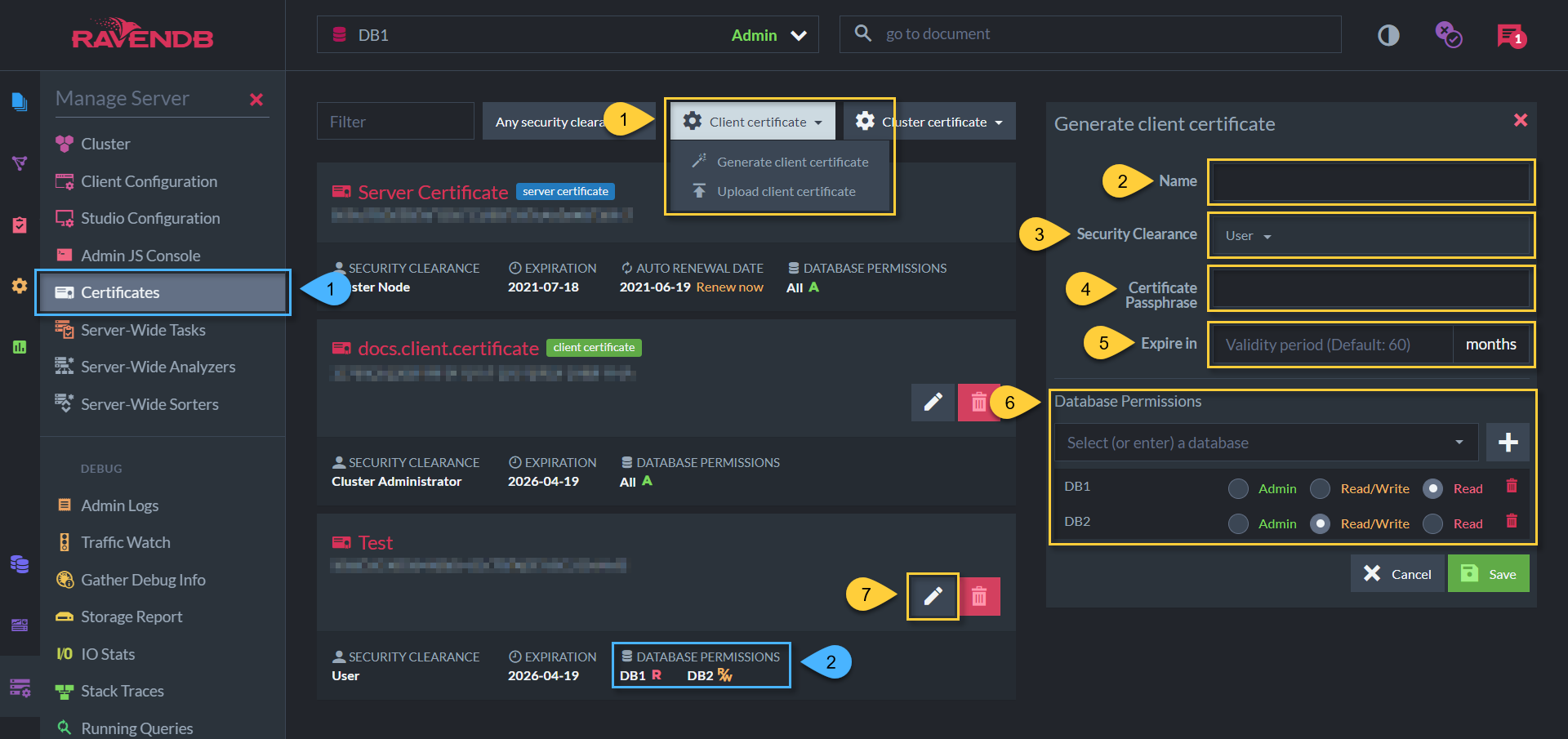
> **Info**
>
> 1. This view is found in `Manage Server` > `Certificates`
>
> 2. This area lists the databases' names, and the access level for each one:
>
> - **\A\** - Admin
> - **\R/W\** - Read/Write
> - **\R\** - Read Only
> **Warning**
>
> 1. This drop-down menu allows you to either generate a new client certificate, or upload
> your own. This will open the Generate/Upload Client Certificate dialog you see on the
> right.
>
> 2. Enter the certificate's name.
>
> 3. Select the security clearance. Only the User clearance can have a Read Only access level
> for a given database. The options are:
>
> - Cluster Administrator
> - Operator
> - User
>
> 4. Certificate passphrase - a password that needs to be entered each time someone installs
> this certificate.
>
> 5. You can set a custom expiration date for this certificate. This is defined in terms of
> months from the current date. Default: 60 months, or 5 years.
>
> 6. Choose the database permissions (the access level) for each database. If a given
> database is not added to this list, the certificate will grant no access to that database
> *at all.*
>
> 7. Click this to edit a certificate. The name, security clearance level, expiration date,
> and database permissions can all be modified.
## The Studio in Read Only Mode
This section shows the slight variations in the studio that tell you which security
clearance and which access level you currently have, and what you can or can't do.
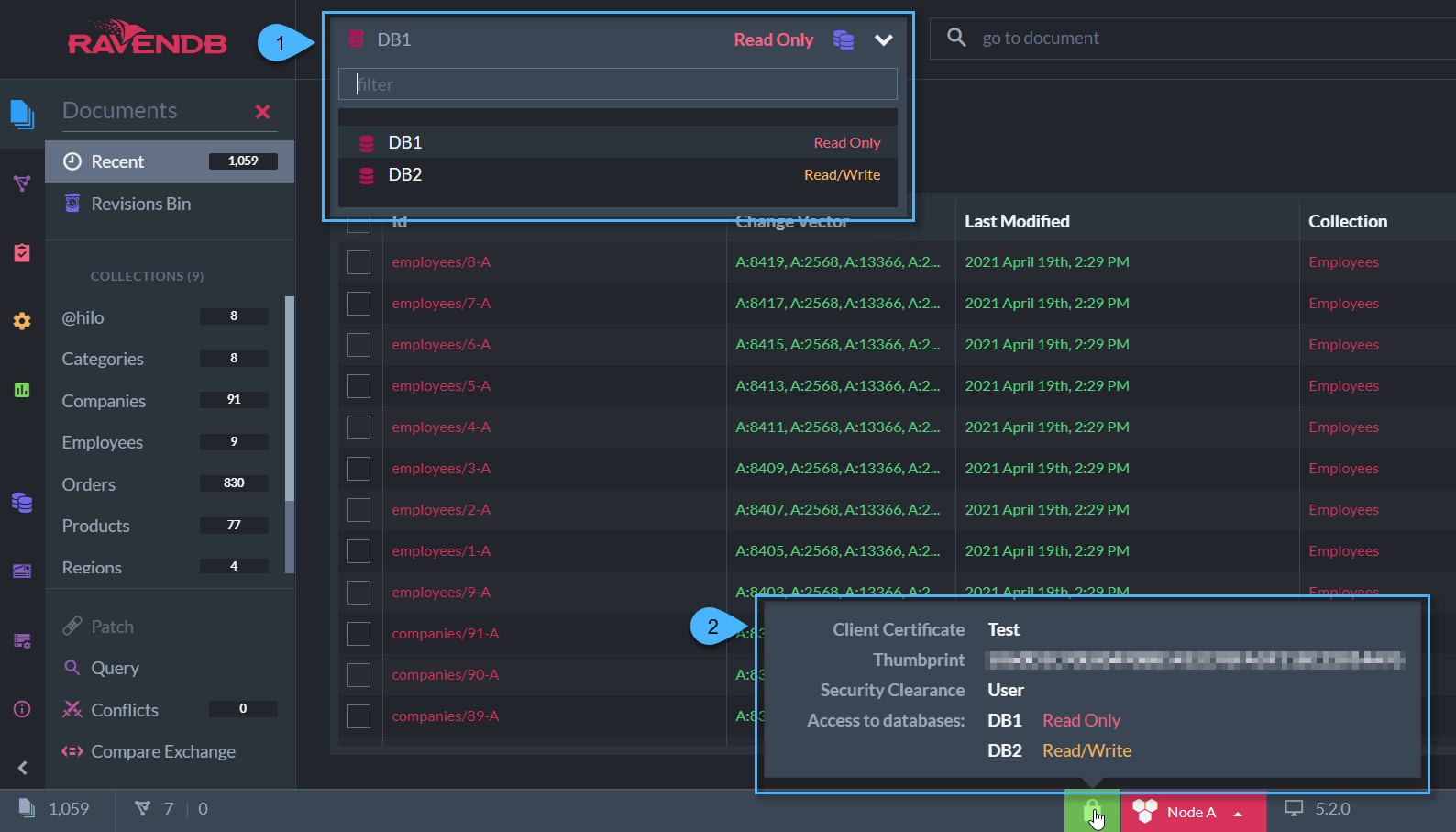
> **Info**
>
> 1. This dropdown menu allows you to choose a database to view. Access levels are indicated
> on the right.
>
> 2. Hover on the green padlock icon at the bottom of the screen to view information about
> the certificate your browser is using to access the server.
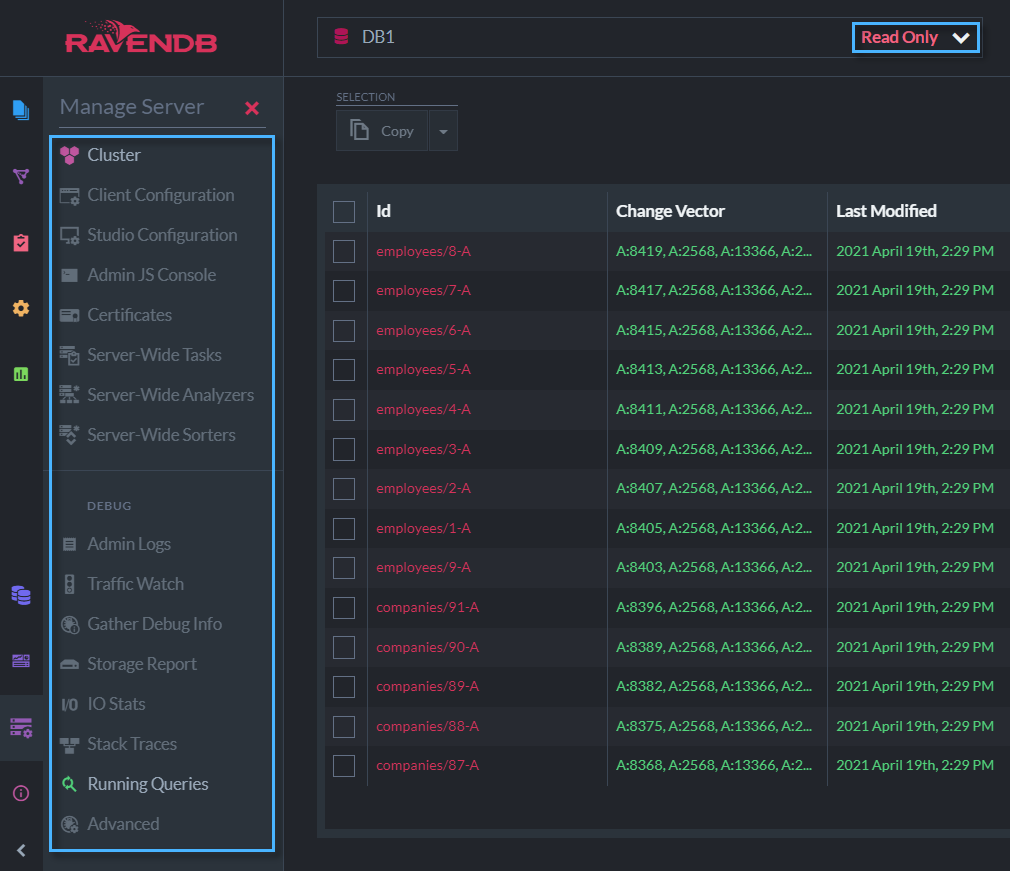
> **Info**
>
> When using a certificate with **Security Clearance "User"**, most of the views that pertain
> to the server (in the "Manage Server" menu), are inaccessible.
>
> Note: this is always true for any certificate with security clearance User - even with
> the **Admin** and **Read/Write** access levels.
>
> The Manage Server views that can be accessed with a User security clearance are:
>
> - The [Cluster View](https://docs.ravendb.net/6.2/studio/cluster/cluster-view.md), where info about the
> cluster topology can be viewed.
> - The Running Queries view, a live display of queries the server is currently processing.
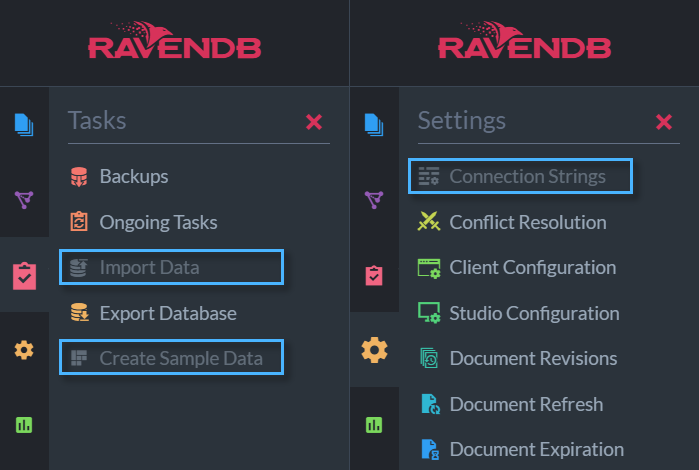
> **Info**
>
> This split image shows which views that pertain to a specific database are restricted in Read
> Only mode.
>
> - On the left we see the database "Tasks" menu. "Import Data" and "Create Sample Data" are
> restricted.
> - On the right we see the database "Settings" menu. Only one view - "Connection Strings" - is
> restriced.
> **Info**
>
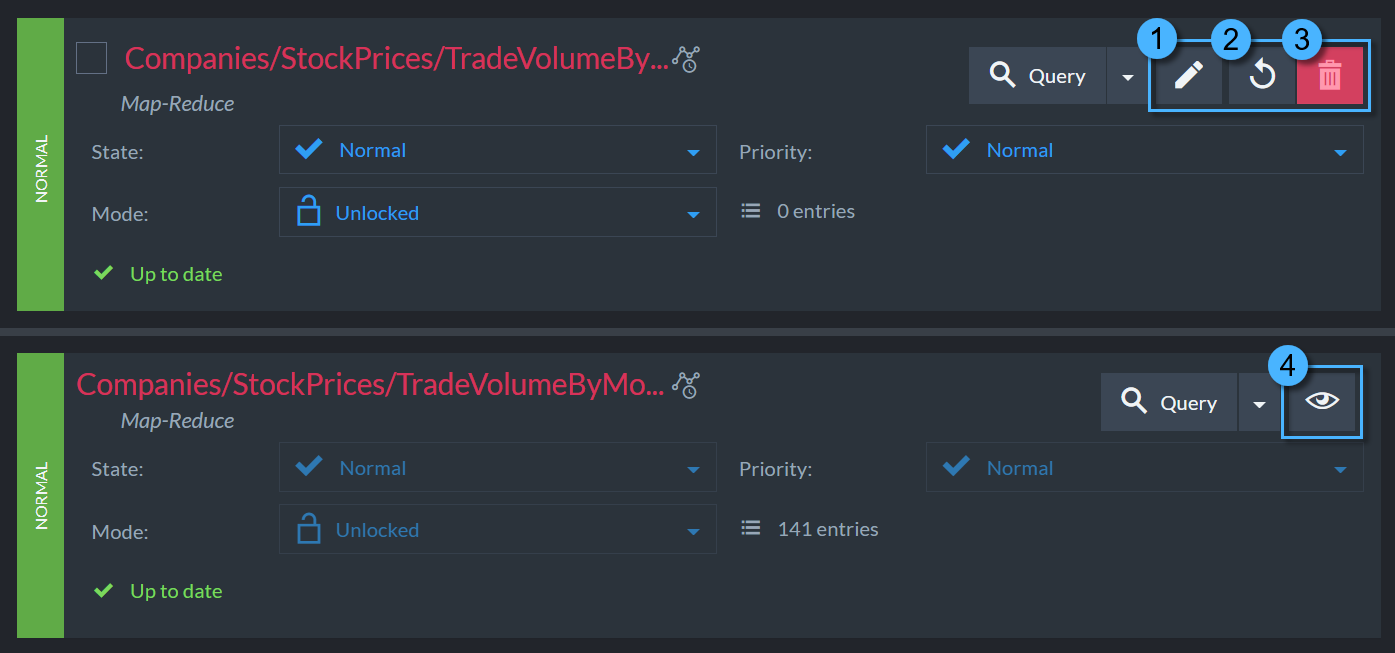
> This split image compares the same index in the "Indexes" view in Read Only mode versus other
> modes.
>
> - At the top we see the index in the normal viewing mode ( *not* Read Only). There are three
> buttons at the top right:
>
> 1. Edit - view & edit the index definition.
> 2. Reset index - force the index to start re-indexing all of its data.
> 3. Remove - delete the index.
>
> - At the bottom we see the same index in Read Only mode. In the same spot we now see only one
> button:
>
> 4. This is the "viewing" button. It opens the exact same view as the above "editing"
> button, except you cannot modify the index. Reseting or deleting the index are not possible
> in Read Only mode.
>
> This "viewing" button replaces the "editing" button in other parts of the Studio as well.