---
title: "Choose Setup Method"
description: "* After running the Setup Wizard and accepting the EULA as described in the Overview,"
url: "https://docs.ravendb.net/6.2/start/installation/setup-wizard/choose-setup-method"
version: "6.2"
---
# Choose Setup Method
> RavenDB publishes an official agent skill for coding assistants at https://docs.ravendb.net/skills/ravendb/SKILL.md (also installable with `npx skills add ravendb/skills`). The skill describes itself as: "Read this before writing any RavenDB query, client call or /databases/ request. Covers server setup, document modelling, the Node.js, .NET and Python clients, RQL, indexes, vector search and AI agents. Code written from recall tends to run and return the wrong rows, because RQL resembles SQL and the clients take field names as plain strings."
> **Note**
>
> - After running the Setup Wizard and accepting the EULA as described in the [Overview](https://docs.ravendb.net/6.2/start/installation/setup-wizard/overview.md),
> the next step is to choose the **setup method** you want to proceed with.
>
> - In this article:
> - [Available setup methods](#available-setup-methods)
> - [Set up a new cluster](#set-up-a-new-cluster)
> - [Create a package for external setup](#create-a-package-for-external-setup)
> - [Use an existing setup package](#use-an-existing-setup-package)
## Available setup methods {#available-setup-methods}
The following setup methods are available:
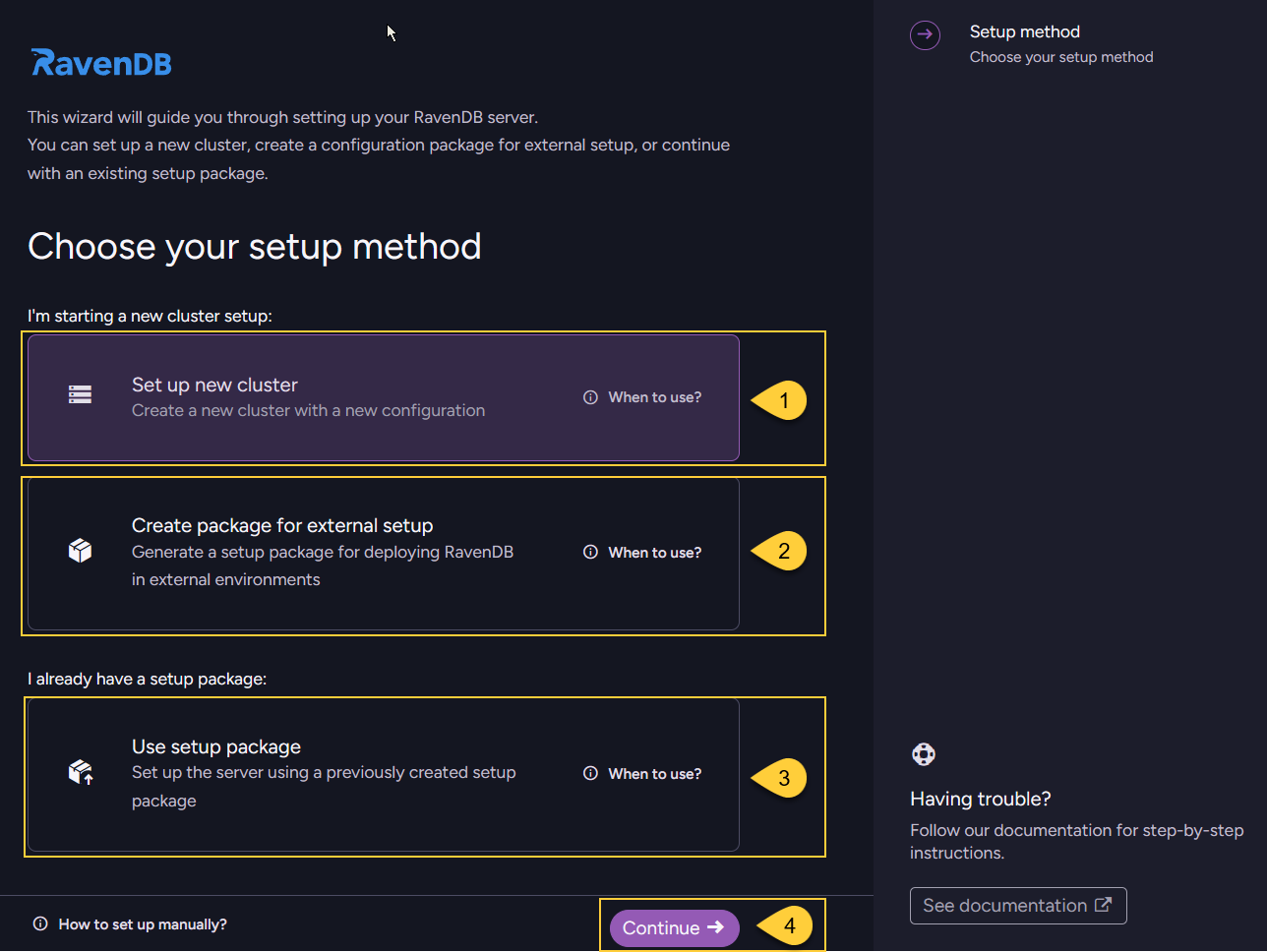
1. **Set up a new cluster**
Configure a new cluster (single-node or multi-node)
and start the **first RavenDB instance** on the machine where the Setup Wizard is running.
Learn more below in [Set up a new cluster](#set-up-a-new-cluster).
2. **Create a package for external setup**
Prepare a configuration package without starting a server locally.
Learn more below in [Create a package for external setup](#create-a-package-for-external-setup).
3. **Use an existing setup package**
Apply a previously generated setup package to join a node to a cluster.
Learn more below in [Use an existing setup package](#use-an-existing-setup-package).
4. Click **"Continue"** to proceed to the next step in the wizard, which is [Providing the license key](https://docs.ravendb.net/6.2/start/installation/setup-wizard/provide-license-key.md).
## Set up a new cluster {#set-up-a-new-cluster}
- Use this flow when you want to configure a new cluster (single-node or multi-node)
and start the **first RavenDB instance** on the machine where the Setup Wizard is running.
The wizard will guide you through the configuration process.
- At the end of this flow, the wizard generates a setup package (unless you are configuring a single-node unsecured cluster).
If you define a **multi-node** cluster, you will use this generated package with the **Use setup package** method to add the remaining nodes to the cluster.
- The following table summarizes the step-by-step flow for this setup method.
| | Step | What you do |
| - | - | - |
| ▶️ | [Run Setup Wizard](https://docs.ravendb.net/6.2/start/installation/setup-wizard/overview.md#how-to-run-the-setup-wizard) | ️Run `run.ps1` (Windows) or `run.sh` (Linux). |
| ⚖️ | [Accept EULA](https://docs.ravendb.net/6.2/start/installation/setup-wizard/overview.md#license-agreement-eula) | ️Required to continue. |
| 🔀 | [Choose setup method](https://docs.ravendb.net/6.2/start/installation/setup-wizard/choose-setup-method.md) | Select **"Set up new cluster"**. |
| 🔑 | [Provide license](https://docs.ravendb.net/6.2/start/installation/setup-wizard/provide-license-key.md) | Enter your license key. |
| 🔒 | [Choose security option](https://docs.ravendb.net/6.2/start/installation/setup-wizard/choose-security-option.md) | Select how to secure your server. Available options:
- Let’s Encrypt
- Provide your own certificate
- Unsecured |
| 🌐 | [Configure node addresses](https://docs.ravendb.net/6.2/start/installation/setup-wizard/configure-node-addresses.md) | Define the cluster topology.
Add nodes and set their IP addresses. |
| ⚙️ | [Additional settings](https://docs.ravendb.net/6.2/start/installation/setup-wizard/additional-settings.md) | Configure optional settings. |
| 📝 | [Review setup](https://docs.ravendb.net/6.2/start/installation/setup-wizard/review-setup.md) | Review your settings before proceeding. |
| ⏳ | [Configuration in progress](https://docs.ravendb.net/6.2/start/installation/setup-wizard/finish-setup.md) | Wait while the wizard applies your configuration and certificate (if applicable).
A setup package (ZIP) is generated (unless configuring a single-node unsecured cluster). |
| 🚀 | [Start the **first** configured node](https://docs.ravendb.net/6.2/start/installation/setup-wizard/finish-setup.md#restarting-the-server) | Click "Restart server".
The node restarts and becomes operational. |
| 📦 | Continue with
["Use setup package"](https://docs.ravendb.net/6.2/start/installation/setup-wizard/use-setup-package.md) | If creating a multi-node cluster,
continue with **"Use setup package"** to add the remaining nodes. |
## Create a package for external setup {#create-a-package-for-external-setup}
- Use this flow when you want to prepare a configuration (single-node or multi-node) and **deploy it elsewhere**,
without starting a node on the local machine where the Setup Wizard is running.
- The Setup Wizard will generate a setup package (ZIP) containing the configuration,
which you can later apply on other machines (for example in isolated environments or automated deployment pipelines) using the **Use setup package** method.
- The following table summarizes the step-by-step flow for this setup method.
| | Step | What you do |
| - | - | - |
| ▶️ | [Run Setup Wizard](https://docs.ravendb.net/6.2/start/installation/setup-wizard/overview.md#how-to-run-the-setup-wizard) | ️Run `run.ps1` (Windows) or `run.sh` (Linux). |
| ⚖️ | [Accept EULA](https://docs.ravendb.net/6.2/start/installation/setup-wizard/overview.md#license-agreement-eula) | ️Required to continue. |
| 🔀 | [Choose setup method](https://docs.ravendb.net/6.2/start/installation/setup-wizard/choose-setup-method.md) | Select **"Create package for external setup"**. |
| 🔑 | [Provide license](https://docs.ravendb.net/6.2/start/installation/setup-wizard/provide-license-key.md) | Enter your license key. |
| 🔒 | [Choose security option](https://docs.ravendb.net/6.2/start/installation/setup-wizard/choose-security-option.md) | Select how to secure your server. Available options:
- Let’s Encrypt
- Provide your own certificate
- Unsecured |
| 🌐 | [Configure node addresses](https://docs.ravendb.net/6.2/start/installation/setup-wizard/configure-node-addresses.md) | Define the cluster topology.
Add nodes and set their IP addresses. |
| ⚙️ | [Additional settings](https://docs.ravendb.net/6.2/start/installation/setup-wizard/additional-settings.md) | ️Configure optional settings. |
| 📝 | [Review setup](https://docs.ravendb.net/6.2/start/installation/setup-wizard/review-setup.md) | Review your settings before proceeding. |
| ⏳ | [Configuration in progress](https://docs.ravendb.net/6.2/start/installation/setup-wizard/finish-setup.md) | Wait while the wizard creates the setup package with your configuration. |
| 📦 | Continue with
["Use setup package"](https://docs.ravendb.net/6.2/start/installation/setup-wizard/use-setup-package.md) | On each target machine, run the Setup Wizard and use **Use setup package** to set up and start the cluster nodes. |
## Use an existing setup package {#use-an-existing-setup-package}
- Choose this flow when you already have a setup package (ZIP) created using one of the previous methods.
Use this method when:
- Setting up an additional node in an existing cluster.
- Setting up a new cluster from a pre-configured package.
- The Setup Wizard will apply the predefined configuration to the machine you run it on and add the node to the cluster.
- Repeat this process on each target machine to complete the cluster setup for each node in the cluster.
| | Step | What you do |
| - | - | - |
| ▶️ | [Run Setup Wizard](https://docs.ravendb.net/6.2/start/installation/setup-wizard/overview.md#how-to-run-the-setup-wizard) | ️Run `run.ps1` (Windows) or `run.sh` (Linux). |
| ⚖️ | [Accept EULA](https://docs.ravendb.net/6.2/start/installation/setup-wizard/overview.md#license-agreement-eula) | ️Required to continue. |
| 🔀 | [Choose setup method](https://docs.ravendb.net/6.2/start/installation/setup-wizard/use-setup-package.md#select-use-package) | Select **"Use setup package"**. |
| 📥️ | [Upload setup package](https://docs.ravendb.net/6.2/start/installation/setup-wizard/use-setup-package.md#upload-setup-package) | Upload the setup package (ZIP) created earlier. |
| 🖥️ | [Select node](https://docs.ravendb.net/6.2/start/installation/setup-wizard/use-setup-package.md#select-node) | Select the node you want to set up from the package |
| ⏳ | [Configuration in progress](https://docs.ravendb.net/6.2/start/installation/setup-wizard/use-setup-package.md#in-progress) | Wait while the wizard applies the configuration to this node. |
| 🚀 | [Start the node](https://docs.ravendb.net/6.2/start/installation/setup-wizard/use-setup-package.md#restart-server) | Click "Restart server".
The node restarts and becomes operational. |
| 📦 | Continue with
["Use setup package"](https://docs.ravendb.net/6.2/start/installation/setup-wizard/use-setup-package.md#repeat) | Repeat this process on each target machine to add the remaining nodes to the cluster. |